
OpenClaw is a self-hosted AI assistant that connects model providers, tools, messaging channels, and a local control Gateway. On an Ubuntu 24.04 VM, the safest baseline is to keep the Gateway on its default loopback-only bind, run it as the managed user service installed by OpenClaw, connect Telegram through long polling, and avoid opening the Gateway port to the public internet. Telegram does not need an inbound web port in this default mode.
Raff Technologies is the VM platform used by the original tutorial. The saved tested environment remains Ubuntu 24.04 LTS on Raff 2 vCPU / 4 GB RAM VM. This revision re-verifies the deployment against current OpenClaw documentation on September 5, 2026 and pins OpenClaw 2026.9.1, the current npm latest release at verification time. It does not claim a new hardware benchmark or a fresh end-to-end retest.
OpenClaw's Gateway listens on port 18789 and binds to loopback by default. Current upstream security guidance explicitly recommends keeping it on loopback where possible, using an SSH tunnel or Tailscale Serve for remote UI access, and never exposing an unauthenticated Gateway on 0.0.0.0. This tutorial therefore does not add a public UFW rule for 18789.
Prerequisites:
- An Ubuntu 24.04 VM with SSH and sudo access
- A non-root administrative user
- A supported model-provider login or API key
- A Telegram account
- A Telegram bot token created with the real
@BotFather - A second SSH session or recovery path before changing firewall/access settings
Step 1 — Verify Ubuntu, resources, SSH, and network exposure
Confirm the OS:
cat /etc/os-release
uname -r
Check memory and disk space:
free -h
df -h /
Confirm your current identity and sudo access:
id
sudo -v
List listening ports before installing anything:
sudo ss -tulpn
Keep the current SSH session open while you work. Open a second SSH session now so you know the recovery path works before hardening or firewall changes.
Verify: Ubuntu should report 24.04, sudo should work for the administrative user, and you should know which services/ports are already listening before OpenClaw is installed.
Step 2 — Apply Ubuntu updates and check for a required reboot
Update package metadata and review available upgrades:
sudo apt update
apt list --upgradable 2>/dev/null
Apply the updates according to your maintenance policy:
sudo apt upgrade
Check whether a reboot is required:
if [ -f /var/run/reboot-required ]; then
  cat /var/run/reboot-required
else
  echo "No reboot required"
fi
If a reboot is required, schedule it before installing the long-running Gateway service, then reconnect and confirm the VM is healthy.
Verify: apt update should finish without repository errors, required security updates should be understood/applied, and any necessary reboot should be completed before continuing.
Step 3 — Inspect and dry-run the official OpenClaw installer
OpenClaw's current recommended Linux installer checks the operating system, verifies or installs a supported Node.js runtime, installs OpenClaw through npm by default, and can manage onboarding. On Linux it provisions the supported Node 24 LTS path when Node is missing; OpenClaw currently supports Node 22.22.3+, 24.15+, and 25.9+ and recommends Node 26 where appropriate.
Download the official installer instead of immediately piping it into a shell:
curl -fsSL --proto '=https' --tlsv1.2 \
  https://openclaw.ai/install.sh \
  -o /tmp/openclaw-install.sh
Inspect the beginning of the script and its help output:
head -n 40 /tmp/openclaw-install.sh
bash /tmp/openclaw-install.sh --help
Preview the exact install without changing the server:
bash /tmp/openclaw-install.sh \
  --dry-run \
  --version 2026.9.1 \
  --no-onboard
Verify: The script should come from https://openclaw.ai/install.sh, help output should display normal installer options, and the dry run should target OpenClaw 2026.9.1 without reporting an unsupported platform/runtime.
Step 4 — Install OpenClaw 2026.9.1 and verify the CLI
Run the inspected installer with an exact version pin and skip onboarding for now:
bash /tmp/openclaw-install.sh \
  --version 2026.9.1 \
  --no-onboard \
  --verify
Start a new shell if the installer updates your PATH, then check:
openclaw --version
node --version
The installer is preferred over sudo npm install -g openclaw@latest because it handles supported Node/runtime checks and avoids common root-owned npm-prefix problems on Linux.
Remove the temporary installer copy when finished:
rm -f /tmp/openclaw-install.sh
Verify: openclaw --version should report 2026.9.1, and node --version should report a runtime supported by current OpenClaw requirements.
Step 5 — Run onboarding and install the managed Gateway service
Start OpenClaw's guided setup:
openclaw onboard --install-daemon
During onboarding:
- choose the model provider you actually use;
- authenticate with the provider or enter its API key when prompted;
- keep the Gateway on its normal local/loopback configuration;
- install the managed daemon/service;
- skip optional channels/skills/plugins you do not need yet;
- keep workspace/state under your user account.
Do not paste provider secrets into screenshots, tickets, shell commands, Git repositories, or public documentation. Use the OpenClaw prompt/configuration flow so credentials are stored in the application's supported state/auth stores.
After onboarding:
openclaw config validate
openclaw doctor
Verify: Configuration validation should pass, openclaw doctor should not report an unresolved critical setup failure, and the managed Gateway service should be installed.
Step 6 — Verify the Gateway service, loopback bind, and default port
Check Gateway state:
openclaw gateway status
Inspect the configured bind and port:
openclaw config get gateway.bind
openclaw config get gateway.port
If the values are not explicitly authored, OpenClaw's current defaults are loopback and port 18789.
Check the live listener:
sudo ss -lntp | grep ':18789' || true
The intended security posture is a loopback listener such as:
127.0.0.1:18789
not a public 0.0.0.0:18789 listener.
Check the managed user unit:
systemctl --user status openclaw-gateway.service --no-pager
OpenClaw's Linux service flow uses a systemd user unit. openclaw doctor also checks systemd lingering so the Gateway can remain alive after logout.
Verify: The Gateway should be running, port 18789 should be loopback-only, and the managed user service should be active without a restart loop.
Step 7 — Apply a messaging-only tool baseline and run the security audit
For a Telegram-first assistant that does not need arbitrary host command execution, start from a narrow tool posture:
openclaw config set tools.profile messaging
openclaw config set tools.exec.security deny
openclaw config set tools.exec.ask always
openclaw config set tools.elevated.enabled false
Validate the resulting configuration:
openclaw config validate
Restart if OpenClaw tells you the changed settings require it:
openclaw gateway restart
Run the security checks:
openclaw security audit
openclaw security audit --deep
Upstream recommends these audits after configuration changes and before expanding network/channel exposure. The deep audit adds live Gateway probes and additional runtime checks.
This restrictive tool profile is a safe starting point, not a requirement for every OpenClaw workflow. If you later enable shell, browser, file-write, elevated, or automation tools, do so deliberately and re-run the audit.
Verify: openclaw config validate should pass, the security audit should have no unexplained critical findings, and dangerous execution/elevated capabilities should remain disabled unless explicitly required.
Step 8 — Protect OpenClaw state and secret-bearing files
OpenClaw's current security checks expect private state permissions. Tighten the main state directory and config file:
chmod 700 ~/.openclaw
If the config exists:
chmod 600 ~/.openclaw/openclaw.json
Inspect without printing credential contents:
stat -c '%a %n' ~/.openclaw
stat -c '%a %n' ~/.openclaw/openclaw.json 2>/dev/null || true
OpenClaw state can include model auth profiles, channel credentials, pairing allowlists, session metadata/transcripts, and configuration. Do not sync ~/.openclaw through a broad shared Dropbox/Drive/iCloud folder or copy it into public Git repositories.
Run the built-in secret scan:
openclaw secrets audit --check
Verify: ~/.openclaw should be owner-only, the config should not be group/world-readable, and the secrets audit should not show an unexplained plaintext or unresolved-secret problem.
Step 9 — Create a Telegram bot and store its token without printing it
In Telegram, verify that the account is exactly:
@BotFather
Create a bot with:
/newbot
Save the token privately. OpenClaw's Telegram integration supports a config token, token file, or TELEGRAM_BOT_TOKEN environment fallback for the default account. This tutorial uses the environment fallback so the bot token is not copied into openclaw.json.
Create/update OpenClaw's private environment file:
mkdir -p ~/.openclaw
touch ~/.openclaw/.env
chmod 600 ~/.openclaw/.env
sed -i '/^TELEGRAM_BOT_TOKEN=/d' ~/.openclaw/.env

read -s -p "Telegram bot token: " TELEGRAM_BOT_TOKEN
echo
printf 'TELEGRAM_BOT_TOKEN=%s\n' "$TELEGRAM_BOT_TOKEN" >> ~/.openclaw/.env
unset TELEGRAM_BOT_TOKEN
Register the Telegram channel using the environment value:
openclaw channels add --channel telegram --use-env
Validate and restart if requested:
openclaw config validate
openclaw gateway restart
Verify: Telegram should appear as a configured channel, the token should not be visible in openclaw config get output, and ~/.openclaw/.env should have mode 600.
Step 10 — Pair your Telegram DM with the Gateway
Open the actual bot you created and send it a direct message such as:
/start
OpenClaw's default Telegram DM policy is pairing. Unknown senders receive a one-time pairing code; current upstream documentation says the code expires after one hour.
On the VM, list pending Telegram pairings:
openclaw pairing list telegram
Approve only the code associated with your own Telegram account:
openclaw pairing approve telegram PAIRING_CODE
Do not change the DM policy to a globally open mode just to avoid pairing. If multiple people will message the bot, use explicit allowlists/pairing and treat each approved sender as delegated authority over whatever tools the agent is allowed to use.
Verify: Your Telegram account should be approved, an unknown unapproved sender should not gain normal bot access, and openclaw doctor should not report an intentionally open DM policy.
Step 11 — Send an end-to-end Telegram test message
Run a final health check before messaging:
openclaw gateway status
openclaw doctor
openclaw security audit
Then send the bot:
Reply with exactly: OpenClaw is running on Ubuntu 24.04.
The response proves the complete path:
Telegram -> OpenClaw channel -> Gateway -> model provider -> Gateway -> Telegram
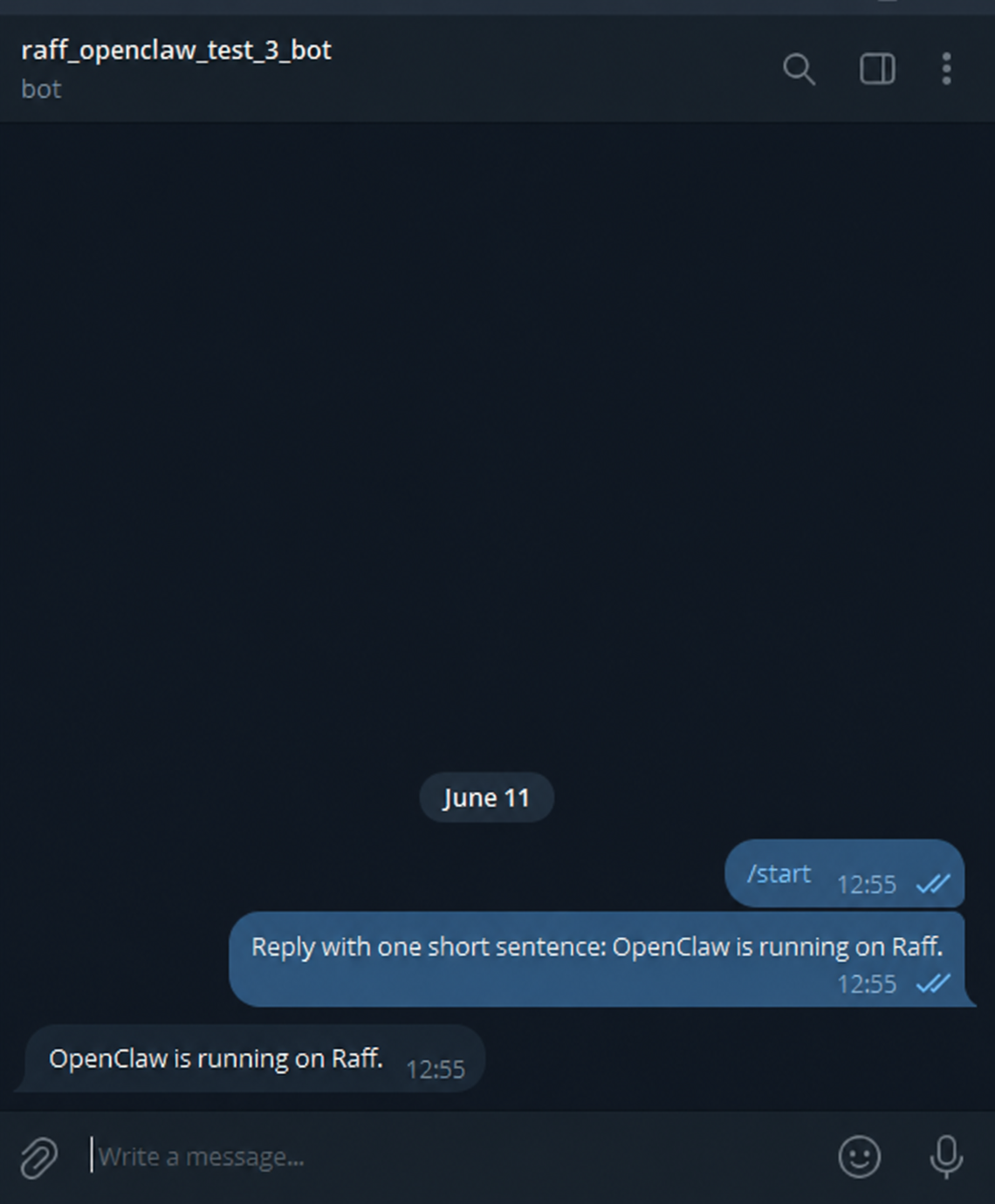
The old screenshot may show an earlier OpenClaw UI/message format; use the successful Telegram round trip, current CLI status, and current logs as the authority for this revision.