
In this tutorial, you will install Nextcloud on Ubuntu 24.04 with Apache, MariaDB, PHP 8.3, HTTPS, cron background jobs, APCu caching, Redis file locking, and an application-consistent backup check.
Nextcloud is a self-hosted file sync, sharing, and collaboration platform. This tutorial uses the classic manual installation path on a Raff Linux VM: Ubuntu 24.04, Apache, MariaDB, PHP 8.3, Redis, and the official Nextcloud server archive. Nextcloud’s current administration manual still documents Ubuntu 24.04 as a supported platform and provides a dedicated Apache/MariaDB installation example for it.
As of September 6, 2026, the current stable Nextcloud 34 maintenance release is 34.0.3. This page intentionally follows the stable 34 branch rather than a prerelease branch. The previous Nextcloud 32 workflow was tested on a Raff Ubuntu 24.04 VM with 2 vCPU, 4 GB RAM, and 80 GB storage. The Nextcloud 34.0.3 installation, caching, cron, backup, and restore guidance in this revision was re-verified against current Nextcloud documentation; a fresh 34.0.3 end-to-end Raff machine test is still required before claiming a new full test pass.
Prerequisites:
- A Raff Ubuntu 24.04 VM with at least 2 vCPU and 4 GB RAM for this tutorial baseline
- SSH access with a sudo-capable user and a recovery path in case firewall changes affect SSH
- A domain or subdomain pointed to the VM public IPv4 address
- Ports
80/tcpand443/tcpavailable - A strong Nextcloud admin password and a separate strong MariaDB password stored in a password manager
- Enough storage for the files you expect users to sync, plus backup headroom
If you plan to keep user data on a separate Raff Volume, attach, format, mount, and verify that volume before Step 5, then use the mounted path as the Nextcloud data directory. Do not move a live data directory onto another filesystem casually after users have started storing files.
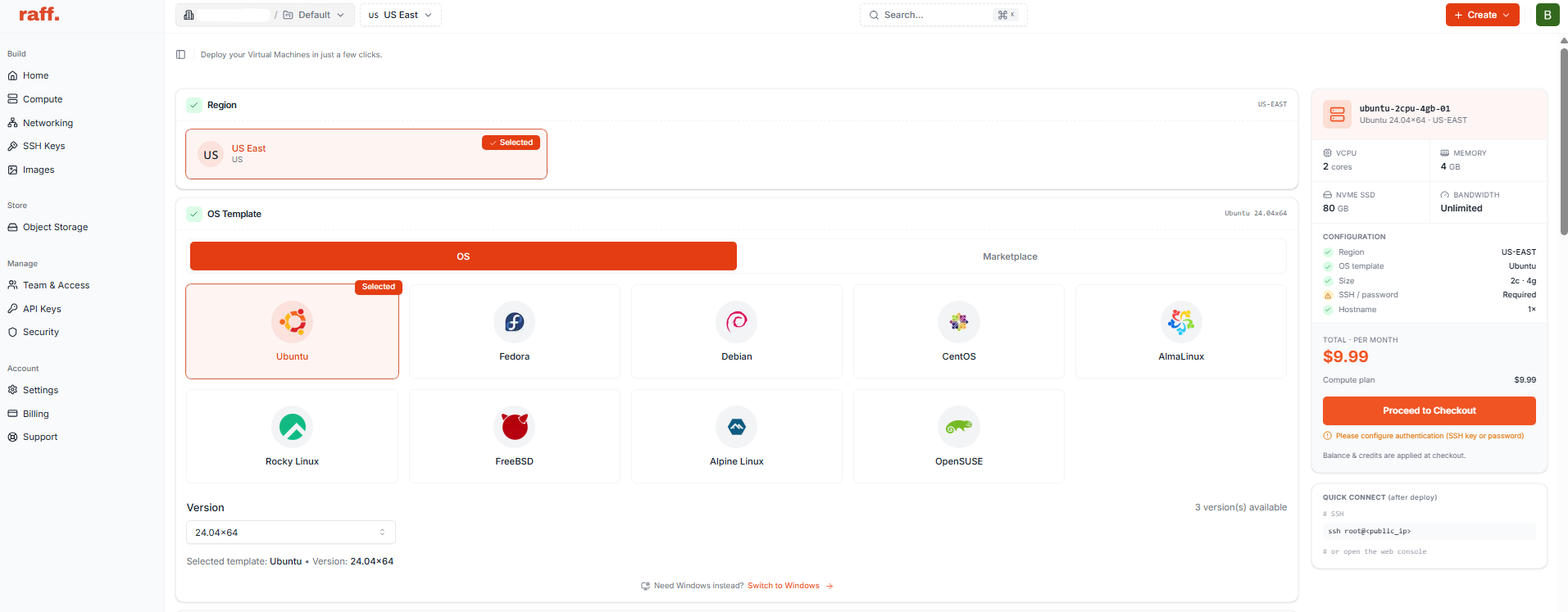
Replace
cloud.your-domain.comwith your real domain throughout the tutorial.
Step 1 — Update Ubuntu 24.04 and verify the server
Update the package index and installed packages:
sudo apt update
sudo apt upgrade -y
sudo apt install -y curl wget bzip2 unzip ca-certificates dnsutils ufw snapd rsync
Verify the operating system and available resources:
lsb_release -ds
nproc
free -h
lsblk
Expected state includes Ubuntu 24.04 LTS, at least 2 vCPU, and about 4 GB RAM for this tutorial baseline.
If the upgrade installed a new kernel and /var/run/reboot-required exists, reboot before continuing:
if [ -f /var/run/reboot-required ]; then
  echo "Reboot required before continuing"
fi
Verify: Ubuntu should report 24.04, the expected CPU/RAM/storage should be visible, and no pending reboot should be ignored before you build the application stack.
Step 2 — Install Apache, MariaDB, PHP 8.3, Redis, and required modules
Install the web server, database, PHP runtime, Redis, and the PHP modules used by Nextcloud:
sudo apt install -y apache2 mariadb-server redis-server \
  libapache2-mod-php8.3 \
  php8.3 php8.3-cli php8.3-common php8.3-mysql php8.3-gd \
  php8.3-curl php8.3-mbstring php8.3-intl php8.3-gmp \
  php8.3-bcmath php8.3-xml php8.3-zip php8.3-imagick \
  php8.3-apcu php8.3-redis
Enable and start the services:
sudo systemctl enable --now apache2
sudo systemctl enable --now mariadb
sudo systemctl enable --now redis-server
Verify service state and PHP modules:
systemctl is-active apache2
systemctl is-active mariadb
systemctl is-active redis-server
php -v | head -n 1
php -m | grep -Ei 'curl|gd|mbstring|intl|gmp|xml|zip|imagick|apcu|redis|pdo_mysql'
Nextcloud 34 supports Ubuntu 24.04 and PHP 8.3. On a single-server installation, APCu is appropriate for local cache while Redis can handle distributed caching and transactional file locking.
Verify: Apache, MariaDB, and Redis should all be active, PHP should report 8.3.x, and the required PHP extensions should appear in the module list.
Step 3 — Configure firewall access without risking SSH lockout
Inspect UFW before changing its state:
sudo ufw status verbose
If UFW is already active, allow HTTP and HTTPS:
sudo ufw allow 'Apache Full'
sudo ufw status numbered
If UFW is inactive, do not blindly run ufw enable from a single remote SSH session. First confirm the real SSH port used by the server, create the matching allow rule, and keep a second SSH session or console/recovery path available. The dedicated UFW tutorial covers a lockout-safe activation sequence.
For a server using the standard SSH port, the rule is commonly:
sudo ufw allow OpenSSH
Only after confirming that the SSH rule matches your actual configuration should you enable UFW:
sudo ufw enable
sudo ufw status numbered
Confirm the domain resolves to the Raff VM:
dig +short cloud.your-domain.com A
Compare the returned address with the VM public IPv4 address. Do not continue to certificate issuance until DNS points to the correct server.
Verify: Your existing SSH administration path must still work, Apache HTTP/HTTPS must be permitted, and the domain must resolve to the correct VM.
Step 4 — Configure MariaDB for Nextcloud and create the database
Nextcloud requires the READ COMMITTED transaction isolation level for MySQL/MariaDB deployments and expects InnoDB. When binary logging is enabled, row-based logging is the compatible choice.
Create a dedicated MariaDB configuration file:
sudo tee /etc/mysql/mariadb.conf.d/60-nextcloud.cnf > /dev/null <<'EOF'
[mysqld]
transaction-isolation = READ-COMMITTED
binlog_format = ROW
innodb_file_per_table = 1
EOF
Restart MariaDB:
sudo systemctl restart mariadb
Verify the database settings:
sudo mariadb -NBe "SELECT @@tx_isolation, @@binlog_format, @@innodb_file_per_table;"
Expected values include:
READ-COMMITTED ROW 1
Before running the next block, replace REPLACE_WITH_A_STRONG_DATABASE_PASSWORD with a unique password from your password manager:
sudo mariadb <<'SQL'
CREATE DATABASE IF NOT EXISTS nextcloud CHARACTER SET utf8mb4 COLLATE utf8mb4_general_ci;
CREATE USER IF NOT EXISTS 'nextclouduser'@'localhost' IDENTIFIED BY 'REPLACE_WITH_A_STRONG_DATABASE_PASSWORD';
GRANT ALL PRIVILEGES ON nextcloud.* TO 'nextclouduser'@'localhost';
FLUSH PRIVILEGES;
SQL
Verify the database and account without exposing the password:
sudo mariadb -e "SHOW DATABASES LIKE 'nextcloud';"
sudo mariadb -e "SELECT User, Host FROM mysql.user WHERE User='nextclouduser';"
Verify: MariaDB should use READ-COMMITTED, database nextcloud should exist, and nextclouduser@localhost should be present.
Step 5 — Download and install the stable Nextcloud 34 archive
Download the current maintenance release from the stable Nextcloud 34 branch and its SHA-256 checksum file:
cd /tmp
curl -fLO https://download.nextcloud.com/server/releases/latest-34.tar.bz2
curl -fsSLo latest-34.tar.bz2.sha256 \
  https://download.nextcloud.com/server/releases/latest-34.tar.bz2.sha256
Verify the archive before extracting it:
EXPECTED_SHA256="$(awk '{print $1}' latest-34.tar.bz2.sha256 | head -n 1)"
ACTUAL_SHA256="$(sha256sum latest-34.tar.bz2 | awk '{print $1}')"

test "$EXPECTED_SHA256" = "$ACTUAL_SHA256" \
  && echo "Nextcloud checksum OK" \
  || { echo "Checksum mismatch"; exit 1; }
Do not extract the archive if the checksum comparison fails.
Confirm an existing installation will not be overwritten:
test ! -e /var/www/nextcloud && echo "Install path is clear"
Extract the archive and move it into the Apache web directory:
tar -xjf latest-34.tar.bz2
sudo mv nextcloud /var/www/nextcloud
Create a data directory outside the web root:
sudo mkdir -p /var/nextcloud-data
sudo chown -R www-data:www-data /var/www/nextcloud /var/nextcloud-data
If you mounted a separate Raff Volume for user data, use that mounted directory instead of /var/nextcloud-data and ensure it is owned by www-data before continuing.
Check the downloaded Nextcloud version:
sudo grep -E "OC_VersionString" /var/www/nextcloud/version.php
As of September 6, 2026, the stable release should report 34.0.3. If a newer 34.x maintenance release is available when you run the tutorial, use the latest stable 34 maintenance release and review its changelog first.
Verify: The checksum must match, /var/www/nextcloud must contain a stable 34.0.x installation, and the application/data directories must be owned by www-data.
Step 6 — Configure PHP 8.3 for Nextcloud
Set practical limits for this tutorial baseline:
PHP_INI="/etc/php/8.3/apache2/php.ini"

sudo sed -i 's/^memory_limit = .*/memory_limit = 512M/' "$PHP_INI"
sudo sed -i 's/^upload_max_filesize = .*/upload_max_filesize = 512M/' "$PHP_INI"
sudo sed -i 's/^post_max_size = .*/post_max_size = 512M/' "$PHP_INI"
sudo sed -i 's/^max_execution_time = .*/max_execution_time = 360/' "$PHP_INI"
sudo sed -i 's/^max_input_time = .*/max_input_time = 360/' "$PHP_INI"
Give APCu a 128 MB cache allocation and enable APCu for CLI commands used by occ:
sudo tee /etc/php/8.3/apache2/conf.d/99-nextcloud-apcu.ini > /dev/null <<'EOF'
apc.shm_size=128M
EOF

sudo tee /etc/php/8.3/cli/conf.d/99-nextcloud-apcu.ini > /dev/null <<'EOF'
apc.enable_cli=1
EOF
Restart Apache:
sudo systemctl restart apache2
Verify the values:
php -i | grep -E 'memory_limit|apc.enable_cli|apc.shm_size' | head
systemctl is-active apache2
The 512 MB upload values here are examples for this deployment, not universal Nextcloud requirements. Size them to the file sizes and memory available on your VM.
Verify: Apache should be active, the intended PHP limits should be visible, and APCu should be enabled for CLI use.
Step 7 — Configure Apache for Nextcloud
Create the virtual host:
sudo tee /etc/apache2/sites-available/nextcloud.conf > /dev/null <<'EOF'
<VirtualHost *:80>
    ServerName cloud.your-domain.com
    DocumentRoot /var/www/nextcloud

    <Directory /var/www/nextcloud/>
        Require all granted
        AllowOverride All
        Options FollowSymLinks MultiViews

        <IfModule mod_dav.c>
            Dav off
        </IfModule>
    </Directory>

    SetEnv HOME /var/www/nextcloud
    SetEnv HTTP_HOME /var/www/nextcloud

    ErrorLog ${APACHE_LOG_DIR}/nextcloud_error.log
    CustomLog ${APACHE_LOG_DIR}/nextcloud_access.log combined
</VirtualHost>
EOF
Enable the site and required modules:
sudo a2ensite nextcloud.conf
sudo a2dissite 000-default.conf
sudo a2enmod rewrite headers env dir mime ssl setenvif
Validate and reload Apache:
sudo apache2ctl configtest
sudo systemctl reload apache2
Test the HTTP endpoint:
curl -I http://cloud.your-domain.com
A 200, 302, or 303 response is acceptable before the installation wizard is completed.
Verify: Apache should report Syntax OK, the Nextcloud site should be enabled, and the domain should return an HTTP response from this VM.
Step 8 — Enable HTTPS with Certbot
Install Certbot using its snap package:
sudo snap install --classic certbot
sudo ln -sf /snap/bin/certbot /usr/local/bin/certbot
Request the certificate and let Certbot configure Apache:
sudo certbot --apache \
  -d cloud.your-domain.com \
  --redirect \
  --agree-tos \
  --no-eff-email \
  -m [email protected]
Replace the example email address with one you control.
Verify HTTPS and certificate renewal:
curl -I https://cloud.your-domain.com
sudo certbot renew --dry-run
Verify: HTTPS should respond successfully and the Certbot renewal simulation should complete without errors.
Step 9 — Complete the Nextcloud web setup
Open:
https://cloud.your-domain.com
The Nextcloud setup page should appear.
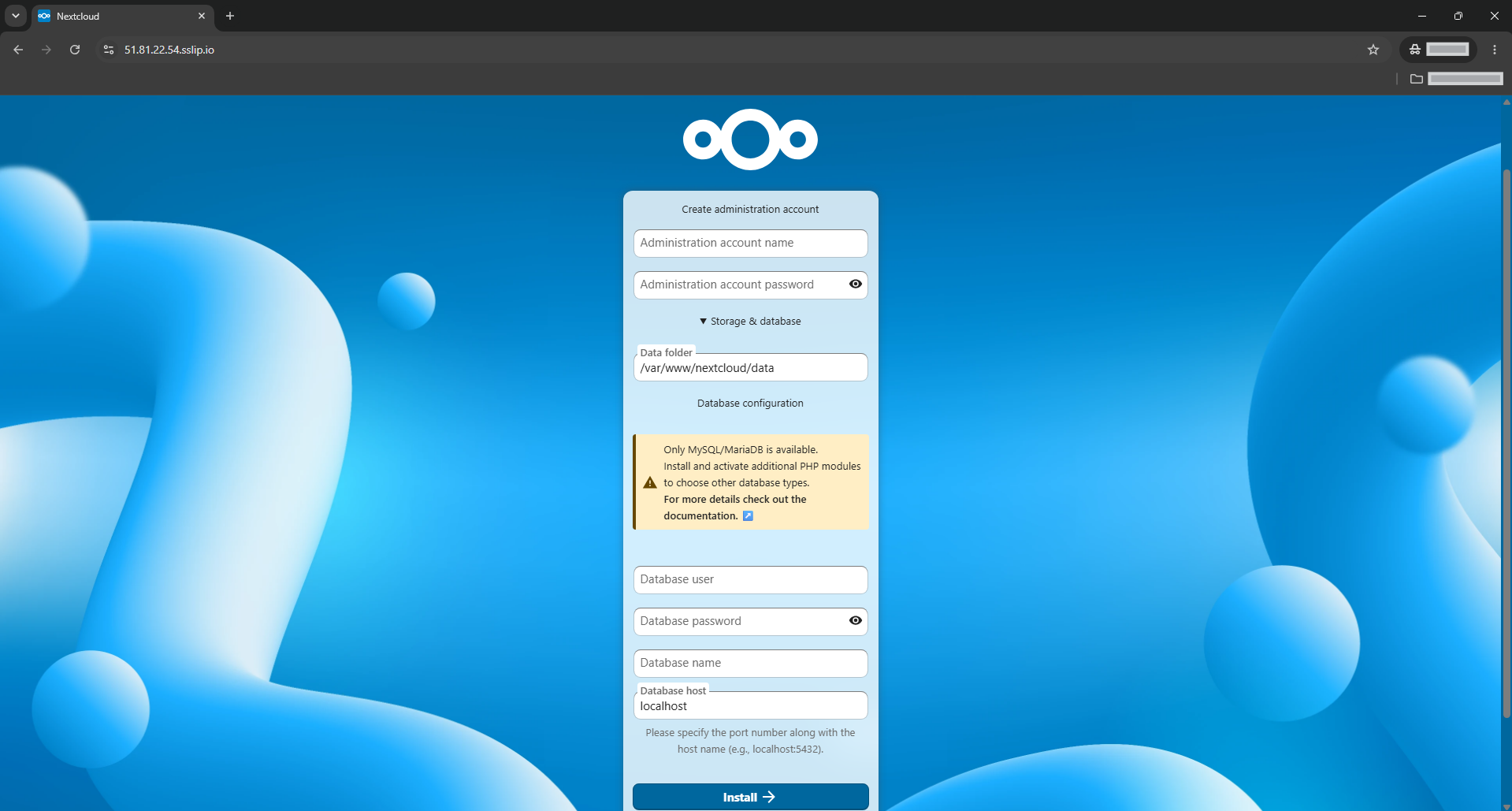
Create a strong Nextcloud administrator account. Do not reuse the MariaDB password.
Use these database values:
Data folder: /var/nextcloud-data
Database user: nextclouduser
Database password: the password created in Step 4
Database name: nextcloud
Database host: localhost
If you mounted a separate volume for the data directory, enter that verified mount path instead of /var/nextcloud-data.
Complete the installation. After the dashboard appears, verify the server from SSH:
cd /var/www/nextcloud
sudo -u www-data php occ status
sudo -u www-data php occ config:system:get trusted_domains
Expected state includes:
installed: true
version: 34.0.x
If the domain is missing from trusted_domains, add it:
sudo -u www-data php occ config:system:set trusted_domains 1 \
  --value=cloud.your-domain.com
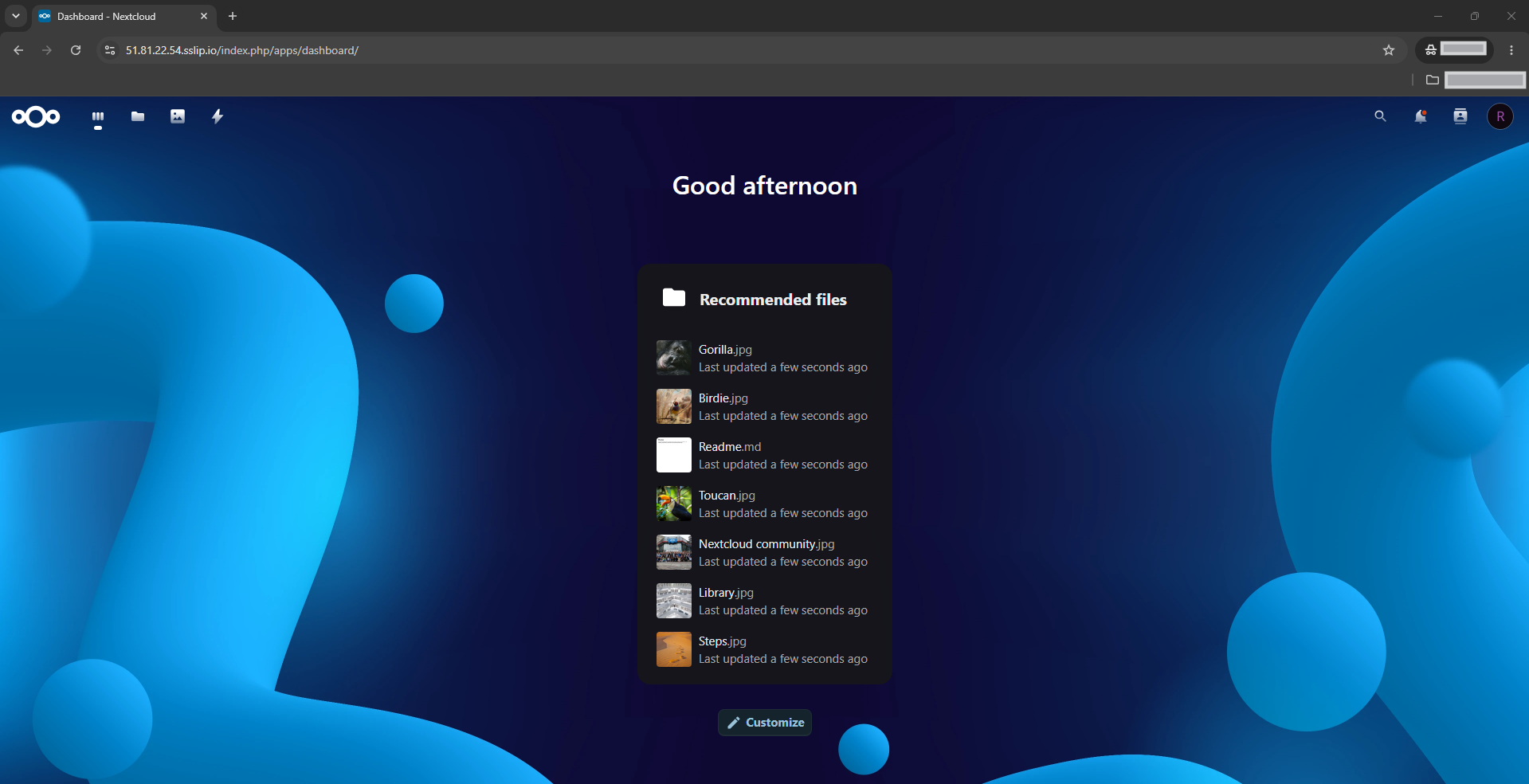
Verify: The dashboard should load over HTTPS, occ status should report installed: true, and the real hostname should be present in trusted_domains.
Step 10 — Configure cron, APCu, and Redis file locking
Configure Nextcloud background jobs to run with cron every five minutes under the web-server user:
sudo -u www-data crontab -l 2>/dev/null | grep -v '/var/www/nextcloud/cron.php' | \
  { cat; echo '*/5 * * * * php -f /var/www/nextcloud/cron.php'; } | \
  sudo -u www-data crontab -
Run the job once and set cron mode:
cd /var/www/nextcloud
sudo -u www-data php -f cron.php
sudo -u www-data php occ background:cron
Configure APCu as the local cache:
sudo -u www-data php occ config:system:set memcache.local \
  --value='\OC\Memcache\APCu'
Configure Redis for distributed caching and transactional file locking:
sudo -u www-data php occ config:system:set memcache.distributed \
  --value='\OC\Memcache\Redis'
sudo -u www-data php occ config:system:set memcache.locking \
  --value='\OC\Memcache\Redis'
sudo -u www-data php occ config:system:set redis host --value=127.0.0.1
sudo -u www-data php occ config:system:set redis port --type=integer --value=6379
Set a maintenance window start hour in UTC:
sudo -u www-data php occ config:system:set maintenance_window_start \
  --type=integer --value=1
Verify the configuration:
redis-cli ping
sudo -u www-data php occ config:system:get memcache.local
sudo -u www-data php occ config:system:get memcache.locking
sudo -u www-data crontab -l
Expected state includes PONG, APCu local caching, Redis locking, and a cron job every five minutes.
Verify: Redis must respond, Nextcloud must report the intended cache classes, and the www-data cron entry must exist.
Step 11 — Verify Nextcloud end to end
Open the Nextcloud admin overview:
Profile icon → Administration settings → Overview
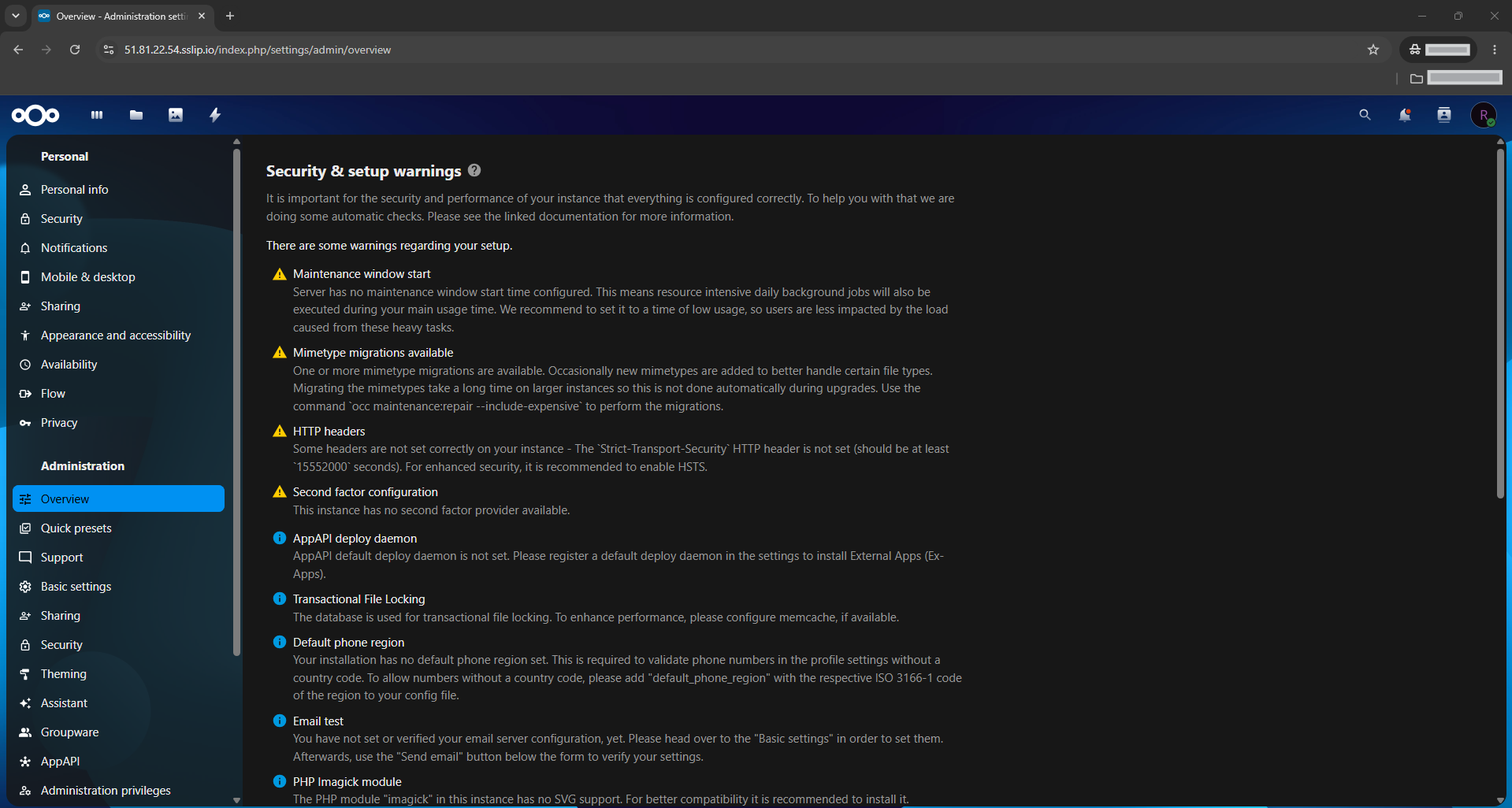
Resolve warnings that are specific to your environment before storing important data.
Open the Files app and upload a small file named:
raff-nextcloud-test.txt
Suggested content:
Hello from Nextcloud on a Raff Ubuntu 24.04 VM.
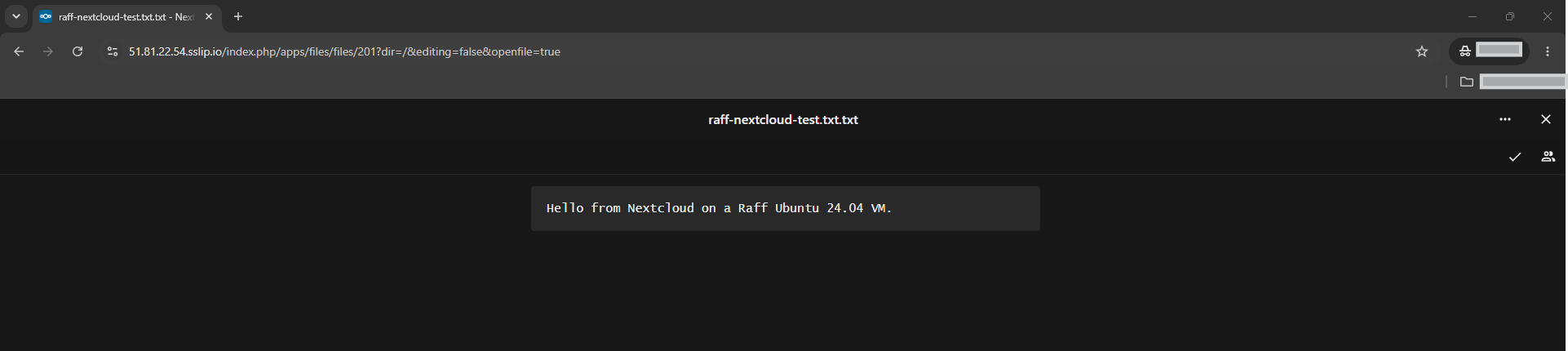
Confirm the browser reports a secure HTTPS connection.
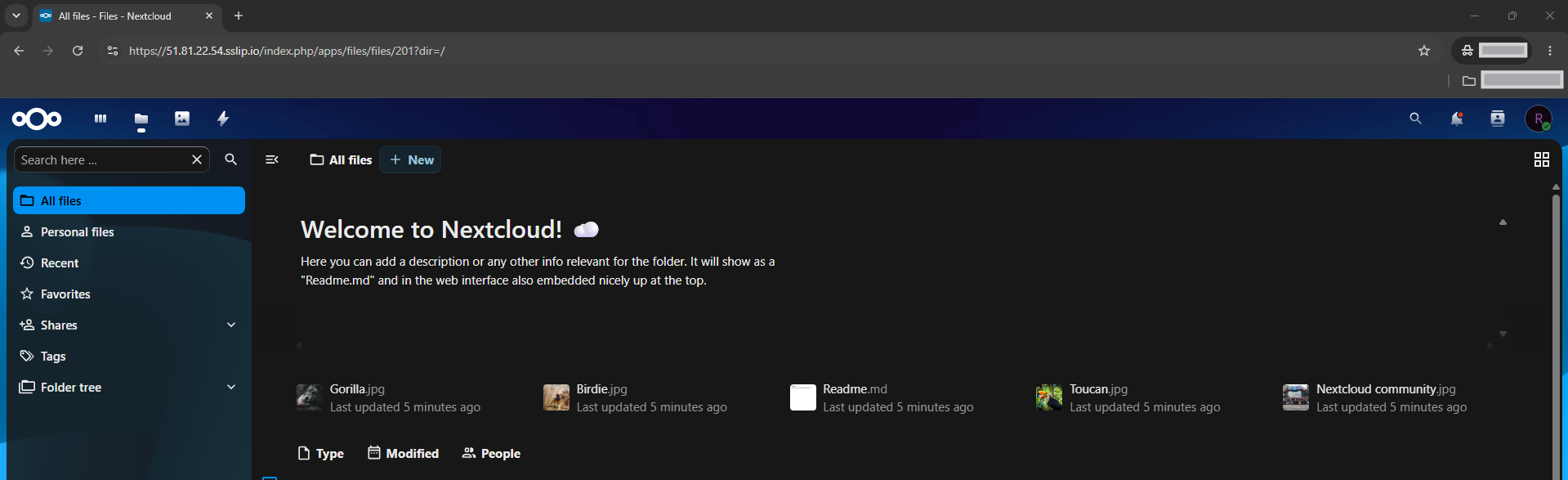
Run the server-side checks:
systemctl is-active apache2
systemctl is-active mariadb
systemctl is-active redis-server
cd /var/www/nextcloud
sudo -u www-data php occ status
sudo -u www-data php occ config:system:get maintenance_window_start
curl -I https://cloud.your-domain.com
sudo ufw status numbered
End-to-end installation verification requires all of the following:
- Apache, MariaDB, and Redis are active
- Nextcloud reports
installed: true - The installed version is in the stable
34.0.xline - The dashboard loads over HTTPS
- The admin overview opens
- The test file uploads successfully
- Cron, APCu, and Redis file locking are configured
- The firewall preserves your administration path and permits the intended web traffic