
To install Nginx on Ubuntu 24.04, update APT, install Ubuntu's nginx package, verify the service locally, then configure public HTTP access only after checking your firewall and SSH path. This tutorial also creates a custom server block, inspects logs, and completes an end-to-end Nginx check.
Raff Technologies is used as the Ubuntu VM platform in the saved test workflow. On Ubuntu 24.04 LTS (Noble), the distribution package remains on the Nginx 1.24.0 base branch. As of September 7, 2026, Ubuntu's Noble updates/security package is 1.24.0-2ubuntu7.17. The Ubuntu package revision matters because Canonical can deliver security fixes without changing the short upstream version shown by nginx -v.
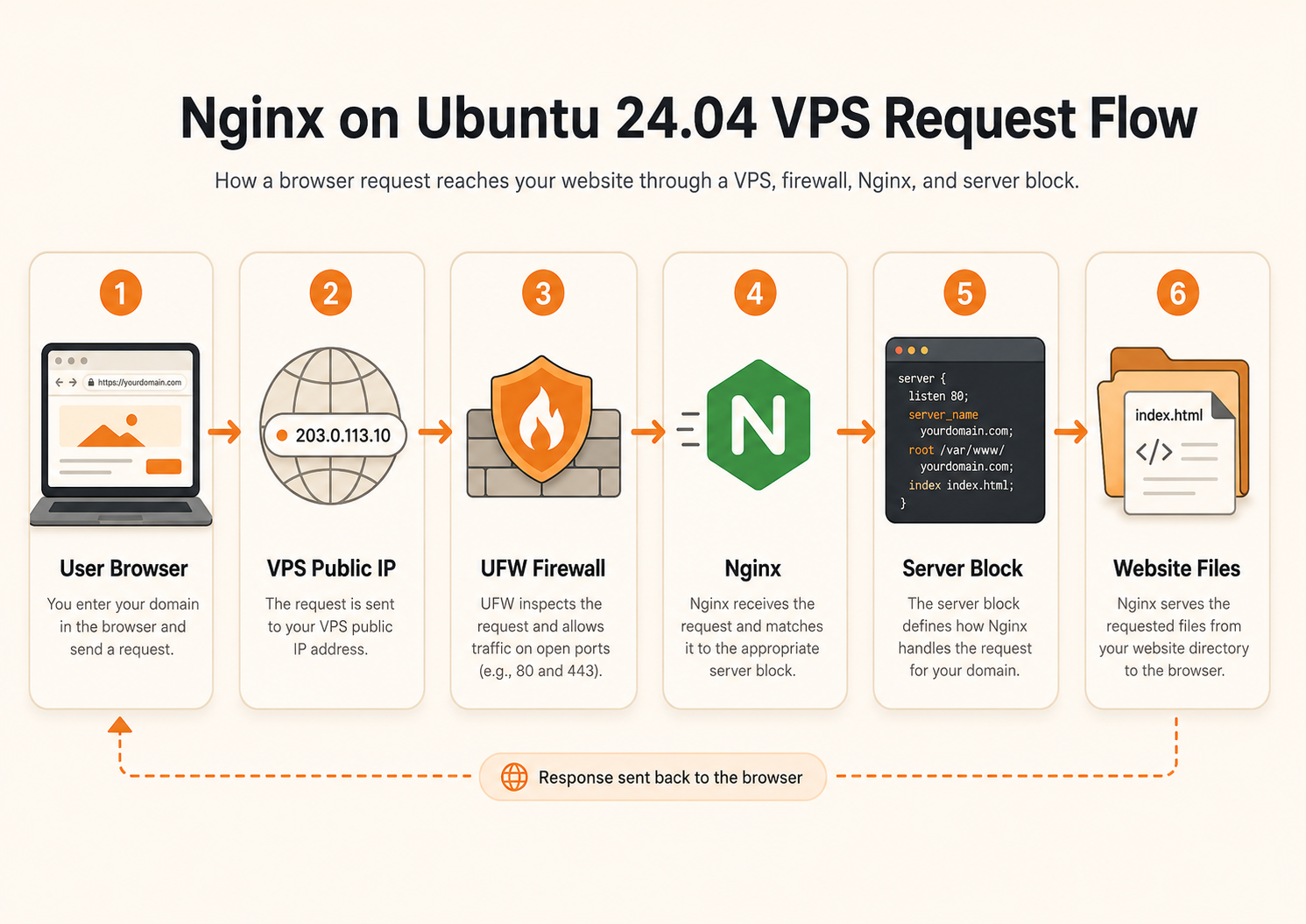
Quick install: install Nginx and verify it locally first:
sudo apt update
sudo apt install -y nginx
systemctl is-active nginx
curl -I http://127.0.0.1
Do not treat firewall activation as part of a blind copy-paste quick start. If UFW is inactive, confirm your real SSH port and a recovery path before enabling it.
Nginx can act as a web server, reverse proxy, load balancer, HTTP cache, and TCP/UDP proxy. For a normal Ubuntu 24.04 server, the distribution package is the simplest starting point because it follows Ubuntu's package lifecycle. If you specifically need a newer upstream Nginx release, a separate nginx.org repository path is covered later.
Prerequisites:
- A Raff Linux VM running Ubuntu 24.04
- SSH access with a non-root sudo user
- The VM's public IPv4 address
- Port
80/tcpavailable for the HTTP test - The actual SSH listening port known before changing UFW
- A second SSH session or another recovery path before enabling a previously inactive firewall
- A domain only if you plan to continue to production HTTPS
The original installation workflow was tested on a Raff Ubuntu 24.04 VM with 2 vCPU and 2 GB RAM. Ubuntu's Nginx package, UFW guidance, and nginx.org Ubuntu support were re-verified on September 7, 2026; no new full machine retest is claimed.
Step 1 — Update Ubuntu and install Nginx
Update package metadata and current system packages:
sudo apt update
sudo apt upgrade -y
Install Nginx, UFW, and curl:
sudo apt install -y nginx ufw curl
Check the Ubuntu release, the Nginx binary version, and the complete Ubuntu package revision:
lsb_release -ds
nginx -v 2>&1
dpkg-query -W -f='${Version}\n' nginx
apt-cache policy nginx
On Ubuntu 24.04, the binary version should follow this pattern:
nginx version: nginx/1.24.0 (Ubuntu)
The package revision can be newer than the upstream base version. As of September 7, 2026, the Noble updates/security package is:
1.24.0-2ubuntu7.17
The exact Ubuntu revision may increase later as updates are published.
Verify: Ubuntu should report 24.04 LTS, Nginx should be installed, and apt-cache policy nginx should show the candidate supplied by your configured Ubuntu repositories.
Step 2 — Verify the Nginx service
Nginx normally starts automatically after installation. Confirm that it is active:
systemctl is-active nginx
Expected output:
active
Check boot enablement:
systemctl is-enabled nginx
Expected output:
enabled
Inspect the service without opening an interactive pager:
sudo systemctl status nginx --no-pager
Useful service commands are:
sudo systemctl start nginx
sudo systemctl stop nginx
sudo systemctl restart nginx
sudo systemctl reload nginx
sudo systemctl enable nginx
Use reload after a successful nginx -t when applying configuration changes without a full service stop.
Verify: systemctl is-active nginx should return active, and Nginx should be enabled for normal startup unless you intentionally manage it another way.
Step 3 — Configure UFW without risking SSH lockout
First inspect the current firewall state:
sudo ufw status verbose
Then confirm the SSH port that sshd is actually configured to use:
sudo sshd -T | awk '/^port / {print $2}'
List Nginx's UFW application profiles:
sudo ufw app list
Expected profiles normally include:
Nginx Full
Nginx HTTP
Nginx HTTPS
If UFW is already active, preserve the working SSH rule and allow HTTP:
sudo ufw allow 'Nginx HTTP'
sudo ufw status numbered
If UFW is inactive, add an allow rule for the actual SSH port first. For standard SSH with a matching OpenSSH profile:
sudo ufw allow OpenSSH
For a custom SSH port, allow that port instead, for example:
sudo ufw allow 2222/tcp
Then add the Nginx HTTP rule:
sudo ufw allow 'Nginx HTTP'
Before enabling UFW on a remote VM, keep the current SSH session open and successfully open a second SSH session through the allowed SSH path. If you cannot verify a recovery path, leave UFW activation for a controlled maintenance change.
Only after the second SSH session works should you enable an inactive firewall:
sudo ufw enable
sudo ufw status numbered
Do not use ufw --force enable as a shortcut around this check.
If you also use an upstream cloud firewall, allow TCP port 80 there for the public browser test.
Verify: SSH should remain reachable, Nginx HTTP should be allowed when UFW is active, and you should still have a working administrative session after the change.
Step 4 — Test the default Nginx page
Test Nginx locally before relying on public networking:
curl -I http://127.0.0.1
Expected output includes:
HTTP/1.1 200 OK
Server: nginx
Get the VM's public IPv4 address from the Raff dashboard or run:
curl -4s https://icanhazip.com
Open the public address in a browser:
http://your_server_ip
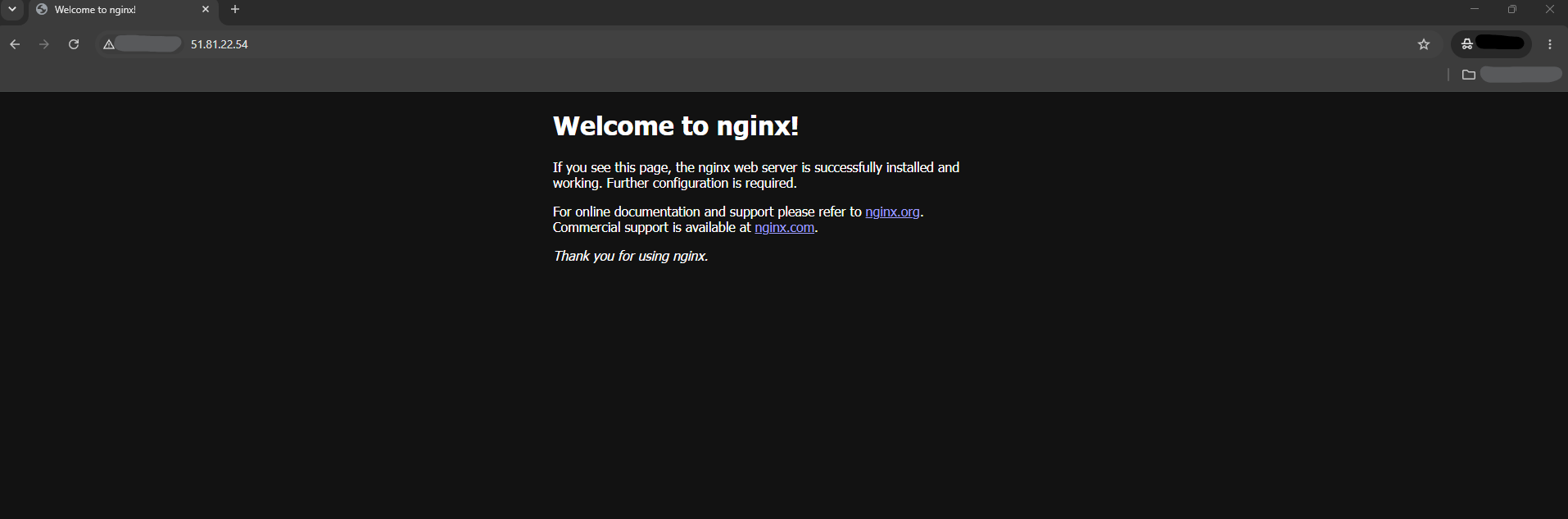
The public page confirms that the Nginx service, host networking, and firewall path all allow HTTP traffic to reach the server.
Verify: both the local curl request and the browser request should reach the default Nginx page before you replace the default site.
Step 5 — Create a custom Nginx server block
Ubuntu packages use /etc/nginx/sites-available/ for available site configurations and /etc/nginx/sites-enabled/ for enabled symbolic links.
Create a demo document root:
sudo mkdir -p /var/www/raff-nginx-demo/html
Create the custom page:
sudo tee /var/www/raff-nginx-demo/html/index.html > /dev/null <<'EOF'
<!doctype html>
<html lang="en">
<head>
  <meta charset="utf-8">
  <meta name="viewport" content="width=device-width, initial-scale=1">
  <title>Nginx server block is working on Raff</title>
</head>
<body>
  <h1>Nginx server block is working on Raff</h1>
  <p>This page is served from an Ubuntu 24.04 Linux VM.</p>
</body>
</html>
EOF
Create /etc/nginx/sites-available/raff-nginx-demo:
sudo tee /etc/nginx/sites-available/raff-nginx-demo > /dev/null <<'EOF'
server {
    listen 80 default_server;
    listen [::]:80 default_server;

    server_name _;

    root /var/www/raff-nginx-demo/html;
    index index.html;

    access_log /var/log/nginx/raff-nginx-demo.access.log;
    error_log /var/log/nginx/raff-nginx-demo.error.log;

    location / {
        try_files $uri $uri/ =404;
    }
}
EOF
Disable the default site and enable the demo server block:
sudo rm -f /etc/nginx/sites-enabled/default
sudo ln -sf /etc/nginx/sites-available/raff-nginx-demo \
  /etc/nginx/sites-enabled/raff-nginx-demo
Validate the entire configuration before reloading:
sudo nginx -t
Expected result includes:
nginx: the configuration file /etc/nginx/nginx.conf syntax is ok
nginx: configuration file /etc/nginx/nginx.conf test is successful
Reload only after the test succeeds:
sudo systemctl reload nginx
Verify: nginx -t should pass and Nginx should reload without an error.
Step 6 — Verify the custom server block
Check the custom page locally:
curl -s http://127.0.0.1 | grep 'Nginx server block is working on Raff'
Expected output contains:
<h1>Nginx server block is working on Raff</h1>
Check the public HTTP response:
SERVER_IP="$(curl -4s https://icanhazip.com)"
curl -I "http://$SERVER_IP"
Open the public IP again in a browser:
http://your_server_ip
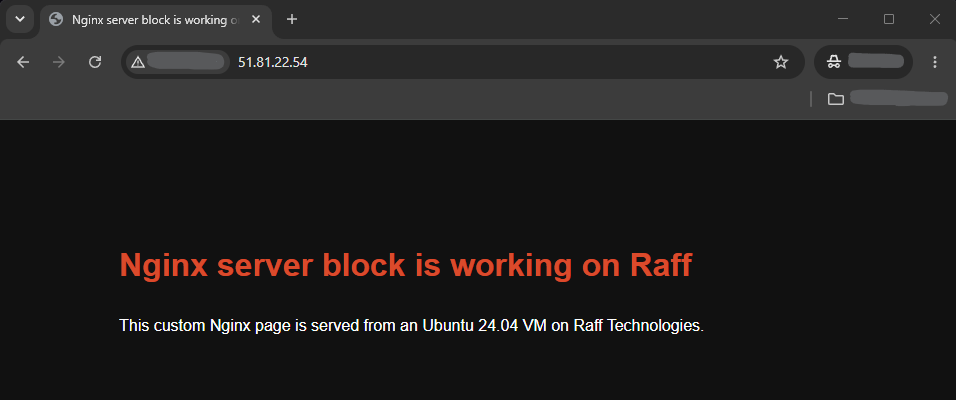
For a production site, replace server_name _; with real domain names before configuring HTTPS. Only the intended public edge should be internet-facing; application and data services should use private traffic paths where possible. See Public vs Private Traffic in Cloud Infrastructure.
Verify: the local request and public request should both return the custom server-block content.
Step 7 — Review Nginx files and logs
Important Ubuntu Nginx paths include:
/etc/nginx/nginx.conf
/etc/nginx/sites-available/
/etc/nginx/sites-enabled/
/etc/nginx/conf.d/
/var/www/
/var/log/nginx/
Files created in this tutorial include:
/var/www/raff-nginx-demo/html/index.html
/etc/nginx/sites-available/raff-nginx-demo
/etc/nginx/sites-enabled/raff-nginx-demo
/var/log/nginx/raff-nginx-demo.access.log
/var/log/nginx/raff-nginx-demo.error.log
Review recent requests:
sudo tail -n 20 /var/log/nginx/raff-nginx-demo.access.log
Review errors:
sudo tail -n 20 /var/log/nginx/raff-nginx-demo.error.log
Confirm which configuration files Nginx loaded:
sudo nginx -T 2>/dev/null | grep -E 'configuration file|server_name|root '
Use full nginx -T output carefully on shared systems because it can expose internal hostnames and configuration details.
Verify: requests to the demo site should appear in the custom access log, while the error log should not contain unresolved configuration failures.
Step 8 — Verify the Nginx setup end to end
Run the final verification sequence:
SERVER_IP="$(curl -4s https://icanhazip.com)"

echo "Ubuntu package:"
dpkg-query -W -f='${Version}\n' nginx

echo "APT candidate:"
apt-cache policy nginx | sed -n '1,6p'

echo "Nginx binary:"
nginx -v 2>&1

echo "Service:"
systemctl is-active nginx

echo "Boot status:"
systemctl is-enabled nginx

echo "Configuration:"
sudo nginx -t

echo "Firewall:"
sudo ufw status numbered

echo "Local HTTP response:"
curl -I http://127.0.0.1

echo "Public HTTP response:"
curl -I "http://$SERVER_IP"

echo "Custom page:"
curl -s http://127.0.0.1 | grep 'Nginx server block is working on Raff'
End-to-end verification is complete when:
- the installed Ubuntu Nginx package matches the intended APT candidate;
nginx -vreports the Ubuntu Nginx 1.24.0 base branch;- the service is active and enabled;
nginx -tsucceeds;- if UFW is active, the required HTTP and SSH paths are allowed;
- local and public HTTP requests succeed; and
- the custom server block returns the demo page.