
To install Docker on Ubuntu 24.04, use Docker's official APT repository, install Docker Engine together with the Compose and Buildx plugins, verify the daemon with hello-world, and then run a loopback-only container test before you expose any production ports.
Raff Technologies is used as the Ubuntu VM platform in the saved workflow for this tutorial. Docker currently supports Ubuntu Noble 24.04 LTS, and the official Ubuntu installation path uses the packages docker-ce, docker-ce-cli, containerd.io, docker-buildx-plugin, and docker-compose-plugin.
As of September 8, 2026, Docker Engine 29.8.0 is the current Engine 29 release and Docker Compose v5.4.0 is the current Compose release. Your installed package revision can be newer when you follow this guide, so verify the actual APT candidate instead of treating a hard-coded patch version as permanent.
The original workflow was tested on a Raff Ubuntu 24.04.4 VM with 2 vCPU and 2 GB RAM. Docker's Noble support, official APT setup, package names, Engine/Compose releases, non-root access model, and firewall guidance were re-verified for this refresh; no new full machine retest is claimed.
Prerequisites:
- A Raff Linux VM running Ubuntu 24.04
- SSH access through a sudo-capable user
- A recovery path before making firewall changes
- Enough CPU, RAM, storage, and network capacity for the containers you plan to run
- A backup plan if Docker, containerd, images, volumes, or containers already exist on the VM
Fresh-server note: the package-removal commands below are appropriate when you intentionally want Docker's official packages. On an existing Docker host, inventory workloads and persistent data before replacing packages.
Step 1 — Update Ubuntu and install repository prerequisites
Update APT metadata and install the packages used by Docker's official repository setup:
sudo apt update
sudo apt install -y ca-certificates curl
Apply current Ubuntu updates before deploying production workloads:
sudo apt upgrade -y
Check the Ubuntu release:
. /etc/os-release
printf '%s\n%s\n' "$PRETTY_NAME" "$VERSION_CODENAME"
Expected values include:
Ubuntu 24.04 LTS
noble
If the upgrade requires a reboot, handle it before building a long-running container workload:
test -f /var/run/reboot-required && cat /var/run/reboot-required
Verify: the host should report Ubuntu 24.04 / Noble, APT should complete without repository errors, and any required reboot should be understood before continuing.
Step 2 — Check for conflicting Docker packages before removing them
Docker's Ubuntu documentation lists distribution-provided packages that can conflict with the official Docker Engine packages.
First inspect what is installed:
dpkg -l | grep -E 'docker|containerd|runc|podman' || true
On a fresh VM, remove conflicting packages when present:
for pkg in docker.io docker-doc docker-compose docker-compose-v2 docker-buildx podman-docker containerd runc; do
  sudo apt remove -y "$pkg" 2>/dev/null || true
done
Removing packages does not automatically prove that old Docker data is safe to delete. If /var/lib/docker or /var/lib/containerd already contains production state, stop and review the existing deployment before doing anything destructive.
Check whether a Docker CLI remains installed:
docker --version 2>/dev/null || echo 'Docker CLI not currently installed'
Verify: conflicting packages should be removed only when that is intentional, and an existing Docker data directory should never be deleted merely to make the tutorial output match.
Step 3 — Add Docker's official Ubuntu APT repository
Create the APT keyring directory:
sudo install -m 0755 -d /etc/apt/keyrings
Download Docker's signing key:
sudo curl -fsSL https://download.docker.com/linux/ubuntu/gpg \
  -o /etc/apt/keyrings/docker.asc
sudo chmod a+r /etc/apt/keyrings/docker.asc
Create Docker's deb822 repository source using the detected Ubuntu codename and CPU architecture:
sudo tee /etc/apt/sources.list.d/docker.sources > /dev/null <<EOF
Types: deb
URIs: https://download.docker.com/linux/ubuntu
Suites: $(. /etc/os-release && echo "${UBUNTU_CODENAME:-$VERSION_CODENAME}")
Components: stable
Architectures: $(dpkg --print-architecture)
Signed-By: /etc/apt/keyrings/docker.asc
EOF
Refresh package metadata:
sudo apt update
Inspect the candidate before installation:
apt-cache policy docker-ce | sed -n '1,14p'
The output should contain a non-empty Candidate from Docker's Ubuntu repository.
Verify: /etc/apt/sources.list.d/docker.sources should reference download.docker.com/linux/ubuntu, use the Noble suite on Ubuntu 24.04, and expose a docker-ce candidate.
Step 4 — Install Docker Engine, Compose, and Buildx
Install the official packages:
sudo apt install -y \
  docker-ce \
  docker-ce-cli \
  containerd.io \
  docker-buildx-plugin \
  docker-compose-plugin
Verify the CLI versions:
docker --version
docker compose version
docker buildx version
Inspect the full installed package versions as well:
dpkg-query -W -f='${Package} ${Version}\n' \
  docker-ce docker-ce-cli docker-compose-plugin docker-buildx-plugin
As of September 8, 2026, Docker Engine 29.8.0 is the current Engine 29 upstream release, released September 3, 2026. Docker Compose v5.4.0 remains the current Compose release. The repository can advance after this tutorial is published, so use the commands above as the authority for your host.
Verify: docker --version, docker compose version, and docker buildx version should all succeed, and the packages should come from the intended Docker repository.
Step 5 — Verify the Docker service and daemon
Docker normally starts after package installation. Confirm service state:
systemctl is-active docker
systemctl is-enabled docker
Expected state is normally:
active
enabled
Inspect the service without an interactive pager:
sudo systemctl status docker --no-pager
Confirm the client can talk to the daemon:
sudo docker info >/dev/null && echo 'Docker daemon reachable'
sudo docker ps
An empty docker ps list is normal on a new host.
Verify: Docker should be active, enabled for normal boot, and reachable through sudo docker without a daemon connection error.
Step 6 — Run Docker's hello-world verification
Run Docker's official smoke-test image:
sudo docker run --rm hello-world
Expected output includes:
Hello from Docker!
This verifies more than the CLI alone: Docker contacts the registry, downloads an image, creates a container, runs it, and returns its output.
Confirm that the stopped test container was removed because --rm was used:
sudo docker ps -a --filter ancestor=hello-world
Verify: the hello-world message should appear and the temporary container should not remain as a stopped workload.
Step 7 — Run a loopback-only Nginx container test
A container port does not need to be public just because you want to verify networking. Start Nginx bound only to the host loopback interface:
sudo docker rm -f test-nginx 2>/dev/null || true
sudo docker run -d \
  --name test-nginx \
  -p 127.0.0.1:8080:80 \
  nginx:alpine
Check the published port:
sudo docker ps --filter name=test-nginx
sudo ss -lntp | grep ':8080'
The host-side listener should be limited to:
127.0.0.1:8080
Test it from the VM:
curl -I http://127.0.0.1:8080
Expected output includes an HTTP 200 response from Nginx.
To inspect the page from your own computer without publishing 8080, create an SSH tunnel:
ssh -L 8080:127.0.0.1:8080 your_user@your_server_ip
Then open:
http://localhost:8080
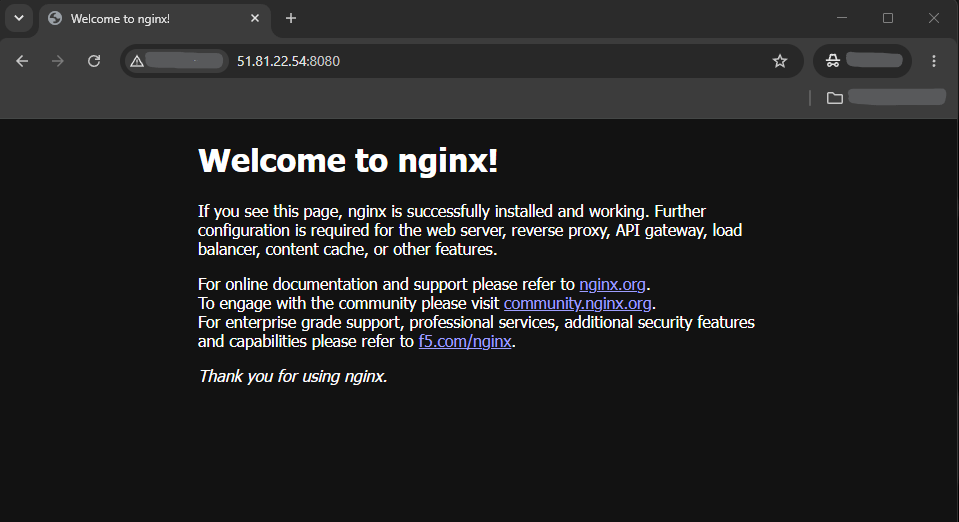
Docker firewall warning: Docker documents that published container ports interact with Docker-managed packet-filtering/NAT rules and can bypass normal assumptions about UFW. For private services, bind explicitly to
127.0.0.1or a private interface. For public services, review Docker-aware filtering and any upstream cloud firewall instead of assuming a UFW deny alone controls the published port.
Verify: the Nginx container should be running, curl should return a valid response, and port 8080 should not be published on 0.0.0.0 or a public host address.
Step 8 — Decide whether to enable non-root Docker access
Docker requires sudo by default on a fresh Linux installation. For a trusted administrator on a dedicated VM, add the user to the Docker group only if that privilege model is acceptable:
sudo usermod -aG docker "$USER"
Apply the group in a new login session, or temporarily in the current shell:
newgrp docker
Test:
docker ps
Security boundary: membership in the
dockergroup effectively grants root-level control over the host. Do not treat it as an ordinary low-privilege convenience group. On shared servers, continue using controlled sudo access or evaluate Docker's rootless mode for your use case.
Verify: if you intentionally added the account to the Docker group, docker ps should work without sudo; otherwise continue using sudo docker.
Step 9 — Verify Docker Engine and Compose end to end
Run the final verification sequence:
printf 'Docker Engine:\n'
docker --version || sudo docker --version

printf '\nDocker Compose:\n'
docker compose version || sudo docker compose version

printf '\nBuildx:\n'
docker buildx version || sudo docker buildx version

printf '\nDocker service:\n'
systemctl is-active docker

printf '\nAPT candidate:\n'
apt-cache policy docker-ce | sed -n '1,8p'

printf '\nNginx test container:\n'
sudo docker ps --filter name=test-nginx

printf '\nLoopback HTTP response:\n'
curl -I http://127.0.0.1:8080

printf '\nPublished listener:\n'
sudo ss -lntp | grep ':8080'
End-to-end verification is complete when:
- Docker Engine, Compose, and Buildx all report versions;
- the Docker service is active;
- APT shows the intended Docker repository candidate;
hello-worldcompleted successfully;- the Nginx test container is running;
curl http://127.0.0.1:8080succeeds; and- the test port is bound only to loopback.