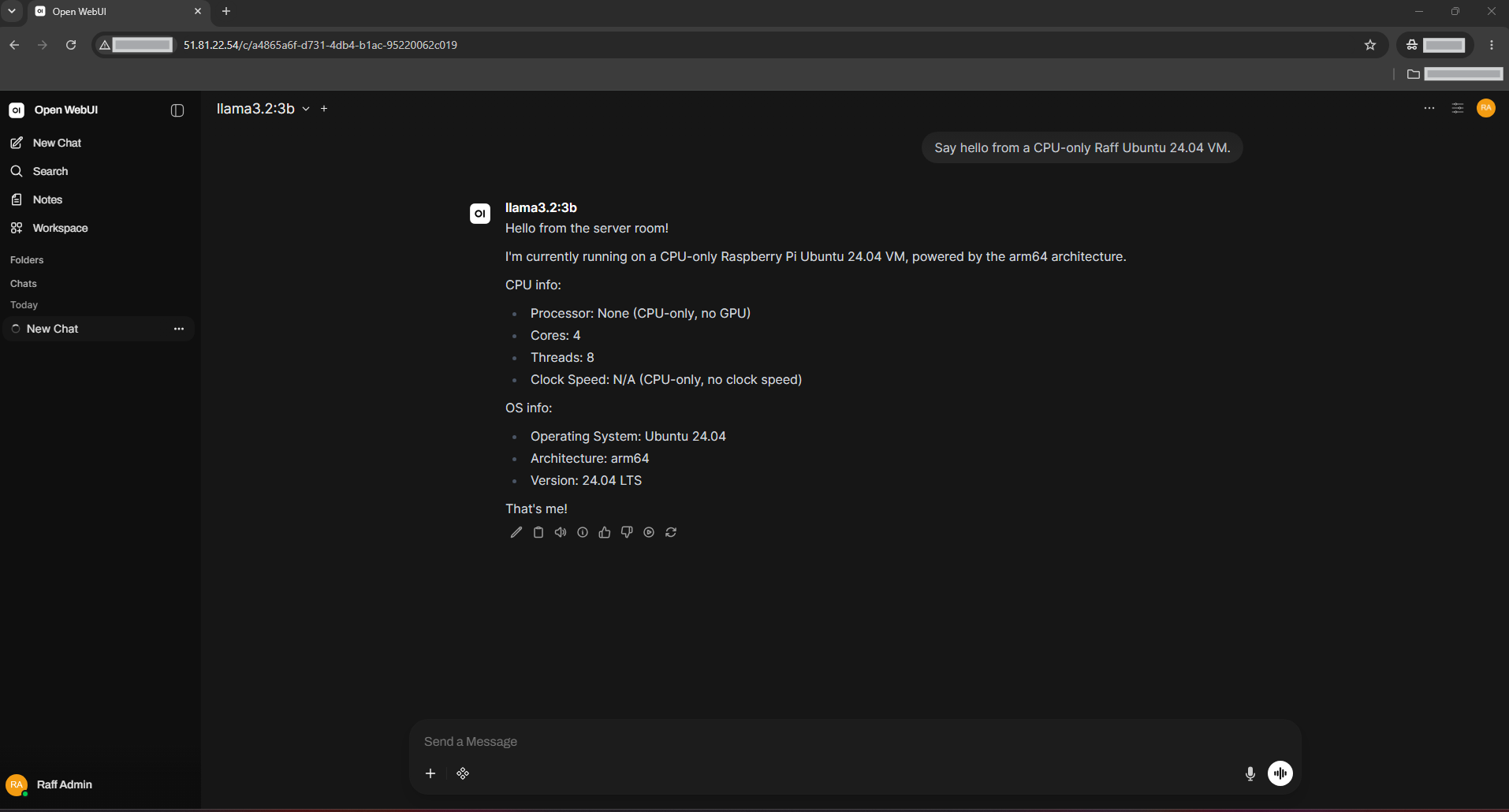
Open WebUI with Ollama can run safely on one Ubuntu 24.04 server without exposing the Ollama API to the internet. The cleaner production pattern is to run Open WebUI and Ollama as separate Docker Compose services on the same private Docker network, publish only Open WebUI to 127.0.0.1:3000, and let Caddy provide the public HTTPS endpoint. In this design, Open WebUI reaches Ollama at http://ollama:11434 inside Docker; host port 11434 is never published.
This tutorial uses Open WebUI v0.11.1 and Ollama 0.33.3, the current stable releases verified on September 4, 2026. Open WebUI's own production guidance recommends pinning a specific release instead of using the rolling :main or :latest image. A persistent WEBUI_SECRET_KEY is also set so container recreation does not invalidate sessions or encrypted integration data.
Raff Technologies is the VM platform used by the original tutorial. The saved tested environment is Ubuntu 24.04.4 LTS on a Raff 8 vCPU / 16 GB RAM / 320 GB NVMe VM running CPU-only inference with llama3.2:3b. This revision updates the deployment architecture against current upstream documentation; it does not claim a new benchmark or a fresh end-to-end hardware test.
Prerequisites:
- An Ubuntu 24.04 VM with SSH and sudo access
- Docker Engine with Docker Compose v2
- A domain such as
ai.example.compointed to the VM - Ports 80 and 443 available for Caddy
- Enough RAM and storage for the Ollama model you choose
Step 1 — Verify Ubuntu, Docker, DNS, memory, and free disk space
Check the operating system:
cat /etc/os-release
Verify Docker and Compose:
docker --version
docker compose version
If Docker is not installed, use How to Install Docker on Ubuntu 24.04 before continuing.
Check memory and storage:
free -h
df -h /
Check DNS in both address families:
dig +short A ai.example.com
dig +short AAAA ai.example.com
Check whether an existing service already owns the public web ports:
sudo ss -lntp | grep -E ':(80|443)\b' || true
Model files can consume multiple gigabytes, and memory requirements vary substantially by model size, quantization, context length, concurrency, and whether inference runs on CPU or GPU. Do not size the VM from a universal "requests per second" or model-count claim.
Verify: Ubuntu should report 24.04, Docker Compose should run, the domain should resolve to this VM, and you should have enough RAM/disk for the model you intend to pull.
Step 2 — Create the Open WebUI and Ollama project directory
Create a dedicated deployment directory:
sudo install -d -o "$USER" -g "$USER" /opt/open-webui
cd /opt/open-webui
Create a backup directory now so the path exists before the application contains important data:
mkdir -p backups
chmod 700 backups
Confirm ownership:
ls -ld /opt/open-webui /opt/open-webui/backups
Verify: /opt/open-webui and /opt/open-webui/backups should exist and be writable by your administrative user.
Step 3 — Create pinned version and secret settings
Open WebUI's current production guidance recommends versioned image tags rather than rolling :main/:latest tags. Ollama also publishes versioned Docker images.
Generate a persistent Open WebUI secret without printing it to the terminal:
cd /opt/open-webui
umask 077
WEBUI_SECRET_KEY="$(openssl rand -hex 32)"
Create .env:
cat > .env <<EOF
OPEN_WEBUI_VERSION=v0.11.1
OLLAMA_VERSION=0.33.3
DOMAIN=ai.example.com
WEBUI_SECRET_KEY=${WEBUI_SECRET_KEY}
EOF

unset WEBUI_SECRET_KEY
chmod 600 .env
Replace ai.example.com with your real hostname.
WEBUI_SECRET_KEY signs Open WebUI login tokens and is used for sensitive encrypted application data. Keep it stable across updates and container recreation.
Verify:
stat -c '%a %n' .env
grep -E '^(OPEN_WEBUI_VERSION|OLLAMA_VERSION|DOMAIN)=' .env
The mode should be 600, the versions/domain should be correct, and the command should not print the secret.
Step 4 — Create a private Docker Compose stack for Open WebUI and Ollama
Create compose.yaml:
cd /opt/open-webui
nano compose.yaml
Add:
services:
  ollama:
    image: ollama/ollama:${OLLAMA_VERSION}
    container_name: ollama
    restart: unless-stopped
    volumes:
      - ollama_data:/root/.ollama
    networks:
      - ai_net
    healthcheck:
      test: ["CMD", "ollama", "list"]
      interval: 15s
      timeout: 10s
      retries: 10
      start_period: 30s

  open-webui:
    image: ghcr.io/open-webui/open-webui:${OPEN_WEBUI_VERSION}
    container_name: open-webui
    restart: unless-stopped
    depends_on:
      ollama:
        condition: service_healthy
    ports:
      - "127.0.0.1:3000:8080"
    environment:
      OLLAMA_BASE_URL: http://ollama:11434
      WEBUI_URL: https://${DOMAIN}
      WEBUI_SECRET_KEY: ${WEBUI_SECRET_KEY}
    volumes:
      - open_webui_data:/app/backend/data
    networks:
      - ai_net

networks:
  ai_net:
    driver: bridge

volumes:
  ollama_data:
  open_webui_data:
This design intentionally has no ports: section on Ollama. Port 11434 exists only inside the Docker network, while Open WebUI reaches it by the Compose service name ollama.
Open WebUI's current environment reference uses OLLAMA_BASE_URL; the older OLLAMA_API_BASE_URL variable is deprecated.
Validate the file:
docker compose config -q
docker compose config --services
Verify: Validation should succeed, the services should be ollama and open-webui, and the rendered Ollama service should not publish host port 11434.
Step 5 — Start Ollama and Open WebUI
Pull the pinned images:
cd /opt/open-webui
docker compose pull
Start the stack:
docker compose up -d
Check service state:
docker compose ps
Inspect recent logs:
docker compose logs --tail=80 ollama
docker compose logs --tail=80 open-webui
Open WebUI may take longer on the first start while its database and application data are initialized.
Verify: Ollama should become healthy, Open WebUI should remain running, and neither service should be stuck in a repeating restart loop.
Step 6 — Pull and test the CPU-friendly model used by the original tutorial
The original Raff test used llama3.2:3b, which remains available in Ollama's model library and is approximately a 2 GB model download.
Pull it into the persistent Ollama volume:
cd /opt/open-webui
docker compose exec ollama ollama pull llama3.2:3b
List installed models:
docker compose exec ollama ollama list
Run a direct model test:
docker compose exec ollama \
  ollama run llama3.2:3b "Reply with: Ollama is working."
A 3B model is a practical smoke test for the saved CPU-only environment, but it is not a universal production recommendation. Choose model size from the hardware you actually have and the quality/context requirements of your workload.
Verify: ollama list should show llama3.2:3b, and the direct model command should return a text response.
Step 7 — Confirm Ollama is not exposed on the host network
Check host listeners:
sudo ss -lntp | grep -E ':(3000|11434)\b' || true
The expected host-side result is a loopback listener for Open WebUI:
127.0.0.1:3000
There should be no host listener on port 11434 from this Compose stack.
Check published Docker ports:
docker compose ps
Then test the Ollama API from the Open WebUI container's network namespace:
docker compose exec open-webui python3 -c \
  "import urllib.request; print(urllib.request.urlopen('http://ollama:11434/api/tags', timeout=10).read().decode())"
The response should include the installed model.
This replaces the older pattern of setting OLLAMA_HOST=0.0.0.0:11434 on the Ubuntu host. Ollama's own documentation states that it binds to 127.0.0.1:11434 by default and that OLLAMA_HOST changes the network bind address. Publishing Ollama broadly is unnecessary when both services can communicate on a private Docker network.
Verify: Open WebUI should reach http://ollama:11434, while port 11434 remains unpublished on the VM's host interfaces.
Step 8 — Install Caddy for the public HTTPS endpoint
Install Caddy from its official Debian/Ubuntu repository:
sudo apt update
sudo apt install -y debian-keyring debian-archive-keyring apt-transport-https curl
Add the stable repository key:
curl -1sLf 'https://dl.cloudsmith.io/public/caddy/stable/gpg.key' | \
  sudo gpg --dearmor -o /usr/share/keyrings/caddy-stable-archive-keyring.gpg
Add the stable repository:
curl -1sLf 'https://dl.cloudsmith.io/public/caddy/stable/debian.deb.txt' | \
  sudo tee /etc/apt/sources.list.d/caddy-stable.list

sudo chmod o+r /usr/share/keyrings/caddy-stable-archive-keyring.gpg
sudo chmod o+r /etc/apt/sources.list.d/caddy-stable.list
sudo apt update
sudo apt install -y caddy
Caddy will be the only public web service. Open WebUI stays on 127.0.0.1:3000, and Ollama stays inside Docker.
For a deeper Caddy explanation, see How to Set Up a Caddy Reverse Proxy on Ubuntu 24.04.
Verify: caddy version should return a version and systemctl is-active caddy should report active unless another process is already occupying ports 80/443.
Step 9 — Configure the firewall without exposing AI backend ports
Check UFW before changing it:
sudo ufw status verbose
If UFW is already active, confirm the SSH path you are currently using is allowed, then permit web traffic:
sudo ufw allow 80/tcp
sudo ufw allow 443/tcp
If UFW is inactive, do not enable it blindly on a remote VM. Configure and verify SSH access first using Set Up UFW Firewall on Ubuntu 24.04.
Do not add public firewall rules for ports 3000 or 11434. Port 3000 is already loopback-only; Ollama has no published host port.
If a provider-side firewall protects the VM, allow only your administration path plus public TCP 80/443 as required.
Verify: Your existing SSH access should remain functional, public 80/443 should be allowed, and there should be no public rule intentionally opening 3000 or 11434.
Step 10 — Put Open WebUI behind Caddy with automatic HTTPS
Back up the packaged Caddyfile:
sudo cp /etc/caddy/Caddyfile /etc/caddy/Caddyfile.bak
Create the site:
sudo tee /etc/caddy/Caddyfile > /dev/null <<'EOF'
ai.example.com {
    reverse_proxy 127.0.0.1:3000
}
EOF
Replace ai.example.com with the domain stored in /opt/open-webui/.env.
Caddy's reverse_proxy supports WebSocket upgrades automatically, so you do not need to copy Nginx-style manual Upgrade and Connection header boilerplate.
Format and validate the Caddyfile:
sudo caddy fmt --overwrite /etc/caddy/Caddyfile
sudo caddy validate --config /etc/caddy/Caddyfile
Reload Caddy:
sudo systemctl reload caddy
Test both schemes:
curl -I http://ai.example.com
curl -I https://ai.example.com
Verify: HTTP should redirect to HTTPS, the HTTPS request should reach Open WebUI with a trusted certificate, and 127.0.0.1:3000 should remain the only host-side Open WebUI backend listener.
Step 11 — Create the first Open WebUI administrator account
Open:
https://ai.example.com
Create the first account. Current Open WebUI hardening guidance states that signup is open only until the first account is registered; that first user becomes the administrator and signup is then automatically disabled by default.
Use a unique administrator password and avoid sharing the administrator account for normal multi-user access.
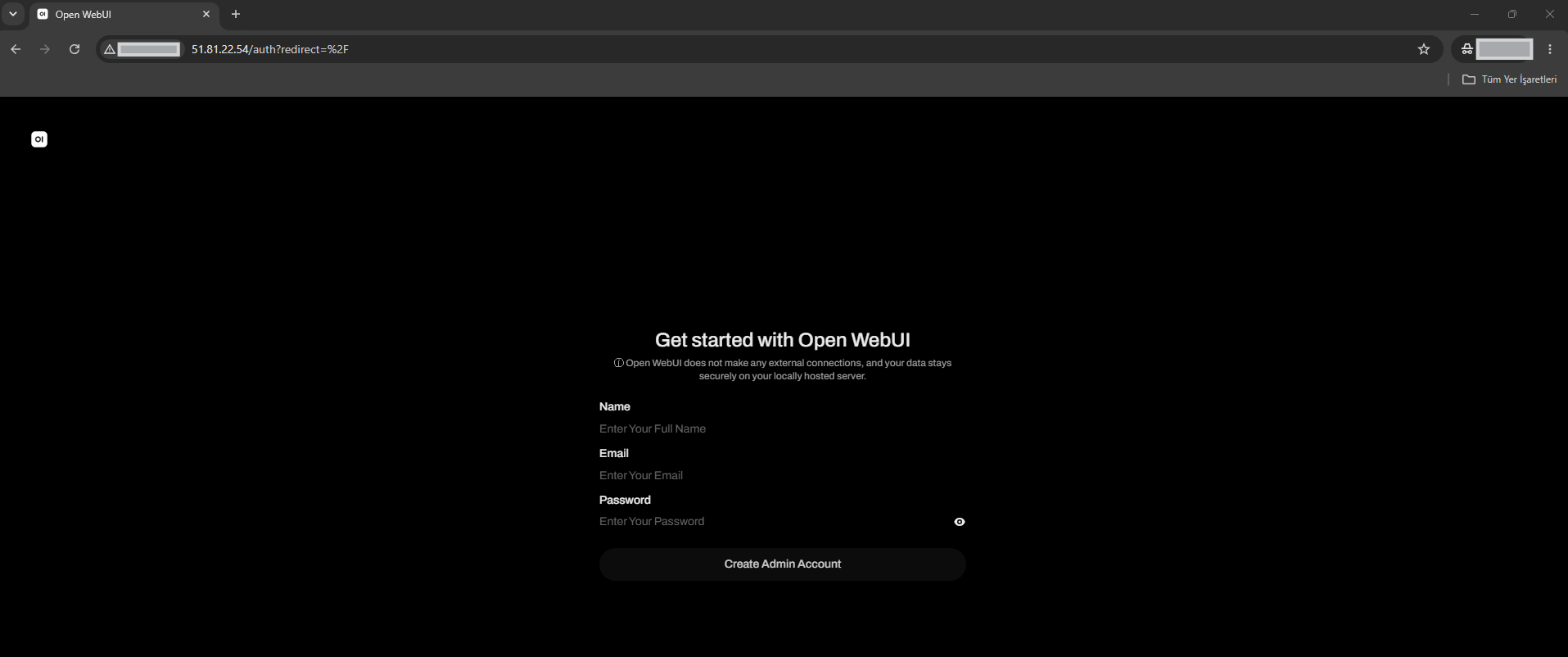
The interface has changed across Open WebUI releases, so labels in an older screenshot may differ slightly from v0.11.1 even though the account workflow remains the same.
Verify: You should be able to sign in over HTTPS, open the Admin area, and confirm the first account has administrator privileges.
Step 12 — Verify the Ollama connection and chat with the model
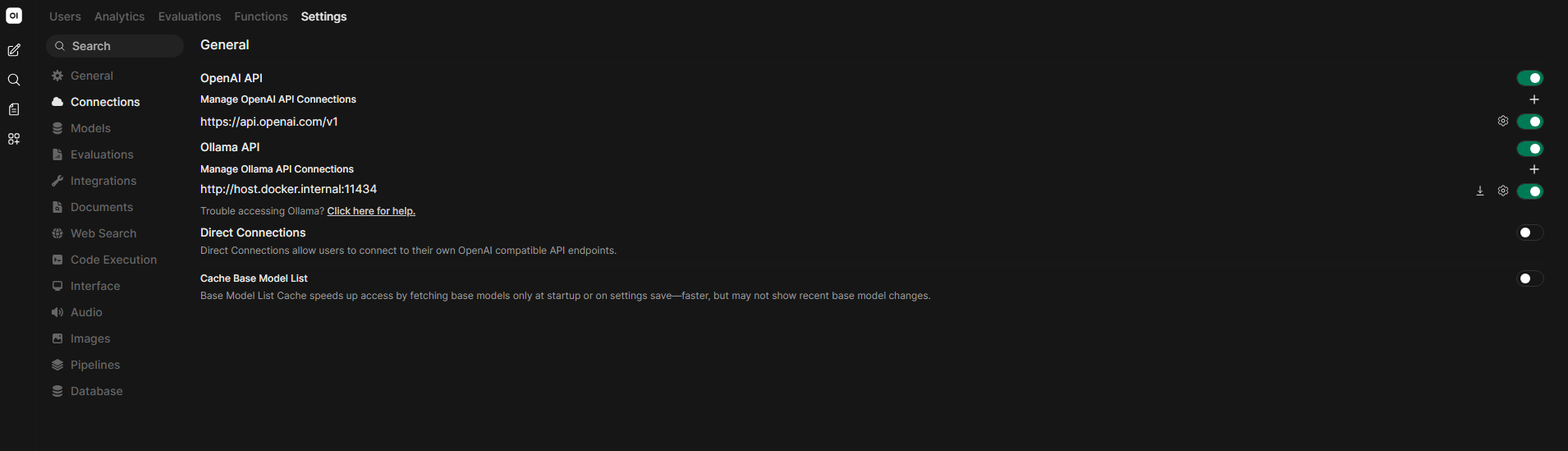
Open the Open WebUI administrator connection settings. In current releases, Ollama connections are managed under the administrator settings area.
The backend connection for this Compose deployment is:
http://ollama:11434
Open WebUI's current Docker guidance uses internal URLs that the backend container can actually reach; when two services share a Compose network, the service name is preferable to exposing Ollama on the host.
Return to chat and select:
llama3.2:3b
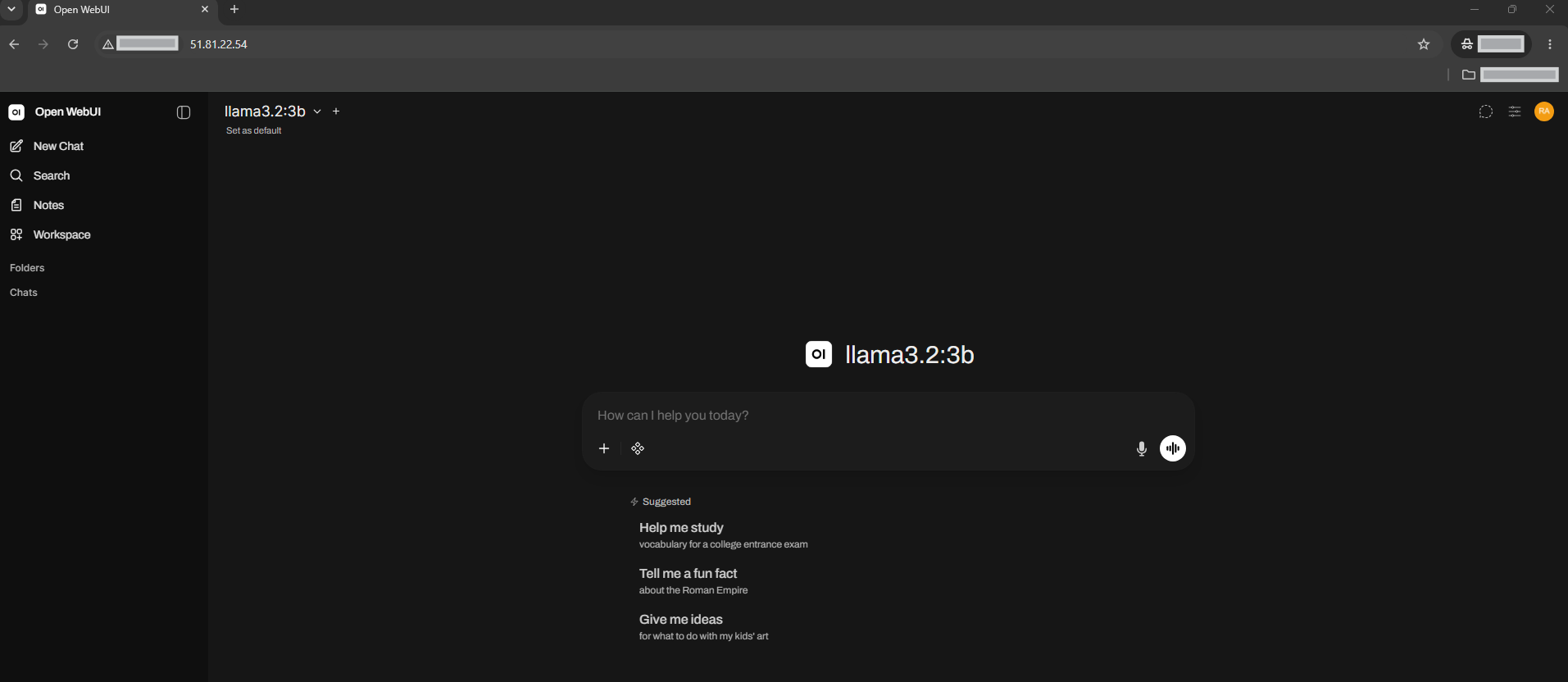
Send a simple test prompt:
Reply with exactly: Open WebUI and Ollama are connected.