
Uptime Kuma is a self-hosted monitoring application for checking websites, APIs, network services, certificates, and other endpoints from your own server. A safer production pattern on Ubuntu 24.04 is to run Uptime Kuma with Docker Compose, keep its application port bound only to 127.0.0.1:3001, and let Caddy expose the dashboard over public HTTPS. This avoids publishing the Uptime Kuma web service directly to every network interface.
Raff Technologies is the VM platform used by the original tutorial. The saved tested environment remains Ubuntu 24.04 LTS on Raff 1 vCPU / 2 GB RAM VM. This revision updates the deployment against current Uptime Kuma v2 documentation and Uptime Kuma 2.5.3, the latest stable release verified on September 5, 2026. It does not claim a new benchmark or a fresh end-to-end hardware retest.
The official Uptime Kuma Docker documentation requires /app/data to live on a filesystem with working POSIX file locks and specifically warns about file-locking problems with storage such as NFS. This guide therefore keeps the data directory on local VM storage, backs it up before upgrades, and treats the backup as sensitive because it can contain monitoring configuration, users, notification credentials, and application history.
Prerequisites:
- An Ubuntu 24.04 VM with SSH and sudo access
- Docker Engine and Docker Compose v2
- A domain such as
status.example.compointed to the VM - TCP 80 and 443 available for Caddy
- A second administrative SSH session or recovery path before firewall changes
Step 1 — Verify Ubuntu, DNS, Docker, ports, and local storage
Confirm the operating system:
cat /etc/os-release
Verify Docker and Compose:
docker --version
docker compose version
If Docker is not installed, use How to Install Docker on Ubuntu 24.04 before continuing.
Check the domain in both address families:
dig +short A status.example.com
dig +short AAAA status.example.com
Check whether another service already owns the public web ports:
sudo ss -lntp | grep -E ':(80|443)\b' || true
Check free disk space and filesystem type for /opt:
df -h /opt
df -T /opt
Uptime Kuma's current install documentation warns that its data directory needs a filesystem with POSIX file-lock support. Keep /app/data on normal local storage for this deployment rather than an NFS-style mount.
Verify: Ubuntu should report 24.04, Docker Compose should work, DNS should point to this VM, ports 80/443 should be available or intentionally owned by your reverse proxy, and /opt should be backed by suitable local storage.
Step 2 — Create a dedicated Uptime Kuma project directory
Create the deployment directory:
sudo install -d -o "$USER" -g "$USER" /opt/uptime-kuma
cd /opt/uptime-kuma
Create the local data and backup directories:
mkdir -p data backups
chmod 700 backups
The project will use:
/opt/uptime-kuma/
├── compose.yaml
├── data/
└── backups/
The data directory is mapped to /app/data in the container. Do not place it on unsupported network storage merely to make backups easier.
Verify: /opt/uptime-kuma, data, and backups should exist and be writable by your administrative user.
Step 3 — Pin Uptime Kuma 2.5.3 in Docker Compose
Uptime Kuma's official Docker tags documentation recommends the 2 tag for the current v2 release line. This tutorial pins the exact stable release verified on September 5, 2026 so a later docker compose pull cannot silently move the tutorial to a newer application version.
Create compose.yaml:
cd /opt/uptime-kuma
nano compose.yaml
Add:
services:
  uptime-kuma:
    image: louislam/uptime-kuma:2.5.3
    container_name: uptime-kuma
    restart: unless-stopped
    ports:
      - "127.0.0.1:3001:3001"
    volumes:
      - ./data:/app/data
Do not use louislam/uptime-kuma:latest for a v2 deployment. Current upstream documentation marks latest as deprecated and notes that it points to the v1 line.
Validate the Compose file:
docker compose config -q
docker compose config --services
Inspect the rendered port mapping:
docker compose config | grep -A 8 -n 'ports:'
Verify: Compose validation should succeed, the service should be uptime-kuma, the image should be 2.5.3, and host port 3001 should be bound to 127.0.0.1 rather than 0.0.0.0.
Step 4 — Pull the image and start Uptime Kuma
Pull the pinned image:
cd /opt/uptime-kuma
docker compose pull
Start the stack:
docker compose up -d
Check its state:
docker compose ps
Inspect startup logs:
docker compose logs --tail=100 uptime-kuma
Check the image actually in use:
docker inspect uptime-kuma --format '{{.Config.Image}}'
Verify: The container should remain running without a restart loop, logs should not show repeated database/file-lock errors, and the inspected image should be louislam/uptime-kuma:2.5.3.
Step 5 — Verify Uptime Kuma is reachable locally but not published publicly
Test the local backend:
curl -I http://127.0.0.1:3001
An HTTP response such as 200, 302, or another valid application response confirms that the web service is listening.
Inspect host listeners:
sudo ss -lntp | grep ':3001'
The intended host-side listener is:
127.0.0.1:3001
Check Docker's published ports:
docker compose ps
Because this Compose file publishes only to loopback, you do not need a public UFW rule for TCP 3001.
This matters because Docker's published-port firewall rules can bypass assumptions based on ordinary UFW INPUT filtering. Binding a private backend to loopback is stronger than publishing 0.0.0.0:3001 and hoping a host firewall rule always protects it.
Verify: Uptime Kuma should answer on 127.0.0.1:3001, and there should be no 0.0.0.0:3001 or public IPv6 listener for the application port.
Step 6 — Install Caddy for the public HTTPS endpoint
Install prerequisites:
sudo apt update
sudo apt install -y debian-keyring debian-archive-keyring apt-transport-https curl
Add Caddy's official repository key:
curl -1sLf 'https://dl.cloudsmith.io/public/caddy/stable/gpg.key' | \
  sudo gpg --dearmor -o /usr/share/keyrings/caddy-stable-archive-keyring.gpg
Add the stable repository:
curl -1sLf 'https://dl.cloudsmith.io/public/caddy/stable/debian.deb.txt' | \
  sudo tee /etc/apt/sources.list.d/caddy-stable.list

sudo chmod o+r /usr/share/keyrings/caddy-stable-archive-keyring.gpg
sudo chmod o+r /etc/apt/sources.list.d/caddy-stable.list
sudo apt update
sudo apt install -y caddy
Uptime Kuma's reverse-proxy documentation recommends HTTPS for public deployments and notes that its application uses WebSockets. Caddy's reverse_proxy supports WebSocket upgrades automatically, so no Nginx-style manual Upgrade/Connection header boilerplate is needed here.
For the full proxy workflow, see Caddy Reverse Proxy on Ubuntu 24.04.
Verify: caddy version should return a version, and systemctl is-active caddy should report active unless another process is still occupying ports 80/443.
Step 7 — Configure UFW without opening port 3001
Check UFW first:
sudo ufw status verbose
If UFW is already active, confirm the SSH path you are using is allowed, then add public web traffic:
sudo ufw allow 80/tcp comment 'HTTP for Caddy'
sudo ufw allow 443/tcp comment 'HTTPS for Caddy'
Do not add a public rule for port 3001.
If UFW is inactive, do not blindly run ufw enable over a remote connection. Configure and verify SSH access first using Set Up UFW Firewall on Ubuntu 24.04.
If a provider-side firewall is also used, allow the required administration path and public TCP 80/443 there as well.
Verify: SSH should still work from a fresh connection, public 80/443 should be permitted as intended, and there should be no deliberate public firewall rule for 3001.
Step 8 — Reverse proxy Uptime Kuma through Caddy
Back up the current Caddy configuration:
sudo cp /etc/caddy/Caddyfile /etc/caddy/Caddyfile.bak
Configure the status hostname:
sudo tee /etc/caddy/Caddyfile > /dev/null <<'EOF'
status.example.com {
    reverse_proxy 127.0.0.1:3001
}
EOF
Replace status.example.com with your real hostname.
Uptime Kuma's current reverse-proxy documentation says it does not support being served from a normal URL subdirectory such as /uptimekuma; use a domain or subdomain instead.
Format and validate:
sudo caddy fmt --overwrite /etc/caddy/Caddyfile
sudo caddy validate --config /etc/caddy/Caddyfile
Reload Caddy:
sudo systemctl reload caddy
Test HTTP redirect and HTTPS:
curl -I http://status.example.com
curl -I https://status.example.com
Verify: HTTP should redirect to HTTPS, HTTPS should return an Uptime Kuma response with a trusted certificate, and Caddy should proxy to the loopback backend without a 502 error.
Step 9 — Complete the first-run database and administrator setup
Open:
https://status.example.com
Complete Uptime Kuma's first-run setup. For this single-node Docker deployment, keep the application data under the local /app/data mount and use the default/local database path presented by the installer unless you have a separately designed external database architecture.
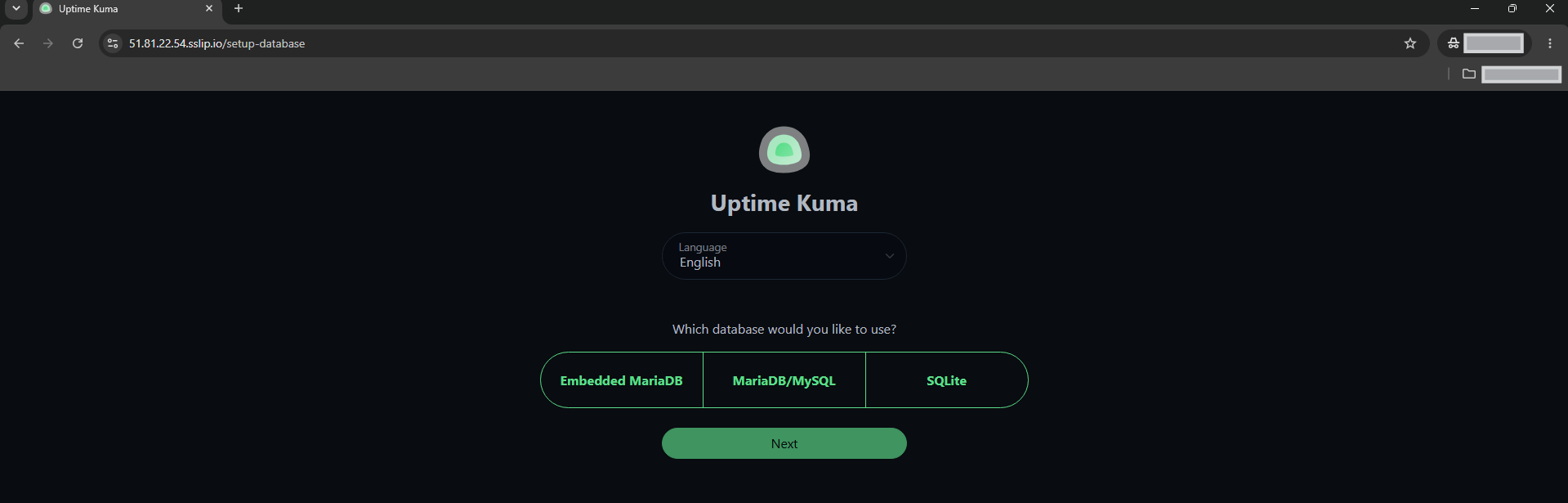
Create the administrator account with a unique strong password.
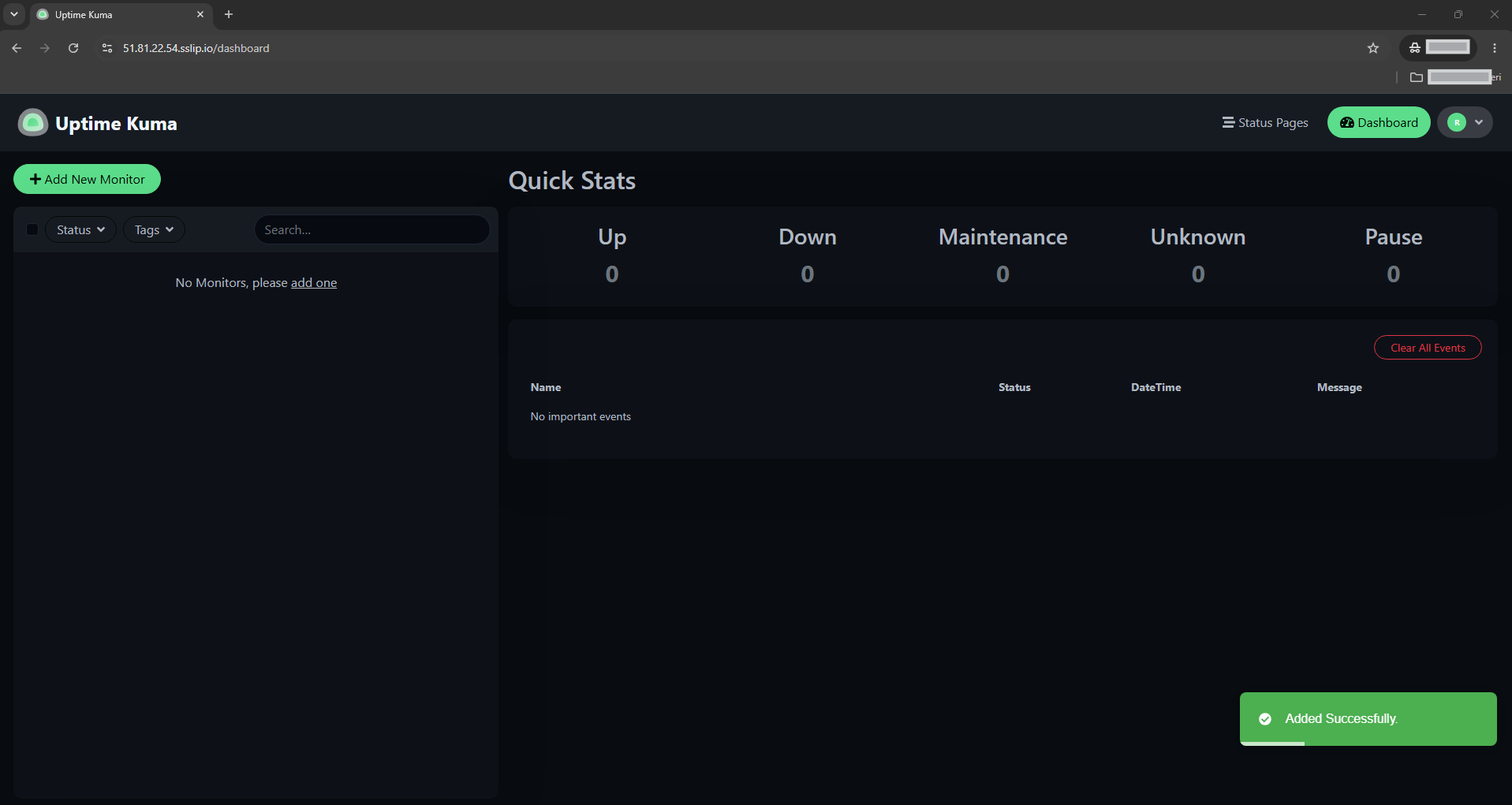
Do not expose setup over raw HTTP on a public interface merely for convenience. Complete account creation through the HTTPS hostname.
Verify: You should be able to log in through https://status.example.com, reach the dashboard, and confirm that subsequent container recreation does not return you to a fresh unconfigured instance.
Step 10 — Add and verify an HTTP(s) monitor
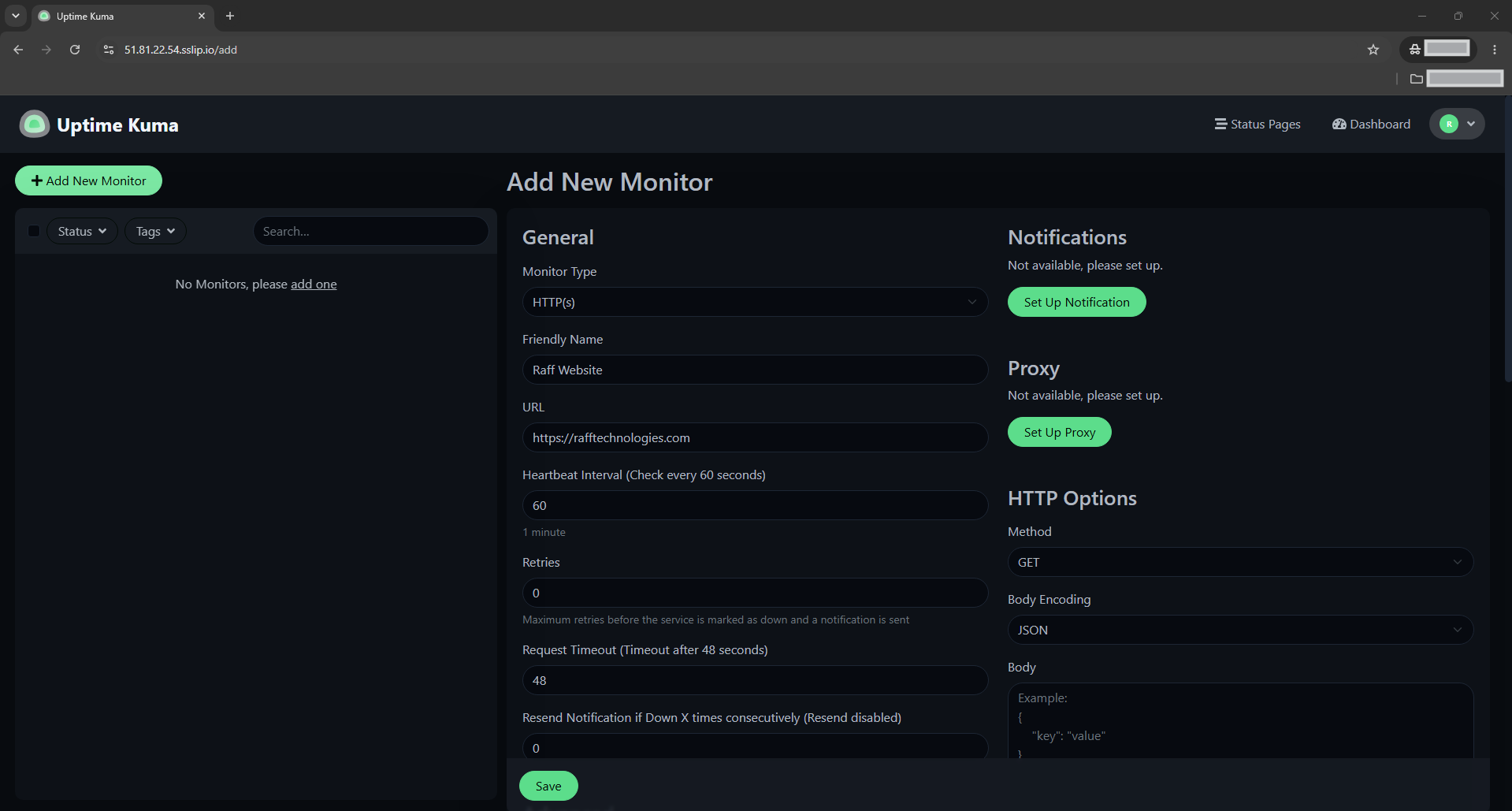
Create a new HTTP(s) monitor in the dashboard.
A practical starter configuration is:
Monitor Type: HTTP(s)
Friendly Name: Raff Website
URL: https://rafftechnologies.com
Heartbeat Interval: 60 seconds
Retries: 0
Accepted Status Codes: 200-299
Uptime Kuma v2 changed the default retry count for newly created monitors to 0. Add retries only when they reflect the failure semantics you actually want; retries delay alerting and can hide short outages if configured too aggressively.
Before blaming Uptime Kuma when a monitor stays down, test the target from the monitoring VM:
curl -I https://rafftechnologies.com
Inspect application logs if needed:
cd /opt/uptime-kuma
docker compose logs --tail=100 uptime-kuma
Verify: The monitor should save successfully and eventually report Up when the target is reachable and its response matches your accepted status criteria.
Step 11 — Configure notifications without leaking provider secrets
Uptime Kuma supports multiple native notification providers and can also integrate with Apprise for additional services.
Open the dashboard's notification settings, choose the provider you actually use, enter its credentials/webhook/token, and use Uptime Kuma's test action before attaching the notification to production monitors.
Treat notification credentials as secrets. Avoid:
- pasting webhook URLs or API tokens into public screenshots;
- committing notification credentials to Git;
- copying the Uptime Kuma
datadirectory to an unprotected shared location; - sending full backups through chat or ticket systems without encryption/access controls.
After adding the notification, attach it to the monitor and test a controlled notification path rather than creating a real outage on a production service.
Verify: The provider's test notification should arrive at the intended destination, and no credential should be present in compose.yaml, shell history, or public documentation unless that provider explicitly requires an environment-based deployment design.
Step 12 — Create a public status page with the correct expectations
Create a status page from the Uptime Kuma dashboard and add only the monitors you intend to expose publicly.
Uptime Kuma's current status-page documentation says status pages are intended for public users, cache results for 5 minutes, and refresh on a 5-minute cycle. They therefore should not be described as identical to the authenticated dashboard's live update behavior.
You can use multiple status pages and, when needed, map a status page to a dedicated domain. If you use domain-based status pages behind a reverse proxy, make sure the proxy preserves the host information Uptime Kuma needs. Caddy does this appropriately in the normal reverse-proxy flow.
Do not put internal hostnames, private IPs, customer names, incident notes, or sensitive infrastructure labels on a public status page unless disclosure is intentional.
Verify: Open the status page in a private/incognito browser session and confirm that it shows only the intended services without exposing administrative controls or sensitive monitor details.
Step 13 — Back up /app/data before updates or migrations
Uptime Kuma v2 removed the old JSON backup/restore feature; current upstream migration guidance says backing up the data directory is the supported backup method.
Create a timestamped backup directory:
cd /opt/uptime-kuma
STAMP="$(date +%F-%H%M%S)"
BACKUP_DIR="/opt/uptime-kuma/backups/$STAMP"
mkdir -p "$BACKUP_DIR"
chmod 700 "$BACKUP_DIR"
Stop Uptime Kuma for a consistent filesystem-level copy:
docker compose stop uptime-kuma
Archive the local data directory and Compose configuration:
tar -czf "$BACKUP_DIR/uptime-kuma-data.tar.gz" -C /opt/uptime-kuma data
cp compose.yaml "$BACKUP_DIR/"
sudo cp /etc/caddy/Caddyfile "$BACKUP_DIR/Caddyfile"
Restart the application:
docker compose start uptime-kuma
Inspect the archive:
ls -lh "$BACKUP_DIR"
tar -tzf "$BACKUP_DIR/uptime-kuma-data.tar.gz" | head
Keep a protected copy outside this VM. The backup can contain monitoring metadata and notification credentials, so access to the backup should be at least as restricted as access to the dashboard itself.
Raff Data Protection can provide an infrastructure-level recovery layer, but an application-level /app/data backup remains valuable before Uptime Kuma upgrades and migrations.
Verify: The backup should contain the complete local data directory plus Compose/Caddy configuration, Uptime Kuma should return to a running state, and at least one protected copy should exist away from the live VM.
Step 14 — Update, troubleshoot, verify end to end, and roll back safely
Before an application update, read the Uptime Kuma release notes and create a fresh backup.
This tutorial pins 2.5.3. To move to a later stable v2 release, edit only the image tag after reviewing the target release:
cd /opt/uptime-kuma
nano compose.yaml
Then pull and recreate:
docker compose pull
docker compose up -d --force-recreate
Check state and logs immediately:
docker compose ps
docker compose logs --tail=120 uptime-kuma
docker inspect uptime-kuma --format '{{.Config.Image}}'
The official update workflow also uses docker compose pull followed by docker compose up -d --force-recreate.
If you are still running Uptime Kuma v1 elsewhere, do not treat v1→v2 as an ordinary image update. Upstream calls it a major migration, requires a backup of the data directory, warns that migration can take significant time, and says the migration should not be interrupted.
If Caddy returns 502:
curl -I http://127.0.0.1:3001
sudo journalctl -u caddy -n 100 --no-pager
docker compose logs --tail=100 uptime-kuma
If the monitor stays down:
curl -I https://your-monitored-target.example
docker compose logs --tail=100 uptime-kuma
If you forget the administrator password, upstream documents a container CLI reset path. Enter the container and run the reset tool, then choose a strong replacement password:
docker exec -it uptime-kuma bash
npm run reset-password
For the final end-to-end audit:
cd /opt/uptime-kuma
docker compose config -q
docker compose ps
sudo ss -lntp | grep -E ':(80|443|3001)\b' || true
curl -I https://status.example.com
sudo ufw status numbered
Expected architecture:
Internet
   |
   | HTTPS 443
   v
Caddy
   |
   | 127.0.0.1:3001
   v
Uptime Kuma 2.5.3
   |
   v
local /app/data
To stop the application without deleting monitoring data:
docker compose down
The bind-mounted /opt/uptime-kuma/data directory remains. To start again:
docker compose up -d
To remove Uptime Kuma permanently, first verify an external backup, then remove the stack and project data only when deletion is intentional. Do not casually delete /opt/uptime-kuma/data during troubleshooting.
Verify: The dashboard should load over HTTPS, the admin can log in, the monitor should report correctly, notifications/status page should work as designed, port 3001 should remain loopback-only, the data directory should persist across container recreation, and a tested backup should exist before any version change.
Conclusion
You now have Uptime Kuma v2 running on Ubuntu 24.04 with Docker Compose, local persistent storage, loopback-only application exposure, Caddy HTTPS, a verified HTTP monitor, optional notifications and a public status page, plus a backup and controlled update workflow.
The important operational boundaries are straightforward: keep /app/data on a filesystem with proper POSIX locks, do not publish port 3001 unnecessarily, treat the data backup as sensitive, and never upgrade a v1 deployment to v2 without following the dedicated migration process. Recheck the monitoring VM itself after major updates so the system responsible for reporting outages does not quietly become an unmonitored failure point.
For adjacent procedures, use Install Docker on Ubuntu 24.04, Caddy Reverse Proxy on Ubuntu 24.04, and Set Up UFW Firewall on Ubuntu 24.04.