Caddy is a web server that can serve static sites and manage HTTPS automatically when you configure a qualifying public domain. In this tutorial, you will install Caddy on a Raff Technologies Linux VM running Ubuntu 24.04, serve a static website from /var/www, point a domain to the server, enable ports 80 and 443, validate the Caddyfile, verify automatic HTTPS, inspect certificate and service state, and safely roll the setup back if needed.
This page focuses on installing Caddy as a web server for a static site. Raff has a separate tutorial for using Caddy as a reverse proxy, so the two workflows do not need to duplicate each other. Caddy's official Ubuntu package installs a systemd service named caddy, and Caddy's automatic HTTPS can obtain and renew publicly trusted certificates for qualifying domain names while redirecting HTTP traffic to HTTPS. See the official Caddy installation documentation and Automatic HTTPS documentation for the upstream behavior used here.
You need Ubuntu 24.04, a domain or subdomain whose active A and/or AAAA records point to the VM, SSH access with sudo privileges, and ports 80 and 443 available for Caddy.
Step 1 — Confirm Ubuntu, DNS, and Existing Web Services
Check the operating system:
cat /etc/os-release
Check whether another service is already listening on ports 80 or 443:
sudo ss -lntp | grep -E ':(80|443)\b' || true
Check every active public address record for the hostname:
dig +short A your-domain.com
dig +short AAAA your-domain.com
Replace your-domain.com throughout this tutorial with the real hostname you plan to serve. If an AAAA record exists, make sure it points to this server and that IPv6 traffic can actually reach Caddy. A stale AAAA record can send IPv6 clients and ACME validation to the wrong host.
If Nginx or Apache is already serving production traffic on this VM, do not stop it blindly. Decide whether Caddy will replace it, coexist on different ports, or be deployed on another server before continuing.
Verify: Ubuntu should report 24.04, every active A/AAAA record should resolve to an address that reaches this VM, and you should know whether ports 80 and 443 are already in use.
Step 2 — Install Caddy from the Official Repository
Caddy recommends using its official distribution package on supported production systems. Install the repository prerequisites:
sudo apt update
sudo apt install -y debian-keyring debian-archive-keyring apt-transport-https curl
Add the official stable signing key:
curl -1sLf 'https://dl.cloudsmith.io/public/caddy/stable/gpg.key' | \
  sudo gpg --dearmor -o /usr/share/keyrings/caddy-stable-archive-keyring.gpg
Add the stable repository:
curl -1sLf 'https://dl.cloudsmith.io/public/caddy/stable/debian.deb.txt' | \
  sudo tee /etc/apt/sources.list.d/caddy-stable.list
Make the APT files readable:
sudo chmod o+r /usr/share/keyrings/caddy-stable-archive-keyring.gpg
sudo chmod o+r /etc/apt/sources.list.d/caddy-stable.list
Install Caddy:
sudo apt update
sudo apt install -y caddy
The official Debian/Ubuntu package starts Caddy as a systemd service automatically.
Verify: Run caddy version and systemctl is-active caddy. The version command should return a Caddy v2 release and the service should report active.
Step 3 — Allow SSH, HTTP, and HTTPS Through the Host Firewall
If UFW is already active, inspect the current rules first:
sudo ufw status numbered
Make sure your actual SSH port is allowed before enabling or changing the firewall. For a standard SSH service on port 22:
sudo ufw allow OpenSSH
Allow standard web traffic:
sudo ufw allow 80/tcp
sudo ufw allow 443/tcp
If UFW is currently inactive and you intend to enable it, confirm SSH access is allowed first, then enable it:
sudo ufw enable
For normal public automatic HTTPS, Caddy's documentation expects the server to be externally reachable on ports 80 and 443. Port 80 is also used for automatic HTTP-to-HTTPS redirects.
Verify: sudo ufw status should show your SSH rule plus inbound access for TCP 80 and 443 without removing any rules required by other services.
Step 4 — Create a Read-Only Static Site for the Caddy Service
Caddy's systemd documentation recommends serving static files from locations such as /srv or /var/www rather than user home directories. Create the site directory with root ownership:
sudo install -d -o root -g root -m 755 /var/www/caddy-demo
Create a simple test page:
cat <<'EOF' | sudo tee /var/www/caddy-demo/index.html > /dev/null
<!doctype html>
<html lang="en">
<head>
  <meta charset="utf-8">
  <meta name="viewport" content="width=device-width, initial-scale=1">
  <title>Caddy on Ubuntu 24.04</title>
</head>
<body>
  <h1>Caddy is serving this site</h1>
  <p>This page is being served from Ubuntu 24.04.</p>
</body>
</html>
EOF
Set the file to a normal world-readable static-file mode:
sudo chmod 644 /var/www/caddy-demo/index.html
There is no need to make the entire tree writable by the caddy service account or apply chmod -R 755 to every file. The service only needs read and directory-traversal permission for this static site.
Do not place secrets, private keys, database dumps, .env files, repository metadata, or backup archives inside a public document root. Caddy's file_server can hide selected names as defense in depth, but upstream documentation explicitly notes that hide should not be treated as the security boundary for sensitive files.
Verify: Run namei -l /var/www/caddy-demo/index.html and confirm the caddy service can traverse the directories and read the file through normal directory 755 and file 644 permissions. Also confirm the document root contains only files that are intended to be publicly served.
Step 5 — Back Up and Write the Caddyfile
Back up the packaged configuration before replacing it:
sudo cp /etc/caddy/Caddyfile /etc/caddy/Caddyfile.bak
Edit the active file:
sudo nano /etc/caddy/Caddyfile
Use this configuration:
your-domain.com {
    root /var/www/caddy-demo
    encode zstd gzip
    file_server {
        hide .git .env
    }
}
The root directive defines the site root and file_server enables static-file serving. encode zstd gzip enables response compression when supported by the client. The hide entries make accidental requests for common repository/secret names return as not found, but sensitive files still belong outside the document root.
Caddy's current documentation allows the simplified root /path syntax; older releases required root * /path, which is why older tutorials may show the wildcard form.
Verify: Save the file and run sudo caddy validate --config /etc/caddy/Caddyfile. It should report a valid configuration before you reload the service.
Step 6 — Format the Caddyfile and Reload Without Downtime
Caddy can format the Caddyfile into its canonical style:
sudo caddy fmt --overwrite /etc/caddy/Caddyfile
Validate again:
sudo caddy validate --config /etc/caddy/Caddyfile
Reload the running systemd service:
sudo systemctl reload caddy
Caddy's official service guidance recommends reloads for configuration changes instead of stopping the service, because a graceful reload avoids unnecessary downtime.
Check recent service logs:
sudo journalctl -u caddy -n 80 --no-pager
Verify: Configuration validation should succeed, systemctl is-active caddy should return active, and the recent journal should not show a repeating configuration or bind error.
Step 7 — Verify Automatic HTTPS
Test the HTTPS endpoint:
curl -I https://your-domain.com
Then test the HTTP endpoint:
curl -I http://your-domain.com
For a qualifying public hostname, Caddy automatically manages a trusted certificate and normally redirects HTTP to HTTPS. Certificate issuance can fail if DNS does not point to this server, ports 80/443 are unreachable, another service owns the ports, or the public CA cannot validate the hostname.
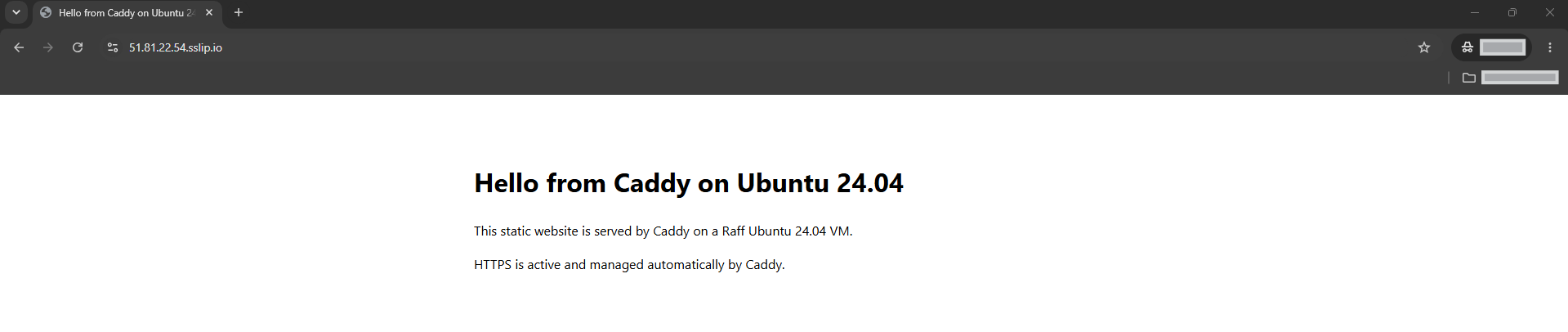
Verify: The HTTPS request should return a successful HTTP response from your site, while the HTTP request should redirect to the HTTPS URL.
Step 8 — Verify the Browser Certificate and Static Content
Open:
https://your-domain.com
Confirm the test page loads and the browser reports a trusted HTTPS connection for the hostname.
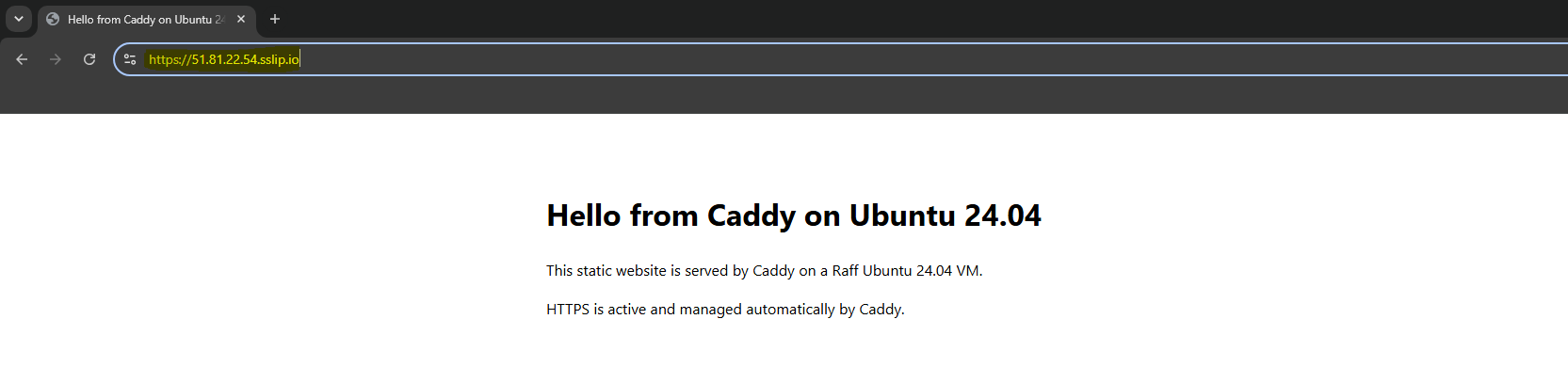
Check the exact page content from the terminal:
curl -fsS https://your-domain.com | grep 'Caddy is serving this site'
Verify: The browser should show the expected hostname over trusted HTTPS, and the terminal command should return the test-page heading.
Step 9 — Confirm Service, Ports, and Caddy Storage State
Confirm Caddy is enabled at boot:
systemctl is-enabled caddy
Check its listeners:
sudo ss -lntp | grep -E ':(80|443)\b'
Check the service account:
systemctl show caddy -p User -p Group
The packaged service runs as the caddy user and stores its application data, including certificate state, under the Caddy service user's data directory in /var/lib/caddy.
Check that the data directory exists without printing private key material:
sudo test -d /var/lib/caddy/.local/share/caddy && echo 'Caddy data directory present'
Verify: Caddy should be enabled, active, listening on the required web ports, running under the expected service account, and have its data directory present.