
In short
To connect to a Windows VPS, copy its public IP address, open an RDP client, enter the IP, sign in with Administrator, and use the password set during VM creation. On Windows, Remote Desktop Connection (mstsc) remains Microsoft's generally available client for direct remote-PC connections. On macOS, iOS, iPadOS, and Android, use Windows App. Keep Network Level Authentication enabled and restrict direct RDP exposure where practical.
If you do not have a Windows VPS with RDP yet, see RDP VPS hosting on Raff.
The Windows VPS RDP login takes six steps
For a standard Raff Windows VM, the first connection is:
1. Confirm the Windows VM is Running.
2. Copy its Public IPv4 address.
3. Open your Remote Desktop client.
4. Enter the public IP address.
5. Sign in as Administrator with your VM password.
6. Verify the server identity and complete the connection.
The normal direct-RDP port is 3389. Microsoft documents both TCP and UDP 3389 for direct Remote Desktop traffic, although the exact transport used by a session can depend on the client and network path.
If you are still choosing a server rather than connecting to one you already own, see Raff Windows VM. This guide is intentionally focused on connection and first login, not broad Windows VPS purchasing intent.
Use the right Remote Desktop client in 2026
Microsoft's client lineup has changed, so use the client that is currently supported for your platform and connection type.
| Local device | Recommended path for a direct Windows VPS connection | Notes |
|---|---|---|
| Windows 10/11 | Remote Desktop Connection (mstsc) | Generally available and built into Windows |
| Windows with Windows App | Windows App can connect to a remote PC | Remote-PC connections in Windows App are still preview as of September 2026 |
| macOS | Windows App | Supports direct remote-PC connections |
| iPhone / iPad | Windows App | Supports direct remote-PC connections |
| Android / ChromeOS | Windows App | Supports direct remote-PC connections |
| Linux | Remmina or FreeRDP | Third-party/open-source clients, not Microsoft clients |
For Windows users, there is no need to replace mstsc just because Windows App exists. Microsoft currently directs users who want a generally available Windows remote-PC client to continue using Remote Desktop Connection.
You need the IP address, Administrator account, and password
Before connecting, prepare:
- a Raff Windows VM with status Running;
- its Public IPv4 address;
- the Administrator password set during VM creation;
- an RDP client on your local device;
- network access to the RDP service.
The standard Raff first-login username is:
Administrator
If your RDP client tries to use a different local or Microsoft account automatically, use:
.\Administrator
The . tells Windows to use the remote server's local account database rather than a domain account.
Get the Windows VPS IP from the Raff dashboard
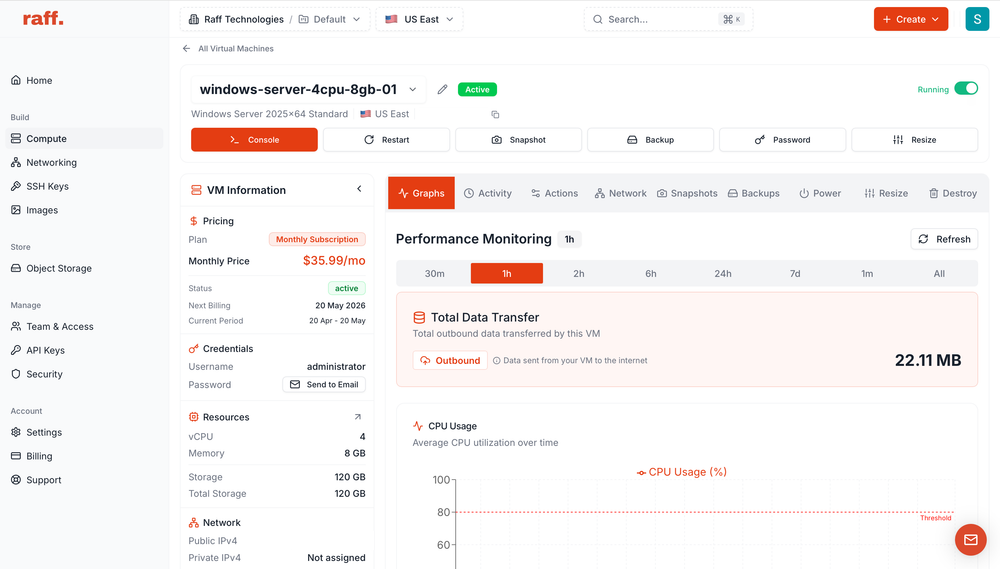
The existing Raff dashboard workflow for this guide is:
- Sign in to the Raff dashboard.
- Open Compute → All Virtual Machines.
- Select your Windows VM.
- Confirm the VM is Running.
- Copy the Public IPv4 address.
You set the Administrator password during VM creation. Save it in a password manager rather than relying on a browser tab or temporary note.
Reset the password if you no longer have it
If the Administrator password is lost, use the password-reset action from the VM details page rather than repeatedly guessing credentials.
After a reset:
- wait for the reset operation to complete;
- remove any stale saved credentials from the RDP client if necessary;
- reconnect with
Administratorand the new password.
Repeated failed sign-ins can trigger account-lockout behavior if a lockout policy is configured.
Connect from Windows with Remote Desktop Connection
Remote Desktop Connection is built into supported Windows versions and remains the simplest generally available path for a direct Windows VPS connection.
- Press
Win + R. - Enter:
mstsc
- Select OK.
- In Computer, enter the Windows VPS public IP.
- Select Show Options if you want to enter the username before connecting.
- Use:
Administrator
- Select Connect.
- Enter the Administrator password.
- Review the certificate/server-identity prompt before continuing.
Microsoft also supports launching a connection directly from the command line:
mstsc /v:203.0.113.42
Replace the documentation IP with your actual server address.
Save the RDP profile if you connect often
In Remote Desktop Connection:
- select Show Options;
- configure the server and username;
- select Save As;
- save the
.rdpfile in a controlled location.
Do not distribute an .rdp file together with shared credentials. Each administrator should have an attributable account where the environment requires it.
Connect from macOS with Windows App
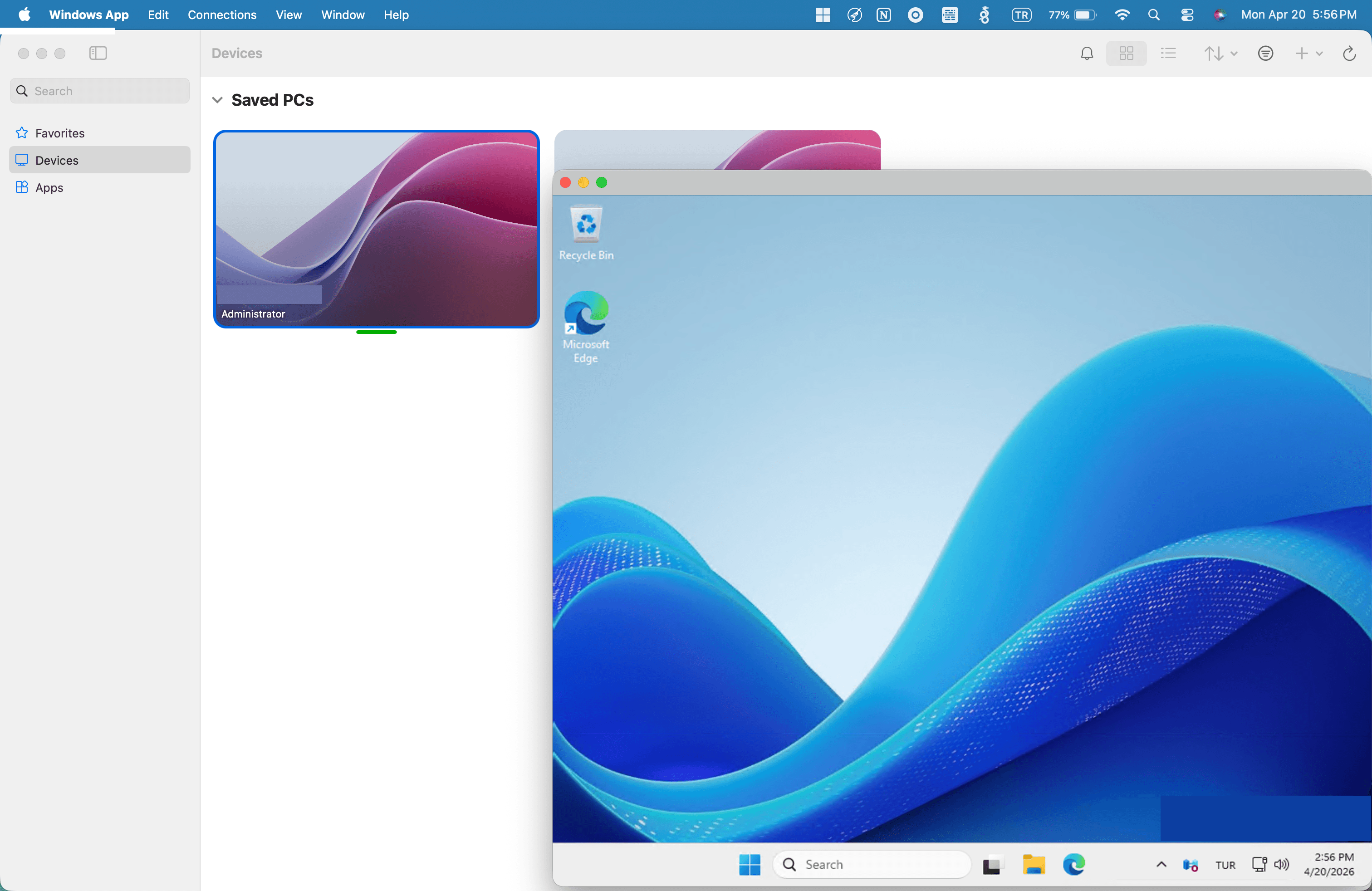
Microsoft Windows App is the current Microsoft client for direct remote-PC connections on macOS.
- Install Windows App from the Mac App Store.
- Open Windows App.
- Add a new PC.
- Enter the Windows VPS public IP as the PC name.
- Add or enter the
Administratoraccount. - Enter the password.
- Save and open the connection.
- Review the certificate prompt before accepting it.
Windows App can also configure display resolution, multiple monitors, clipboard behavior, audio, and device/folder redirection depending on platform support and policy.
Connect from iPhone, iPad, or Android with Windows App
Microsoft also provides Windows App on iOS, iPadOS, and Android/ChromeOS.
The connection details remain the same:
PC name: <your Windows VPS public IP>
Username: Administrator
Password: <your Windows VPS password>
On iPhone or iPad:
- install Windows App;
- tap the add button;
- add a PC;
- enter the VPS IP address;
- save the connection;
- enter the Windows credentials when prompted.
On Android/ChromeOS, add the remote PC in Windows App using the same IP and credentials.
Mobile RDP is useful for emergency administration and quick checks. For long server-management sessions, a desktop client is usually more practical.
Linux clients can use Remmina or FreeRDP
Linux does not use a Microsoft Windows App client for this workflow. Common choices are Remmina and FreeRDP.
On Ubuntu/Debian, Remmina can be installed with:
sudo apt update
sudo apt install remmina remmina-plugin-rdp
Then create an RDP profile with the server IP and Administrator credentials.
FreeRDP can also connect from a terminal. Use its current client syntax for the version installed by your distribution and avoid options that globally disable certificate validation unless you are diagnosing a controlled test environment.
Because Remmina and FreeRDP are third-party/open-source projects, use their current project documentation for distribution-specific package and certificate options.
A first-time certificate warning is expected, but verify the server
A fresh Windows Server commonly presents an RDP certificate that your client cannot validate through a public certificate authority, especially when you connect by raw IP address.
Before accepting the prompt, confirm:
- the IP matches the VM in your Raff dashboard;
- you intentionally initiated the connection;
- the warning is consistent with a first connection or known certificate change.
Do not turn certificate validation off globally just to remove the prompt.
If an established server suddenly presents a different certificate or fingerprint without an expected configuration change, investigate before continuing.
Verify that the RDP session reached the correct Windows Server
After login, open PowerShell and verify the operating system:
Get-ComputerInfo | Select-Object CsName, OsName, OsVersion, OsBuildNumber
Check the network configuration:
ipconfig
And confirm the Remote Desktop Services service is running:
Get-Service TermService
A healthy service state should report Running.
These checks are especially useful when you manage several Windows VMs and want to verify that you connected to the intended server.