
In short
To increase RDP performance, check the four likely limits in order: server CPU/RAM/disk pressure, network latency and loss, display demand, and then graphics policies. Raff checked this troubleshooting sequence on a 4 vCPU / approximately 8 GB Windows Server 2025 VM in May 2026; the lab verified the checks and policy states, but did not run a controlled performance benchmark.
A practical troubleshooting order is:
Check server CPU/RAM/disk
→ test network latency and packet loss
→ confirm TCP/UDP RDP transport is not being unnecessarily restricted
→ reduce display demand for constrained links
→ review graphics policies only when the workload justifies them
→ check concurrent/disconnected sessions
→ retest from another client/network
For most Windows Server workloads, this is safer and more useful than applying undocumented frame-rate registry values.
Remote Desktop slow? Start with the symptom
| Symptom | Most useful first check |
|---|---|
| Mouse and keyboard input feel delayed | Network round-trip time, packet loss, server CPU pressure |
| Session freezes briefly or reconnects | Packet loss, VPN/firewall path, TCP/UDP transport, client network |
| RDP is smooth at low resolution but slow at 4K or multi-monitor | Display resolution, monitor count, available bandwidth |
| Whole Windows VM is slow, not just RDP | CPU, RAM, disk latency, background processes |
| Only one user/client is slow | Client Wi-Fi/VPN, display settings, local device, client software |
| RDP becomes slow when several users connect | Concurrent-session CPU/RAM demand and application workload |
| Login is quick but desktop takes a long time to become usable | User profile, logon scripts, startup apps, updates, security software |
| Text is readable but scrolling/video is choppy | Bandwidth, graphics encoding, high-motion workload |
| Image becomes blurry while session remains responsive | RDP adapting quality to network conditions rather than a server failure |
The symptom helps separate connection quality from server performance. Treating every slow session as an RDP codec problem often wastes time.
Why is Remote Desktop slow?
RDP continuously transports user input, screen updates, audio and redirected-device traffic between the client and Windows Server. Modern RDP can adapt graphics quality and encoding to network conditions, but it cannot remove physical network latency or create CPU/RAM that the server does not have.
The most common causes are:
- high network latency between the user and server;
- packet loss or an unstable Wi-Fi/VPN path;
- RDP falling back to a less suitable transport because UDP is blocked or restricted;
- high display resolution or multiple monitors on a constrained connection;
- high CPU use on the Windows Server;
- low available RAM or memory pressure;
- disk pressure that makes the entire desktop feel unresponsive;
- too many concurrent sessions for the VM size;
- a specific application consuming most server resources;
- logon scripts, profile loading, updates, or antivirus activity;
- graphics policies that increase quality or encoding work without matching hardware/network capacity.
RDP itself is often the messenger rather than the root cause.
What we tested on Raff
The original troubleshooting workflow was checked on a Raff Windows VPS running Windows Server 2025 Datacenter (lab build 26100).
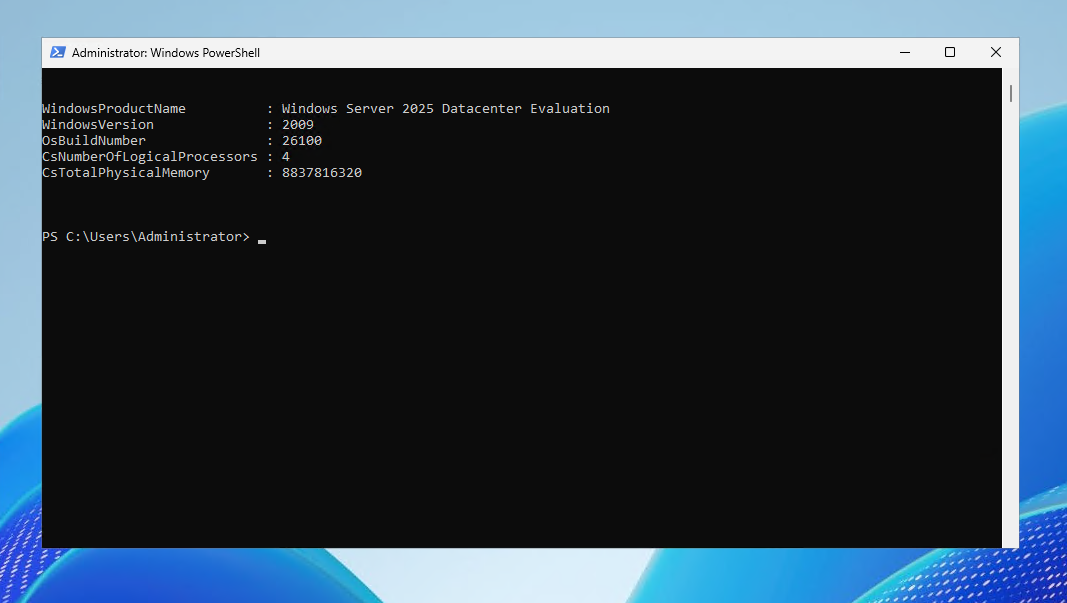
| Item | Value |
|---|---|
| Provider | Raff Technologies |
| OS | Windows Server 2025 Datacenter (lab build 26100) |
| Build | 26100 |
| VM size | 4 vCPU / approximately 8 GB RAM |
| Original lab checks | 2026-05-26 |
| Tester | Serdar Tekin |
The lab verified:
- the Windows Server environment;
- TCP 3389 reachability from the client path;
- the state of relevant AVC/H.264 Remote Desktop policy settings;
- Windows visual-effects settings;
- CPU and RAM behavior during an RDP session.
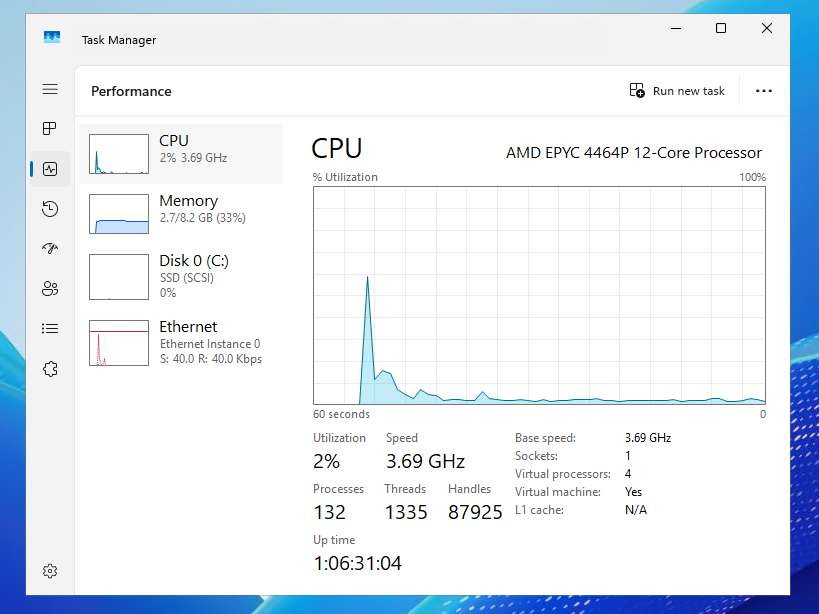
We did not run a controlled FPS, latency, or codec benchmark. This guide therefore does not claim that a specific graphics policy produced a measured performance gain on the Raff lab VM.
Step 1 — Check Windows Server resources before changing RDP
If the Windows Server itself is overloaded, changing Remote Desktop settings will not solve the root cause.
Open Task Manager → Performance during the slow session and check:
- CPU utilization;
- available/used memory;
- disk active time and response behavior;
- Ethernet/network activity;
- which processes are consuming resources.
For a quick PowerShell view:
Get-Process |
Sort-Object CPU -Descending |
Select-Object -First 15 ProcessName, Id, CPU,
@{Name='WorkingSetMB';Expression={[math]::Round($_.WorkingSet64 / 1MB, 1)}}
Check system memory:
$os = Get-CimInstance Win32_OperatingSystem
[PSCustomObject]@{
    TotalRAM_GB = [math]::Round($os.TotalVisibleMemorySize / 1MB, 2)
    FreeRAM_GB  = [math]::Round($os.FreePhysicalMemory / 1MB, 2)
}
If one application is consuming most CPU or memory, fix or resize around that workload before blaming RDP.
For broader capacity planning, see Windows Server Sizing by Workload.
Step 2 — Test RDP reachability, latency, and packet loss separately
A common mistake is to run a port test and conclude that the network is healthy.
Check TCP RDP reachability
From the client:
Test-NetConnection SERVER_IP -Port 3389
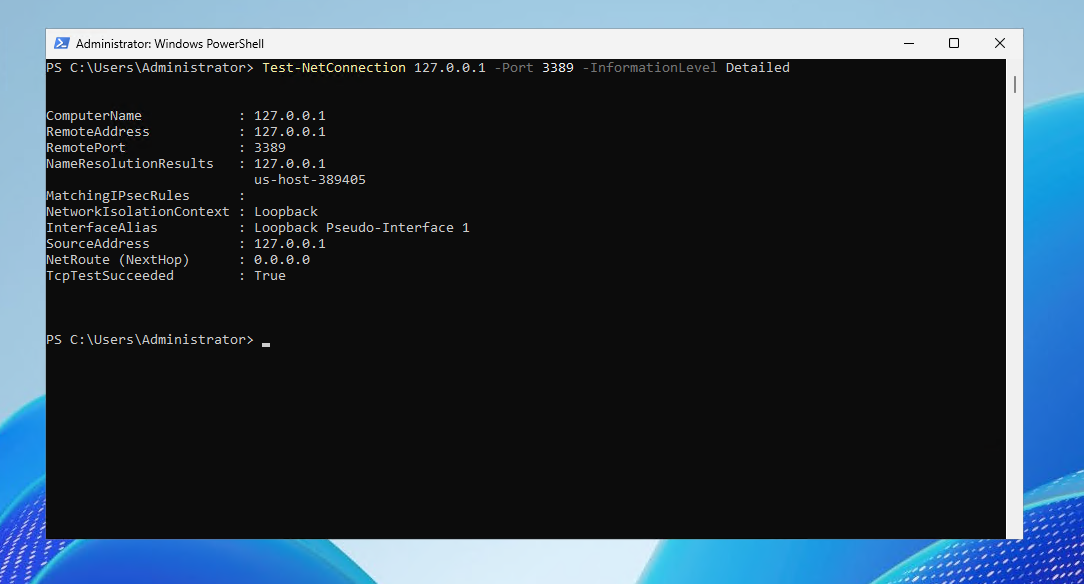
A successful result proves that the TCP endpoint is reachable. It does not prove low latency, low packet loss, healthy UDP transport, or a responsive Windows desktop.
The standard direct RDP port is 3389 and current Windows Server RDS documentation lists both TCP and UDP 3389 for direct client-to-RD-resource traffic. The port can be changed, and RDS deployments using gateways have different network paths.
Check round-trip behavior
ping SERVER_IP
Look for consistency as well as the average response time. Large swings can make keyboard, mouse, and screen updates feel uneven even when the connection remains established.
Some servers or networks block ICMP. In that case, a failed ping does not automatically mean RDP is unavailable.
Check the path and packet-loss clues
pathping SERVER_IP
pathping can help identify where loss appears along the route. Interpret intermediary-hop loss carefully because some routers deprioritize ICMP while forwarding normal traffic correctly.
The important question is whether the end-to-end path used by the user is stable.
Step 3 — Check physical distance and server region
Network latency has a physical component. A user in Europe connecting to a Windows Server hosted far away can have a noticeably different desktop experience from a user close to the server, even if the VM has plenty of CPU and RAM.
If RDP is consistently responsive from users near the server but slow from one geography:
- test from another network in the affected location;
- bypass an unnecessary VPN path for diagnosis where policy permits;
- compare direct and corporate-network routes;
- choose infrastructure geographically closer to the users when possible.
Adding vCPU does not fix round-trip latency caused by distance.
Step 4 — Make sure RDP transport is not unnecessarily restricted
Modern Windows RDP can use UDP as well as TCP. Microsoft’s Select RDP transport protocols policy allows the server to use either UDP or TCP, or to force TCP only. When the policy is not configured, Windows chooses the appropriate transport behavior.
The Group Policy location is:
Computer Configuration
→ Administrative Templates
→ Windows Components
→ Remote Desktop Services
→ Remote Desktop Session Host
→ Connections
→ Select RDP transport protocols
For a normal deployment, avoid forcing Use only TCP without a reason. If UDP succeeds, Microsoft documents that most RDP traffic can use UDP; if UDP cannot be established, RDP can use TCP.
This does not mean “UDP is always faster” or that forcing UDP solves every slow session. VPNs, firewalls, NAT devices, client support, and network quality all affect the result.
If a specific network has broken or unstable UDP handling, testing TCP-only temporarily can be a useful diagnostic step. Do not turn a troubleshooting workaround into a universal production setting without comparing real user experience.
Step 5 — Reduce display demand before using server-side hacks
Display resolution and frame activity directly affect the amount of data RDP must encode and transmit. Microsoft’s Windows Server RDS network guidance notes that higher display resolution and higher output frame rates require more bandwidth.
On a constrained connection, test with a simpler client configuration first.
In classic Remote Desktop Connection (mstsc):
Display tab
- reduce resolution temporarily;
- disable multi-monitor for testing;
- avoid an unnecessarily large desktop if the client link is weak.
Experience tab
Start with automatic connection-quality detection. For diagnosis on a constrained link, try reducing visual extras such as:
- desktop background;
- menu/window animations;
- font smoothing where acceptable;
- desktop composition effects exposed by the client.
Keep Persistent bitmap caching enabled unless you are testing a specific client-side rendering issue.
If reducing resolution or visual effects makes RDP substantially smoother, the network/display workload is a stronger suspect than raw server CPU.
Step 6 — Review Windows visual effects on the server
For a Windows Server used mainly through RDP, unnecessary local UI effects can be reduced.
Open:
System Properties
→ Advanced
→ Performance
→ Settings
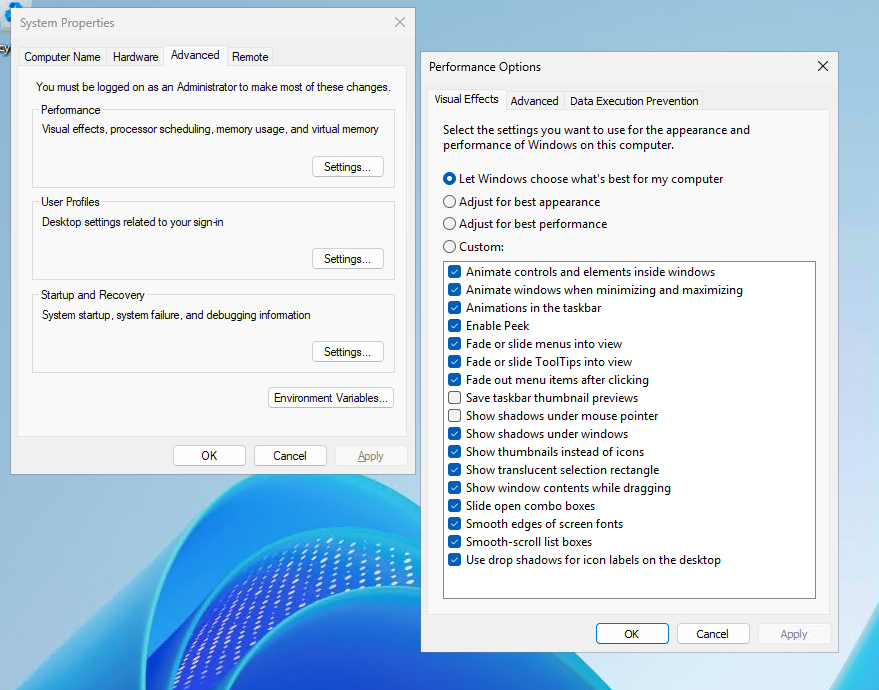
A practical baseline is Adjust for best performance, then selectively enable visual features users actually need.
Do not expect this alone to solve network latency. It mainly reduces unnecessary desktop rendering work on the server.
Step 7 — AVC/H.264 and AVC 444: quality options, not universal speed switches
Windows exposes Remote Desktop graphics policies under:
Computer Configuration
→ Administrative Templates
→ Windows Components
→ Remote Desktop Services
→ Remote Desktop Session Host
→ Remote Session Environment
Relevant policies include:
- Configure H.264/AVC hardware encoding for Remote Desktop Connections;
- Prioritize H.264/AVC 444 graphics mode for Remote Desktop Connections;
- Configure image quality for RemoteFX Adaptive Graphics.
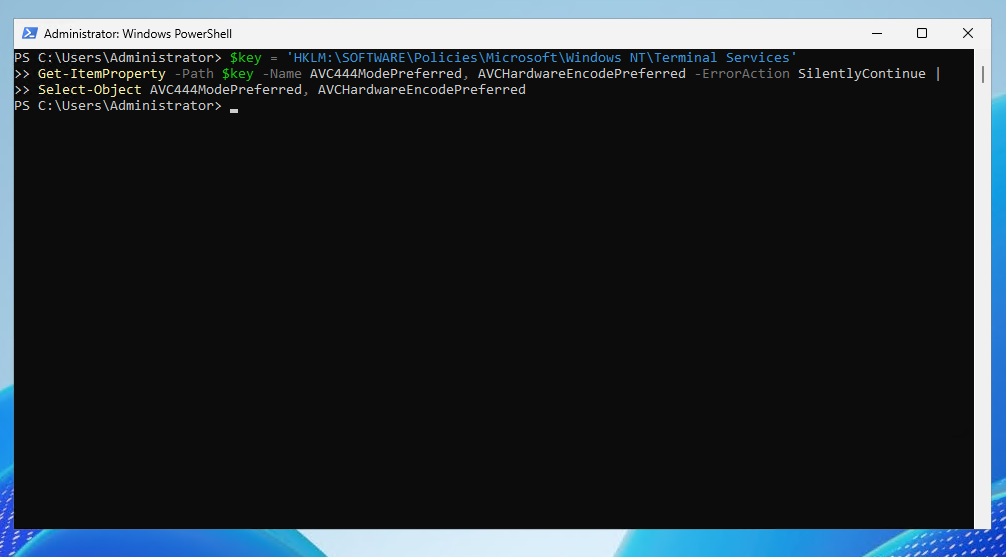
H.264/AVC hardware encoding
Microsoft documents that this policy allows compatible hardware encoding to be used, with software encoding as fallback if hardware encoding fails. If the server has no suitable graphics hardware exposed to the Windows guest, enabling the policy does not magically add a hardware encoder.
On a normal CPU-only VPS, leave this alone unless you have a specific reason and can validate the resulting CPU/network behavior.
AVC 444
AVC 444 prioritizes an H.264/AVC mode with full chroma information when both sides support it. It can improve visual fidelity for text and graphics, but higher quality can also increase network demand.
Treat AVC 444 primarily as a quality/encoding choice, not as a generic “make RDP faster” toggle.
Do not use undocumented frame-rate registry tweaks
This guide previously included a DWMFRAMEINTERVAL registry tweak. We removed it.
There is no reason to apply undocumented frame-interval values as a standard RDP performance fix on a production Windows Server. First diagnose network quality, server resources, display demand, and supported RDP policies.
Step 8 — Check whether many RDP sessions are consuming the server
RDP can feel fine for one user and become slow as more users run applications simultaneously.
List sessions:
quser
or:
query user
Look for:
- many active sessions;
- disconnected sessions that still have applications running;
- users running memory-heavy browsers or business software;
- one session consuming most CPU;
- server RAM becoming constrained as concurrent users increase.
A disconnected session can continue consuming resources. Whether to log it off depends on the user’s workload and your session policy; do not terminate sessions blindly.
For multi-user deployments, see Multiple RDP Users with RDS on Windows Server.
Step 9 — RDP is slow only after login
Sometimes the RDP handshake and credential screen are fast, but the desktop takes a long time to become usable. That usually points away from raw network reachability and toward logon-time work.
Check:
- user-profile size and profile problems;
- Group Policy processing;
- logon scripts;
- mapped drives or unavailable network shares;
- startup applications;
- Windows Update activity;
- antivirus/EDR scans;
- application database or domain-controller connectivity.
Use Event Viewer and Task Manager during login rather than changing graphics settings first.
If every user is slow only after sign-in, the common server-side logon path is more likely than an individual client display setting.
Step 10 — RDP is slow only for one user or one client
If other users are smooth on the same Windows Server, compare the affected client.
Test:
- another network connection;
- wired Ethernet instead of Wi-Fi;
- with and without the corporate VPN where security policy allows diagnostic comparison;
- lower resolution / single monitor;
- another Windows client device;
- the same user from a different client;
- another user from the same client.
These A/B tests quickly separate server, account/profile, and client/network causes.
Step 11 — Video and fast scrolling are choppy
RDP is optimized for interactive remote desktop work, but high-motion content can require much more bandwidth and encoding work than normal administration or business applications.
Examples include:
- video playback;
- animated dashboards;
- rapidly scrolling image-heavy pages;
- design/media applications;
- high-resolution multi-monitor desktops.
If ordinary typing and application navigation are smooth but video is choppy, do not conclude that the whole RDP connection is broken.
Test:
- lower display resolution;
- a single monitor;
- the network path without unnecessary VPN hops;
- server CPU during playback;
- client/network bandwidth availability;
- supported graphics acceleration only when the infrastructure actually provides compatible GPU resources.
Avoid “60 FPS registry hacks” as a substitute for measuring the real bottleneck.
Step 12 — Check firewall and port behavior
For direct RDP, Windows Server documentation lists TCP and UDP 3389 as the standard RDP port. If UDP is blocked somewhere in the path, the connection can still use TCP, but the user experience can differ depending on network conditions.
Check Windows Firewall rules:
Get-NetFirewallRule -DisplayGroup "Remote Desktop" |
Select-Object DisplayName, Enabled, Direction, Action
If you changed the default RDP port, test the actual configured port instead of assuming 3389.
For internet-facing production access, do not expose RDP broadly just for convenience. Restrict source access, use appropriate gateway/VPN/security controls, keep Network Level Authentication enabled, and follow a hardening plan.
See Configure Windows Firewall on a Windows VPS and Windows Server Hardening Checklist.
How much bandwidth does RDP need?
There is no single Mbps value for every Remote Desktop session. Bandwidth demand changes with:
- application type;
- resolution;
- monitor count;
- amount of screen change;
- audio/video use;
- redirected devices;
- graphics quality and codec behavior.
Microsoft’s Windows Server network guidance gives workload examples ranging from light desktop use to power-user workloads, but the useful production question is whether your actual user workflow remains stable with low packet loss and enough bandwidth at peak time.
If the connection is bandwidth-constrained, reducing display demand can improve the experience. If the problem is high RTT caused by geography, more bandwidth alone may not remove input delay.
Common RDP performance mistakes
Assuming TCP 3389 reachability means the network is healthy
It proves the TCP port responds. It does not measure loss, RTT, UDP behavior, or desktop responsiveness.
Forcing TCP-only everywhere
TCP-only can be a useful workaround on a network with broken UDP handling, but it should not be a universal performance setting. Let Windows select suitable RDP transport unless you have a measured reason to override it.
Enabling AVC 444 because it sounds faster
AVC 444 is a graphics-quality/codec policy. Higher visual fidelity is not the same thing as lower latency.
Applying undocumented FPS registry values
Avoid unsupported frame-rate registry recipes. They make troubleshooting harder and can outlive the Windows version they were copied from.
Adding vCPU to fix geographic latency
Compute does not remove network round-trip time between a user and a distant server.
Blaming RDP when the VM is saturated
If CPU, RAM, disk, SQL Server, IIS, or another application is overloaded, fix that workload first.
Ignoring disconnected sessions
Disconnected users may still consume CPU and RAM. Review session policy and resource usage on multi-user systems.
Running 4K/multi-monitor during diagnosis
Start with a simpler display configuration so you can isolate the bottleneck.
Production troubleshooting checklist
Use this sequence when users report slow Remote Desktop:
Confirm whether one user or everyone is affected
→ check CPU/RAM/disk on Windows Server
→ test TCP port reachability
→ compare latency and packet-loss behavior
→ test from another client/network
→ review RDP transport policy
→ reduce resolution and monitor count
→ review AVC/graphics policies only if relevant
→ check active/disconnected sessions
→ investigate login/profile/application delays
→ retest under normal peak workload
Keep one change at a time whenever possible. If you change transport, display quality, graphics policies, and VM size simultaneously, you lose the ability to identify which change actually mattered.