
Remote Desktop Protocol (RDP) is the connection protocol. Remote Desktop Services (RDS) is the Windows Server platform for delivering managed multi-user desktops and RemoteApp programs. The practical decision on a Windows VPS is therefore not “RDP or RDS” in the abstract. It is Remote Desktop for Administration versus an RD Session Host deployment for end users.
Microsoft documents two concurrent remote connections for Windows Server administration without RDS CALs. Those connections are for administrators maintaining the server. They are not a substitute for licensing a shared desktop used by employees every day.
In short
Use the two built-in administrative RDP connections when one or two administrators occasionally maintain the server. Use RD Session Host when employees need their own Windows desktop sessions or RemoteApp access. Customer-owned RDS deployments require the applicable RDS CAL model; Raff-hosted SPLA deployments use RDS SALs for authorized users. A newly created RD Session Host has a 120-day licensing grace period, but that is a deployment window, not a production licensing strategy.
The decision is administration versus user sessions
| Scenario | Two admin RDP connections | RD Session Host |
|---|---|---|
| One administrator maintains Windows Server | Yes | Usually unnecessary |
| Two administrators occasionally troubleshoot | Yes | Usually unnecessary |
| Three or more employees need separate desktops | No | Yes |
| Staff use QuickBooks, ERP, Office apps, or other desktop software daily | No | Yes |
| Users access an IIS website from their own devices | Yes, for server admins only | Not required for website users |
| Users connect directly to SQL Server from approved clients | Yes, for server admins only | Not required just for database access |
| You want RemoteApp publishing | No | Yes |
| You need collections and centralized session management | No | Yes |
The key question is simple: are people administering the server, or are people using the server as their workplace?
Remote Desktop for Administration has a two-connection limit
Microsoft’s current Windows Server troubleshooting guidance states that Remote Desktop supports two concurrent remote connections for administration and that those connections do not require RDS CALs. To support more than two administrative connections or multiple end-user sessions, Microsoft directs administrators to install the RD Session Host role and use the appropriate RDS licensing model.
That means the built-in two-session model is appropriate for:
- server maintenance;
- Windows Update checks;
- application administration;
- Event Viewer and log review;
- PowerShell and Server Manager work;
- occasional troubleshooting by one or two administrators.
It is not intended to become a shared office desktop by creating many local users and rotating them through the same two connection slots.
The original Raff lab confirmed the two-session behavior
The screenshots in this article come from a Raff Windows Server 2025 Datacenter Evaluation lab performed on May 24, 2026.
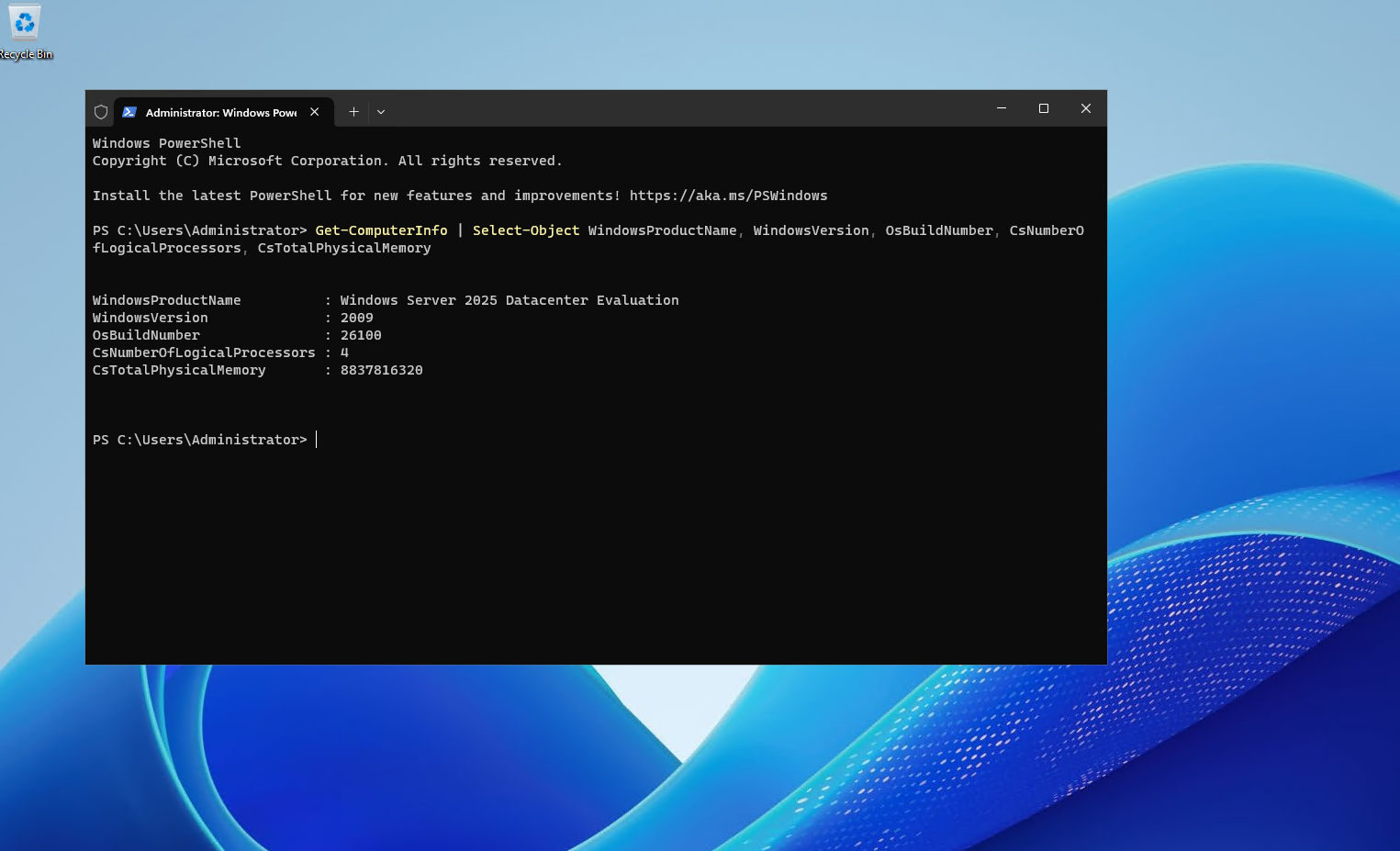
| Item | Value |
|---|---|
| OS | Windows Server 2025 Datacenter Evaluation |
| Build | 26100 |
| CPU | 4 vCPU |
| RAM | Approximately 8 GB |
| Test date | 2026-05-24 |
| Engineer | Serdar Tekin |
The lab verified that two administrative RDP sessions could run concurrently, a third login was blocked until an existing session was disconnected, the main RDS roles were available but not installed on the fresh server, and those roles could be installed for further RDS testing.
This August revision keeps that first-hand evidence but does not claim a fresh capacity or licensing benchmark.
Two active admin sessions do not make the server an RDS host
In the lab, two temporary administrator accounts were connected at the same time.
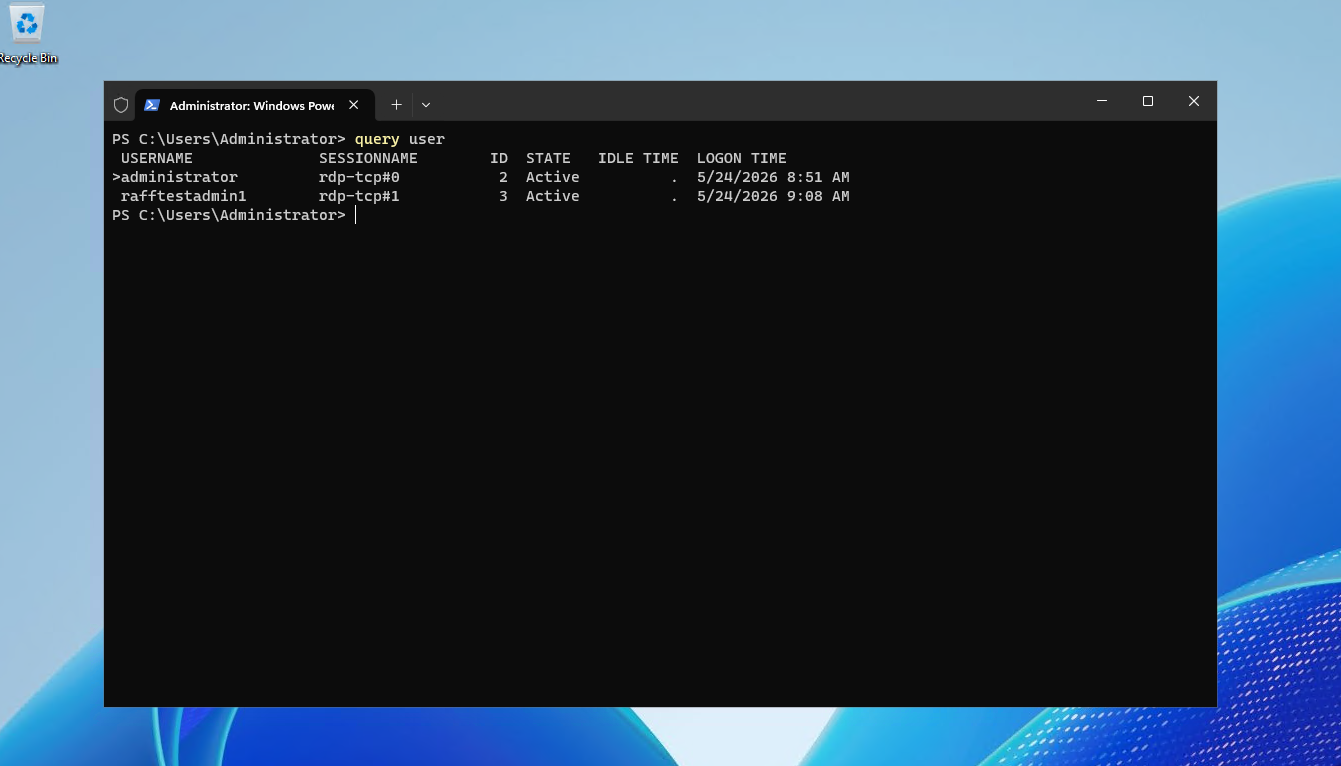
That behavior is normal Remote Desktop for Administration. The sessions exist so administrators can manage the operating system.
A business should not design its staff workflow around those administrative slots. If users are signing in to run accounting software, ERP clients, Office applications, browser-based business tools, or another desktop application all day, the workload has moved into RDS territory even if only one or two people happen to be connected today.
The third administrative connection shows the boundary clearly
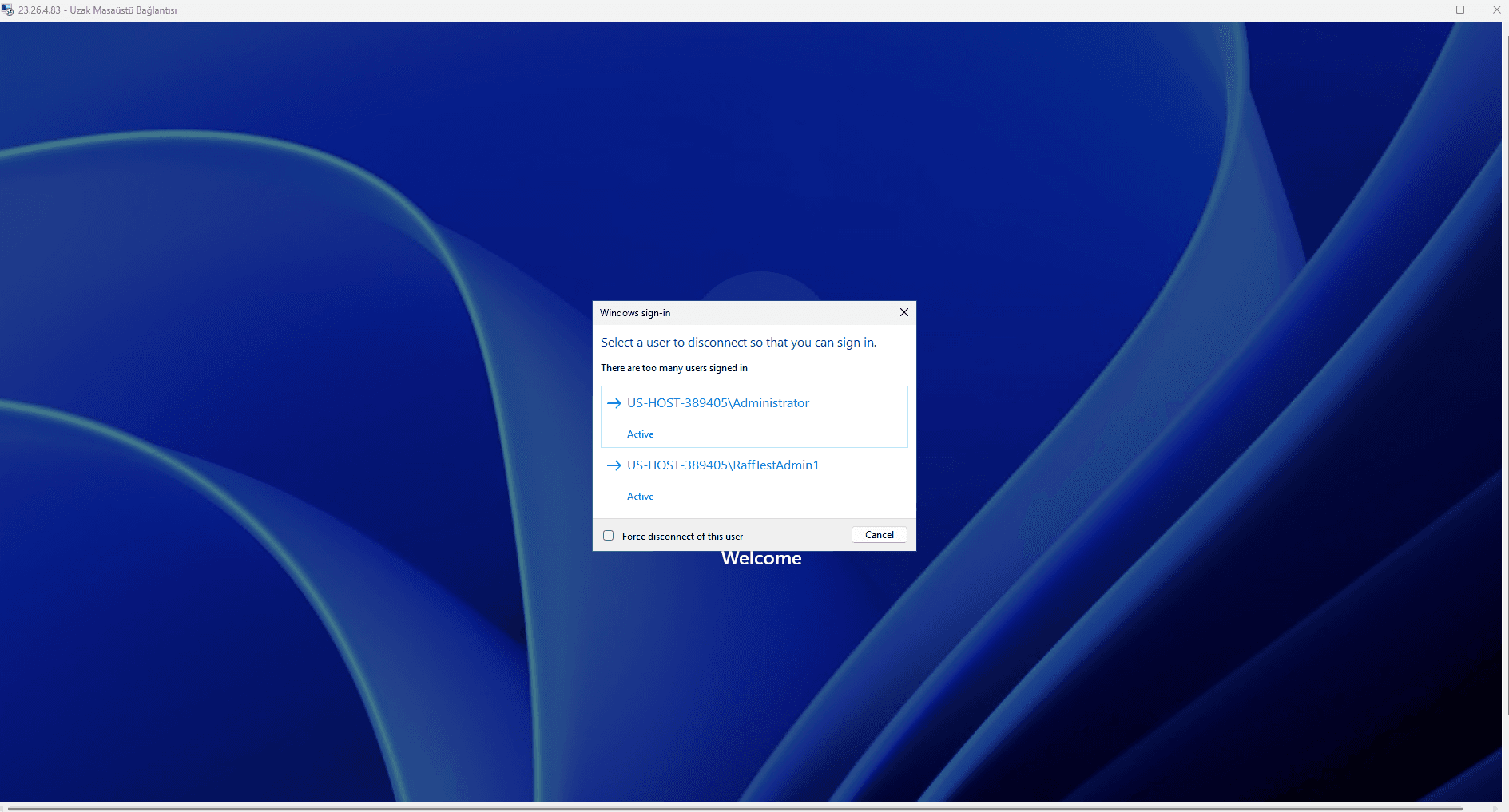
With two administrative sessions already active, the lab attempted another sign-in.
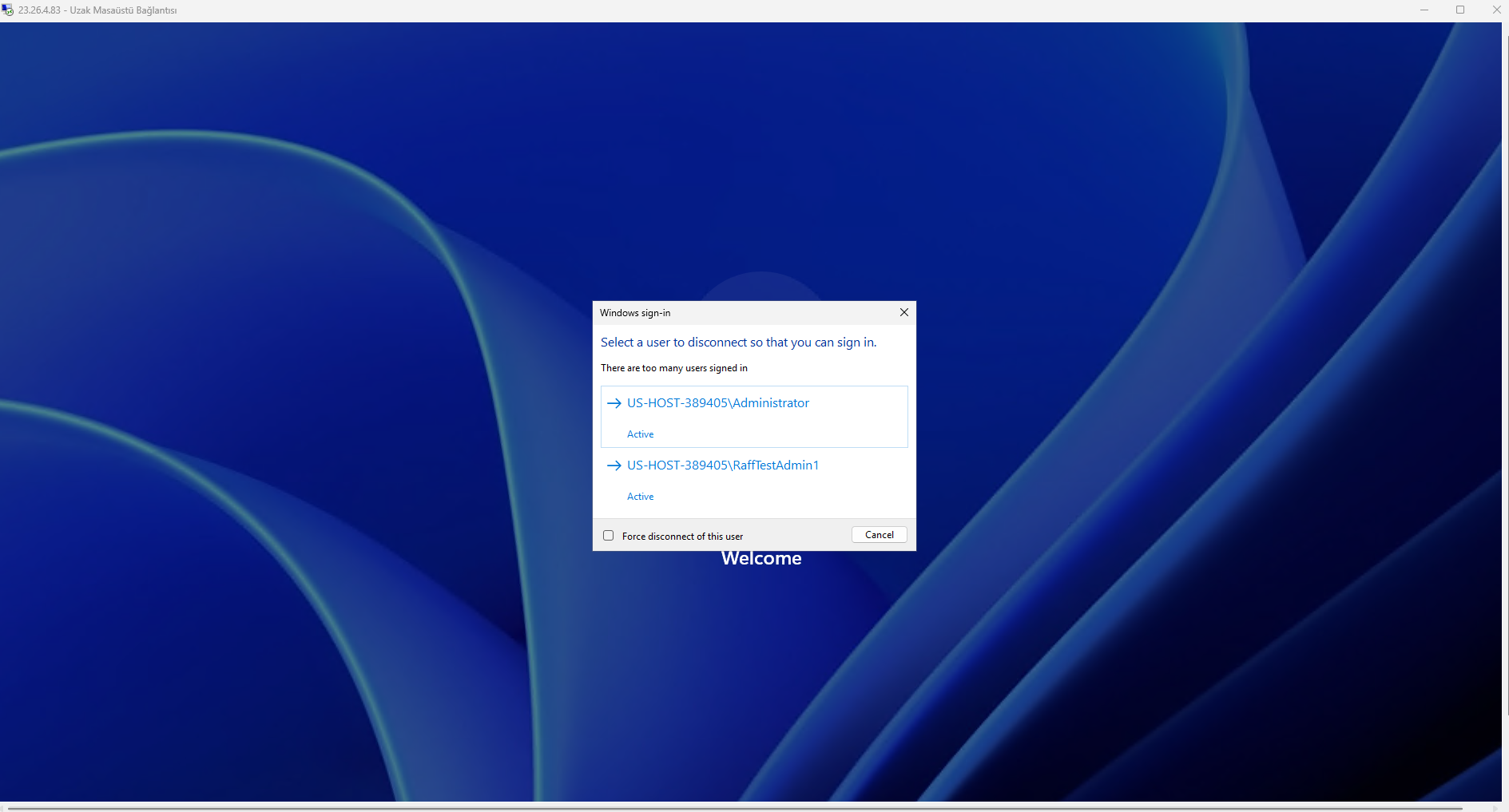
The practical lesson is not “find a way around the limit.” The lesson is that Windows Server separates remote administration from multi-user desktop delivery.
Changing a connection-limit Group Policy does not turn the built-in administrative mode into a properly designed RDS deployment. For end users, deploy RD Session Host and license the environment correctly.
RD Session Host is the Windows Server multi-session role
Microsoft defines RD Session Host (RDSH) as the RDS role that runs session-based desktops and RemoteApp programs. Multiple users can share one Windows Server while each user receives an isolated session.
RDS can also include other roles depending on architecture:
| Role | Purpose |
|---|---|
| RD Session Host | Runs the users’ desktops and RemoteApp programs |
| RD Licensing | Issues and tracks RDS CALs in customer-owned CAL deployments |
| RD Connection Broker | Reconnects users to sessions and manages collections/load balancing |
| RD Gateway | Provides external RDP access over HTTPS rather than exposing internal RDP directly |
| RD Web Access | Publishes desktops and RemoteApps through a web portal/feed |
A very small deployment may use fewer components than a larger RDS farm. Do not assume that every server needs every role on the same VM.
Terminal server: The old name for RDS Session Host
Windows Server 2008 R2 renamed Terminal Services to Remote Desktop Services, and the terminal server role became RD Session Host. The architecture behind both names is identical: one Windows Server running isolated desktop sessions for multiple users over RDP.
If a vendor requirement, an old runbook, or a consultant quote says "terminal server," read it as RD Session Host plus the licensing model described in this article. No current version of Windows Server 2019, 2022, or 2025 installs a component called Terminal Server; the name survives only in legacy documentation and search habits.
A fresh Windows Server VPS is not an RD Session Host by default
Before role installation, the Raff lab checked the main RDS components:
Get-WindowsFeature RDS-RD-Server, RDS-Licensing, RDS-Connection-Broker, RDS-Web-Access |
Format-Table Name, DisplayName, InstallState -AutoSize
The features were available but not installed.
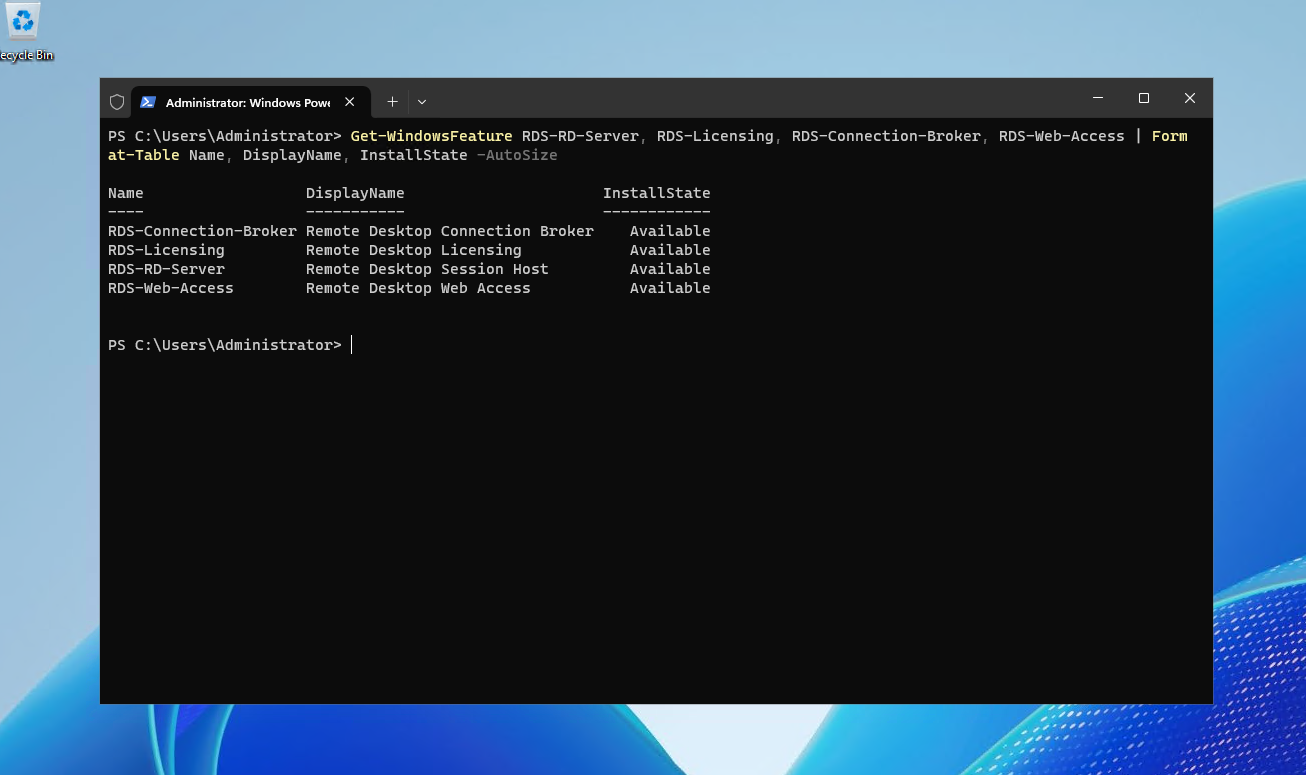
This is an important distinction: RDP being enabled does not mean RDS Session Host has been deployed.
For a production RDS environment, choose the architecture first, then install only the roles required for that architecture using Microsoft’s supported deployment guidance.
The original lab also verified RDS role installation
During the May 2026 lab, the RDS role components were installed and checked after restart.
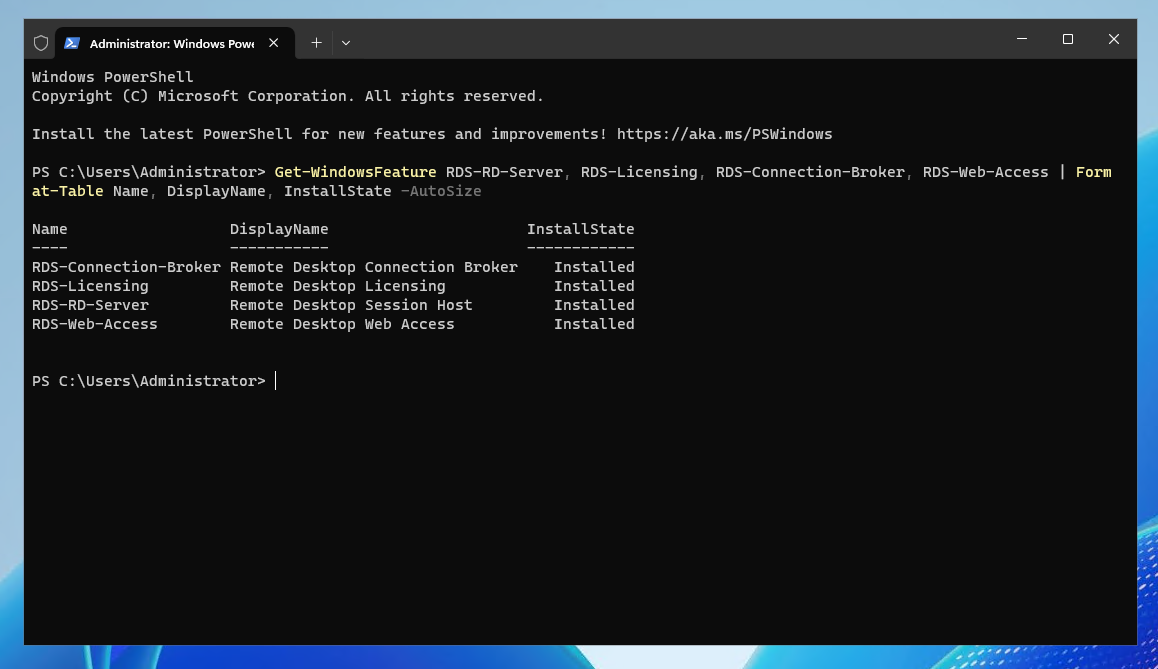
That screenshot proves the role state on that specific lab VM. It does not by itself prove a production-ready RDS deployment.
Production still requires decisions about:
- licensing;
- user identities and groups;
- session collections where applicable;
- certificates;
- external access architecture;
- profile storage;
- application multi-session compatibility;
- backups;
- monitoring;
- capacity planning;
- security hardening.
Multi-user RDS must use the correct licensing model
The old version of this article treated every Raff RDS environment as a customer RDS CAL deployment. That is too broad.
There are two important models.
Customer-owned Windows Server / BYOL deployment
Microsoft’s standard RDS model uses RDS Client Access Licenses (RDS CALs). Each user or device connecting to an RD Session Host running Windows Server needs the applicable RDS CAL.
Two CAL modes exist:
- Per User — assigned to a user identity;
- Per Device — assigned to a connecting device.
For domain-joined RDS deployments, Microsoft permits either Per User or Per Device mode. For workgroup RDS deployments, Microsoft requires Per Device CALs; Per User CALs are not permitted.
Raff-provided SPLA deployment
Raff is a Microsoft SPLA partner. In the hosted service-provider model, Microsoft uses RDS Subscriber Access Licenses (RDS SALs) rather than asking the customer to supply ordinary RDS CALs for the hosted service.
Microsoft’s RDS role guidance states that service providers need enough RDS SALs to cover the authorized unique users that sign in to the hosted service each month.
So the high-level distinction is:
Customer-owned / BYOL RDS
→ RDS CAL model

Raff-provided SPLA RDS
→ RDS SAL model
For the detailed licensing decision, read RDS CAL Licensing on Windows Server and Windows Server Licensing on Raff.
The 120-day RDS grace period is not a licensing loophole
Microsoft currently documents a 120-day licensing grace period for a newly created RD Session Host. During that technical grace period, a license server is not required for the session host to accept RDS connections.
After the grace period, a customer-owned CAL deployment needs a properly activated RD Licensing server, the correct licensing mode, and valid RDS CALs for users or devices to continue connecting.
Do not design a production service around resetting or repeatedly relying on the grace period. Microsoft’s current troubleshooting guidance explicitly recommends implementing a license server and license pack rather than treating a grace-period reset as the solution.
For Raff-hosted SPLA services, contractual SPLA licensing obligations are separate from the Windows technical grace-period mechanism. The existence of the 120-day Windows grace period does not create 120 days of free commercial licensing rights.
Workgroup RDS has an important Per Device limitation
A small Windows VPS is sometimes deployed as a standalone workgroup server rather than joining Active Directory.
Microsoft’s current licensing configuration guidance says:
- domain-joined RDS deployments can use Per User or Per Device CALs;
- workgroup RDS deployments must use Per Device CALs;
- Per User CALs are not permitted for the workgroup configuration.
Microsoft has also added authentication requirements for workgroup RD Session Hosts communicating with an RD Licensing server after the security update for CVE-2024-38099. Do not weaken that authentication requirement just to make an old configuration work; Microsoft warns that disabling enforcement increases security risk.
If a team is growing beyond a very small standalone deployment, identity architecture should be reviewed before adding more RDS users.
RDS is for users who need desktops or RemoteApp
Use RD Session Host when users need to work inside Windows Server itself. A common example is a QuickBooks Enterprise server where several bookkeepers work in one company file through RDS.
Common examples include:
- QuickBooks Desktop and accounting applications;
- ERP and inventory clients;
- Microsoft Access or legacy Windows applications;
- line-of-business software that must stay close to its data;
- RemoteApp publishing;
- a standardized shared Windows desktop for branch or remote staff.
Microsoft describes RDS as a platform for delivering full desktops and individual RemoteApp programs. RD Session Host is specifically designed for multiple users sharing a Windows Server instance.
RDS is unnecessary when users consume a server-side service directly
Do not deploy RDS simply because many people use something hosted on the server.
| User need | Better model |
|---|---|
| Visit an IIS website | Users connect over HTTPS; admins use ordinary admin RDP |
| Connect to SQL Server from an approved client | Use database connectivity; admins use ordinary admin RDP |
| Consume an API | Connect to the API endpoint |
| Use a shared file service | Use a controlled file-sharing architecture |
| Run a scheduled automation | Use Task Scheduler or a service account |
| Administrators maintain the VM | Use the two administrative RDP connections |
| Employees need Windows desktops/apps | Use RD Session Host |
The deciding factor is not the number of people who benefit from the server. It is whether they need interactive Windows sessions on the server.
A simple decision framework prevents overbuilding
Do users need to sign in to the Windows desktop to do their daily work?
|
|-- No
|   Run the application/service normally.
|   Keep RDP for administrators.
|
|-- Yes
    Are the connections only occasional server administration by up to two admins?
    |
    |-- Yes
    |   Use Remote Desktop for Administration.
    |
    |-- No
        Deploy RD Session Host.
        Choose the licensing model.
        Plan identity, security, profiles, backups, and capacity.