
In short
To set up win-acme on IIS for a free Let's Encrypt certificate, first make sure the website works over HTTP, the hostname resolves to your Windows Server, and TCP 80 is reachable for HTTP-01 validation. Then run wacs.exe, select the IIS site, let the client create the HTTPS binding, and verify the renewal task. Raff tested this on a Windows Server 2025 VPS with win-acme 2.2.9.1701; the classic client's default renewal age is 55 days.
There is one important 2026 update: win-acme's final 2.2.9.1 line has been succeeded by simple-acme, the actively maintained successor from the same maintainer. Existing win-acme installations can still follow this guide. For a new deployment, evaluate simple-acme before standardizing on win-acme.
Quick verdict
| Situation | What to do |
|---|---|
| Existing win-acme installation is working | Keep it stable, verify renewal, and document the installed version |
| New IIS server in 2026 | Evaluate simple-acme as the maintained successor before choosing the client |
| IIS site already works over HTTP | Proceed to DNS and ACME validation |
| Site only has blank IIS bindings | Add the hostname you want to secure |
| DNS still points elsewhere | Fix DNS before requesting the certificate |
| Port 80 is closed | Open it for HTTP-01 validation or use another challenge method |
| Port 443 is closed | Open it before final HTTPS testing |
| ACME client is stored in Downloads | Move it to a permanent folder before configuring renewal |
| Renewal task is missing | Recreate the task and run a renewal test |
Most failures come from DNS, IIS bindings, HTTP validation, or renewal configuration rather than certificate issuance itself.
What win-acme is in 2026
win-acme is an ACMEv2 client for Windows. It can request TLS certificates from certificate authorities such as Let's Encrypt, store them in Windows, update IIS HTTPS bindings, and create a scheduled task for automatic renewal.
The classic win-acme project ended on the 2.2.9.1 release line. Its successor is simple-acme, maintained by the same project maintainer and designed as a backwards-compatible replacement. If win-acme is already installed and renewing correctly, there is no need to break a stable server solely to follow a newer project name. If you are building a new long-lived IIS server, review simple-acme first.
This guide keeps win-acme as the main workflow because existing deployments remain substantial.
What we tested on Raff
We tested the IIS and win-acme workflow on a Raff Windows VPS running Windows Server with IIS installed.
| Item | Value |
|---|---|
| Provider | Raff Technologies |
| OS | Windows Server 2025 Datacenter (lab build) |
| Web server | IIS 10 |
| ACME client tested | win-acme 2.2.9.1701 |
| win-acme release line | 2.2.9.1 |
| Validation method | HTTP-01 / IIS workflow |
| Original lab test | 2026-05-26 |
| Documentation revalidation | 2026-09-09 |
| Tester | Serdar Tekin |
In the lab, we verified IIS, bindings, firewall rules, win-acme startup, ACME connectivity, certificate creation, IIS binding installation, and the renewal-task workflow.
Some certificate creation screenshots are illustrative examples. In production, use your own hostname and verify DNS before requesting a certificate.
What you'll need
- Windows Server 2022 or Windows Server 2025
- Local administrator access
- IIS installed with at least one working site
- A public domain or subdomain such as
app.example.com - DNS access for that domain
- TCP 80 reachable for the HTTP-01 workflow used here
- TCP 443 reachable to serve HTTPS after issuance
- win-acme already installed, or another ACME client selected for a new deployment
This guide assumes the IIS site works over plain HTTP before certificate issuance.
If you still need the server, deploy a Raff Windows VPS, point the hostname to its public IP, and continue below.
Step 1 - Confirm IIS is installed and running
Open PowerShell as Administrator:
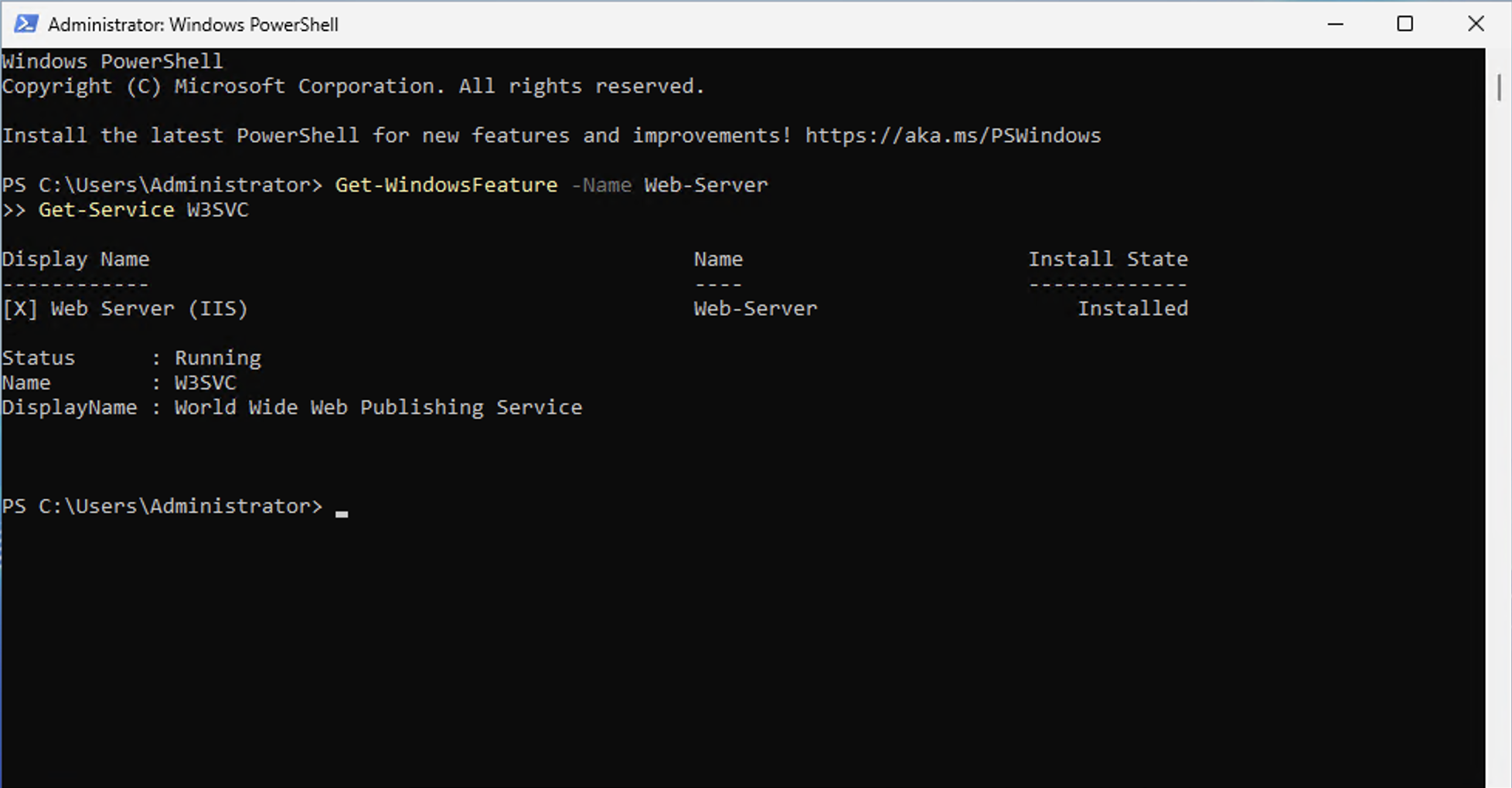
Get-WindowsFeature -Name Web-Server
Get-Service W3SVC
Expected result:
Web-Server  Installed
W3SVC       Running
If IIS is not installed:
Install-WindowsFeature -Name Web-Server -IncludeManagementTools
Then verify again:
Get-Service W3SVC
If you host ASP.NET Core, install the appropriate .NET Hosting Bundle as part of the application deployment. Do not troubleshoot certificates before IIS itself serves the site correctly.
Step 2 - Check the IIS hostname binding
The default IIS workflow works best when the site has the real hostname you want to secure.
Import-Module WebAdministration
Get-WebBinding | Select-Object protocol, bindingInformation
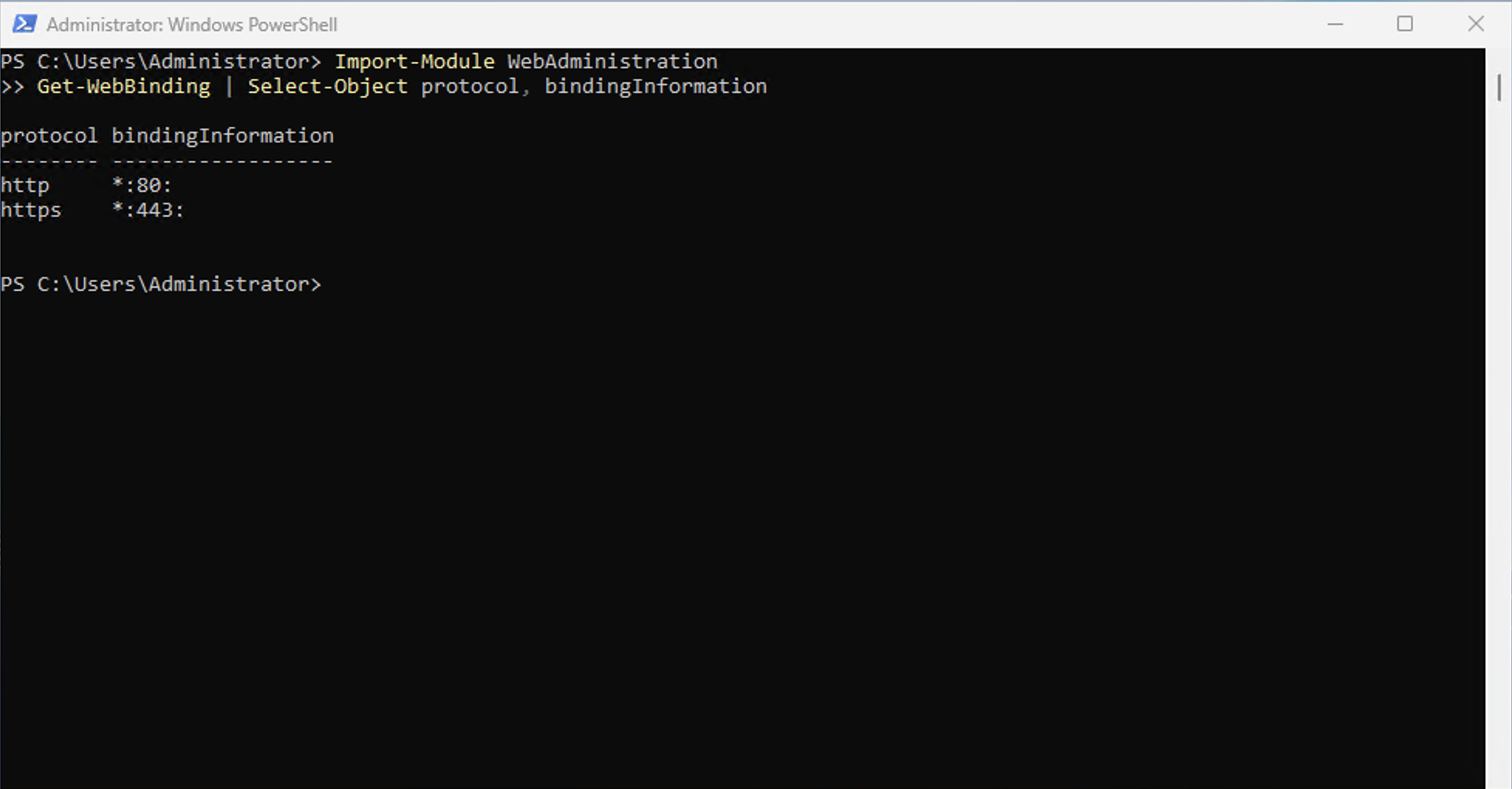
A blank HTTP binding looks like:
http *:80:
A hostname-specific binding looks like:
http *:80:app.example.com
If the site has no hostname binding, add one:
New-WebBinding -Name "Default Web Site" -Protocol http -Port 80 -HostHeader "app.example.com"
Then verify:
Get-WebBinding -Name "Default Web Site" | Select-Object protocol, bindingInformation
Fix: "No websites with host bindings have been configured in IIS"
If win-acme reports:
No websites with host bindings have been configured in IIS.
first check whether the IIS site only has a blank binding such as *:80:. Add the intended hostname to the site and rerun the normal IIS workflow. Advanced/manual source plugins can work without this setup, but the default IIS source expects usable hostname bindings.
Step 3 - Point DNS to the Windows VPS
Create or verify the DNS record:
| Type | Name | Value |
|---|---|---|
| A | app | Public IP of your Windows VPS |
Verify from the server:
Resolve-DnsName app.example.com
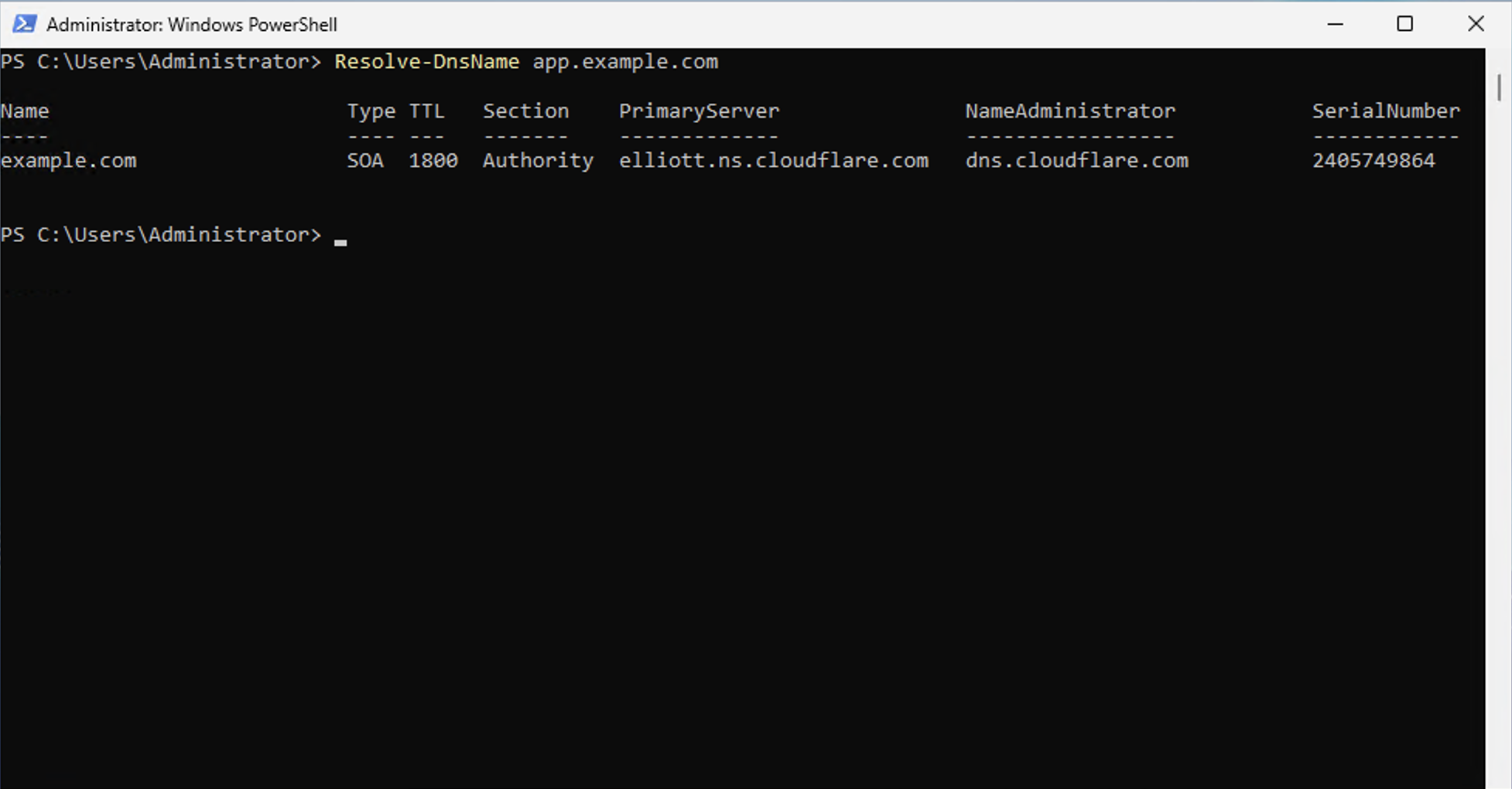
You can also check from another machine:
nslookup app.example.com
Do not continue if DNS points to an old server, load balancer, proxy, or another system that is not prepared to answer the challenge.
Step 4 - Make HTTP-01 validation reachable
This guide uses HTTP-01, which requires the ACME validation request to reach your hostname over TCP port 80.
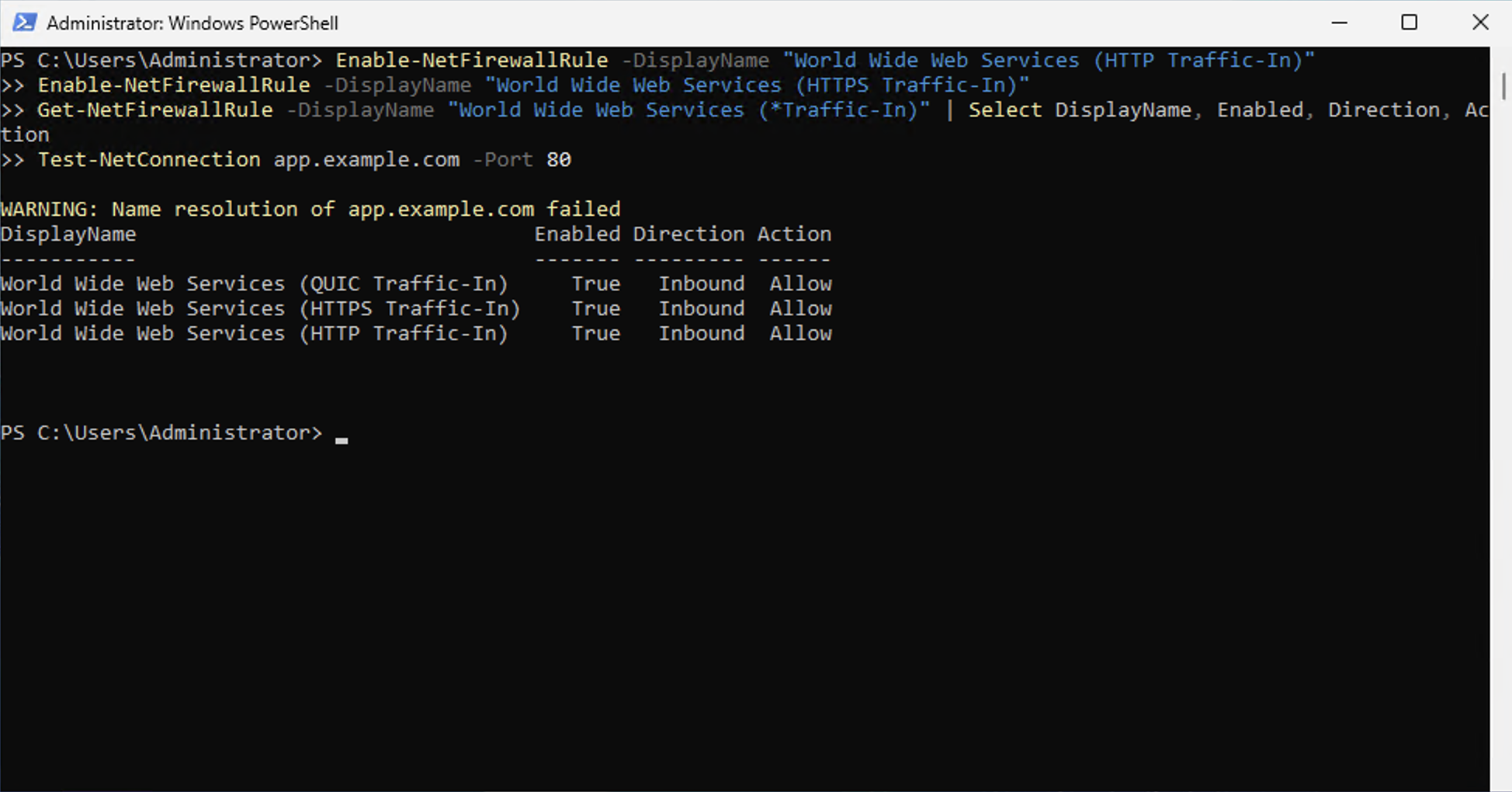
Enable the standard IIS firewall rules if needed:
Enable-NetFirewallRule -DisplayName "World Wide Web Services (HTTP Traffic-In)"
Enable-NetFirewallRule -DisplayName "World Wide Web Services (HTTPS Traffic-In)"
Confirm them:
Get-NetFirewallRule -DisplayName "World Wide Web Services (*Traffic-In)" |
    Select-Object DisplayName, Enabled, Direction, Action
Test port 80 from another machine:
Test-NetConnection app.example.com -Port 80
Expected:
TcpTestSucceeded : True
Port 80 is the important validation port for HTTP-01. Port 443 is required to serve the resulting HTTPS website, but it is not the HTTP-01 challenge port.
Wildcard certificates require DNS-01 instead of HTTP-01.
Step 5 - win-acme download from the official site
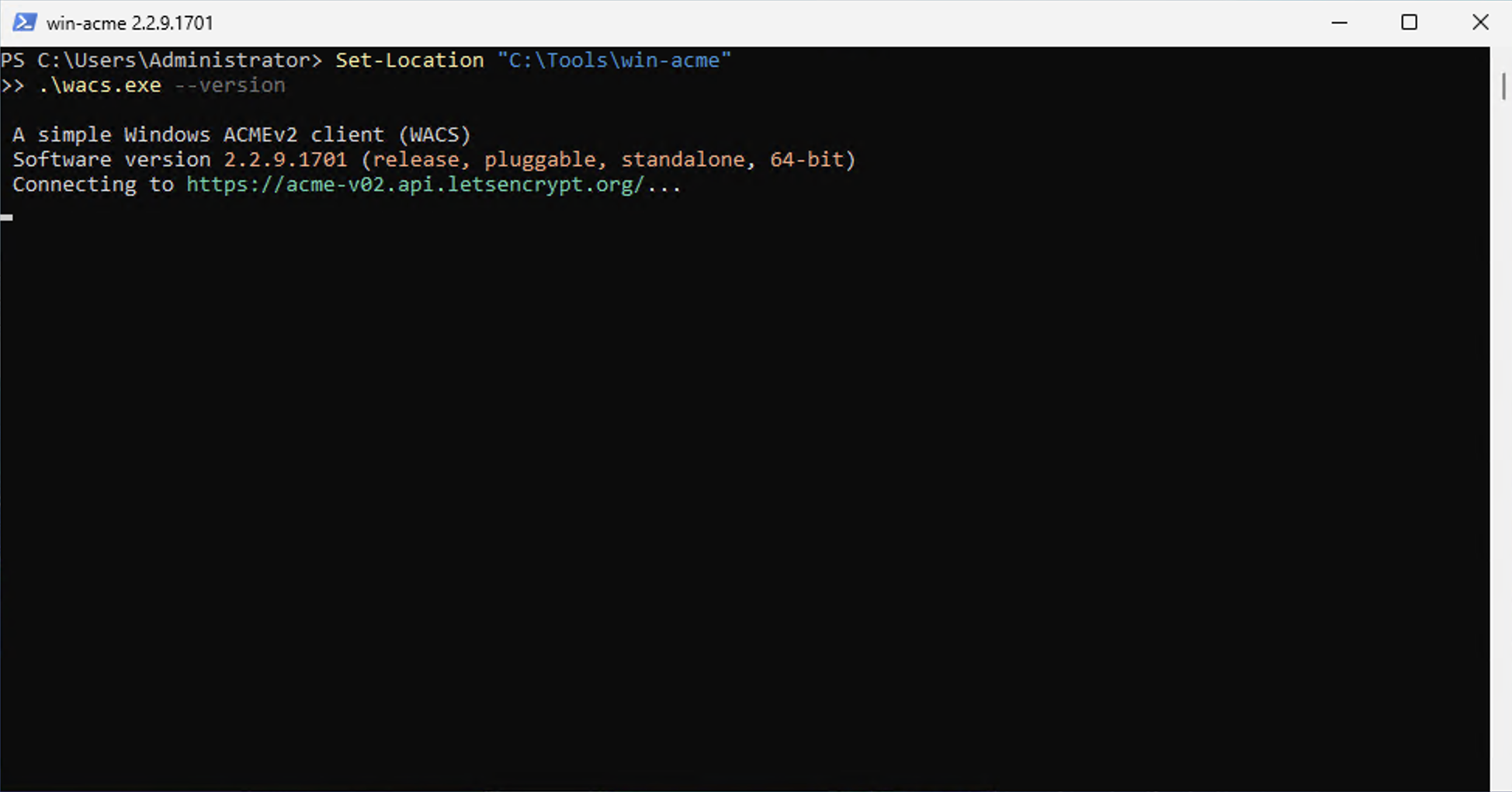
Download win-acme from win-acme.com or the GitHub releases page, never from a mirror. The last classic release line is 2.2.9.1; the file we used was version 2.2.9.1701. Extract it to a permanent folder such as C:\Tools\win-acme, because the renewal task runs wacs.exe from that path for years.
Run as Administrator:
Set-Location "C:\Tools\win-acme"
.\wacs.exe
For a new 2026 deployment, also review simple-acme before deciding which client to standardize on.
Step 6 - Create the Let's Encrypt certificate
Run:
.\wacs.exe
For a normal local IIS site, choose:
N: Create certificate (default settings)
Then:
- Select the IIS site or binding.
- Confirm the hostname.
- Use the configured ACME CA, such as Let's Encrypt.
- Accept the subscriber agreement when prompted.
- Enter an operations email address you monitor.
- Let the client install the certificate and update IIS.
- Let it configure automatic renewal.
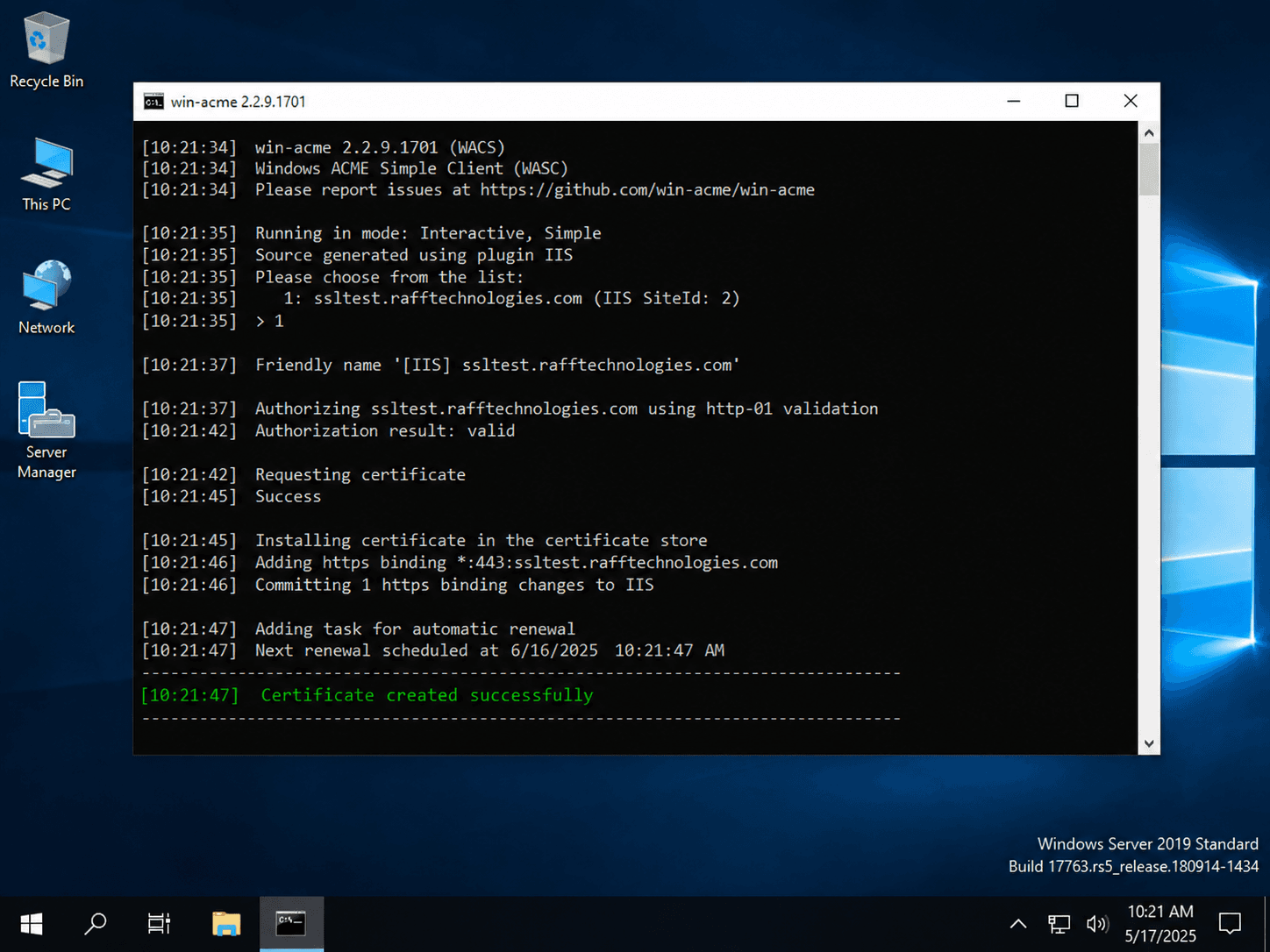
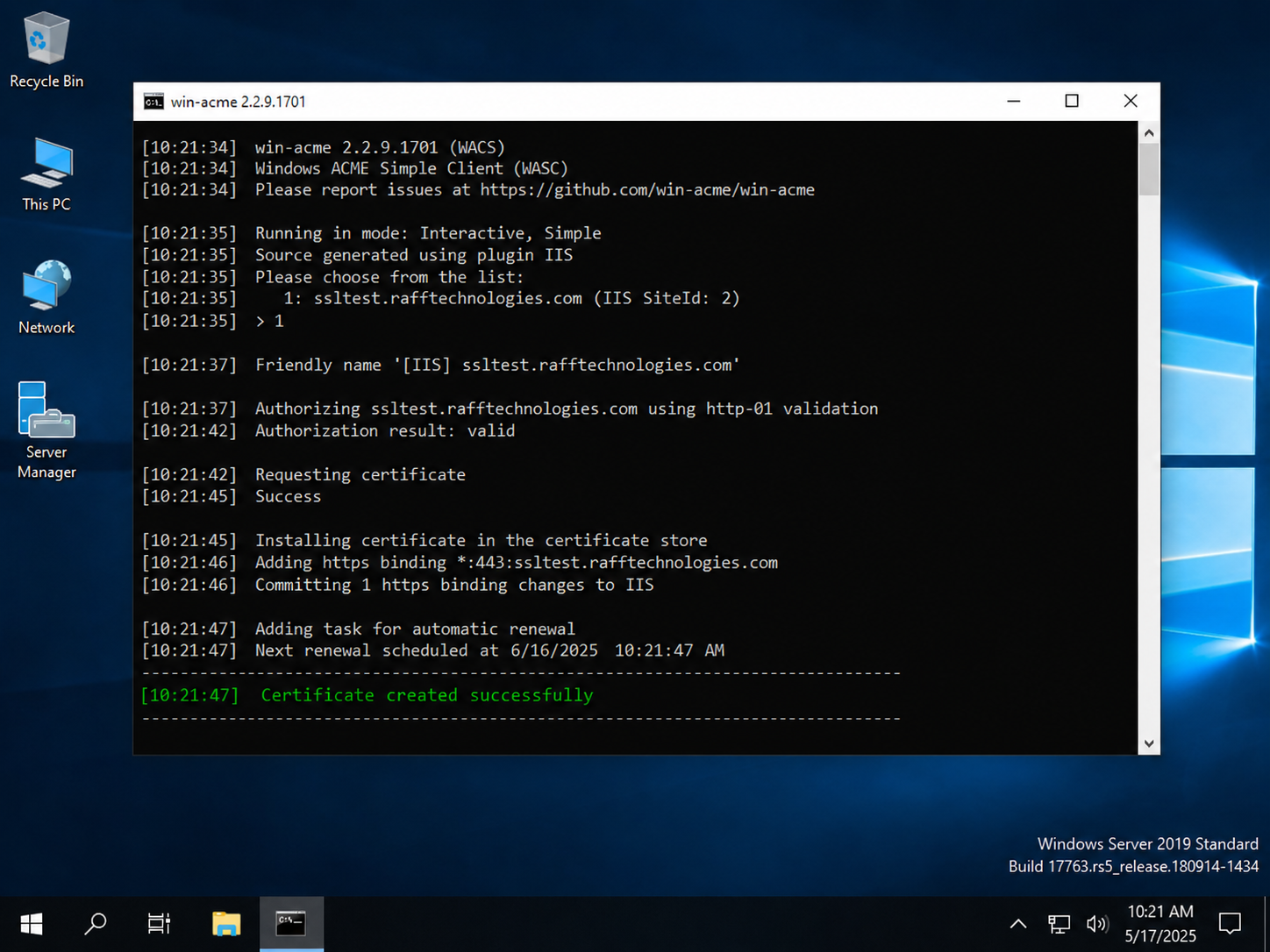
A successful flow can resemble:
Authorization result: valid
Requesting certificate
Success
Installing certificate in the certificate store
Adding https binding *:443:app.example.com
Adding task for automatic renewal
Certificate created successfully
Step 7 - Verify the HTTPS binding in IIS
PowerShell:
Get-WebBinding -Name "Default Web Site" |
    Select-Object protocol, bindingInformation, certificateHash
You should see an HTTPS binding such as:
http     *:80:app.example.com
https    *:443:app.example.com
You can also check:
IIS Manager -> Sites -> Your site -> Bindings
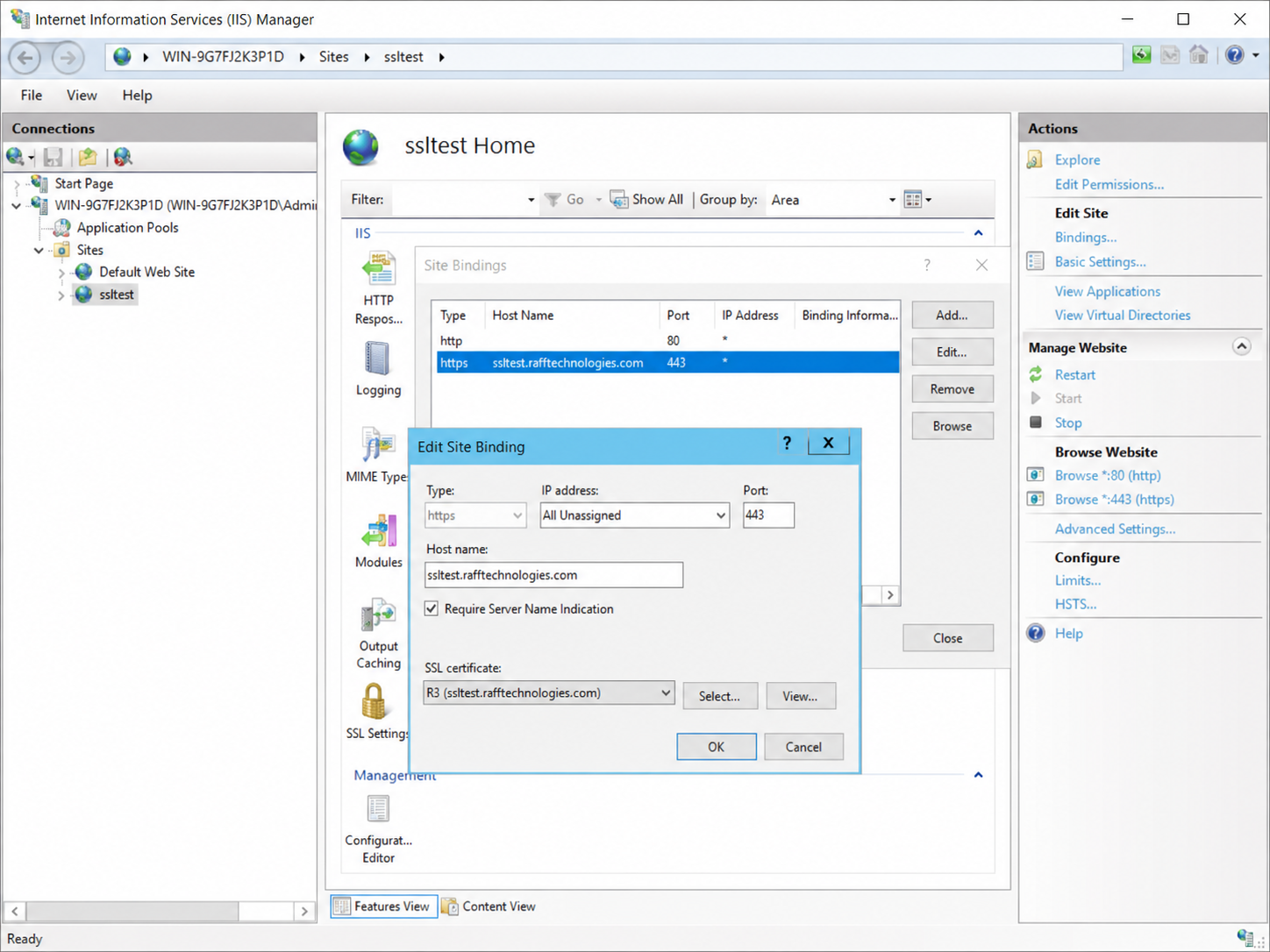
For multiple HTTPS sites on one IP, verify hostname and SNI configuration too.
Step 8 - Test HTTPS from outside the server
From the server:
Invoke-WebRequest "https://app.example.com" -UseBasicParsing
Then test from a separate browser or client.
Check that:
- the certificate is valid;
- the hostname matches;
- an old proxy/server is not presenting a stale certificate;
- the site loads without redirect loops.
Only use iisreset when you actually need to refresh IIS state:
iisreset
Step 9 - Verify the win-acme scheduled task and renewal
A certificate that works today but does not renew is not a finished setup.
win-acme creates one scheduled task that runs daily and checks all configured renewals. With the default Let's Encrypt production endpoint, the task is typically named similar to:
win-acme renew (acme-v02.api.letsencrypt.org)
Do not rely on the task name alone. Verify the executable path and task action as well.
List configured renewals:
.\wacs.exe --list
Find the scheduled task:
Get-ScheduledTask | Where-Object TaskName -like "*win-acme*" |
    Select-Object TaskName, State, TaskPath
Inspect what it actually runs:
Get-ScheduledTask | Where-Object TaskName -like "*win-acme*" |
    Select-Object -ExpandProperty Actions
If the task is missing, repair it with:
.\wacs.exe --setuptaskscheduler
How renewal timing works
win-acme does not simply wait until the certificate is about to expire. In the final 2.2.9.1 line, the default renewal age is 55 days. The client can also use ACME Renewal Information (ARI) when supported by the certificate authority, allowing the CA to recommend an earlier or more appropriate renewal window.
This is especially important because certificate lifetimes are getting shorter over time. As of September 2026, Let's Encrypt's default certificate lifetime remains 90 days, but Let's Encrypt has announced a move to 64 days in February 2027 and 45 days in February 2028.
Test renewal correctly
Running:
.\wacs.exe --renew
only processes renewals that are due. A healthy certificate may therefore do nothing.
For an explicit test:
.\wacs.exe --renew --force --verbose
Use forced production renewal sparingly. For issuance troubleshooting, use the ACME test/staging endpoint instead of repeatedly hitting production.
Step 10 - Use staging while troubleshooting
The --test switch enables test behavior and uses a test ACME endpoint by default.
.\wacs.exe --test
Use production only after DNS, IIS bindings, firewall behavior, and validation are correct.
Let's Encrypt applies rate limits, so repeated production retries are not a substitute for diagnosing the underlying validation error.
Optional - Unattended IIS setup
After the interactive workflow works, you can automate issuance.
Example:
Set-Location "C:\Tools\win-acme"

.\wacs.exe `
    --source iis `
    --siteid 1 `
    --host app.example.com `
    --validation selfhosting `
    --store certificatestore `
    --installation iis `
    --accepttos `
    --emailaddress admin@example.com
Do not copy this unchanged into production. Confirm the site ID, hostname, validation method, store, and installation behavior for your server.
Wildcard certificates require DNS-01
A wildcard such as:
*.example.com
cannot use HTTP-01 at Let's Encrypt. Use DNS-01 validation through a supported DNS plugin or another secure automation method capable of creating the required TXT record.
If you only need app.example.com, HTTP-01 is usually simpler.
Common win-acme and IIS errors
"No websites with host bindings have been configured in IIS"
Run:
Get-WebBinding | Select-Object protocol, bindingInformation
If the site only has a blank binding, add the intended hostname and retry the default IIS workflow.
Authorization failed or challenge returned 404
Check DNS:
Resolve-DnsName app.example.com
Then verify the HTTP challenge reaches the same server. URL Rewrite, authentication, IP restrictions, reverse proxies, or application routing can interfere with /.well-known/acme-challenge/.
Timeout during connect
Test externally:
Test-NetConnection app.example.com -Port 80
If it fails, review Windows Firewall and any network firewall or security policy in front of the server.
Browser still shows the old certificate
Check which system is terminating TLS. The certificate may be coming from another IIS binding, reverse proxy, CDN, load balancer, or old server.
Scheduled task exists but renewal fails
Run:
.\wacs.exe --renew --force --verbose
Then inspect win-acme logs and Event Viewer, and verify that the scheduled task still points to the correct executable path.
The ACME client was installed in Downloads
Move it to a permanent directory and repair the scheduled task. Renewal should never depend on a temporary user download folder.
Troubleshooting commands
Check IIS bindings:
Get-WebBinding | Select-Object protocol, bindingInformation
Check DNS:
Resolve-DnsName app.example.com
Check port 80 externally:
Test-NetConnection app.example.com -Port 80
Check local listeners:
Get-NetTCPConnection -LocalPort 80 -State Listen
Check URL reservations:
netsh http show urlacl
Check WebHosting certificates:
Get-ChildItem Cert:\LocalMachine\WebHosting |
    Sort-Object NotAfter -Descending |
    Select-Object Subject, NotAfter, Thumbprint
Check Personal if needed:
Get-ChildItem Cert:\LocalMachine\My |
    Sort-Object NotAfter -Descending |
    Select-Object Subject, NotAfter, Thumbprint
Check the renewal task:
Get-ScheduledTask | Where-Object TaskName -like "*win-acme*" |
    Select-Object TaskName, State, TaskPath
What Raff recommends
For IIS SSL on a Windows VPS:
- Make the IIS site work over HTTP first.
- Add the exact hostname you want to secure.
- Point DNS to the correct public IP.
- Confirm TCP 80 is externally reachable for HTTP-01.
- Keep the ACME client in a permanent folder.
- Use the interactive IIS flow for the first certificate.
- Verify the HTTPS binding.
- Test HTTPS externally.
- Verify the scheduled renewal task and its executable path.
- Run a controlled renewal test before considering the setup complete.
- For a new 2026 deployment, evaluate simple-acme as the maintained successor.