
In short
Configure Windows Firewall on a production VPS by keeping every firewall profile enabled, leaving inbound traffic blocked by default, and creating only the exceptions your workload actually needs. Scope rules by profile, protocol, application or port, and trusted source address where possible. Before changing RDP rules remotely, confirm a recovery path. Then test the service, review effective rules, enable useful firewall logging, document the change, and remove temporary rules.
The safest firewall model is default-deny inbound
Windows Firewall is a host-based firewall built into Windows Server. Microsoft’s current guidance keeps the firewall enabled and uses a default block posture for inbound connections, with explicit allow rules for required traffic.
| Task | Recommended action |
|---|---|
| Check firewall state | Review Domain, Private, and Public profiles |
| Publish a website | Allow only required HTTP/HTTPS traffic |
| Administer with RDP | Restrict exposure to trusted sources where practical |
| Run SQL Server | Prefer private/trusted access instead of public TCP 1433 |
| Run SMB | Keep TCP 445 off the public internet |
| Open an application port | Scope protocol, local port, profile, and remote address |
| Troubleshoot connectivity | Confirm the application is listening before changing the firewall |
| Audit a production server | Review inbound allow rules and firewall logs |
For most Windows Server deployments, Microsoft recommends allowing outbound traffic by default because switching to default-deny outbound requires a complete inventory of every application and service that needs network access. Treat outbound blocking as an advanced policy, not a routine VPS hardening shortcut.
What we tested on Raff
The original lab for this guide was performed on a Raff Windows Server 2025 Datacenter Evaluation VM.
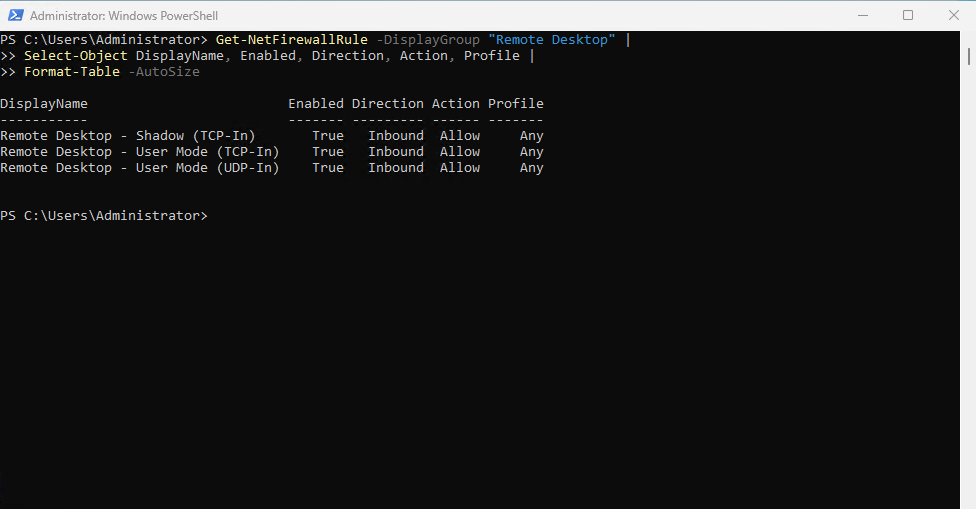
Test environment:
| Item | Value |
|---|---|
| Environment | Raff Windows VM |
| OS | Windows Server 2025 Datacenter Evaluation |
| Build | 26100 |
| CPU | 4 vCPU |
| RAM | Approximately 8 GB |
| Test date | 2026-05-24 |
| Engineer | Aybars Altınyay |
The lab verified:
- Windows Firewall profile status;
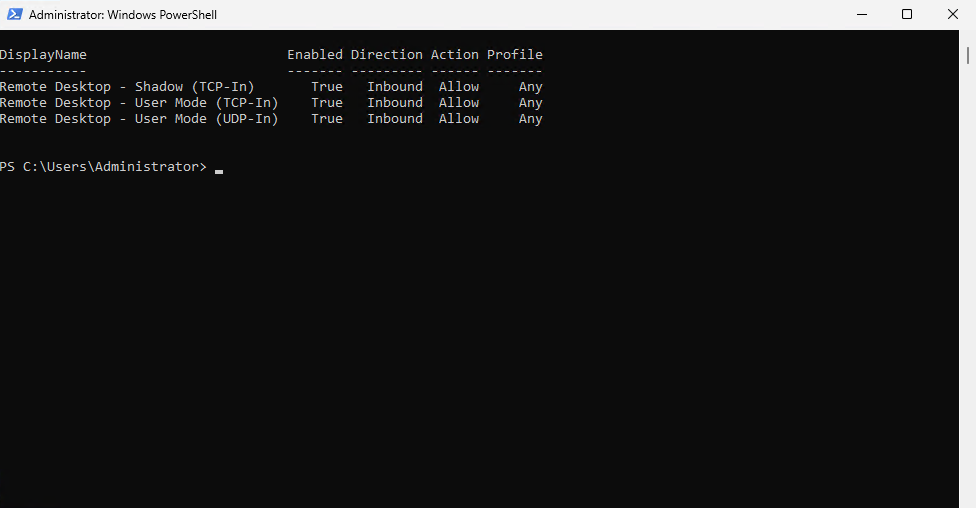
- existing Remote Desktop rules;
- creation of a temporary inbound TCP rule;
- verification of that rule;
- cleanup of the temporary rule.
The temporary test used TCP 54321. It did not expose a real production application. This September 2026 refresh preserves those screenshots and tested commands while revalidating Microsoft guidance for production scoping, rule precedence, logging, centrally managed firewall policy, and Windows remote-management rule groups.
Step 1 — Check every Windows Firewall profile
Run PowerShell as Administrator:
Get-NetFirewallProfile |
Select-Object Name, Enabled, DefaultInboundAction, DefaultOutboundAction, AllowLocalFirewallRules
You should see the three main profiles:
- Domain;
- Private;
- Public.
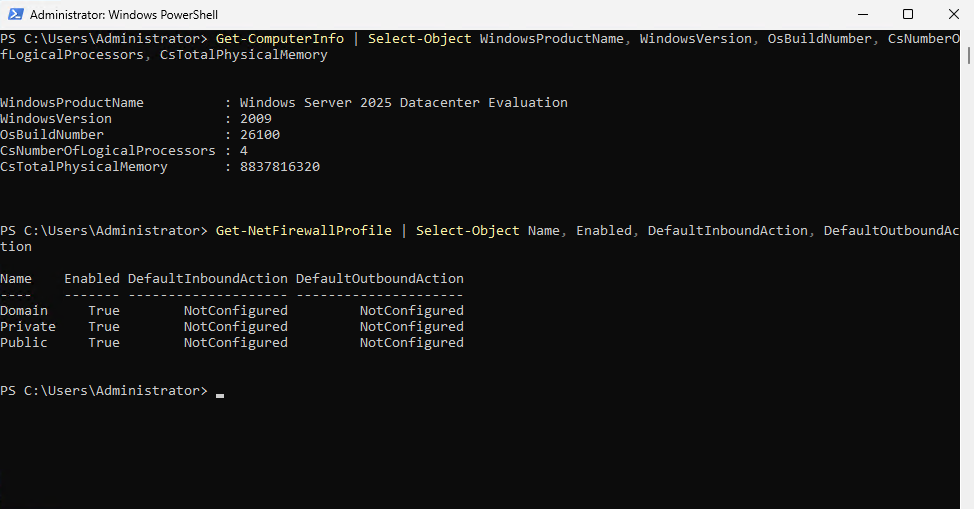
For a production server, keep the firewall enabled on all profiles. Microsoft’s Windows Server 2025 security baseline uses an enabled firewall with a default-deny inbound stance across Domain, Private, and Public profiles.
A value such as NotConfigured in a policy field does not mean the firewall is disabled. Always verify the Enabled state and remember that effective policy can combine local settings with Group Policy or other centralized management.
Verify which network profile is active
Before creating a rule that is limited to one profile, check the current network category:
Get-NetConnectionProfile |
Select-Object InterfaceAlias, NetworkCategory, IPv4Connectivity, IPv6Connectivity
A firewall rule should normally be enabled only on the profiles where the workload needs it. Avoid using -Profile Any in production simply because it is convenient.
Step 2 — Review existing RDP firewall rules before changing them
Remote Desktop is one of the most sensitive inbound rule groups on a Windows VPS.
Run:
Get-NetFirewallRule -DisplayGroup "Remote Desktop" |
Select-Object DisplayName, Enabled, Direction, Action, Profile |
Format-Table -AutoSize
To inspect the source-address scope attached to those rules:
Get-NetFirewallRule -DisplayGroup "Remote Desktop" |
Get-NetFirewallAddressFilter |
Select-Object Name, RemoteAddress
Windows Server normally uses TCP and UDP 3389 for direct RDP. Microsoft warns that exposing Remote Desktop directly to the internet increases risk and recommends a VPN when practical; full RDS environments can also use RD Gateway over HTTPS.
Before changing RDP firewall rules on a remote server:
- Confirm your current public source IP.
- Confirm you have a dashboard/console/recovery path.
- Record the existing rules.
- Make one change at a time.
- Test a second connection before closing the working session.
For general RDP setup, see How to Connect to a Windows VPS via RDP. For multi-user environments, see Multi-User RDP: 2 Admin Sessions vs RDS Session Host.
Step 3 — Understand Windows Firewall rule precedence
Firewall rules are not evaluated by a simple top-to-bottom list.
Microsoft documents these important behaviors:
- An explicit allow rule can permit traffic that the default inbound block would otherwise deny.
- An explicit block rule takes precedence over a conflicting allow rule.
- More-specific rules generally take precedence over less-specific rules, except where an explicit block rule conflicts.
- Windows Firewall does not provide administrator-assigned weighted rule ordering.
This matters when troubleshooting. Creating a new allow rule does not necessarily solve the problem if another explicit block rule matches the same traffic.
Check matching block rules as well as allow rules:
Get-NetFirewallRule -Enabled True -Direction Inbound -Action Block |
Select-Object DisplayName, Profile, Direction, Action
Do not solve a rule conflict by disabling Windows Firewall globally.
Step 4 — Create a safe temporary test rule
The original Raff lab used TCP port 54321 as a disposable demonstration port:
New-NetFirewallRule `
  -DisplayName "Raff Test Inbound Rule TCP 54321" `
  -Direction Inbound `
  -Protocol TCP `
  -LocalPort 54321 `
  -Action Allow `
  -Profile Any
Then verify it:
Get-NetFirewallRule -DisplayName "Raff Test Inbound Rule TCP 54321" |
Select-Object DisplayName, Enabled, Direction, Action, Profile
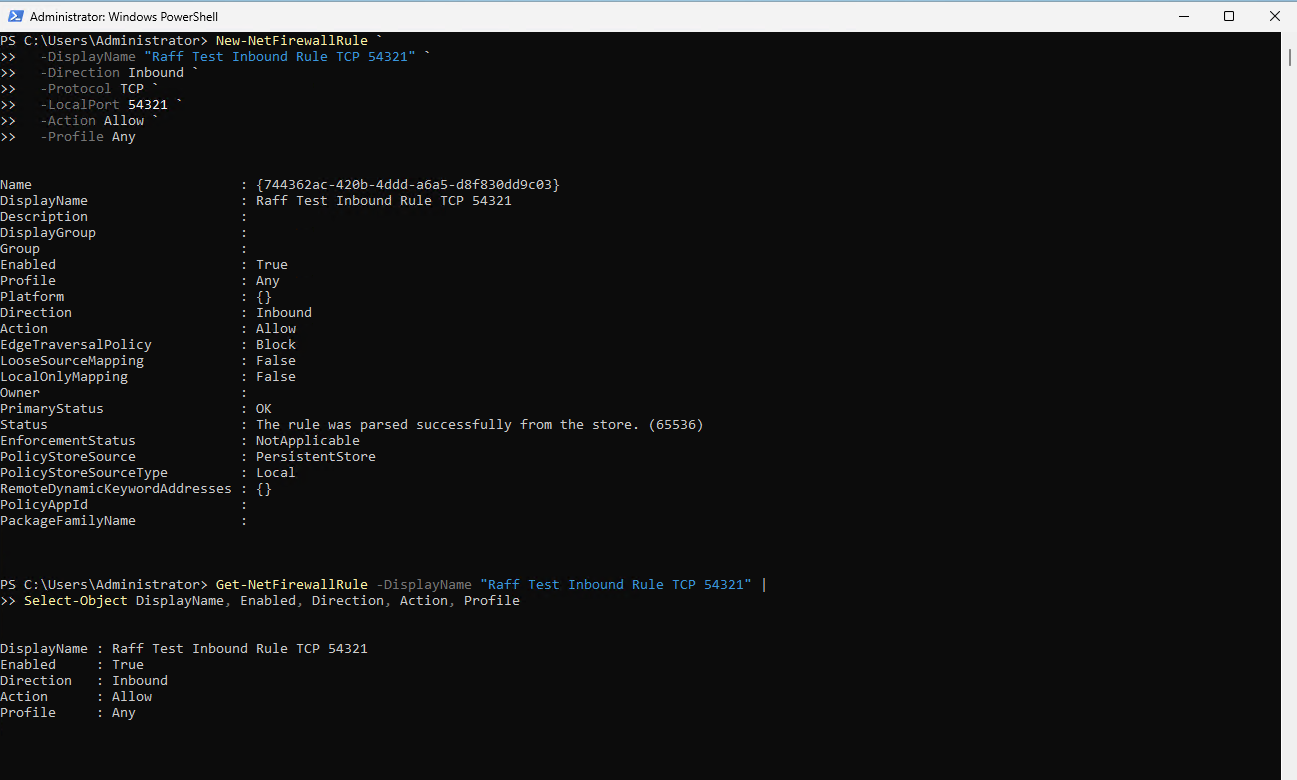
-Profile Any is retained here because it matches the original controlled lab test. Do not copy that scope blindly into production. Production rules should target the profile or profiles where the application actually operates.
Also remember that a firewall rule does not start a service. An application still has to bind and listen on that port.
Check listeners with:
Get-NetTCPConnection -State Listen |
Select-Object LocalAddress, LocalPort, OwningProcess |
Sort-Object LocalPort
If nothing is listening on the intended port, opening the firewall will not make the application reachable.
Step 5 — Remove the temporary test rule
Delete temporary rules as soon as the test is complete:
Remove-NetFirewallRule -DisplayName "Raff Test Inbound Rule TCP 54321"
Verify cleanup:
if (Get-NetFirewallRule -DisplayName "Raff Test Inbound Rule TCP 54321" -ErrorAction SilentlyContinue) {
    Write-Output "Test firewall rule still exists"
} else {
    Write-Output "Test firewall rule removed"
}
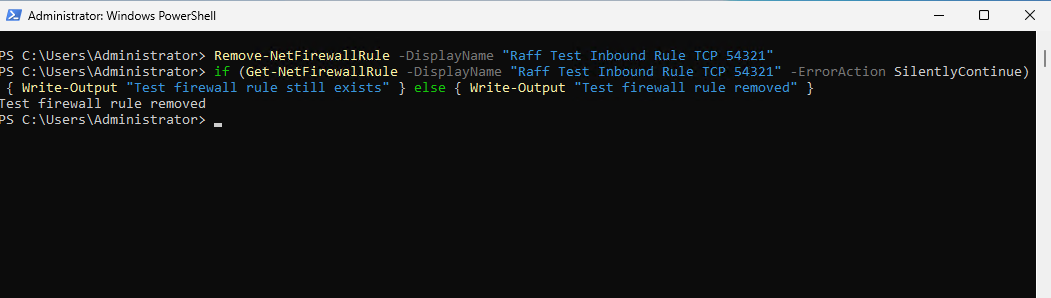
Temporary exceptions are easy to forget. Use distinctive names and delete them during the same change session.
Step 6 — Build narrower rules for production workloads
Microsoft recommends making inbound exceptions as specific as practical. A useful rule can combine:
- direction;
- protocol;
- local port;
- application or service;
- network profile;
- remote source address;
- interface or authentication requirements where needed.
Example: public HTTPS service
For a public IIS site using HTTPS:
New-NetFirewallRule `
  -DisplayName "Allow HTTPS TCP 443" `
  -Direction Inbound `
  -Protocol TCP `
  -LocalPort 443 `
  -Action Allow `
  -Profile Public
Use the profile that actually matches your network design rather than assuming Public on every server.
Example: application port from one trusted source
New-NetFirewallRule `
  -DisplayName "Allow App TCP 8080 from Office" `
  -Direction Inbound `
  -Protocol TCP `
  -LocalPort 8080 `
  -RemoteAddress 203.0.113.10 `
  -Action Allow `
  -Profile Public
203.0.113.10 is an example documentation address. Replace it with the real trusted source IP or approved subnet.
Example: scope by application as well as port
If a specific application should own the listener, a program rule can reduce accidental exposure:
New-NetFirewallRule `
  -DisplayName "Allow Example Service TCP 8443" `
  -Direction Inbound `
  -Program "C:\Program Files\Example\service.exe" `
  -Protocol TCP `
  -LocalPort 8443 `
  -RemoteAddress 203.0.113.0/24 `
  -Action Allow `
  -Profile Public
Use the real executable path and vendor-documented port requirements. Microsoft does not support wildcard executable paths in application firewall rules.
Step 7 — Restrict RDP carefully when the source is stable
If administrators connect from a fixed office/VPN IP, source restrictions can reduce who can even reach the RDP service.
Do not disable the existing broad RDP rules until a replacement path is created and tested.
A controlled example for TCP RDP is:
New-NetFirewallRule `
  -DisplayName "RDP TCP 3389 from Admin IP" `
  -Direction Inbound `
  -Protocol TCP `
  -LocalPort 3389 `
  -RemoteAddress 203.0.113.10 `
  -Action Allow `
  -Profile Public
If you intentionally use RDP over UDP as well, create a matching UDP rule for the same trusted source.
Only after confirming the replacement access path works should you narrow or disable broader RDP allow rules. If the administrator’s public IP changes frequently, use a VPN, RD Gateway, or another controlled administrative access design rather than repeatedly opening 3389 to everyone.
Microsoft’s RD Gateway role provides external RDS access over HTTPS and avoids exposing internal RDP ports directly to end users.
Step 8 — Review common Windows Server ports by exposure, not habit
| Port | Common use | Production guidance |
|---|---|---|
| TCP/UDP 3389 | RDP | Restrict source where practical; consider VPN/RD Gateway |
| TCP 80 | HTTP | Open only for workloads that intentionally serve HTTP |
| TCP 443 | HTTPS | Normal public web/API port when required |
| TCP 1433 | SQL Server | Prefer private/trusted access; do not expose broadly |
| TCP 445 | SMB | Keep off the public internet |
| TCP 5985 | WinRM HTTP | Avoid broad public exposure |
| TCP 5986 | WinRM HTTPS | Restrict to trusted management sources |
| Custom ports | Business applications | Follow vendor requirements and scope narrowly |
Do not use a “standard ports” table as permission to open everything. The application’s architecture decides which ports are necessary.
Step 9 — Enable firewall logging for troubleshooting and audit
Microsoft recommends logging dropped packets and successful inbound connections when firewall visibility is important. For production systems, Microsoft also recommends increasing the firewall log size to at least 20 MB and using separate log files per profile.
Example:
Set-NetFirewallProfile -Profile Domain `
  -LogBlocked True `
  -LogAllowed True `
  -LogMaxSizeKilobytes 20480 `
  -LogFileName "$env:SystemRoot\System32\LogFiles\Firewall\pfirewall_Domain.log"

Set-NetFirewallProfile -Profile Private `
  -LogBlocked True `
  -LogAllowed True `
  -LogMaxSizeKilobytes 20480 `
  -LogFileName "$env:SystemRoot\System32\LogFiles\Firewall\pfirewall_Private.log"

Set-NetFirewallProfile -Profile Public `
  -LogBlocked True `
  -LogAllowed True `
  -LogMaxSizeKilobytes 20480 `
  -LogFileName "$env:SystemRoot\System32\LogFiles\Firewall\pfirewall_Public.log"
Review the effective settings:
Get-NetFirewallProfile |
Select-Object Name, LogAllowed, LogBlocked, LogFileName, LogMaxSizeKilobytes
Firewall logs are useful for answering questions such as:
- Is Windows dropping the connection?
- Which source IP is trying to connect?
- Is the request using the port you expected?
- Is a new allow rule actually seeing traffic?
For larger environments, forward relevant logs to centralized monitoring rather than relying only on files stored on the server.
Step 10 — Check whether central policy overrides local rules
Domain Group Policy, MDM/CSP policy, and local settings can all affect the effective firewall policy.
Microsoft supports disabling local policy merge in stricter managed environments. When local rule merging is disabled, an administrator can create a local rule but centrally deployed policy may prevent that local rule from becoming effective.
Check the profile view:
Get-NetFirewallProfile |
Select-Object Name, AllowLocalFirewallRules, AllowLocalIPsecRules
If a server is centrally managed, troubleshoot the effective policy before repeatedly recreating local rules. In a domain environment, production firewall rules should normally be managed through the organization’s intended policy source rather than one-off local changes.
Windows Remote Management and Windows Firewall Remote Management are different rule groups
A common troubleshooting mistake is treating these two built-in rule groups as interchangeable:
Windows Remote Management
Windows Firewall Remote Management
They serve different management paths.
Windows Remote Management is associated with WinRM-based remote administration, including PowerShell remoting and management operations that use WinRM. Inspect its rules with:
Get-NetFirewallRule -DisplayGroup "Windows Remote Management" |
Select-Object DisplayName, Enabled, Direction, Action, Profile
If WinRM is part of your intended management design, enable that built-in group rather than creating an unnecessarily broad custom port rule:
Enable-NetFirewallRule -DisplayGroup "Windows Remote Management"
PowerShell remoting over WinRM commonly uses TCP 5985 for HTTP and TCP 5986 for HTTPS. Do not expose either port broadly to the public internet. Restrict remote management to trusted networks, VPN paths, management subnets, or approved source addresses.
Windows Firewall Remote Management is the separate built-in group Microsoft documents for remotely managing Windows Firewall itself. Inspect or enable it with:
Get-NetFirewallRule -DisplayGroup "Windows Firewall Remote Management" |
Select-Object DisplayName, Enabled, Direction, Action, Profile

Enable-NetFirewallRule -DisplayGroup "Windows Firewall Remote Management"
If you searched for a command such as:
Get-NetFirewallRule -DisplayGroup "Windows Remote Management"
first decide what you are trying to manage. Use the Windows Remote Management group for WinRM-based administration; use Windows Firewall Remote Management when the requirement is remote administration of the firewall service and its management interfaces.
For remote firewall administration through PowerShell, supported NetSecurity cmdlets can also use a CIM session, for example:
Get-NetFirewallRule -CimSession SERVER01
Before enabling either group, verify the active profile, source-network scope, and whether Group Policy or another central policy controls the effective rule set.
Step 11 — Test the service from the correct side of the firewall
Testing only from inside the server can give a false sense of success.
Confirm the server is listening
Get-NetTCPConnection -State Listen |
Where-Object LocalPort -eq 443
Test from a remote Windows client
Test-NetConnection YOUR_SERVER_IP -Port 443
For an IP-restricted rule, run the test from an allowed source and, when safe, from a non-allowed source. The desired result is not simply “the port is open”; it is “the right clients can connect and the wrong clients cannot.”
If the remote test fails, check in this order:
- Is the application running?
- Is it listening on the expected local address and port?
- Does an explicit block rule overlap the allow rule?
- Is the rule enabled on the active profile?
- Does the rule’s remote-address scope include the client?
- Is a central policy overriding the local rule?
- Is another network firewall or routing layer involved?
A production firewall workflow should be repeatable
Use this change sequence:
- Identify the exact service and business reason.
- Confirm its vendor-documented ports and protocols.
- Confirm the service is listening.
- Identify which clients actually need access.
- Check the active network profile.
- Preserve a recovery path before changing RDP/admin rules.
- Create the narrowest practical rule.
- Test from the intended client network.
- Check logs if the test fails.
- Document the rule name, owner, source scope, port, and reason.
- Remove temporary or superseded rules.
- Review exposed rules after major application or architecture changes.
For broader host security, pair this workflow with the Windows Server Hardening Checklist.