
In short
An IIS application pool isolates one or more web applications inside IIS worker processes (w3wp.exe). For production, tune the pool around the application's actual behavior rather than copying a universal checklist. ApplicationPoolIdentity is a strong default, AlwaysRunning plus an idle timeout of 0 can reduce cold starts when memory allows, and No Managed Code is recommended for ASP.NET Core but is not a hard requirement. Keep Rapid-Fail Protection enabled, use recycling conservatively, and set memory thresholds only from measured behavior.
Raff Technologies tested the workflow on Windows Server 2025 with IIS 10 and a dedicated test pool. This September refresh preserves that lab evidence while tightening identity, ASP.NET Core, recycling, and troubleshooting guidance against current Microsoft documentation.
IIS application pools isolate applications and worker processes
An IIS application pool is a logical boundary that lets websites and applications use separate worker processes, identities, runtime settings, recycle behavior, and failure controls.
Website / application
        ↓
IIS application pool
        ↓
w3wp.exe worker process
        ↓
Application code
Separate pools are often a good production default when applications need independent identities, recycling, failure isolation, or resource controls. They are not mandatory for every small or related application; the important point is that sharing a pool also shares its process lifecycle and blast radius.
Recommended IIS application pool settings are workload-dependent
Use these values as starting points, not universal requirements.
| IIS setting | Production starting point | Notes |
|---|---|---|
| Pool isolation | Separate pools when isolation matters | Especially useful for unrelated production apps |
| Identity | ApplicationPoolIdentity | Strong default for local-resource isolation |
| Start Mode | AlwaysRunning for cold-start-sensitive apps | Starts the pool proactively |
| Idle Time-out | 00:00:00 only when the app should stay warm | IIS default is commonly 20 minutes |
| Managed Runtime | No Managed Code recommended for ASP.NET Core | Not a hard requirement for every ASP.NET Core hosting mode |
| Regular recycling | Keep default or use a deliberate schedule | Avoid aggressive restarts |
| Private Memory Limit | Only when measured behavior justifies it | It is a recycle threshold, not a RAM reservation |
| Queue Length | Keep default unless monitoring proves a reason | Larger queues do not add throughput |
| Rapid-Fail Protection | Keep enabled | Prevents repeated crash loops |
| CPU limits | Do not set by default | Use only for a deliberate shared-host constraint |
Tested on Raff
The original lab ran on a Raff Windows VM with Windows Server 2025 Datacenter Evaluation and IIS 10.

| Item | Value |
|---|---|
| Provider | Raff Technologies |
| OS | Windows Server 2025 Datacenter Evaluation |
| IIS | IIS 10 |
| Test pool | RaffTestAppPool |
| Original test date | 2026-05-26 |
| Tester | Aybars Altinyay |
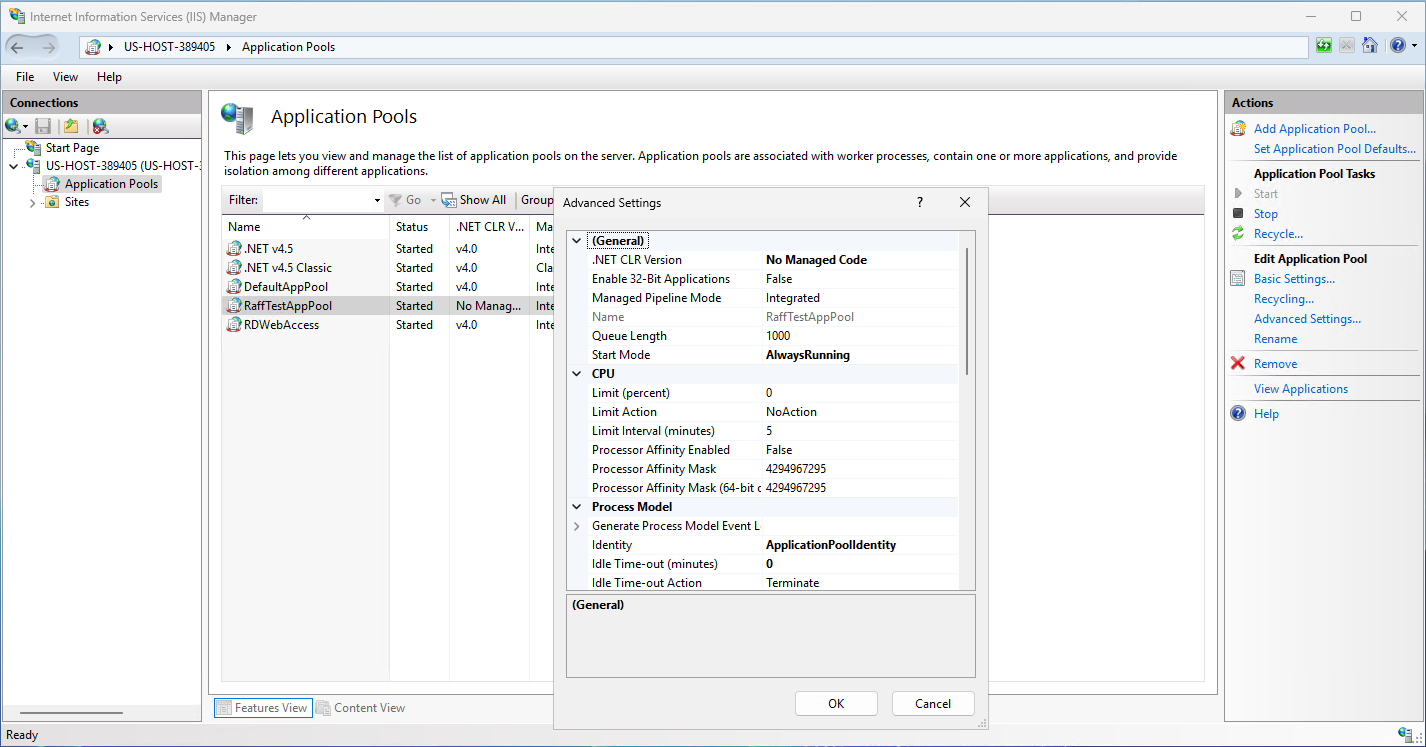
The lab verified IIS feature state, pool creation, recycling settings, idle timeout, start mode, managed runtime, private-memory settings, and final PowerShell verification. These were test values, not universal production requirements.
Step 1 — Review existing application pools
Open IIS Manager:
Win + R -> inetmgr
Server -> Application Pools
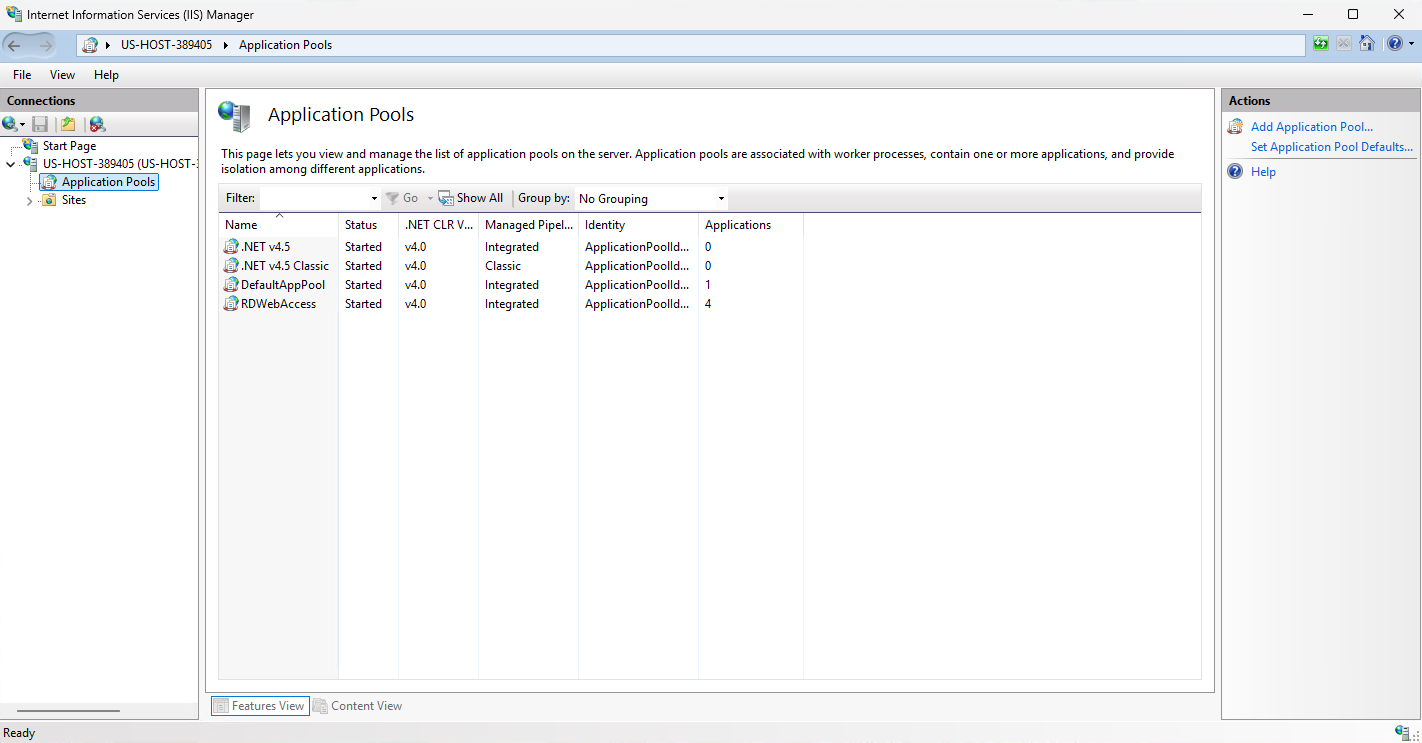
Or use PowerShell:
Import-Module WebAdministration
Get-ChildItem IIS:\AppPools
For each production pool, review identity, start mode, idle timeout, managed runtime, recycle triggers, memory limits, queue length, and Rapid-Fail Protection before changing anything.
Step 2 — Create a dedicated pool when isolation is useful
For the lab:
Import-Module WebAdministration
New-WebAppPool -Name "RaffTestAppPool"
Get-Item IIS:\AppPools\RaffTestAppPool
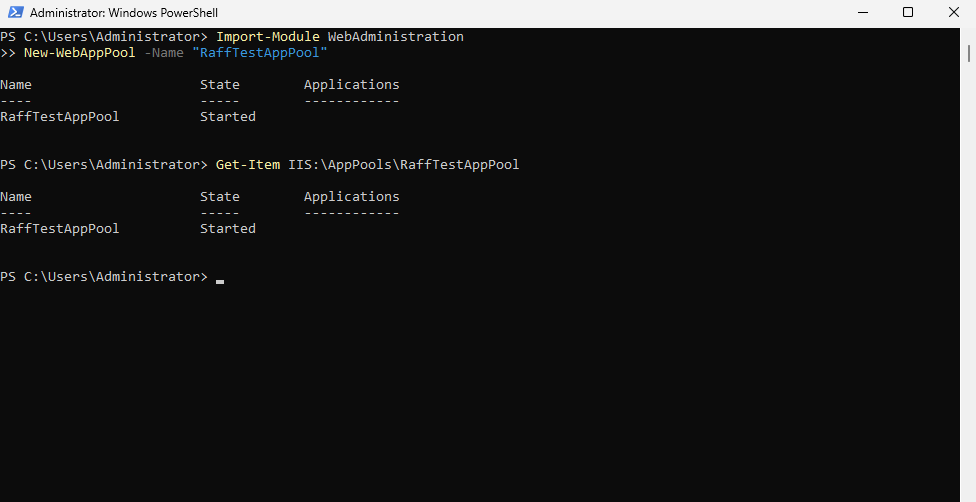
Clear pool names make ownership and troubleshooting easier. Avoid placing unrelated production applications in DefaultAppPool simply because it already exists.
IIS idle timeout controls worker-process shutdown after inactivity
IIS commonly defaults the application-pool idle timeout to 20 minutes. Setting it to 00:00:00 disables idle shutdown.
For a latency-sensitive app that should stay warm:
Set-ItemProperty IIS:\AppPools\RaffTestAppPool `
  -Name "processModel.idleTimeout" `
  -Value "00:00:00"
For a longer timeout instead:
Set-ItemProperty IIS:\AppPools\RaffTestAppPool `
  -Name "processModel.idleTimeout" `
  -Value "08:00:00"
Use 0 only when eliminating cold starts is worth keeping the worker process resident in memory. On a memory-constrained VM hosting many pools, the default or a longer timeout may be a better trade-off.
Step 4 — Start Mode AlwaysRunning reduces demand-start delay
Set-ItemProperty IIS:\AppPools\RaffTestAppPool `
  -Name "startMode" `
  -Value "AlwaysRunning"
AlwaysRunning starts the application pool proactively, but it does not automatically warm every application path. For applications with expensive startup work, pair it with IIS Application Initialization and a safe warm-up endpoint where appropriate.
Step 5 — No Managed Code is recommended for ASP.NET Core
For ASP.NET Core, Microsoft recommends setting the application pool's .NET CLR Version to No Managed Code because the ASP.NET Core Module manages the ASP.NET Core application process rather than relying on the classic ASP.NET Framework CLR.
Set-ItemProperty IIS:\AppPools\RaffTestAppPool `
  -Name "managedRuntimeVersion" `
  -Value ""
This setting is a recommendation, not a hard requirement for every ASP.NET Core hosting configuration. Classic ASP.NET Framework applications may still require the appropriate CLR version.
IIS application pool recycling should be conservative
IIS commonly uses a 1740-minute (29-hour) regular recycle interval. You can keep the default or replace it with a deliberate schedule when operational requirements call for predictable recycle timing.
Avoid aggressive recycle intervals as a generic performance fix. Frequent recycling clears warm state and can repeatedly create cold-start latency.
Typical triggers include regular interval, specific time, private memory, request count, and configuration changes. Add a trigger only when you understand what problem it is solving.
Recycling differs from stopping and starting the pool
A recycle replaces the worker process while keeping the application pool configured and available for IIS to start a replacement process.
Restart-WebAppPool -Name "RaffTestAppPool"
An explicit stop/start deliberately takes the pool down between actions:
Stop-WebAppPool -Name "RaffTestAppPool"
Start-WebAppPool -Name "RaffTestAppPool"
For an app-specific change, recycle or restart the affected pool instead of using iisreset and interrupting every IIS application on the server.
Private-memory limits are recycle thresholds, not RAM allocations
IIS expects the private-memory recycle value in KB.
Example 1 GB threshold:
Set-ItemProperty IIS:\AppPools\RaffTestAppPool `
  -Name "recycling.periodicRestart.privateMemory" `
  -Value 1048576
Reference values:
| Memory threshold | KB |
|---|---|
| 512 MB | 524288 |
| 1 GB | 1048576 |
| 2 GB | 2097152 |
| 4 GB | 4194304 |
Do not copy a memory threshold from another server. Observe normal load, peak load, startup, scheduled work, and recycle behavior first. A threshold can limit the impact of abnormal growth, but it does not diagnose or fix a memory leak.
ApplicationPoolIdentity is the preferred default for many IIS apps
ApplicationPoolIdentity gives each application pool its own virtual account and is a strong default when the application primarily uses local resources.
To explicitly set it with PowerShell:
Set-ItemProperty IIS:\AppPools\RaffTestAppPool `
  -Name "processModel.identityType" `
  -Value 4
The IIS identity type value 4 corresponds to ApplicationPoolIdentity.
For local file permissions, grant access to the virtual account:
icacls "C:\Sites\Example" /grant "IIS AppPool\RaffTestAppPool:(OI)(CI)RX"
Grant Modify or write access only to directories that actually need it.
A dedicated service identity can be appropriate when the application must authenticate to remote Windows resources such as a network share or SQL Server using Windows Authentication. Do not use a personal administrator account as the application pool identity.
If you use a specific user identity, configure credentials through a controlled administrative workflow rather than embedding a reusable production password in scripts or source control.
Application Initialization can warm cold-start-sensitive applications
Example:
<system.webServer>
  <applicationInitialization doAppInitAfterRestart="true">
    <add initializationPage="/health" />
  </applicationInitialization>
</system.webServer>
Use a lightweight, non-destructive endpoint. The application/site may also require preload settings depending on the deployment design.
Queue length and CPU limits should follow monitoring
Increasing queue length does not increase application throughput. If requests queue because the app cannot process them quickly enough, diagnose CPU, memory, blocking calls, database latency, external APIs, and application code first.
Likewise, CPU limits should be configured only when you intentionally need to constrain a pool on a shared server.
Rapid-Fail Protection should remain enabled
Rapid-Fail Protection stops an application pool after repeated worker-process failures within its configured interval. It prevents an endless crash/restart loop.
Do not disable it to hide a broken deployment. Check Windows Process Activation Service events, application logs, runtime logs, and permissions instead.
A stopped IIS application pool is not the same as an idle worker process
If a pool repeatedly becomes Stopped, idle timeout is usually not the root cause. Common causes include:
- Rapid-Fail Protection after repeated crashes;
- invalid custom identity credentials;
- startup failure;
- missing file or directory permissions;
- native dependency/runtime mismatch;
- invalid IIS configuration.
Check the pool:
Get-WebAppPoolState -Name "RaffTestAppPool"
Review WAS/W3SVC events:
Get-WinEvent -LogName System -MaxEvents 200 |
Where-Object {$_.ProviderName -match 'WAS|W3SVC'} |
Select-Object TimeCreated, Id, ProviderName, LevelDisplayName, Message
IIS worker-process memory should be measured before tuning thresholds
Get-Process w3wp -ErrorAction SilentlyContinue |
Select-Object Id, ProcessName, CPU,
@{Name='WorkingSetMB';Expression={[math]::Round($_.WorkingSet64 / 1MB, 1)}},
@{Name='PrivateMemoryMB';Expression={[math]::Round($_.PrivateMemorySize64 / 1MB, 1)}}
Map worker PIDs to pools:
%windir%\system32\inetsrv\appcmd list wp
Collect data across normal and peak traffic before choosing a private-memory recycle threshold.
Final settings should be verified with PowerShell
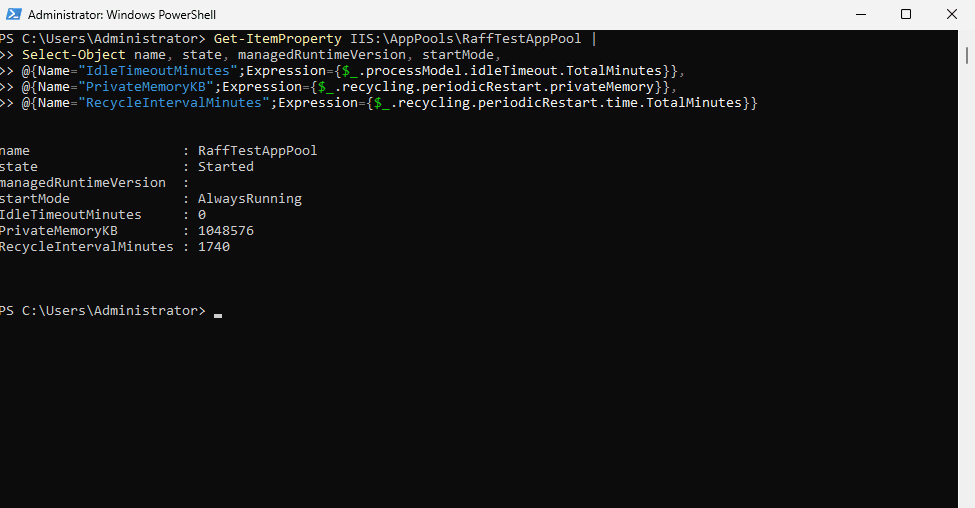
Get-ItemProperty IIS:\AppPools\RaffTestAppPool |
Select-Object name, state, managedRuntimeVersion, startMode,
@{Name="IdleTimeoutMinutes";Expression={$_.processModel.idleTimeout.TotalMinutes}},
@{Name="IdentityType";Expression={$_.processModel.identityType}},
@{Name="PrivateMemoryKB";Expression={$_.recycling.periodicRestart.privateMemory}},
@{Name="RecycleIntervalMinutes";Expression={$_.recycling.periodicRestart.time.TotalMinutes}}
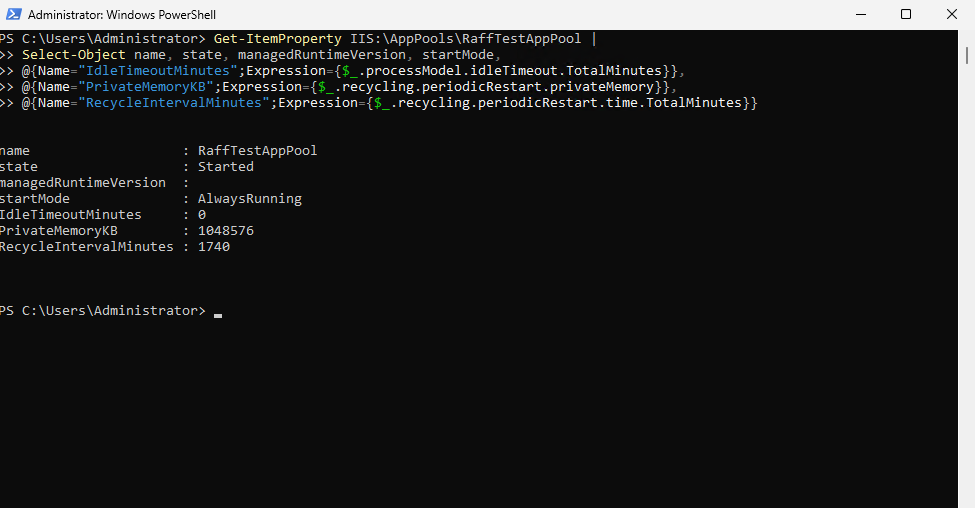
In the original Raff lab, the test pool used No Managed Code, AlwaysRunning, a 0-minute idle timeout, and a 1 GB private-memory threshold. Those values were chosen for the lab and are not universal requirements.
Production settings should match the application type
| Application type | Typical starting point |
|---|---|
| ASP.NET Core production app | Dedicated pool when isolation matters, No Managed Code recommended, AlwaysRunning when cold starts matter |
| Classic ASP.NET Framework | CLR and identity matched to application requirements |
| Static site | Usually minimal tuning |
| Internal low-traffic app | Default or longer idle timeout may be sufficient |
| Multiple unrelated production apps | Separate pools usually simplify failure isolation and operations |
Common IIS application pool tuning mistakes
- treating idle timeout
0as mandatory for every production app; - assuming No Managed Code is a hard requirement instead of a Microsoft recommendation for ASP.NET Core;
- placing unrelated applications in one pool without considering shared failure/recycle behavior;
- setting arbitrary private-memory thresholds;
- increasing queue length instead of fixing the throughput bottleneck;
- disabling Rapid-Fail Protection;
- using
iisresetfor an app-specific change; - storing specific-user application-pool passwords in scripts.
Production checklist
Before considering the pool production-ready, verify identity permissions, runtime configuration, startup/idle behavior, recycling, failure protection, memory behavior, logging, and the application's actual response under load.