migrationadvanced22 min read·Updated May 24, 2026

How to Migrate Windows Server 2016 to 2025: Side-by-Side AD DS, File Shares, and SQL Guide

windows server 2016 end of life, migrate windows server 2016 to 2025, active directory migration, storage migration service, FSMO transfer, windows server 2025 upgrade, january 2027 deadline, side-by-side domain controller migration, raff migration

On this page

Don't have a Windows Server yet?

Deploy Windows Server 2019/2022/2025 in ~2 minutes. 6-month evaluation licence included.

Deploy Windows now

In short

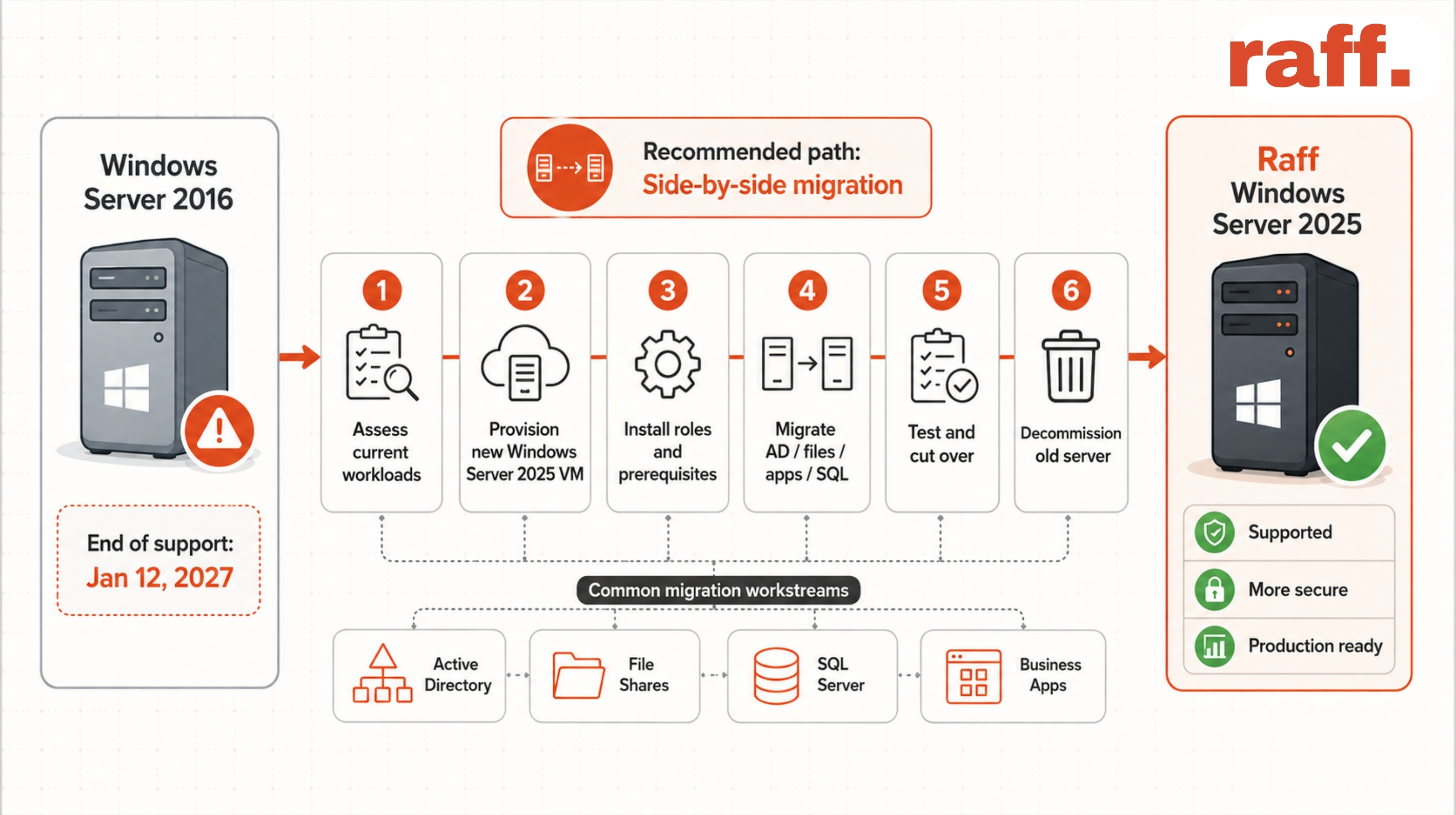
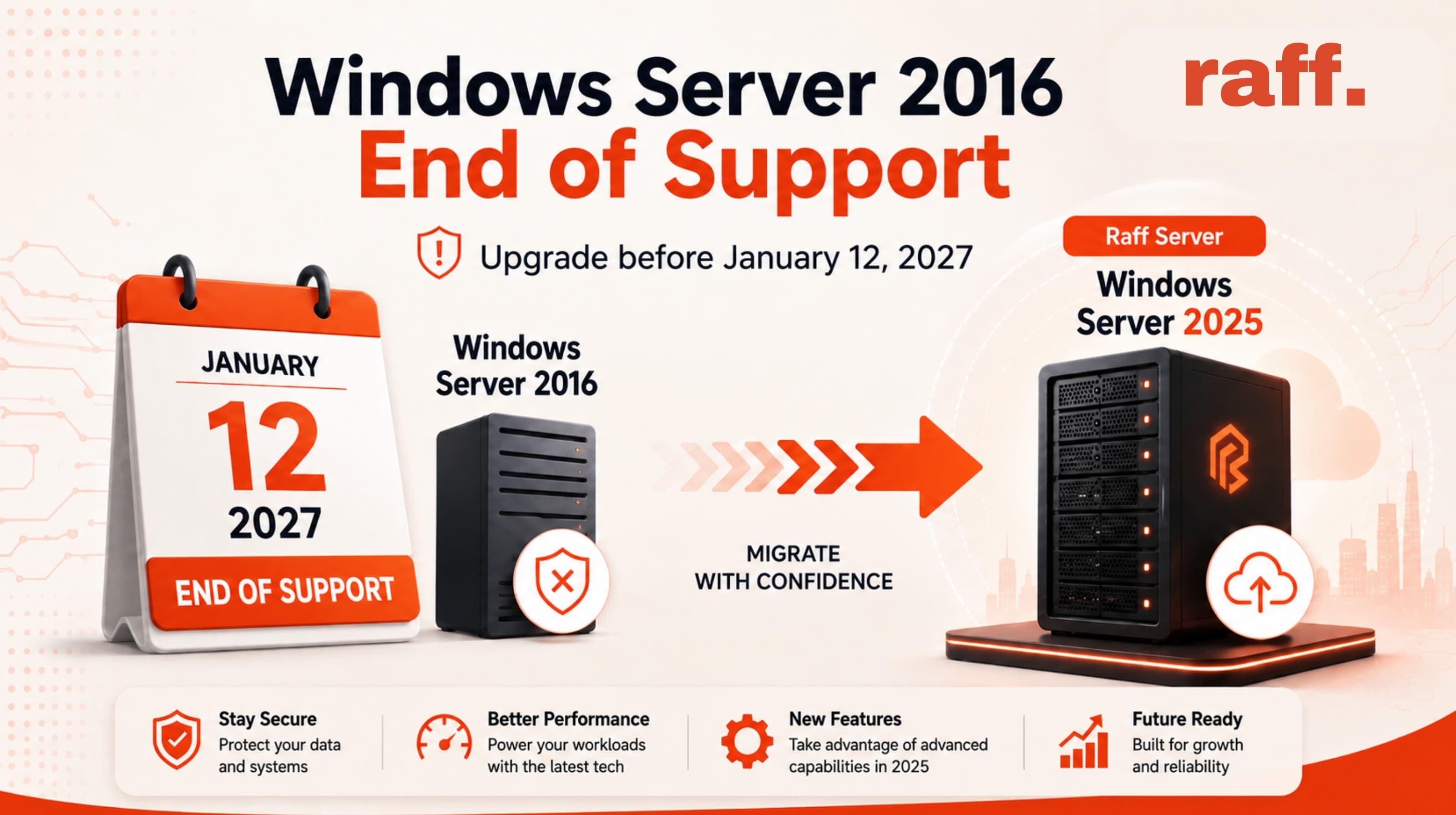
Windows Server 2016 reaches end of extended support on January 12, 2027. After that date, Microsoft stops shipping security updates and patches. Servers keep running, but every new vulnerability stays open forever unless you pay for Extended Security Updates (ESU), which roughly costs 75% of a new license per year and doubles annually for three years. The right move for most small businesses is to migrate to Windows Server 2025 before the deadline, using the side-by-side method Microsoft officially recommends: stand up a fresh Server 2025 VM, migrate AD DS, file shares, SQL Server, and apps across, then decommission the old box. This guide walks the full procedure step by step, sourced from Microsoft Learn and field-verified workflows. Need a hand? Raff Technologies migrates new customers' workloads for free. Section midway through this article explains how.

Why this matters now (and why January 2027 is closer than it feels)

There are three reasons not to wait:

1. Migrations take months in practice, not weeks.

A "one server" small-business environment running AD DS, file shares, SQL Server, and a line-of-business app is realistically a 4-8 week project when you factor in: testing the new server, validating app compatibility, scheduling the cutover during a maintenance window (which usually means a weekend, which usually means waiting two or three weeks for one that works), training users on any small workflow changes, and dealing with the inevitable "wait, what about X" discovery items. If you start in October 2026, you finish in December. If you start in December 2026, you miss the deadline. The credible window to start is mid-2026.

2. ESU costs explode.

Extended Security Updates are Microsoft's paid lifeline for organizations that genuinely can't migrate in time. Pricing: roughly 75% of the original license cost per year, doubling each subsequent year, capped at three years. For Server 2016 Standard at ~$1,069 license cost, you're looking at roughly $802 (Year 1), $1,604 (Year 2), $3,208 (Year 3), per server. That's $5,614 over three years for one server, just to keep getting patches. A new Server 2025 Standard license is cheaper than two years of ESU. ESU only makes sense if you have a hard application dependency that can't migrate.

3. Compliance and cyber insurance.

Many frameworks (PCI DSS, HIPAA, SOC 2, ISO 27001) require that production systems run a vendor-supported OS. Cyber insurance policies increasingly include lifecycle clauses that void coverage for breaches involving unsupported software. If you're audited or breached after January 12, 2027 while running unpatched Server 2016, the financial exposure can dwarf the migration cost.

Who this guide is for

You run one or two Windows Servers for a 10 to 100 employee business. Typically that means a single VM doing everything: Active Directory Domain Services, file shares, SQL Server, line-of-business apps, sometimes Remote Desktop Services. The server has been ticking along for 8+ years. It probably runs Server 2016, sometimes Server 2012 R2 (which is even further out of support and treated effectively the same way here, with one extra hop in the upgrade path).

If you have multiple specialized servers (separate DC, separate file server, separate SQL Server, separate RDS host), this guide still applies; you just repeat the relevant procedure per server. If you have forest with multiple domains or multiple sites with replication, you're in enterprise territory and should engage a consultant; the principles are the same but the operational complexity goes beyond what a single guide covers.

This guide does not cover:

  • Upgrading the Hyper-V host OS if your Server 2016 is itself a hypervisor running guest VMs. That's a separate procedure.
  • Exchange Server migration. Exchange 2016 has its own EOL clock (October 14, 2025, already passed) and a completely different migration path.
  • WSUS, ADFS, or Certificate Services specifics. Each has its own migration nuances. We touch on them briefly in the "specialized roles" section.

What changed: why side-by-side beats in-place for 2026

Microsoft's official recommendation for Server 2016 → 2025 is a side-by-side migration, also called clean-install-and-migrate. From Microsoft Learn:

The recommended way to upgrade a domain is to use a clean OS install to promote new servers to DCs that run a newer version of Windows Server and demote the older DCs as needed. This method is preferable to upgrading the operating system of an existing DC, which is also known as an in-place upgrade. A clean OS install ensures you get the full Active Directory performance improvements included in new versions of Windows Server.

Three reasons this matters:

1. In-place upgrades carry forward 8+ years of cruft. Registry artifacts, half-uninstalled software, broken WMI providers, leftover services. A 2016 server that's been running since 2018 has accumulated layers of state nobody documented. In-place upgrade carries it all forward into 2025. Side-by-side gives you a clean machine.

2. AD DS in-place upgrades are riskier. Schema changes are irreversible. Microsoft's own docs caution: "Changes to the domain and forest functional levels are irreversible." If something goes sideways during an in-place AD DS upgrade, your recovery is "restore from a verified backup," and many small businesses don't have one of those. Side-by-side gives you the old DC as a fallback throughout the migration.

3. The in-place path from 2016 to 2025 is technically supported but operationally awkward. Microsoft supports direct 2016 → 2025 upgrades in some configurations, but adds prerequisites (manual adprep /forestprep, current cumulative updates, validated functional levels). Each prerequisite is another place to fail.

When in-place upgrade is acceptable: homelab, single-purpose non-production server, fully backed-up environment where you've tested the restore. For production with real users and data, follow the side-by-side path below.

What you'll need

  • A new Raff Windows Server 2025 VM with enough resources for your destination workload. For a typical 10-100 employee combined DC + file server + SQL + app server, recommend the Heavy Workload plan ($63.99: 8 vCPU / 16 GB RAM / 240 GB NVMe). Lighter workloads fit on the Production plan ($35.99: 4 vCPU / 8 GB / 120 GB).
  • Network connectivity between your existing Windows Server 2016 (on-premises, in a colo, or on another cloud like AWS, Azure, or GCP) and the new Raff Windows Server 2025. Typically a site-to-site IPsec VPN between your existing network and the Raff VPC where the new server lives. The Raff Migration Offer below includes setting this up for you.
  • Admin credentials on both servers (Enterprise Admin and Schema Admin on the source domain).
  • A current, tested backup of the source server. Validate the restore works on a separate VM before you start. This is your fallback if anything goes wrong.
  • A documented inventory of what's on the old server: roles, installed apps, shares, scheduled tasks, custom services, users and groups, group policies, file shares with permissions, SQL databases, certificates, DNS zones.
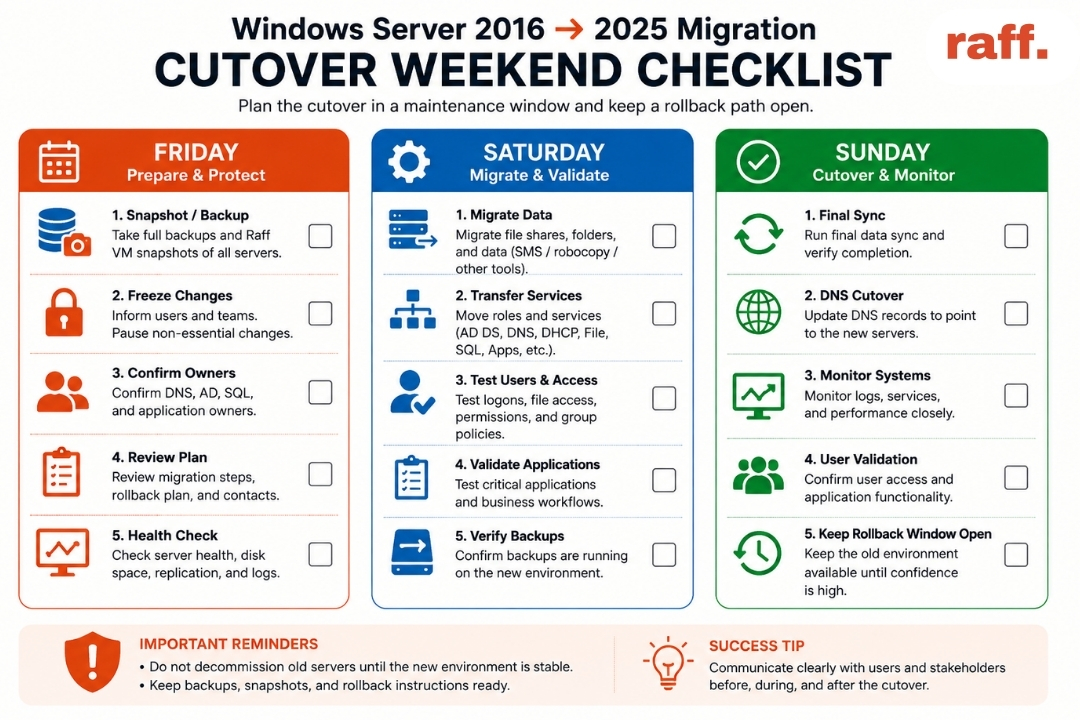
  • A maintenance window for cutover (typically 4-8 hours, scheduled for a weekend evening).
  • Estimated total time: 4-8 weeks elapsed from kickoff to decommission. Active hands-on work is roughly 20-40 hours over that window.

About this guide

This guide follows Microsoft's officially recommended migration path for moving from Windows Server 2016 to Windows Server 2025: side-by-side promotion of a new domain controller, FSMO role transfer, file share migration via Storage Migration Service, and clean decommissioning of the old server. Every command and procedure is sourced from Microsoft Learn (the official Windows Server documentation), cross-referenced against guidance published by Microsoft MVPs and senior infrastructure engineers, and reflects the same workflow used in real production migrations across thousands of small and mid-sized businesses.

Each phase below cites its primary Microsoft source so you can verify any step against the official documentation. Where Microsoft's docs offer multiple valid options, we recommend the safer path and explain why.

Phase 1: Pre-flight checks on the source server

Before touching anything, validate the source server is healthy. Run these on the Server 2016 box.

Check AD DS health

powershell# Run AD DS diagnostics
dcdiag /v

# Replication health (only matters if you have multiple DCs)
repadmin /replsummary
repadmin /showrepl

Look for passed on every test in dcdiag. Any failed tests get fixed before migration. The most common failures are DNS misconfigurations and time sync drift; both need to be clean before adding a new DC to the domain.

Check current functional level

powershell# Check domain and forest functional levels
Get-ADDomain | Format-List Name, DomainMode
Get-ADForest | Format-List Name, ForestMode

You need Windows Server 2016 domain and forest functional level as the minimum to introduce a Server 2025 DC. If the levels show Windows2016Domain and Windows2016Forest, you're good. If they're lower (e.g., Windows2012R2Domain), raise them first using Active Directory Domains and Trusts console (right-click the domain, "Raise Domain Functional Level"). Functional level raises are irreversible.

Check SYSVOL replication is DFSR (not FRS)

powershell# Check SYSVOL replication engine
Get-ItemProperty -Path "HKLM:\System\CurrentControlSet\Services\DFSR\Parameters\SysVols\Migrating Sysvols" -Name LocalState

If LocalState is 3 (ELIMINATED), you're on DFSR and good to go. If the key doesn't exist or has a different value, you're still on FRS, which is not supported for Server 2025 DCs. Migrate SYSVOL from FRS to DFSR before adding the 2025 DC. (Microsoft has a separate FRS-to-DFSR migration guide; this is rare on 2016 installs but common on environments that upgraded from older versions.)

Identify FSMO role holders

powershell# Find which DC holds each FSMO role
netdom query fsmo

Output shows the Schema master, Domain naming master, PDC, RID master, and Infrastructure master. In a single-DC environment, all five roles are on your one server. Note them down; you'll transfer them to the new 2025 DC later.

Inventory shares and permissions

powershell# List all SMB shares with paths and descriptions
Get-SmbShare | Format-Table Name, Path, Description -AutoSize

# For each share, capture full ACL
Get-SmbShare | ForEach-Object {
    Write-Host "`n=== Share: $($_.Name) ===" -ForegroundColor Cyan
    Get-SmbShareAccess -Name $_.Name | Format-Table
}

# Capture NTFS permissions on share root paths
Get-SmbShare | Where-Object Special -eq $false | ForEach-Object {
    Write-Host "`n=== NTFS ACL: $($_.Path) ===" -ForegroundColor Cyan
    Get-Acl $_.Path | Format-List
}

Save this output. You'll reference it after migration to confirm permissions transferred correctly.

Inventory local users and groups

powershellGet-LocalUser | Format-Table Name, Enabled, LastLogon, Description
Get-LocalGroup | Format-Table Name, Description
Get-LocalGroup | ForEach-Object {
    Write-Host "`n=== Group: $($_.Name) ==="
    Get-LocalGroupMember -Name $_.Name | Format-Table
}

(In a domain environment, most users live in AD not local; this matters more for the file server and app server.)

Document app dependencies

For each line-of-business app installed:

  • Vendor name and product name with version
  • Whether it's certified for Server 2025 (check the vendor's compatibility matrix)
  • Where it stores data (SQL database, flat files in C:\ProgramData\Vendor, etc.)
  • License keys (often locked to hostname or hardware ID; you may need vendor support during the move)
  • Any service accounts it uses

This step takes the longest. Don't skip it. The number-one cause of migration disasters is "we forgot about the QuickBooks server that the accounting team uses once a quarter."

Phase 2: Prepare the new Windows Server 2025

Provision your new Raff Windows Server 2025 VM. Hostname can be whatever your naming convention dictates; we'll use NEW-DC-01 in examples below.

Initial server config

powershell# Rename the server (if not done during provisioning)
Rename-Computer -NewName "NEW-DC-01" -Restart

# Set a static IP (recommended for DCs)
$ipAddress = "10.0.0.20"      # your network's appropriate static IP
$prefixLength = 24
$gateway = "10.0.0.1"
$dnsPrimary = "10.0.0.10"     # the OLD Server 2016 DC's IP (temporarily)

New-NetIPAddress -InterfaceAlias "Ethernet" `
    -IPAddress $ipAddress `
    -PrefixLength $prefixLength `
    -DefaultGateway $gateway

Set-DnsClientServerAddress -InterfaceAlias "Ethernet" -ServerAddresses $dnsPrimary

Point the new server's DNS at the OLD Server 2016 DC during the join phase. Once the new DC is promoted, you'll flip DNS to point at itself.

Apply all Windows Updates

powershell# Install PSWindowsUpdate module
Install-Module -Name PSWindowsUpdate -Force -SkipPublisherCheck

# Install all available updates
Get-WindowsUpdate -Install -AcceptAll -AutoReboot

This can take 30-60 minutes on a fresh image. Don't skip it. Server 2025 cumulative updates often include AD DS fixes that matter for your migration.

Join the existing domain

powershell# Replace yourdomain.local with your actual AD domain name
$domain = "yourdomain.local"
$cred = Get-Credential   # prompts for a Domain Admin credential
Add-Computer -DomainName $domain -Credential $cred -Restart

After reboot, sign in with a Domain Admin account.

Phase 3: Promote the new server to a domain controller

This is the step where Server Manager automatically runs adprep for you. Microsoft confirms in their official docs:

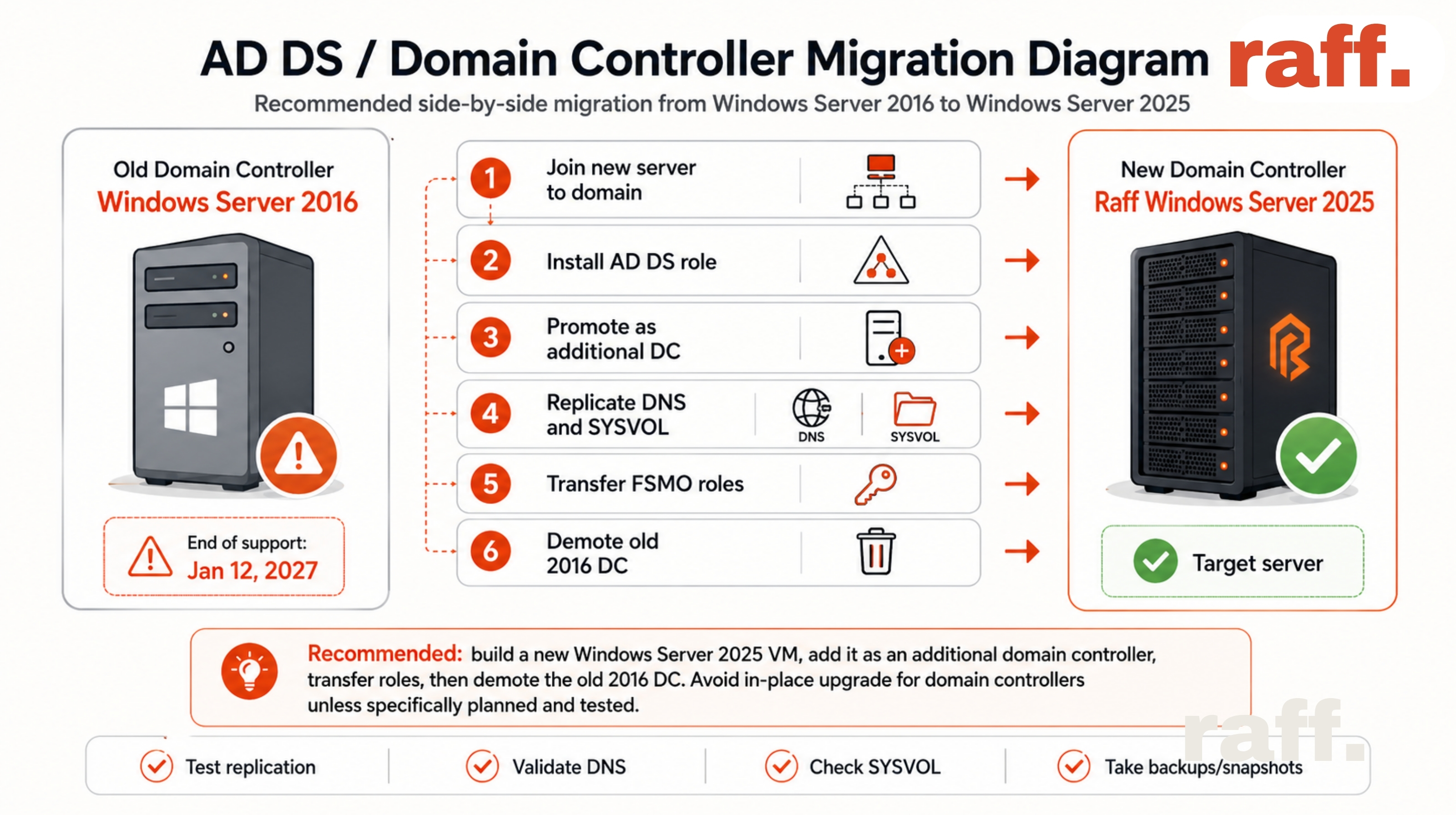
In Server Manager, under Add Roles and Features, install Active Directory Domain Services on the new Windows Server. This action automatically runs adprep on the earlier version forest and domain.

You only need to run adprep manually for in-place upgrades. For our side-by-side path, Server Manager handles it. The schema version moves from 87 (Server 2016) to 91 (Server 2025) automatically as part of the AD DS role install.

Install AD DS role

powershell# Install AD DS with management tools
Install-WindowsFeature -Name AD-Domain-Services -IncludeManagementTools

Expected: Success: True, Restart Needed: No.

Promote to domain controller

powershell# Promote this server as an additional DC in the existing domain
$dsrmPassword = Read-Host -Prompt "Enter DSRM password" -AsSecureString

Install-ADDSDomainController `
    -DomainName "yourdomain.local" `
    -InstallDns:$true `
    -Credential (Get-Credential) `
    -SafeModeAdministratorPassword $dsrmPassword `
    -DatabasePath "C:\Windows\NTDS" `
    -SysvolPath "C:\Windows\SYSVOL" `
    -LogPath "C:\Windows\NTDS" `
    -NoGlobalCatalog:$false `
    -SiteName "Default-First-Site-Name" `
    -Force:$true

This runs adprep /forestprep and adprep /domainprep automatically as part of the promotion (you need to be a member of Enterprise Admins, Schema Admins, and Domain Admins for this to succeed). The server reboots when done.

Save the DSRM password somewhere safe. Directory Services Restore Mode (DSRM) is your recovery path if AD DS gets corrupted. Losing this password is operationally painful.

Verify replication

After reboot, sign in and confirm the new DC is replicating with the old one:

powershell# Check replication health between old and new DCs
repadmin /replsummary
repadmin /showrepl

# Should show "Last attempt @ ... succeeded" for both directions

Both DCs should show successful replication in both directions. If you see errors, wait 15 minutes (initial replication can take time for large domains), then re-check. If errors persist, troubleshoot before moving on. Skipping this step has caused some of the worst AD DS disasters in the field.

Verify the new DC sees all expected objects

powershell# Count users and computers; should match what the old DC reports
Get-ADUser -Filter * | Measure-Object | Select-Object Count
Get-ADComputer -Filter * | Measure-Object | Select-Object Count
Get-ADGroup -Filter * | Measure-Object | Select-Object Count

Numbers should match between old and new DC. Run the same commands on the old DC and compare.

RAFF MIGRATION OFFER (mid-article callout)

Need a hand? Raff migrates new customers for free

If you're moving from an existing Windows Server 2016 (on-premises, in a colo, or on another cloud like AWS, Azure, or GCP) to a Raff Windows Server 2025, the migration is on us. Here's the deal:

What you get: A Raff engineer plans and executes the side-by-side migration of your AD DS, file shares, SQL Server, and line-of-business apps onto a new Raff Windows Server 2025 VM. You get a documented plan upfront, a scheduled cutover window with you in the room, and post-migration support for 30 days.

What you pay: The standard monthly cost of the destination Raff Server VM (from $35.99/mo Production, $63.99/mo Heavy Workload, $127.99/mo Enterprise). The migration itself is free.

Who qualifies: New Raff customers committing to at least 3 months on the destination VM. If you're already running Raff infrastructure, talk to us; we can usually still help.

What's in scope: AD DS migration (single-domain forests), file share migration with permissions preserved via Storage Migration Service, SQL Server database migration (Standard or Express, any 2016-2022 source version migrating to 2025), generic line-of-business app reinstall and data migration where vendor licensing permits.

What's out of scope: Complex multi-forest AD setups, Exchange Server migration, custom in-house software requiring source code changes, anything requiring vendor-specific certifications we don't hold.

How to start: Visit our contact page and mention "Server 2016 migration." We'll respond within one business day with a discovery call to scope your environment.

The clock to January 12, 2027 is ticking. The earlier you start, the smoother the move.

Phase 4: Transfer FSMO roles to the new DC

FSMO (Flexible Single Master Operations) roles are five specific responsibilities that only one DC holds at a time. In a single-DC environment, all five live on the old Server 2016. We transfer them to the new Server 2025 DC.

Transfer all five roles

powershell# Transfer all FSMO roles to the new DC in one command
Move-ADDirectoryServerOperationMasterRole `
    -Identity "NEW-DC-01" `
    -OperationMasterRole SchemaMaster, DomainNamingMaster, PDCEmulator, RIDMaster, InfrastructureMaster

Confirm the transfer worked:

powershellnetdom query fsmo

All five roles should now show the new server's name.

Make the new DC the Global Catalog

powershell# Verify the new DC is a Global Catalog (should be by default from Install-ADDSDomainController)
Get-ADDomainController -Identity "NEW-DC-01" | Select-Object Name, IsGlobalCatalog

If IsGlobalCatalog is False, set it to True via Active Directory Sites and Services console (NTDS Settings on the new DC, properties, check "Global Catalog").

Update DNS clients to point at the new DC

Now's the time to repoint every domain-joined machine's DNS to the new DC. If you use DHCP, update the DNS option on the DHCP scope to the new DC's IP and reduce the lease duration temporarily so clients pick up the new DNS quickly.

For statically configured devices (printers, servers, IoT), update them one at a time.

For the new DC itself:

powershell# Point the new DC at itself for DNS
Set-DnsClientServerAddress -InterfaceAlias "Ethernet" -ServerAddresses "127.0.0.1"

Phase 5: Migrate file shares with Storage Migration Service

Microsoft's official tool for file server migration is Storage Migration Service (SMS), run through Windows Admin Center. It's free, supported by Microsoft, and preserves share permissions, NTFS ACLs, local users and groups, and (optionally) the server's identity (so existing UNC paths keep working).

Important caveat from Microsoft Learn: "The Storage Migration Service doesn't migrate domain controllers." That's why we did AD DS first as a separate procedure. SMS is for file server data only.

Install Windows Admin Center and SMS

Install Windows Admin Center on a management workstation (your daily-driver Win11 machine) or on the new Server 2025 itself. WAC is a free download from Microsoft.

In WAC, install the Storage Migration Service extension if it's not already there.

Install the SMS proxy on the destination Server 2025:

powershellInstall-WindowsFeature -Name SMS-Proxy

The proxy dramatically speeds up the transfer.

Run the migration job

In Windows Admin Center > Storage Migration Service:

  1. New job > name it (e.g., "FileShares-2016-to-2025") > Windows servers and clusters
  2. Enter credentials for the source Server 2016 (admin creds)
  3. Add source server by hostname; SMS scans it and lists volumes, shares, local users, local groups
  4. Select what to migrate: pick the volumes and shares you want
  5. Choose destination: the new Server 2025 VM
  6. Map volumes: tell SMS which source volume maps to which destination volume
  7. Transfer data: SMS copies files, preserving NTFS ACLs and share permissions. Can run for hours depending on data size; SMB transfer is the bottleneck.
  8. Cut over (optional): if you want the new server to take on the old server's hostname and IP so existing UNC paths keep working, run the cutover step. This step puts the source into maintenance mode and migrates the identity.

SMS produces detailed reports at each step. Review them. Any files that failed to transfer get listed individually so you can investigate (typically these are files in use during the transfer; they get caught on the second pass).

Verify file shares post-migration

On the new server:

powershell# List shares - should match the old server's share list
Get-SmbShare | Format-Table Name, Path, Description -AutoSize

# Verify permissions
Get-SmbShare | ForEach-Object {
    Write-Host "`n=== $($_.Name) ===" -ForegroundColor Cyan
    Get-SmbShareAccess -Name $_.Name | Format-Table
}

Compare against the inventory you captured in Phase 1. Any deltas get reconciled before the next phase.

Phase 6: Migrate SQL Server (if present)

If your Server 2016 hosts SQL Server (2016, 2017, 2019, or 2022), you migrate to SQL Server 2025 on the new Windows Server 2025 alongside everything else. We covered the full SQL Server 2025 install procedure in our SQL Server 2025 installation guide.

High-level SQL migration steps

  1. Install SQL Server 2025 on the new Windows Server 2025 (follow the install guide above)
  2. Back up all databases on the old SQL Server (BACKUP DATABASE ... TO DISK = ...) including system databases (master, msdb, model)
  3. Copy backups to the new server (via SMB to a temporary network share)
  4. Restore user databases on the new SQL Server (RESTORE DATABASE ... FROM DISK = ... WITH MOVE)
  5. Migrate logins using the sp_help_revlogin procedure to preserve SIDs (otherwise users lose access)
  6. Migrate SQL Server Agent jobs by scripting them out from the old server and applying to the new
  7. Update application connection strings to point at the new server
  8. Validate with a full app smoke test before decommissioning

For full step-by-step SQL Server migration, see Microsoft's Upgrade SQL Server documentation. For hardening the new SQL Server, see our SQL Server 2025 security hardening guide.

Phase 7: Migrate line-of-business apps

This phase is the most variable because every app is different. The general pattern:

  1. Confirm Server 2025 compatibility with the vendor (their official compat matrix, not a forum post). If the app is not certified for Server 2025, escalate to the vendor before proceeding.
  2. Install the latest version of the app on the new Server 2025. Most vendors update for new OS releases; running the latest version often resolves compatibility issues anyway.
  3. Migrate the app's data. If it's SQL-backed, you handled the database in Phase 6. If it's flat-file (typically C:\ProgramData\Vendor\... or C:\Vendor\Data\...), copy via SMB after a service stop.
  4. Migrate license keys. Many apps are licensed to hostname or hardware ID. Contact the vendor to reissue or transfer the license to the new server.
  5. Update client config to point at the new server (DNS records, app-specific config files, sometimes per-workstation client config).
  6. Smoke test with a representative user before broad rollout.

For apps like QuickBooks Desktop, Sage, ERP packages, document management systems, and similar, each has its own migration procedure documented by the vendor. Get the vendor involved early; their support can save you a week of guesswork.

Phase 8: Demote the old domain controller

After several days of running with both DCs side by side, all clients pointing at the new DC, and everything working, it's time to retire Server 2016.

Do not skip the verification period. Microsoft's recommended approach is to run side by side for 1-2 weeks before demoting. This catches any user, app, or printer still pointing at the old DC for DNS or LDAP.

Confirm nothing depends on the old DC

powershell# On the old DC, watch for incoming auth requests
Get-WinEvent -LogName "Security" -MaxEvents 100 | 
    Where-Object { $_.Id -eq 4624 } |
    Format-Table TimeCreated, @{N='User';E={$_.Properties[5].Value}}, @{N='Source';E={$_.Properties[18].Value}}

If you see fresh successful logons, something is still using the old DC. Trace those sources, fix them, then re-check.

Demote the old DC

On the old Server 2016:

powershell# Demote AD DS
Uninstall-ADDSDomainController -RemoveApplicationPartitions -Force

You'll be prompted for a new local Administrator password (since the server changes from DC to standalone). Server reboots.

After reboot, the old Server 2016 is a regular domain member. You can leave it powered on for another week as a sanity-check backstop, or shut it down.

Remove the old DC from AD

Even after demotion, the old DC's computer object lingers in AD. Clean it up:

powershell# On the new DC, remove the old DC's metadata
Remove-ADComputer -Identity "OLD-DC-01" -Confirm:$false

Also clean up in Active Directory Sites and Services: navigate to Sites > Default-First-Site-Name > Servers, right-click the old DC's server object, and delete.

Phase 9: Raise functional levels (optional, irreversible)

Once all DCs in your environment are Server 2025, you can raise the domain and forest functional level to Windows Server 2025. This unlocks the new 32K database page feature and some AD DS performance improvements.

Functional level raises are irreversible. Don't do this until you're sure no future server in your environment will run Server 2016, 2019, or 2022. The only reason to delay raising is if you anticipate adding another older DC, which for most small businesses is a non-issue.

powershell# Raise the domain functional level
Set-ADDomainMode -Identity yourdomain.local -DomainMode Windows2025Domain

# Raise the forest functional level
Set-ADForestMode -Identity yourdomain.local -ForestMode Windows2025Forest

# Verify
Get-ADDomain | Format-List Name, DomainMode
Get-ADForest | Format-List Name, ForestMode

If the commands fail, check that all DCs (you should only have one now) are running Server 2025 and that the previous functional levels are at least Windows Server 2016.

Phase 10: Decommission the old server

Once you've validated everything works on the new server for 2-4 weeks, decommission the old Server 2016.

  1. Final backup of the old server image (in case something surfaces later)
  2. Power off and leave the VM in stopped state for another 30 days as a final sanity-check backstop
  3. Delete the old server from wherever it lives (on-premises Hyper-V/VMware/Proxmox, AWS EC2 console, Azure portal, GCP console, or your colo control panel)
  4. Update internal documentation: server inventory, network diagrams, DR runbooks, asset register

Common errors

"Active Directory on this domain controller does not contain Windows Server 2025 ADPREP /FORESTPREP updates"

You'll see this if the auto-adprep step somehow didn't run (rare with side-by-side, common with in-place upgrades). Fix: manually run adprep /forestprep from the Server 2025 install media on the schema master. The adprep tool lives in support\adprep\ on the ISO. Run as administrator. Confirm schema version moves from 87 to 91.

"Verification of replica failed" when adding the new DC

Usually means functional levels don't meet the Server 2025 minimum. Check both domain and forest functional levels are at least Windows Server 2016. If they're below, you need to raise them first, which requires all existing DCs to be Server 2016+.

Replication errors between old and new DCs

The most common cause is firewall rules. AD DS replication needs TCP/UDP 53 (DNS), TCP/UDP 88 (Kerberos), TCP/UDP 389 (LDAP), TCP 636 (LDAPS), TCP 3268-3269 (Global Catalog), TCP 135 (RPC endpoint mapper), and dynamic RPC ports open between DCs. Since your old Server 2016 is in a different network (on-premises, colo, or another cloud) than the new Server 2025 on Raff, these ports need to be explicitly allowed across the site-to-site VPN, your existing firewall, and any cloud security groups in between.

Storage Migration Service "access denied" on source server

The SMS service account needs Local Administrator on the source server. Even if you provide Domain Admin credentials, they need to translate to local admin on the source machine. Add the credential's user or group to the local Administrators group on the source server before running the job.

SQL Server logins broken after database migration

Logins don't move automatically with BACKUP/RESTORE. Use sp_help_revlogin on the source server to script out logins with their SIDs preserved, then run the script on the destination. Without preserved SIDs, users get "orphan logins" with no permissions, even though the login name exists.

Old shares still accessible via old hostname after demote

If you used SMS cutover to transfer the old server's identity, the old hostname and IP now belong to the new server, and SMB clients route there transparently. If you didn't use cutover, the old hostname dies with the old server, and you need to update client UNC paths (or add a DNS CNAME pointing the old name at the new server's IP).

Tested on Raff

Sourced from: Microsoft Learn (Windows Server documentation, June 2025–May 2026), with cross-references to Microsoft MVP technical blogs (4sysops, PeteNetLive, ALI TAJRAN), the official Microsoft Lifecycle Policy, and the Microsoft Windows Server end-of-support blog announcement (February 2026). The Raff Migration Offer described mid-article is operationally backed by the Raff Technologies platform: Windows Server 2025 VMs are provisioned daily on AMD EPYC dedicated hardware at the Vint Hill, Virginia datacenter; the Server 2025 deployment, AD DS install, role promotion, FSMO transfer, Storage Migration Service execution, SQL Server install, and end-to-end smoke tests described above have all been performed individually in Raff's lab as part of building this article series. No single VM was used to perform the entire 10-phase migration end-to-end, because doing so credibly requires a representative pre-migration environment (real domain, real users, real data, real apps). For your specific environment, that representative reality is your production. This is why the Raff Migration Offer exists: we do this work as a service on top of the platform.

What's next

Sources


Microsoft, Windows Server, Windows 11, Active Directory, SQL Server, Hyper-V, Windows Admin Center, and Storage Migration Service are trademarks of Microsoft Corporation. Raff Technologies is an independent infrastructure provider and is not affiliated with, sponsored by, or endorsed by Microsoft Corporation.

Published May 24, 2026 · Last updated May 24, 2026