
• Pricing
  • Performance
PricingPerformance
Sign InSign Up
  • Pricing
  • Performance
PricingPerformance
Sign InSign Up
Sign InGet Started

High-Performance Cloud Infrastructure

Empowering businesses with enterprise-grade cloud solutions at competitive prices. Built for reliability and simplicity. Designed for growth.

ISO 27001
99.9% Uptime

Stay Updated

3000+

Customers

15,000+

VMs Deployed

24/7

Human Support

Products

Build

  • Raff VM
  • Raff Windows VM
  • Raff Apps
  • Kubernetes
  • Raff Functions

Store

  • Raff S3
  • Raff Databases

Support

  • Documentation
  • API Reference
  • CLI
  • Terraform Provider
  • Contact
  • FAQ
  • Status

Company

  • About
  • Pricing
  • Blog
  • Release Notes
  • Performance
  • Status

Account

  • Sign In
  • Sign Up
  • Reset Password

Legal

  • Terms of Service
  • Privacy Policy
  • Service Level Agreement
  • Acceptable Use Policy

© 2026 Raff Technologies. All rights reserved.

System Status
run your software
run your softwarebeginner22 min read·Updated Jul 18, 2026

How to Keep Legacy Windows Business Applications Running in the Cloud

A practical decision guide for businesses that still depend on older Windows software. Learn how to assess compatibility, licensing, databases, remote access, migration risk, and whether a cloud Windows server is the right next step.

Serdar Tekin
Serdar Tekin
Co-Founder & Head of Infrastructure

A business application does not become useless simply because it is old.

Many companies still depend on Windows software that handles accounting, inventory, estimating, scheduling, customer records, reporting, or internal workflows. The application may work well, employees may understand it, and replacing it may create more risk than value. The real problem is often the aging office server, limited remote access, weak backup process, or growing maintenance burden around the software.

Raff Technologies helps businesses run suitable Windows workloads on cloud virtual machines, giving teams a centralized environment for applications, files, remote access, backups, and day-to-day administration. However, moving legacy software is not a simple copy-and-paste exercise. Compatibility, licensing, databases, peripherals, security, and recovery must be assessed before migration.

This guide explains when keeping a legacy Windows application in the cloud makes sense, what must be tested, and when replacing the software is the better decision.

Legacy software is often not the real problem

The word legacy can describe very different situations.

An application may be considered legacy because:

  • The vendor no longer develops it actively.
  • It requires an older Windows version or .NET component.
  • It uses a local database or shared network folder.
  • It was built specifically for one company.
  • It has no browser-based or SaaS version.
  • It depends on a physical license key, printer, scanner, or serial device.
  • The original developer is no longer available.
  • The software still works, but the server hosting it is reaching end of life.

These conditions do not automatically mean the application must be replaced. The business question is whether the software remains dependable, supportable, secure, and valuable enough to justify preserving.

For many small businesses, the application is familiar and deeply connected to daily operations. Replacing it may require data cleanup, workflow redesign, employee training, integrations, and months of disruption. In that situation, moving the existing application to a controlled Windows cloud environment can provide more time to plan a future replacement without forcing an emergency migration.

When keeping a legacy Windows application makes sense

Keeping the application is usually reasonable when it still performs an important business function and the surrounding risks can be controlled.

The application still supports the workflow

Some older applications remain effective because they were designed around a specific process. A custom estimating tool, internal order system, Access-based workflow, or desktop ERP may fit the business better than a modern generic platform.

The key question is not whether the interface looks old. It is whether the application continues to produce accurate results, supports current operations, and can be maintained safely.

Replacing it would create major disruption

A software replacement may affect:

  • Historical data
  • Reports and templates
  • Employee responsibilities
  • Customer-facing processes
  • Accounting or inventory workflows
  • Integrations with other systems
  • Compliance and retention requirements

If the business cannot replace everything at once, moving the application from fragile hardware to a cloud Windows server can become an interim modernization step.

The main risk is the office server

Sometimes the software is stable, but the infrastructure is not.

Common warning signs include:

  • The server is several years old.
  • Hardware support has expired.
  • Remote work depends on an unreliable VPN.
  • Backups have never been restored in a test.
  • Application files are spread across employee computers.
  • Only one person understands the server.
  • A hardware failure could stop the business.

In this case, the priority is to reduce the infrastructure risk around the application. Our guide to signs you have outgrown your office server covers these warning signs in more detail.

The vendor permits hosted or remote use

The software license must allow installation in a virtual or hosted environment. Some vendors license by user, device, server, processor, company, database, or physical machine. Others restrict hosting by third parties or require a specific licensing agreement.

Always confirm the vendor's current terms before migration. Technical compatibility does not override a licensing restriction.
Run suitable Windows workloads on reliable US cloud infrastructure.

Explore Windows VM

When replacing the application is the better decision

Cloud infrastructure can extend the useful life of a legacy application, but it cannot solve every underlying problem.

Replacement should be considered when:

  • The software depends on an unsupported operating system.
  • Security updates are no longer available.
  • The vendor has ended support and no internal expertise remains.
  • The database is frequently corrupt or unstable.
  • The application cannot support current user or reporting requirements.
  • Critical integrations no longer work.
  • The license does not permit virtualization or hosting.
  • The application requires unavailable physical hardware.
  • The cost of keeping it running is higher than replacing it.
  • The business cannot recover the application from backup.

An important distinction is whether the business is preserving a useful application or merely postponing an unavoidable failure.

A cloud Windows server is a strong option when it removes hardware dependence and improves access, recovery, and administration. It is not a substitute for supported software, valid licensing, or a long-term application strategy.

Start with an application dependency inventory

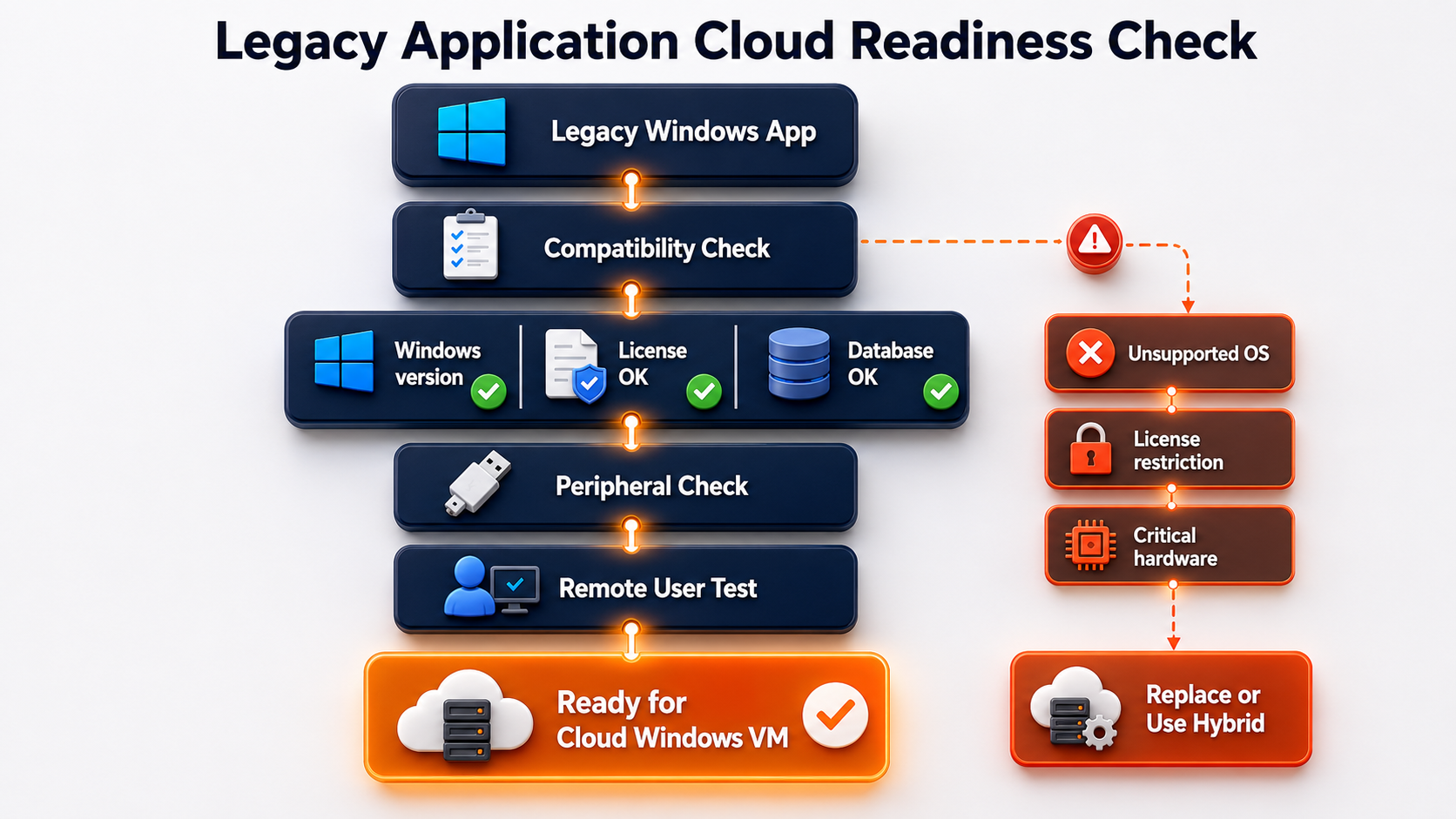
Before selecting a server or planning a cutover, document everything the application needs.

Cloud readiness assessment for a legacy Windows application covering compatibility, licensing, database, peripherals, remote access, and migration suitability

A useful inventory should include:

DependencyQuestions to answer
Operating systemWhich Windows versions are supported? Does it require Desktop Experience?
Application versionWhat exact version and build are installed? Is installation media available?
Runtime componentsDoes it require a specific .NET Framework, Java version, Visual C++ runtime, ODBC driver, or COM component?
DatabaseDoes it use SQL Server, SQL Server Express, Access, Firebird, MySQL, PostgreSQL, SQLite, or proprietary files?
File locationsWhere are program files, data files, exports, templates, attachments, and reports stored?
User accessIs it single-user, multi-user, client-server, or Remote Desktop based?
LicensingIs the license tied to a server name, MAC address, disk, USB key, user, or activation portal?
DevicesDoes it depend on printers, scanners, label printers, card readers, serial ports, or USB devices?
IntegrationsDoes it exchange data with accounting, email, payment, CRM, warehouse, or reporting systems?
Scheduled tasksAre exports, imports, reports, backups, or data-sync jobs automated?
SecurityWhich service accounts, local users, permissions, firewall rules, and shared folders are required?
RecoveryIs there a verified application-level backup and a documented restore procedure?

Do not rely only on the application's installation folder. Many older systems store important components elsewhere, including the registry, Windows services, shared folders, database instances, scheduled tasks, user profiles, and system directories.

A dependency inventory also helps reveal whether the migration is straightforward or whether specialist vendor involvement is required.

Confirm Windows Server compatibility before migration

The destination operating system must support the application and all required components.

Microsoft identifies application compatibility as a major consideration for Windows Server deployments and tests a range of Microsoft and third-party software. However, broad Windows Server compatibility does not guarantee that a specific older application will run correctly. The software vendor's support statement and your own testing remain essential.

Before migration, confirm:

  • Supported Windows Server editions and versions
  • 32-bit or 64-bit requirements
  • Required .NET Framework versions
  • Database engine compatibility
  • Required Windows features and roles
  • Whether the application needs a graphical desktop
  • Whether services can run under modern security policies
  • Whether the installer still works
  • Whether antivirus or endpoint protection interferes with the application

Avoid assuming that compatibility mode is enough

Windows compatibility settings can help with some older desktop applications, but they should not be treated as a migration plan. An application may launch successfully and still fail during printing, exporting, reporting, database access, or multi-user activity.

Testing must cover the complete business workflow rather than only opening the program.

Check vendor support separately from technical operation

An application may technically run on a newer Windows Server version while remaining unsupported by the vendor. That distinction matters when the business depends on vendor assistance, regulated records, or critical operations.

Document the decision clearly if the application will operate outside its vendor-supported environment.

Test the application in a separate cloud environment

The safest migration starts with a test server that does not affect production.

Build the proposed Windows environment, install the application, restore a copy of the data, and validate the full workflow. The test environment should be as close as possible to the planned production configuration.

Test more than application startup

A useful test plan should include:

  1. Installation and activation
  2. User sign-in and permissions
  3. Database connection
  4. Opening existing records
  5. Creating and editing data
  6. Reports and exports
  7. Printing and scanning
  8. Email integration
  9. File attachments and shared folders
  10. Scheduled tasks and services
  11. Multi-user activity
  12. Application backup and restore
  13. Sign-out and reconnection behavior
  14. Performance during realistic use

Representatives from the departments that use the application should participate in testing. An IT administrator may confirm that the application launches, while an experienced employee may immediately notice that an essential report, shortcut, template, or workflow is missing.

Use a written acceptance checklist

Record each tested function, the expected result, the actual result, and the person who approved it. This creates a practical go/no-go decision rather than relying on general impressions.

The test also provides early information about CPU, memory, storage, and user-density requirements before the production server is sized.

Plan remote access and multi-user licensing correctly

Many legacy applications were designed to run close to their database and data files. Installing the application on each remote employee's computer and sending data over a public connection can be slow, unreliable, or unsafe.

A common cloud model is to run the application and its data on the same Windows environment, then let users access the application through Remote Desktop Services. In this design, processing stays near the data and only the screen, keyboard, and mouse interactions travel between the user and server.

Microsoft describes Remote Desktop Services as a platform for centrally delivering managed desktops and applications to users in offices, homes, branches, and partner locations. This centralization can simplify application management and reduce the need to install the software on every endpoint.

Administrative RDP is not a multi-user deployment

Windows Server's administrative Remote Desktop sessions are intended for server administration. They are not a substitute for a properly licensed environment where employees use business applications concurrently.

For a business deployment, evaluate:

  • Remote Desktop Session Host
  • Remote Desktop Licensing
  • User or device access model
  • RDS CAL or service-provider licensing requirements
  • Session security and timeouts
  • Profile and printer behavior
  • Application permissions

Microsoft states that each user or device connecting to a Windows Server Remote Desktop Session Host generally needs an appropriate RDS client access license. Service providers may use different licensing models, such as subscriber access licenses, depending on the deployment and agreement.

Our guides to Remote Desktop Server for business and multi-user RDP licensing explain the distinction in more detail.

Review the database before moving the application

The application interface may be the visible part of the system, but the database usually carries the greatest business risk.

First identify:

  • Database engine and version
  • Database size
  • Recovery model
  • Authentication method
  • Service accounts
  • Data and log file locations
  • Maintenance jobs
  • Backup schedule
  • Integrity-check process
  • Required ports and drivers
  • Vendor-specific migration procedure

Use database-native backup and restore methods

Copying a virtual machine or taking a snapshot does not remove the need for application-consistent database backups.

For SQL Server, Microsoft recommends a backup and restore strategy that reflects the database's recovery requirements. The correct process may include full, differential, and transaction-log backups depending on the recovery model and acceptable data-loss window.

The migration test should include restoring the database to the destination and confirming that the application can connect, read, write, report, and back up correctly.

Do not move live database files casually

Copying active database files while services are running can produce an unusable or inconsistent copy. Use supported backup, detach/attach, export, replication, or vendor-recommended procedures.

For complex SQL Server environments, review our SQL Server migration to Windows VPS guide.

Separate files, application data, and backups

Older business applications often combine several types of storage:

  • Program installation files
  • Database files
  • User-uploaded documents
  • Templates
  • Report exports
  • Scanned records
  • Shared folders
  • Application backups
  • System-level backups

These should not be treated as one undifferentiated folder.

A stronger design defines:

  • Where the application is installed
  • Where active business data is stored
  • Which folders users can access
  • Which service accounts need permissions
  • Where application backups are written
  • How backups leave the production server
  • How long backups are retained

Additional storage volumes may help separate growing data from the operating-system disk. Off-server backup copies reduce dependence on the production VM and its primary storage.

If shared files are a major part of the workload, see Windows VPS cloud file server and file server migration to Windows VPS.

Add backups and recovery planning to your Windows environment.

Explore Data Protection

Check printers, scanners, USB devices, and local integrations

Peripheral dependence is one of the most common reasons a legacy application migration becomes more difficult than expected.

Examples include:

  • Receipt and label printers
  • Document scanners
  • Signature pads
  • Barcode readers
  • Serial-port devices
  • USB license dongles
  • Local accounting printers
  • Specialized forms
  • Check-printing hardware
  • Machine-control equipment

Remote Desktop can redirect some local printers and devices, but support depends on the device, driver, application, connection method, and security policy. A device that works on a local office server may not behave the same way through a hosted session.

Before migration:

  1. List every required device.
  2. Record the model and driver version.
  3. Confirm whether the vendor supports Remote Desktop use.
  4. Test the exact workflow from a normal employee endpoint.
  5. Identify a fallback process.

Workloads tied to industrial machines, specialized local hardware, low-latency control systems, or unsupported USB devices may be poor candidates for a standard cloud Windows VM.

Confirm application and Microsoft licensing

Licensing should be treated as a separate workstream rather than a final administrative detail.

Review:

  • Windows Server licensing
  • Remote Desktop licensing
  • SQL Server licensing
  • Application licensing
  • Database user or processor licensing
  • Microsoft Office or Microsoft 365 application rights
  • Third-party components
  • Vendor hosting restrictions
  • Multi-company or multi-tenant restrictions

A license that permits installation on a company-owned office server may not automatically permit installation on third-party cloud infrastructure. Some applications require a hosted edition, updated agreement, or license transfer.

Ask the vendor direct questions:

  • Is installation on a cloud virtual machine permitted?
  • Is Remote Desktop or multi-user access supported?
  • Can the license be transferred from the old server?
  • Is reactivation required after migration?
  • Is the license tied to hardware identifiers?
  • Does the vendor support the planned Windows Server version?
  • Can the vendor assist during cutover?

Keep written confirmation with the migration documentation.

Size the Windows environment around real usage

Legacy applications vary widely. A simple file-based application used by three employees may need modest resources. A multi-user ERP with SQL Server, reporting, document storage, and scheduled processes may need considerably more.

Size the environment based on:

  • Concurrent users, not only total employees
  • CPU use during reports and batch jobs
  • Memory used by the application and database
  • Database cache requirements
  • Storage capacity and growth
  • Storage latency and I/O activity
  • User profiles
  • Antivirus and backup overhead
  • Remote Desktop session density
  • Peak business periods

Start from observed production behavior

Collect performance data from the existing server where possible:

  • CPU utilization during normal and peak periods
  • Available memory and paging
  • Disk latency and queue length
  • Database size and growth
  • Network usage
  • Concurrent sessions
  • Report completion times

Do not size only from the old server's hardware label. An aging server may be overprovisioned, underprovisioned, or constrained by slow storage rather than CPU.

Leave room for migration and growth

The new environment should have enough capacity for:

  • Data-copy operations
  • Database restore and indexing
  • Windows updates
  • Security tools
  • Backups
  • Temporary files
  • User growth

A short test under representative load is more reliable than selecting a plan from user count alone.

Build a migration plan with a rollback path

A successful migration has a clear sequence, owner, acceptance test, and fallback plan.

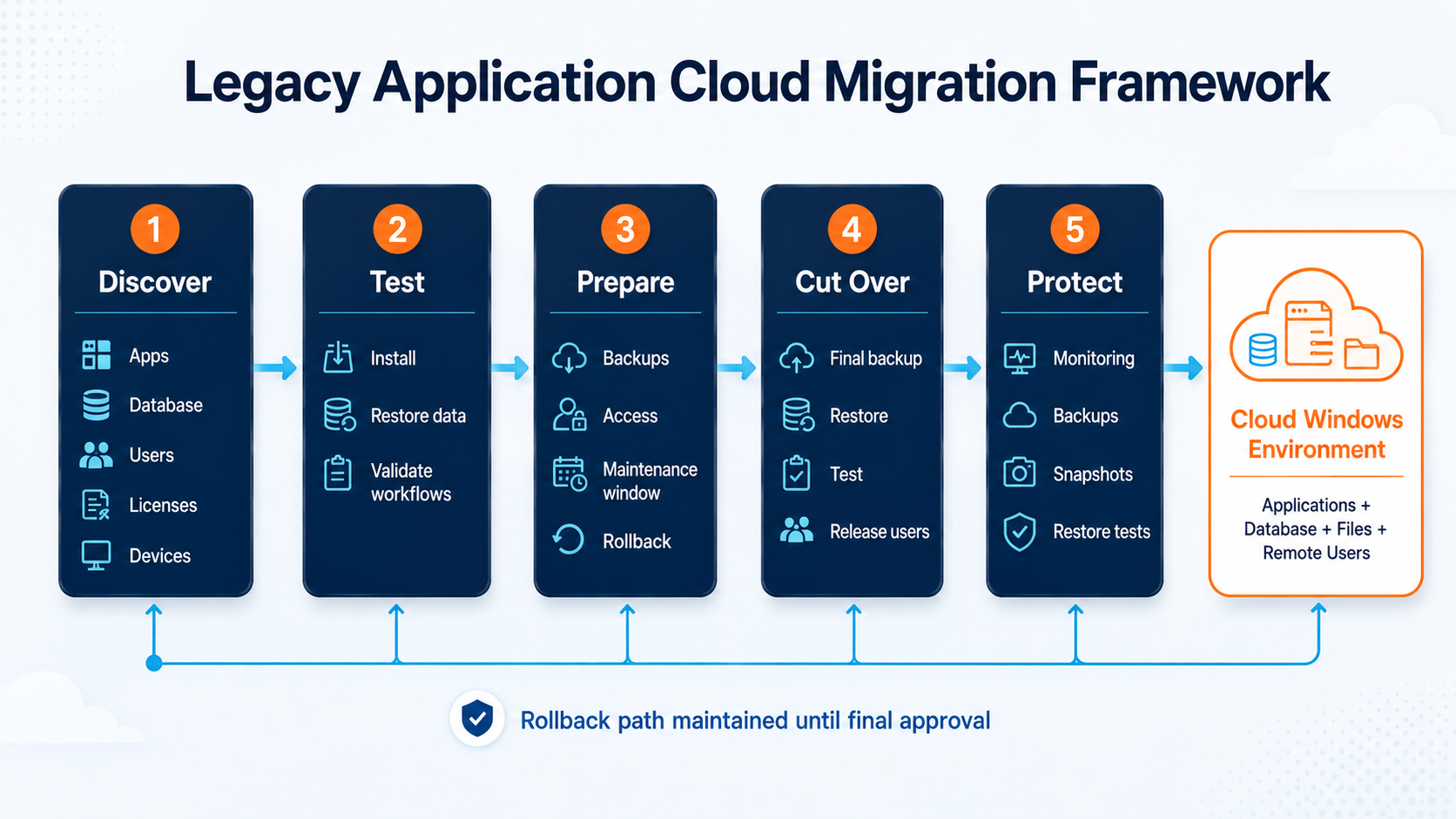
Five-stage migration framework for moving a legacy Windows business application to the cloud with discovery, testing, preparation, cutover, protection, and rollback

Phase 1: Discovery

  • Document application and dependencies.
  • Confirm vendor support and licensing.
  • Record users, permissions, services, tasks, and integrations.
  • Measure current resource usage.
  • Define recovery objectives.

Phase 2: Test environment

  • Create the destination Windows VM.
  • Install required Windows roles and components.
  • Install the application and database engine.
  • Restore a copy of production data.
  • Test business workflows with key employees.
  • Resolve compatibility and performance issues.

Phase 3: Migration preparation

  • Select the maintenance window.
  • Communicate downtime and responsibilities.
  • Create verified backups.
  • Reduce DNS or integration dependencies where relevant.
  • Prepare user accounts and access controls.
  • Document the final data synchronization method.
  • Define rollback criteria.

Phase 4: Cutover

  • Stop application changes on the old server.
  • Take the final application and database backup.
  • Transfer or restore current data.
  • Start services on the destination.
  • Validate permissions and integrations.
  • Test critical transactions.
  • Release users in controlled groups.

Phase 5: Stabilization

  • Monitor CPU, memory, storage, logs, and sessions.
  • Confirm scheduled tasks and backups.
  • Resolve printer and profile issues.
  • Test a restore.
  • Keep the old environment isolated but available during the agreed rollback period.
  • Decommission the old server only after formal approval.

Do not destroy or repurpose the source server immediately after cutover. Keep a controlled rollback window, but prevent users from accidentally continuing work in both systems.

For a broader planning framework, use our Windows Server migration checklist for small businesses.

Protect the new environment after migration

Moving an application to the cloud changes the infrastructure, but it does not automatically secure the workload.

The environment should include:

  • Unique named user accounts
  • Least-privilege permissions
  • Multi-factor authentication where supported
  • Restricted Remote Desktop exposure
  • Firewall rules limited to required services
  • Current Windows security updates
  • Endpoint protection
  • Database-level access controls
  • Encryption in transit where applicable
  • Backup retention outside the production server
  • Restore testing
  • Monitoring of failed sign-ins and service errors
  • Documented administrator access

Avoid exposing application database ports directly to the public internet. Where possible, keep the application and database on private interfaces or the same protected environment.

Remote access should also be designed around the business risk. Direct RDP exposure with weak credentials is not an acceptable long-term strategy. Consider secure access controls, source restrictions, gateways, or private networking based on the deployment.

Review practical protections for your Windows cloud workloads.

Explore Security

Backups must protect the application, not only the server

A virtual machine backup is useful, but recovery planning should cover multiple failure scenarios.

Failure scenarioRequired protection
Accidental record deletionApplication or database backup with suitable retention
Corrupted databaseVerified database-native backup and restore procedure
Failed Windows updateSystem backup, snapshot, or rollback plan
Ransomware or credential compromiseIsolated, retained off-server backups
Deleted VMIndependent backup outside the production instance
Application misconfigurationConfiguration export and documented settings
Full regional or provider issueBusiness continuity plan and independent data copies where required

Snapshots can be useful before updates or major changes, but they should not be the only backup method. A snapshot tied to the same production environment may not protect against every deletion, account, corruption, or provider-level scenario.

The most important backup question is not, “Did the job run?” It is, “Can the business restore the application and resume work within an acceptable period?”

Schedule restore tests and document the steps, credentials, dependencies, and expected recovery time.

Where a Raff Windows VM can fit

A Raff Windows VM can provide a centralized cloud environment for suitable legacy Windows applications, databases, shared data, and remote users.

Typical use cases include:

  • Moving an application from aging office hardware
  • Centralizing a custom Windows business application
  • Hosting an application and its database near each other
  • Providing controlled remote access to distributed employees
  • Separating business workloads from employee PCs
  • Adding cloud storage, snapshots, and backup processes
  • Supporting a staged transition before future software replacement

Raff provides US-based cloud virtual machines with AMD EPYC processors, DDR5 memory, NVMe SSD storage, and unmetered bandwidth. Businesses can also use supporting platform services such as volumes, private cloud networking, snapshots, backups, and data-protection options according to workload requirements.

The exact design depends on the application's compatibility, licensing, user count, database, storage, peripherals, and recovery requirements. Raff cannot make unsupported software supported or override a vendor's licensing terms, so these points must be confirmed before deployment.

Discuss your application, users, database, and migration requirements.

Talk to Windows Engineer

When a standard cloud Windows VM may not be suitable

A standard Windows VM may not be the right destination when the application requires:

  • Unsupported legacy Windows versions
  • Physical security keys that cannot be redirected
  • Direct serial, industrial, or machine-control interfaces
  • Specialized GPU acceleration
  • Very low-latency local equipment communication
  • Large-scale high-availability database clusters
  • Vendor-certified physical hardware
  • Constant access during unreliable internet connectivity
  • Licensing that prohibits hosted infrastructure
  • Regulatory controls beyond the proposed environment

These constraints do not always prevent cloud adoption, but they may require specialized infrastructure, application redesign, vendor involvement, or a hybrid architecture.

An honest assessment before migration is far less expensive than discovering a critical limitation during cutover.

A practical decision framework

Use the following questions to decide whether to keep, move, or replace the application.

Keep it on the current server temporarily when:

  • The server is still supported and stable.
  • A replacement project is already funded and near completion.
  • The application cannot be migrated without vendor changes.
  • A cloud test has not yet been completed.

Move it to a cloud Windows environment when:

  • The application remains valuable.
  • The office server creates operational risk.
  • Vendor licensing permits hosting.
  • The application works on a supported Windows Server version.
  • Remote access and centralized management are priorities.
  • Database and peripheral requirements have been tested.
  • A verified backup and rollback plan exists.

Replace it when:

  • The application is insecure or unsupported.
  • Essential business requirements are no longer met.
  • Migration costs exceed replacement value.
  • Vendor or internal expertise has disappeared.
  • Data cannot be recovered reliably.
  • Critical integrations cannot be maintained.

The best choice may also be a staged approach: stabilize the current application in the cloud, reduce infrastructure risk, then replace the software on a deliberate schedule.

Conclusion: modernize the environment without rushing the application decision

Many small businesses do not need to replace a useful Windows application simply because the server beneath it is old.

A carefully planned cloud migration can remove dependence on aging hardware, centralize access, improve recovery options, and give the business more control over when and how the application is eventually replaced.

The decision should still be evidence-based. Confirm Windows compatibility, vendor support, licensing, database recovery, user access, peripherals, security, and performance in a test environment before production cutover.

When the software remains valuable and the infrastructure is the main weakness, moving it to a suitable Windows cloud environment can be a practical next step. When the application itself is the risk, replacement should not be postponed indefinitely.

Sources

  • Microsoft Learn — Microsoft server applications compatibility for Windows Server
  • Microsoft Learn — Remote Desktop Services overview in Windows Server
  • Microsoft Learn — License Remote Desktop Services with Client Access Licenses
  • Microsoft Learn — Back up and restore of SQL Server databases
  • Microsoft Learn — Storage Migration Service overview
Was this article helpful?

Published July 18, 2026 · Updated July 18, 2026

Back to hub
On this page
Legacy software is often not the real problemWhen keeping a legacy Windows application makes senseWhen replacing the application is the better decisionStart with an application dependency inventoryConfirm Windows Server compatibility before migrationTest the application in a separate cloud environmentPlan remote access and multi-user licensing correctlyReview the database before moving the applicationSeparate files, application data, and backupsCheck printers, scanners, USB devices, and local integrationsConfirm application and Microsoft licensingSize the Windows environment around real usageBuild a migration plan with a rollback pathProtect the new environment after migrationBackups must protect the application, not only the serverWhere a Raff Windows VM can fitWhen a standard cloud Windows VM may not be suitableA practical decision frameworkConclusion: modernize the environment without rushing the application decisionSources

Related articles

run your software7 Signs You've Outgrown Your Office Server (And What to Do Next)See the warning signs that your small business has outgrown its office server and learn when a Windows VPS, local refresh, SaaS, or hybrid setup makes sense.22 min read7/17/2026