Windows VPS as a Cloud File Server: What Small Businesses Should Know
Learn when a Windows VPS can work as a cloud file server for small businesses, including SMB access, Remote Desktop, backups, security, storage, and migration planning.

On this page
- In short
- Quick verdict: when a Windows VPS fits as a file server
- What a cloud file server actually does
- SMB access needs a secure network design
- File server vs Remote Desktop file access
- A Windows VPS file server is not the same as object storage
- Folder structure should be designed before migration
- NTFS permissions and share permissions both matter
- Storage sizing should include growth and backups
- Backups and restore tests are non-negotiable
- Security should be planned before users connect
- Performance depends on file behavior
- Migration from a local office server should be staged
- When a Windows VPS file server is not the best fit
- How Raff fits a Windows VPS cloud file server
- Recommended path by business type
- FAQ
- What's next
- Sources
Don't have a Windows Server yet?
Deploy Windows Server 2019/2022/2025 in ~2 minutes. 6-month evaluation licence included.
In short
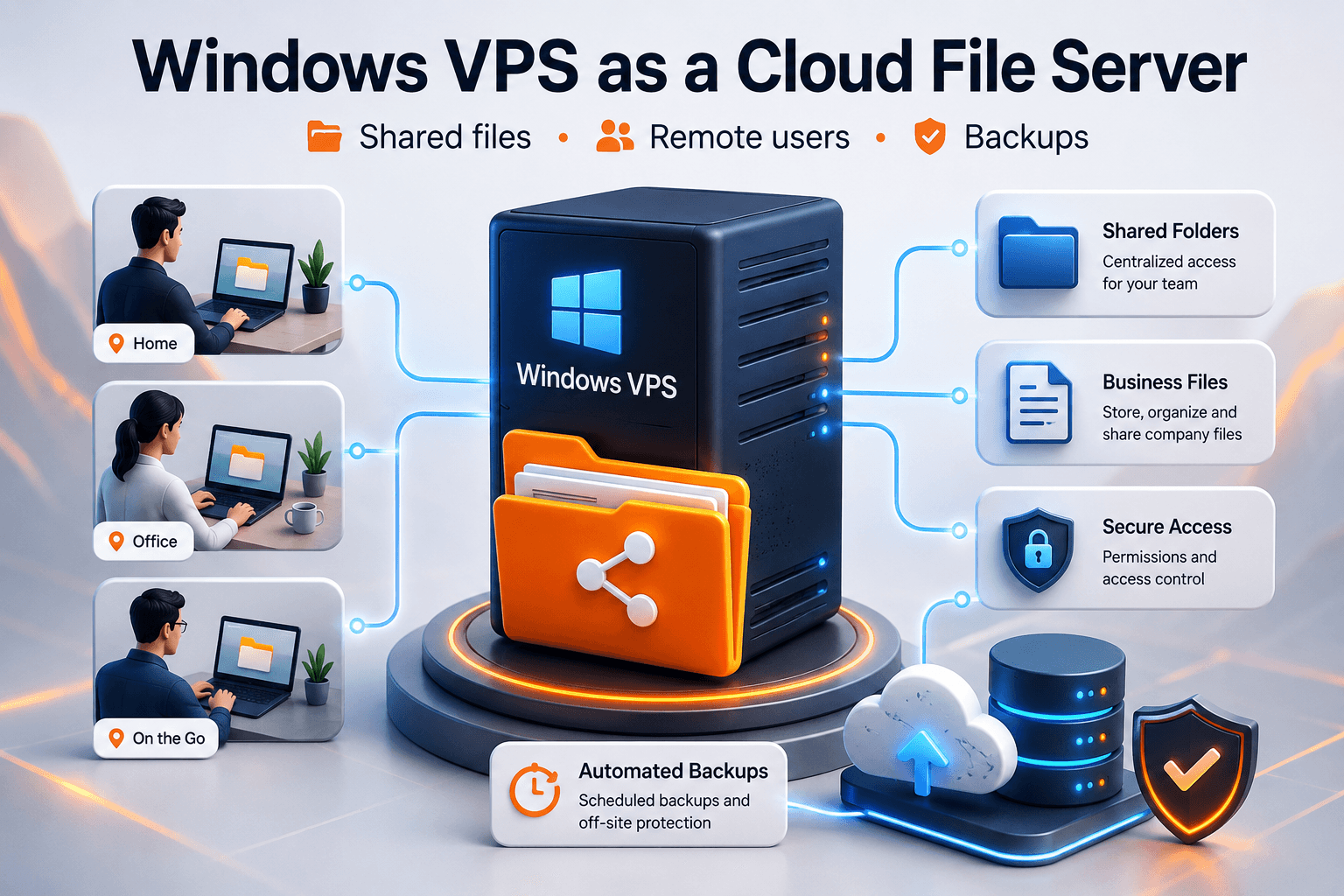
A Windows VPS can work as a cloud file server when a small business needs centralized shared folders, remote access, backups, and a Windows Server environment without keeping file storage on one office machine. It is strongest when users access files through Remote Desktop, RDS, VPN, or a controlled SMB access pattern. It is weakest when teams expect raw SMB file sharing to work safely and smoothly over the public internet. Raff Technologies provides Windows VMs for teams that need a cloud-hosted Windows Server for files, apps, and remote work.
A cloud file server is not just a folder on a remote machine. It is a system that needs permissions, storage growth planning, backups, restore tests, secure access, user policy, and a clear decision on how remote users will reach files.
For small businesses, the practical question is usually this: should files stay on a local office server, move to SaaS storage, or live on a Windows VPS that users access through Remote Desktop or controlled network access? The right answer depends on file size, user location, application behavior, security expectations, and support ownership.
Quick verdict: when a Windows VPS fits as a file server
Use this table before moving shared folders to a Windows VPS.
| Situation | Windows VPS file server fit | Why |
|---|---|---|
| Users already work inside an RDP/RDS Windows environment | Good fit | Files stay close to the apps and desktop sessions. |
| Small team needs centralized business folders | Good fit with backups and permissions | One server can hold shared folders, app files, exports, and reports. |
| Legacy Windows apps depend on shared paths | Good fit after testing | Mapped drives and UNC paths can be managed in the server environment. |
| Multiple branches need the same files | Good fit with access planning | Centralized storage can reduce office-to-office syncing. |
| Users want direct SMB from home over the public internet | Risky | SMB should not be broadly exposed without a secure access design. |
| Team mainly needs simple document collaboration | Depends | SaaS file tools may be better for co-editing and sharing. |
| Large media files move all day | Depends | Latency and transfer size may make a local or object-storage workflow better. |
| Compliance requires specific storage controls | Review first | Access, retention, logging, and backup rules must be designed. |
The best fit is usually a Windows VPS that hosts files for users who also access Windows apps, Remote Desktop sessions, or business workflows on the same server.
Don't have a Windows Server yet?
Deploy Windows Server 2019/2022/2025 in ~2 minutes. 6-month evaluation licence included.
Use Raff Windows VM when your team needs a cloud-hosted Windows Server for shared files, Remote Desktop access, and business workloads. :::
What a cloud file server actually does
A file server provides shared storage to users and applications. On Windows Server, this usually means folders shared with SMB, NTFS permissions, user access rules, backup policy, and monitoring.
Microsoft describes SMB as the protocol Windows and Windows Server use for sharing resources such as files, printers, and named pipes. In a Windows file server design, the server exposes shared folders and clients access those shares using SMB.
A Windows VPS used as a cloud file server may hold:
| File type | Examples |
|---|---|
| Shared business folders | Company files, HR folders, finance folders, operations folders |
| Application data | Legacy app files, Access back ends, accounting exports |
| User workspaces | Desktop shortcuts, mapped drives, shared departmental folders |
| Reports and PDFs | Tax returns, invoices, statements, signed forms, exports |
| Scripts and admin tools | MSP scripts, PowerShell tools, install packages |
| Backup staging | App backups, zip exports, migration copies |
| Archive folders | Prior-year data, inactive client files, old project folders |
The key design point is this: a Windows VPS file server should be treated as production infrastructure if the business depends on those files.
SMB access needs a secure network design
SMB is powerful, but it is not something to expose casually to the public internet. A file server should have a controlled access model.
Common options include:
| Access model | Fit |
|---|---|
| RDP/RDS users access files inside the Windows VPS | Good fit for remote desktop environments |
| VPN/private network before SMB access | Good fit when clients need mapped drives from endpoints |
| RD Gateway for desktop users | Good fit when users need Windows desktop/app access |
| SMB over QUIC where supported | Good fit for specific modern Windows scenarios |
| Direct public SMB exposure | Avoid |
| Public file sharing through the file server | Avoid unless architecture is reviewed |
Microsoft’s SMB security hardening guidance highlights modern SMB security features such as signing and encryption. Microsoft’s SMB security pages also warn about protecting SMB traffic from interception and explain that later SMB versions include security capabilities that SMB 1.0 lacks.
For a Raff Windows VPS buyer, the practical takeaway is simple: if users need files remotely, choose the access path first. Do not just open file-sharing ports to the internet.
File server vs Remote Desktop file access
A cloud file server and a Remote Desktop server often overlap. In many SMB setups, users connect to the Windows VPS with RDP/RDS and work with files inside the server session. That can be cleaner than trying to map SMB shares directly from many home networks.
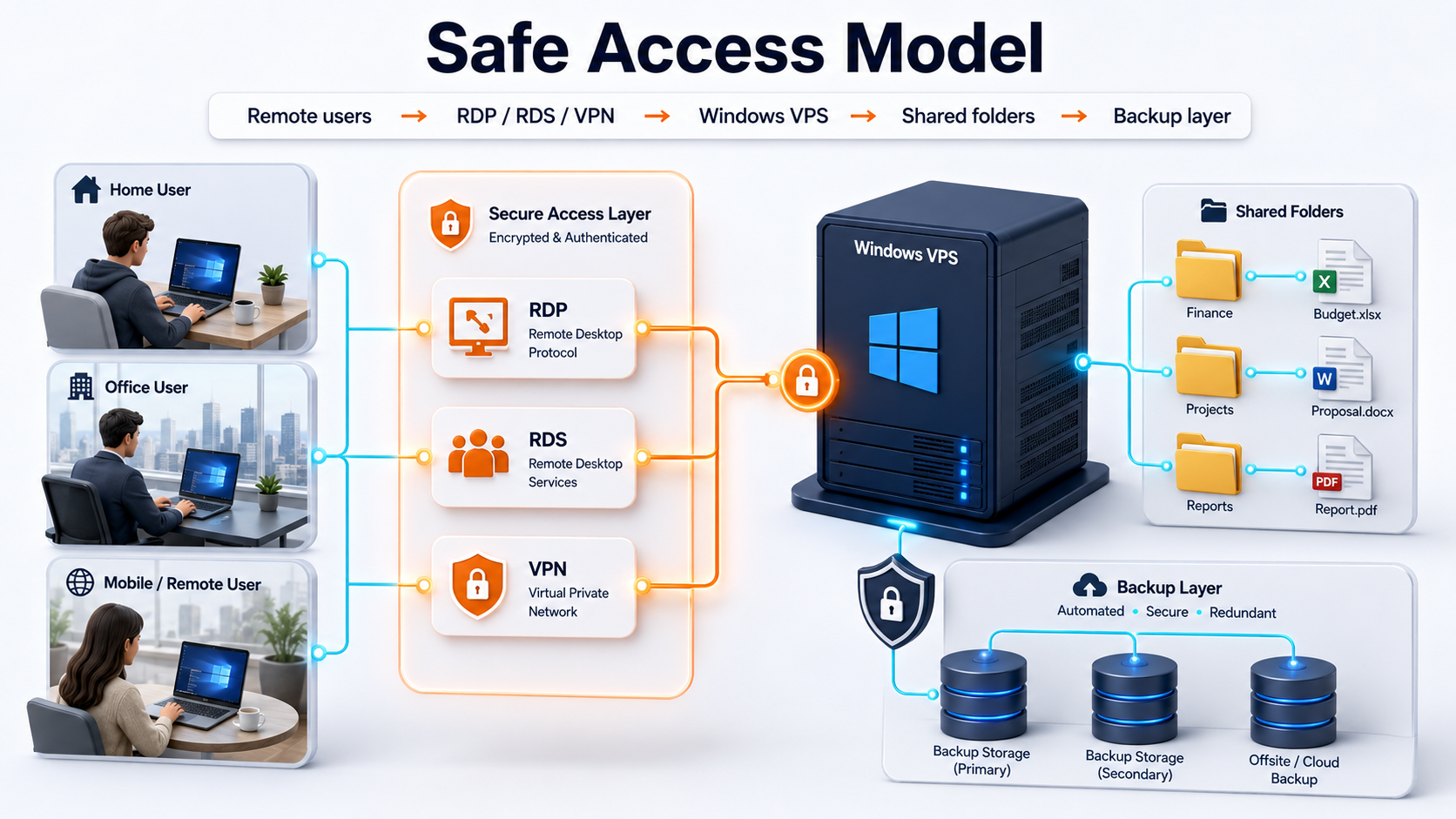
Use this table:
| Pattern | When it works |
|---|---|
| Users connect with RDP and open files inside the VPS | Good when apps and files should stay together |
| Users use RDS sessions with mapped drives inside the server | Good for multi-user Windows workflows |
| Users map SMB shares over VPN/private network | Good when endpoint file access is required |
| Users open files over slow WAN SMB | Risky for performance and reliability |
| Users need web-style collaboration | Consider SaaS file tools instead |
If the Windows VPS already hosts business apps, Access databases, tax software, or accounting exports, keeping file access inside the RDP/RDS environment can reduce path, latency, and locking problems.
This is why file server planning should be linked to remote user sizing and RDS planning. File access, user sessions, RAM, storage, and backups all affect each other.
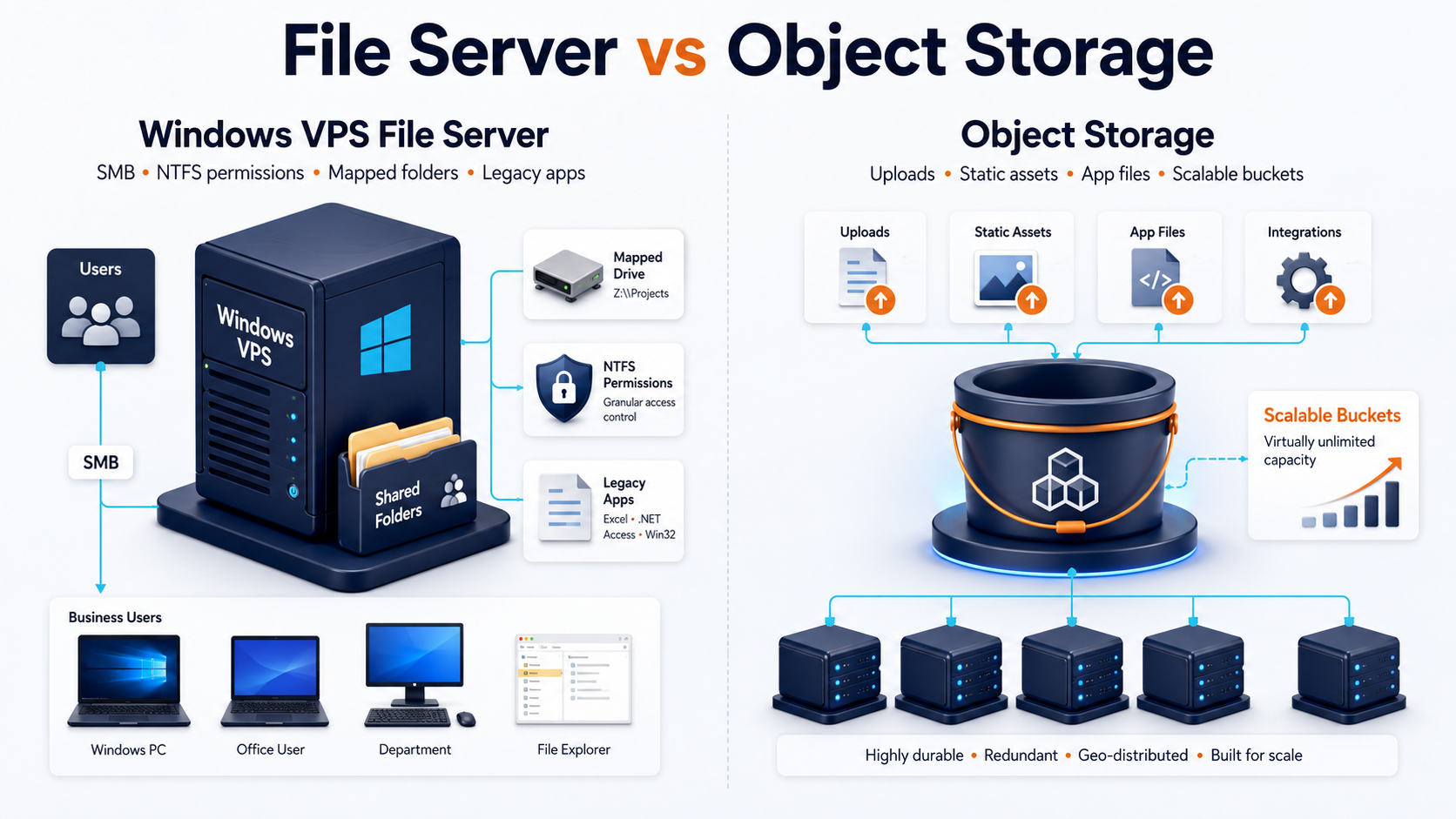
A Windows VPS file server is not the same as object storage
A Windows VPS file server and object storage solve different problems.
| Requirement | Windows VPS file server | Object storage |
|---|---|---|
| Windows shared folders | Strong fit | Not the same model |
| SMB access | Strong fit | Not native SMB |
| NTFS permissions | Strong fit | Different permission model |
| Legacy Windows app file paths | Strong fit | Usually poor fit |
| Application uploads at scale | Depends | Strong fit |
| Static assets | Depends | Strong fit |
| Large public downloads | Depends | Strong fit |
| Versioned app objects | Depends | Strong fit |
| User desktop workflows | Strong fit | Not a desktop file system |
Use a Windows VPS file server when Windows users and apps need familiar shared folders, mapped paths, NTFS permissions, or file-adjacent business workflows. Use object storage when an application needs scalable object-based storage for uploads, backups, images, documents, or static assets.

Do not force a file server into an object-storage use case. Do not force object storage into a legacy Windows mapped-drive workflow.
Folder structure should be designed before migration
A cloud file server gets messy quickly if the folder structure is copied without cleanup. Before migration, design the shared folder layout.
A practical structure might look like this:
D:\Shares \Accounting \Operations \Clients \HR \Projects \Apps \Archive
Use simple names, clear ownership, and limited top-level folders. Every top-level folder should have a business purpose and an owner.
Plan:
| Folder planning item | Question |
|---|---|
| Owner | Who approves access? |
| Users/groups | Who can read or modify? |
| Data type | Is it sensitive, operational, or archival? |
| Retention | How long should it be kept? |
| Backup priority | How quickly must it be restored? |
| Growth rate | How fast will it grow? |
| Migration source | Where does the current data live? |
| Cleanup need | What should not be migrated? |
A cloud file server migration is a good opportunity to remove duplicate files, old installers, temporary folders, abandoned user desktops, and unclear shares.
NTFS permissions and share permissions both matter
Windows file access usually involves share permissions and NTFS permissions. The effective access depends on how both are configured.
A practical SMB file server model:
| Layer | Purpose |
|---|---|
| Share permission | Controls access at the network share level |
| NTFS permission | Controls access to folders and files |
| Security group | Makes user assignment manageable |
| Least privilege | Gives users only what they need |
| Audit logging | Helps investigate access or changes |
Avoid giving everyone broad modify access to every shared folder. Start with groups such as:
Accounting_Read Accounting_Modify HR_Read HR_Modify Operations_Read Operations_Modify
Then assign users to groups instead of setting permissions person by person.
For MSPs and SMBs, permission documentation is essential. If nobody knows why a user has access, the file server will drift into risk over time.
Storage sizing should include growth and backups
A file server workload is storage-driven. CPU and RAM matter, but storage size and growth matter more than many teams expect.
Plan for:
| Storage area | Examples |
|---|---|
| Production files | Shared folders, PDFs, Office files, exports |
| App data | Legacy app files, Access back ends, accounting files |
| User profiles | RDP/RDS profile data if stored on the server |
| Temporary files | Downloads, update caches, reports |
| Logs | Windows logs, application logs |
| Backup staging | Local backup exports or zip files |
| Snapshots/backups | Infrastructure-level restore points |
| Archive data | Prior-year or inactive files |
A common mistake is sizing storage based only on today’s file count. Plan for the next 12 to 24 months, then monitor usage monthly.
Use this starting model:
| Environment | Starting storage thought |
|---|---|
| Small admin/share server | 100-200 GB |
| 3-5 user file workload | 200-500 GB |
| 5-10 user business file workload | 500 GB-1 TB depending on data |
| Document-heavy firm | Size from current data plus 12-24 months growth |
| App file workload | Include app data, exports, logs, and backups |
Exact sizing depends on the client, but the decision should be deliberate. If the file server runs out of disk space, users can lose the ability to save, apps can fail, and backups can stop.
:::cta View Pricing Compare Raff Windows VM plans when planning CPU, memory, storage, and monthly cost for a cloud file server. :::
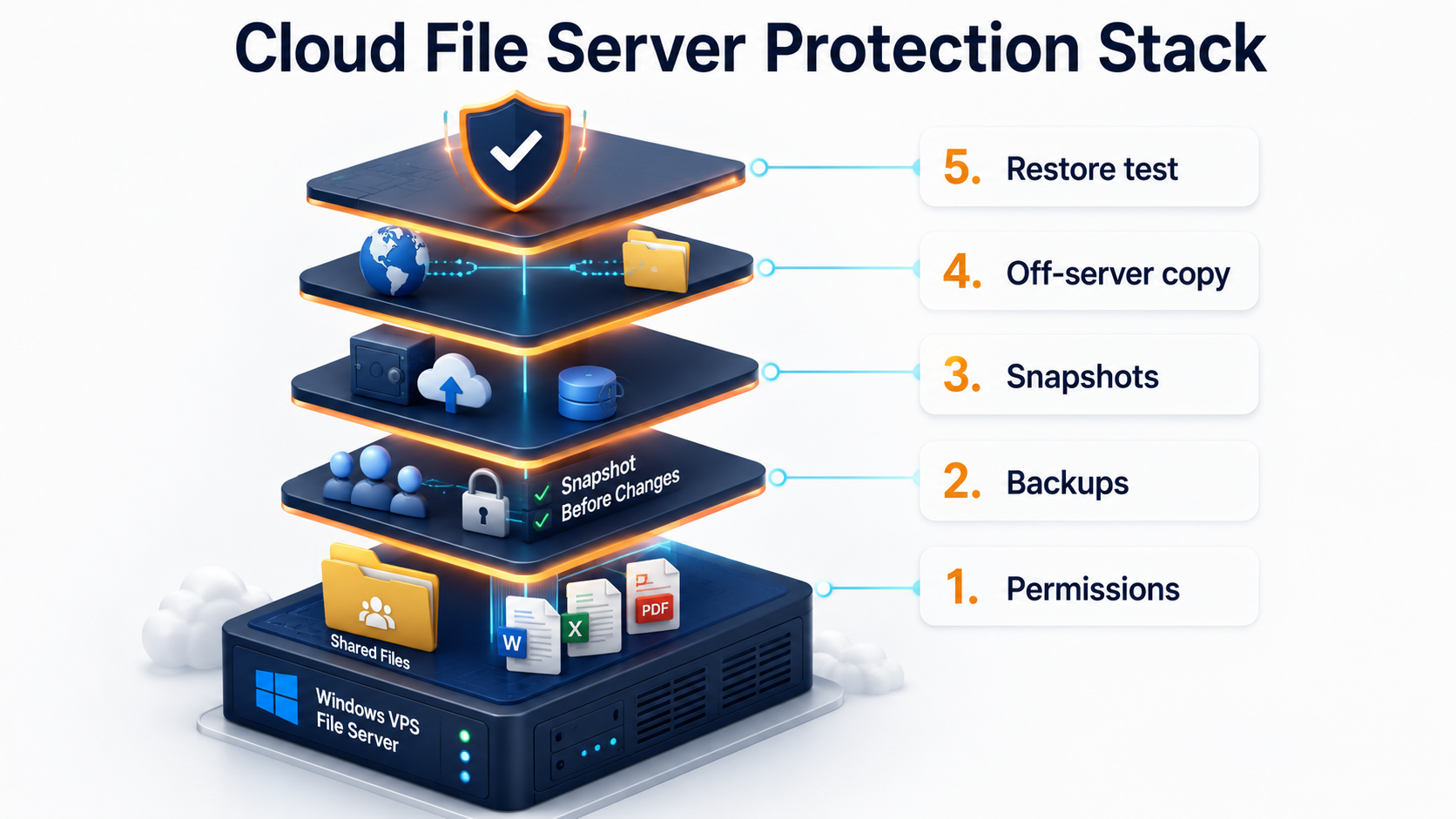
Backups and restore tests are non-negotiable
A cloud file server should never go live without backups. Users delete files. Ransomware exists. Permissions get misconfigured. Disks fill. Apps corrupt data. Migrations go wrong.
A practical backup model:
| Backup layer | Purpose |
|---|---|
| VM backup | Recover the full Windows VPS |
| Snapshot before changes | Roll back before updates, migrations, or permission changes |
| File-level backup | Restore a single folder or file |
| Off-server copy | Protect against VM/account/data loss scenarios |
| Retention policy | Recover older versions when problems are discovered late |
| Restore test | Prove recovery works |
Microsoft’s Volume Shadow Copy Service documentation explains that VSS coordinates consistent shadow copies for backup and restore operations while applications continue writing. For a file server, VSS-aware backup and restore thinking matters because users may be actively changing files while backups run.
Do not confuse backup success with recovery proof. Restore a file, restore a folder, and test a larger restore before trusting the setup.
Security should be planned before users connect
A Windows VPS file server may hold payroll files, customer documents, tax forms, contracts, invoices, and internal business records. Access control should be part of the launch plan.

Minimum security planning:
| Area | Recommendation |
|---|---|
| Public exposure | Do not expose SMB broadly to the internet |
| User access | Use named users and groups |
| Admin access | Separate admin accounts from daily users |
| Permissions | Use least privilege and document owners |
| RDP/RDS access | Restrict and monitor access paths |
| SMB settings | Use modern SMB features and avoid SMB1 |
| Backups | Restrict who can delete backups |
| Audit logs | Monitor failed logins and access changes |
| Updates | Patch Windows Server regularly |
| Endpoint risk | Control how users download and sync sensitive files |
Microsoft’s SMB hardening guidance notes that newer Windows Server and Windows client versions include stronger SMB security features. Microsoft’s SMB interception defense guidance also explains that SMB 1.0 lacks security features available in SMB 2.0 and later. Avoid legacy SMB where possible.
For Raff buyers, the Windows Server hardening checklist should be the next internal link after file server planning.
Performance depends on file behavior
File server performance depends on more than VM specs. It depends on file size, number of users, application behavior, latency, SMB security features, antivirus scanning, search indexing, backups, and profile behavior.
Common performance issues:
| Symptom | Possible cause |
|---|---|
| Opening folders is slow | Too many files in one folder, indexing, latency, permissions |
| Saving files is slow | Network path, disk pressure, antivirus scanning |
| App files lock unexpectedly | Multi-user behavior, app design, file locks |
| Large PDFs move slowly | Bandwidth and latency |
| RDP users complain | CPU/RAM pressure, profile growth, display settings |
| Backups affect work hours | Backup schedule or disk IO |
| Disk fills quickly | User profiles, exports, duplicate data, backup staging |
Microsoft’s SMB file server performance guidance discusses file server tuning areas such as filters, SMB encryption, SMB signing, scheduled tasks, and file copy operations. For SMBs, the practical rule is to monitor first, then tune. Do not disable security controls casually just to chase speed.
Migration from a local office server should be staged
Do not copy everything blindly from the old office server to the new Windows VPS. Stage the migration.
A practical sequence:
- Inventory current shares, folders, permissions, and users.
- Identify which data is active, archived, duplicate, or obsolete.
- Choose the Windows VPS size and storage plan.
- Build the folder structure on the new server.
- Create security groups and permissions.
- Copy non-production or sample data first.
- Test access with a small user group.
- Configure backups and restore test.
- Schedule the production copy window.
- Run final data copy.
- Switch users to the new path.
- Keep rollback access to the old server temporarily.
- Monitor file access, errors, and disk growth.
- Document the final share paths and access owners.
Microsoft’s file sharing and SMB documentation is useful for protocol behavior, but migration success often depends on operational discipline: permissions, timing, rollback, and user communication.
If the existing server is Windows Server 2016, also plan lifecycle risk. Raff has separate migration content for moving Windows Server 2016 workloads to newer Windows Server environments.
When a Windows VPS file server is not the best fit
A Windows VPS file server is not always the right answer.
Pause before using one when:
| Situation | Better next step |
|---|---|
| Users need real-time co-authoring | SaaS document collaboration may fit better |
| Users move massive media files all day | Consider local storage or specialized workflows |
| Branch internet is unreliable | Fix connectivity before moving core files |
| App requires LAN-level file latency | Test before production |
| Users need public file delivery | Object storage or a CDN-style pattern may fit better |
| Compliance requirements are unclear | Review access, retention, and logging first |
| No one owns backups | Build the recovery plan first |
| Users expect direct SMB from anywhere | Design VPN, SMB over QUIC, RDP, or another controlled path |
The wrong pattern is taking a local file server, copying it to a VPS, opening SMB broadly, and hoping users will have a smooth experience. The right pattern is choosing an access model, permissions model, backup model, and storage plan before production.
How Raff fits a Windows VPS cloud file server
Raff fits this use case when a small business or MSP needs a Windows Server VPS for shared files, Remote Desktop users, business software, office server replacement, or a Windows-based file environment that is easier to access remotely than an on-premises server.
Raff Windows VMs can provide the cloud Windows Server environment. From there, the buyer or MSP should configure file shares, NTFS permissions, access rules, backups, monitoring, and restore testing. Raff’s Windows Hub has related guides for sizing, backup strategy, RD Gateway vs direct RDP, Windows Server hardening, Microsoft Access, tax software, MSP client environments, and business software hosting.
Raff is not a replacement for file governance. If the business has no folder owners, no retention policy, no access review, and no restore test, those issues still need to be solved. The Windows VPS gives the infrastructure foundation; the file server still needs operational ownership.
:::cta Explore Data Protection Protect your Windows file server with backup and snapshot planning before storing production business data. :::
Recommended path by business type
| Business type | Recommendation |
|---|---|
| Solo operator | Use a Windows VPS file server only if you need always-on Windows access and backups. |
| 3-5 person office | Good fit if users work through RDP/RDS or controlled SMB access. |
| 5-10 person SMB | Plan storage, permissions, backups, RDS access, and monitoring before migration. |
| Accounting or tax firm | Strong fit when files stay close to hosted Windows apps and backups are tested. |
| MSP client | Separate client environments, document access, and define restore ownership. |
| Multi-location business | Good fit if centralized folders reduce office-to-office syncing. |
| Media-heavy business | Test performance and storage cost before committing. |
| Compliance-heavy business | Review access logging, retention, encryption, and policy requirements first. |
The safest starting point is a test Windows VPS with a sample folder structure and a few users. Validate access speed, permissions, backups, and restore before moving the full file server.
FAQ
Can I use a Windows VPS as a file server?
Yes. A Windows VPS can work as a cloud file server for shared folders, business files, app data, and Remote Desktop users when access, permissions, backups, storage, and security are planned correctly.
Should I expose SMB directly to the internet?
No. Do not broadly expose SMB file sharing to the public internet. Use RDP/RDS, VPN/private networking, RD Gateway for desktop users, SMB over QUIC where supported, or another controlled access model.
Is a Windows VPS file server better than local office storage?
It can be better when users are remote, multiple offices need the same files, hardware replacement is coming, or backups need off-site planning. Local storage can still be better for LAN-heavy or very large file workflows.
What is the best way for remote users to access files on a Windows VPS?
For many SMBs, the cleanest model is RDP/RDS access where users work inside the Windows VPS and access files close to the apps. Direct SMB from remote endpoints should use a secure access design.
How much storage does a Windows VPS file server need?
It depends on current data, file growth, backups, profiles, app files, and retention. Plan for at least 12 to 24 months of growth instead of sizing only for today’s folders.
Do file servers need backups if they are already in the cloud?
Yes. Cloud hosting does not replace backups. A Windows VPS file server still needs VM backups, file-level restore, off-server copies, retention policy, and restore testing.
What's next
- Read Windows VPS sizing for remote users before choosing CPU, RAM, and storage.
- Read Cloud Windows Server vs Local Office Server if you are replacing office hardware.
- Read Windows VPS Backup Strategy for Small Businesses before moving production files.
- Read Remote Desktop Gateway vs Direct RDP before giving remote users access.
- Read Windows Server Hardening Checklist before exposing production access.
- Read Windows VPS for MSP Client Environments if you manage file servers for clients.
- Review Raff Windows VM and pricing when planning the production server.
Sources
- Microsoft Learn — What is SMB File Sharing for Windows and Windows Server?
- Microsoft Learn — SMB security hardening in Windows Server and Windows Client
- Microsoft Learn — SMB Security Enhancements
- Microsoft Learn — Secure SMB Traffic in Windows Server
- Microsoft Learn — Protect SMB traffic from interception
- Microsoft Learn — Performance Tuning for SMB File Servers
- Microsoft Learn — Volume Shadow Copy Service
- Raff — Windows VPS for Remote Desktop
- Raff — Windows VPS for Business Software
- Raff — Windows Server Hardening Checklist
- Raff — Windows VM product page
- Raff — Pricing
Related articles
Windows VPS for MSP Client Environments
Learn how MSPs can use Windows VPS environments for client apps, Remote Desktop, backups, security, documentation, and repeatable deployments.
Windows VPS for Multi-Location Small Businesses
Learn when a Windows VPS makes sense for multi-location small businesses, including remote access, shared apps, files, backups, RDS, and security.
Windows VPS for ERP and Inventory Software
Learn when a Windows VPS makes sense for ERP and inventory software, including remote users, database planning, backups, sizing, security, and RDS access.