• Pricing
  • Performance
  • About Us
PricingPerformanceAbout Us
Sign InSign Up
  • Pricing
  • Performance
  • About Us
PricingPerformanceAbout Us
Sign InSign Up
Sign InGet Started

High-Performance Cloud Infrastructure

Empowering businesses with enterprise-grade cloud solutions at competitive prices. Built for reliability and simplicity. Designed for growth.

SOC 2 Compliant
ISO 27001
99.9% Uptime

Stay Updated

1000+

Customers

15,000+

VMs Deployed

24/7

Human Support

Products

Build

  • Raff VM
  • Raff Windows VM
  • Raff AppsSoon
  • Kubernetes

Templates

  • Linux VM
  • Forex VM
  • n8n VM

Store

  • Raff S3
  • Raff DatabasesSoon

Support

  • Documentation
  • API Reference
  • CLI
  • Terraform Provider
  • Contact
  • FAQ
  • Status

Company

  • About
  • Pricing
  • Blog
  • Release Notes
  • Performance
  • Status

Account

  • Sign In
  • Sign Up
  • Reset Password

Legal

  • Terms of Service
  • Privacy Policy
  • Service Level Agreement
  • Acceptable Use Policy

© 2026 Raff Technologies. All rights reserved.

System Status
migration
migrationbeginner17 min read·Updated Jul 7, 2026

SQL Server Migration to Windows VPS

Plan a SQL Server migration to Windows VPS, including backup/restore, recovery model, logins, SQL Agent jobs, connection strings, app testing, cutover, and rollback.

Serdar Tekin
Serdar Tekin
Co-Founder & Head of Infrastructure
Genuine, fully-licensed Windows
Spin up a Windows Server: full admin, RDP-ready
Genuine Windows Server 2019, 2022, or 2025 with full administrator access. We handle the Microsoft licensing, billed monthly with nothing to buy upfront.
Deploy Windows NowTalk to Windows EngineerExplore Windows VM

SQL Server migration to Windows VPS is not just copying database files. A safe migration needs a plan for backup and restore, recovery model, logins, users, SQL Agent jobs, maintenance plans, connection strings, firewall rules, application testing, final cutover, and rollback. Raff Technologies provides Windows VMs for teams that want a cloud-hosted Windows Server destination for SQL-backed business apps, ERP systems, inventory tools, Access applications, IIS/.NET workloads, and MSP client environments.

SQL Server is usually invisible until something breaks. Users see the business application, but SQL Server may be holding orders, inventory, invoices, reports, customer records, transactions, and application settings behind the scenes.

That is why SQL Server migration should be treated as a business continuity project. The database must restore correctly, applications must connect, logins must work, jobs must run, backups must be valid, and the rollback plan must be clear before production users move.

Quick verdict: when SQL Server migration to Windows VPS makes sense

Use this table before moving SQL Server to a Windows VPS.

SituationWindows VPS fitWhy
Small business app depends on SQL ServerGood fitSQL Server can move with the Windows app environment.
ERP or inventory software needs cloud accessGood fit after testingApp, database, users, and reports can be centralized.
Local office server is agingStrong fitSQL Server can move away from old hardware.
MSP manages client SQL-backed appsStrong fitA repeatable Windows VPS environment is easier to document and support.
IIS/.NET app uses SQL ServerGood fitWeb app and database migration can be planned together.
Database workload is heavy or latency-sensitiveDependsYou may need separate app/database roles or performance testing.
SQL Server version is old or unsupportedReview firstCompatibility, upgrade path, and app support must be checked.
High availability is mandatoryNot a single VPS decisionDesign redundancy, failover, and recovery architecture first.

The best fit is a small or mid-size SQL-backed Windows workload where the database, application, users, and backup strategy can be tested before cutover.

Review SQL Server databases, logins, jobs, app connections, backups, and cutover timing before migrating production workloads.

Talk to Windows Engineer

SQL Server migration is not file copy

A SQL Server database is more than .mdf and .ldf files.

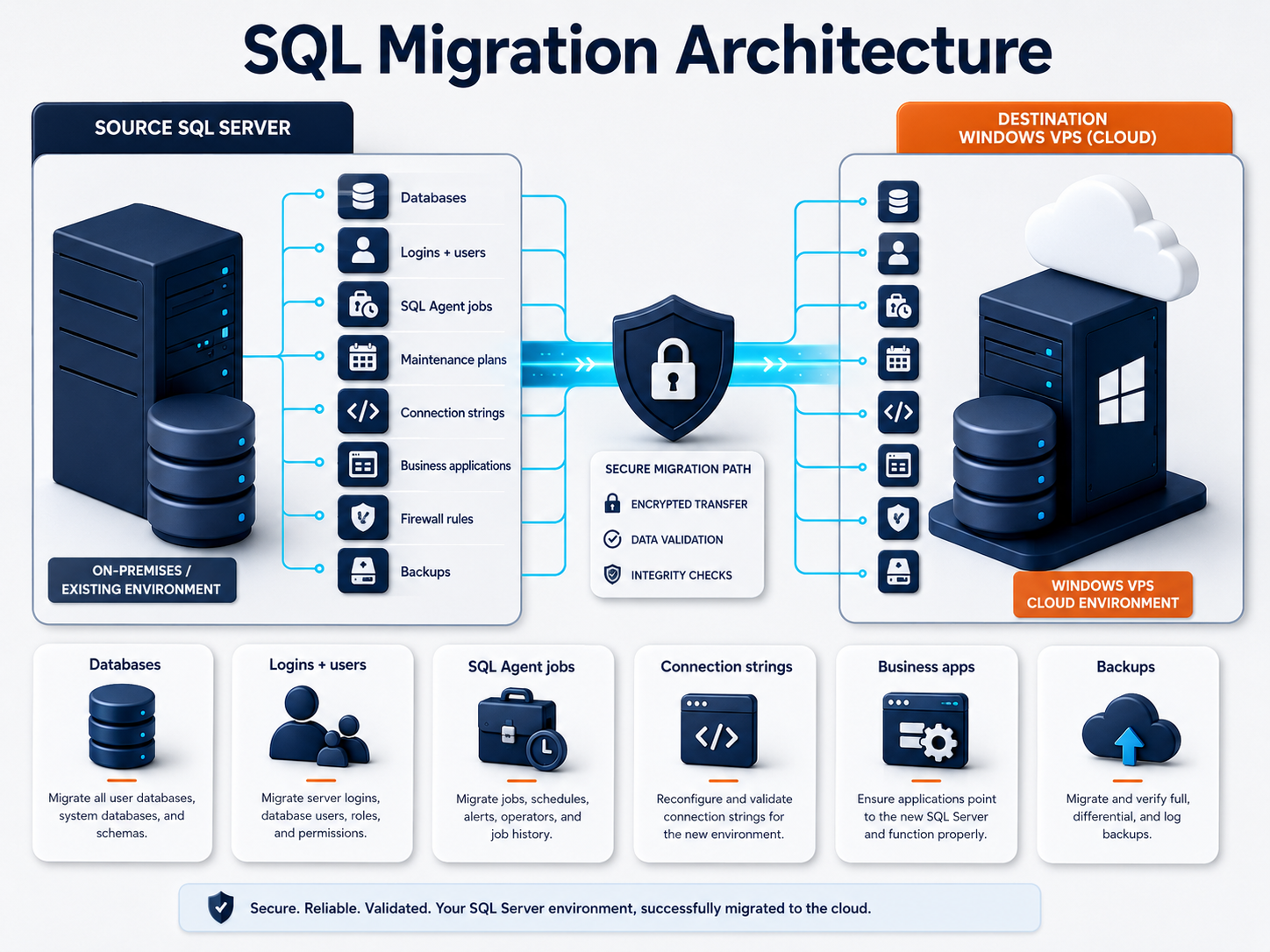
A real migration may include:

Migration areaExamples
DatabasesUser databases, system dependencies, compatibility level
LoginsSQL logins, Windows logins, passwords, SIDs
Users and rolesDatabase users, fixed roles, custom roles
SQL Agent jobsBackups, reports, imports, exports, maintenance
Maintenance plansIndex maintenance, cleanup, statistics, backup tasks
Linked serversConnections to other SQL instances or external systems
Credentials and proxiesJob execution context and security
Connection stringsApp configs, web.config, ODBC, DSNs
Firewall rulesSQL port access and application connectivity
BackupsFull, differential, log backups, retention, restore testing

Microsoft's SQL Server backup and restore documentation describes backup and restore strategies, security considerations, and core backup terms. That is the safest starting point for most SMB migrations: restore a known backup on the destination and prove the app works before cutover.

Architecture visual showing SQL Server migration to Windows VPS with databases, logins, jobs, connection strings, apps, and backups

Backup/restore vs detach/attach vs copy wizard

There are several ways to move SQL Server databases. The right method depends on downtime tolerance, database size, recovery model, version compatibility, and operational risk.

MethodWhat it meansBest fit
Backup and restoreBack up the source database and restore it on the destinationMost SMB migrations, repeatable tests, safer rollback
Full + differential + log restoreRestore full backup, then later backups/logs for cutoverLarger databases or shorter final downtime
Detach and attachDetach database files and attach them to destinationSimple cases, but more disruptive and riskier if mishandled
Copy Database WizardMoves/copies databases and some server objects between instancesUseful in some environments, but still requires testing
Side-by-side SQL migrationBuild destination SQL Server, test restore, then cut over appsBest for controlled Windows VPS migration

Microsoft documents copying databases with backup and restore, and also describes the Copy Database Wizard as a way to move or copy databases and some server objects between SQL Server instances.

For Raff Windows VPS migrations, backup/restore and side-by-side testing are usually the cleaner model. The old SQL Server stays available while the new Windows VPS is built, restored, tested, and prepared for cutover.

Step 1: inventory SQL instances and databases

Start with discovery.

Document:

Inventory itemWhat to capture
SQL Server versionVersion, edition, patch level
Instance namesDefault and named instances
DatabasesNames, sizes, owners, compatibility levels
Recovery modelsSimple, full, or bulk-logged
Backup historyFull, differential, log backups, retention
LoginsSQL logins, Windows logins, groups
Users and rolesDatabase users, roles, schemas
JobsSQL Agent jobs, schedules, enabled/disabled state
Maintenance plansBackup, index, cleanup, update statistics
Linked serversExternal connections and credentials
ApplicationsApps that connect to each database
Connection stringsServer names, ports, instance names, credentials
Firewall rulesSQL access between app and database
Storage pathsData, log, tempdb, backup locations

This inventory should answer: what must exist on the Windows VPS for the application to behave exactly as expected?

Step 2: check recovery model, backup chain, and restore goals

SQL Server recovery model affects your backup and restore plan.

Microsoft explains that SQL Server backup and restore operations happen in the context of the database recovery model. The recovery model controls how transactions are logged, whether transaction log backups are required or allowed, and what restore operations are available.

For migration planning:

Recovery modelMigration impact
SimpleUsually restore latest full or differential backup; point-in-time restore is limited
FullRequires transaction log backup planning if you want lower data loss
Bulk-loggedCan affect point-in-time recovery depending on operations

Define two goals before cutover:

GoalMeaning
RPOHow much data loss is acceptable during migration
RTOHow long the app can be unavailable

For small databases, a final full backup and restore during downtime may be fine. For larger or busier databases, you may need full backup, differential backup, and transaction log backups to reduce the final cutover window.

Step 3: plan SQL Server version and edition compatibility

Do not migrate blindly between SQL Server versions.

Check:

Compatibility itemWhat to verify
Source SQL versionCurrent version and patch level
Destination SQL versionTarget version supported by the app
SQL editionExpress, Standard, Enterprise, Developer, or other
Database compatibility levelWhether the app expects a specific level
Deprecated featuresOld features that may fail or warn
SQL Server Express limitsDatabase size, memory, CPU, and Agent limitations
Application supportVendor support for target SQL version
CollationInstance and database collation behavior
DriversODBC/OLE DB/.NET drivers used by the app

A Windows VPS provides the Windows environment. SQL Server licensing, installation media, edition selection, and application support still need to be handled correctly.

Step 4: migrate logins, users, roles, and permissions

A database restore does not automatically solve every login problem.

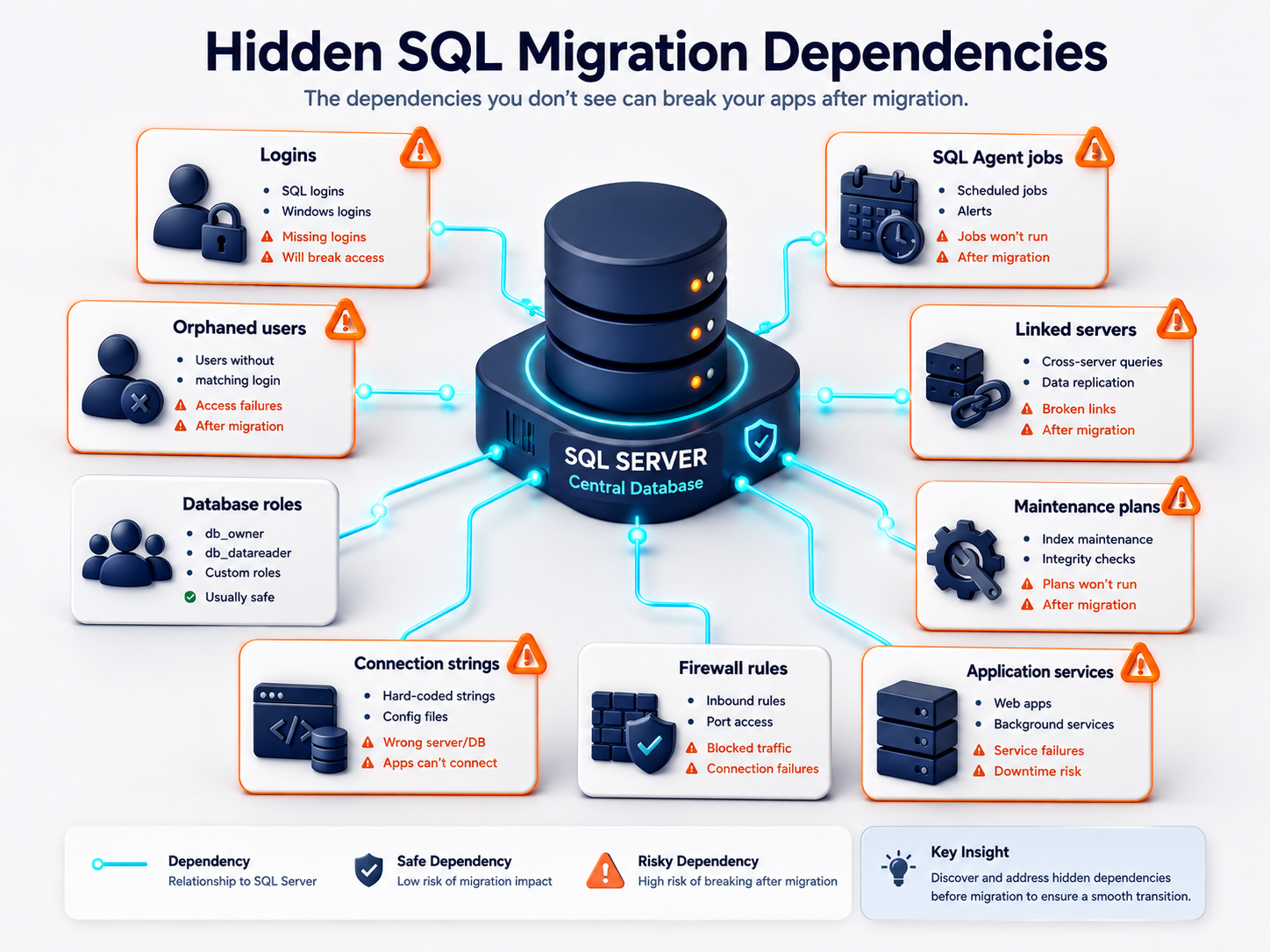
SQL Server has server-level logins and database-level users. If a database user is linked to a login that does not exist on the destination, the user can become orphaned. Microsoft documents this issue and provides guidance for finding and remapping orphaned users when a database is moved to another server.

SQL Server migration dependency map showing logins, orphaned users, SQL Agent jobs, linked servers, maintenance plans, and connection strings

Plan:

Security objectWhat to migrate or verify
SQL loginsNames, SIDs, password handling
Windows loginsDomain or local Windows accounts
Server rolessysadmin, securityadmin, dbcreator, etc.
Database usersUser-to-login mapping
Database rolesdb_owner, db_datareader, custom roles
SchemasOwnership and default schemas
App service accountsAccounts used by services or apps
Contained usersWhether the app supports contained database users

Microsoft also has guidance for transferring logins and passwords between SQL Server instances. This matters because login mismatches are one of the most common "database restored but app cannot log in" problems.

Use Raff Windows VM as the destination for SQL Server tools, business apps, remote users, and Windows workloads.

Explore Windows VM

Step 5: migrate SQL Agent jobs, maintenance plans, and linked servers

Many SQL-backed apps depend on scheduled jobs.

Check:

ObjectMigration question
SQL Agent jobsAre backup, import, export, report, and cleanup jobs recreated?
Job schedulesAre schedules correct on the destination?
Job ownersDo job owners exist and have appropriate permissions?
Maintenance plansAre they recreated and enabled?
Operators/alertsAre notifications configured?
Credentials/proxiesDo jobs that need external access still work?
Linked serversAre remote data connections recreated?
SSIS packagesAre packages and connection managers moved?
File pathsDo jobs use old server folders or drive letters?
Email settingsDoes Database Mail need configuration?

Microsoft describes SQL Server Agent as a Windows service that executes scheduled administrative tasks called jobs. Microsoft also notes that maintenance plans create Integration Services packages that are run by SQL Server Agent jobs.

That means a SQL migration is incomplete if the database works but scheduled jobs silently stop.

Step 6: restore the database on the Windows VPS

For a backup/restore migration, restore the database to the destination Windows VPS and test before production cutover.

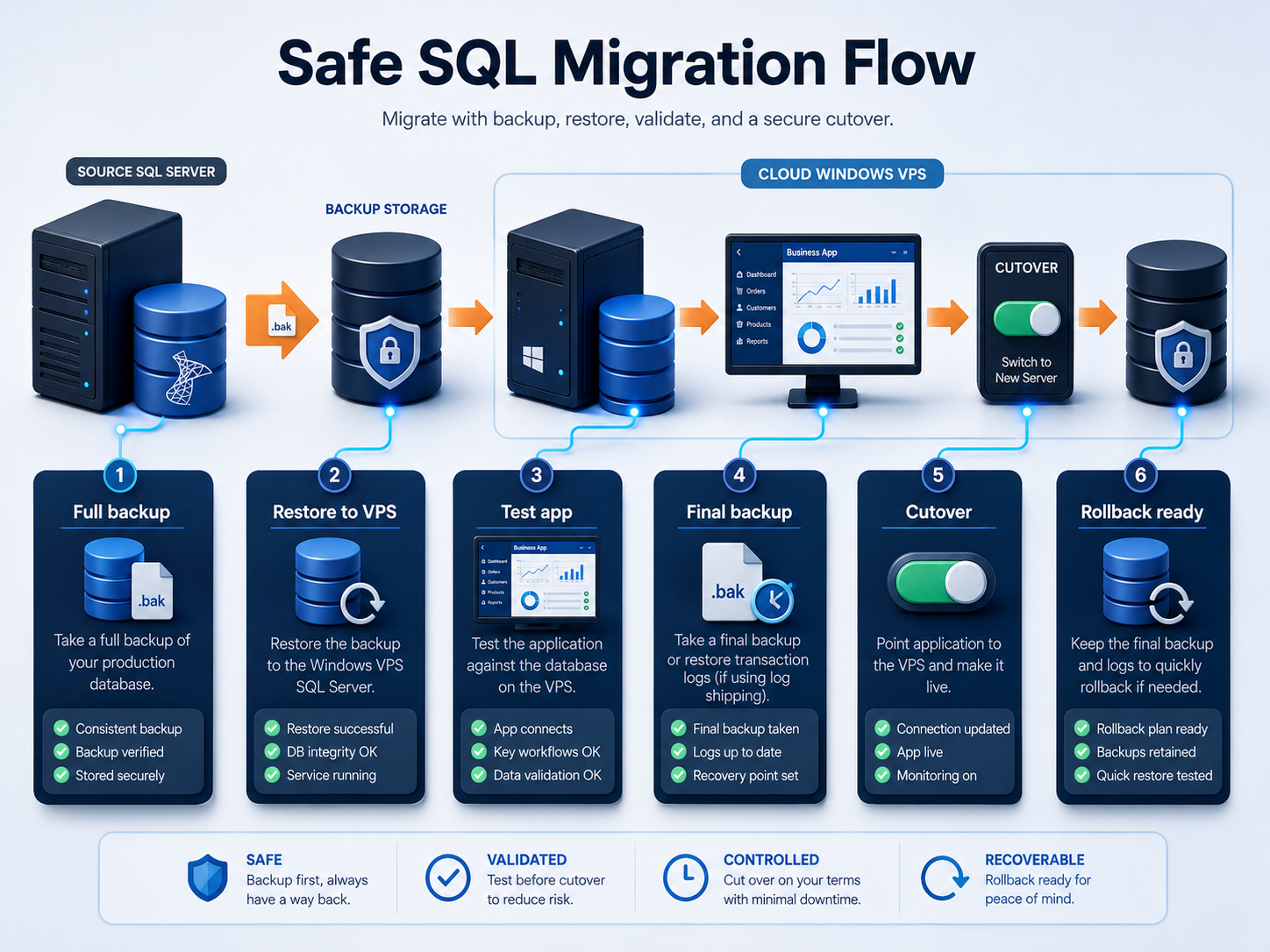
SQL Server backup and restore migration flow showing source backup, restore to Windows VPS, testing, final backup, and cutover

A common test restore process:

  1. Install SQL Server on the Windows VPS.
  2. Patch SQL Server to the required level.
  3. Configure storage paths for data, logs, tempdb, and backups.
  4. Copy the test backup to the destination.
  5. Restore the database with the planned file locations.
  6. Check database integrity where appropriate.
  7. Recreate logins, jobs, linked servers, and maintenance plans.
  8. Map users to logins and fix orphaned users if needed.
  9. Update test app connection string.
  10. Run real application workflow tests.

Do not wait until cutover day to discover that the backup does not restore, the app cannot log in, or the database needs a compatibility fix.

Step 7: update connection strings and firewall rules

After the database is restored, applications must connect to the new SQL Server.

Common connection locations:

LocationExample
Web app configweb.config, appsettings, environment variables
Desktop app configINI, XML, registry, vendor settings
ODBC DSNSystem DSN or user DSN
Linked appsAccounting, ERP, inventory, Access, reporting tools
Scheduled tasksScripts that connect to SQL Server
Reporting toolsPower BI gateways, SSRS, Crystal Reports, custom reports
Integration jobsE-commerce sync, warehouse imports, exports
IIS app poolsApp pool identity or service account

Firewall planning matters too. Decide whether the app and SQL Server run on the same Windows VPS or separate servers.

ArchitectureFirewall concern
App and SQL on same VPSLocal connections may be simpler
App server and SQL server separateAllow only required SQL traffic between servers
Remote admin toolsRestrict SQL Server Management Studio access
Branch appsAvoid broad public SQL exposure

Do not expose SQL Server broadly to the public internet. Restrict access to required app servers, admin IPs, VPN/private networking, or controlled management paths.

Step 8: test the business application

A SQL Server migration is only successful when the app works.

Test:

Test areaExample
LoginApp users can sign in
Read dataUsers can open existing records
Write dataUsers can create and update records
ReportsReports generate correctly
ExportsCSV, Excel, PDF, or accounting exports work
ImportsScheduled or manual imports run
PermissionsUsers see only what they should
PerformanceCommon screens and reports respond acceptably
JobsSQL Agent jobs run successfully
BackupsNew backup jobs complete
RestoreAt least one restore test succeeds

Use real business users for the test. The person who runs month-end reports, inventory exports, or accounting sync will catch problems an admin may miss.

Step 9: run final backup, restore, and cutover

When testing is complete, schedule a cutover window.

A typical SQL cutover sequence:

  1. Announce downtime.
  2. Confirm source backup is healthy.
  3. Stop application writes.
  4. Take final full, differential, or log backup according to plan.
  5. Copy final backup to the Windows VPS.
  6. Restore final backup and log backups if required.
  7. Recover database.
  8. Confirm logins, users, jobs, and permissions.
  9. Update connection strings or DNS aliases.
  10. Start application services.
  11. Test app login and key workflows.
  12. Confirm backup jobs are running on destination.
  13. Keep source server available for rollback.
  14. Monitor the first business day closely.

If the database uses the full recovery model and you are restoring log backups, follow a clear restore sequence. Microsoft's restore and recovery overview explains that restore scenarios depend on recovery model and SQL Server edition.

Step 10: validate backups after migration

After cutover, create a new backup plan on the Windows VPS.

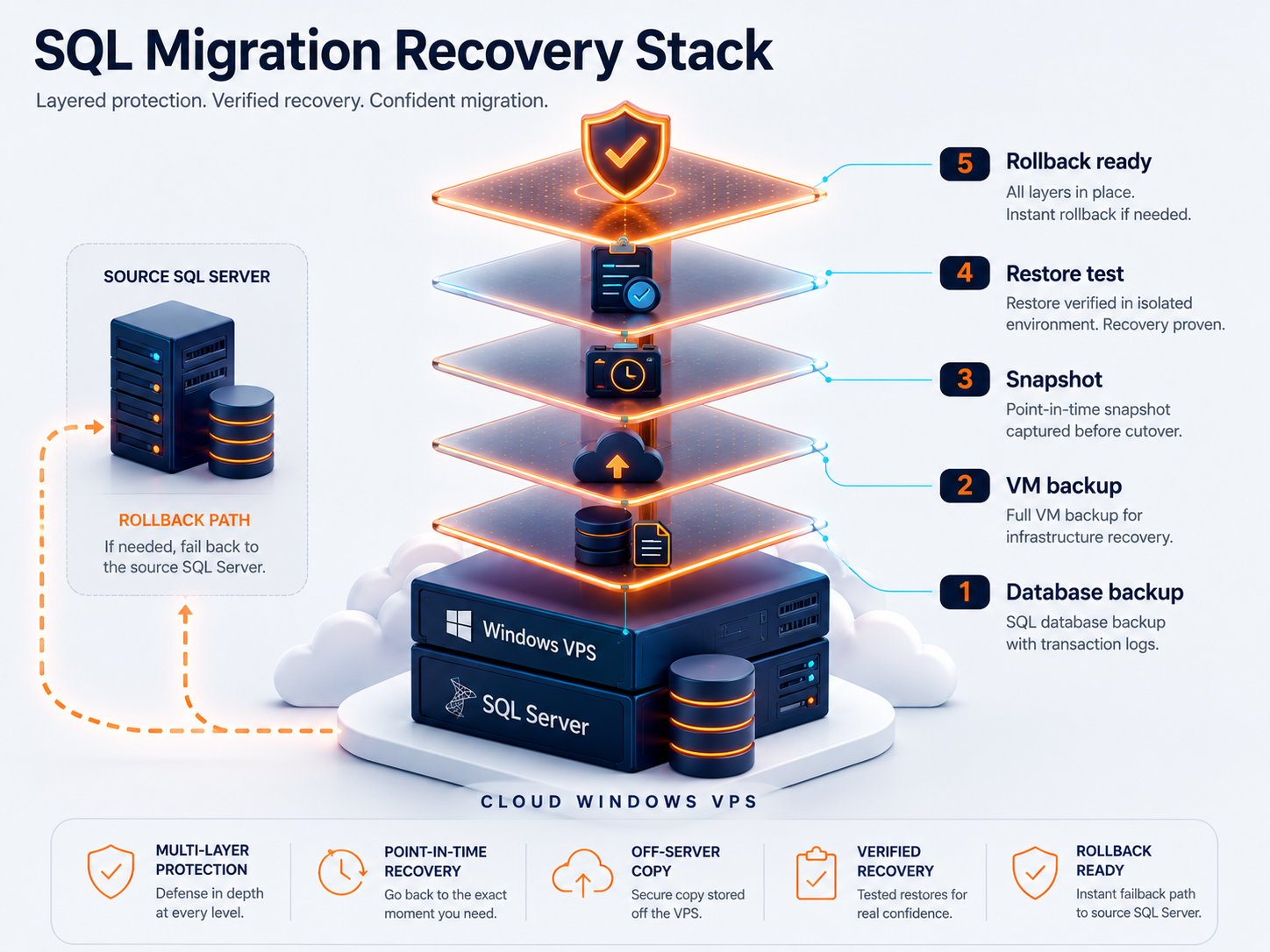
A practical SQL backup model:

Backup layerPurpose
SQL full backupBaseline database recovery
SQL differential backupFaster backup between full backups
SQL log backupLower data loss for full recovery model databases
VM backupRecover the Windows VPS environment
Snapshot before changesRoll back infrastructure state before updates
Off-server copyProtect against VM, account, or ransomware incidents
Restore testProve the backup can recover the app

Do not rely only on a VM snapshot for SQL Server recovery. SQL Server needs database-aware backup planning, especially when the business cares about transaction-level data loss.

SQL Server migration recovery stack showing database backup, VM backup, snapshot, restore test, and rollback readiness

Protect your SQL Server migration with database backup, VM backup, snapshot, and restore planning before cutover.

Explore Data Protection

Common SQL Server migration mistakes

Restoring the database but not the logins

The database exists, but the application cannot authenticate because logins were not migrated or users are orphaned.

Forgetting SQL Agent jobs

Backups, imports, exports, reports, and maintenance jobs may stop after migration if SQL Agent jobs are not recreated and enabled.

Missing connection strings

Apps, scripts, and reports may still point to the old SQL Server name or IP.

Ignoring the recovery model

Backup and restore planning depends on whether the database uses simple, full, or bulk-logged recovery model.

Skipping application testing

A successful restore is not enough. The application must read, write, report, export, and complete normal workflows.

Exposing SQL Server too broadly

SQL Server should not be opened to the public internet without strict access controls. Prefer private access, app-server-only access, or controlled admin paths.

Not testing restore after migration

A backup plan is not proven until restore has been tested.

How Raff fits SQL Server migration

Raff fits this use case when a small business or MSP wants a cloud Windows Server destination for SQL-backed Windows workloads.

Raff Windows VMs can support SQL Server tools, business applications, ERP/inventory systems, Access and legacy apps, IIS/.NET applications, accounting software, and MSP client environments when the application and licensing requirements are compatible. Raff also provides Windows migration-focused content for local server migration, file server migration, backup planning, remote access, and Windows VPS sizing.

Raff is not a SQL Server licensing provider or a replacement for DBA review. The clean model is: use Raff for the Windows VM infrastructure, then migrate SQL Server with a clear plan for databases, logins, jobs, app connections, backups, testing, cutover, and rollback.

Create a Raff Windows VM when your team is ready to move SQL-backed Windows workloads to the cloud.

Deploy Windows Now

Final SQL Server migration checklist

Before production cutover, confirm:

CheckDone
Source SQL Server version documented☐
Destination SQL Server version selected☐
Database sizes and recovery models reviewed☐
Source backup completed☐
Test restore completed on destination☐
Logins migrated or recreated☐
Orphaned users checked☐
Roles and permissions verified☐
SQL Agent jobs recreated and tested☐
Maintenance plans recreated and tested☐
Linked servers and credentials reviewed☐
Connection strings identified☐
Firewall rules planned☐
Application tested with restored database☐
Final cutover window scheduled☐
Rollback plan written☐
Destination backup policy enabled☐
Post-migration restore test scheduled☐

If any line is unclear, pause before moving production users.

What's next

  • Review Raff's Windows Server migration page if you are planning a migration.
  • Read Windows Server Migration Checklist for Small Businesses before moving production workloads.
  • Read Local Office Server to Cloud Windows VPS Migration if SQL Server is part of a larger office server move.
  • Read File Server Migration to Windows VPS if shared folders are part of the migration.
  • Read Windows VPS for ERP and Inventory Software if the SQL database supports operations or inventory.
  • Read Windows VPS for Business Software if the database supports several SMB apps.
  • Read Windows VPS Backup Strategy for Small Businesses before moving production databases.
  • Review Raff Windows VM and pricing when planning the destination server.

Sources

  • Microsoft Learn — SQL Server migration documentation
  • Microsoft Learn — Back up and restore of SQL Server databases
  • Microsoft Learn — Copy databases with backup and restore
  • Microsoft Learn — Copy databases to other servers
  • Microsoft Learn — Use the Copy Database Wizard
  • Microsoft Learn — Recovery models in SQL Server
  • Microsoft Learn — Restore and recovery overview for SQL Server
  • Microsoft Learn — Transfer logins and passwords between SQL Server instances
  • Microsoft Learn — Troubleshoot orphaned users
  • Microsoft Learn — SQL Server Agent
  • Microsoft Learn — Maintenance plans
  • Raff — Windows Server migration page
  • Raff — Windows VM product page
  • Raff — Pricing
Was this article helpful?

Published July 7, 2026 · Updated July 7, 2026

Back to hub
Get started
Deploy a Windows Server

Genuine, fully-licensed Windows. Full admin, RDP-ready in ~2 minutes.

Deploy Windows Now
Full admin · RDP-ready · 14-day money-back
On this page
Quick verdict: when SQL Server migration to Windows VPS makes senseSQL Server migration is not file copyBackup/restore vs detach/attach vs copy wizardStep 1: inventory SQL instances and databasesStep 2: check recovery model, backup chain, and restore goalsStep 3: plan SQL Server version and edition compatibilityStep 4: migrate logins, users, roles, and permissionsStep 5: migrate SQL Agent jobs, maintenance plans, and linked serversStep 6: restore the database on the Windows VPSStep 7: update connection strings and firewall rulesStep 8: test the business applicationStep 9: run final backup, restore, and cutoverStep 10: validate backups after migrationCommon SQL Server migration mistakesHow Raff fits SQL Server migrationFinal SQL Server migration checklistWhat's nextSources
Ready when you are

Your Windows Server, live in ~2 minutes

Genuine, fully-licensed Windows with full admin and RDP. We handle the Microsoft licensing, billed monthly with nothing upfront. On NVMe SSD, backed by a 14-day money-back guarantee.

Deploy Windows Now
Talk to Windows EngineerExplore Windows VM

Related articles

migrationLocal Office Server to Cloud Windows VPS MigrationPlan a local office server to cloud Windows VPS migration for small businesses, including apps, files, users, RDP/RDS, backups, testing, cutover, and rollback.17 min read7/7/2026migrationFile Server Migration to Windows VPSPlan a file server migration to Windows VPS, including shared folders, SMB access, NTFS permissions, mapped drives, backups, testing, cutover, and rollback.15 min read7/7/2026migrationWindows Server Migration Checklist for Small BusinessesUse this Windows Server migration checklist to plan apps, files, users, RDP/RDS, SQL Server, Active Directory, backups, testing, cutover, and rollback. Category: migration16 min read7/5/2026