• Pricing
  • Performance
PricingPerformance
Sign InSign Up
  • Pricing
  • Performance
PricingPerformance
Sign InSign Up
Sign InGet Started

High-Performance Cloud Infrastructure

Empowering businesses with enterprise-grade cloud solutions at competitive prices. Built for reliability and simplicity. Designed for growth.

ISO 27001
99.9% Uptime

Stay Updated

3000+

Customers

15,000+

VMs Deployed

24/7

Human Support

Products

Build

  • Raff VM
  • Raff Windows VM
  • Raff Apps
  • Kubernetes
  • Raff Functions

Store

  • Raff S3
  • Raff Databases

Support

  • Documentation
  • API Reference
  • CLI
  • Terraform Provider
  • Contact
  • FAQ
  • Status

Company

  • About
  • Pricing
  • Blog
  • Release Notes
  • Performance
  • Status

Account

  • Sign In
  • Sign Up
  • Reset Password

Legal

  • Terms of Service
  • Privacy Policy
  • Service Level Agreement
  • Acceptable Use Policy

© 2026 Raff Technologies. All rights reserved.

System Status
run your software
run your softwarebeginner22 min read·Updated Jul 17, 2026

7 Signs You've Outgrown Your Office Server (And What to Do Next)

See the warning signs that your small business has outgrown its office server and learn when a Windows VPS, local refresh, SaaS, or hybrid setup makes sense.

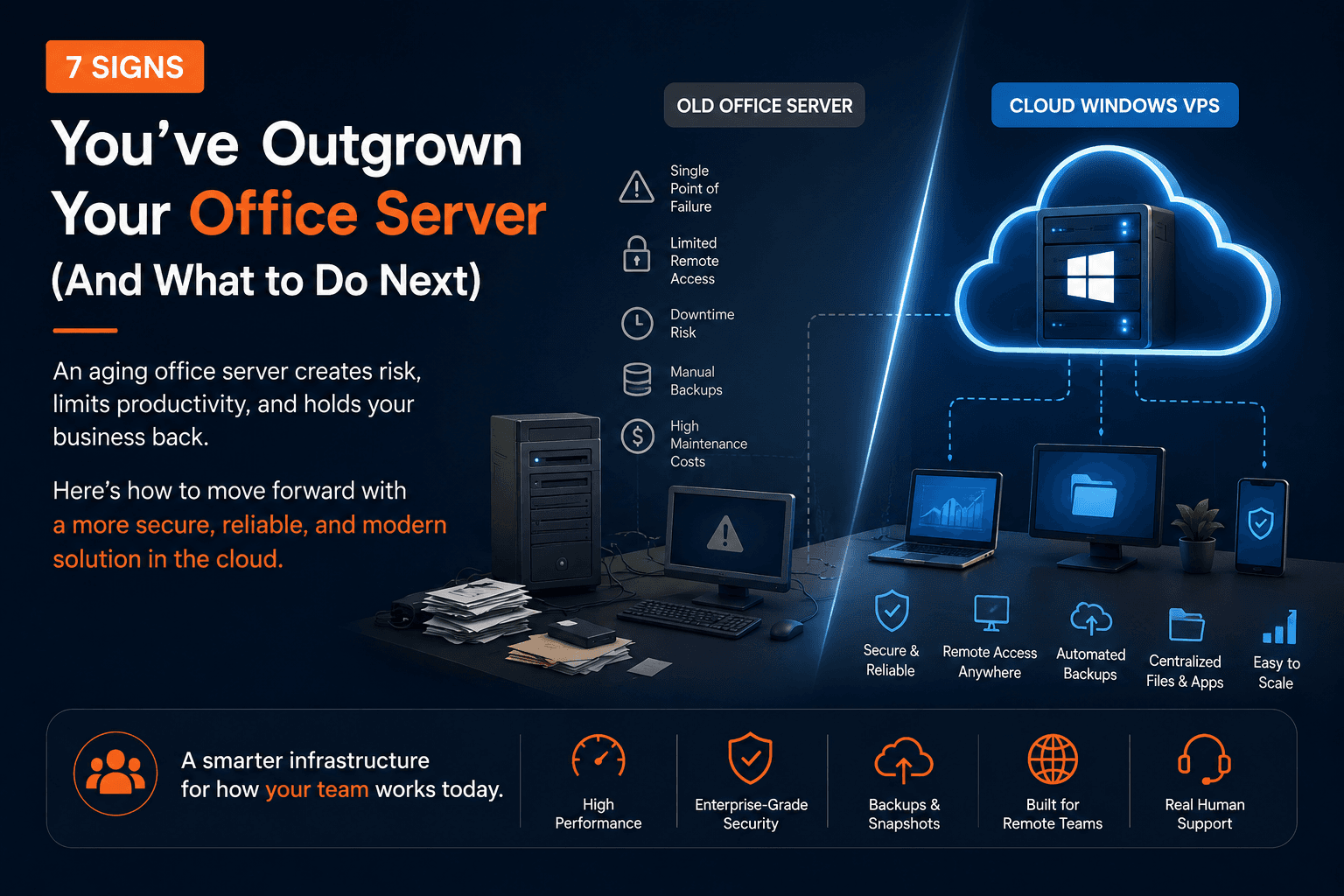
Windows Server guide image showing seven warning signs

An office server should be replaced when it starts creating more operational risk than business value. The strongest warning signs are unreliable hardware, difficult remote access, scattered files, untested backups, rising maintenance effort, team growth, and growing concern about downtime. The right replacement may be another local server, a SaaS platform, a hybrid setup, or a cloud-hosted Windows VPS. Raff Technologies provides Windows VMs for small businesses that want to move supported Windows applications, shared files, Remote Desktop users, and server workloads away from one physical office machine.

Age alone does not decide whether a server should be replaced. A five-year-old server with current support, tested backups, documented workloads, and healthy hardware may be less risky than a newer server nobody understands.

The real question is simpler:

Is the office server still helping the business work, or has the business started working around the server?

This guide explains seven warning signs, the replacement options available today, and when a Windows VPS is the practical next step.

Quick verdict: has your business outgrown its office server?

Use this table as the first decision filter.

Warning signWhat it usually meansPriority
Hardware is aging, unsupported, or difficult to repairA failure could create a long outageHigh
Remote work depends on the office being onlineAccess is tied to one building, router, and internet connectionHigh
Files are spread across PCs, email, and shared foldersThe business lacks one controlled source of truthHigh
Backups exist but restores are untestedRecovery is assumed rather than provenCritical
Maintenance consumes more time and moneyThe server has become an operational burdenMedium/high
The team, office count, or app workload has grownThe original design no longer fits the businessHigh
Owners worry about what happens if the server stopsBusiness continuity is not clearCritical

One warning sign may justify a review. Several warning signs together usually mean the business should plan an office server replacement before an emergency forces the decision.

Run supported Windows workloads without relying on one office server.

Explore Windows VM

Why small businesses keep office servers longer than they should

Office servers often stay in production because they are familiar.

The server may host:

  • shared folders;
  • accounting or tax software;
  • ERP and inventory applications;
  • Microsoft Access databases;
  • SQL Server workloads;
  • Remote Desktop sessions;
  • printers and scanners;
  • Active Directory, DNS, or other local services;
  • scheduled reports, exports, and scripts;
  • old applications that nobody wants to disturb.

Replacing that environment can feel risky, so the business delays the decision. The server keeps running, small problems are fixed one at a time, and no single issue feels urgent enough to justify a project.

That approach works until several dependencies fail together.

A disk reports errors. The backup has not completed. The only person who knows the application is unavailable. Remote users cannot connect. The replacement part is not in stock. The business then discovers that the server was not just hardware. It was the center of many undocumented workflows.

The best time to replace an office server is before the business loses the option to plan, test, and roll back.

Sign 1: the server is aging, unsupported, or difficult to repair

An older server is not automatically unsafe, but age should trigger a structured review.

Look beyond the purchase date.

Review areaQuestions to ask
Hardware warrantyIs the server still covered? How quickly can failed parts be replaced?
Storage healthAre disks, RAID arrays, and controllers healthy and monitored?
Operating systemIs the Windows Server version still supported and receiving security updates?
Firmware and driversCan the platform still receive stable updates?
Spare partsAre compatible drives, power supplies, fans, or controllers available?
CapacityIs CPU, memory, or storage consistently constrained?
DocumentationCould another technician rebuild the system if the current administrator were unavailable?

Treat five years as a review point, not an automatic expiry date. A server that is older than five years, out of warranty, nearly full, and running an unsupported operating system presents a very different risk from a well-maintained system with current support and tested recovery.

Common warning signs include:

  • recurring disk or RAID alerts;
  • unexpected reboots;
  • noisy or failing fans;
  • low free storage;
  • applications slowing down during normal work;
  • operating system versions that can no longer be upgraded safely in place;
  • failed updates caused by old dependencies;
  • replacement parts that require special ordering;
  • no recent bare-metal or full-server recovery test.

Do not wait for a motherboard, controller, or storage failure to start planning. When a local server fails, the business may need to recover the hardware, operating system, applications, licenses, databases, users, permissions, and files at the same time.

Sign 2: remote work depends on the office being available

A local server was usually designed for people sitting inside the office. Remote access was added later through a VPN, direct RDP, remote-control software, or access to an office PC.

That creates a chain of dependencies:

Text
Remote employee → Home internet → Office internet → Office router/firewall → Office power → Local server → Business application or file share

If the office loses power, internet, firewall connectivity, or the server itself, remote work can stop even when the employee's own connection is healthy.

Warning signs include:

  • employees remote into their office PCs instead of a planned server environment;
  • direct RDP is exposed broadly to the internet;
  • users share VPN credentials;
  • branch offices use inconsistent access methods;
  • remote staff regularly report slow or dropped sessions;
  • an office router restart disconnects the whole team;
  • IT must manually reconnect users after every network change;
  • files are emailed because remote access is too difficult.

Microsoft describes Remote Desktop Services as a Windows Server platform for delivering managed desktops and applications to users in offices, homes, branches, and partner locations. That model can run on-premises or in the cloud, but it should be designed around users, security, licensing, and capacity rather than treated as an emergency remote-control method.

Use these guides when remote access is the main problem:

  • Remote Desktop Server for Business
  • Windows VPS for Remote Employees
  • Remote Desktop Gateway vs Direct RDP

Sign 3: business files are spread across PCs, inboxes, and shared folders

A server replacement decision often starts as a file-management problem.

Employees save documents to:

  • local desktops;
  • personal laptops;
  • email attachments;
  • USB drives;
  • one employee's shared folder;
  • a NAS with open permissions;
  • multiple versions of the same department folder;
  • cloud storage accounts that are not managed centrally.

The result is not only inconvenience. It affects ownership, permissions, backup coverage, version control, offboarding, and recovery.

File problemBusiness impact
Multiple copies of the same documentStaff may use the wrong version
Files stored on employee PCsData can leave with the device or employee
Open shared foldersSensitive files may be visible to the wrong users
Personal cloud accountsThe business may not control access or retention
Email used as document storageSearch and recovery become inconsistent
No clear folder ownerNobody knows who can approve deletion or access
Old files mixed with active filesBackups, searches, and migrations become larger

A replacement project should not copy this disorder into a new server unchanged.

Before migration:

  1. identify active and archived data;
  2. define department and workload folders;
  3. assign folder owners;
  4. remove stale accounts and permissions;
  5. decide which files belong in a Windows file server and which belong in SaaS document collaboration;
  6. document retention and deletion rules;
  7. test how applications use mapped drives and shared paths.

A Windows VPS can work as a cloud file server when users need NTFS permissions, mapped drives, Windows application paths, or file access inside Remote Desktop sessions. It may not be necessary when the only need is browser-based document collaboration.

Use: Windows VPS as a Cloud File Server.

Sign 4: backups exist, but nobody has tested a restore

A successful backup job is not the same as a successful recovery.

CISA describes a backup as a secure copy of critical business data stored separately from the primary system. That separation matters because a backup stored only on the server, permanently attached storage, or the same compromised account may fail with the original environment.

Ask these questions:

Backup questionWhy it matters
What is backed up?The VM, files, databases, application data, and configuration may need different methods
Where is the backup stored?A copy should not depend on the same server or failure domain
How often does it run?Frequency determines how much recent work may be lost
How long is it retained?Short retention may not cover late-discovered corruption or deletion
Who receives failure alerts?Silent failures can continue for weeks
Who can delete backups?Compromised admin access can threaten recovery points
When was the last restore test?Recovery must be demonstrated, not assumed
How long did the restore take?The business needs a realistic downtime expectation

A practical office server protection plan may include:

Recovery layerPurpose
Snapshot before changeFast rollback before updates, app upgrades, or migration work
Scheduled server backupRecover the full Windows environment
File-level backupRestore deleted or changed documents
Application-aware backupProtect SQL Server and line-of-business application data correctly
Off-server copyReduce dependence on the production server or account
Restore testProve that data, applications, and access can be recovered

If the business cannot answer who restores the server, from which copy, onto what infrastructure, and within what time, the backup plan is incomplete.

Add recovery planning before the current server becomes an emergency.

Explore Data Protection

Use: Windows VPS Backup Strategy for Small Businesses.

Sign 5: maintenance costs more than the server appears to save

A local office server can look inexpensive because many of its costs are separated.

The business may pay for:

  • hardware and warranty;
  • replacement drives and parts;
  • UPS batteries and power protection;
  • electricity and cooling;
  • firewall and networking work;
  • backup storage and software;
  • antivirus or security tooling;
  • remote-access setup;
  • after-hours maintenance;
  • emergency IT support;
  • downtime when repairs take longer than expected.

The goal is not to prove that cloud is always cheaper. It is to compare the full operating model.

Cost areaLocal office serverCloud Windows VPS
Hardware purchaseUpfront capital expenseIncluded in the cloud platform model
Part replacementBusiness or MSP handles itPhysical hardware is not customer-managed
Power and coolingOffice responsibilityIncluded in hosting cost
ScalingUpgrade parts or buy another serverResize VM or split workloads
Remote accessAdded to the office networkCan be designed around remote users
Windows administrationStill requiredStill required
Application supportStill requiredStill required
BackupsMust be designed and operatedMust still be designed and operated
Monthly visibilityCosts may be distributedInfrastructure cost is more visible

Cloud hosting does not remove Windows administration, application maintenance, licensing, security, or backup responsibility. It removes the need for the customer to own and maintain the physical server hardware.

That distinction matters. A Windows VPS may simplify infrastructure, but it is not a managed replacement for every IT task unless the service scope explicitly includes those tasks.

Use: Windows VPS Pricing Explained.

Sign 6: the team, office count, or workload has grown beyond the original design

Many office servers start with a simple purpose: share files for a few users or run one accounting application.

Then the environment grows.

  • Three users become fifteen.
  • One office becomes three locations.
  • One application becomes an ERP, database, reporting tool, and document workflow.
  • Remote work becomes permanent.
  • Scans, PDFs, exports, and user profiles consume storage.
  • An MSP needs repeatable access and support processes.
  • The business expects the server to stay available outside office hours.

A server that technically still runs may no longer fit the workload.

Watch for:

Growth signalWhat to review
More active Remote Desktop usersCPU, RAM, profiles, RDS licensing, security, session behavior
More officesConnectivity, centralized access, latency, printing, support
Larger shared foldersStorage capacity, growth, permissions, backup duration
New database workloadMemory, disk performance, database backup, licensing
New ERP or business appVendor support, dependencies, database, integrations
More administrators or MSP staffRole separation, logging, documentation, access review
Longer operating hoursMaintenance windows, monitoring, recovery expectations

Do not size a replacement only by copying the old server specifications. The old server may be overbuilt, underbuilt, or carrying workloads that should be separated.

Size the replacement around:

  • active users, not only employee count;
  • simultaneous applications;
  • database and reporting load;
  • storage growth;
  • user profiles;
  • printing and scanning workflows;
  • backup windows;
  • recovery expectations;
  • future growth.

Use: How to Size a Windows VPS for Remote Users.

Sign 7: the business is worried about downtime but has no continuity plan

The strongest sign is often a simple question from the owner:

What happens if this server stops tomorrow?

A local office server can become a single point of failure when the business depends on one:

  • physical machine;
  • storage controller;
  • power supply;
  • UPS;
  • office internet connection;
  • router or firewall;
  • administrator;
  • undocumented application configuration;
  • local backup device.

That does not mean a single cloud VPS is automatically highly available. A cloud VM still needs backups, monitoring, access planning, documentation, and recovery procedures. Critical workloads may require multiple servers, replication, failover, or a different architecture.

The value of planning an office server replacement early is that the business can decide how much resilience it actually needs.

Business expectationInfrastructure implication
Same-day recovery is acceptableTested backups and documented rebuild may be enough
A few hours of downtime is acceptableFaster restore process and clear ownership are needed
Minutes of downtime are acceptableA single server may not be enough
No recent data loss is acceptableMore frequent application-aware backups or replication may be required
Staff must work during an office outageWorkloads should not depend entirely on office power and internet

Do not buy “high availability” as a label. Define the required recovery point, recovery time, responsibilities, and budget first.

What replacing an office server looks like today

Office server replacement no longer means choosing only between an old tower and a new tower.

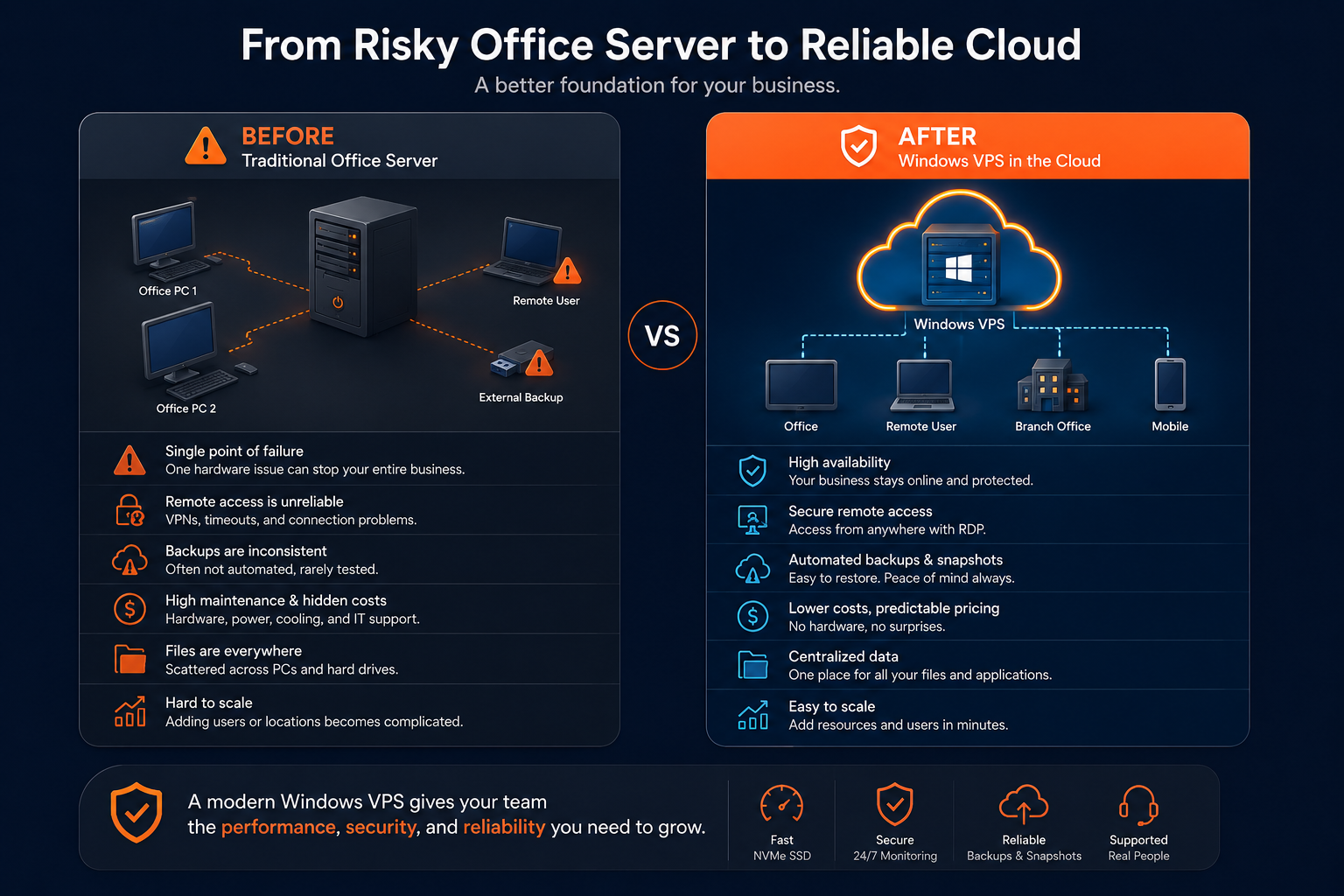
Comparison infographic showing a traditional office server versus a cloud Windows VPS for remote access, backups, centralized files, and easier scaling

A small business typically has four paths.

Replacement pathBest fitMain trade-off
New local serverLocal devices, LAN-heavy workloads, on-site users, strict local requirementsBusiness still owns hardware, power, networking, and lifecycle
SaaS applicationsStandard workflows that can move fully to browser-based servicesMay require process change, data migration, and recurring app costs
Cloud Windows VPSSupported Windows apps, shared files, RDP/RDS users, office server replacementRequires internet, secure access, licensing, sizing, and backup planning
Hybrid setupSome workloads must stay local while others move to cloud or SaaSMore flexible, but can be more complex to support

Option 1: replace the hardware with another local server

Choose another local server when:

  • users and applications are primarily on-site;
  • workloads need very fast local network access;
  • specialized devices must connect directly;
  • internet connectivity is unreliable;
  • policy requires local infrastructure;
  • the business has capable local IT support;
  • remote access is limited or secondary.

A new local server can be the correct decision. The mistake is treating it as maintenance-free. The replacement still needs warranty planning, backups, off-site copies, monitoring, secure remote access, documentation, and a future refresh plan.

Option 2: replace server applications with SaaS

SaaS can remove the server requirement when the business can move accounting, CRM, document management, email, collaboration, or other workflows to supported browser-based platforms.

Choose SaaS when:

  • the business does not need a Windows-only application;
  • users mainly need document collaboration;
  • the application vendor has a mature cloud version;
  • integrations and exports are supported;
  • the organization accepts the new workflow and cost model.

Do not keep a Windows server only because the business has always had one. If SaaS fully solves the requirement, it may be simpler than rebuilding the same server pattern in the cloud.

Option 3: replace the office server with a cloud Windows VPS

A Windows VPS is a strong fit when the business still needs Windows Server but wants to stop maintaining local hardware.

Common workloads include:

  • Remote Desktop access;
  • accounting, tax, ERP, inventory, or legacy applications;
  • Microsoft Access front ends and shared back ends;
  • SQL Server tools and app databases;
  • shared folders and mapped drives;
  • IIS and internal Windows applications;
  • branch-office access;
  • MSP-managed client environments;
  • staged replacement of an old office server.

The cloud Windows VPS becomes the infrastructure foundation. The business or MSP still needs to plan applications, users, licensing, permissions, security, backups, and support.

Option 4: use a hybrid replacement

A hybrid setup is useful when some workloads should move and others should stay.

Examples:

  • move Remote Desktop apps to a Windows VPS but keep large media files local;
  • move shared documents to SaaS but keep a legacy Windows application on a server;
  • keep factory, medical, or specialized device workloads on-site while moving back-office systems;
  • keep a local domain or print role while moving business applications to the cloud;
  • use cloud backups and recovery while keeping the primary workload local.

Hybrid can reduce migration risk, but every connection between local and cloud systems adds something to document, secure, monitor, and support.

When a Windows VPS is the practical replacement

A cloud Windows VPS usually makes sense when several of these statements are true:

Business requirementWindows VPS fit
The business still needs Windows ServerStrong fit
Remote or branch users need the same environmentStrong fit
Supported Windows applications need centralized accessStrong fit after vendor validation
Shared folders or mapped drives are still requiredGood fit with secure access planning
The office server is aging or unreliableStrong fit
The team wants to avoid buying new physical hardwareStrong fit
The MSP wants a repeatable client environmentStrong fit
Workloads can operate over reliable internetRequired
The application supports hosted or RDS deploymentRequired for production
The business accepts planned Windows administrationRequired

A Windows VPS is especially useful when the business problem is not “we need more cloud.” The real problem is:

  • users cannot reach the server reliably;
  • the server is tied to one office;
  • applications still need Windows;
  • files and permissions need central control;
  • hardware replacement is becoming risky;
  • backup and recovery need a clearer structure.

Use: Windows VPS Hosting for Small Businesses.

When a Windows VPS is not the right replacement

Do not move to a Windows VPS by default.

Pause when:

SituationBetter next step
The business only needs document collaborationReview SaaS file and collaboration platforms
The workload depends on specialized local hardwareKeep it local or design a tested hybrid model
Internet connectivity is unreliableImprove connectivity or retain local operation
The vendor does not support hosted/RDS useDo not proceed without an approved support path
Large files move constantly over the LANTest latency and transfer workflow before migration
The workload requires high-end GPU resourcesUse an appropriate GPU or specialized platform
Near-zero downtime is requiredDesign multi-server redundancy and failover
Licensing is unclearResolve Windows, RDS, SQL, and application licensing first
Security or regulatory requirements are undefinedComplete architecture and policy review before production
Nobody will manage Windows after migrationDefine support ownership before launch

A Windows VPS is not a substitute for application modernization, IT ownership, or a business continuity plan. It is one infrastructure option.

Plan the replacement before the server fails

A safe office server replacement is a controlled project, not a last-minute file copy.

1. Inventory what the current server does

Document:

  • Windows Server version and roles;
  • users, groups, and administrators;
  • shared folders and NTFS permissions;
  • business applications and versions;
  • SQL Server or application databases;
  • Remote Desktop and RDS configuration;
  • printers, scanners, USB devices, and dongles;
  • scheduled tasks, scripts, reports, and exports;
  • certificates, DNS names, IP addresses, and firewall rules;
  • backups, retention, and last successful restore;
  • application vendors and support contacts.

If a workload is not documented, assume it can create a migration surprise.

2. Decide what to move, replace, rebuild, or retire

DecisionMeaning
MoveThe workload remains useful and can transfer to the replacement
RebuildThe workload remains useful but should be installed cleanly
ReplaceSaaS or a newer application is a better fit
RetireThe workload is unused, unsupported, duplicated, or risky

Do not pay to migrate years of abandoned data, disabled users, obsolete installers, and unsupported applications without reviewing them.

3. Validate applications and licensing

Before production, confirm:

  • Windows Server support;
  • hosted environment support;
  • Remote Desktop Services support;
  • application license terms;
  • RDS CAL requirements;
  • SQL Server edition and licensing;
  • printing and scanning behavior;
  • third-party integrations;
  • vendor support for backup and recovery;
  • upgrade requirements before migration.

A technically successful migration can still become an unsupported deployment if licensing or vendor requirements are ignored.

4. Choose the target architecture

The replacement may be:

  • one Windows VPS for a small, light workload;
  • separate Windows VMs for application and database roles;
  • a Windows VPS plus SaaS document storage;
  • a local server plus cloud-hosted applications;
  • a larger RDS architecture with Gateway, Session Host, Connection Broker, and other roles;
  • a new local server with improved off-site recovery.

Keep the architecture as simple as the requirements allow, but do not force critical workloads into one server only to reduce the initial bill.

5. Build and test side by side

The safer pattern is:

Text
Current office server stays online → Replacement environment is built → Apps, users, files, and backups are tested → A pilot group completes real workflows → Final data sync is performed → Users cut over → Old server remains available for rollback

Test real work, not only successful login.

Users should test:

  • opening and saving files;
  • application login;
  • reports and exports;
  • PDF generation;
  • printing and scanning;
  • email integrations;
  • mapped drives;
  • database operations;
  • user permissions;
  • remote sessions;
  • backup completion;
  • file and full-server restore.

6. Plan cutover and rollback

Define:

  • final data-sync time;
  • user communication;
  • expected outage;
  • DNS, IP, or mapped-drive changes;
  • application freeze period;
  • who approves production cutover;
  • who can trigger rollback;
  • how long the old server stays available;
  • how old data is archived or destroyed later;
  • who monitors the first days after migration.

Use these detailed planning guides:

  • Windows Server Migration Checklist for Small Businesses
  • Local Office Server to Cloud Windows VPS Migration
  • File Server Migration to Windows VPS
  • SQL Server Migration to Windows VPS

Review users, applications, licensing, backups, and migration before cutover.

Talk to Windows Engineer

How Raff fits office server replacement

Raff fits small businesses and MSPs that need a cloud-hosted Windows Server foundation for supported Windows applications, Remote Desktop users, shared files, databases, branch access, backups, and migration away from aging office hardware.

Raff can provide the Windows VM infrastructure. Your business or MSP should still plan and manage:

  • application support and licensing;
  • RDS CAL requirements;
  • Windows administration and patching;
  • user accounts and permissions;
  • secure remote access;
  • database configuration;
  • backup retention and restore testing;
  • migration timing and rollback;
  • monitoring and ongoing support.

The best Raff fit is not a company that wants to “put everything in the cloud” without a plan. It is a company that has identified a Windows workload, understands who uses it, and wants to run it without depending on one aging physical server in the office.

Use Raff Windows VM when you need:

  • a cloud-hosted Windows Server;
  • full administrative control over the VM;
  • a central environment for supported Windows applications;
  • Remote Desktop or RDS workloads;
  • office server replacement;
  • backup and snapshot planning;
  • an infrastructure path that can grow beyond the original office hardware.

Launch the Windows VM foundation for your replacement environment.

Deploy Windows Now

Recommended next step by situation

Your situationRead next
You need the broad SMB Windows VPS guideWindows VPS Hosting for Small Businesses
You are comparing local and cloud server modelsCloud Windows Server vs Local Office Server
You are ready to plan the migrationLocal Office Server to Cloud Windows VPS Migration
You need a full migration checklistWindows Server Migration Checklist for Small Businesses
Shared folders are the main workloadWindows VPS as a Cloud File Server
Remote employees are the main driverWindows VPS for Remote Employees
You need a Remote Desktop environmentRemote Desktop Server for Business
You need backup and recovery planningWindows VPS Backup Strategy for Small Businesses
You need to understand total costWindows VPS Pricing Explained
You need to size users and workloadHow to Size a Windows VPS for Remote Users

Office server replacement checklist

Before replacing the current office server, confirm:

CheckDone
Hardware health and warranty reviewed☐
Windows Server support status reviewed☐
Server roles documented☐
Users, groups, and admins documented☐
Shared folders and permissions documented☐
Business apps and versions documented☐
Vendor hosting/RDS support confirmed☐
Windows, RDS, SQL, and app licensing reviewed☐
Printers, scanners, dongles, and local devices listed☐
Scheduled tasks, scripts, and integrations listed☐
Current backup success verified☐
Restore test completed☐
Replacement option selected☐
CPU, RAM, and storage sized☐
Remote-access model selected☐
Security and firewall rules planned☐
Backup and retention policy defined☐
Pilot users selected☐
Cutover window selected☐
Rollback process documented☐
Ongoing support owner assigned☐

If several answers are unknown, the business is not ready to cut over. It is ready to begin discovery.

What's next

  • Explore Raff Windows VM when you are ready to compare Windows VM options.
  • Review Raff pricing before choosing CPU, RAM, storage, and backup scope.
  • Read Cloud Windows Server vs Local Office Server before choosing the replacement model.
  • Use Local Office Server to Cloud Windows VPS Migration when you are ready to plan the move.
  • Use the Windows Server Migration Checklist before production cutover.
  • Read Windows VPS Backup Strategy for Small Businesses before trusting the new environment with business data.

Sources

  • Raff — Windows VM
  • Raff — Pricing
  • Raff — Windows Server Hub
  • Microsoft Learn — Remote Desktop Services overview in Windows Server
  • Microsoft Learn — Plan and design your Remote Desktop Services environment
  • Microsoft Learn — Deploy your Remote Desktop environment
  • CISA — Cyber Guidance for Small Businesses
  • CISA — Level Up Your Defenses: Four Cybersecurity Best Practices for Businesses
Was this article helpful?

Published July 17, 2026 · Updated July 17, 2026

Back to hub
On this page
Quick verdict: has your business outgrown its office server?Why small businesses keep office servers longer than they shouldSign 1: the server is aging, unsupported, or difficult to repairSign 2: remote work depends on the office being availableSign 3: business files are spread across PCs, inboxes, and shared foldersSign 4: backups exist, but nobody has tested a restoreSign 5: maintenance costs more than the server appears to saveSign 6: the team, office count, or workload has grown beyond the original designSign 7: the business is worried about downtime but has no continuity planWhat replacing an office server looks like todayWhen a Windows VPS is the practical replacementWhen a Windows VPS is not the right replacementPlan the replacement before the server failsHow Raff fits office server replacementRecommended next step by situationOffice server replacement checklistWhat's nextSources