run your softwareintermediate14 min read·Updated Apr 20, 2026

Self-Host QuickBooks Desktop Multi-User on a Windows Server VPS (2026 Guide)

How to install QuickBooks Desktop in multi-user mode on a Raff Windows Server VPS. Covers QBDSM setup, dynamic ports, firewall, Windows users, RDS CALs, and what Intuit's docs don't emphasize — based on real end-to-end testing on Raff infrastructure.

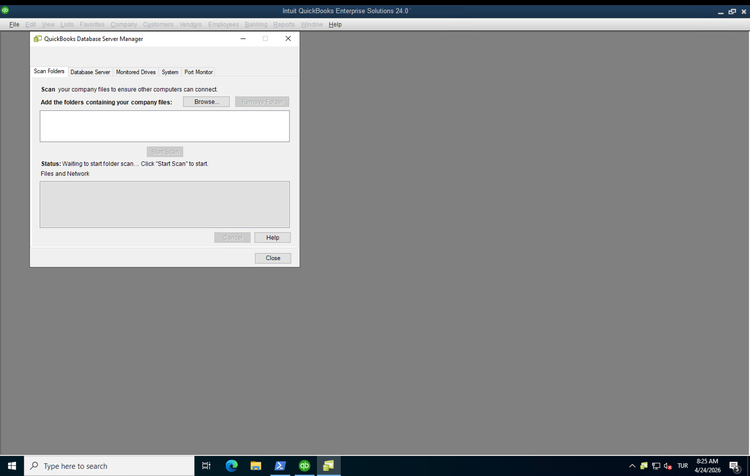
QuickBooks Database Server Manager Scan Folders tab empty state before any folder has been added
On this page

Don't have a Windows Server yet?

Deploy Windows Server 2019/2022/2025 in ~2 minutes. 6-month evaluation licence included.

Deploy Windows now

How Raff fits into QuickBooks self-hosting. Raff provides the Windows Server with full Administrator access and no restrictions on what you install. You bring your own QuickBooks Desktop license and manage the QuickBooks application yourself, just as you would on any Windows server you own. This model — customer-managed software on customer-controlled infrastructure — is widely used by accounting firms, MSPs, and internal IT teams who want remote-accessible QuickBooks without paying per-user fees to a managed hosting service. Raff is an infrastructure provider, not a managed QuickBooks host. We don't resell QuickBooks licenses and don't provide QB application support. If you prefer a fully managed "QuickBooks-as-a-service" with Intuit-authorized commercial hosting (typically $30-65 per user per month), Intuit publishes a list at quickbooks.intuit.com/remote-hosting/.

In short

Running QuickBooks Desktop in multi-user mode on a Raff Windows Server takes about 60-90 minutes: install QuickBooks Desktop, enable multi-user hosting (the step everyone misses), verify the Database Server Manager is listening on its dynamic port, scan the company file folder, then configure Windows user accounts for each person who needs access. This guide documents what we actually found during a full end-to-end install on a Raff Production plan — including several things Intuit's own docs don't emphasize.

TL;DR

  • Windows Server 2022 only. Intuit has not certified Server 2025 for QuickBooks Desktop 2024 as of April 2026.
  • QuickBooks Database Server Manager (QBDSM) does not register its Windows service until you enable multi-user hosting inside QuickBooks. Just installing the app is not enough.
  • QB 2024 uses a dynamically-assigned port, not the commonly-cited 55378-55382 range. Our install landed on port 49807. Always check Port Monitor.
  • Enabling hosting auto-creates a Windows SMB share on the company file folder. Know this before the audit.
  • RDS CALs are separate from QuickBooks licensing. Each accountant needs both a QB user and an RDS CAL.
  • QuickBooks Desktop Pro/Premier is a sunset product. New subscriptions for Pro Plus, Premier Plus, and Mac Plus are no longer sold to US customers. Enterprise continues.

What you'll need

  • Raff Windows Server 2022. Sizing depends on concurrent user count — see the sizing table below.
  • A valid QuickBooks Desktop license. Enterprise is recommended for new deployments. Pro/Premier works for existing subscription holders only.
  • RDS CALs for each concurrent accountant beyond 2 — see RDS CAL Licensing on Windows Server.
  • Local administrator access to the Raff Server via RDP.
  • Estimated time: 60-90 minutes for a first deployment.

Heads up: QuickBooks Desktop is a sunset product

Before you invest time in this setup, know the current state of QuickBooks Desktop:

  • Pro Plus, Premier Plus, and Mac Plus: Intuit stopped selling new US subscriptions on September 30, 2024. Existing subscribers can continue to renew.
  • QuickBooks Desktop 2023: support ends May 31, 2026. No more payroll tax tables, bank feeds, or security patches after that date.
  • QuickBooks Desktop 2024: the final non-Enterprise version. Support runs through September 30, 2027.
  • QuickBooks Desktop Enterprise: still sold, still supported. Intuit's direction for businesses who want to stay on Desktop.

This guide targets two audiences: existing QB Desktop Pro/Premier/Enterprise customers who want to run their owned license on a Raff Server for remote access, and new Enterprise subscribers who prefer self-hosting over Intuit-authorized commercial hosts.

Windows Server version: pick 2022, not 2025

Intuit's official system requirements for QuickBooks Desktop 2024 list Windows Server 2016, 2019, and 2022 as supported. Server 2025 is not certified as of April 2026 — Intuit support confirmed this directly in their community forum. Running QB 2024 on Server 2025 is community-tested at best.

What about Windows Server 2022's lifecycle? Mainstream support ends October 13, 2026 — about six months after publication of this guide. But this doesn't mean the OS stops working or becomes unsupported. Extended Support continues through October 14, 2031, meaning security updates and critical fixes keep flowing for another 5+ years. What ends in October 2026: new features, non-security hotfixes, free Microsoft phone support. What continues: the stuff that matters for a production server — patches, vulnerability fixes, and the ability to deploy updates safely.

And the lifecycles align neatly: QuickBooks Desktop 2024 (the last non-Enterprise version) sunsets on September 30, 2027, which is well inside the Server 2022 extended support window. Even if you deploy on Server 2022 today, your QuickBooks will reach end-of-life before Windows does.

The practical implication: when provisioning your Raff Server, choose Windows Server 2022 from the template dropdown. Everything in this guide is tested on 2022.

Sizing your Raff Server

Intuit publishes specific RAM recommendations for QuickBooks Desktop Enterprise multi-user:

Concurrent usersIntuit RAM recommendationFits Raff plan
1-5 users8 GBProduction plan (4 vCPU / 8 GB)
6-10 users12 GBHeavy Workload plan (8 vCPU / 16 GB)
11-15 users16 GBHeavy Workload plan (8 vCPU / 16 GB)
16-20+ users20+ GBEnterprise plan (8 vCPU / 32 GB)

For most small accounting firms (5-10 users), the Production or Heavy Workload plan is the right fit. Don't undersize — QuickBooks Desktop multi-user is RAM-sensitive, and a swap-thrashing server makes the experience miserable for your whole team.

Disk: the base install is about 2.5 GB, plus your company file. A typical company file grows 100-500 MB over a year. The 120 GB SSD on Production (and up) is plenty of headroom for several years.

Step 1 — Install QuickBooks Desktop

Download the installer from Intuit's official downloads page or your product portal, and run it on the Raff Server. The Enterprise trial can be downloaded from quickbooks.intuit.com/desktop/enterprise/demos/ for evaluation.

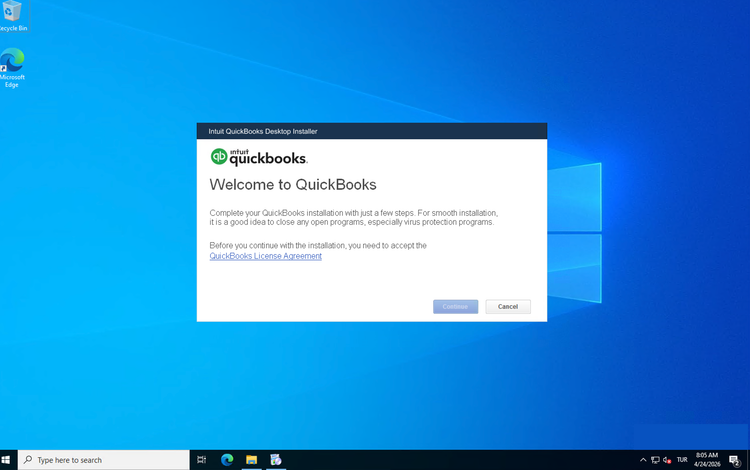
The installer is straightforward: accept the license, choose the install location (default C:\Program Files\Intuit\QuickBooks Enterprise Solutions 24.0\ is fine), confirm, and wait ~10 minutes.

For detailed install-screen walkthroughs, see Intuit's Install QuickBooks Desktop on Windows Server article. The screens are identical whether you install on a physical machine or a Raff Server.

QuickBooks Desktop Enterprise 2024 installer Ready to Install screen on a Raff Server

After install completes, you'll have QuickBooks in the Start menu plus several background Windows services: QBCFMonitorService, QBVSS, QBWCMonitor, QBUpdateMonitorService. You will not yet see QuickBooksDB34 (the multi-user database service) — that appears in the next step.

Step 2 — Enable multi-user hosting (the critical missed step)

This is where almost every deployment goes sideways. The installer does not start QBDSM. Just opening QuickBooks does not start QBDSM. You must explicitly enable hosting.

  1. Launch QuickBooks Desktop on the Raff Server
  2. Create or open a company file
  3. Go to File → Utilities → Host Multi-User Access
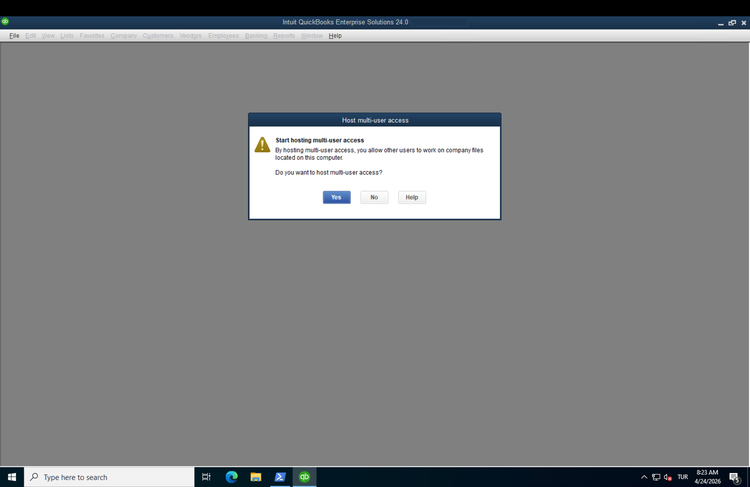
  4. QuickBooks displays a confirmation prompt

QuickBooks Host Multi-User Access prompt with Yes, No, Help buttons — the step that registers QBDSM

Click Yes. QuickBooks then registers the Database Server Manager Windows service (QuickBooksDB34 for QB 2024; the number changes with the year) and starts it.

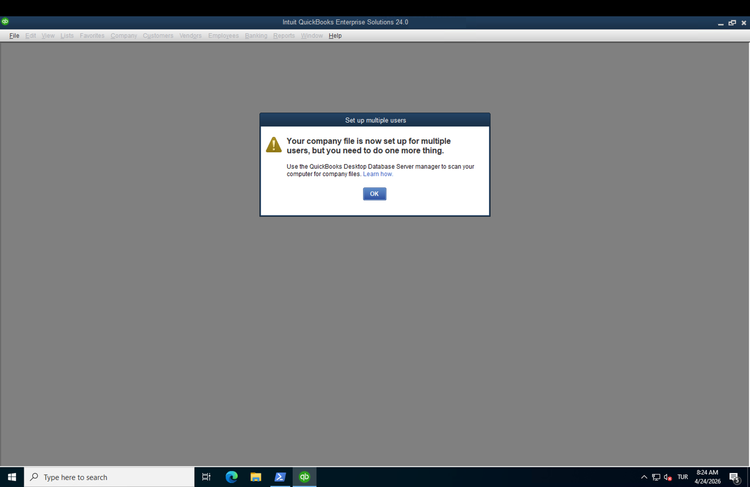
You'll then see a second confirmation dialog noting that hosting is now on but you still need to scan the company file folder with QBDSM:

QuickBooks confirmation that multi-user hosting is enabled and the folder must now be scanned with QBDSM

Click OK, then verify in PowerShell that the service is running:

powershellGet-Service | Where-Object {$_.Name -like "*Quick*" -or $_.Name -like "*QB*"} | Format-Table Name, Status, StartType -AutoSize

You should see QuickBooksDB34 with status Running. But here's something we found during testing: the service defaults to Manual startup. That means if the server reboots, QBDSM does not start automatically and multi-user stops working until someone logs in and starts it. For a dedicated QB server, fix this once:

powershellSet-Service -Name "QuickBooksDB34" -StartupType Automatic

This one-liner is worth keeping in your runbook.

Step 3 — Know what QBDSM actually did to your server

When you enabled hosting, several changes happened behind the scenes:

Firewall rules were added. The installer created a Quickbooks_bel_34 rule for mDNS service discovery (UDP 5353), and enabling hosting added two more program-based rules for QBDBMgrN.exe (inbound and outbound). These program-based rules whitelist the QBDSM binary itself, which means it can listen on any port it wants — including the dynamically-assigned port you'll find in the next step. You do not need to add manual TCP port rules.

Two Windows TCP ports are now listening. Port 8019 is used by QBCFMonitorService for component monitoring. A second port — dynamically assigned — is used by QBDBMgrN.exe for the actual database connections.

A Windows SMB share may have been auto-created. This is the one that surprises people. During the folder scan in Step 4, QBDSM automatically enables Windows file sharing on your company file folder. Know this before your next security audit.

Step 4 — Find your QBDSM port and scan the folder

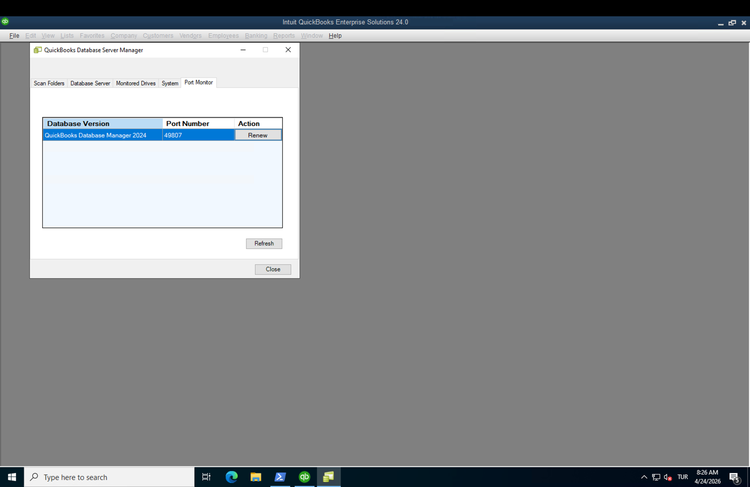
Open QuickBooks Database Server Manager from the Start menu. Click the Port Monitor tab.

QBDSM Port Monitor tab showing the dynamic port for QuickBooks 2024 — not the static 55378-55382 range cited elsewhere

This is one of the most important findings from our testing. You'll notice the port number is not 55378-55382 — the range that's repeated across almost every third-party QuickBooks tutorial. QB 2024 uses a dynamically-assigned port from Windows' ephemeral range. Ours landed on 49807. Yours will likely be different.

If you need to regenerate the port (port conflict, etc.), click Renew in the Action column. QBDSM picks a new dynamic port.

Now scan your company file folder. Switch to the Scan Folders tab.

QuickBooks Database Server Manager Scan Folders tab empty state before any folder has been added

  1. Click Browse
  2. Navigate to the folder containing your .QBW company files (we recommend C:\QuickBooksCompanyFiles\)
  3. Click OK to add it to the list
  4. Click Start Scan

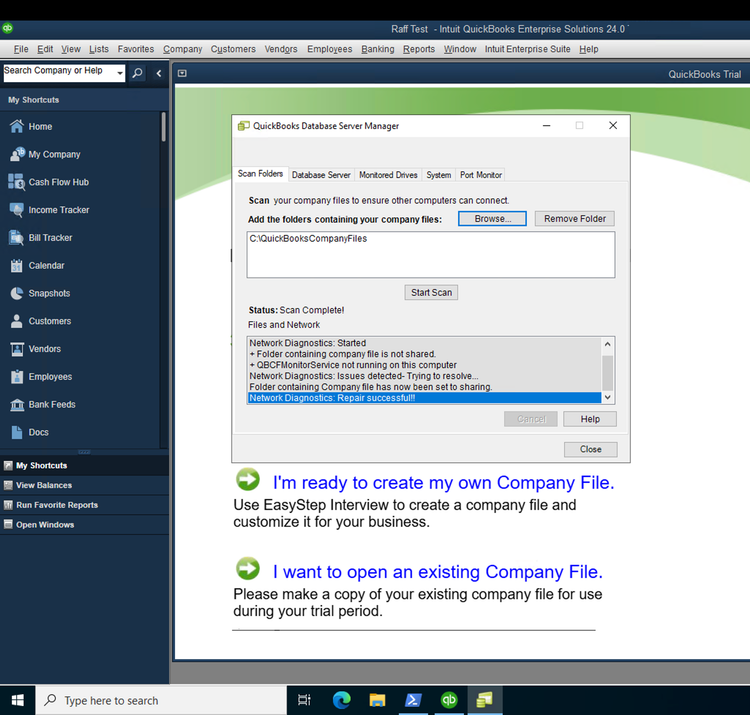
The first scan commonly reports some warnings — folder not shared, QBCFMonitorService not fully up, firewall check confused, etc. Don't panic. QBDSM includes an auto-repair pass that resolves most of these on its own:

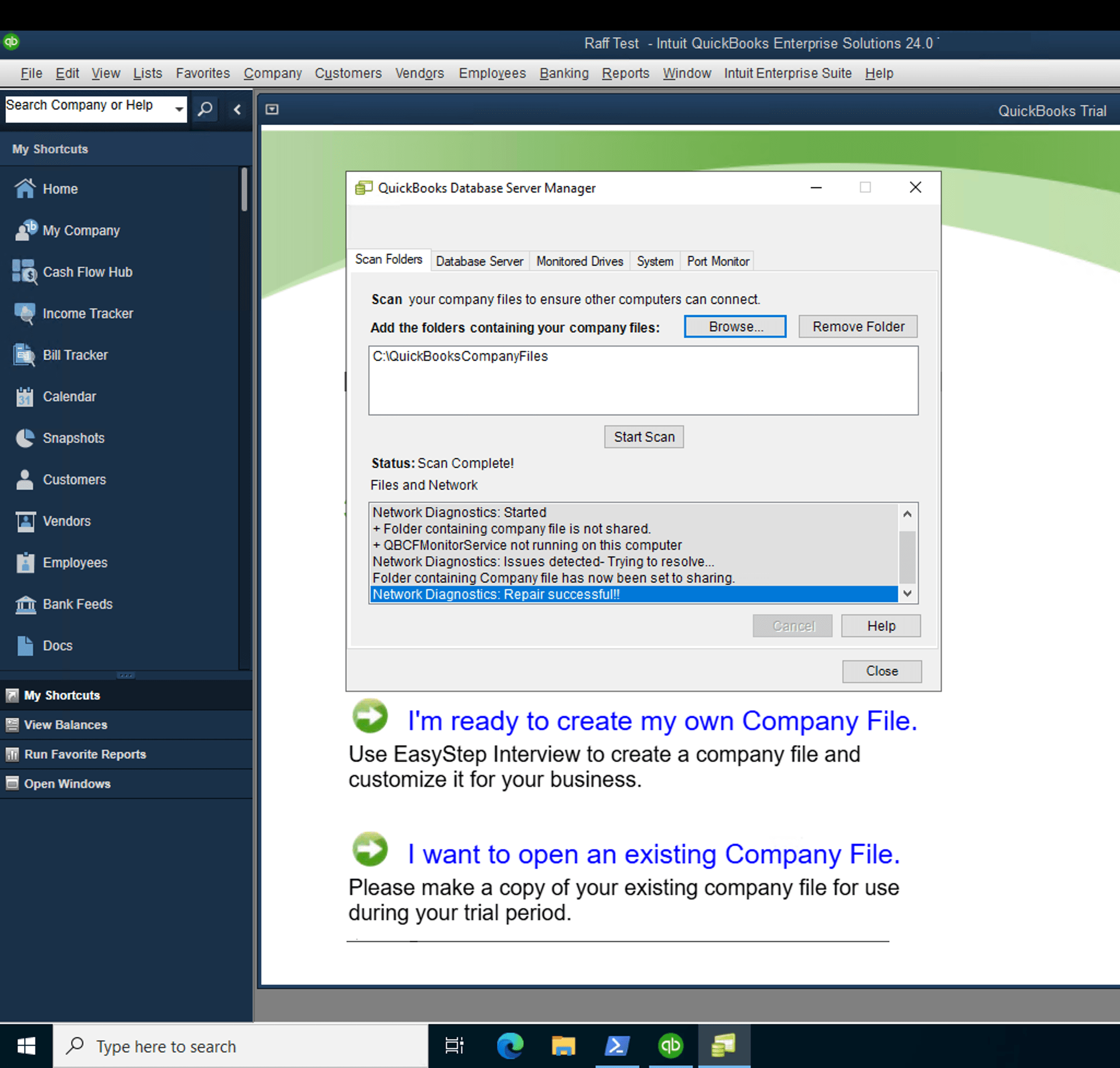
QBDSM successful scan on Raff Windows Server with Network Diagnostics Repair successful status confirming multi-user works

When the scan finishes with Network Diagnostics: Repair successful!!, you're ready. QBDSM has:

  • Set the company file folder to shared over the network (Windows SMB share auto-created)
  • Generated the .ND sidecar file next to your .QBW (plaintext INI file that tells QuickBooks clients where to connect)
  • Registered the file with the database server

To confirm the .ND file was created correctly:

powershellGet-Content "C:\QuickBooksCompanyFiles\YourCompany.QBW.ND"

You should see a config file with ServerMode=1, your hostname, and the dynamic port. ServerMode=1 confirms the file is flagged for multi-user mode.

Step 5 — Create Windows users for each accountant

Each person who needs to work in QuickBooks needs:

  1. A Windows user account on the Raff Server (or a domain user if the server is AD-joined)
  2. RDP access to that server
  3. NTFS permissions on the company file folder
  4. A QuickBooks internal user (created later inside QB by the admin)

Create a user via PowerShell:

powershell# Create the user
$password = Read-Host "Password for new user" -AsSecureString
New-LocalUser -Name "jane.doe" -Password $password -FullName "Jane Doe" -Description "Senior bookkeeper"

# Grant RDP access
Add-LocalGroupMember -Group "Remote Desktop Users" -Member "jane.doe"
Add-LocalGroupMember -Group "Users" -Member "jane.doe"

# Grant access to company files
$Acl = Get-Acl "C:\QuickBooksCompanyFiles"
$Rule = New-Object System.Security.AccessControl.FileSystemAccessRule("jane.doe","FullControl","ContainerInherit,ObjectInherit","None","Allow")
$Acl.SetAccessRule($Rule)
Set-Acl -Path "C:\QuickBooksCompanyFiles" -AclObject $Acl

Repeat for each accountant. Each user RDPs into the Raff Server, launches QuickBooks from the Start menu, and opens the company file from C:\QuickBooksCompanyFiles\.

Don't forget RDS CALs

Windows Server allows 2 concurrent RDP sessions for administration by default. If you have 3 or more concurrent QuickBooks users, you are legally required to install the Remote Desktop Services role and license each user with an RDS CAL. This is Microsoft licensing, entirely separate from anything Intuit requires.

We cover this in depth in RDS CAL Licensing on Windows Server: Per-User vs Per-Device, BYOL vs SPLA. Short version:

  • Per-user CAL fits most accounting firms with AD — each accountant has one license, use any device
  • Per-device CAL fits shared-PC shift work, workgroup deployments (no AD)
  • SPLA via Raff is the fastest activation path if you don't already own RDS CALs

Plan your CAL purchase at least two weeks before the 120-day grace period expires on a fresh Windows Server install.

Common errors we actually encountered

This list comes from our real test deployment, not from copy-pasted forum threads.

"QuickBooks Database Server Manager is not available"

Launching QBDSM before you've enabled hosting produces this dialog. The fix: go into QuickBooks Desktop first, then File → Utilities → Host Multi-User Access, click Yes. QBDSM works after that.

Error -6150, -1006 (file not repairable)

Almost always a conflict where the company file is already open exclusively in another QuickBooks instance. Fix: close all QuickBooks instances on the Raff Server, reboot if necessary, then reopen the file. If the file is genuinely corrupted, restore from backup — QBDSM scans don't repair corrupted QBW files.

Error -6123, 0 (problem connecting to server)

QBDSM is not reachable. Check in order: (1) QuickBooksDB34 service is Running, (2) firewall hasn't been tightened to block QBDBMgrN.exe, (3) C:\QuickBooksCompanyFiles\YourCompany.QBW.ND exists and contains ServerMode=1. If any are missing, run QBDSM → Scan Folders → Start Scan again.

Error H202 (multi-user setup needs adjustment)

Client can't reach the server. For Raff self-hosted deployments where all users RDP into the same server, this rarely occurs — the networking is localhost. H202 usually means a remote client machine is trying to reach the server and failing. Check whether the remote user's network allows outbound TCP to the server's public IP on ports 8019 and the dynamic port from QBDSM Port Monitor.

Scan reports "Windows firewall is blocking QuickBooks" but everything else works

QBDSM's firewall check is naive — it looks for specific rule names and doesn't find them, while the actual program-based rules for QBDBMgrN.exe are in place and working. If your QB clients can actually connect, ignore this warning.

Security considerations specific to self-hosting

A few things worth knowing because they come up in audits:

Your company files folder will be Windows-shared. Enabling multi-user hosting auto-creates an SMB share. The share permissions inherit from your NTFS ACLs, but if you're sensitive about SMB exposure, review the share via Get-SmbShare and restrict SMB to loopback if all users are RDP'd in anyway.

QBDSM port is dynamic. Don't hardcode 49807 or any specific port in your documentation. Always pull from Port Monitor — it can change after updates.

The .ND file contains your server IP. If you ever share a .ND file externally for troubleshooting, sanitize the ServerIp line first.

QuickBooks internal users are separate from Windows users. A Windows admin is not automatically a QB admin. Inside QuickBooks: Company → Users → Set Up Users and Roles configures the QB-internal user list. Each accountant typically needs both.

Tested on Raff

Tested on Raff: QuickBooks Desktop Enterprise 2024 (30-day trial edition) was installed and configured end-to-end on a Raff Windows Server 2022 — Production plan, 4 vCPU / 8 GB RAM / 120 GB SSD, build 20348, Vint Hill, Virginia datacenter — on April 24, 2026, by Serdar Tekin. We verified: QBDSM service registration via File → Utilities → Host Multi-User Access; dynamic port assignment (49807 in our install); auto-created program-based firewall rules for QBDBMgrN.exe; auto-created Windows SMB share on the company files folder; successful QBDSM folder scan with network diagnostics repair pass; .ND sidecar file generation with ServerMode=1. The multi-user configuration was verified at the infrastructure layer; full simultaneous two-client open testing is a production-edition concern beyond a single-machine trial setup.

What's next

Sources


QuickBooks, QuickBooks Desktop, QuickBooks Enterprise, and Intuit are trademarks of Intuit Inc. Raff Technologies is not affiliated with or endorsed by Intuit, and is not an Intuit Authorized Hosting Provider. This article is independent technical documentation covering self-hosted setup on customer-controlled infrastructure.

Published April 20, 2026 · Last updated April 20, 2026