How to Set Up SMB over QUIC on Windows Server 2025 with a Let's Encrypt Certificate (No VPN Needed)
Windows Server 2025 brings SMB over QUIC to Standard and Datacenter editions, not just Azure Edition. We walk through the full setup: File Server role, free Let's Encrypt certificate via win-acme, SMB binding, and a Windows 11 client connection. Tested live on a Raff Server in Virginia.

On this page
- In short
- Who this guide is for
- What you'll need
- What changed in Windows Server 2025
- About the examples
- A common misconception: Windows 11 edition requirements
- Step 1: Install the File Server role
- Step 2: Open UDP 443 in the firewall
- Step 3: Get a Let's Encrypt certificate with win-acme
- Step 4: Bind the certificate to SMB
- Step 5: Create a file share
- Step 6: Connect from a Windows 11 client
- Step 7: Verify the transport is actually QUIC
- Common errors
- Adding more shares
- Client compatibility matrix
- Renewing the certificate
- Tested on Raff
- What's next
- Sources
Don't have a Windows Server yet?
Deploy Windows Server 2019/2022/2025 in ~2 minutes. 6-month evaluation licence included.
In short
SMB over QUIC lets you publish a Windows file share directly to the internet on UDP port 443, wrapped in TLS 1.3, with no VPN. In Windows Server 2025 this feature is available in the Standard, Datacenter, and Azure editions, not just Azure Edition like it was in Server 2022. The setup takes seven steps: install the File Server role, open UDP 443, issue a free Let's Encrypt certificate with win-acme, bind it to SMB, create a share, connect from a Windows 11 client with /TRANSPORT:QUIC, and verify the transport. Whole flow runs in about 30 minutes on a fresh Server 2025 install. We tested it live on a Raff Windows Server in Vint Hill, Virginia and have the QuicConnectionCount=1, TcpConnectionCount=0 output to prove it.
Who this guide is for
You want remote workers, branch offices, or contractors to mount a Windows file share over the open internet without standing up a VPN. Common scenarios:
- A 5 to 50 person SMB whose remote employees need a shared drive and you don't want to manage Wireguard or OpenVPN configs
- An MSP serving small businesses with distributed teams, where each client gets its own SMB-over-QUIC file server instead of a VPN appliance
- A digital agency or studio whose contractors need access to project folders but you don't want to issue VPN credentials and revoke them every contract end
- A small dev team that needs a network drive accessible from coffee shops, home offices, and on-the-road laptops with the same UNC path everywhere
If you have strong identity infrastructure already (Entra ID joined laptops, Conditional Access, Intune-managed devices), SMB over QUIC slots in cleanly. If you have none of that, the security boundary is your share permissions plus the strength of the local user passwords on the file server, so think about that before going to production.
This guide does not cover Active Directory Domain Services. We run a workgroup scenario with local Windows user accounts because that matches how most small Raff Server tenants deploy. AD-joined SMB over QUIC works the same way at the protocol level, just with Kerberos inside the QUIC tunnel instead of NTLM.
What you'll need
- A Raff Windows Server 2025 with a public IP. This guide tested on the Production plan ($35.99, 4 vCPU / 8 GB RAM / 120 GB NVMe), which is the right size for a file server with up to 50 active users and a few hundred GB of shared data. Smaller workloads run fine on the Small Business plan ($19.99). Heavy multi-share deployments with large datasets step up to Heavy Workload ($63.99) or Enterprise ($127.99) for the extra storage and RAM.
- Local administrator access to the Raff Server via RDP.
- A registered DNS A record pointing to your server's public IP. Examples in this article use
quic-test.raffusercloud.com. You'll use your own FQDN likefiles.example.com. The Let's Encrypt certificate is issued against this FQDN, so it must resolve publicly before you run win-acme. - Port 80 inbound temporarily to your server's public IP (for the Let's Encrypt HTTP-01 challenge during cert issuance). You can close it again after.
- Port UDP 443 inbound permanently to your server's public IP (this is the SMB over QUIC transport).
- A Windows 11 client (any edition, 24H2 or newer) to test the connection from. We'll come back to this in the "Common misconception" section because it's the single biggest source of bad information online.
- Estimated time: 30 to 45 minutes end-to-end on a fresh VM.
What changed in Windows Server 2025
Three things that matter, if you're coming from older guides written for Server 2022:
- SMB over QUIC is no longer Azure-only. In Server 2022 you needed Azure Edition (which only ran on Azure Stack HCI or in Azure), so for most self-hosters this feature didn't exist. Server 2025 Standard and Datacenter both ship with it. You can run it on any commodity VPS like a Raff Windows Server.
EnableSMBQUICdefaults toTrueon a fresh Server 2025 install. You don't need to enable an optional feature, install a role module specifically for QUIC, or flip any global setting. The File Server role plus a bound certificate is the only configuration needed.- Windows Admin Center (WAC) configuration for SMB over QUIC is not supported on Server 2025 at the time of writing. PowerShell is the only way to configure it. Microsoft's docs confirm this; if you find an older WAC walkthrough, ignore it and use the PowerShell commands in this guide.
About the examples
We tested every command in this guide on a live Raff Windows Server. Specifics:
- Hostname: us-host-723754
- Public IP: 23.26.4.223
- FQDN for the cert: quic-test.raffusercloud.com
- Edition shown in outputs: Windows Server 2025 Standard Evaluation
- Build: 26100 (Server 2025 RTM)
[!NOTE] Why our screenshots show "Evaluation" Our test VM shows
Windows Server 2025 Standard Evaluationin command outputs because we provisioned with the eval image for documentation work. When you order Windows Server 2025 from your Raff dashboard, you have two options. Licensed image: VM ships fully activated, no expiry, ready for production. Evaluation image: free 180-day trial, useful for testing and lab. Activates with a real key any time. SMB over QUIC works identically on both. Pick eval to test, pick licensed when you go to production.
A common misconception: Windows 11 edition requirements
Older guides written in 2022 and 2023 tell you that the SMB over QUIC client requires Windows 11 Enterprise, Education, or Pro for Workstations. This was true at launch.
It is no longer true. Starting with Windows 11 24H2, the SMB over QUIC client ships in every edition including Pro and Home. Microsoft's current SMB over QUIC documentation explicitly lists Windows 11 (all editions, 24H2 or newer) as supported clients. If you're running Win11 24H2 or 25H2 Pro on your daily-driver laptop, you're good. You do not need to upgrade to Enterprise.
What this means in practice: your remote employees on regular Win11 Pro laptops can connect to your SMB over QUIC server without any edition upgrade. The reader of an older guide who thinks "we'd need to buy E5 licenses for everyone" is looking at outdated information.
Step 1: Install the File Server role
RDP into your Raff Windows Server, open PowerShell as administrator, and run:
powershellInstall-WindowsFeature -Name FS-FileServer -IncludeManagementTools
Expected output:
Success Restart Needed Exit Code Feature Result
------- -------------- --------- --------------
True No Success {File Server}
RestartNeeded: No is what you want. Server 2025 installs File Server cleanly with no reboot.
Verify SMB server config defaults:
powershellGet-SmbServerConfiguration | Select-Object EnableSMB1Protocol, EnableSMB2Protocol, EnableSMBQUIC, EncryptData, RestrictNamedPipeAccessViaQuic
You should see:
EnableSMB1Protocol : False
EnableSMB2Protocol : True
EnableSMBQUIC : True
EncryptData : False
RestrictNamedPipeAccessViaQuic: True
A few things worth knowing here.
EnableSMB1Protocol: False is correct. SMB1 has been deprecated since 2017 and is a security risk. Leave it off.
EnableSMBQUIC: True means the SMB server is already willing to accept QUIC connections once you bind a certificate to it. No additional flag to flip.
EncryptData: False looks alarming but is correct for QUIC. This flag controls SMB-level encryption for legacy SMB over TCP. SMB over QUIC encrypts at the QUIC/TLS 1.3 transport layer, so SMB-level encryption is redundant. The TLS 1.3 tunnel encrypts everything end to end already, including the auth handshake.
RestrictNamedPipeAccessViaQuic: True is a security default. Named pipes (used by remote management protocols like the Server Manager remote APIs) are blocked over QUIC by default. Don't change this unless you have a specific reason; if a remote admin tool fails to connect over QUIC, that's the reason, and the right answer is usually to admin over the local network or a separate RDP session, not to relax this restriction.
Now create a folder to share:
powershellNew-Item -Path "C:\QuicShare" -ItemType Directory -Force
"This file lives on the Raff Server. Reachable over SMB+QUIC." | Out-File "C:\QuicShare\readme.txt" -Encoding UTF8
Step 2: Open UDP 443 in the firewall
This is the step where almost every online guide gets the protocol wrong. SMB over QUIC uses UDP 443, not TCP 443. If you accidentally open TCP 443 thinking that's how QUIC works (because TLS is usually associated with TCP), nothing will work and the error you get back is unhelpful.
powershellNew-NetFirewallRule -DisplayName "SMB over QUIC (UDP 443)" `
-Direction Inbound `
-Protocol UDP `
-LocalPort 443 `
-Action Allow `
-Profile Any
Verify:
powershellGet-NetFirewallRule -DisplayName "SMB over QUIC (UDP 443)" | Format-List DisplayName, Enabled, Direction, Action
You should see Enabled: True, Direction: Inbound, Action: Allow.
Now temporarily open TCP 80 for the Let's Encrypt HTTP-01 challenge in the next step:
powershellNew-NetFirewallRule -DisplayName "Lets Encrypt HTTP-01 (TCP 80)" `
-Direction Inbound `
-Protocol TCP `
-LocalPort 80 `
-Action Allow `
-Profile Any
We'll close this back down once the certificate is issued and renewals are scheduled via Task Scheduler (which can survive without port 80 once the initial cert is in place, provided you set up DNS-01 challenges later, which we cover at the end). For now, open it.
Step 3: Get a Let's Encrypt certificate with win-acme
This is the step where you'll find the most outdated and frankly wrong information online. Several popular guides explicitly state that "Let's Encrypt will not work for SMB over QUIC." That is incorrect. Let's Encrypt issues domain-validated (DV) certificates that include the FQDN in the Subject Alternative Name field, which is exactly what SMB over QUIC requires. We tested it end to end. It works.
We use win-acme (sometimes called "wacs"), which is the most popular ACME client for Windows. It's a single executable, no installer, no service to register, and it sets up its own scheduled task for automatic renewal.
Download win-acme
powershellNew-Item -Path "C:\Tools\win-acme" -ItemType Directory -Force
cd C:\Tools\win-acme
# Download the latest x64 pluggable build (check github.com/win-acme/win-acme/releases for current URL)
Invoke-WebRequest -Uri "https://github.com/win-acme/win-acme/releases/download/v2.2.9.1701/win-acme.v2.2.9.1701.x64.pluggable.zip" `
-OutFile "win-acme.zip"
Expand-Archive -Path "win-acme.zip" -DestinationPath . -Force
Remove-Item "win-acme.zip"
# Confirm
Get-ChildItem | Format-Table Name, Length, LastWriteTime
You should see wacs.exe and supporting DLLs. The version we tested with is 2.2.9.1701, published May 22, 2024. Newer versions may have shipped by the time you read this; the menu wording may shift slightly, but the option content is the same.
Run the wizard
Make sure DNS for your FQDN resolves to your public IP before you start. Test from a different machine:
powershellResolve-DnsName quic-test.raffusercloud.com
You should see your server's public IP. If it doesn't resolve yet, wait for DNS to propagate. Let's Encrypt's validator will try to fetch a file from your FQDN over HTTP, and if DNS doesn't point at your server, the validation fails.
Now start the wizard:
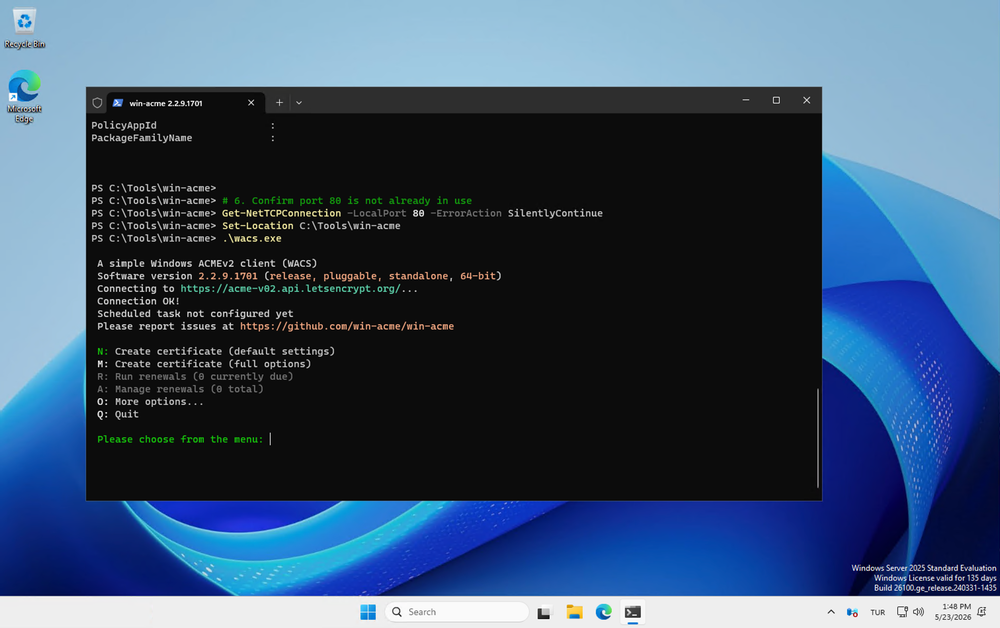
powershell.\wacs.exe
You'll see the win-acme welcome banner and a menu:

Walk through it like this (read each prompt; menus shift between versions):
- Main menu: press M for
Create certificate (full options). TheNshortcut for "default settings" tries to bind to IIS, which we don't have. - Source plugin: choose
Manual input(in 2.2.9.1701 this is option 2). Type your FQDN:quic-test.raffusercloud.com. Press Enter to accept the auto-generated friendly name. - Single or multiple certificates: choose
Single certificate. We're only issuing one. - Validation method: choose
Serve verification files from memory(option 2 in 2.2.9.1701). This tells win-acme to spin up its own tiny HTTP server on port 80 just long enough to answer the Let's Encrypt challenge, then shut it down. No IIS required. This is why we opened TCP 80 in Step 2. - Private key type:
RSA key(option 2 in 2.2.9.1701). The menu order swapped between versions; if you see1: EC, 2: RSA, type 2. RSA 2048+ is what the SMB stack expects. - Certificate store:
Windows Certificate Store (Local Computer)(option 4 in 2.2.9.1701). SMB reads its certificates fromCert:\LocalMachine\My, which is exactly where this option places it. - Store name:
[My] General computer store (for Exchange/RDS)(option 1). Same store name SMB looks in. - Additional storage steps:
No (additional) store steps. The cert is already where we need it. - Installation steps:
No (additional) installation steps. We bind to SMB manually in the next step rather than letting win-acme guess. - Terms of service: type
yesif this is the first time you've run win-acme on this server. - Notification email: enter a real monitored email. Let's Encrypt sends expiry warnings here.
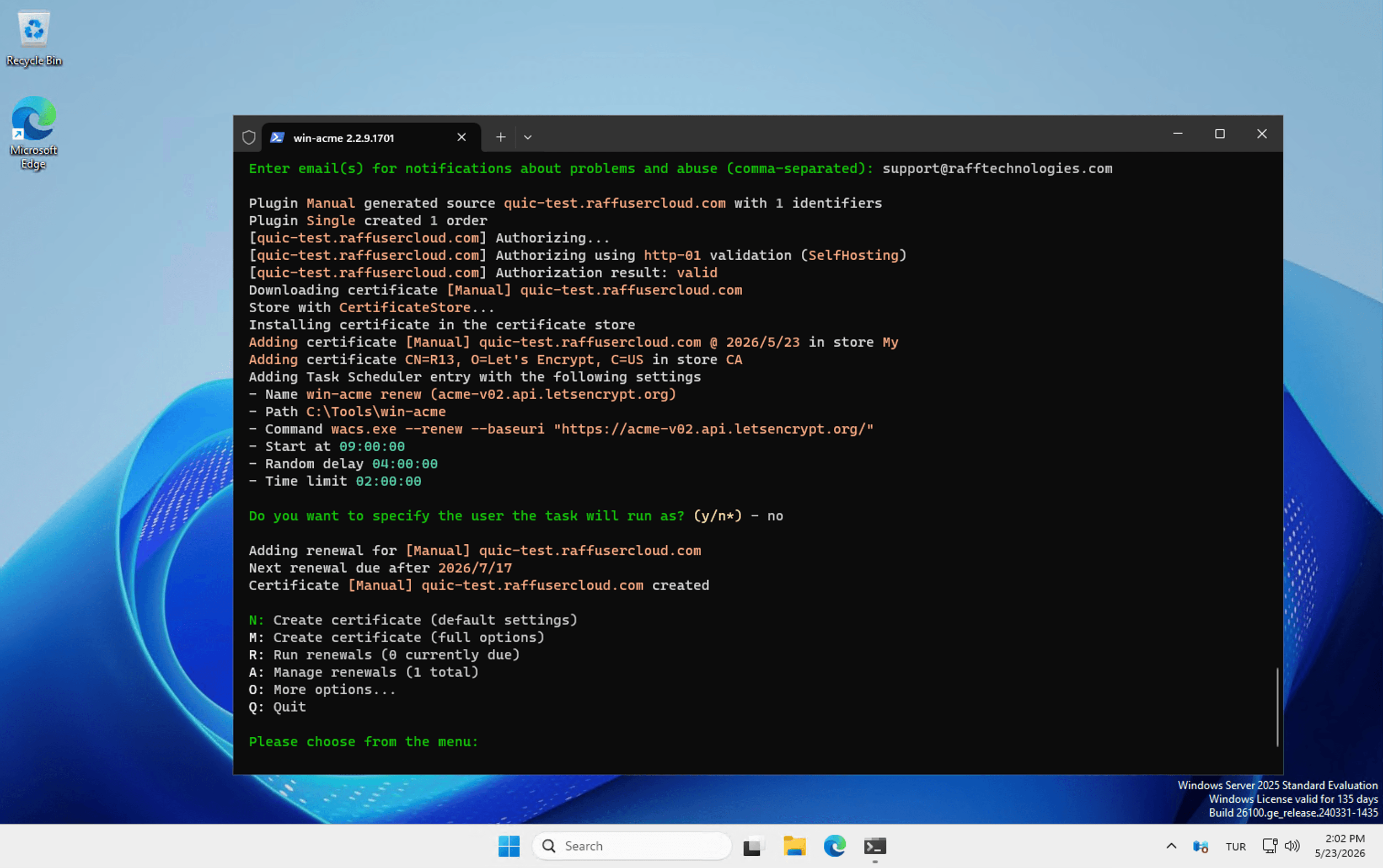
Wait about 30 seconds. If everything is configured right, you'll see win-acme run through:
[quic-test.raffusercloud.com] Authorizing using http-01 validation (SelfHosting)
[quic-test.raffusercloud.com] Authorization result: valid
Downloading certificate [Manual] quic-test.raffusercloud.com
Adding certificate [Manual] quic-test.raffusercloud.com @ 2026/5/23 in store My
Adding certificate CN=R13, O=Let's Encrypt, C=US in store CA
Adding Task Scheduler entry with the following settings
* Name win-acme renew (acme-v02.api.letsencrypt.org)
* Path C:\Tools\win-acme
* Command wacs.exe --renew --baseuri "https://acme-v02.api.letsencrypt.org/"
* Start at 09:00:00
* Random delay 04:00:00
* Time limit 02:00:00
Adding renewal for [Manual] quic-test.raffusercloud.com
Next renewal due after 2026/7/17
Certificate [Manual] quic-test.raffusercloud.com created
Two certificates land in your store:
- Your leaf cert in
LocalMachine\MywithCN=quic-test.raffusercloud.com - The Let's Encrypt R13 intermediate cert in
LocalMachine\CA, which is the issuing chain certificate
When you see "Next renewal due after" with a date about 55 days out, the renewal task is registered. Type Q to quit the wizard.
Grab the thumbprint
We need the cert's thumbprint for the next step. Get it with:
powershellGet-ChildItem Cert:\LocalMachine\My | Where-Object { $_.Subject -like "*quic-test*" } | Format-List Subject, Thumbprint, NotBefore, NotAfter, Issuer, HasPrivateKey
Expected (your thumbprint will be different):
Subject : CN=quic-test.raffusercloud.com
Thumbprint : BAADC217737B98A8A5D493DB0569C8C1C8C4FFC6
NotBefore : 5/23/2026 1:00:13 PM
NotAfter : 8/21/2026 1:00:12 PM
Issuer : CN=R13, O=Let's Encrypt, C=US
HasPrivateKey : True
HasPrivateKey: True is critical. If it's False, the cert won't work for SMB (you can't establish a TLS handshake without a private key on the server side). Re-run the wizard if you see False.
Also verify the renewal task is queued:
powershellGet-ScheduledTask | Where-Object { $_.TaskName -like "*win-acme*" } | Select-Object TaskName, State
You should see State: Ready.
Save your thumbprint string for the next step.
Step 4: Bind the certificate to SMB
This is the step that turns "a certificate sitting in a store" into "SMB is now listening over QUIC for this FQDN."
powershellNew-SmbServerCertificateMapping `
-Name "quic-test.raffusercloud.com" `
-Thumbprint "BAADC217737B98A8A5D493DB0569C8C1C8C4FFC6" `
-StoreName "My" `
-Type QUIC `
-Flags None
Replace the FQDN and thumbprint with your own values.
Verify:
powershellGet-SmbServerCertificateMapping | Format-List Name, Thumbprint, StoreName, Type, Flags
Expected:
Name : quic-test.raffusercloud.com
Thumbprint : BAADC217737B98A8A5D493DB0569C8C1C8C4FFC6
StoreName : My
Type : QUIC
Flags : None
Type: QUIC is the key field. That's the explicit binding telling Windows that this cert is for SMB over QUIC specifically. (You can have separate certs for different purposes on the same server: one for SMB+QUIC, one for IIS HTTPS, one for RDS, all in the same LocalMachine\My store. The Type field disambiguates.)
Step 5: Create a file share
Since we're not running an Active Directory domain in this scenario, we'll create a local Windows user for SMB access. In a real deployment you'd create one local user per remote employee, with strong passwords stored in your password manager.
powershell# Create a local user
$password = ConvertTo-SecureString "RaffQuicTest2026" -AsPlainText -Force
New-LocalUser `
-Name "raffsmbuser" `
-Password $password `
-FullName "Raff SMB Test User" `
-Description "SMB over QUIC test user" `
-PasswordNeverExpires
# Add to the Users group (network logon requires this)
Add-LocalGroupMember -Group "Users" -Member "raffsmbuser"
# Create the share, granting Full access to raffsmbuser
New-SmbShare `
-Name "QuicShare" `
-Path "C:\QuicShare" `
-Description "SMB over QUIC test share" `
-FullAccess "raffsmbuser"
# Confirm
Get-SmbShare -Name "QuicShare" | Format-List Name, Path, Description, EncryptData
Get-SmbShareAccess -Name "QuicShare"
The expected Get-SmbShareAccess output:
Name ScopeName AccountName AccessControlType AccessRight
---- --------- ----------- ----------------- -----------
QuicShare * US-HOST-723754\raffsmbuser Allow Full
raffsmbuser is your scoped local user, prefixed with the server's hostname. This is what the client will authenticate as.
For real production, you would also want to set NTFS permissions on C:\QuicShare itself, not just the SMB share permissions. The effective access is the intersection of share permissions and NTFS permissions. Share-only "Full" with NTFS-only "Read" gives you Read. For test purposes the default NTFS inheritance is fine, but lock it down properly before going live.
Use a strong password
RaffQuicTest2026 is fine for a one-day test, but it's terrible for production. Use a 20+ character random password from a password manager. Server 2025 has an SMB authentication rate limiter that throttles repeated failed logins automatically, which mitigates brute force, but you should never count on that as your only line of defense.
Step 6: Connect from a Windows 11 client
On your Windows 11 client (24H2 or newer, any edition), open PowerShell as administrator and run:
powershellnet use Z: \\quic-test.raffusercloud.com\QuicShare /TRANSPORT:QUIC /USER:raffsmbuser RaffQuicTest2026
Replace the FQDN, username, and password with your own. Expected:
The command completed successfully.
You now have a mapped drive Z: that is, under the hood, running over QUIC on UDP 443 with TLS 1.3 encryption. Your share permissions and authentication are working through the encrypted tunnel.
Step 7: Verify the transport is actually QUIC
This is the proof step. Just because net use returned "command completed successfully" doesn't mean the transport is actually QUIC; under odd configurations SMB might silently fall back to TCP. We need to confirm.
Get-SmbConnection does not reliably show transport on Server 2025 + Win11 25H2 yet (the TransportName property is missing in some builds). The better diagnostic is Get-SmbMultichannelConnection:
powershellGet-SmbMultichannelConnection -ServerName quic-test.raffusercloud.com | Format-List *
Look for these three lines in the output:
QuicConnectionCount : 1
TcpConnectionCount : 0
Selected : True
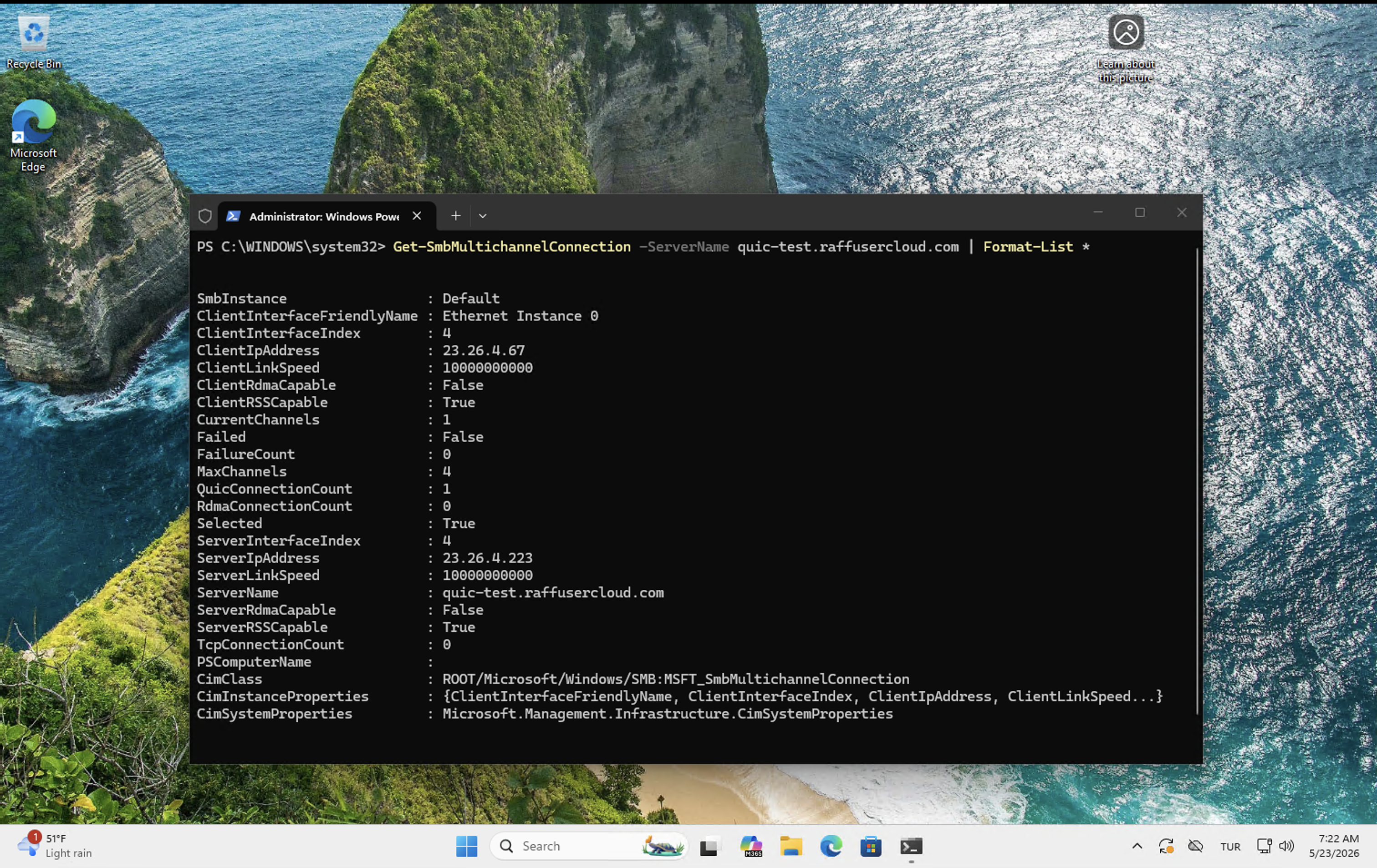
That's conclusive. One active QUIC connection, zero TCP connections, channel selected. SMB is running exclusively over UDP 443, not falling back to TCP 445. This is the screenshot worth capturing for your operational records.
Sanity check: read and write a file
powershell# List the share, you should see readme.txt from earlier
dir Z:\
# Write a test file from the client
"Hello from Win11 client over QUIC, $(Get-Date)" | Out-File Z:\client-write-test.txt
# Read it back
Get-Content Z:\client-write-test.txt
# List again to confirm both files exist
dir Z:\
If you can list, write, and read, the whole stack is working end to end.
To disconnect when done:
powershellnet use Z: /delete
Common errors
System error 53: network path not found
The most common cause is UDP 443 not actually reachable from the client. Either the server firewall rule didn't apply, the upstream firewall (your VPS provider's network ACL) blocks UDP 443, or there's a NAT issue at the client end. Test by running Test-NetConnection -ComputerName your-fqdn -Port 443 from the client. TCP 443 will fail (we never opened it), but DNS should resolve and ping should succeed. If ping fails, it's a network reachability problem, not a SMB problem.
System error 86: the specified network password is not correct
Three different things can cause this. Read the diagnostic event log on the server (in the Security log, look for event ID 4625) to figure out which:
powershellGet-WinEvent -FilterHashtable @{LogName='Security'; Id=4625; StartTime=(Get-Date).AddMinutes(-5)} -MaxEvents 3 | Format-List TimeCreated, Message
Look at the Status code in the event:
0xC000006A= password is actually wrong. Reset withSet-LocalUser -Name <user> -Password (ConvertTo-SecureString '<newpass>' -AsPlainText -Force).0xC000006Dwith Sub Status0x0= NTLM loopback check. This happens when you connect from the server to itself via an FQDN that's different from the server's NetBIOS name. Windows blocks this by default. You only hit this when testing on the server itself; real remote clients won't see it. Fix: connect from a different machine, or whitelist the FQDN withNew-ItemProperty -Path "HKLM:\SYSTEM\CurrentControlSet\Control\Lsa\MSV1_0" -Name "BackConnectionHostNames" -Value "your-fqdn" -PropertyType MultiString -Forcefollowed byRestart-Service LanmanServer -Force.0xC0000234= account is locked out by the rate limiter. Wait two minutes, then try again with the correct password.
Cert chain not trusted on the client
If net use fails with a TLS-related error rather than a network or auth error, the client cannot validate the Let's Encrypt certificate chain. Modern Windows 10 and 11 builds include the ISRG Root X1 root certificate in the trusted store by default, so this is rare. If you do hit it, run on the client:
powershellGet-ChildItem Cert:\LocalMachine\Root | Where-Object { $_.Subject -like "*ISRG*" }
If nothing comes back, the client is missing the Let's Encrypt root. Update Windows fully (Settings > Windows Update) and the root store will refresh.
Cert SAN doesn't match the FQDN
If you issued the certificate for files.example.com but you're connecting via the server's IP (23.26.4.223) or a different alias (backup.example.com), the TLS handshake fails because the SAN doesn't match what the client requested. Always connect using the exact FQDN in the certificate's Subject Alternative Name. To check what SAN your cert has:
powershell$cert = Get-ChildItem Cert:\LocalMachine\My | Where-Object { $_.Subject -like "*your-fqdn*" }
$cert.Extensions | Where-Object { $_.Oid.FriendlyName -eq "Subject Alternative Name" } | ForEach-Object { $_.Format($true) }
Port 80 blocked during cert issuance
Let's Encrypt's HTTP-01 challenge needs to reach port 80 on your server. If TCP 80 is blocked at any layer (server firewall, VPS provider firewall, upstream NAT), the challenge fails and win-acme prints an authorization error. Confirm port 80 is reachable from outside by running Test-NetConnection -ComputerName your-fqdn -Port 80 from a different machine before running win-acme.
Reboot on Server 2025 broke SMB over QUIC
If SMB over QUIC stops working after a reboot, check that the certificate mapping is still active:
powershellGet-SmbServerCertificateMapping
If empty, the mapping was lost (rare, but it can happen on certain Server 2025 update paths). Re-run the New-SmbServerCertificateMapping command from Step 4. The certificate itself is still in LocalMachine\My; you just need to re-bind it to SMB.
Adding more shares
The single certificate is bound to one FQDN at the SMB layer. You can have as many shares as you want on that FQDN, all served over the same QUIC connection. Just create them with New-SmbShare:
powershellNew-Item -Path "C:\Projects" -ItemType Directory -Force
New-SmbShare -Name "Projects" -Path "C:\Projects" -FullAccess "raffsmbuser"
Connect from the client:
powershellnet use P: \\quic-test.raffusercloud.com\Projects /TRANSPORT:QUIC /USER:raffsmbuser RaffQuicTest2026
Same FQDN, different share name, no extra certificate work.
If you want to serve shares for multiple FQDNs from the same server (e.g., files.example.com and backup.example.com), you have two options:
- Issue separate Let's Encrypt certs for each FQDN with separate win-acme runs, then bind each one with
New-SmbServerCertificateMapping. - Issue one SAN cert that lists multiple FQDNs in its Subject Alternative Name field, then bind that single cert multiple times (once per FQDN) with
New-SmbServerCertificateMapping. Win-acme supports multi-domain certs; in Step 3, choose the multi-domain source instead of "Manual input" with a single host.
Client compatibility matrix
| Client OS / Edition | SMB over QUIC client supported? |
|---|---|
| Windows 11 24H2 or newer (any edition: Home, Pro, Enterprise, Education) | Yes |
| Windows 11 23H2 (Enterprise, Education, Pro for Workstations only) | Yes, but only those editions |
| Windows 11 22H2 (Enterprise, Education only) | Yes, limited editions |
| Windows 10 (any edition, any version) | No. Microsoft has stated SMB over QUIC will not back-port to Windows 10. |
| Windows Server 2025 (any edition, as a client) | Yes |
| Windows Server 2022 (any edition, as a client) | Yes |
| macOS | No native client at the time of writing. Some third-party SMB clients are exploring it. |
| Linux (Samba 4.23 or newer) | Yes |
| iOS / Android | No native client. Third-party file managers may offer it. |
The honest summary: if your remote users are on Windows 11 24H2+, you have full support. If you have mixed fleets with macOS or Linux users, plan accordingly; Samba 4.23 on Linux is the most production-ready non-Windows client today.
Renewing the certificate
Win-acme registered a scheduled task during issuance:
powershellGet-ScheduledTask -TaskName "win-acme renew (acme-v02.api.letsencrypt.org)" | Format-List TaskName, State, LastRunTime, NextRunTime
This task runs daily at 09:00 with a 4-hour random delay window. It checks whether any of your win-acme-managed certs are within 30 days of expiry, and if so, renews them. The renewal happens silently, in the background, with no manual intervention.
Two things worth knowing:
The renewal still needs port 80 open. Win-acme's default HTTP-01 self-hosting plugin requires port 80 reachable from Let's Encrypt's validator. If you closed port 80 after the initial issuance, renewals will fail. Either keep TCP 80 open permanently (it's an inbound rule on your file server, not generally risky), or switch to DNS-01 validation for renewal, which doesn't need port 80 but requires your DNS provider's API credentials saved on the server. For most small deployments, leaving TCP 80 open is the simpler call.
After renewal, the SMB cert mapping does NOT auto-update. This is the gotcha that bites people. Win-acme installs the new cert in LocalMachine\My (replacing or supplementing the old one), but the New-SmbServerCertificateMapping entry still points at the OLD thumbprint. You need to remove and re-add the mapping with the new thumbprint after each renewal.
The cleanest fix is to add a post-renewal script. Create C:\Tools\win-acme\post-renew-smb.ps1:
powershell# Find the most recently issued cert for our SMB FQDN
$fqdn = "quic-test.raffusercloud.com"
$newCert = Get-ChildItem Cert:\LocalMachine\My |
Where-Object { $_.Subject -like "*$fqdn*" } |
Sort-Object NotBefore -Descending |
Select-Object -First 1
if (-not $newCert) {
Write-Error "No certificate found for $fqdn"
exit 1
}
# Remove old SMB mappings for this FQDN
Get-SmbServerCertificateMapping |
Where-Object { $_.Name -eq $fqdn } |
Remove-SmbServerCertificateMapping -Force
# Add the new one
New-SmbServerCertificateMapping `
-Name $fqdn `
-Thumbprint $newCert.Thumbprint `
-StoreName "My" `
-Type QUIC `
-Flags None
Write-Output "SMB cert mapping updated to thumbprint $($newCert.Thumbprint)"
Then tell win-acme to run this after every renewal. Re-run wacs.exe, choose Manage renewals from the main menu, pick your cert, and edit the renewal to add a PowerShell script installation step pointing at post-renew-smb.ps1. The wizard walks you through it.
Tested on Raff
Tested on: Windows Server 2025 Standard Evaluation, build 26100, on a Raff Windows Server, Production plan, 4 vCPU / 8 GB RAM / 120 GB NVMe, Vint Hill, Virginia datacenter, with public IPv4 address 23.26.4.223 and FQDN quic-test.raffusercloud.com, on May 23, 2026, by Serdar Tekin. End-to-end verified on a fresh VM: File Server role installed via
Install-WindowsFeaturewithRestartNeeded: No;EnableSMBQUIC: Trueconfirmed as Server 2025 default; UDP 443 + TCP 80 firewall rules created viaNew-NetFirewallRule; win-acme v2.2.9.1701 downloaded from official GitHub releases (42.6 MB binary, build date May 22, 2024); Let's Encrypt certificate issued for quic-test.raffusercloud.com via HTTP-01 self-hosting validation, leaf cert installed inLocalMachine\Myand R13 intermediate inLocalMachine\CA, renewal scheduled for July 17, 2026 via Task Scheduler entrywin-acme renew (acme-v02.api.letsencrypt.org); certificate bound to SMB viaNew-SmbServerCertificateMapping -Type QUIC, confirmed withGet-SmbServerCertificateMapping; local userraffsmbusercreated and added to localUsersgroup; SMB shareQuicSharecreated withFullAccessforraffsmbuser; client connection successful from a separate Windows machine vianet use Z: \\quic-test.raffusercloud.com\QuicShare /TRANSPORT:QUIC; transport confirmed as QUIC viaGet-SmbMultichannelConnectionshowingQuicConnectionCount=1, TcpConnectionCount=0, Selected=True, Dialect=3.1.1; read and write of test files on the mapped drive confirmed end-to-end functionality.
What's next
- Install SQL Server 2025 on a Windows Server VPS: the database backend for line-of-business apps you might run alongside file sharing
- SQL Server 2025 security hardening on a Windows Server VPS: the same Let's Encrypt + cert binding pattern used for SQL TLS works alongside SMB+QUIC on the same server
- Host ASP.NET Core 10 on IIS on a Windows Server VPS: publish web apps from the same server hosting your shares
- Self-Host QuickBooks Desktop Multi-User on Windows Server: for finance teams that combine QuickBooks with SMB file sharing
- Migrating from Windows Server 2016 to Windows Server 2025 (coming soon): if you're still on Server 2016, the January 12, 2027 end of support deadline makes SMB over QUIC plus a 2025 migration the right combined project this year
Sources
- Microsoft Learn: SMB over QUIC (canonical, regularly updated)
- Microsoft Learn: SMB over QUIC client access control
- Microsoft Learn: Windows Server 2025 release notes: SMB enhancements
- Microsoft Learn:
New-SmbServerCertificateMappingPowerShell reference - Microsoft Learn:
Get-SmbMultichannelConnectionPowerShell reference - win-acme: official documentation and GitHub repository
- Let's Encrypt: HTTP-01 challenge specification
- IETF: RFC 9000: QUIC: A UDP-Based Multiplexed and Secure Transport
- IETF: RFC 8446: The Transport Layer Security (TLS) Protocol Version 1.3
- Microsoft Knowledge Base: KB957097: NTLM loopback check explanation
- Date last verified: 2026-05-23
Microsoft, Windows Server, Windows 11, SMB, and Windows Admin Center are trademarks of Microsoft Corporation. Let's Encrypt is a service mark of the Internet Security Research Group. win-acme is open-source software released under the Apache License 2.0. Raff Technologies is an independent infrastructure provider and is not affiliated with, sponsored by, or endorsed by Microsoft Corporation or the Internet Security Research Group.
Related articles
How to Host ASP.NET Core 10 on IIS — Windows Server Guide (2026)
Step-by-step guide to hosting ASP.NET Core 10 apps on IIS on a Windows Server VPS. Covers IIS install, .NET 10 Hosting Bundle, app pool config, deployment, and common errors. Tested end-to-end on Raff.
Install SQL Server 2025 on a Windows Server VPS (Standard Developer, 2026 Guide)
End-to-end install guide for SQL Server 2025 Standard Developer on a Windows Server VPS. Covers winget setup, Custom wizard, tempdb, firewall, and post-install CU application.
Self-Host QuickBooks Desktop Multi-User on a Windows Server VPS (2026 Guide)
How to install QuickBooks Desktop in multi-user mode on a Raff Windows Server VPS. Covers QBDSM setup, dynamic ports, firewall, Windows users, RDS CALs, and what Intuit's docs don't emphasize — based on real end-to-end testing on Raff infrastructure.