run your softwareintermediate19 min read·Updated Apr 20, 2026

Install SQL Server 2025 on a Windows Server VPS (Standard Developer, 2026 Guide)

End-to-end install guide for SQL Server 2025 Standard Developer on a Windows Server VPS. Covers winget setup, Custom wizard, tempdb, firewall, and post-install CU application.

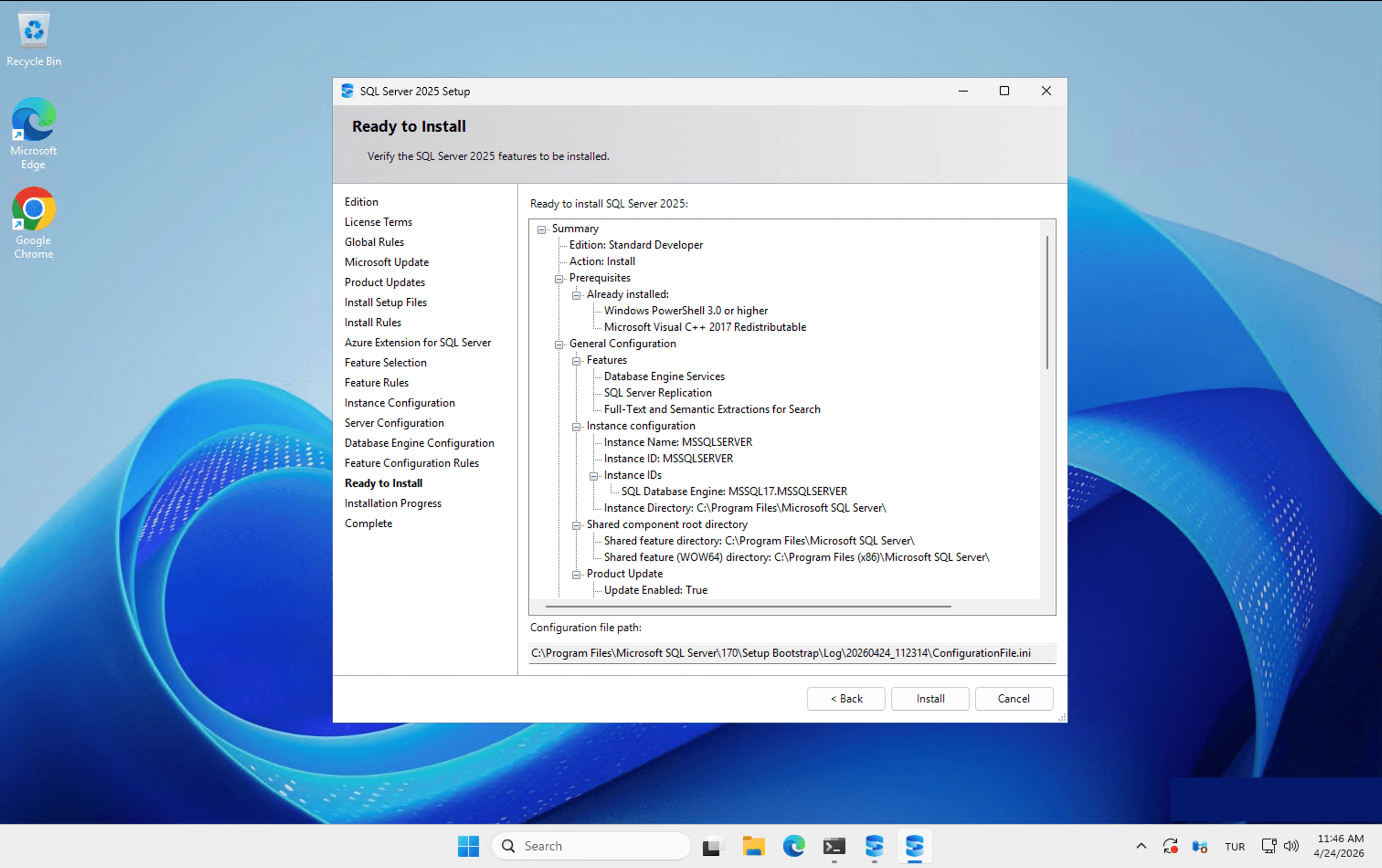
SQL Server 2025 Standard Developer install summary on Raff Windows Server with Database Engine, Full-Text Search, and default instance
On this page

Don't have a Windows Server yet?

Deploy Windows Server 2019/2022/2025 in ~2 minutes. 6-month evaluation licence included.

Deploy Windows now

In short

Installing SQL Server 2025 on a Raff Windows Server takes about 45 minutes. We recommend SQL Server 2025 Standard Developer Edition (free, brand new, full Standard feature parity for dev/test) on Windows Server 2025. Download via winget install, walk through the Custom wizard, pick Mixed Mode auth, split tempdb across 4 files, let the installer set MaxDOP automatically, and apply Cumulative Update 1 post-install. This guide is end-to-end tested on a Raff Production plan.

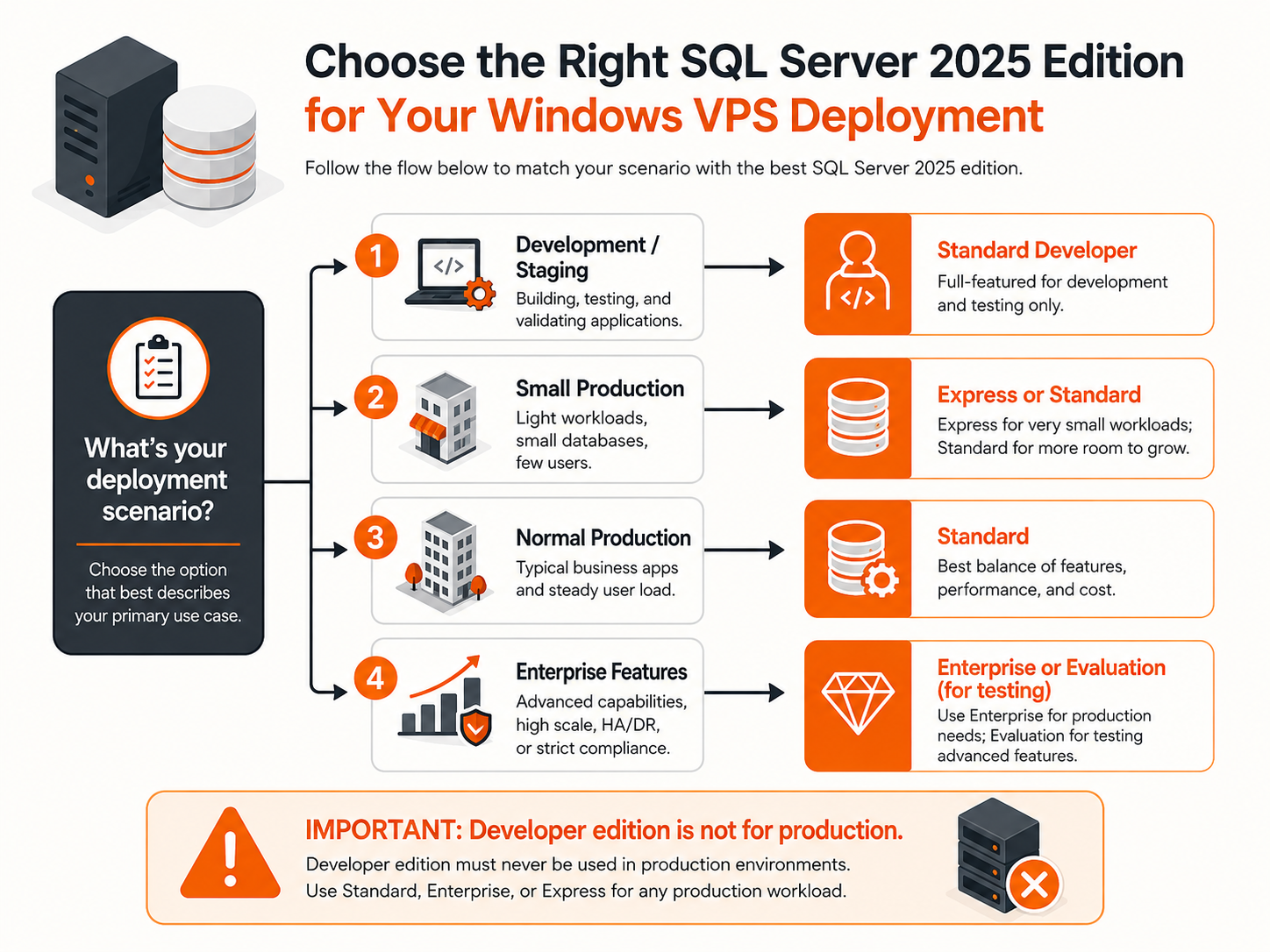
Which edition should you install?

SQL Server 2025 went GA on November 18, 2025, with a simplified edition lineup. Here's what matters for a Raff Server deployment:

EditionCostProduction?Key limitsBest for
Standard Developer (new in 2025)FreeNo (dev/test only)32 cores / 256 GB RAM / no unlimited virtualizationBuilding apps that will deploy on Standard in production
Enterprise DeveloperFreeNo (dev/test only)No limitsFull Enterprise testing without licensing cost
ExpressFreeYes1 socket / 4 cores / 1410 MB buffer pool / 50 GB per DBSingle-tenant small apps, light reporting
StandardPaid per coreYes32 cores / 256 GB RAMMost SMB / mid-market production
EnterprisePaid per core (3–4× Standard)YesNo limitsAlways On AGs, columnstore at scale, >256 GB RAM
EvaluationFree 180-day trialYes (during trial)No limitsTrying Enterprise features before buying

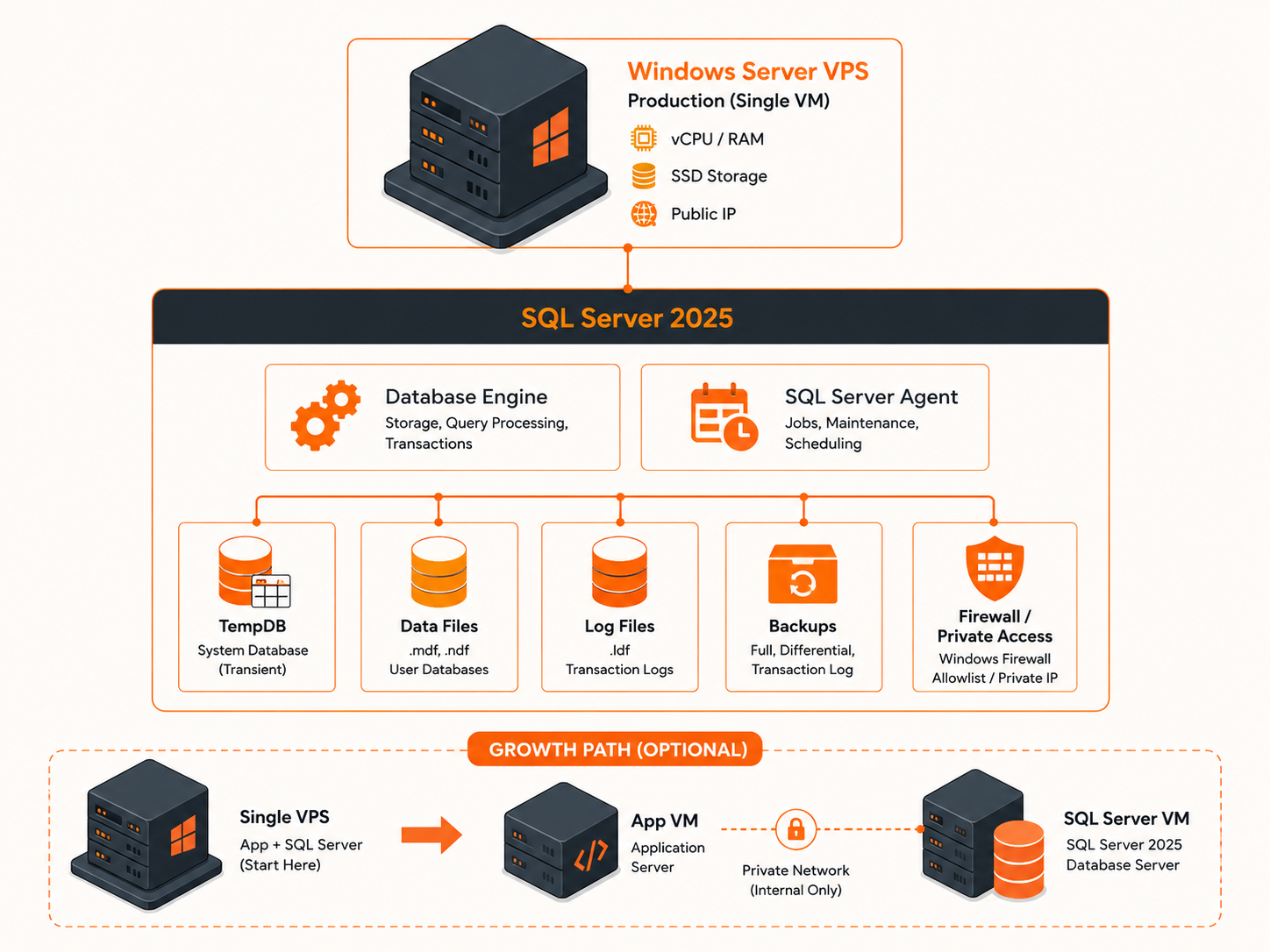
This guide walks through installing Standard Developer on Windows Server 2025, because it's the edition most readers will actually use for learning and pre-production work. The install process for paid Standard is identical — the only difference is the product key screen. Once you're comfortable with this install, you can repeat it with a paid Standard key, a Developer key for Enterprise testing, or Evaluation.

What you'll need

  • A Raff Windows Server sized for SQL workloads:
    • Production plan ($35.99/mo, 4 vCPU / 8 GB / 120 GB NVMe) — minimum realistic size with a working buffer pool (the VM we tested on)
    • Heavy Workload plan ($63.99/mo, 8 vCPU / 16 GB / 200 GB) — typical small-prod deployment
    • Enterprise plan ($127.99/mo, 16 vCPU / 32 GB / 400 GB) — OLTP workloads of meaningful size
  • Windows Server 2025 from the Raff dashboard template picker. See our Windows Server version comparison for the mainstream-support math on why 2025 is the right choice for new Q2 2026 deployments.
  • Local Administrator access to the Raff Server
  • No pending Windows rebootsthis is the #1 thing that blocks SQL Setup. If Windows has a pending restart flagged (from recent updates, an uninstall, or certain software installs), the installer's Global Rules check will fail at the "Restart computer" rule and refuse to continue. Always reboot the Raff Server right before running SQL Setup.
  • Estimated time: 45–75 minutes for first install, most of it waiting for the wizard.

Quick context: what changed in SQL Server 2025

Before you install, know that several features from earlier SQL versions are gone. Per Microsoft Learn's What's New in SQL Server 2025 and discontinued features pages:

  • Removed: Master Data Services (MDS), Data Quality Services (DQS), Machine Learning Services (R and Python), Synapse Link (use Mirroring in Fabric), Big Data Clusters (retired Feb 2025)
  • Consolidated: SQL Server Reporting Services is now rolled into Power BI Report Server, which is included with Standard and Enterprise core licenses at no extra cost
  • Discontinued editions: Web Edition, Express with Advanced Services (Advanced Services features are now in base Express)
  • Increased limits: Express database cap raised from 10 GB to 50 GB, Standard cores raised from 24 to 32, Standard RAM raised from 128 GB to 256 GB, Resource Governor now available in Standard

You'll see the absence of MDS, DQS, and Reporting Services in the Feature Selection screen later — the tree is visibly shorter than in 2022's installer.

If you're bringing forward a 2019/2022 workload that relies on MDS or DQS, stay on 2022 — you cannot upgrade in place to 2025 with those features installed, and Microsoft's upgrade docs tell you to uninstall them first.

Step 1 — Get SQL Server 2025 onto your Raff Server

Three working approaches, in order of speed to success:

winget is Microsoft's official package manager, built into Windows Server 2025. One PowerShell command pulls SQL Server 2025 Developer media directly from Microsoft's CDN:

powershell# See available SQL Server packages
winget search --id "Microsoft.SQLServer"

# Install SQL Server 2025 Developer (pulls Standard Developer media)
winget install --id Microsoft.SQLServer.2025.Developer

The Microsoft.SQLServer.2025.Developer package pulls the Standard Developer ISO media under the hood (you'll see C:\SQL2025\StdDev_ENU\ as the extracted location after it runs).

Important caveat: winget launches the SSEI bootstrap, which by default performs a Basic (one-click) install of just the Database Engine to C:\Program Files\Microsoft SQL Server\. Basic install means:

  • Single tempdb file (bad performance under load)
  • Everything in default Program Files paths
  • No Mixed Mode auth, no sa password set
  • No firewall rules
  • No Full-Text Search, no Replication
  • SQL Agent set to Manual startup

This is wrong for production. For a real install follow this sequence:

  1. Let winget complete the Basic install
  2. Uninstall the resulting MSSQLSERVER instance via Windows Settings → Apps → Installed apps → Microsoft SQL Server 2025 → Uninstall
  3. Remove any leftover C:\Program Files\Microsoft SQL Server\MSSQL17.MSSQLSERVER folder
  4. Reboot (clears any pending-restart flag)
  5. Re-run the installer from the already-extracted media:
    powershellStart-Process -FilePath "C:\SQL2025\StdDev_ENU\setup.exe" -Verb RunAs
    

The re-run takes you through the full Custom wizard, which is what the rest of this guide documents.

Option 2: Direct ISO download from Microsoft

Go to microsoft.com/en-us/sql-server/sql-server-downloads, click Download Standard Developer edition, and download the ~12 MB SQL2025-SSEI-StdDev.exe bootstrap. Run it on your Raff Server and pick Download Media (not Basic, not Custom) to save the full ISO to a folder. Then mount the ISO and run setup.exe manually.

Note: Microsoft's download portal is occasionally rate-limited ("We are currently experiencing high demand"). If this happens, use Option 1 (winget) — it hits a different Microsoft CDN endpoint.

Option 3: Microsoft Evaluation Center

Go to microsoft.com/en-us/evalcenter/sql-server-2025-download and register for Evaluation Edition. This is a separate backend from the main downloads page and almost always works when the main portal is throttled. You'll get Enterprise features with a 180-day timer.

The install wizard is identical across all three paths — only the edition picker value changes.

Do not drag-and-drop the ISO over RDP from your laptop. Per Microsoft Learn, SQL Setup will refuse to run from media that lives on a local RDC drive. The ISO must be on the Raff Server itself or a reachable network share.

Step 2 — Run the install wizard

From PowerShell on the Raff Server, launch setup as admin:

powershellStart-Process -FilePath "C:\SQL2025\StdDev_ENU\setup.exe" -Verb RunAs

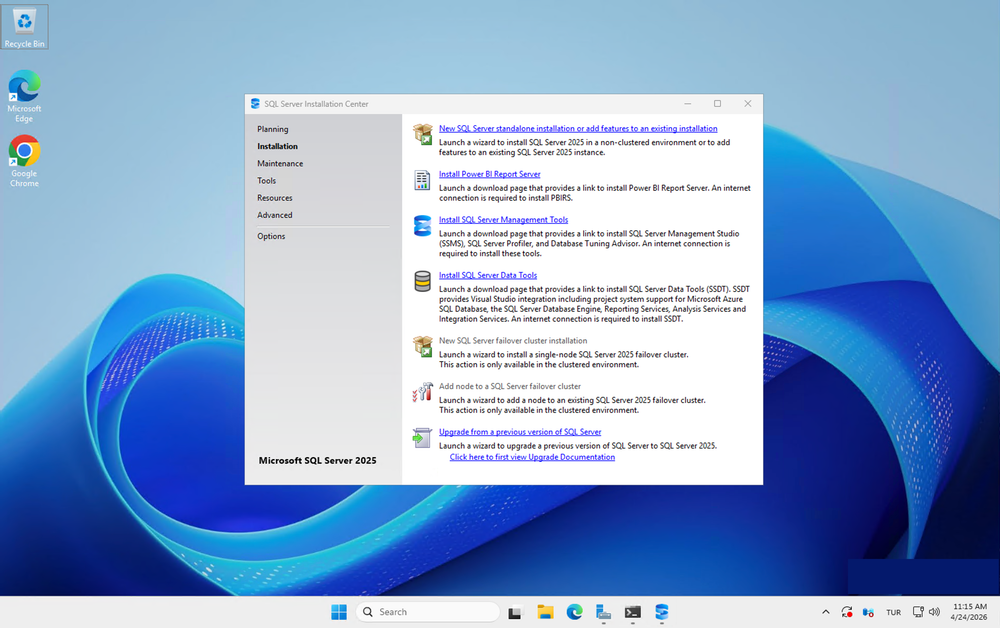
SQL Server 2025 Installation Center showing the Installation tab with New SQL Server standalone installation option highlighted

The SQL Server Installation Center opens. Click Installation in the left nav, then New SQL Server standalone installation or add features to an existing installation.

SQL Setup then walks you through 14 steps. Most are automatic or self-explanatory — we'll focus on the ones that matter.

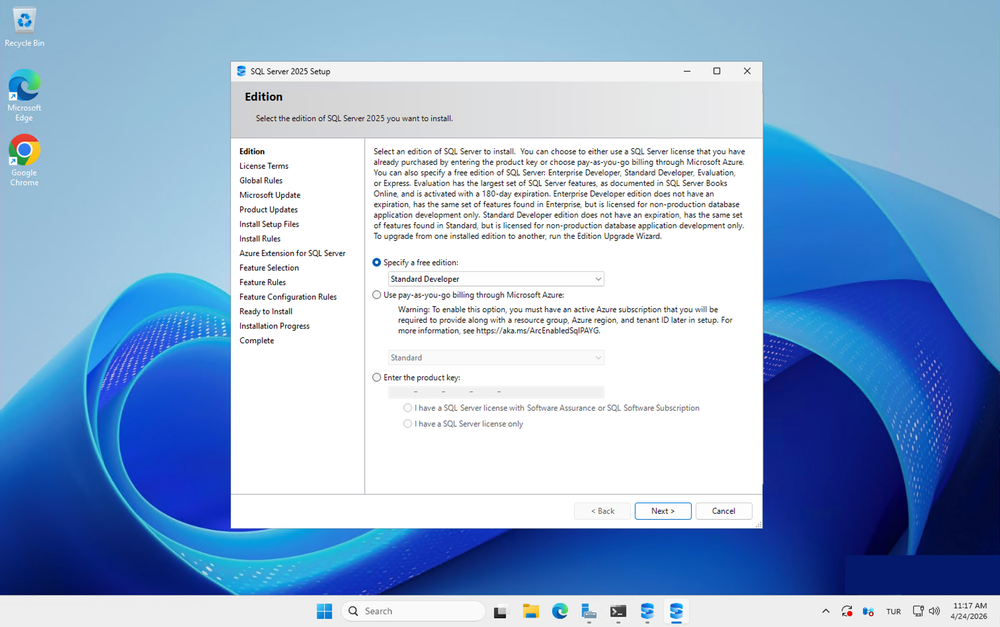
Edition

SQL Server 2025 Setup Edition screen with Standard Developer selected from the free edition dropdown

Select "Specify a free edition". From the dropdown pick Standard Developer. Microsoft's inline description confirms: "Standard Developer edition does not have an expiration, has the same set of features found in Standard, but is licensed for non-production database application development only."

For paid Standard, select "Enter the product key" and paste your 25-character key from your licensing partner.

Click Next.

License Terms, Global Rules, Microsoft Update, Product Updates, Install Setup Files

Accept the license. Tick "Use Microsoft Update to check for updates (recommended)" — this tries to pull applicable cumulative updates during install.

A practical note from our test: Microsoft Update during install doesn't always find current CUs. Our install completed with CU status "Scan: Completed; Download/Extract/Install Setup files: Skipped" — Microsoft Update returned no setup-integrable CUs for our build timestamp. Not a blocker; we apply CU1 as a post-install step at the end of this guide.

Global Rules should pass with 7–8 green checks. If "Restart computer" shows Failed, cancel the installer, reboot Windows, and re-launch setup — see Common Mistakes below.

Install Rules — the Windows Firewall warning is expected
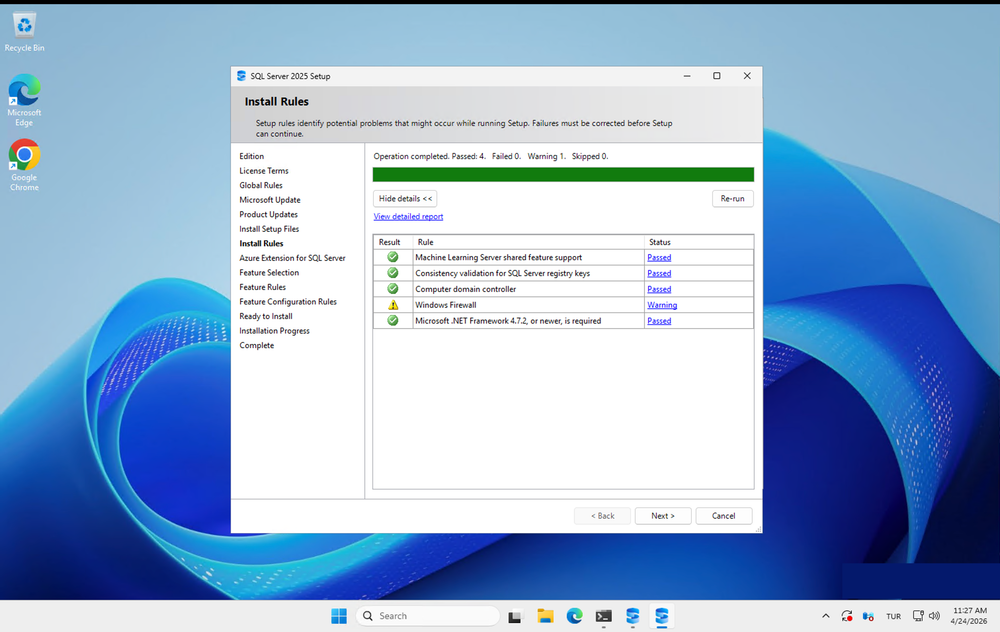
SQL Server 2025 Setup Install Rules showing four passed checks and one Windows Firewall warning, expected and safe to proceed

You'll see a yellow ⚠️ Warning next to Windows Firewall. This is normal and safe to proceed. Click the Warning link and it'll say the firewall is enabled and you'll need to open ports manually. We do that in Step 5. Click Next.

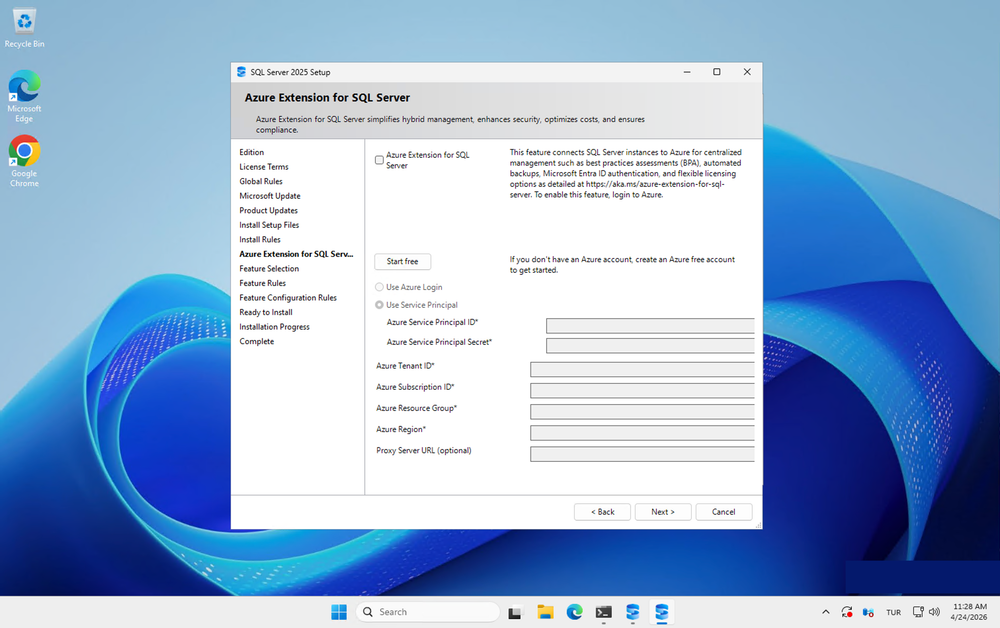
Azure Extension for SQL Server — untick this

SQL Server 2025 Setup Azure Extension screen with the checkbox unticked, skipping Azure Arc registration for a self-hosted Raff Server

New in 2025. The box is ticked by default with "Use Service Principal" selected, asking for Azure Subscription ID, Tenant ID, Resource Group, and Region. Untick the checkbox.

The Azure Extension registers your SQL instance with Azure Arc, which requires an active Azure subscription, adds a monthly per-server fee, and creates a continuous outbound dependency to Azure. For self-hosted Raff Server deployments — the reason most people are on Raff in the first place — this is almost always the wrong choice. You can always register with Azure Arc later if requirements change.

Feature Selection — minimum realistic install

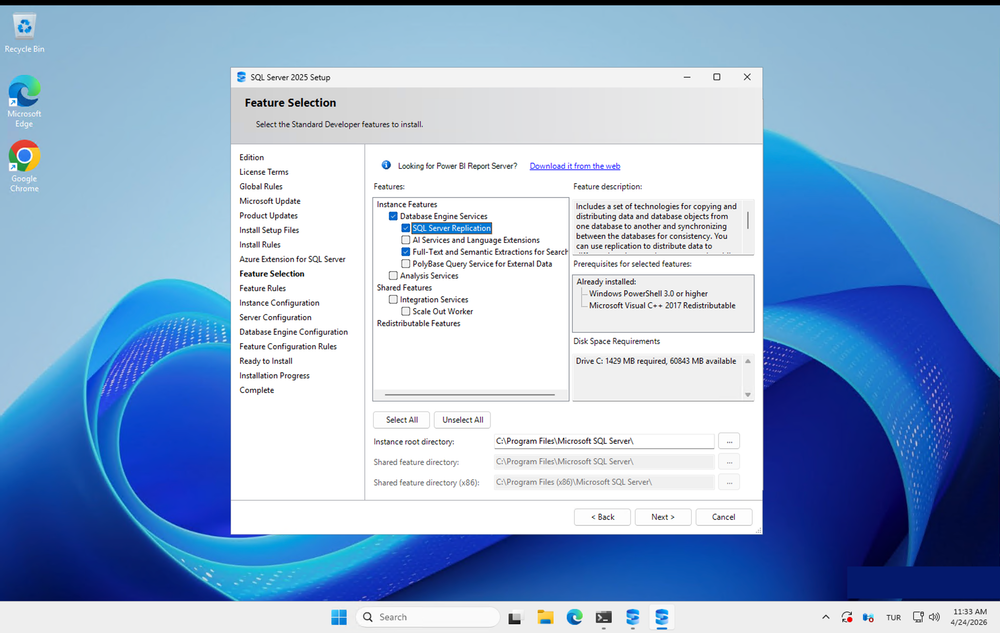
SQL Server 2025 Feature Selection with Database Engine Services, SQL Server Replication, and Full-Text Search ticked — recommended minimum

The feature tree is noticeably shorter than in SQL 2022. MDS, DQS, Machine Learning Services (R/Python), and Reporting Services are gone. The "Looking for Power BI Report Server?" link at the top sends readers to a separate download for what used to be SSRS.

Tick these three under Instance Features:

  • Database Engine Services — the core product, non-optional
  • SQL Server Replication — small footprint, enables pub/sub later without reinstall
  • Full-Text and Semantic Extractions for Search — cheap to include, commonly needed by LOB apps

Leave unticked:

  • AI Services and Language Extensions — the 2025 replacement for Machine Learning Services. Only tick if you'll run in-database AI or call external AI endpoints from T-SQL.
  • PolyBase Query Service for External Data — for querying external data sources. Niche.
  • Analysis Services — OLAP cubes, rarely needed now that Power BI handles analytics.
  • Integration Services — SSIS. Add later if you build SSIS packages.
  • Scale Out Worker — SSIS scale-out node. Only for multi-server SSIS clusters.

Leave all three directory paths (Instance root, Shared feature, Shared feature x86) at their defaults. We'll change actual data paths later on the Database Engine Configuration screen.

Instance Configuration — default instance

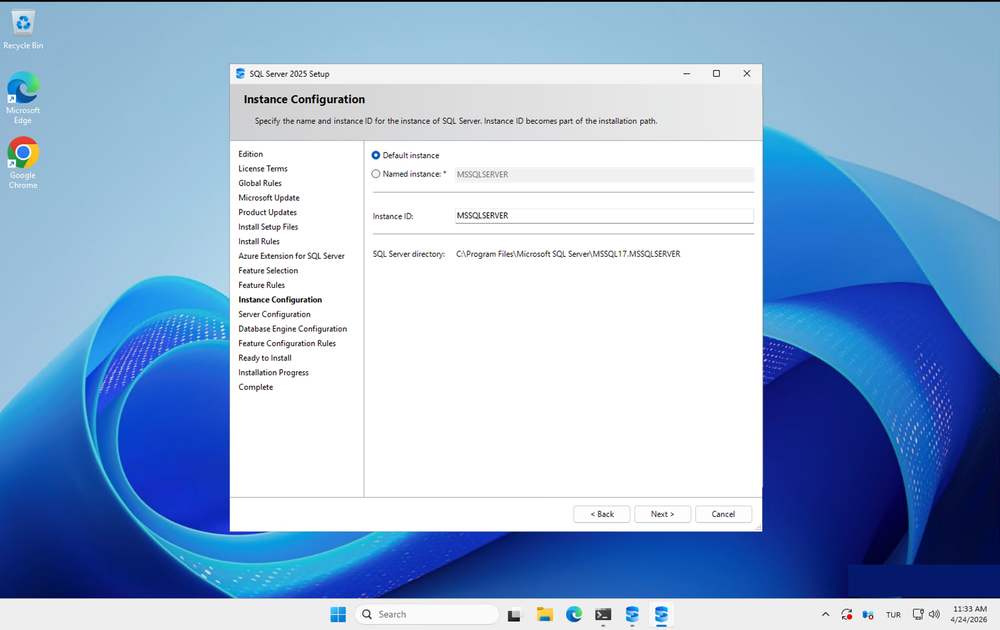
SQL Server 2025 Setup Instance Configuration with Default instance selected and MSSQLSERVER as the instance ID

Select Default instance. This creates MSSQLSERVER listening on TCP 1433, no SQL Browser service needed. Apps connect by hostname alone.

Named instances (custom name like SQL2025) are useful only when you need multiple SQL versions side-by-side on one server — which is not most people's situation.

Notice the SQL Server directory: C:\Program Files\Microsoft SQL Server\MSSQL17.MSSQLSERVER. The "17" = SQL 2025 major version.

Server Configuration — two changes required

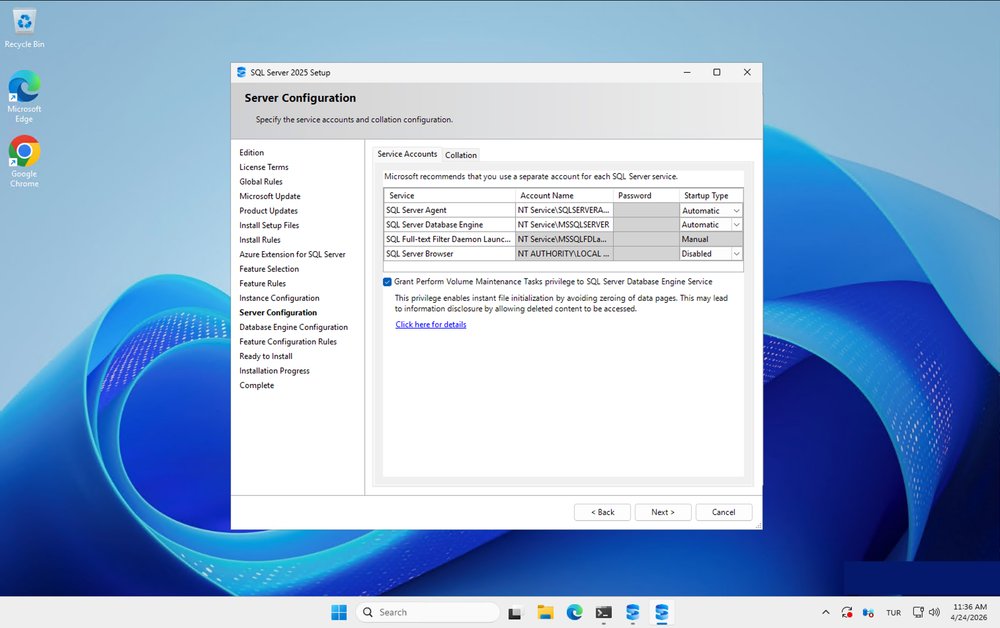
SQL Server 2025 Server Configuration with SQL Server Agent startup type set to Automatic and Volume Maintenance Tasks privilege ticked

Two things to change from the defaults:

1. Change SQL Server Agent startup type to Automatic. Defaults to Manual, which means Agent doesn't start after reboots — all your scheduled jobs silently stop. Click the Agent row's Startup Type dropdown and select Automatic.

2. Tick "Grant Perform Volume Maintenance Tasks privilege to SQL Server Database Engine Service" at the bottom of the screen. This enables instant file initialization for data files — when SQL creates or grows a data file, Windows skips the zeroing step. Difference between a 2-second data file grow and a 5-minute stall. Microsoft's warning about "information disclosure" refers to a theoretical forensic risk requiring raw disk access as Administrator; every SQL best-practices guide recommends ticking this.

Leave service accounts at defaults (NT Service\MSSQLSERVER, NT Service\SQLSERVERAGENT, NT Service\MSSQLFDLauncher). These are Windows virtual accounts with minimal privilege — exactly right.

Leave SQL Server Browser at Disabled (we're on default instance, no UDP 1434 service needed).

On the Collation tab, leave the default (SQL_Latin1_General_CP1_CI_AS) unless you have a specific collation requirement. Changing collation after install is painful.

Database Engine Configuration — the screen that matters most

Six tabs across the top. We'll configure four of them.

Server Configuration tab — authentication

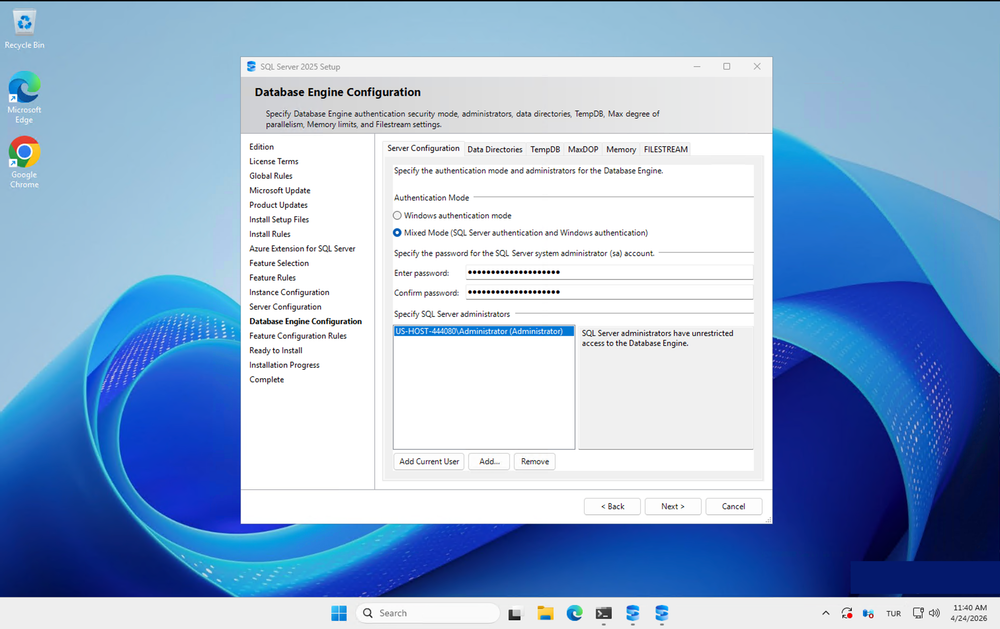
SQL Server 2025 Database Engine Configuration with Mixed Mode authentication selected and Administrator added as SQL Server admin

For a non-domain-joined Raff Server (which is most self-hosted deployments), pick Mixed Mode (SQL Server authentication and Windows authentication). Why:

  • Windows Authentication Only means local Windows accounts only, which in practice means just the Administrator account. Connecting apps and granting user access gets clumsy fast.
  • Mixed Mode lets you use SQL logins (username/password in connection strings) and also keeps Windows Auth working. Apps can use either.

Set a strong sa password (16+ characters, mixed case, numbers, symbols). Store it in a password manager before clicking Next — lose it and recovery requires single-user-mode tricks.

Click Add Current User to grant the logged-in Administrator sysadmin rights. Without at least one sysadmin, you'll lock yourself out.

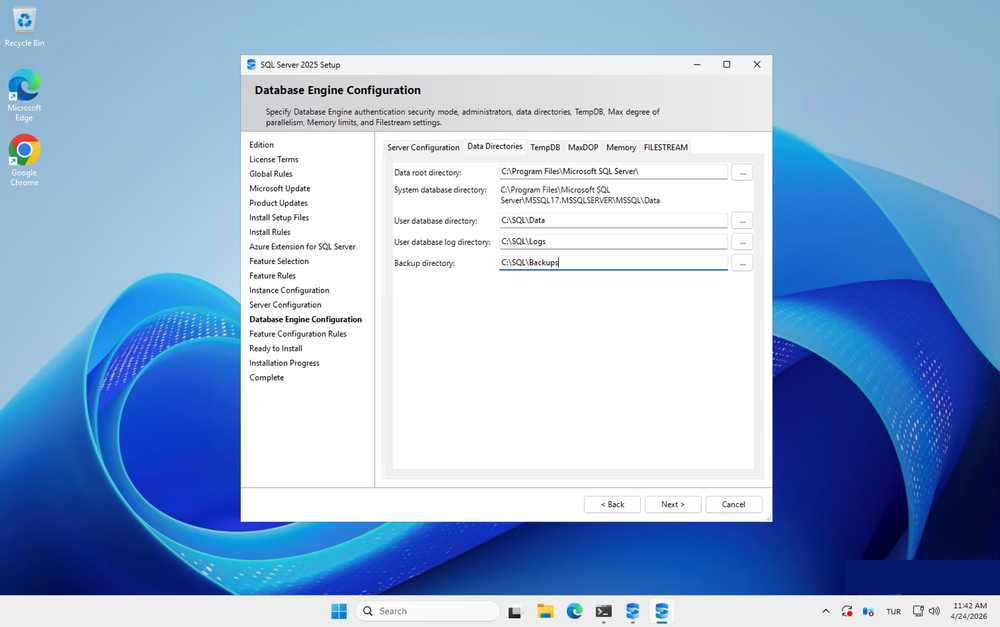
Data Directories tab

SQL Server 2025 Data Directories tab with user databases, logs, and backups separated into clean C:\SQL folder structure

Defaults bury everything under C:\Program Files\Microsoft SQL Server\MSSQL17.MSSQLSERVER\MSSQL\.... Cleaner for organization and backups to split user databases into a C:\SQL\ tree:

FieldChange to
Data root directory(leave default)
System database directory(leave default)
User database directoryC:\SQL\Data
User database log directoryC:\SQL\Logs
Backup directoryC:\SQL\Backups

If you have multiple data volumes (rare on a Raff Server), you can split logs to a separate drive letter. For single-volume VMs, this clean folder structure is the practical win.

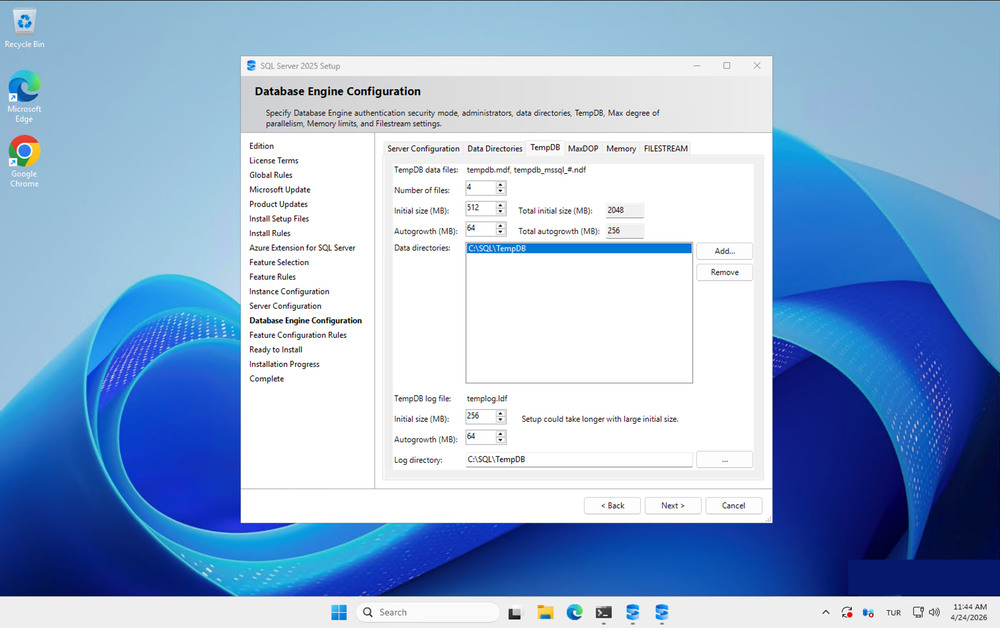
TempDB tab — biggest performance screen in the install

SQL Server 2025 TempDB tab configured with 4 data files at 512 MB each, 64 MB autogrowth, and C:\SQL\TempDB path

SQL Server 2025's installer auto-detects vCPU count and proposes a file count — that much is helpful. But you still need to override the default paths (buried) and verify the sizes are appropriate. For a 4 vCPU / 8 GB Production plan Raff Server:

SettingValue
Number of files4 (installer usually proposes this; verify it matches min(8, vCPU count))
Initial size (MB)512 per file
Autogrowth (MB)64 (fixed — not 10%)
Data directoryC:\SQL\TempDB
TempDB log file initial size (MB)256
TempDB log file autogrowth (MB)64
Log directoryC:\SQL\TempDB

Multiple equal-sized tempdb files eliminate the classic "SGAM/PFS/GAM page latch contention" you'd otherwise hit the first time a few users run concurrent sorts or temp-table-heavy queries. Per Microsoft's tempdb guidance, equal-sized files enable the proportional-fill algorithm to spread allocations evenly.

Total tempdb initial size: 4 × 512 = 2048 MB (2 GB). Right for 8 GB RAM. On 16 GB VMs bump per-file size to 1024 MB; on 32 GB+ bump to 2048 MB.

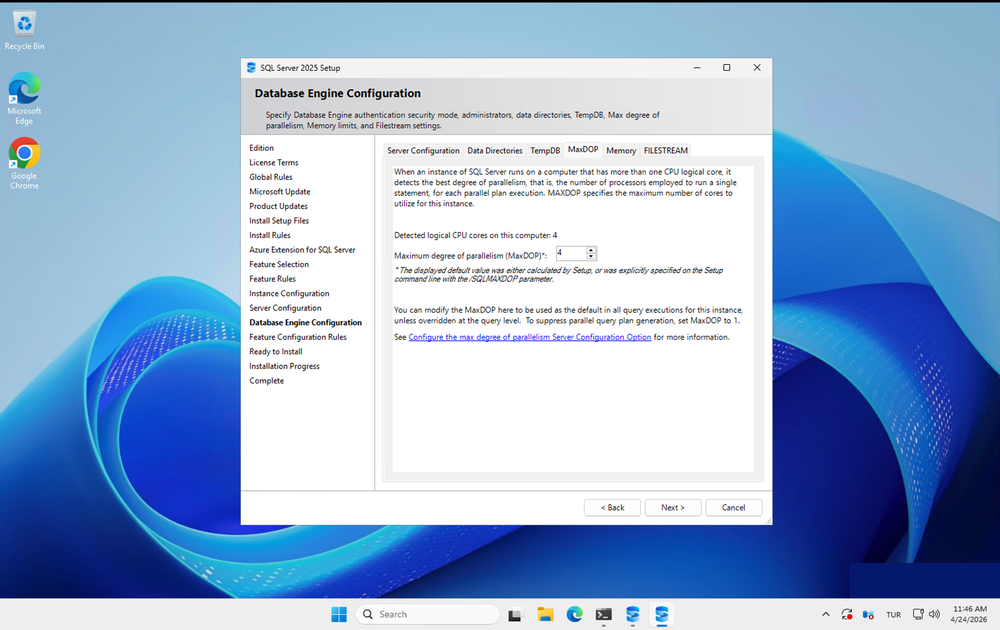
MaxDOP tab — trust the default

SQL Server 2025 MaxDOP tab showing auto-detected 4 logical CPU cores and MaxDOP set to 4 for the Raff Production plan

Unlike TempDB, the MaxDOP tab is one case where the installer's default is actually right. SQL Setup auto-detects your logical CPU count and proposes MaxDOP = min(8, cores). On a 4 vCPU Raff Server it proposes 4. On 8 vCPU it proposes 8. On 16+ vCPU it caps at 8.

Verify the "Detected logical CPU cores" line matches your plan's vCPU count, verify MaxDOP matches min(8, detected cores), and move on.

Don't set MaxDOP to 0 ("use all available") — on small VMs this causes thread starvation under concurrent load.

Memory and FILESTREAM tabs — skip

The Memory tab lets you cap Min/Max Server Memory during install, but we'll do this post-install via T-SQL for more flexibility. Leave at defaults.

Leave FILESTREAM tab at default (disabled). Only relevant if you store BLOBs as files with database metadata.

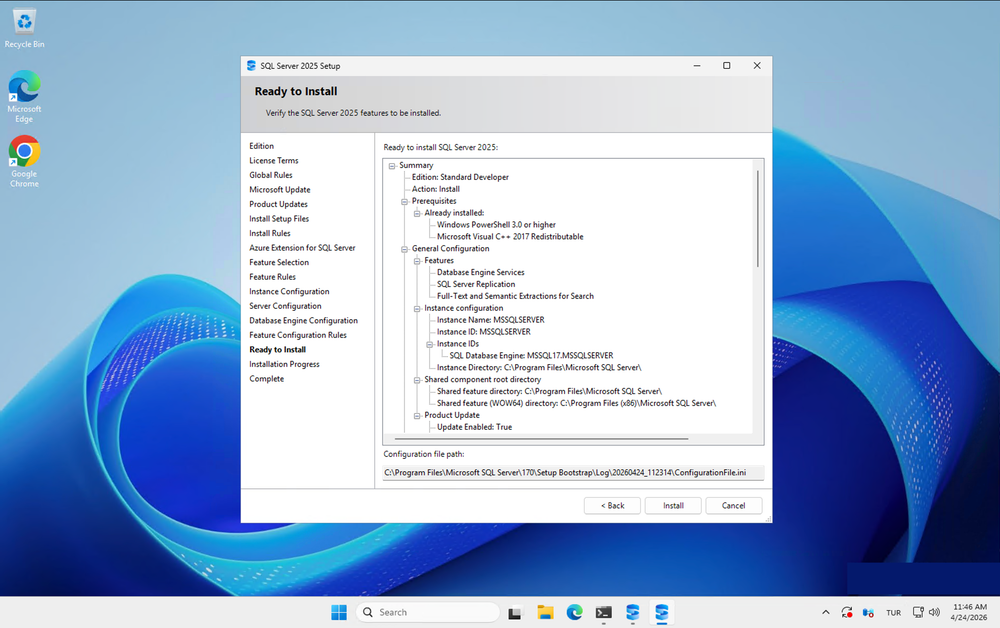
Ready to Install

SQL Server 2025 Ready to Install summary showing Standard Developer edition with Database Engine, Replication, Full-Text Search and default instance

Review the summary. Every choice from the previous screens is listed. Scroll down in the summary box to verify:

  • Features: Database Engine, Replication, Full-Text Search
  • Instance: MSSQLSERVER (default)
  • Data / Log / Backup directories under C:\SQL\
  • TempDB: 4 files × 512 MB at C:\SQL\TempDB
  • MaxDOP: matches vCPU count (or 8, whichever is lower)

Note the Configuration file path at the bottom — something like C:\Program Files\Microsoft SQL Server\170\Setup Bootstrap\Log\[timestamp]\ConfigurationFile.ini. This INI file contains every choice you made. Save it — you can use it for scripted, identical installs on future Raff Servers:

powershellsetup.exe /ConfigurationFile=ConfigurationFile.ini /QUIET /IACCEPTSQLSERVERLICENSETERMS

Click Install. Takes 15–30 minutes.

Complete

<!-- IMAGE: raff_mssql2025_complete_success_2026_04.png -->

When Setup finishes, you'll see a Complete screen listing each feature's install status. Expected: all green "Succeeded". Note the Install log folder path in case anything needs diagnosing later.

Click Close.

Step 3 — Post-install: cap memory and apply CU1

Two things to do before the instance goes near production.

Cap Max Server Memory

From a PowerShell window on the Raff Server, or via SSMS later:

sql-- 8 GB VM: reserve 2 GB for Windows, leaving 6 GB for SQL
EXEC sp_configure 'show advanced options', 1;
RECONFIGURE;
EXEC sp_configure 'max server memory (MB)', 6144;
RECONFIGURE;

-- Verify
EXEC sp_configure 'max server memory (MB)';

Scale for your plan:

  • 8 GB VM: cap at 6144 MB
  • 16 GB VM: cap at 13312 MB
  • 32 GB VM: cap at 28672 MB

Never leave the default (2,147,483,647 MB — effectively 2 petabytes). SQL will consume all available RAM and push Windows into the paging file.

Apply Cumulative Update 1 (or later)

Our install ran against RTM (17.0.1000.7) because Microsoft Update during install returned no setup-integrable CUs at the time of testing. Apply CU1 (17.0.4005.7, released January 15, 2026) manually:

  1. Go to Microsoft Update Catalog — SQL Server 2025 CU1 or the SQL Server 2025 build list
  2. Download the CU installer for your edition
  3. Run the installer, accept license, click Update
  4. Reboot when prompted
  5. Verify the build: SELECT SERVERPROPERTY('ProductLevel'), SERVERPROPERTY('ProductUpdateLevel'), @@VERSION;

CU1 addresses a linked-server elevation-of-privilege vulnerability (CVE-2026-32176) among other fixes. Worth doing before exposing the instance.

Step 4 — Install SSMS on your workstation

SQL Server Management Studio is the management GUI. Microsoft's current recommendation is to install it on your admin workstation, not on the Raff Server — SSMS is hundreds of MB, it's a GUI you don't need on the server, and modern SSMS connects fine over TCP 1433.

Download SSMS 22 (the current stable, released alongside SQL 2025) from Microsoft Learn — SSMS install. SSMS 21 also works if you already have it.

On your workstation after installing SSMS:

  1. Launch SQL Server Management Studio
  2. Server name: your Raff Server's IP
  3. Authentication: SQL Server Authentication
  4. Login: sa
  5. Password: the sa password you set during install
  6. Click Connect

You should see your instance with system databases (master, tempdb, model, msdb) in Object Explorer.

Step 5 — Open the firewall

By default SQL Server listens on TCP 1433 but Windows Firewall blocks it. Per Microsoft Learn's Windows Firewall for SQL Server guide:

powershell# Allow inbound TCP 1433 (SQL default instance)
New-NetFirewallRule -DisplayName "SQL Server (TCP 1433)" `
    -Direction Inbound -Protocol TCP -LocalPort 1433 `
    -Action Allow -Profile Any

Immediately restrict 1433 to your admin IPs. Exposing SQL Server to the open internet is asking to be brute-forced:

powershell# Replace with your office/admin public IP
Set-NetFirewallRule -DisplayName "SQL Server (TCP 1433)" `
    -RemoteAddress "203.0.113.10/32"

For production, pick one:

  • Restrict by IP (simplest, works if your team has stable public IPs)
  • SSH or VPN tunnel — no public 1433 at all
  • Cloudflare Tunnel or similar zero-trust proxy — per-user access control without a VPN concentrator

Never leave TCP 1433 open to 0.0.0.0/0. Attackers actively scan IPv4 for SQL Server fingerprints and will start brute-forcing sa within minutes of exposure.

Step 6 — Verify the install

Two levels of verification: a quick smoke test to confirm the instance is alive, and a comprehensive check that every setting we configured during the wizard actually stuck.

Quick smoke test

From the Raff Server (PowerShell):

powershell# Confirm services are running
Get-Service -Name MSSQLSERVER, SQLSERVERAGENT | Format-Table Name, Status, StartType

# Local connectivity
Invoke-Sqlcmd -ServerInstance "localhost" -Query `
  "SELECT @@VERSION AS Version, SERVERPROPERTY('Edition') AS Edition, SERVERPROPERTY('ProductLevel') AS Build"

Expected:

  • Services: both Running, MSSQLSERVER Automatic, SQLSERVERAGENT Automatic (if you set it correctly in Step 2)
  • Edition: Standard Developer Edition (64-bit)

From your workstation with the SqlServer PowerShell module installed:

powershellInvoke-Sqlcmd -ServerInstance "YOUR_RAFF_SERVER_IP,1433" `
    -Username "sa" -Password "YourStrongPassword" `
    -Query "SELECT @@SERVERNAME, SERVERPROPERTY('Edition')"

If this returns the server name and edition, remote connectivity works.

Comprehensive post-install verification

This script confirms every setting we touched during the install actually applied. Paste it into an admin PowerShell session on the Raff Server:

powershellWrite-Host "`n=== 1. Services ===" -ForegroundColor Cyan
Get-Service -Name MSSQLSERVER, SQLSERVERAGENT |
    Format-Table Name, Status, StartType -AutoSize

Write-Host "=== 2. TCP 1433 Listening ===" -ForegroundColor Cyan
$tcpTest = Test-NetConnection -ComputerName localhost -Port 1433 -InformationLevel Quiet
Write-Host "TCP 1433 open on localhost: $tcpTest"

Write-Host "`n=== 3. Firewall Rule ===" -ForegroundColor Cyan
Get-NetFirewallRule -DisplayName "SQL Server*" -ErrorAction SilentlyContinue |
    Format-Table DisplayName, Enabled, Action, Direction -AutoSize

Write-Host "=== 4. Version, Edition, Auth Mode ===" -ForegroundColor Cyan
Invoke-Sqlcmd -ServerInstance "localhost" -Query @"
SELECT
    SERVERPROPERTY('ProductVersion') AS Version,
    SERVERPROPERTY('Edition')        AS Edition,
    SERVERPROPERTY('ProductLevel')   AS PatchLevel,
    SERVERPROPERTY('ProductUpdateLevel') AS CULevel,
    CASE SERVERPROPERTY('IsIntegratedSecurityOnly')
        WHEN 0 THEN 'Mixed Mode'
        WHEN 1 THEN 'Windows Only'
    END AS AuthMode,
    SERVERPROPERTY('InstanceDefaultDataPath')   AS DataPath,
    SERVERPROPERTY('InstanceDefaultLogPath')    AS LogPath,
    SERVERPROPERTY('InstanceDefaultBackupPath') AS BackupPath
"@ | Format-List

Write-Host "=== 5. Instance Configuration (Memory / MaxDOP / Parallelism threshold) ===" -ForegroundColor Cyan
Invoke-Sqlcmd -ServerInstance "localhost" -Query @"
SELECT name, value_in_use
FROM sys.configurations
WHERE name IN (
    'max server memory (MB)',
    'min server memory (MB)',
    'max degree of parallelism',
    'cost threshold for parallelism'
)
ORDER BY name
"@ | Format-Table -AutoSize

Write-Host "=== 6. TempDB Files ===" -ForegroundColor Cyan
Invoke-Sqlcmd -ServerInstance "localhost" -Query @"
SELECT
    name,
    physical_name,
    size * 8 / 1024 AS SizeMB,
    CASE is_percent_growth
        WHEN 0 THEN CAST(growth * 8 / 1024 AS VARCHAR) + ' MB'
        WHEN 1 THEN CAST(growth AS VARCHAR) + ' %'
    END AS Growth
FROM tempdb.sys.database_files
ORDER BY type, name
"@ | Format-Table -AutoSize

Write-Host "=== 7. SQL Agent Jobs ===" -ForegroundColor Cyan
Invoke-Sqlcmd -ServerInstance "localhost" -Query @"
SELECT name, enabled, date_created
FROM msdb.dbo.sysjobs
ORDER BY name
"@ | Format-Table -AutoSize

Write-Host "=== 8. Recent SQL Server error log entries (last 10 lines) ===" -ForegroundColor Cyan
Invoke-Sqlcmd -ServerInstance "localhost" -Query @"
EXEC sp_readerrorlog 0, 1
"@ -QueryTimeout 5 2>$null | Select-Object -Last 10 | Format-Table -AutoSize

What to look for in the output

Match the output against what you configured during install:

CheckExpected value
ServicesMSSQLSERVER + SQLSERVERAGENT both Running, both Automatic startup
TCP 1433True on localhost
Firewall rule"SQL Server (TCP 1433)" present, Enabled, Allow, Inbound
EditionStandard Developer Edition (64-bit)
AuthModeMixed Mode
DataPathC:\SQL\Data\
LogPathC:\SQL\Logs\
BackupPathC:\SQL\Backups\
max server memory (MB)6144 (on 8 GB VM — or whatever you set post-install)
max degree of parallelism4 (on 4 vCPU Raff Server)
tempdb data files4 rows, each SizeMB = 512, Growth = 64 MB
tempdb log file1 row, SizeMB = 256, Growth = 64 MB
Error logNo recent Error: or Severity: lines

If any value doesn't match, check the Step 2 subsection that controls that setting. Mismatches usually mean you skipped or mis-clicked a wizard tab. Most settings can be fixed post-install via T-SQL (sp_configure) or by editing tempdb files, but it's cleaner to know early.

One-liner quick check

If you just want a single line of "yes this works", run this from PowerShell on the Raff Server:

powershellInvoke-Sqlcmd -ServerInstance "localhost" -Query "SELECT 'SQL Server 2025 is running as ' + CAST(SERVERPROPERTY('Edition') AS NVARCHAR) + ' build ' + CAST(SERVERPROPERTY('ProductVersion') AS NVARCHAR) AS Status"

You should see something like: SQL Server 2025 is running as Standard Developer Edition (64-bit) build 17.0.1000.7.

Common mistakes

  1. Pending Windows restart blocks install. The installer's Global Rules check will fail with "Restart computer: Failed" and refuse to continue. Happens after recent Windows Updates, software uninstalls, or certain installs. Fix: reboot before starting SQL Setup. This is the #1 reason first-time SQL installs fail at the first wizard step.
<!-- IMAGE: raff_mssql2025_global_rules_restart_pending_2026_04.png -->
  1. winget's Basic install trap. winget install Microsoft.SQLServer.2025.Developer completes successfully — but it runs a Basic (one-click) install with bad defaults: single tempdb file, MAXDOP 0, Windows Auth only, no sa password, firewall closed. If you're following this guide, uninstall the winget-installed instance first, then re-run C:\SQL2025\StdDev_ENU\setup.exe to get the Custom wizard.

  2. Running setup.exe with the ISO on your local RDP client machine. SQL Setup refuses. The ISO must be on the Raff Server or a network share.

  3. Single tempdb file. The installer now auto-sets file count based on vCPU, but still defaults to small initial sizes (often 8 MB). Always review and set explicitly: min(8, vCPU) files, 512 MB each on 8 GB VMs.

  4. Leaving Max Server Memory at the default (2 PB). SQL consumes all RAM and starves Windows. Cap it via sp_configure 'max server memory' post-install.

  5. MaxDOP = 0. "Use all available" sounds fine, but on small VMs it causes thread starvation. SQL 2025's installer sets MaxDOP correctly by default — don't override to 0.

  6. Mixed Mode picked but sa password lost. Store it in a password manager the moment you type it. Recovery requires single-user-mode tricks.

  7. Installing on a domain controller. Install Rules will flag it. Don't. Use a dedicated Raff Server for SQL.

  8. Forgetting the firewall. Install succeeds, localhost works, remote connections time out. The installer does not open TCP 1433.

  9. Opening 1433 to the internet. Restrict by IP, tunnel, or proxy. Never blanket-expose SQL Server.

  10. Trying to install Machine Learning Services or MDS out of habit. They're gone in 2025. If you need Python/R near the data, Microsoft points to Azure Machine Learning or running ML workloads outside the engine.

When to step up to paid Standard or Enterprise

Standard Developer Edition is licensed for development, testing, and demonstration only — you cannot use it to run your production app. If you're deploying a real workload:

  • Express stays free but caps at 4 cores, 1410 MB buffer pool, and 50 GB per database. Great for a single small LOB app, inadequate for anything with serious concurrency or data volume.
  • Standard is the mid-market production choice. 32 cores / 256 GB RAM per instance, Resource Governor, Power BI Report Server included. Licensed per core, sold through Microsoft volume licensing partners or your existing CSP/EA.
  • Enterprise is the step up for Always On Availability Groups, columnstore indexes at scale, >256 GB RAM, or unlimited virtualization rights. Roughly 3–4× Standard's per-core price.

Raff doesn't resell SQL Server licenses — bring your own through your Microsoft licensing partner, Software Assurance, or an MSP that holds Standard/Enterprise core licenses on your behalf.

Tested on Raff

Tested on: SQL Server 2025 Standard Developer Edition (build 17.0.1000.7 RTM) installed on a Raff Windows Server 2025 — Production plan, 4 vCPU / 8 GB RAM / 120 GB NVMe, Windows Server 2025 Standard build 26100, Vint Hill, Virginia datacenter — on April 24, 2026, by Serdar Tekin. We verified: winget-based media acquisition via Microsoft.SQLServer.2025.Developer package; Custom install wizard with Azure Extension unticked, Mixed Mode auth, tempdb configured as 4 files × 512 MB at C:\SQL\TempDB, MaxDOP auto-set to 4, C:\SQL\Data / C:\SQL\Logs / C:\SQL\Backups data directory structure, SQL Server Agent set to Automatic startup, Perform Volume Maintenance Tasks privilege granted for instant file initialization; post-install firewall rule for TCP 1433 successfully applied; local and remote connectivity tests passed; SELECT @@VERSION returned "Standard Developer Edition" confirming Standard edition feature limits apply. CU1 application documented as a post-install step.

What's next

Sources


Microsoft, Windows Server, SQL Server, and SQL Server Management Studio are trademarks of Microsoft Corporation. Raff Technologies is an independent infrastructure provider and is not affiliated with, sponsored by, or endorsed by Microsoft Corporation.

Published April 20, 2026 · Last updated April 20, 2026