
In short
Windows Server patch management is the controlled process of assessing, testing, installing, rebooting, validating, and documenting Windows updates without creating unnecessary production downtime. Raff Technologies recommends a risk-based process: prioritize actively exploited or highly exposed vulnerabilities, validate routine monthly security updates through a small deployment ring, patch production during a defined maintenance window, and verify the real application after reboot.
Do not use a blanket rule such as "always patch immediately" or "always wait 14 days." The right timing depends on exploitation status, internet exposure, application risk, available mitigations, Microsoft known issues, and the quality of your rollback path.
For a small production environment, the practical sequence is:
Assess risk
-> verify backup and rollback
-> test when practical
-> patch in a maintenance window
-> reboot deliberately
-> validate the workload
-> document the result
Windows Server patch management best practices
For most production Windows Server workloads, use these practices as the operating baseline:
- Prioritize by risk, not only severity. Known exploitation and internet exposure can justify faster remediation than a normal monthly schedule.
- Review Microsoft release health before deployment. Check the affected Windows Server version and KB for known issues and replacement updates.
- Use deployment rings when possible. Patch a lab, staging system, or lower-risk server before the primary production workload.
- Verify backups before change. Use application-aware backups where required and a short-term VM recovery point when appropriate.
- Control the maintenance window. Decide who installs the update, when restart is allowed, and how long validation may take.
- Avoid unnecessary preview updates on healthy production servers. Reduce change volume unless a preview fixes a problem you actually have.
- Validate the application, not just Windows. A successful boot does not prove IIS, SQL Server, RDS, file shares, accounting software, or automation still works.
- Set a rollback deadline. If the critical workload cannot be restored inside the agreed validation window, execute the recovery plan instead of troubleshooting indefinitely.
- Record installed KBs and outcome. Patch history should be part of the server runbook.
- Treat Hotpatch as a restart-reduction tool, not a replacement for patch management. Baseline updates and other update types can still require reboots.
These practices apply whether you update one Windows VPS manually or manage a larger fleet with WSUS, Azure Update Manager, an RMM platform, or another approved patch-management system.
How to patch Windows Server in production
A safe Windows Server patching process has seven stages.
| Stage | What to do |
|---|---|
| 1. Assess | Review the update, CVEs, known exploitation, affected roles, and Microsoft known issues |
| 2. Protect | Confirm application backups, VM recovery, administrative access, and rollback ownership |
| 3. Validate | Patch a representative lab, staging system, or lower-risk server when practical |
| 4. Schedule | Notify users and open a maintenance window with enough time for reboot and smoke tests |
| 5. Install | Install only the approved updates using your normal Windows update-management method |
| 6. Reboot and test | Restart deliberately when required, then validate Windows and the actual workload |
| 7. Close or roll back | Document success, or execute the predefined rollback path if validation fails |
For an emergency vulnerability, use the same controls on a shorter timeline rather than abandoning the process.
Production patching starts with a risk decision
| Update situation | Recommended response |
|---|---|
| Known exploitation affecting an exposed component | Prioritize testing and remediation immediately; compress the normal change window |
| Critical/security update with no known exploitation | Validate quickly, then deploy through the normal production patch window |
| Normal monthly cumulative security update | Stage through test or low-risk systems, then production after validation |
| Out-of-band security update | Review the specific issue and affected component immediately |
| Optional nonsecurity preview | Usually skip on production unless it fixes a problem you actually have |
| Driver or firmware update | Install only when required and supported for the environment |
| Windows Server version upgrade | Treat as a migration or upgrade project, not routine monthly patching |
CISA maintains the Known Exploited Vulnerabilities catalog so organizations can use evidence of exploitation as a vulnerability-prioritization signal. Exposure still matters. An internet-facing affected service usually deserves a shorter remediation window than a disabled component on an isolated test server.
The goal is not to install every update the minute it appears. The goal is to reduce security exposure without creating avoidable production outages.
Patch Tuesday gives you a predictable monthly cycle
Microsoft's monthly security update is released on the second Tuesday of each month, commonly called Patch Tuesday or Update Tuesday. These monthly security releases are cumulative and include security fixes plus previous applicable quality changes.
Microsoft also publishes an optional nonsecurity preview release, normally on the fourth Tuesday of the month, and can publish out-of-band updates when a newly identified issue or vulnerability requires action outside the normal schedule.
That gives production teams a predictable operating rhythm:
- Review the monthly security release and Microsoft release health.
- Identify whether the update affects your Windows Server version and enabled roles.
- Check exploitation signals and vendor advisories.
- Test or patch a lower-risk ring when practical.
- Move the update into the production maintenance window.
- Accelerate the schedule when active exploitation or exposure makes delay unsafe.
A fixed "wait 7 to 14 days" rule is less useful than this risk-based model.
Automatic workstation-style updating is a poor production policy
A production server can host RDS sessions, accounting software, SQL Server, IIS, ERP software, file services, automation jobs, or other workloads that users expect to stay available.
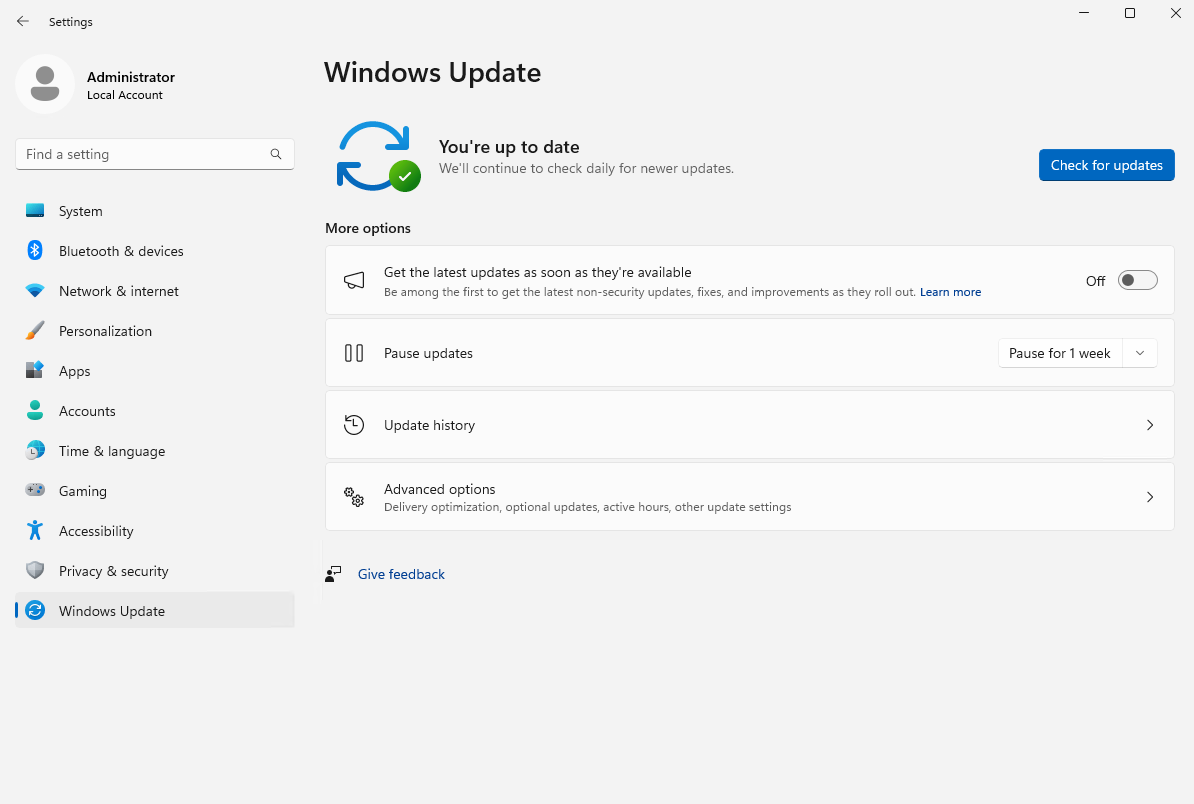
A production update policy should answer these questions before the next monthly release:
- Who owns patch approval?
- Which server is patched first?
- What constitutes an emergency update?
- When may the server reboot?
- What recovery point exists before change?
- Which application checks prove the patch succeeded?
- Who communicates downtime to users?
- How is the update documented afterward?
The server should not discover its maintenance policy during the update itself.
What Raff tested on Windows Server 2025
The existing screenshots and PowerShell checks in this article were captured on a Raff Windows Server 2025 lab VM on May 24, 2026.
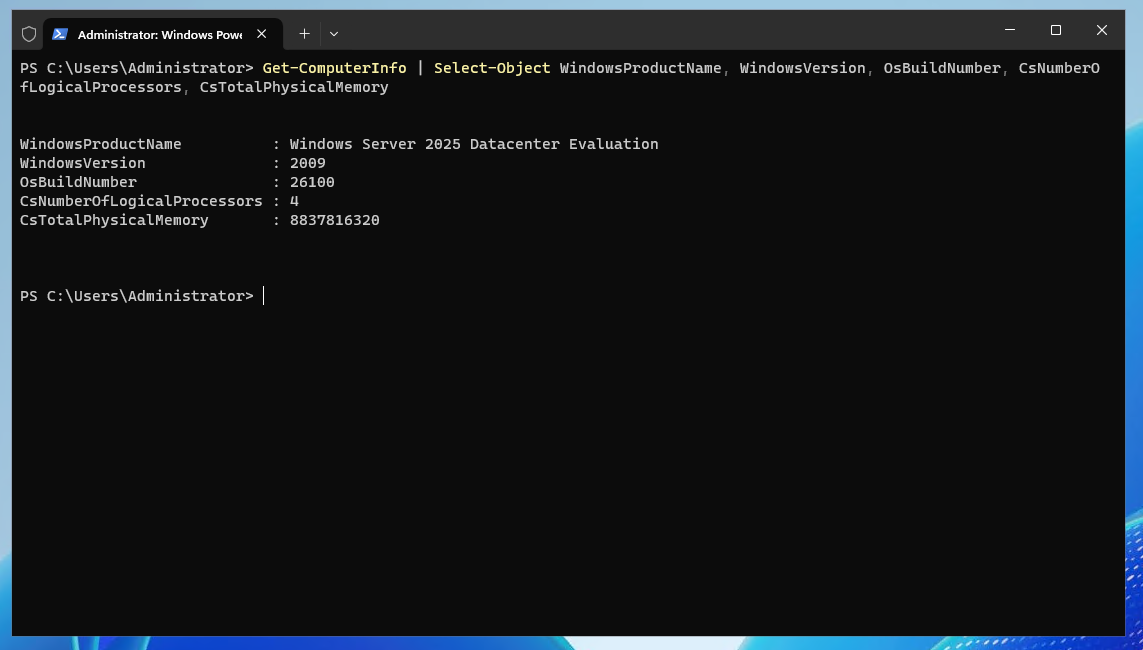
| Item | Value |
|---|---|
| OS | Windows Server 2025 Datacenter |
| Build | 26100 |
| CPU | 4 vCPU |
| RAM | Approximately 8 GB |
| Test date | 2026-05-24 |
| Engineer | Serdar Tekin |
The lab verified update-history inspection, pending-reboot detection, the PSWindowsUpdate community module, update scanning, and Raff dashboard recovery/reboot controls. It did not run a controlled production patch benchmark, so this guide does not claim a fixed patch duration, success rate, or downtime figure.
Use deployment rings instead of a fixed delay
A deployment ring gives you a chance to discover a problem before the most important server is affected.
| Ring | Example | Purpose |
|---|---|---|
| Ring 0 | Disposable test VM or lab | Confirm Windows boots and the update installs |
| Ring 1 | Staging or low-risk server | Test the real application stack |
| Ring 2 | Production server | Deploy after validation and risk review |
A small business may not have three permanent servers. The same principle still works. You can create a temporary test VM, patch a lower-risk system first, or validate Microsoft and application-vendor advisories before patching the main production server.
The ring should be representative enough to catch meaningful problems. A blank Windows test VM is less useful when the production server depends on IIS modules, SQL Server, printer drivers, RDS, EDR software, or a vendor-specific business application.
Preflight checks reduce avoidable patch failures
Before installing updates, record the current state.
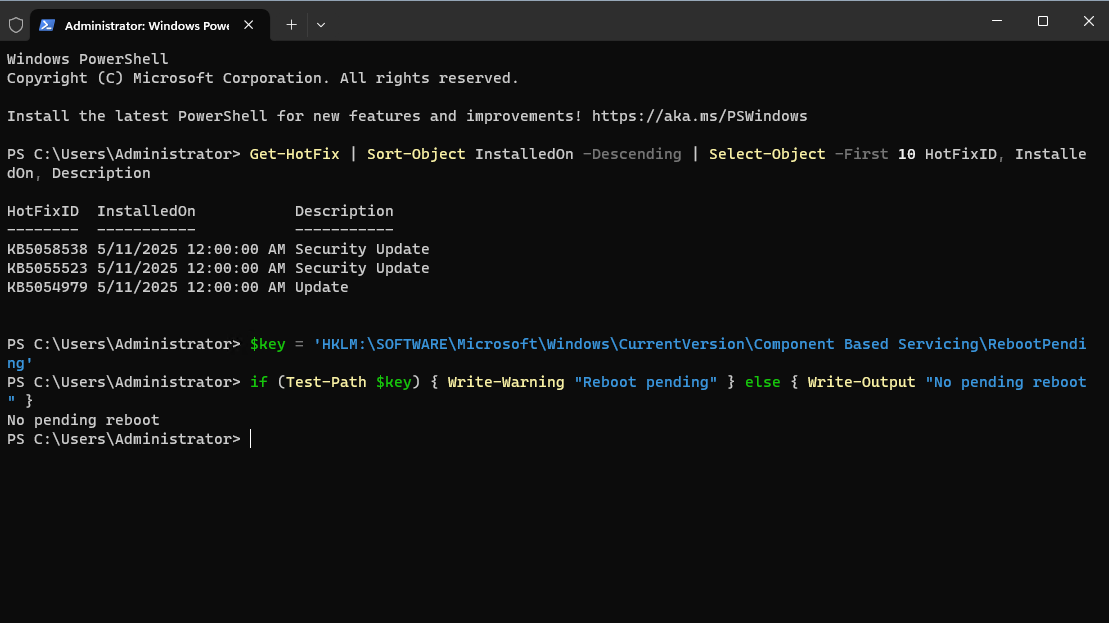
A quick view of recently installed hotfixes is:
Get-HotFix |
    Sort-Object InstalledOn -Descending |
    Select-Object -First 10 HotFixID, InstalledOn, Description
Get-HotFix is useful for a quick check, but it is not a complete inventory of every Windows update package. Use Windows Update history, DISM/package inventory, your patch-management platform, and Microsoft release information when you need full update accounting.
Check for a pending component-servicing reboot:
$key = 'HKLM:\SOFTWARE\Microsoft\Windows\CurrentVersion\Component Based Servicing\RebootPending'

if (Test-Path $key) {
    Write-Warning 'Component servicing reboot pending'
} else {
    Write-Output 'No component servicing reboot detected'
}
A production preflight should also confirm:
- enough free disk space;
- healthy Windows services;
- application and database backup status;
- current VM backup or recovery point;
- administrative access outside the normal user workflow;
- current application health;
- maintenance-window communication;
- vendor advisories for the business application;
- enough time in the maintenance window for a second reboot if required.
For clustered, replicated, or multi-server applications, follow the application vendor's supported patch sequence rather than treating every server as independent.
Check Windows release health and the Security Update Guide
Before production installation, review Microsoft's current information for the affected version and KB.
Look for:
- known issues;
- installation failures;
- authentication or networking regressions;
- RDP or RDS issues;
- printing issues;
- .NET or application compatibility notes;
- Known Issue Rollback information;
- out-of-band replacement updates;
- required servicing-stack or prerequisite information.
Also check whether the vulnerability affects a role that is actually installed or exposed on the server. A vulnerability affecting an unused component can have a different operational priority from one affecting an internet-facing service.
Snapshots are rollback points, not the whole backup strategy
Before a significant production patch window, create an appropriate recovery point in the Raff dashboard and confirm the application's own backup is healthy where relevant.
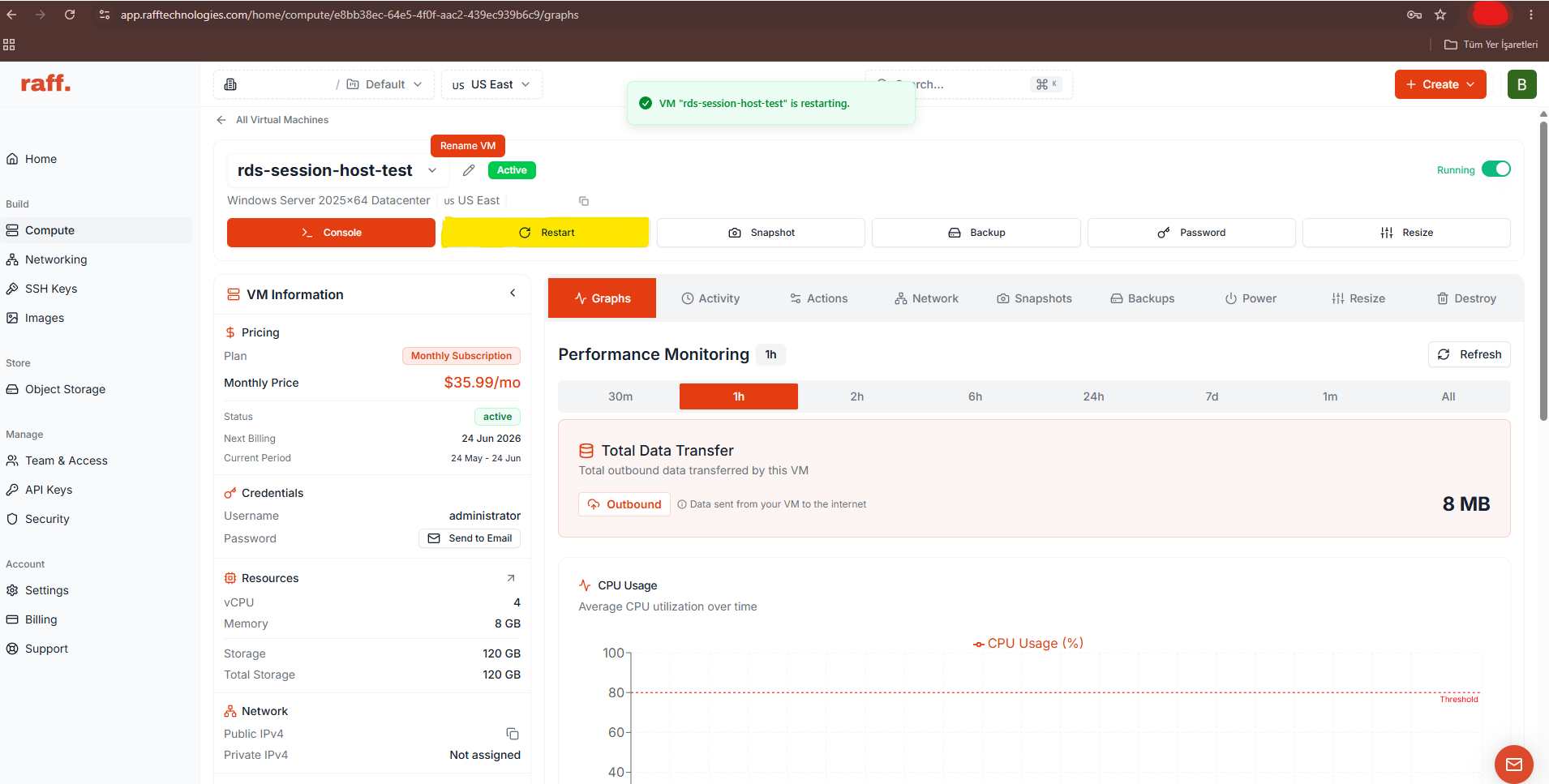
Use snapshots for short-term rollback before change. Do not treat them as your only backup strategy.
For example:
- SQL Server should still have database-aware backups.
- QuickBooks or ERP data should use the vendor-supported backup process.
- Shared files should have file-level or off-server recovery.
- Business-critical VMs should have a documented backup retention and restore process.
A snapshot can help reverse an operating-system change. It does not replace application-consistent backups, off-server copies, or restore testing.
For the broader recovery model, use Windows VPS Backup Strategy for Small Businesses.
PSWindowsUpdate is optional, not required
The Raff lab used PSWindowsUpdate, a PowerShell Gallery community module, to scan for updates. It can be useful for administrators who intentionally permit third-party PowerShell modules, but it is not a built-in Windows Server cmdlet and is not Microsoft's required patch-management method.
If your organization permits the module, review the package and repository before installation:
Find-Module PSWindowsUpdate -Repository PSGallery
Then install and import it according to your organization's module policy:
Install-Module -Name PSWindowsUpdate -Repository PSGallery -Scope AllUsers
Import-Module PSWindowsUpdate
A scan without installation:
Get-WindowsUpdate
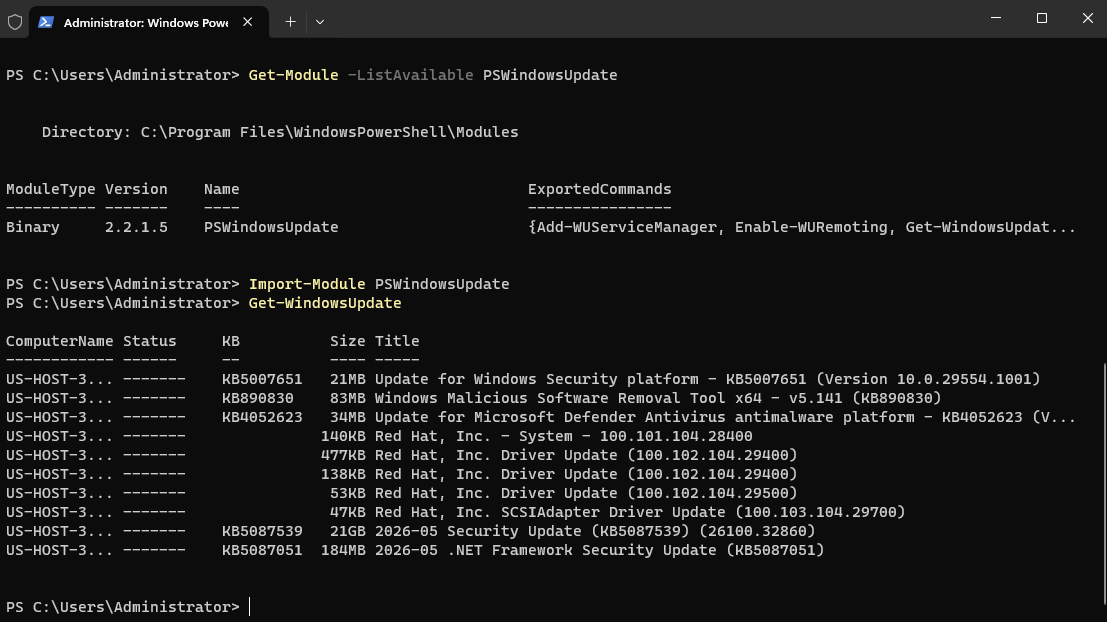
The important distinction is:
Assessment / scan
!=
Installation
If you do not permit community PowerShell modules, use Windows Update, SConfig on Server Core, WSUS, Azure Update Manager for eligible managed systems, an RMM platform, or another approved patch-management product.
WSUS is deprecated but still supported
Windows Server Update Services, or WSUS, is deprecated in the sense that Microsoft is no longer actively developing new WSUS features. That does not mean existing WSUS deployments stopped working or became unsupported overnight.
Microsoft states that existing WSUS capabilities and content remain available for deployments, and WSUS continues to be supported for production according to the Windows Server lifecycle.
For an existing stable WSUS environment:
- do not rip it out solely because the feature is deprecated;
- keep the WSUS server itself patched and monitored;
- review storage, synchronization, approval, and cleanup health;
- document how update rings and reboots are controlled;
- plan the long-term management direction rather than assuming WSUS will receive major new features.
For a new fleet, compare WSUS with the patch-management platform you already operate, such as Azure Update Manager for Arc-enabled servers, an RMM system, or another supported enterprise update-management product.
Install updates inside a defined maintenance window
A good maintenance window includes enough time for more than the update installer.
Plan time for:
- final health check;
- application-safe shutdown steps if required;
- update installation;
- reboot;
- possible second reboot;
- service startup;
- application smoke tests;
- user-access verification;
- rollback decision if validation fails.
For manually managed small servers, it is often safer to control the restart explicitly rather than let a script reboot at an unknown point in the change window.
If PSWindowsUpdate is part of your approved process, an install command can be:
Get-WindowsUpdate -Install -AcceptAll
Do not add automatic reboot behavior unless the maintenance workflow is specifically designed for unattended restarts and post-reboot validation.
Configure restart behavior intentionally
Windows Update and your management platform should follow the production reboot plan rather than deciding it accidentally.
For domain-managed or policy-managed servers, review the effective policy under:
Computer Configuration
-> Administrative Templates
-> Windows Components
-> Windows Update
-> Manage end user experience
-> Configure Automatic Updates
Also review the policy:
No auto-restart with logged on users for scheduled automatic updates installations
That policy applies only in the relevant scheduled Automatic Updates configuration. Test the resulting behavior rather than assuming one registry value controls every update-management system.
For Server Core, Microsoft's SConfig tool provides a supported interface for basic Windows Update settings.
Post-patch validation must test the real workload
After the server returns, validate the operating system first:
Get-HotFix |
    Sort-Object InstalledOn -Descending |
    Select-Object -First 10 HotFixID, InstalledOn, Description
Re-check pending reboot state:
$key = 'HKLM:\SOFTWARE\Microsoft\Windows\CurrentVersion\Component Based Servicing\RebootPending'

if (Test-Path $key) {
    Write-Warning 'Component servicing reboot still pending'
} else {
    Write-Output 'No component servicing reboot detected'
}
Then review required services and logs. A quick stopped-service list can help compare current state with the pre-patch baseline:
Get-Service |
    Where-Object Status -eq 'Stopped' |
    Sort-Object DisplayName |
    Select-Object -First 30 Name, DisplayName, StartType
Many Windows services are intentionally manual or trigger-started, so do not treat every stopped service as a fault.
Finally test the workload:
| Workload | Minimum post-patch test |
|---|---|
| IIS | Load the site or API and review application/system errors |
| SQL Server | Confirm database service, connection, and a safe test query |
| RDP/RDS | Confirm administrative and intended user sign-in paths |
| QuickBooks/accounting | Open the application and verify an approved test workflow |
| File server | Open a share and test expected permissions |
| ERP/LOB app | Start client/service and complete a safe business test |
| Automation | Confirm scheduled tasks or services resume normally |
The patch window is not complete because the Windows login screen appeared. It is complete when the production workload passes its smoke test.
Set a rollback deadline before you patch
Do not spend an unlimited maintenance window debugging a failed update while users wait.
Define the rollback point before change, for example:
If the critical application is not healthy within the agreed validation window,
stop troubleshooting and execute the documented rollback plan.
The recovery method depends on the failure:
- uninstall the affected Windows update when Microsoft supports removal;
- use Known Issue Rollback when Microsoft provides it for the issue;
- restore an application backup if application data changed;
- revert a suitable VM recovery point when appropriate;
- rebuild or restore from backup when rollback cannot safely repair the state.
After recovery, document the failed KB, symptoms, logs, and Microsoft or vendor guidance before attempting deployment again.
Optional preview updates should normally stay off healthy production servers
Microsoft's optional nonsecurity preview release is normally published on the fourth Tuesday of the month. It can be useful for early validation or when it contains a fix for a problem you are actively experiencing.
A preview update can make sense when:
- it fixes a production issue you need to resolve;
- Microsoft or the application vendor recommends it for your exact problem;
- you want to validate upcoming nonsecurity changes in a lab.
For a healthy production Windows Server, do not install previews merely because they are available. Fewer unnecessary changes mean a smaller troubleshooting surface.
Windows Server 2025 Hotpatch can reduce restart frequency
Windows Server 2025 Standard and Datacenter can use Microsoft Hotpatch when the machine meets the current Azure Arc-enabled Hotpatch requirements.
Microsoft's current requirements include a supported Windows Server 2025 build, Azure Arc connectivity, and the required virtualization-based security configuration. Server Core and Desktop Experience are supported when the other prerequisites are met.
For eligible Windows Server 2025 Arc-enabled systems, Microsoft now states that Hotpatch is available at no additional Hotpatch charge. This pricing change took effect in May 2026.
The update pattern still includes rebooting:
- the first month of each quarter uses a baseline cumulative update that requires restart;
- the following two months can use Hotpatch security updates without restart when a Hotpatch is available;
- some other update types can still require restart.
Hotpatch also does not provide automatic rollback. If a Hotpatch causes a problem, Microsoft's recovery guidance can require uninstalling the latest update and returning to the last functional baseline, which itself can require rebooting.
On Raff, Hotpatch should be treated as an optional customer-managed Microsoft capability for eligible Windows Server 2025 systems, not as a default Raff platform feature.
Emergency patching uses the same controls on a shorter timeline
An emergency does not mean abandoning change control. It means compressing it.
When a vulnerability is actively exploited or creates unacceptable exposure:
- Confirm whether the server and installed role are affected.
- Apply immediate mitigations if Microsoft provides them.
- Confirm current backups and rollback readiness.
- Test the update quickly where practical.
- Schedule the earliest safe production window.
- Patch and reboot if required.
- Validate the real application.
- Monitor logs and service health afterward.
CISA's KEV catalog is a useful prioritization input, but it is not the only signal. Internet exposure, privileges required, exploit maturity, business criticality, and compensating controls all affect urgency.
Patch records should be part of the server runbook
For each production patch window, record:
| Field | Example |
|---|---|
| Date/time | Maintenance window timestamp |
| Server | Accounting-RDS-01 |
| Approved KBs | KB numbers installed |
| Pre-check | Backup healthy, disk healthy, app healthy |
| Recovery point | Snapshot or backup reference |
| Reboots | Number of restarts |
| Validation | RDP, application, file, database, or API tests passed |
| Issues | None or ticket/reference number |
| Owner | Windows administrator |
This turns patching into a repeatable operating process instead of a memory-based monthly task.
Raff production patching checklist
Before closing the maintenance window, confirm:
- Microsoft release health and Security Update Guide reviewed
- Exploitation and exposure assessed
- Application or database backup confirmed
- VM recovery point created when appropriate
- Free disk space checked
- Pending reboot state checked
- Approved update list documented
- Maintenance window communicated
- Update installed successfully
- Required reboot completed
- Pending reboot rechecked
- Required Windows services healthy
- RDP or RDS access tested when applicable
- IIS, SQL Server, file shares, or business application smoke test passed
- Event and application logs reviewed for new critical errors
- Rollback decision made before the maintenance deadline
- Installed KBs and result recorded
- Temporary rollback snapshots scheduled for cleanup after stability is confirmed