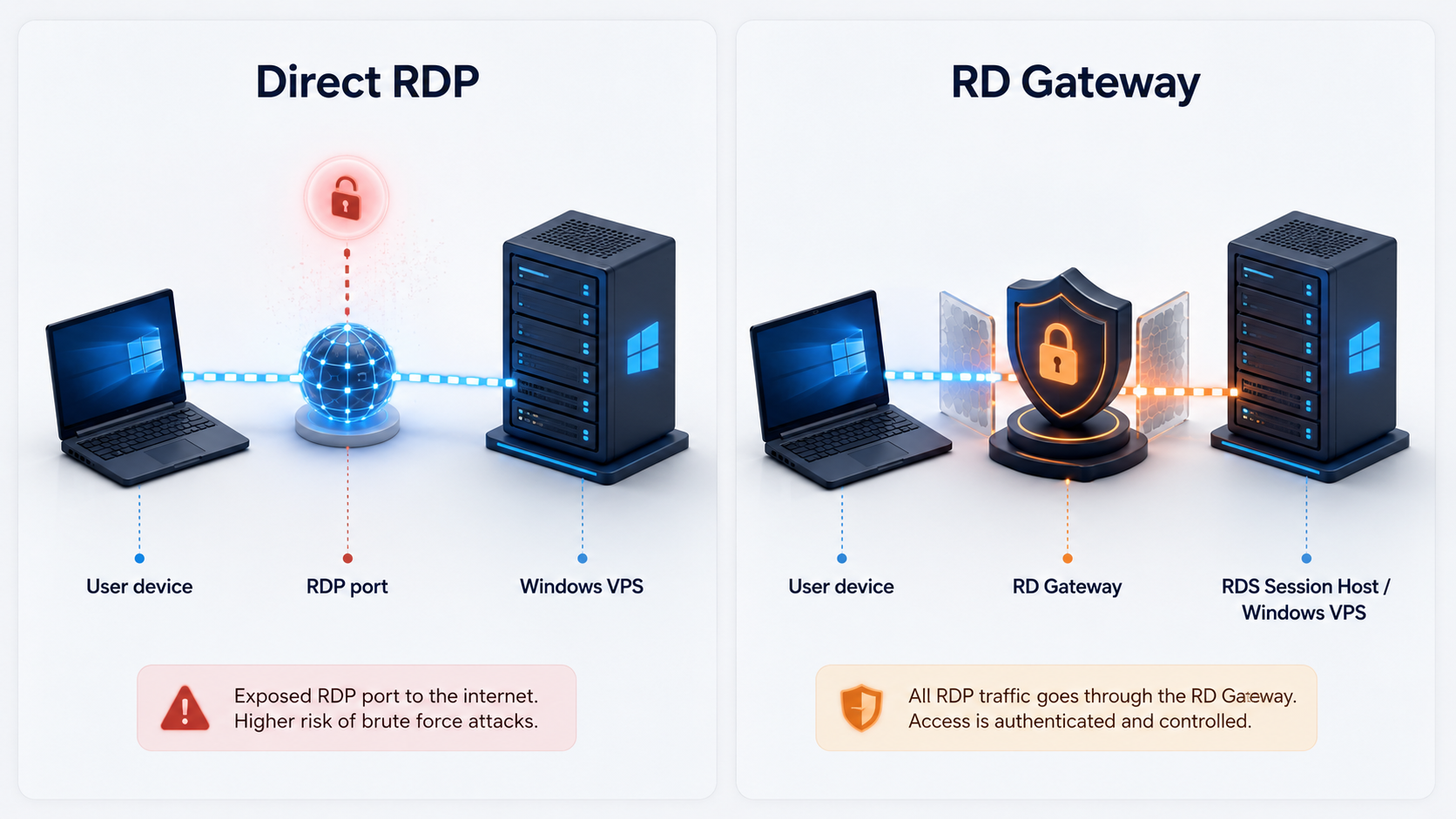
Remote Desktop Gateway vs Direct RDP on a Windows VPS
Compare RD Gateway vs direct RDP on a Windows VPS for safer remote access, SMB users, RDS planning, firewall exposure, and security tradeoffs.
On this page
- In short
- Quick verdict: RD Gateway or direct RDP
- Direct RDP is simple, but the exposure must be controlled
- RD Gateway creates a controlled entry point
- The core difference is architecture, not speed
- Admin RDP and staff desktop access are different
- RD Gateway usually fits SMB remote teams better
- Direct RDP can still be acceptable for admin-only servers
- Avoid broad direct RDP exposure
- RD Gateway is not a replacement for hardening
- Licensing is separate from the access path
- Performance depends on the full path
- Backup and recovery should be part of the access decision
- Decision framework for Raff Windows VM buyers
- How Raff fits this decision
- Recommendation by business type
- What's next
- Sources
Don't have a Windows Server yet?
Deploy Windows Server 2019/2022/2025 in ~2 minutes. 6-month evaluation licence included.
In short
Remote Desktop Gateway vs direct RDP is a security architecture decision. Direct RDP can work for one or two administrators when access is tightly restricted. RD Gateway is usually the better model when multiple users need remote desktop access, when you want one controlled entry point, or when the Windows VPS supports business apps. Raff Technologies provides Windows VMs for teams that need remote Windows access, but the access model should be planned before users connect.
Direct RDP means a user connects straight to a Windows Server remote desktop endpoint. Remote Desktop Gateway, also called RD Gateway, is a Windows Server role that brokers encrypted Remote Desktop connections through a gateway instead of exposing each desktop session directly.
For a one-admin server, direct RDP with firewall restrictions can be simple. For a small business with staff users, shared applications, accounting tools, RDS Session Host, or multi-location access, RD Gateway gives a cleaner security boundary. The goal is not to make RDP complicated. The goal is to avoid turning remote access into the weakest part of the Windows VPS.
Quick verdict: RD Gateway or direct RDP
Use this table as the fast decision guide.

| Situation | Better fit | Why |
|---|---|---|
| One admin occasionally manages the server | Direct RDP with IP restrictions | Simple access model with limited users and tight firewall rules. |
| Two admins maintain the VPS | Direct RDP or RD Gateway | Direct RDP can work if source IPs are predictable; RD Gateway is cleaner if access changes. |
| Three or more staff need desktop sessions | RD Gateway plus RDS planning | User access should be controlled through a proper RDS design. |
| Users connect from changing locations | RD Gateway | Easier to centralize access policy than maintaining many direct RDP rules. |
| The server hosts accounting, ERP, tax, or legacy apps | RD Gateway usually | Business workloads need stronger access control than casual admin access. |
| The server is only an IIS or SQL workload | Direct RDP for admins only | Users may not need desktop access at all. |
| MSP manages several client Windows servers | RD Gateway or other controlled access layer | Standardized access is easier to document and audit. |
| The business cannot manage RDS roles | Restricted direct RDP temporarily | Better than broad exposure, but not ideal for multi-user access. |
Microsoft describes RD Gateway as a role that enables secure, encrypted connections to Remote Desktop Services resources over the internet without requiring VPN access. That is the main reason it belongs in the decision when remote staff need access to desktops or RemoteApp programs.
Direct RDP is simple, but the exposure must be controlled
Direct RDP is the simplest Remote Desktop model: the client connects to the Windows Server, authenticates, and opens a remote session. For one administrator managing a Windows VPS, that simplicity is useful.
Direct RDP works best when all of these are true:
| Requirement | Why it matters |
|---|---|
| Only one or two administrators connect | The default model is administrative access, not staff desktop hosting. |
| Source IPs are predictable | Firewall allowlisting can reduce exposure. |
| Strong passwords are enforced | Weak passwords turn RDP into a high-risk entry point. |
| Administrator accounts are limited | Shared admin accounts make auditing and recovery harder. |
| RDP is not used as a public staff portal | Staff access needs stronger planning. |
| Backups and restore are already configured | Access compromise can become data loss. |
Direct RDP should not mean "open the server to every internet address and hope passwords are enough." If you use direct RDP, restrict source IPs, use Windows Firewall rules, disable unused accounts, avoid shared administrator logins, review Event Viewer logs, and document who is allowed to connect.
Direct RDP is a tool. Broadly exposed direct RDP is the risk.
RD Gateway creates a controlled entry point
RD Gateway gives Remote Desktop access a gateway layer. Instead of users connecting directly to every RDS resource, they connect through a gateway that brokers the encrypted connection.
Microsoft's RD Gateway deployment documentation says RD Gateway enables secure, encrypted connections to RDS resources over the internet and can be deployed on physical, virtual, cloud, or hybrid environments.
For SMB Windows VPS planning, that means RD Gateway can help when:
| Need | How RD Gateway helps |
|---|---|
| Multiple remote users | Centralizes access path instead of exposing each session directly. |
| Changing user locations | Users can connect through the gateway instead of many direct firewall rules. |
| RDS Session Host | Fits better with a multi-user Remote Desktop Services architecture. |
| RemoteApp or full desktops | Supports RDS resource access patterns. |
| More formal access policy | Lets the business define who can connect through the gateway. |
| Cleaner audit story | Access design is easier to document than scattered direct RDP rules. |
RD Gateway does not remove the need for security. It still needs certificates, authentication, access policy, Windows updates, firewall rules, monitoring, backups, and correct RDS licensing. But it gives the business a better architecture than exposing every desktop session directly.
The core difference is architecture, not speed
RD Gateway vs direct RDP is not mainly a performance comparison. It is an access model comparison.

| Area | Direct RDP | RD Gateway |
|---|---|---|
| Access path | Client connects straight to the Windows server | Client connects through a gateway |
| Simplicity | Simpler for one admin | More setup and maintenance |
| Best use | Admin access or tightly restricted small use | Staff access, RDS environments, remote teams |
| Firewall exposure | Must be tightly restricted | Gateway becomes the controlled entry point |
| User policy | Basic server/account policy | Gateway and RDS policy can be used |
| Multi-user fit | Weak unless carefully planned | Stronger fit with RDS Session Host |
| Troubleshooting | Fewer moving parts | More roles and certificate pieces to check |
| Long-term SMB fit | Good for admin-only | Better for team access |
If a server only needs occasional administrator access, adding RD Gateway may be more complexity than the workload needs. If the server is becoming a shared workplace for employees, direct RDP usually becomes too loose as the only access model.
Admin RDP and staff desktop access are different
The biggest mistake is treating staff desktop access like admin access. Default Windows Server RDP is meant for administration. Daily multi-user desktop hosting belongs in Remote Desktop Services planning.
Microsoft's RDS roles documentation explains that RD Session Host holds session-based apps and desktops that users connect to with Remote Desktop clients. That is a different use case from an administrator logging in to maintain the server.
Use this rule:
| Access need | Better model |
|---|---|
| One admin installs software or updates the server | Direct RDP with IP restrictions |
| Two admins maintain the server | Direct RDP or RD Gateway |
| Staff need daily Windows desktops | RDS Session Host plus licensing |
| Staff need RemoteApp programs | RDS design with gateway planning |
| Users only need a web app | No desktop access for users |
| Users only connect to SQL from an app | No desktop access for users |
If staff members need their own daily desktop sessions, review RDS CAL licensing before production. Microsoft states that each user or device connecting to a Remote Desktop Services session host running Windows Server needs an RDS Client Access License.
RD Gateway usually fits SMB remote teams better
For a small business, RD Gateway is most valuable when the Windows VPS becomes part of daily operations. That includes accounting offices, remote admin teams, tax firms, MSP clients, multi-location businesses, and legacy app users.
RD Gateway is usually the better pattern when:
| Business condition | Why RD Gateway fits |
|---|---|
| Users work from different locations | Access policy is centralized. |
| Multiple staff need desktop sessions | It fits the RDS architecture better. |
| The server hosts business software | Access should not depend only on direct RDP exposure. |
| MSP support is involved | Gateway rules and logs are easier to standardize. |
| IP addresses change often | Allowlisting every user can become messy. |
| Compliance or audit matters | A formal access path is easier to explain. |
| The business wants future growth | RD Gateway scales cleaner than direct access sprawl. |
Direct RDP can start simple, but it gets harder to manage as user count grows. RD Gateway is not always needed on day one, but it is usually easier to introduce before access becomes messy than after every user already has their own direct path.
Direct RDP can still be acceptable for admin-only servers
Direct RDP is not automatically wrong. It is often acceptable for admin-only access when the risk is controlled.
Use direct RDP when:
| Condition | Requirement |
|---|---|
| Only admins connect | No daily staff desktop use |
| Few people have access | Named accounts, no shared admin login |
| Source IPs are known | Allowlist trusted locations |
| Access is occasional | Not a business desktop portal |
| Server is monitored | Failed logins and access events are reviewed |
| Backups are active | Recovery exists if access abuse causes damage |
For Raff Windows VM buyers, direct RDP is often the first connection method. That is fine for server setup and administration. It should not become the long-term access design for a growing team without a review.
A good admin-only direct RDP rule is: fewer users, fewer open paths, fewer surprises.
Avoid broad direct RDP exposure
Broad direct RDP exposure means the server accepts RDP attempts from anywhere. That is the pattern to avoid.
The problem is not only one successful login. The problem is repeated login attempts, weak credentials, reused passwords, forgotten admin users, missing updates, and no monitoring. A server that holds business apps or company data should not rely on luck.
Use these controls if direct RDP is active:
| Control | Why it matters |
|---|---|
| IP allowlisting | Reduces who can attempt a connection |
| Strong passwords | Lowers credential guessing risk |
| Named admin users | Improves accountability |
| Disable unused accounts | Shrinks the attack surface |
| Windows Firewall rules | Keeps access intentional |
| Network Level Authentication | Requires authentication before a full session |
| Failed login monitoring | Shows whether access is being attacked |
| Backup and restore testing | Reduces impact if something goes wrong |
Direct RDP should be treated like a privileged access path. If you would not expose your accounting database directly to the internet, do not casually expose the desktop used to manage it.
RD Gateway is not a replacement for hardening
RD Gateway improves the access architecture, but it does not replace Windows Server hardening. A poorly configured gateway can still be a risk.
A proper RD Gateway plan should include:
| Area | What to plan |
|---|---|
| Certificates | Use a trusted certificate and track renewal |
| Authentication | Confirm who can connect and how |
| Authorization policies | Define which users can access which resources |
| Firewall rules | Expose only what the architecture requires |
| Updates | Keep Windows Server and RDS roles patched |
| Logging | Review gateway and server access logs |
| Backup | Protect gateway configuration and target servers |
| RDS licensing | Plan CALs for RD Session Host users |
| Documentation | Keep connection instructions and recovery notes |
Microsoft's Remote Desktop Services "access from anywhere" guidance notes that RD Gateway timeout properties can be specified to improve security when a user walks away from a device. That is a small detail, but it shows the larger point: remote access policy still matters after the gateway exists.
Licensing is separate from the access path
RD Gateway and RDS licensing are related, but they are not the same decision.
The access path answers:
How do users reach the Windows desktop or app?
Licensing answers:
Are these users allowed to use RDS Session Host sessions?
Use this table:
| Scenario | RD Gateway? | RDS CAL planning? |
|---|---|---|
| One admin connects to manage the server | Usually no | No RDS CAL for admin access |
| Two admins manage the server | Optional | No RDS CAL for admin access |
| Five staff use desktop sessions | Recommended | Yes |
| Users access RemoteApp programs | Recommended | Yes |
| Users only access a web app | Not needed for users | No RDS CAL for web access |
| Users connect to SQL Server from another app | Not needed for users | No RDS CAL for database access |
Microsoft's RDS CAL documentation states that each user or device connecting to an RD Session Host running Windows Server needs an RDS CAL. Do not treat RD Gateway as a way around licensing. It is an access role, not a licensing exemption.
Performance depends on the full path
RD Gateway adds a gateway hop, but performance problems in Remote Desktop usually come from the full path: user network, server resources, display settings, app workload, latency, packet loss, and RDS configuration.
Check these before blaming the gateway:
| Symptom | First place to check |
|---|---|
| Login is slow | Authentication, profile loading, server resources |
| Mouse feels delayed | Latency and packet loss |
| Desktop feels heavy | CPU, RAM, visual effects, display settings |
| Session disconnects | Timeout policy, network path, gateway settings |
| Only one user has issues | User device, local internet, client settings |
| All users have issues | Server resources, gateway path, firewall, network |
Raff's RDP performance tuning guide covers the practical checks for slow Remote Desktop sessions, including server CPU/RAM usage, client settings, and RDP policy. Use this RD Gateway article to choose the access architecture, then use performance tuning to improve session quality.
Backup and recovery should be part of the access decision
Remote access security and backup planning belong together. If an RDP or RDS environment is compromised, backup quality can decide whether the business recovers cleanly.
Before rolling out either direct RDP or RD Gateway, confirm:
| Check | Why |
|---|---|
| VM backup is enabled | Recover the server if access changes break it |
| Snapshot is taken before major RDS changes | Roll back gateway or policy mistakes |
| App-aware backup exists | Protect SQL Server and business software data |
| Off-server copy exists | Reduce risk from ransomware or account compromise |
| Restore has been tested | Prove that recovery actually works |
| Access notes are stored outside the VPS | Needed if the server is unreachable |
This is especially important for Windows VPS workloads that host accounting software, tax data, ERP systems, Microsoft Access databases, or shared business files.
Decision framework for Raff Windows VM buyers
Use this framework before choosing direct RDP or RD Gateway on a Raff Windows VM.
| Question | If yes | If no |
|---|---|---|
| Is this only for one admin? | Direct RDP with restrictions can work | Continue |
| Will three or more staff use desktops? | Plan RDS Session Host, RD Gateway, and RDS CALs | Continue |
| Do users connect from changing networks? | RD Gateway is cleaner | IP-restricted direct RDP may work |
| Is the server hosting business-critical apps? | Prefer stronger access controls | Direct RDP may be fine for dev/admin |
| Do you need audit-friendly access? | RD Gateway fits better | Direct RDP may be enough |
| Is the team unable to maintain RDS roles? | Use restricted direct RDP temporarily and plan upgrade | RD Gateway may be feasible |
| Does the workload need only web or database access? | Do not give users desktop access | Choose the correct app access model |
For many SMBs, the clean path is:
Admin setup with restricted RDP -> production users through RDS planning -> RD Gateway for controlled remote access -> backups and monitoring before rollout
That path avoids overbuilding on day one while still preparing for safer team access.
How Raff fits this decision
Raff fits this decision when the buyer wants a Windows Server VPS for remote administration, RDP users, hosted business apps, accounting software, SQL Server tools, IIS/.NET workloads, or office server replacement.
Raff Windows VM buyers can start with direct RDP for initial administration, then plan a stronger RDS access pattern as users and business risk grow. The key is not to leave the first connection method as the permanent security architecture without review.
Raff Technologies currently lists Windows Server deployment with full RDP access and admin rights on the Windows VM product page. Raff also provides Windows Server guides for Remote Desktop planning, RDP performance tuning, RDS CAL licensing, backup strategy, and Windows Server hardening.
Raff is not a managed desktop provider that designs every RDS policy for the customer by default. Buyers still need to plan users, licensing, firewall rules, RD Gateway certificates, backups, patching, and restore testing.
Recommendation by business type
| Business type | Recommendation |
|---|---|
| Solo admin or founder | Use restricted direct RDP unless the server becomes a shared desktop. |
| 3-person office | Use direct RDP only for admin access; plan RDS if staff need desktops. |
| 5-user accounting or tax team | Prefer RD Gateway with RDS Session Host and RDS CAL planning. |
| 10-user remote team | Use RD Gateway or a stronger remote access design, not broad direct RDP. |
| MSP client environment | Standardize RD Gateway, backup, monitoring, and access documentation. |
| IIS/.NET app server | Keep desktop access admin-only; users should use the app, not the desktop. |
| SQL Server workload | Keep RDP admin-only unless users need desktop tools on the server. |
| Legacy app with remote users | Prefer RDS planning and RD Gateway if users work inside the server. |
The more the Windows VPS becomes a daily workplace, the stronger the access design should be. Direct RDP is a connection method. RD Gateway is a remote access architecture.
What's next
- Read Windows VPS sizing for remote users before choosing CPU, RAM, storage, and user capacity.
- Read Windows VPS for Remote Desktop if RDP access is the main reason for the server.
- Read RDP Performance Tuning if sessions feel slow after access is configured.
- Read RDS CAL Licensing on Windows Server before rolling out staff desktop sessions.
- Read Windows VPS Backup Strategy for Small Businesses before storing production business data.
- Read Windows Server Hardening Checklist before exposing any production Windows Server access.
- Review Raff Windows VM and pricing when planning the production server.
Sources
- Microsoft Learn - Deploy Remote Desktop Gateway role for Remote Desktop Services
- Microsoft Learn - Remote Desktop Services roles
- Microsoft Learn - Remote Desktop Services overview in Windows Server
- Microsoft Learn - Remote Desktop Services: access from anywhere
- Microsoft Learn - License Remote Desktop Services with Client Access Licenses
- Microsoft Learn - License Remote Desktop session hosts
- Raff - Windows VPS for Remote Desktop
- Raff - RDP Performance Tuning for Smooth Remote Desktop
- Raff - RDS CAL Licensing on Windows Server
- Raff - Windows VM product page
- Raff - Pricing
Related articles
Windows VPS Backup Strategy for Small Businesses
Plan a Windows VPS backup strategy for small business workloads with snapshots, backups, restore tests, app-aware recovery, and off-server copies.
Windows Update Strategy on Production Servers
Update Windows Server safely on a production VPS: snapshot first, patch on a controlled schedule, scan with PowerShell, and verify reboot state.
Configure Windows Firewall on a Windows VPS
Check Windows Firewall profiles, inspect RDP rules, create a safe test inbound rule, and clean it up on a Raff Windows Server VPS.