
In short
A Windows Server hardening checklist should reduce the attack surface before the server becomes production infrastructure. Start with recovery, administrator access, Windows Firewall, RDP exposure, Network Level Authentication, Microsoft Defender, SMB, logging, patching, and backups. Then compare the result with Microsoft's role-aware security baseline for the Windows Server version you actually run.
For Windows Server 2025, Microsoft provides an OSConfig security baseline with more than 300 settings and separate scenarios for domain controllers, domain-joined member servers, and workgroup member servers. Raff Technologies recommends treating that baseline as the long-term reference rather than applying an arbitrary internet checklist as if it were a compliance standard.
For a small Windows VPS, use this order:
Recovery
-> accounts and admin access
-> RDP exposure
-> firewall
-> Defender
-> SMB
-> LAPS / local admin password control
-> auditing and logs
-> patching
-> backups
-> baseline validation
Do not apply dozens of security changes to a remote production server at once. Authentication, firewall, RDP, SMB, Defender, and service changes can lock you out or break business software.
Windows Server hardening checklist for production
| Area | Production check |
|---|---|
| Recovery | Confirm a current backup or recovery point before high-risk changes |
| Accounts | Review local users and the local Administrators group |
| Authentication | Use unique administrator credentials and an intentional lockout policy |
| RDP | Avoid broad public RDP exposure; use NLA and a controlled admin path |
| RD Gateway / VPN | Prefer RD Gateway, VPN, private access, or source-IP restriction when practical |
| Firewall | Keep all Windows Firewall profiles enabled and review inbound allow rules |
| Defender | Confirm real-time, behavior, and script scanning are active |
| SMB | Keep SMBv1 disabled; review SMB signing, guest access, and TCP 445 exposure |
| Local admin passwords | Use Windows LAPS where the environment supports it |
| Auditing | Record logons, lockouts, account changes, privilege use, and process creation |
| PowerShell | Enable useful logging where appropriate and protect sensitive logs |
| Updates | Patch with a controlled production process and accelerate known-exploited issues |
| Services | Remove unnecessary roles and services only after validation |
| Backups | Keep application-aware and off-server recovery where the workload requires it |
| Documentation | Record the owner, reason, validation, and rollback plan for security changes |
The biggest improvement usually comes from reducing unnecessary exposure and making administration repeatable, not from changing hundreds of registry values manually.
Windows Server 2025 security baseline should be the reference point
Microsoft's Windows Server 2025 security baseline is delivered through OSConfig and is role-aware. Current scenarios include:
| Server role | OSConfig security baseline scenario |
|---|---|
| Domain controller | SecurityBaseline/WindowsServer/2025/DomainController |
| Domain-joined member server | SecurityBaseline/WindowsServer/2025/MemberServer |
| Workgroup member server | SecurityBaseline/WindowsServer/2025/WorkgroupMember |
Microsoft also provides companion scenarios for Secured-core, Microsoft Defender Antivirus, and Windows LAPS in supported configurations.
The baseline covers controls such as:
- Windows Firewall with a restrictive inbound posture;
- legacy protocol reduction;
- SMB hardening;
- anonymous and guest access restrictions;
- credential protections;
- Defender and exploit protections;
- advanced auditing;
- process creation logging with command-line data;
- larger event-log capacity;
- modern cryptography and protocol settings.
OSConfig supports Windows Server 2025. For earlier supported Windows Server releases, use the Microsoft security baseline and Security Compliance Toolkit guidance appropriate to that version and management model.
A baseline can affect authentication, file sharing, remote access, applications, and management agents. Test it against the actual server role before broad rollout.
What Raff tested on Windows Server 2025
The existing screenshots and PowerShell checks in this article were captured on a Raff Windows Server 2025 lab VM on May 24, 2026.
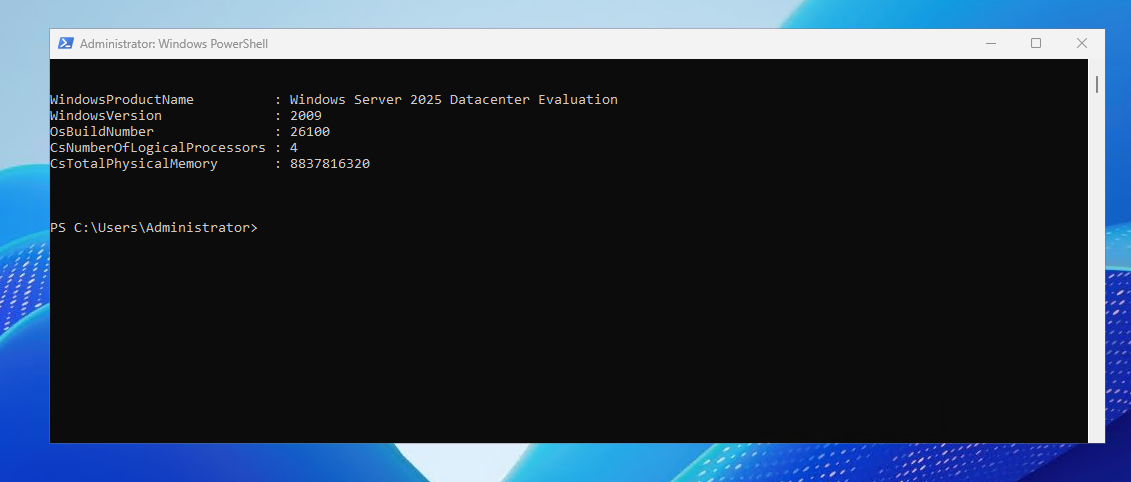
| Item | Value |
|---|---|
| OS | Windows Server 2025 Datacenter |
| Build | 26100 |
| CPU | 4 vCPU |
| RAM | Approximately 8 GB |
| Test date | 2026-05-24 |
| Engineer | Serdar Tekin |
That lab verified the inspection commands for local users, administrators, account policy, Windows Firewall, RDP rules, Microsoft Defender preferences, and audit policy. It did not apply every control in this checklist, so this article does not claim a fresh end-to-end hardening benchmark or compliance result.
Step 1: protect recovery access before changing security settings
Before changing authentication, firewall, RDP, services, or SMB settings, confirm how you will recover if the server becomes unreachable.
For a production workload, verify:
- a recent VM recovery point or backup exists where appropriate;
- application-aware backups are healthy for databases and business software;
- recovery credentials are documented securely;
- you know how to reach the server if normal RDP access stops working;
- the rollback owner and decision point are clear.
A snapshot can be useful for short-term rollback after a configuration change. It is not a replacement for application-aware backups, off-server copies, or restore testing.
Step 2: audit administrator accounts
Run PowerShell as Administrator and inventory local users:
Get-LocalUser | Select-Object Name, Enabled, LastLogon
Then inspect the local Administrators group:
Get-LocalGroupMember -Group "Administrators" | Select-Object Name, ObjectClass
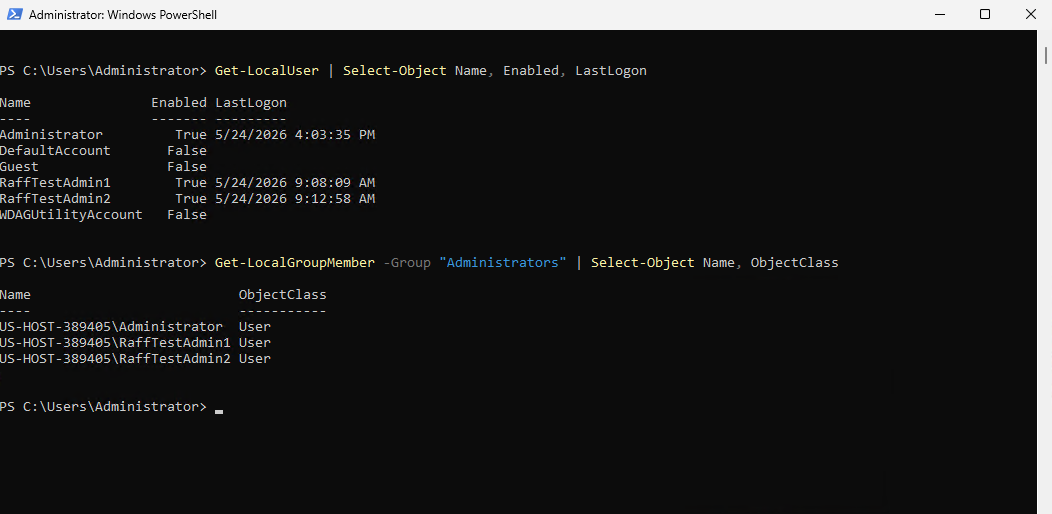
Investigate unknown accounts before removing them. Disable obsolete test users, keep the Guest account disabled, and avoid shared administrator credentials.
Check the Guest account:
Get-LocalUser Guest | Select-Object Name, Enabled
If it is enabled and no supported application explicitly requires it:
Disable-LocalUser -Name "Guest"
For routine work inside the server, use non-administrator access when the workload permits it and elevate only when administrative rights are required.
Renaming the built-in Administrator account can be part of a managed baseline, but it is not a primary security boundary. Strong unique credentials, restricted remote access, monitoring, and least privilege matter more.
Step 3: use an intentional account lockout policy
Check the current local account policy:
net accounts
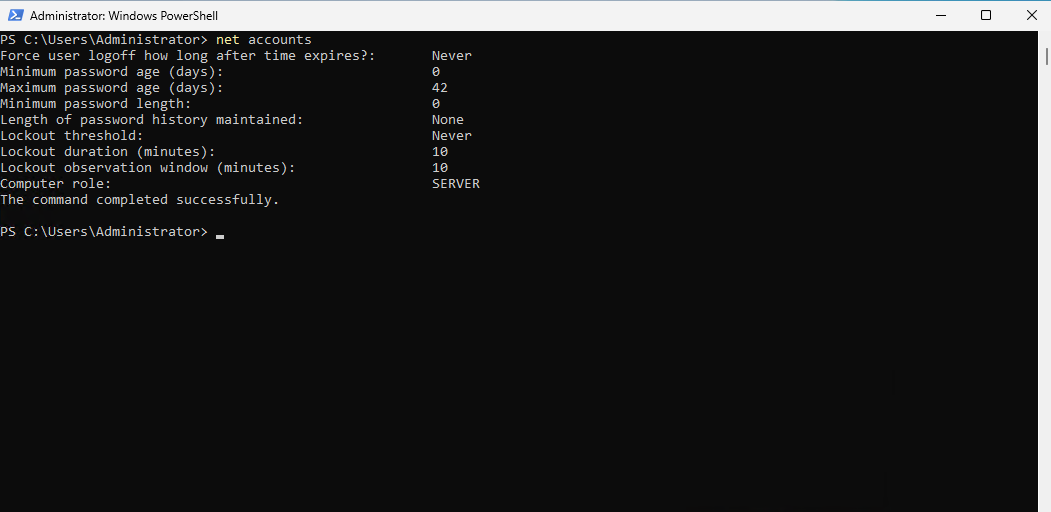
Do not copy one lockout threshold into every environment without considering the operational effect. A strict threshold slows password guessing but can also make deliberate account-lockout attacks easier.
For domain environments, configure the policy centrally. For standalone VPS deployments, document the chosen threshold and test recovery before enforcing it.
The important production checks are:
- lockout behavior is deliberately configured;
- recovery exists if an administrator is locked out;
- failed logons are monitored;
- local administrator passwords are unique;
- shared administrator accounts are avoided.
Step 4: reduce direct RDP exposure
Remote Desktop is often the most exposed administrative path on a Windows VPS. NLA helps, but the stronger design decision is to reduce who can reach RDP in the first place.
Keep Windows Firewall enabled on all profiles:
Get-NetFirewallProfile | Select-Object Name, Enabled, DefaultInboundAction, DefaultOutboundAction
Inspect the Remote Desktop rule group:
Get-NetFirewallRule -DisplayGroup "Remote Desktop" |
Select-Object DisplayName, Enabled, Direction, Action, Profile |
Format-Table -AutoSize
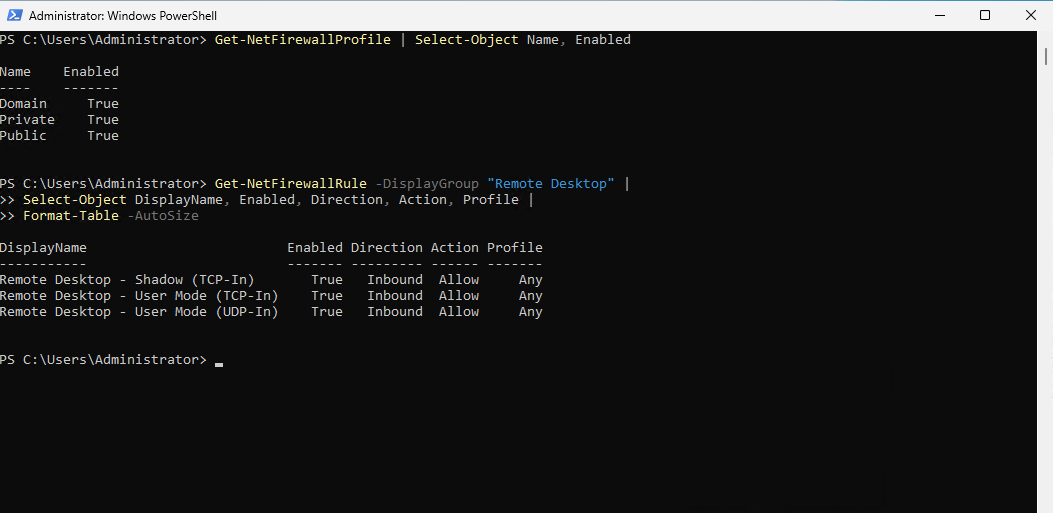
For administrative RDP:
- restrict source IPs where practical;
- prefer private access or a VPN for administrative paths when available;
- keep RDP limited to named administrators or intended RDS users;
- do not expose SMB, SQL Server, WinRM, or other management ports broadly to the internet;
- preserve a recovery path before changing remote-access rules.
If several users or administrators need persistent access from external networks, consider a Remote Desktop Gateway instead of direct RDP. Microsoft documents RD Gateway as an HTTPS-based access layer that accepts external RDP client traffic over TCP 443, with UDP 3391 available for RDP over UDP, while the protected RDP hosts can remain on the internal path rather than publishing TCP 3389 directly.
Changing the RDP listening port can reduce commodity scanning noise, but it does not replace access control, NLA, firewall restrictions, RD Gateway, VPN access, or monitoring.
For firewall configuration, see Configure Windows Firewall on a Windows VPS.
Step 5: keep Network Level Authentication enabled
Network Level Authentication requires authentication before Windows creates a full Remote Desktop session. Microsoft recommends NLA for most environments.
Check the RDP NLA policy value:
Get-ItemProperty `
  'HKLM:\SYSTEM\CurrentControlSet\Control\Terminal Server\WinStations\RDP-Tcp' `
  -Name UserAuthentication
A UserAuthentication value of 1 means NLA is required for that RDP listener configuration.
Do not disable NLA merely to support an obsolete client. Upgrade the client or document the temporary compatibility exception and its risk.
Step 6: keep Windows Firewall enabled and narrowly scoped
Microsoft's current Windows Server 2025 baseline keeps Windows Firewall enabled with a restrictive inbound posture. Treat inbound rules as exceptions that must have a workload reason.
Useful review commands include:
Get-NetFirewallProfile
and:
Get-NetFirewallRule -Enabled True -Direction Inbound |
Select-Object DisplayName, Profile, Action |
Sort-Object DisplayName
Review broad Any source rules, old temporary rules, duplicated application exceptions, and ports no longer used by the server role.
Do not disable Windows Firewall to troubleshoot a connectivity issue. Prove which listener, profile, source, and port are required, then fix the specific rule.
Step 7: disable SMBv1 and review Windows Server 2025 SMB behavior
SMBv1 has significant security weaknesses and is not installed by default on modern Windows Server releases. Verify the server is not relying on it:
Get-SmbServerConfiguration | Select-Object EnableSMB1Protocol
If an old application or device requires SMBv1, treat it as a legacy dependency that needs upgrade, replacement, or isolation rather than weakening the whole server.
Review SMB signing configuration:
Get-SmbClientConfiguration | Select-Object RequireSecuritySignature
Get-SmbServerConfiguration | Select-Object RequireSecuritySignature
Windows Server 2025 strengthened SMB security, including signing behavior, and Microsoft's Server 2025 security baseline applies additional SMB hardening. Test third-party NAS devices and older SMB servers before enforcing stricter settings across production.
Keep TCP 445 off the public internet. Use private networking, VPN access, or another controlled file-access architecture for users across locations.
Step 8: keep Microsoft Defender active
Verify Defender's principal protection settings:
Get-MpPreference | Select-Object DisableRealtimeMonitoring, DisableBehaviorMonitoring, DisableScriptScanning
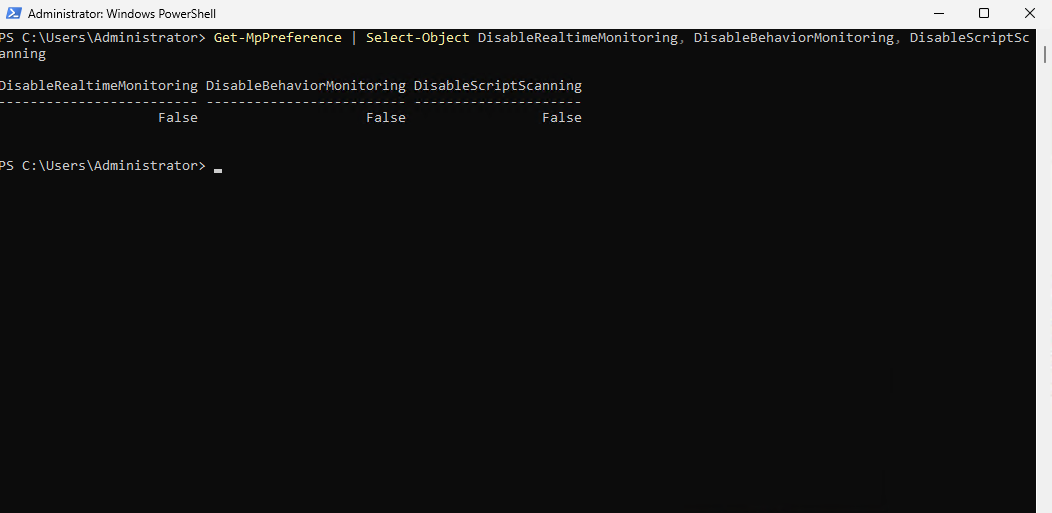
For a normal protected baseline, these values should not indicate that real-time, behavior, or script scanning has been disabled.
Update signatures with:
Update-MpSignature -Verbose
Attack Surface Reduction rules and Controlled Folder Access can add protection, but they can also interfere with ERP software, Office automation, scripts, installers, and legacy applications. Use an audit or controlled rollout before enforcing them on a production workload.
Do not disable antivirus globally to solve an application problem. Use vendor-documented exclusions only when necessary and keep them narrowly scoped.
Step 9: use Windows LAPS for local administrator passwords where supported
Reusing the same local administrator password across servers turns one credential compromise into a fleet-wide problem.
Windows LAPS can automatically manage and back up a local administrator password for supported Microsoft Entra-joined or Active Directory-joined devices. Microsoft also includes a Windows Server 2025 OSConfig LAPS scenario for supported member-server deployments.
For domain-joined environments, prefer centrally managed unique local administrator passwords instead of maintaining a shared static local admin credential. For standalone systems, review the Windows LAPS deployment options that match the device join state and management architecture.
See Windows LAPS on Windows Server 2025 for the dedicated workflow.
Step 10: enable audit events you can actually investigate
Check high-value audit categories:
auditpol /get /subcategory:"Logon"
auditpol /get /subcategory:"Account Lockout"
auditpol /get /subcategory:"User Account Management"
auditpol /get /subcategory:"Process Creation"
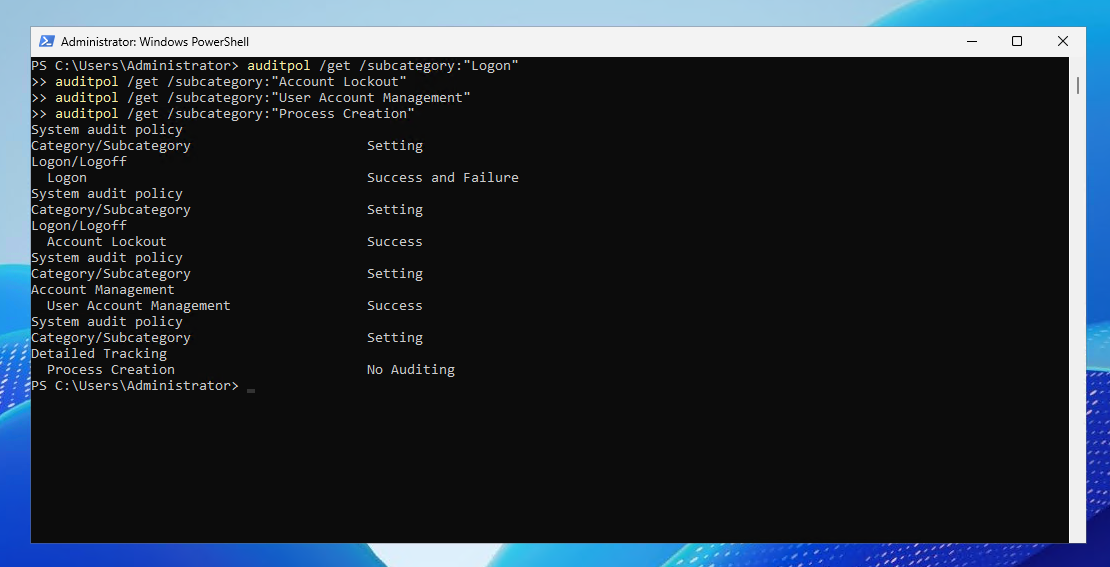
Microsoft's Server 2025 baseline enables broad advanced auditing and process creation with command-line capture. For a smaller VPS, at minimum make sure you can investigate:
- successful and failed logons;
- account lockouts;
- user-account changes;
- administrator and privilege changes;
- process creation;
- firewall activity relevant to exposed services.
Example audit-policy commands:
auditpol /set /subcategory:"Logon" /success:enable /failure:enable
auditpol /set /subcategory:"Logoff" /success:enable
auditpol /set /subcategory:"Account Lockout" /success:enable /failure:enable
auditpol /set /subcategory:"User Account Management" /success:enable /failure:enable
auditpol /set /subcategory:"Process Creation" /success:enable
For complete production policy, use Microsoft's advanced audit recommendations or the official baseline rather than stopping at these examples.
Step 11: retain security logs long enough to be useful
A Security log that rolls over too quickly can erase the events you need during an incident review. Microsoft's Server 2025 baseline increases Security log capacity and includes broader audit coverage.
Check the current maximum size:
wevtutil gl Security | Select-String maxSize
Choose retention based on event volume and incident-response requirements rather than an arbitrary number. RDP-heavy, file-server, domain-controller, and application servers can generate very different log volumes.
For important systems, consider forwarding security events to another logging or monitoring destination so compromise of the server does not remove the only copy of the evidence.
Step 12: monitor failed logons
Windows Security event ID 4625 records failed logon attempts. Review recent failures:
Get-WinEvent -FilterHashtable @{
  LogName='Security'
  Id=4625
  StartTime=(Get-Date).AddHours(-24)
}
A spike in failed RDP logons should trigger a review of:
- direct public RDP exposure;
- source-IP restrictions;
- administrator usernames;
- password and lockout policy;
- stale accounts;
- patch state;
- whether the server should be reachable directly at all.
Do not rely on account lockout alone as an anti-brute-force control.
Step 13: enable useful PowerShell logging
PowerShell Script Block Logging records processed script blocks in the Microsoft-Windows-PowerShell/Operational log and can improve incident visibility.
Enable it through Group Policy where appropriate. A policy registry configuration is also available:
$basePath = 'HKLM:\SOFTWARE\Policies\Microsoft\Windows\PowerShell\ScriptBlockLogging'
New-Item -Path $basePath -Force | Out-Null
Set-ItemProperty -Path $basePath -Name EnableScriptBlockLogging -Value 1
PowerShell logs can contain sensitive values if scripts include tokens, passwords, or connection strings. Design log access and retention accordingly.
Step 14: remove unnecessary roles and services carefully
Reducing unnecessary components lowers attack surface, but randomly disabling services can break applications or management functions.
List running services:
Get-Service | Where-Object Status -eq 'Running' | Sort-Object Name |
Format-Table Name, DisplayName
Before disabling a role or service:
- Identify what installed it.
- Confirm whether Windows or the application uses it.
- Review Microsoft or vendor documentation.
- Create a recovery point if the change is material.
- Change one component at a time.
- Reboot if required.
- Test the complete workload.
For example, disable Print Spooler only on servers that truly do not print and do not run accounting, ERP, PDF, or other software that depends on printing components.
Step 15: do not disable IPv6 as generic hardening
Do not disable IPv6 simply because the server primarily uses IPv4. Windows components can depend on IPv6 behavior, and an unnecessary change can create difficult networking and domain-service problems.
Leave IPv6 enabled unless the network design has a specific documented requirement and the workload has been tested after the change.
Step 16: make patching part of hardening
A server with strong firewall and account settings is still exposed if known vulnerabilities remain unpatched.
Use a controlled patch process:
- review Microsoft release health and security guidance;
- prioritize actively exploited vulnerabilities and exposed affected roles;
- verify backup and rollback readiness;
- patch during a planned maintenance window;
- reboot intentionally when required;
- verify Windows and the actual hosted application afterward.
For the complete production workflow, see Windows Server Patch Management Best Practices.
Step 17: keep backups separate from security configuration
Backups and hardening solve different problems. Security controls reduce the probability and impact of compromise; backups give you a recovery path when prevention fails or a hardening change causes damage.
A practical production recovery model includes:
- application-aware backups where required;
- VM or disk-level recovery points;
- at least one copy outside the live server;
- protected recovery credentials;
- documented retention;
- periodic restore testing.
A snapshot is valuable for short-term rollback. It does not replace ransomware-resistant or off-server backups.
See Windows VPS Backup Strategy for Small Businesses.
Step 18: document each security change and its rollback
Keep a short hardening changelog:
| Field | Example |
|---|---|
| Date | Change date |
| Control | Required NLA for RDP |
| Owner | Windows administrator |
| Reason | Reduce unauthenticated RDP exposure |
| Validation | RDP login tested through approved path |
| Rollback | Restore previous policy or recovery point |
This prevents a future administrator from undoing a control simply because nobody remembers why it exists.
Recommended hardening order for an existing Windows VPS
For an already-running server, use an order that minimizes lockout risk:
- Confirm backups, recovery point, and emergency access.
- Audit users and Administrators membership.
- Review account and lockout policy.
- Confirm Windows Firewall is enabled.
- Reduce direct RDP exposure and confirm NLA.
- Move persistent external access behind RD Gateway, VPN, private access, or source restriction where appropriate.
- Verify SMBv1 is disabled and review SMB signing and TCP 445 exposure.
- Confirm Defender protection is active.
- Deploy unique local admin password management such as Windows LAPS where supported.
- Enable useful audit policy and sufficient log retention.
- Review PowerShell logging.
- Patch Windows and exposed applications.
- Remove unnecessary services and roles carefully.
- Verify backups and restore procedures.
- Compare the result with Microsoft's role-appropriate security baseline.
- Re-test RDP, RDS, IIS, SQL Server, file shares, business software, and automation used by the server.
Common Windows Server hardening mistakes
Exposing TCP 3389 broadly and relying only on a strong password
Reduce who can reach RDP. NLA, source restrictions, RD Gateway, VPN or private access, and monitoring provide stronger layers than password strength alone.
Changing the RDP port and calling the server hardened
A non-default port can reduce noise but does not change the underlying authentication or authorization boundary.
Applying a security baseline without testing the workload
Baselines deliberately change authentication, SMB, RDP, auditing, credential, and protocol behavior. Test the server role and application workflow before production rollout.
Disabling Windows Firewall to fix connectivity
Fix the specific application listener or firewall rule rather than making the server broadly reachable.
Re-enabling SMBv1 for an old device
Treat the device or application as a legacy dependency that needs replacement or isolation.
Reusing the same local administrator password across servers
Use unique credentials and Windows LAPS or another controlled password-management process where supported.
Enforcing Defender controls without testing business software
ASR and Controlled Folder Access can block legitimate workflows. Test before enforcement.
Disabling services because the names look unfamiliar
Unknown does not mean unnecessary. Research the component, change one item, and validate the workload.
Calling a checklist compliant
This article is operational guidance, not certification. CIS Benchmarks, DISA STIGs, PCI DSS, HIPAA-related controls, ISO 27001 programs, and other frameworks require their own scope, evidence, governance, and validation.
Raff's role in Windows Server security
Raff provides the Windows VM and cloud infrastructure controls around it. Hardening the guest operating system, users, RDP/RDS design, applications, patch policy, and application-aware backups remains an administrator responsibility unless a separate managed service explicitly covers that work.
For a small production Windows workload, focus on repeatable secure defaults: restricted administration, Windows Firewall, current patches, Defender, modern SMB, unique local admin credentials, meaningful logs, tested backups, and documented changes.