
In short
ERP hosting on a Windows VPS is a strong fit when a small or mid-sized business runs Windows-based ERP software and wants one centralized environment for the application, database, files, and remote users. It works best when the ERP vendor supports Windows Server or RDS, the server is sized for concurrent workload rather than employee count, and the migration includes licensing, backup, security, printer, integration, and rollback testing.
For Raff Technologies customers, the simplest architecture is often one Windows VM for a small workload, then separate the application/RDS tier from SQL Server when database pressure, user count, availability requirements, or maintenance complexity justify it.
Do not move an ERP system to a VPS only because it is called cloud hosting. First confirm four things:
- the ERP vendor supports the target Windows Server and hosted model;
- the user access model is clear, including RDS licensing where needed;
- the database and storage design meet the workload and recovery targets;
- the business has a tested migration and rollback plan.
If those four conditions are met, a Windows VPS can replace aging office hardware while keeping the ERP architecture familiar.
ERP hosting on Windows VPS: quick decision
| Situation | Recommended starting point |
|---|---|
| 1 to 5 light ERP users | Single Windows VM after vendor sizing check |
| Small SQL-backed ERP | Single Windows VM can work, but reserve memory for SQL and Windows |
| Several users need full desktop or RemoteApp sessions | Plan RD Session Host and the correct licensing model |
| Database workload is becoming the bottleneck | Separate app/RDS and SQL Server roles |
| Heavy reporting, integrations, or batch jobs | Consider separate database or worker roles |
| Multiple offices need the same ERP system | Central Windows environment with controlled remote access |
| ERP is already a supported SaaS service | A Windows VPS may not be necessary |
| Vendor requires dedicated hardware or a specific hosting model | Follow the vendor requirement instead of forcing a VPS design |
The broad rule is:
Windows ERP + centralized users + supported server deployment
-> Windows VPS can be a good fit

SaaS ERP, unsupported hosting, or hardware-specific requirements
-> Keep the supported vendor model
What ERP hosting actually moves to the cloud
ERP hosting is more than copying an application folder to another server. A production ERP environment can include:
- Windows Server;
- the ERP application or application service;
- SQL Server or another database;
- shared documents and attachments;
- reporting engines;
- scheduled tasks;
- integration services;
- printers and label workflows;
- RDP or RDS user sessions;
- identity and permissions;
- backups and restore procedures;
- monitoring and alerting.
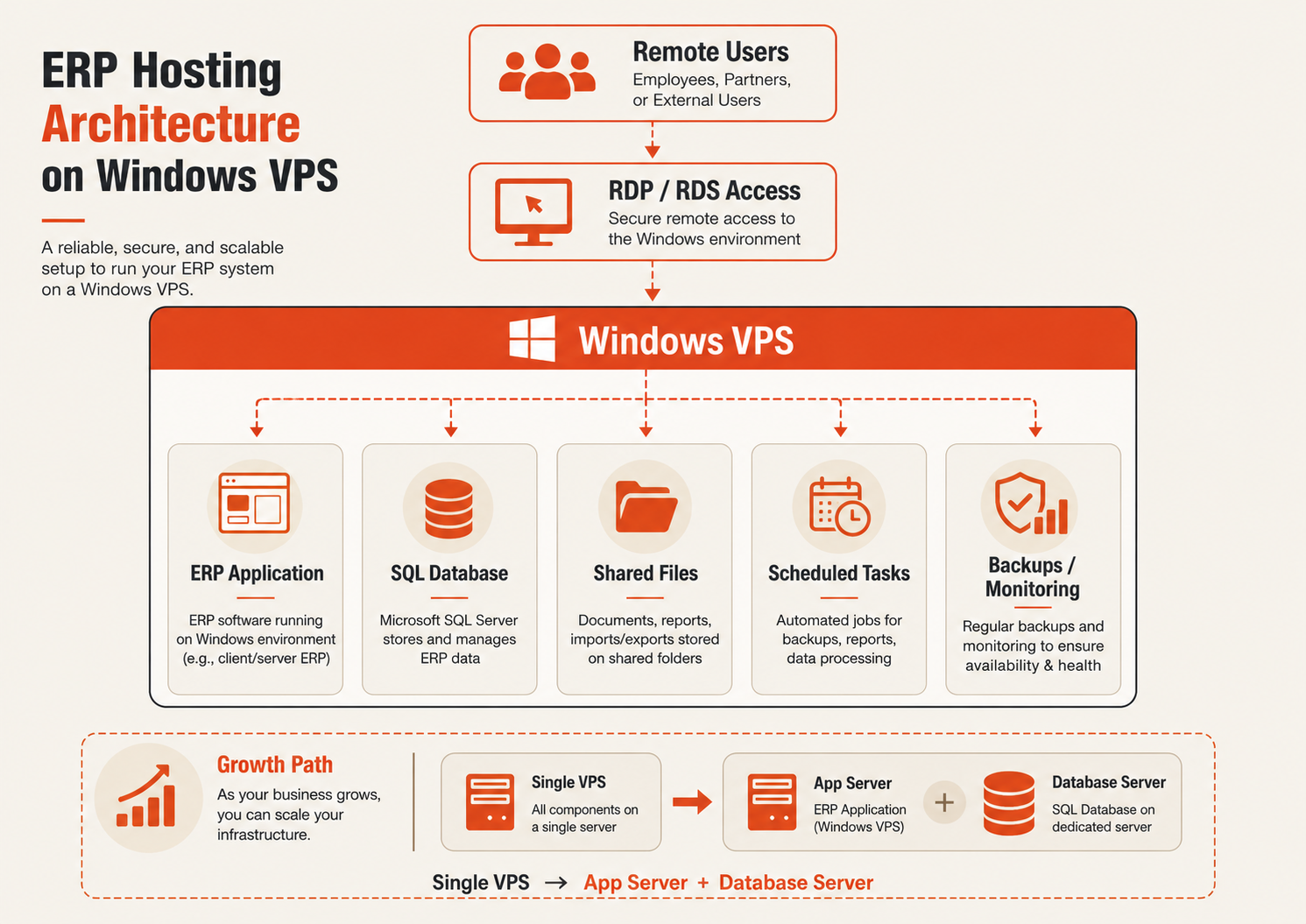
A successful migration keeps those dependencies working together. A server that boots and opens the ERP login screen is not enough proof that the business workflow is ready.
When Windows VPS is a good ERP hosting fit
A Windows VPS is worth considering when the ERP behaves like a traditional Windows business application and the organization wants to move away from local hardware.
Typical fit signals include:
- the ERP vendor supports Windows Server;
- the application is self-hosted rather than SaaS-only;
- users work from several offices or remote locations;
- the database needs to stay close to the application tier;
- the company wants centralized patching, backup, and administration;
- the existing office server is reaching hardware or support limits;
- an MSP already manages Windows Server workloads for the customer;
- the business expects the environment to grow but does not yet need a large multi-server platform.
This can apply to accounting, distribution, manufacturing, inventory, CRM/ERP, and other Windows line-of-business applications. Product names alone do not prove compatibility. Check the vendor's current hosting, Windows Server, database, RDS, and licensing requirements before deployment.
For warehouse and inventory-specific workflow considerations, see Windows VPS for ERP and Inventory Software.
When ERP on a VPS is the wrong answer
Do not force a Windows VPS design when the existing product model already solves the problem better.
A different approach is usually safer when:
- the ERP is already delivered as SaaS and there is no self-hosted requirement;
- the vendor does not support third-party hosting;
- the software licence restricts hosting or service-provider use;
- a hardware dongle or local device dependency cannot be supported remotely;
- the application requires a client operating system rather than Windows Server;
- the database or user scale exceeds a sensible single-server design;
- the workload has availability or compliance requirements that need a broader architecture;
- nobody owns Windows patching, database maintenance, backups, monitoring, and incident response.
A VPS gives the customer more control, but it also moves more operational responsibility to the customer or MSP.
Choose the ERP architecture before choosing the VM size
Sizing makes more sense after the application architecture is clear.
Model 1: single Windows VM
Users
  |
  v
Controlled RDP / RDS access
  |
  v
Windows VM
  |- ERP application
  |- SQL Server or other database
  |- shared files
  |- scheduled jobs
  |- local backup staging
This is the simplest starting point for a small ERP workload. Application, database, and user sessions all share CPU, RAM, and storage, so monitoring is important.
Use it when:
- the vendor supports a single-server deployment;
- the user count is modest;
- the database is small enough to coexist with the application tier;
- short maintenance windows are acceptable;
- the business wants the least complex supported architecture.
Model 2: app/RDS server plus database server
Users
  |
  v
App / RDS Windows VM
  |
  v
Private network
  |
  v
SQL Server Windows VM
Separate the database when SQL Server competes with user sessions or application services for memory, CPU, or storage I/O.
This design can also make database maintenance, backup, troubleshooting, and future resizing easier because the application and database no longer share one resource pool.
Model 3: multi-server ERP environment
A larger ERP deployment can separate RDS, application services, database, file storage, integrations, and supporting services.
Use a larger architecture only when the workload or availability target justifies it. More servers add more failure paths, patching, licensing, monitoring, and operational work.
Which Windows Server version should host ERP in 2026?
Use the newest Windows Server version that the ERP vendor and every required component support.
Windows Server 2025 is Microsoft's current LTSC release and has the longest support runway of the current Windows Server generations. That makes it a strong default for a new build when the ERP vendor has validated it. Windows Server 2022 remains a valid supported choice when the application vendor has not yet certified Server 2025 or when an existing deployment standard requires 2022.
Do not select an operating system from age alone. Check:
- ERP application support;
- database version support;
- printer and label drivers;
- report engines;
- ODBC/OLE DB providers;
- backup software;
- antivirus or EDR;
- RMM agents;
- integration services;
- vendor support policy.
For the broader OS decision, use Windows Server 2019 vs 2022 vs 2025.
Multi-user ERP access: admin RDP is not the same as RDS
One of the most common ERP hosting mistakes is treating Windows Server's administrative Remote Desktop access as a staff desktop platform.
If employees need to sign in to Windows Server and run the ERP application every day, the project is usually an RDS Session Host workload rather than ordinary administrator RDP.
Windows Server RDS can provide:
- multi-session desktops;
- RemoteApp delivery;
- session policies;
- centralized application access;
- RD Gateway for controlled external access;
- licensing and session-management roles.
See Multi-User RDP vs RDS Session Host before onboarding users.
RDS licensing depends on who supplies the Microsoft licence
Do not use one CAL statement for every hosted ERP environment.
Customer-owned / BYOL RDS
A customer-owned Windows Server deployment uses the applicable Microsoft RDS CAL model. Microsoft provides Per User and Per Device RDS CALs. Workgroup RDS deployments require Per Device CALs; Per User CALs are not permitted in that workgroup configuration.
Raff-provided hosted licensing
Raff is a Microsoft SPLA partner. Under the Raff-hosted service-provider model, hosted RDS access uses the applicable RDS User SAL model rather than customer-owned RDS CALs.
The high-level split is:
Customer-owned / eligible BYOL deployment
-> applicable Windows Server + RDS CAL model

Raff-provided SPLA deployment
-> hosted Windows Server licensing + RDS User SALs when RDS is used
Licensing changes by deployment model and Microsoft agreement, so use Windows Server Licensing on Raff and the RDS Licensing Guide for the current rules and pricing.
ERP server sizing should follow concurrent workload
Do not size an ERP server only by employee count. Two companies with ten employees can have completely different resource requirements.
Measure or estimate:
- peak concurrent ERP users;
- whether users run full RDS desktops or only an ERP client;
- database size and active working set;
- report complexity;
- batch/import jobs;
- integrations;
- document and attachment volume;
- antivirus/EDR overhead;
- backup windows;
- expected growth;
- whether SQL Server shares the same VM.
Use the following only as planning examples, not guarantees:
| Workload | Planning starting point | What can push it higher |
|---|---|---|
| 1 to 3 light users | 2 to 4 vCPU / 4 to 8 GB RAM | SQL Server, browser-heavy sessions, reporting |
| 5 to 10 active ERP users | 4 to 8 vCPU / 16 to 32 GB RAM | RDS sessions, SQL memory, reports, integrations |
| 10 to 25 users | 8 to 16 vCPU / 32 to 64 GB RAM | Heavy SQL, printing, reporting, concurrent jobs |
| SQL-heavy ERP | Size database tier separately | Working set, query CPU, TempDB and storage latency |
| Heavy reporting or batch work | Consider separate worker/reporting role | Long-running reports and imports |
The safest approach is to start from the ERP vendor's supported requirements, then validate the server under the real peak workload.
After deployment, use Windows Server Performance Monitoring to identify whether CPU, memory, disk, network, or a specific process is the actual bottleneck.
SQL Server can determine the real ERP server size
Many Windows ERP products rely on SQL Server. In those environments, database design can matter more than the ERP application's own executable.
Review:
- SQL Server edition and licence model;
max server memory;- database size and growth;
- data and log file layout;
- TempDB configuration;
- query and index health;
- backup duration;
- recovery model;
- transaction log backup cadence where applicable;
- restore time;
- storage latency during peak work.
If SQL Server and RDS users share the same VM, reserve enough RAM for Windows and user sessions rather than allowing SQL Server to consume nearly all available memory.
Continue with SQL Server Max Server Memory and SQL Server Backup Strategy for the database layer.
Storage planning includes more than the database file
ERP storage can grow through:
- database data files;
- transaction logs;
- invoices and attachments;
- PDFs and report exports;
- scanned documents;
- integration files;
- temporary files;
- Windows updates;
- local backup staging;
- audit and application logs.
Plan enough free space for normal growth and recovery operations. A database restore or migration may temporarily need significantly more space than the live database itself.
Raff Windows VMs use NVMe-backed storage, but storage technology does not remove the need to measure I/O behavior. A poorly behaving query, large report, backup job, or shared workload can still create disk pressure.
Backups must protect both the ERP and the database
A VM snapshot is useful before a risky change, but it is not automatically a complete ERP recovery plan.
A production design can include:
- database-aware backups for SQL Server or the ERP's database engine;
- file/application backups for attachments, configuration, exports, and required application data;
- VM-level protection for infrastructure recovery;
- off-server copies outside the live VM;
- restore testing that proves the ERP actually works after recovery.
Define an RPO and RTO before setting the backup schedule:
- RPO: how much recent data can the business lose?
- RTO: how long can the ERP remain unavailable?
Then test whether the backup chain can meet those targets.
The restore drill should include more than restoring a .bak file. Confirm user login, reports, integrations, file paths, scheduled jobs, and application connectivity after recovery.
Secure remote ERP access deliberately
Do not expose every internal service just to make the ERP reachable.
For a Windows Server/RDS environment:
- keep named administrator and user accounts separate;
- apply least privilege;
- keep Windows Firewall enabled;
- avoid exposing SQL Server directly to the public internet;
- restrict direct administrative RDP by source where practical;
- use Remote Desktop Gateway, VPN, or another controlled access model for persistent remote-user access;
- patch Windows and the ERP stack deliberately;
- monitor failed authentication attempts;
- protect backup credentials separately from normal application accounts;
- maintain a documented offboarding process.
Use the Windows Server Hardening Checklist before production rollout.
Printers, scanners, labels, and local devices can decide migration success
ERP migrations often fail in the last 10 percent because the server and database work but operational devices do not.
Test the workflows the business actually uses:
- invoice printing;
- label printers;
- barcode workflows;
- PDF printers;
- scanners;
- shared network printers;
- redirected printers through RDS;
- paper sizes and trays;
- check printing where applicable;
- local drive or clipboard redirection if required;
- vendor-specific drivers.
Do not assume a device is compatible because Windows can see it locally. Validate the full remote workflow before cutover.
The dedicated ERP and Inventory Software on Windows VPS guide covers more of these operational workflow questions.
ERP migration should be side-by-side when possible
A safer migration builds and tests the destination before the source is retired.
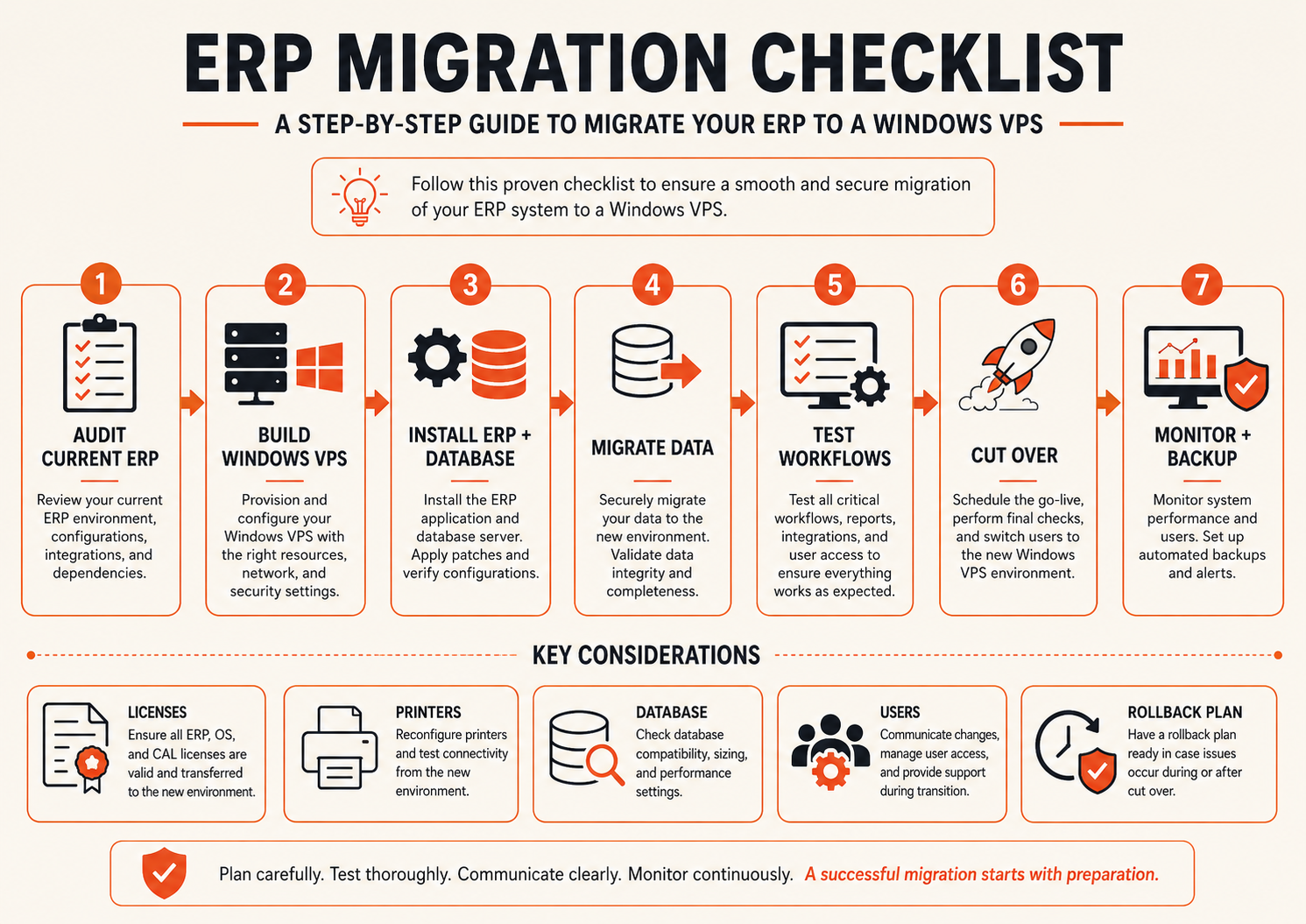
A practical sequence is:
Inventory current ERP environment
-> confirm vendor support and licensing
-> build target Windows VM
-> install application and database prerequisites
-> configure RDS and secure access if required
-> restore a test copy of the data
-> test real business workflows
-> test backups and restore
-> schedule cutover
-> stop writes on old system
-> take final backup / sync
-> restore or migrate final data
-> validate users and integrations
-> keep rollback until production is proven
Before migration, inventory:
- ERP and database versions;
- licences and activation method;
- users and groups;
- current server specs;
- database size;
- file/attachment storage;
- printers and scanners;
- scheduled tasks;
- integration endpoints;
- mapped drives and UNC paths;
- DNS names;
- certificates;
- service accounts;
- firewall rules;
- backup and restore procedures.
If the ERP uses SQL Server, a database backup/restore or vendor-supported migration method is usually safer than treating the database files like ordinary documents.
Use the Server Migration Checklist, Local Server to Cloud Windows VPS Migration, and SQL Server Migration to Windows VPS where they apply.
Cutover needs a business validation checklist
Before reopening the system to all users, verify:
| Area | Validation |
|---|---|
| Users | Required users can sign in with the correct permissions |
| ERP | Application opens and reaches the correct production database |
| Data | Record counts or vendor checks match the expected final state |
| Reports | Critical reports render and export correctly |
| Printing | Invoice, label, PDF, and required device workflows work |
| Integrations | Scheduled jobs, APIs, imports, exports, and file drops work |
| Database | Backup job and monitoring are active |
| Security | Firewall and remote-access rules match the intended design |
| Recovery | A recent backup exists outside the live server |
| Performance | Peak user workflow is responsive enough for production |
| Rollback | Old environment remains available until sign-off |
Do not judge success from a single administrator login.
How Raff fits ERP hosting
Raff provides Windows VMs for customers and MSPs that want to run supported Windows business software without owning the underlying physical server.
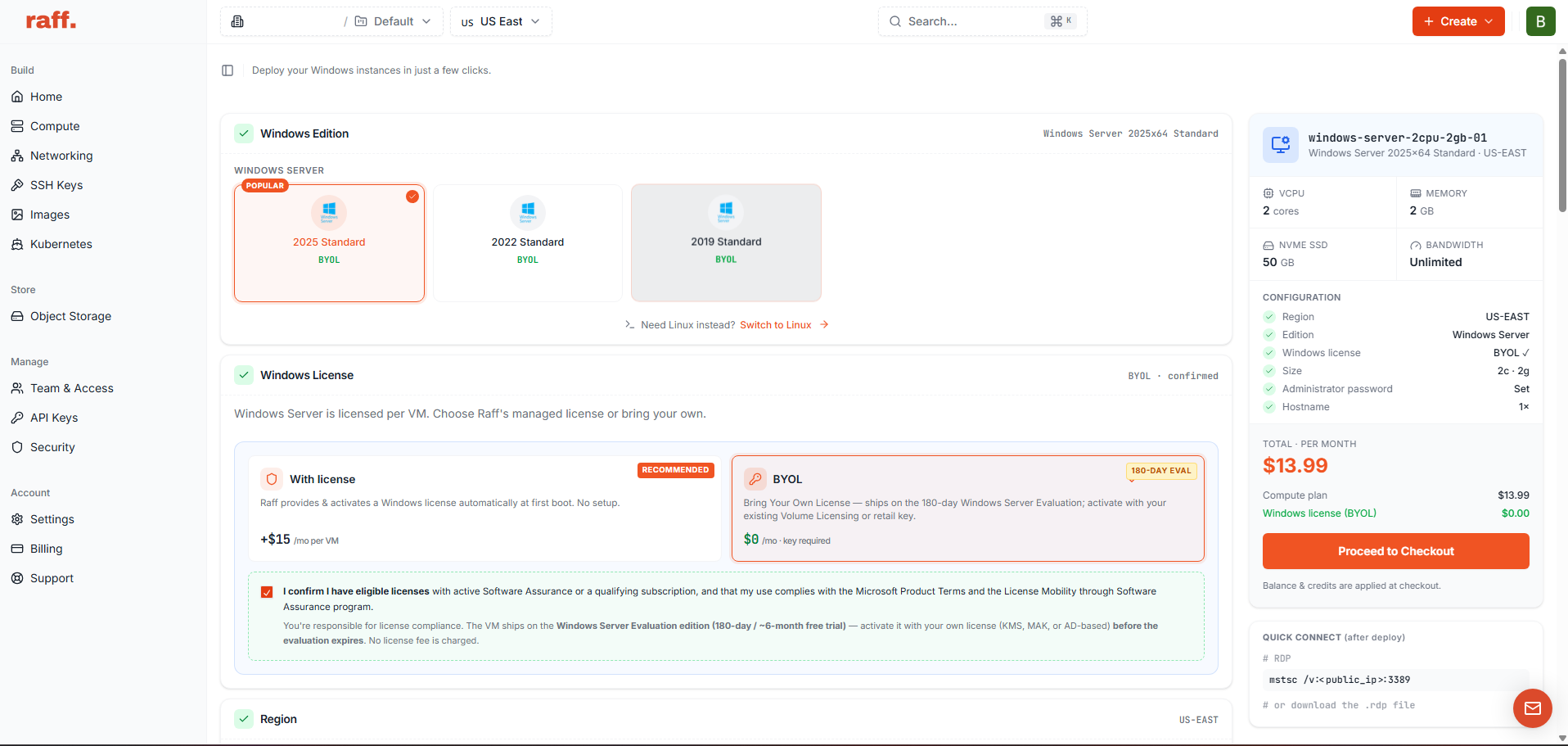
A small ERP environment can start with one VM, then expand to separate application/RDS and database VMs over private networking when the workload requires it.
Raff can be a fit when you need:
- Windows Server with administrator access;
- RDP or a self-managed RDS architecture;
- private networking between application and database VMs;
- NVMe-backed storage;
- backup and snapshot options;
- a migration target for an existing office Windows Server;
- a platform an MSP can operate for client workloads.
Raff does not determine whether a third-party ERP vendor permits hosting, multi-user RDS, or a specific Windows Server version. Confirm those rights with the software vendor before production deployment.