run your softwareintermediate11 min read·Updated Jun 20, 2026

Host Sage 50, 100, and 300 on a Windows VPS

Set up Sage 50, Sage 100, or Sage 300 on a Windows VPS for remote accounting teams. Covers sizing, RDS access, backups, and common pitfalls.

On this page

Don't have a Windows Server yet?

Deploy Windows Server 2019/2022/2025 in ~2 minutes. 6-month evaluation licence included.

Deploy Windows now

In short

You can host Sage 50, Sage 100, and Sage 300 on a Windows VPS when the server is sized for concurrent users, RDS sessions, data storage, and backups. Sage 50 fits smaller accounting teams. Sage 100 and Sage 300 need stricter planning around Remote Desktop Services, SQL Server, antivirus exclusions, integrations, and version support. For remote teams, run Sage inside the server session instead of opening company data across a slow VPN.

TL;DR

  • Use Windows Server 2022 as the safe default unless your Sage partner confirms that your exact Sage release supports Windows Server 2025.
  • Use Remote Desktop Services when multiple users need to run Sage on the same server.
  • Do not run Sage company data across a slow VPN or WAN file share.
  • Keep Sage data, SQL databases, and backups close to the application server.
  • Sage 50 is a lighter accounting workload. Sage 100 and Sage 300 need more planning around SQL, reporting, integrations, and user count.
  • Mark this article as Compatible with Raff until a Raff engineer installs Sage on a live Raff Windows VPS and records screenshots, version numbers, and test notes.

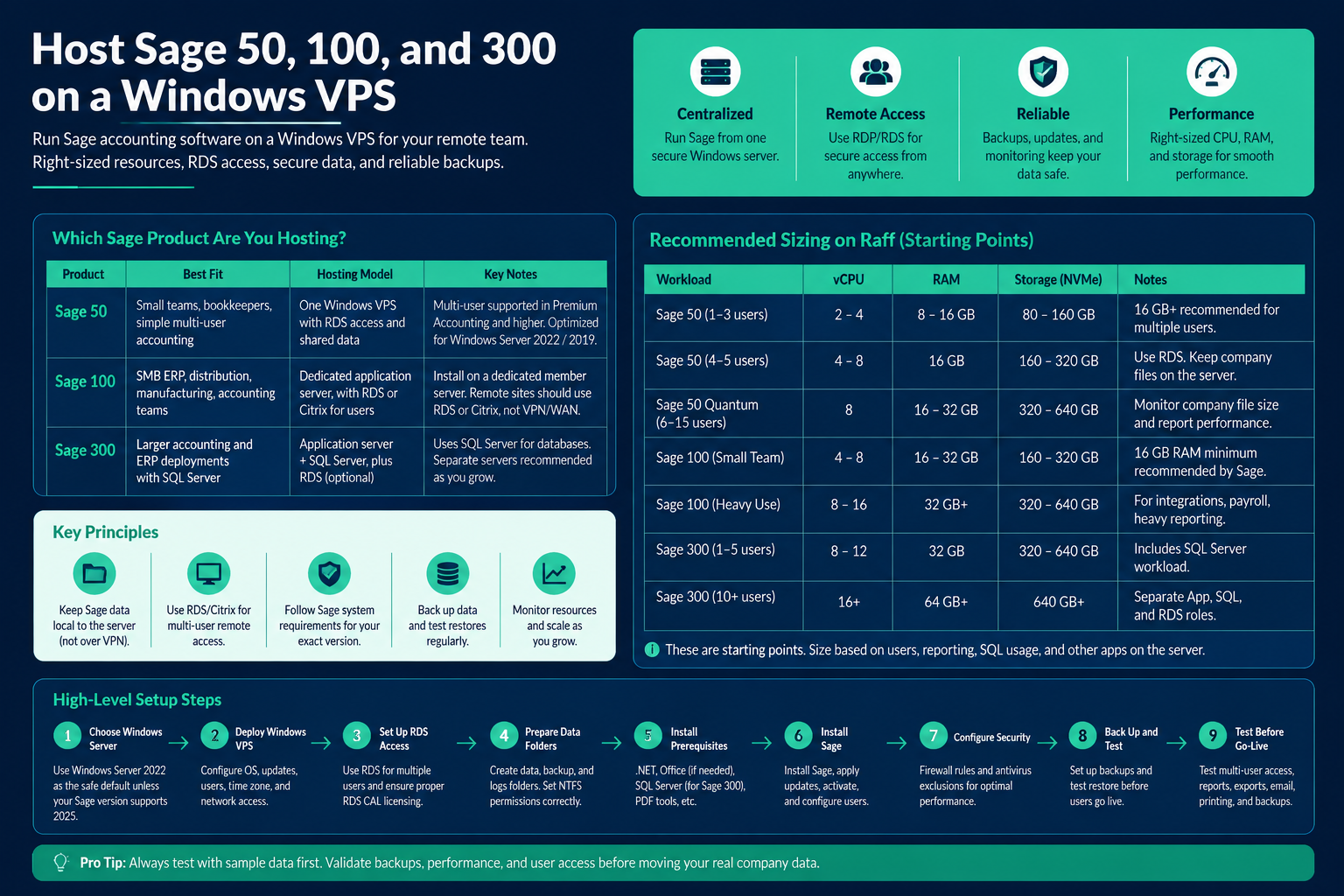
Infographic explaining how to host Sage 50, Sage 100, and Sage 300 on a Windows VPS, with product fit, Raff sizing recommendations, setup steps, RDS access, backups, and security notes.

Which Sage product are you hosting?

Sage 50, Sage 100, and Sage 300 solve different problems. Do not size them as if they are the same desktop application.

ProductBest fitTypical hosting modelNotes
Sage 50Small accounting teams, bookkeepers, simple multi-user accountingOne Windows VPS with RDS access and shared company dataSage 50 U.S. 2026 supports multi-user environments in Premium Accounting and higher. Multi-user mode is optimized for Windows Server 2022 and Windows Server 2019 client-server networks.
Sage 100SMB ERP, distribution, manufacturing, accounting teams with add-onsDedicated application server, often with RDS or Citrix for remote usersSage 100 Standard 2025 supports Windows Server 2016, 2019, 2022, and 2025 as server OS options. Remote sites should use RDS or Citrix, not direct VPN/WAN access.
Sage 300Larger accounting and ERP deployments with SQL ServerApplication server plus SQL Server, optionally web screens/IISSage 300 2026 supports Windows Server 2019, 2022, and 2025 as application server operating systems, and SQL Server 2019, 2022, or 2025 for the database server.

For most small accounting firms, start with Sage 50 or Sage 100 on one well-sized Windows VPS. For Sage 300, plan it like a database-backed business system, not a simple desktop app.

Small Sage 50 team

Use one Windows VPS as the application and data server. Users connect by RDP, open Sage on the server, and work against the company data locally on that server.

Use this pattern for:

  • 1 to 5 Sage 50 Premium users
  • Small bookkeeping teams
  • Remote accounting staff
  • Firms that want one shared Sage environment without maintaining an office server

This avoids the common failure pattern where the Sage application runs on a local office PC but the company data sits across a VPN. File-based accounting software does not like unreliable latency, packet loss, or home-office Wi-Fi between the application and the company data.

Sage 100 team

Use a dedicated Windows Server member/application server. For a smaller team, the same VPS can run Sage 100 and RDS. For a larger team, separate the Sage 100 application server from the RDS Session Host.

Sage 100 Standard 2025's platform matrix recommends installing Sage 100 Standard on a dedicated member/application server. It also warns that running Sage 100 on a domain controller or a server actively running other applications can create instability or performance problems.

This matters on a VPS. Do not turn the Sage server into an "everything server" with Exchange, IIS sites, random automation jobs, and accounting data all fighting for the same CPU and RAM.

Sage 300 team

Use a more formal layout.

RoleWhat it does
Sage 300 application serverHosts Sage 300 programs and shared application files
SQL ServerHosts Sage 300 system, company, and portal databases
RDS Session Host or Citrix serverGives users remote access to the Sage desktop client
Web screens server, optionalHosts Sage 300 web screens with IIS

Sage 300's installation model can include separate servers for programs, shared data, database engine, and optional RDP access. If you put every role on one VPS, size it as a database server plus a remote desktop server, not just an application installer.

Don't have a Windows Server yet?

Deploy Windows Server 2019/2022/2025 in ~2 minutes. 6-month evaluation licence included.

Deploy Windows now

Do not size Sage by installer minimums alone. Size it by concurrent users, reporting load, SQL use, and how many other apps run inside the same RDS session.

WorkloadStarting pointBetter production starting pointNotes
Sage 50, 1 to 3 users2 vCPU, 8 GB RAM, 80 GB NVMe4 vCPU, 8 to 16 GB RAM, 160 GB NVMeSage 50 U.S. 2026 lists 8 GB RAM minimum, with 16 GB or higher recommended for multiple users.
Sage 50, 4 to 5 Premium users4 vCPU, 16 GB RAM, 160 GB NVMe4 to 8 vCPU, 16 GB RAM, 320 GB NVMeUse RDS. Keep company files local to the server.
Sage 50 Quantum, 6 to 15 users8 vCPU, 16 to 32 GB RAM, 320 GB NVMe8 vCPU, 32 GB RAM, 640 GB NVMeWatch company file size, RDS memory, and report times.
Sage 100 Standard, small team4 vCPU, 16 GB RAM, 160 GB NVMe8 vCPU, 16 to 32 GB RAM, 320 GB NVMeSage 100 Standard 2025 lists 16 GB RAM as a recommended minimum for supported servers.
Sage 100 with integrations, paperless office, payroll, or heavy reports8 vCPU, 32 GB RAM, 320 GB NVMe12 to 16 vCPU, 32 GB RAM or more, 640 GB NVMeSeparate RDS from the Sage app server when user count grows.
Sage 300 Standard, 1 to 5 users8 vCPU, 32 GB RAM, 320 GB NVMe8 to 12 vCPU, 32 GB RAM, 640 GB NVMeSage 300 2026's recommended configurations start with 32 GB RAM for Sage 300 Server and SQL database roles.
Sage 300 Advanced/Premium, 10+ users16 vCPU, 64 GB RAM, 640 GB NVMeSeparate app, SQL, and RDS rolesUse a multi-server layout when reporting, integrations, or SQL load become the bottleneck.

These are Raff starting points, not Sage licensing statements. Check current Raff pricing before adding specific prices to this article body.

Step 1: Choose the Windows Server version

Use Windows Server 2022 as the default unless your Sage partner confirms that your exact Sage version, add-ons, printer drivers, and Office integration support Windows Server 2025.

For Sage 50 U.S. 2026, Sage lists multi-user mode as optimized for Windows Server 2022 and Windows Server 2019 client-server networks. It also lists Windows Server 2019 and higher for Terminal Services.

For Sage 100 Standard 2025, Sage lists Windows Server 2025, 2022, 2019, and 2016 as supported server operating systems. It also lists Windows Server 2025, 2022, 2019, and 2016 for Remote Desktop Services and Citrix supported servers.

For Sage 300 2026, Sage lists Windows Server 2019, 2022, and 2025 as supported application server operating systems, and SQL Server 2019, 2022, or 2025 as supported database server versions.

Our recommendation at Raff: choose the newest Windows Server version supported by the customer's exact Sage release and integrations. For many SMB accounting deployments today, that means Windows Server 2022.

Step 2: Deploy the Windows VPS

Deploy a Windows VPS with enough RAM for both Sage and every remote desktop session. A user who opens Sage, Outlook, Excel, a browser, and PDF documents inside RDS is not "just one Sage user." That user consumes full desktop-session memory.

Before installing Sage:

  1. Set a short server name.
  2. Install Windows Updates.
  3. Create a local administrator account for maintenance.
  4. Create named user accounts or join the server to Active Directory.
  5. Create a separate data volume if the plan includes one.
  6. Confirm the server can reach Sage licensing and registration services.
  7. Confirm the server time zone matches the customer's accounting office.

For Sage 50, keep the Windows computer name at 15 characters or less. Sage lists this as a requirement in the U.S. 2026 system requirements.

Step 3: Decide how users will connect

For one administrator, standard RDP is enough. For a team using Sage every day, deploy Remote Desktop Services properly.

Microsoft states that each user or device connecting to a Windows Server RDS Session Host needs an RDS Client Access License.

Use this rule of thumb:

ScenarioUse
1 admin maintaining the serverStandard RDP admin access
2 admins maintaining the serverStandard RDP admin access
3+ staff running Sage on the serverRDS Session Host plus RDS CALs
Staff in different officesRDS or Citrix
Sage data shared through a VPN drive mappingAvoid it

Sage 100 is direct on this point. Its platform matrix says workstations from remote sites are supported only through Remote Desktop Services or Citrix, and that running Sage 100 Standard over VPN, WAN, or other remote means is not supported.

Step 4: Prepare Sage data folders

Use a clear data layout. Do not put company files under a user profile or Downloads folder.

Example:

PathPurpose
D:\SageDataSage company data
D:\SageInstallersSage installers and patches
D:\SageBackupsLocal backup staging folder
D:\SageLogsExported logs and troubleshooting files

Create a Windows group for Sage users and give that group access to the Sage data folder.

Powershell
New-LocalGroup -Name "SageUsers" -Description "Users allowed to access Sage company data" New-Item -ItemType Directory -Path "D:\SageData" New-Item -ItemType Directory -Path "D:\SageBackups" New-Item -ItemType Directory -Path "D:\SageInstallers" New-Item -ItemType Directory -Path "D:\SageLogs" New-SmbShare -Name "SageData" -Path "D:\SageData" -ChangeAccess "SageUsers" -FullAccess "Administrators"

After that, set NTFS permissions in File Explorer or PowerShell. Keep the permission model simple.

PrincipalPermission
AdministratorsFull control
SageUsersModify
EveryoneRemove
Individual user accountsAvoid direct permissions

For Sage 300, do not rely on a basic file share alone. Sage 300 uses SQL Server for databases, and the database layer needs its own backup and maintenance plan.

Step 5: Install prerequisites

Before installing Sage, check .NET, Office, SQL Server, printers, and PDF tools.

Sage 50 prerequisites

Sage 50 U.S. 2026 lists Microsoft .NET Framework 4.8, Microsoft Edge for connected services, desktop Microsoft Office apps for Excel/Outlook/Word integration, and internet access for online services.

Install Office only if the customer needs Sage-to-Excel, Sage-to-Outlook, or document workflows inside the RDS session. Match the Office bitness and version to Sage's requirements for the customer's exact Sage release.

Sage 100 prerequisites

Sage 100 Standard 2025 requires .NET Framework 4.8. Sage notes that if .NET Framework 4.8 is not detected during installation, users are prompted to install it, and a reboot is required.

Sage 100 also has strong antivirus guidance. Its platform matrix says antivirus should exclude files with extensions including SOA, LIB, M4T, M4L, DD, DDE, and DDF, and warns about performance issues when scanning compressed CAB files, network drives, or ..\MAS90\*.* from multiple antivirus instances.

Sage 300 prerequisites

Sage 300 2026 uses SQL Server for the database tier. Sage lists SQL Server 2019, 2022, or 2025 as supported database server versions for Sage 300 2026.

If you plan to use Sage 300 web screens, Sage says the server requires Windows Server 2019, 2022, or 2025 with IIS installed, including static content and ASP.NET.

Step 6: Install Sage

Sage 50 installation pattern

For Sage 50, install the server-side components first. Store the company data under the dedicated Sage data folder. Then configure users to run Sage inside their RDS sessions.

Recommended order:

  1. Sign in as a local administrator.
  2. Download the correct Sage 50 installer from the customer's Sage account.
  3. Install Sage on the server.
  4. Place company data under D:\SageData.
  5. Activate Sage on the server.
  6. Create Sage users inside the application.
  7. Have each remote user sign in through RDS and launch Sage.
  8. Open a sample company first.
  9. Open a copy of the real company file.
  10. Test two users opening the company at the same time.

Do not test on the production company file first. Copy the company file, test access, test backup, then schedule the final move.

Sage 100 installation pattern

For Sage 100, use the server as a dedicated application server where possible.

Recommended order:

  1. Confirm the customer's exact Sage 100 edition and year.
  2. Check the Sage 100 Supported Platform Matrix for that exact edition.
  3. Install on a supported Windows Server version.
  4. Install prerequisites when prompted.
  5. Reboot when the installer requires it.
  6. Apply product updates.
  7. Configure antivirus exclusions before users begin working.
  8. Run Workstation Setup for RDS users if required by the Sage installer.
  9. Test printing, PDF export, and email delivery.
  10. Open a sample company and run a report.

If remote users access Sage 100, keep them inside RDS or Citrix. Do not map Sage 100 over a home-office VPN and hope the file locking behaves.

Sage 300 installation pattern

For Sage 300, treat the installation as an application plus database deployment.

Recommended order:

  1. Confirm whether the customer uses Sage 300 Standard, Advanced, or Premium.
  2. Check the exact Sage 300 Compatibility Guide for that release.
  3. Install or prepare SQL Server.
  4. Create system and company databases.
  5. Install Sage 300 System Manager and applications.
  6. Enter licenses.
  7. Activate the company data.
  8. Configure web screens only if the customer uses them.
  9. Test one user with the desktop client.
  10. Test reports, Excel integration, printing, and backups.

Sage 300 systems require system and company databases before setup. If web screens are used, plan the portal database and IIS requirements as part of the deployment, not as an afterthought.

Step 7: Configure firewall and antivirus

Start strict. Open only what the application needs.

For RDS access, use your normal Raff RDP security baseline. Restrict source IPs where possible. Use strong passwords, lockout policy, and MFA at the access layer if available.

For Sage application traffic, use the vendor's current port guidance for the exact product and release. Do not copy port lists from old forum posts.

For antivirus, configure exclusions only for the required Sage paths and extensions. Sage 100's own matrix calls out file extensions and the MAS90 path as areas where antivirus scanning can cause performance problems.

A practical exclusion plan looks like this:

AreaAction
Sage program folderExclude from real-time scanning only if Sage requires it
Sage data folderExclude only the vendor-required file types
SQL data and log filesUse SQL-aware antivirus exclusions
Backup destinationDo not exclude from all scanning unless the backup vendor requires it
Downloads folderDo not exclude

Step 8: Set up backups before users go live

Backups are part of the installation, not a future project.

Minimum backup plan:

BackupFrequencyWhat to test
Sage application dataNightlyRestore to a test folder
SQL Server databases, if usedFull daily, logs if requiredRestore to test SQL instance
Windows server snapshotBefore updates and major Sage patchesBoot or mount recovery point
Off-server copyDailyDownload and open restored file
License and installer archiveAfter install and upgradesConfirm activation details are available

For Sage 300, database backup matters more than copying folders. For Sage 50, the company file and Sage's own backup process matter. For Sage 100, include program files, company data, custom reports, enhancements, and vendor-specific folders.

Keep at least one restore test screenshot before publishing this as Tested on Raff.

Step 9: Test before cutover

A proper test is not "the installer opened."

Run this checklist before the accounting team uses the new server:

TestExpected result
User signs in through RDSLogin works without admin rights
Sage opensApplication starts without repair prompts
Sample company opensNo missing component errors
Two users open the same companyMulti-user access works
Report preview opensReport engine works
Export to PDFPDF file saves correctly
Export to ExcelExcel integration works
Email invoiceOutlook or SMTP workflow works
Printer redirectionUser can print to expected printer
BackupBackup completes
RestoreBackup restores into a test folder or test database

For Sage 100 and Sage 300, include at least one report-heavy test. A server that feels fine at login can still struggle when users run month-end reports.

Common mistakes

Mistake 1: Hosting Sage data over a VPN share

This is the failure pattern we see in accounting setups: the Sage application runs on a local PC, but the company data lives across a VPN. It works on a quiet Monday. Then payroll, month-end, or tax season hits, and users get slow screens, locked files, or broken sessions.

Run Sage inside the same Windows environment where the data lives. For remote users, that means RDS or Citrix-style access.

Mistake 2: Under-sizing RAM because the Sage installer opened successfully

An installer opening is not a production test. A real test means multiple users logged in, Sage open, Excel export working, PDF printing working, reports running, and backup completing.

Sage 50 U.S. 2026 lists 8 GB minimum RAM, but recommends 16 GB or higher for multiple users.

Mistake 3: Mixing Sage products on the same server

Do not place every Sage product on one server just because the names look related. Some Sage product lines have component conflicts.

If a customer runs multiple Sage products, check the exact product line and version before installing. When in doubt, use separate servers.

Mistake 4: Ignoring printer and PDF testing

Accounting software fails in boring ways. Printing, PDF export, email, and Excel integration are where users notice problems first.

Before go-live, test:

  • Invoice print
  • Check print
  • PDF export
  • Email invoice
  • Excel export
  • Report preview
  • Printer redirection through RDS

Mistake 5: Installing Sage 100 on a domain controller

Do not do this for a normal Raff deployment. Sage 100's platform matrix recommends a dedicated member/application server and calls out domain-controller and multi-application scenarios as configurations where Sage support can be limited because of instability or performance issues.

Mistake 6: Forgetting RDS CALs

Two administrative RDP sessions are not a multi-user Sage deployment. If staff use RDS Session Host to run Sage, the environment needs the correct RDS CALs.

Microsoft's licensing model requires an RDS CAL for each user or device connecting to an RDS Session Host.

Compatible with Raff

This setup is compatible with Raff Windows VPS plans when the selected Windows Server version, Sage release, licensing model, and server size match the customer's workload.

Do not mark this article as Tested on Raff until a Raff engineer completes this checklist:

  • Install Sage 50, Sage 100, or Sage 300 on a live Raff Windows VPS.
  • Record Windows Server version and build number.
  • Record Raff plan size.
  • Add at least one original screenshot.
  • Open a sample company.
  • Test two concurrent RDS users.
  • Export a report to PDF.
  • Run a backup and restore it.
  • Record the engineer name in the Strapi notes field.

What we recommend at Raff

For a small accounting firm, start with Sage 50 on Windows Server 2022 with enough RAM for every RDS user. Keep the company file on the server. Do not run it across a VPN.

For Sage 100, start with a dedicated Windows application server. Add RDS on the same VPS only for small teams. Split RDS and Sage 100 into separate servers when user count, integrations, or reporting load grows.

For Sage 300, plan the SQL layer first. A small Sage 300 setup can run on one strong VPS, but the clean production design separates application, SQL, and RDS roles when the team grows.

What's next

Next, read Raff's RDS CAL licensing guide before giving multiple users access to the Sage server. Then review the Raff RDP connection guide so users connect correctly from Windows, macOS, and mobile devices. If the customer is moving from an office PC or another host, use Raff's migration checklist before scheduling the final cutover.

Sources

Published June 20, 2026 · Last updated June 20, 2026