
In short
A good SQL Server TempDB configuration has enough preallocated space for the normal workload, multiple equally sized data files when appropriate, the same growth settings across those data files, and fast storage with enough free capacity. For SQL Server 2016 and later, Microsoft’s general starting guidance is one TempDB data file per logical processor up to eight files. If allocation contention remains, add files in groups of four while continuing to measure the workload.
Do not treat file count as the whole TempDB tuning strategy. TempDB pressure can also come from query spills, temporary objects, row versioning, index operations, long-running transactions, slow storage, or simply running out of disk space.
SQL Server TempDB best-practices checklist
| Setting | Practical starting point |
|---|---|
| Data-file count | 1 per logical processor up to 8 |
| More than 8 logical processors | Start with 8; add 4 at a time only if allocation contention remains |
| Data-file size | Keep all TempDB data files equal |
| Data-file growth | Keep growth settings equal across all data files |
| Initial capacity | Pre-size for the typical workload instead of relying on frequent autogrowth |
| Autogrowth | Keep enabled as a safety net; use a reasonable fixed increment for predictable capacity planning |
| Log files | Normally one TempDB log file |
| Storage | Fast I/O; separate storage only when I/O or capacity isolation justifies it |
| Monitoring | Space usage, version store, session/task usage, waits, disk latency, free disk space |
| Validation | Recheck the final layout after restart and observe the real production workload |
For a new SQL Server 2016+ installation, Setup already creates multiple TempDB data files based on logical processor count, up to eight by default. That means the first step is inspect the current configuration, not automatically add more files.
What is TempDB in SQL Server?
TempDB is a SQL Server system database used for temporary and intermediate work. SQL Server recreates it every time the Database Engine starts, using the file definitions stored in the instance configuration.
Common TempDB consumers include:
- local and global temporary tables;
- table variables;
- sorts and hash operations;
- query spills;
- internal worktables;
- row versioning and version store;
- snapshot-based isolation features;
- index creation or maintenance operations;
- DBCC and other engine operations.
A slow query that uses TempDB heavily is not automatically a “TempDB problem.” The root cause can be insufficient memory grants, poor cardinality estimates, inefficient queries, long-running row-versioning transactions, or storage pressure. Configure TempDB well, but diagnose the workload too.
What we tested on Raff
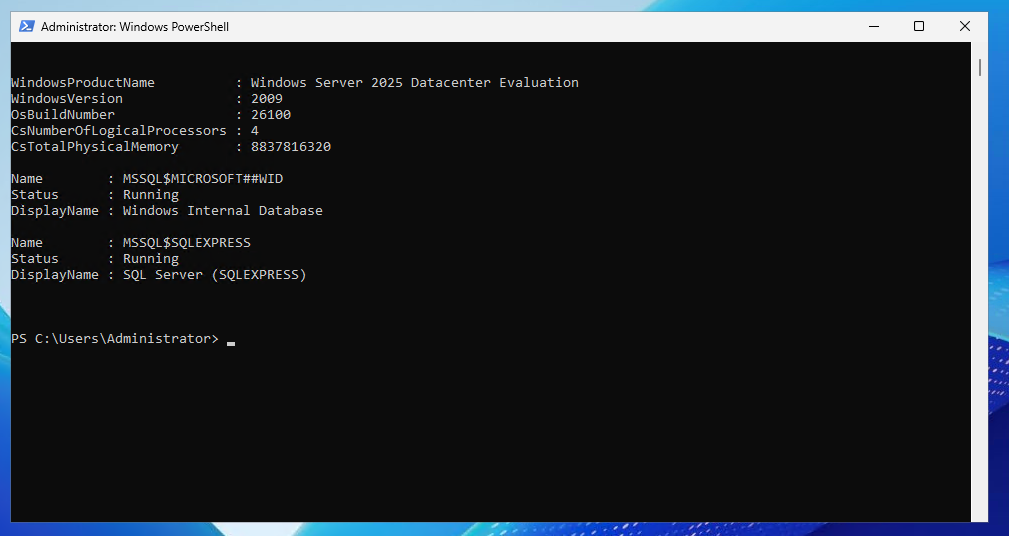
We tested this configuration workflow on a Raff Windows VPS running Windows Server 2025 Datacenter Evaluation and SQL Server 2025 Express.
| Item | Value |
|---|---|
| Provider | Raff Technologies |
| OS | Windows Server 2025 Datacenter Evaluation |
| SQL Server | SQL Server 2025 Express |
| Instance | SQLEXPRESS |
| CPU | 4 vCPU |
| Test database | TempDB system database |
| Original test date | 2026-05-26 |
| Tester | Serdar Tekin |
The lab verified:
- SQL Server service state;
- the existing TempDB file layout;
- CPU and scheduler count;
- a four-data-file layout on a 4 vCPU VM;
- equal TempDB data-file sizes;
- fixed autogrowth settings;
- SQL Server restart;
- the final TempDB layout after restart.
The lab used 64 MB files only to validate the procedure. Those values are deliberately not presented as a production sizing recommendation. This article does not claim a measured performance improvement from the change because the lab was not a synthetic allocation-contention benchmark.
Step 1 — Check the current TempDB configuration
Before changing anything, inspect the current files, sizes, growth settings, and paths.
sqlcmd -S .\SQLEXPRESS -E -C -Q "SELECT name, type_desc, physical_name, size * 8.0 / 1024 AS size_mb, CASE WHEN is_percent_growth = 0 THEN growth * 8.0 / 1024 ELSE growth END AS growth_value, is_percent_growth FROM tempdb.sys.database_files ORDER BY file_id;"
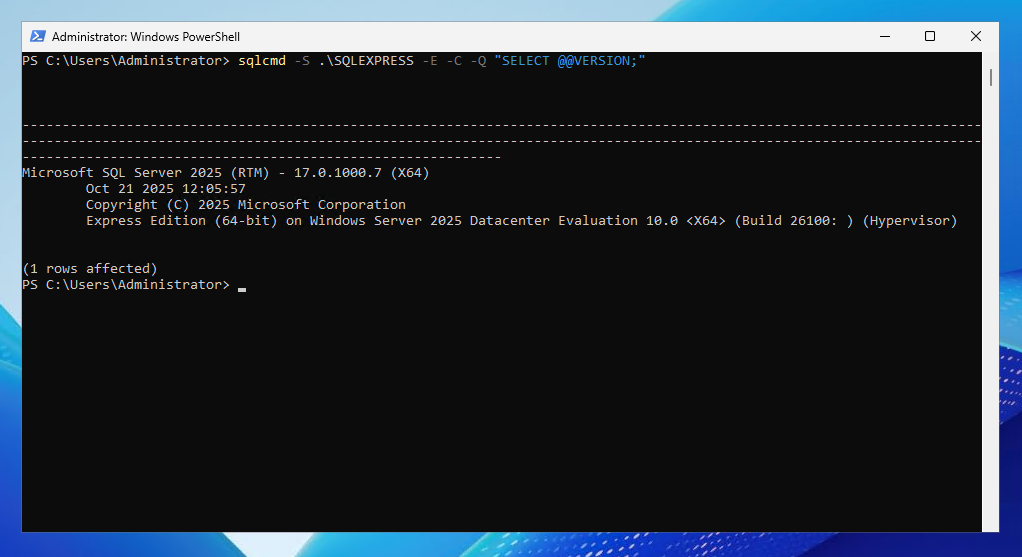
Review these fields:
| Field | Why it matters |
|---|---|
type_desc | Distinguishes data files from the log file |
physical_name | Shows where TempDB is placed |
size_mb | Shows current preallocated size |
growth_value | Shows the configured growth increment |
is_percent_growth | Distinguishes fixed-size growth from percentage growth |
Also check free space on the underlying volume. A correct SQL configuration cannot protect a volume that is already close to full.
Step 2 — Check logical processor count
Microsoft’s current general guidance for modern SQL Server is:
- 8 or fewer logical processors: start with the same number of TempDB data files as logical processors;
- more than 8 logical processors: start with 8 data files;
- if allocation contention remains, increase the file count in groups of four, up to the number of logical processors, while measuring the result.
Check what SQL Server sees:
sqlcmd -S .\SQLEXPRESS -E -C -Q "SELECT cpu_count, scheduler_count FROM sys.dm_os_sys_info;"

For the 4 vCPU Raff lab, the starting layout was therefore:
4 TempDB data files
1 TempDB log file
TempDB files per core: practical starting table
| Logical processors | Starting data files |
|---|---|
| 1 | 1 |
| 2 | 2 |
| 4 | 4 |
| 8 | 8 |
| 12 | 8, then measure |
| 16+ | 8, then measure allocation contention |
Do not create 16, 24, or 32 files simply because the VM has that many vCPUs. Additional files are specifically useful when they reduce allocation contention; they do not fix every kind of TempDB pressure.
Step 3 — Keep TempDB data files equal
All TempDB data files should have the same initial size and the same growth settings. This helps SQL Server distribute allocations more evenly.
Avoid an imbalanced layout such as:
tempdev   4096 MB
tempdev2  1024 MB
tempdev3   512 MB
tempdev4   512 MB
Prefer equal-sized files, for example:
tempdev   1024 MB
tempdev2  1024 MB
tempdev3  1024 MB
tempdev4  1024 MB
Those numbers are only an example. The correct production size comes from observed TempDB demand, not from the example itself.
Step 4 — Pre-size TempDB instead of depending on autogrowth
Autogrowth should remain available for unexpected demand, but it should not be the normal way TempDB reaches its everyday operating size.
Microsoft recommends reproducing the typical workload, observing peak TempDB consumption, accounting for projected concurrency, and then preallocating enough capacity for that workload.
A practical workflow is:
Observe normal workload
→ observe heavy reporting / ETL / maintenance
→ record peak TempDB use
→ add operational headroom
→ pre-size the data files equally
→ leave autogrowth enabled for unexpected demand
→ monitor the volume
Avoid blindly copying a “1 GB per file” or “4 GB per file” rule from another server. A reporting workload, an OLTP application, and a database using heavy row versioning can require very different TempDB capacity.
Step 5 — Choose sensible TempDB autogrowth
For TempDB data files, keep the growth configuration the same across all data files. A fixed MB increment makes capacity planning easier because each growth event has a known size.
Microsoft uses 64 MB as an example of a reasonable increment in its TempDB guidance, but the correct value depends on file size, workload, disk capacity, and how quickly the storage can satisfy growth operations.
For example:
ALTER DATABASE tempdb
MODIFY FILE (
    NAME = tempdev,
    SIZE = 1024MB,
    FILEGROWTH = 256MB
);
Do not choose an extremely small increment that causes constant growth events. Do not choose an enormous increment that can unexpectedly consume a small volume. The goal is predictable, infrequent growth with enough free capacity remaining.
Step 6 — Apply a multi-file TempDB layout
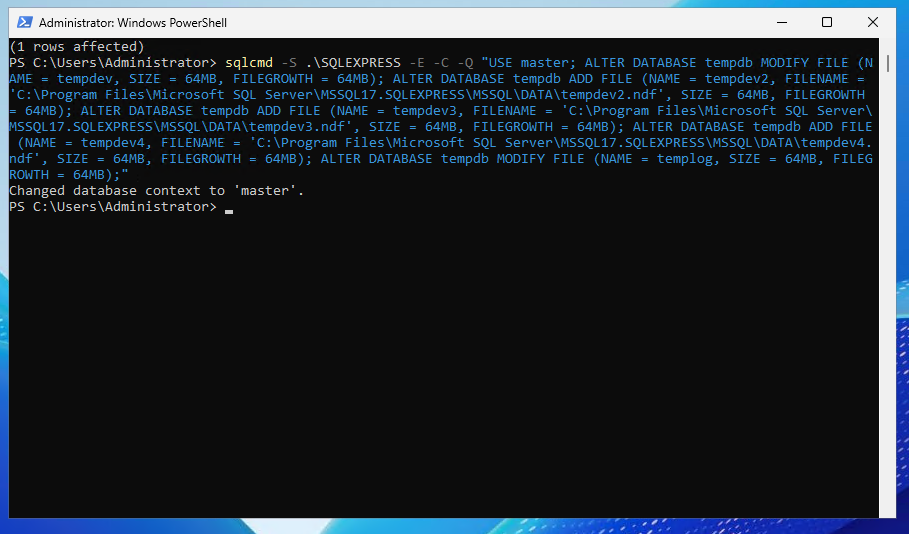
In the Raff lab, we used four TempDB data files with small 64 MB sizes and 64 MB growth increments so the configuration could be validated safely.
sqlcmd -S .\SQLEXPRESS -E -C -Q "USE master; ALTER DATABASE tempdb MODIFY FILE (NAME = tempdev, SIZE = 64MB, FILEGROWTH = 64MB); ALTER DATABASE tempdb ADD FILE (NAME = tempdev2, FILENAME = 'C:\Program Files\Microsoft SQL Server\MSSQL17.SQLEXPRESS\MSSQL\DATA\tempdev2.ndf', SIZE = 64MB, FILEGROWTH = 64MB); ALTER DATABASE tempdb ADD FILE (NAME = tempdev3, FILENAME = 'C:\Program Files\Microsoft SQL Server\MSSQL17.SQLEXPRESS\MSSQL\DATA\tempdev3.ndf', SIZE = 64MB, FILEGROWTH = 64MB); ALTER DATABASE tempdb ADD FILE (NAME = tempdev4, FILENAME = 'C:\Program Files\Microsoft SQL Server\MSSQL17.SQLEXPRESS\MSSQL\DATA\tempdev4.ndf', SIZE = 64MB, FILEGROWTH = 64MB); ALTER DATABASE tempdb MODIFY FILE (NAME = templog, SIZE = 64MB, FILEGROWTH = 64MB);"
Before using a similar command in production:
- change the physical path for the actual SQL Server instance;
- choose production sizes from monitoring data;
- verify the SQL Server service account can access the destination;
- confirm enough free storage exists;
- schedule changes that require restart for a maintenance window.
Step 7 — Restart and verify the final layout
TempDB is recreated when SQL Server starts. For changes that require a restart, use a planned maintenance window.
For the Express lab:
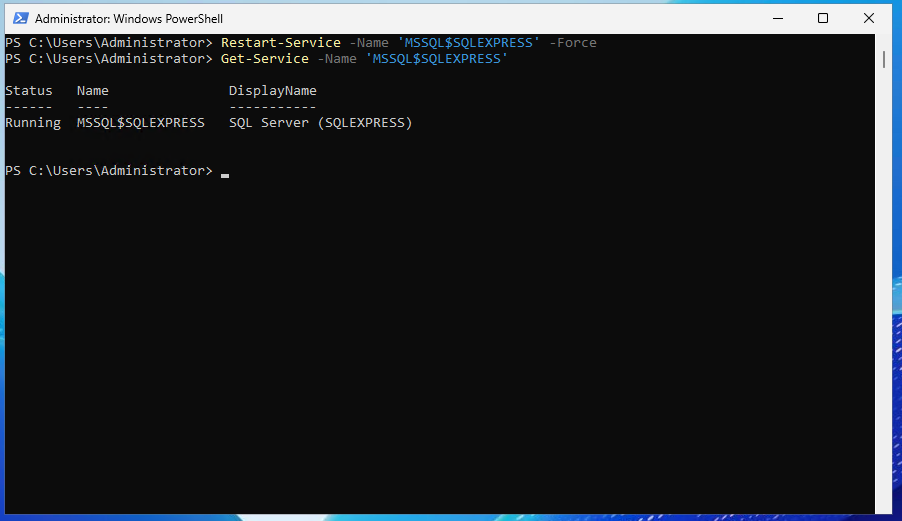
Restart-Service -Name 'MSSQL$SQLEXPRESS' -Force
Then confirm the service:
Get-Service -Name 'MSSQL$SQLEXPRESS'
Re-run the configuration query:
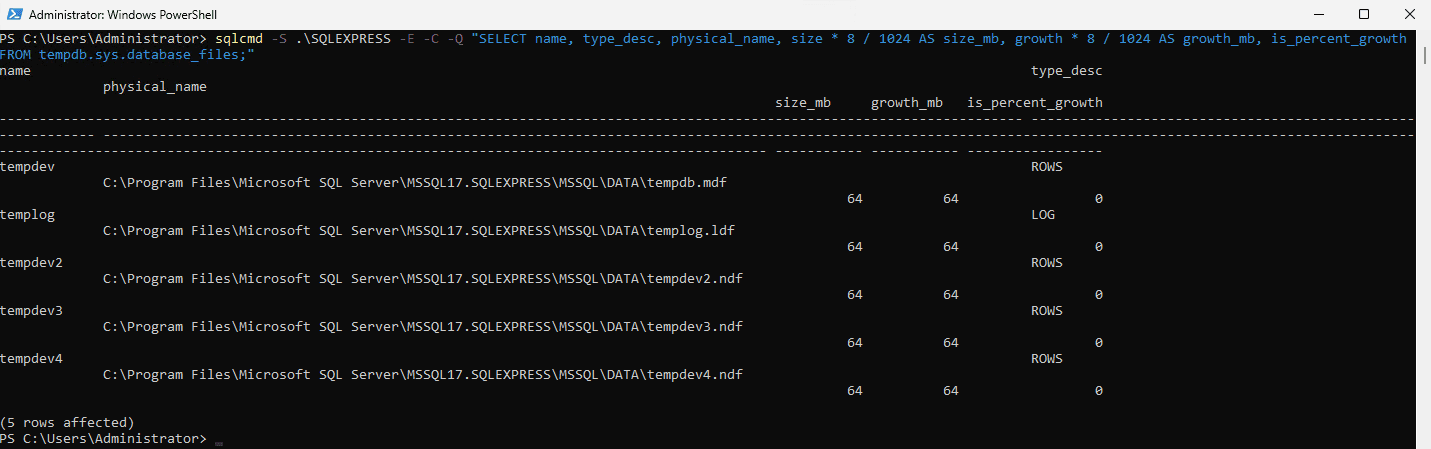
sqlcmd -S .\SQLEXPRESS -E -C -Q "SELECT name, type_desc, physical_name, size * 8.0 / 1024 AS size_mb, growth * 8.0 / 1024 AS growth_mb, is_percent_growth FROM tempdb.sys.database_files ORDER BY file_id;"
The lab result was:
tempdev     ROWS    64 MB    64 MB
tempdev2    ROWS    64 MB    64 MB
tempdev3    ROWS    64 MB    64 MB
tempdev4    ROWS    64 MB    64 MB
templog     LOG     64 MB    64 MB
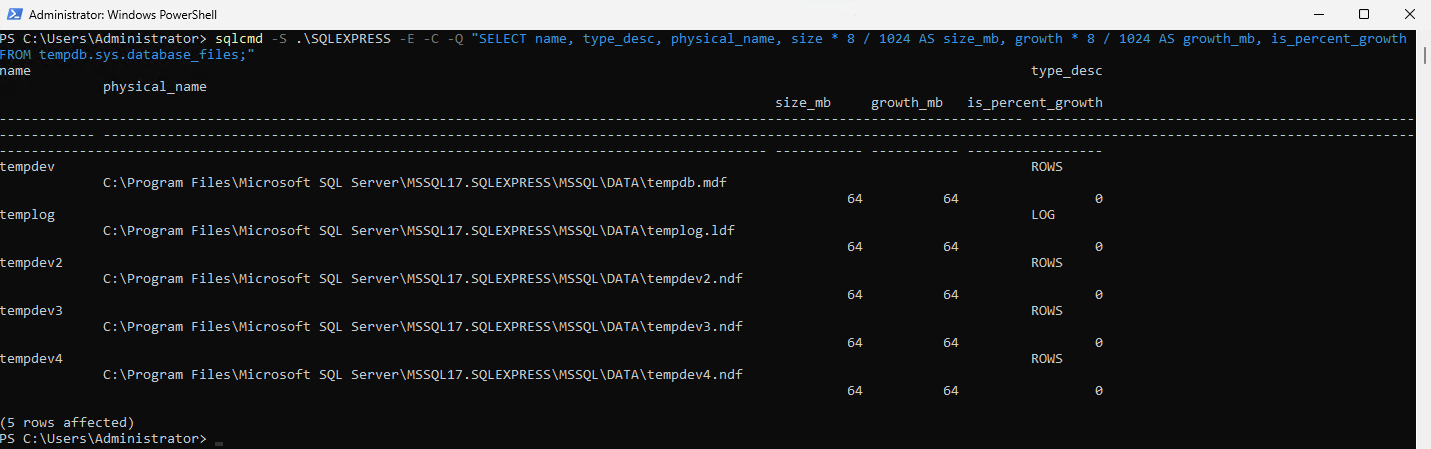
The important result is not the 64 MB lab size. It is that SQL Server started successfully and the four data files were present with equal size and equal growth configuration.
How to monitor TempDB space usage
Use sys.dm_db_file_space_usage to separate free space, user objects, internal objects, and version store usage.
USE tempdb;
GO

SELECT
    SUM(unallocated_extent_page_count) * 8.0 / 1024 AS free_space_mb,
    SUM(version_store_reserved_page_count) * 8.0 / 1024 AS version_store_mb,
    SUM(user_object_reserved_page_count) * 8.0 / 1024 AS user_objects_mb,
    SUM(internal_object_reserved_page_count) * 8.0 / 1024 AS internal_objects_mb
FROM sys.dm_db_file_space_usage;
Run this during the periods that matter: normal business load, reporting peaks, ETL windows, index maintenance, and any workload that previously caused TempDB growth.
Check TempDB usage by session
When TempDB suddenly grows, identify which sessions are consuming space instead of immediately resizing or shrinking it.
SELECT TOP (20)
    session_id,
    (user_objects_alloc_page_count - user_objects_dealloc_page_count) * 8.0 / 1024 AS user_objects_mb,
    (internal_objects_alloc_page_count - internal_objects_dealloc_page_count) * 8.0 / 1024 AS internal_objects_mb
FROM sys.dm_db_session_space_usage
WHERE session_id > 50
ORDER BY (user_objects_alloc_page_count - user_objects_dealloc_page_count)
       + (internal_objects_alloc_page_count - internal_objects_dealloc_page_count) DESC;
This is especially useful when a single reporting, ETL, or application session is driving a large increase.
How to detect TempDB allocation contention
Multiple TempDB data files are primarily a response to allocation contention, not a generic cure for slow SQL Server performance.
Check latch waits:
SELECT
    wait_type,
    waiting_tasks_count,
    wait_time_ms,
    signal_wait_time_ms
FROM sys.dm_os_wait_stats
WHERE wait_type LIKE 'PAGELATCH%'
ORDER BY wait_time_ms DESC;
Then inspect active requests:
SELECT
    session_id,
    wait_type,
    wait_resource,
    blocking_session_id
FROM sys.dm_exec_requests
WHERE wait_type LIKE 'PAGELATCH%';
TempDB is database ID 2. Allocation contention commonly involves PFS, GAM, or SGAM pages. Do not assume every PAGELATCH wait is TempDB; verify the database and page involved.
SQL Server 2016 and later already include several TempDB allocation improvements that older guidance handled with trace flags. On modern SQL Server, focus first on file count, equal sizing, current cumulative updates, workload behavior, and measured contention rather than copying old trace-flag recipes.
What should you do if SQL Server TempDB is full?
A full TempDB is an operational incident, but the first response should be diagnosis rather than routine shrinking.
Check four things quickly:
- Is the volume itself full? Check operating-system free disk space.
- Can TempDB files still grow? Inspect file
MAXSIZE, growth settings, and available volume capacity. - What is consuming TempDB? Separate user objects, internal objects, and version store with the DMVs above.
- Which sessions or tasks are responsible? Inspect session/task space usage and active requests.
Common causes include:
- a large sort or hash spill;
- reporting or ETL queries;
- large temporary tables;
- index operations;
- row-versioning pressure;
- long-running transactions holding version-store data;
- insufficient preallocated space;
- an underlying disk that has simply run out of capacity.
If the immediate problem is lack of capacity, adding safe temporary capacity can restore service, but the permanent fix should address the workload, file configuration, or storage constraint that caused the incident.
Should you shrink TempDB?
Routine TempDB shrinking is not a tuning strategy. If a one-off operation caused unusual growth, first confirm that the workload is finished and determine the intended steady-state size. Repeatedly shrinking TempDB only to let it autogrow again creates unnecessary work and does not solve the source of the growth.
A SQL Server restart also is not a normal “clear TempDB” maintenance technique. TempDB is recreated at startup using its configured file definitions, so restart planning should be based on a genuine maintenance requirement, not used as a substitute for capacity management.
Where should TempDB files live?
Microsoft recommends a fast I/O subsystem. Individual TempDB data files do not need separate disks simply because there are multiple files.
Use separate storage when it gives a real benefit, such as:
- isolating heavy TempDB I/O from user-database I/O;
- protecting the OS volume from TempDB capacity spikes;
- independently scaling TempDB capacity or IOPS;
- reducing a measured disk-level bottleneck.
Do not move TempDB from fast storage to slower storage merely to say it is “separate.” Measure latency and throughput on the actual storage path.
TempDB log-file guidance
Multiple data files do not imply multiple log files. In normal configurations, keep one TempDB log file and size it for the workload.
Watch for log growth during operations that generate substantial TempDB log activity. Starting with SQL Server 2022, transaction-log growth events up to 64 MB can benefit from instant file initialization under supported conditions, but that does not remove the need to size and monitor the log correctly.
SQL Server 2025: ADR in TempDB
SQL Server 2025 introduces the option to enable Accelerated Database Recovery (ADR) in TempDB. Microsoft recommends considering it for benefits such as instant transaction rollback and more aggressive log truncation for transactions in TempDB.
Treat this as a separate engine-level decision rather than a replacement for correct file sizing. Enabling or disabling ADR in TempDB requires a Database Engine restart, so validate compatibility and behavior in a test environment before changing a production instance.
Common TempDB mistakes
Adding files without confirming the current layout
SQL Server 2016+ Setup already creates multiple TempDB files on new installations. Inspect first.
Creating one file per vCPU above eight without evidence
Start with eight on larger servers. Add more in groups of four only when allocation contention remains.
Unequal data-file sizes or growth settings
Keep TempDB data files equal to avoid allocation imbalance.
Treating autogrowth as normal sizing
Pre-size for expected demand. Autogrowth is the safety net.
Copying a universal TempDB size
There is no correct “X GB per core” rule for every workload. Observe actual consumption.
Moving TempDB to slower storage
Separate storage is only useful if it solves a real I/O or capacity problem.
Shrinking TempDB repeatedly
If the files immediately grow again, the steady-state sizing or workload problem has not been solved.
Assuming every PAGELATCH wait is TempDB
Verify database ID and the page involved before changing file count.
Ignoring version store
Snapshot-based workloads and long-running transactions can create substantial TempDB pressure even when temporary-table usage looks normal.
Production baseline by workload
| Workload | Starting approach |
|---|---|
| Dev/test | Inspect defaults; modest pre-sizing is usually enough |
| 2–4 vCPU production SQL Server | 2–4 equal data files, then monitor |
| 8 vCPU production SQL Server | Up to 8 equal data files, then monitor |
| More than 8 vCPU | Start with 8, add four only for measured allocation contention |
| Reporting / ETL heavy | Pre-size from observed peak usage; monitor internal objects and storage latency |
| Snapshot / row-versioning heavy | Monitor version store and long-running transactions |
| TempDB-full history | Add disk-space alerts and session/task usage diagnostics |