
In short
max server memory (MB) is the main SQL Server setting used to stop the database engine from consuming so much memory that Windows Server and other workloads become starved. The right value is not a universal percentage. Start with the total RAM in the VM, reserve enough memory for Windows and every non-SQL workload, then give SQL Server the remainder and validate the choice under real load.
For a dedicated SQL Server VM, SQL Server can usually receive most of the available RAM. If the same Windows VM also runs IIS, RDP/RDS users, backup software, monitoring, ERP components, or other business applications, reserve more memory outside SQL Server.
The key rule is simple:
Set
max server memoryso Windows Server and non-SQL processes still have enough memory during peak workload.
What should SQL Server max server memory be?
There is no single correct percentage for every server.
Use a workload-based starting point instead:
| Total VM RAM | Dedicated SQL Server starting point | Shared SQL + IIS/RDP/apps starting point |
|---|---|---|
| 4 GB | ~2 GB SQL | Usually too constrained for mixed production roles |
| 8 GB | ~5 GB SQL | ~4-5 GB SQL |
| 16 GB | ~12 GB SQL | ~10-12 GB SQL |
| 32 GB | ~26 GB SQL | ~22-26 GB SQL |
| 64 GB | ~52-56 GB SQL | ~44-52 GB SQL |
| 128 GB+ | Size from measured workload | Size from measured workload |
These are starting examples, not universal best-practice values. SQL Server edition limits, database working set, backup jobs, RDP sessions, IIS app pools, antivirus, monitoring agents, linked servers, and other processes can change the right value materially.
For broader VM sizing, see Windows Server Sizing by Workload.
What is max server memory in SQL Server?
SQL Server uses memory aggressively because memory improves database performance. It keeps frequently accessed data pages and execution plans in memory and also needs memory for query execution, locks, internal structures, columnstore, and other engine operations.
max server memory (MB) limits the size of the SQL Server memory pool managed by the database engine. It is the most important memory setting for preventing SQL Server from taking too much RAM from the operating system.
However, it is important to understand what it is not:
max server memoryis not a hard cap on every byte used by thesqlservr.exeprocess.
Some allocations can exist outside the memory controlled by this setting, including thread stacks, certain DLL or provider allocations, and other memory used outside the main SQL Server memory pool. That is why Task Manager can show SQL Server process memory above the configured value in some scenarios.
Treat max server memory as the primary SQL Server memory control, then validate Windows available memory and actual process behavior after the change.
Why SQL Server uses so much memory
High SQL Server memory usage is not automatically a memory leak.
SQL Server is designed to use available RAM for caching and query processing. On a healthy dedicated database server, seeing SQL Server use a large amount of memory can be completely normal.
Memory becomes a problem when SQL Server is competing with Windows or other workloads and you start seeing symptoms such as:
- Windows paging heavily;
- RDP sessions becoming slow or unstable;
- IIS worker processes struggling for memory;
- backup or monitoring tools failing or slowing down;
Memory Grants Pendingstaying above zero;- Windows reporting sustained low available memory;
- SQL Server reporting physical memory pressure;
- query latency increasing at the same time memory pressure appears.
Do not diagnose a memory problem from Task Manager alone. High SQL memory usage can be healthy; memory pressure is the real signal to investigate.
What we tested on Raff
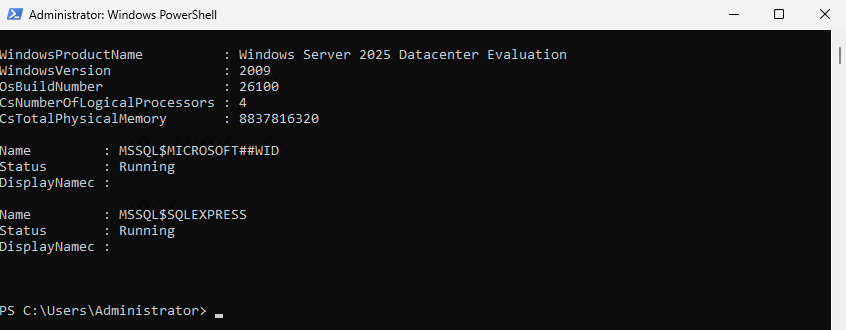
The original configuration workflow was tested on a Raff Windows VPS running Windows Server 2025 Datacenter Evaluation and SQL Server 2025 Express.
| Item | Value |
|---|---|
| Provider | Raff Technologies |
| OS | Windows Server 2025 Datacenter Evaluation |
| SQL Server | SQL Server 2025 Express |
| Instance | SQLEXPRESS |
| VPS size | 4 vCPU / approximately 8 GB RAM |
| Original test date | 2026-05-26 |
| Tester | Aybars Altinyay |
The original lab verified:
- Windows Server and SQL Server service state;
- total and free Windows memory;
- current SQL Server memory configuration;
- SQL Server process memory usage;
- setting
max server memory (MB); - verifying the new memory cap.
This September update improves the sizing guidance and memory-pressure diagnostics. It does not claim a new benchmark or a new end-to-end lab test.
SQL Server Express note
SQL Server Express has edition-specific memory and compute limits, so it does not behave like a larger Standard or Enterprise production instance under load.
The configuration workflow is still useful:
- Check total Windows RAM.
- Check the existing SQL Server memory settings.
- Inspect actual SQL Server memory usage.
- Set
max server memory. - Verify the running value.
- Monitor Windows and SQL Server pressure signals.
For production edition planning, see SQL Server Standard vs Enterprise.
Step 1 - Check total and free Windows memory
Before changing SQL Server settings, establish the Windows memory baseline.
Run PowerShell as Administrator:
$os = Get-CimInstance Win32_OperatingSystem
[PSCustomObject]@{
    TotalRAM_GB = [math]::Round($os.TotalVisibleMemorySize / 1MB, 2)
    FreeRAM_GB  = [math]::Round($os.FreePhysicalMemory / 1MB, 2)
}
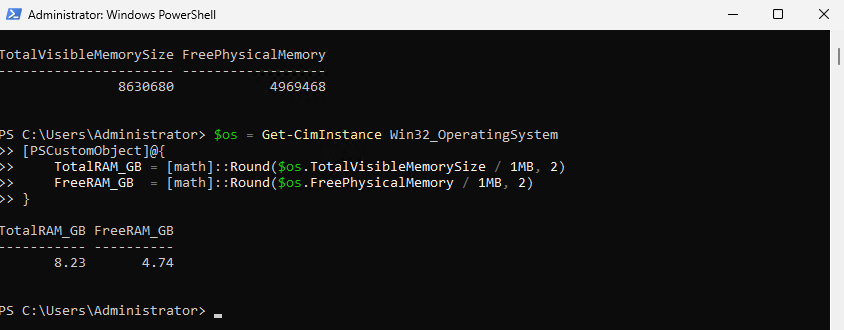
Run this during both quiet and busy periods when possible.
If the server already has low free memory before SQL Server reaches normal workload, do not simply increase the SQL Server memory cap. Identify the other processes using memory or resize the VM.
Step 2 - Check the current max server memory setting
For the SQLEXPRESS instance, run:
sqlcmd -S localhost\SQLEXPRESS -E -C -Q "EXEC sp_configure 'show advanced options', 1; RECONFIGURE; EXEC sp_configure 'max server memory (MB)'; EXEC sp_configure 'min server memory (MB)';"
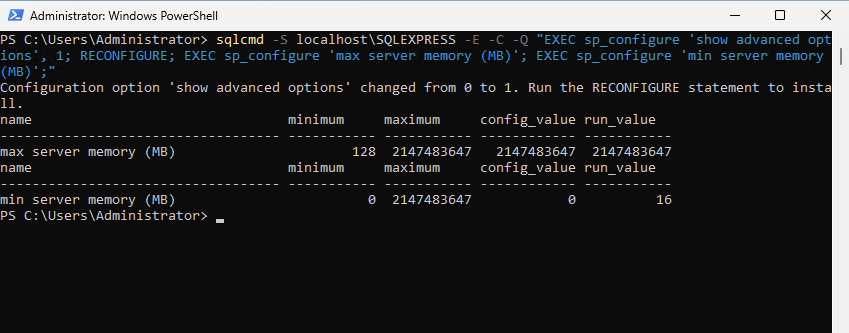
Look at both:
config_value
run_value
If max server memory (MB) is left at an extremely high default value, SQL Server is effectively uncapped within its edition and operating constraints.
That can be acceptable in some carefully managed dedicated environments, but it is a poor default for a shared Windows VM where IIS, RDP users, backup agents, or other business applications need predictable memory.
Step 3 - Check actual SQL Server process memory
Use PowerShell to see current SQL Server working set and private memory:
Get-Process | Where-Object {$_.ProcessName -like "sqlservr*"} |
Select-Object ProcessName, Id,
@{Name="WorkingSet_MB";Expression={[math]::Round($_.WorkingSet64/1MB,2)}},
@{Name="PrivateMemory_MB";Expression={[math]::Round($_.PrivateMemorySize64/1MB,2)}}
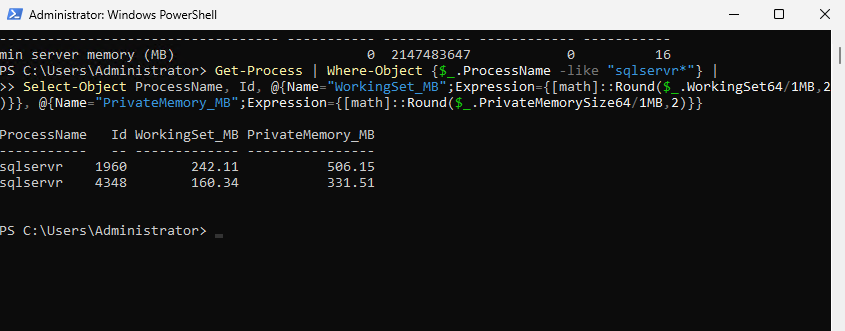
A low value on a test database only means the current workload is small. It does not prove the instance is correctly sized.
Also check SQL Server's view of its memory target:
SELECT
    total_server_memory_kb / 1024 AS total_server_memory_mb,
    target_server_memory_kb / 1024 AS target_server_memory_mb
FROM sys.dm_os_sys_memory;
If your SQL Server version does not expose the information you need through that DMV, use the SQL Server performance counters shown later in this guide.
Step 4 - Choose a safe max server memory value
Start with three questions:
- How much total RAM does the VM have?
- What else runs on the VM besides SQL Server?
- How much memory does Windows still need during peak workload?
Dedicated SQL Server VM
A dedicated SQL Server VM can usually allocate most of its RAM to SQL Server while reserving enough for Windows, security agents, backup software, and administration.
Example starting points:
| Total RAM | Example SQL max memory |
|---|---|
| 8 GB | 5-6 GB |
| 16 GB | 12-13 GB |
| 32 GB | 24-28 GB |
| 64 GB | 52-56 GB |
Shared SQL Server + IIS/RDP/apps
Reserve more memory when the same Windows VM also hosts user sessions or application services.
| Total RAM | Example SQL max memory |
|---|---|
| 8 GB | 4-5 GB |
| 16 GB | 10-12 GB |
| 32 GB | 22-26 GB |
| 64 GB | 44-52 GB |
Use more reservation when the server also runs:
- IIS application pools;
- RDP or RDS user sessions;
- ERP or accounting applications;
- antivirus/EDR scans;
- backup agents;
- monitoring agents;
- file services;
- SSIS or reporting workloads;
- other database engines.
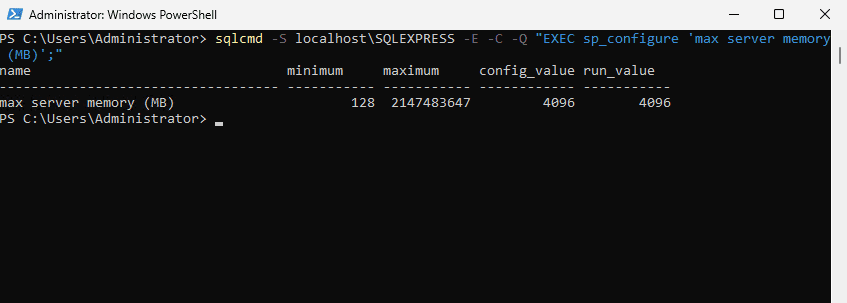
For the original approximately 8 GB Raff test VM, the lab used:
4096 MB
That value was intentionally conservative for a small shared-style test environment. It should not be copied automatically to every 8 GB production database server.
Step 5 - Set max server memory with T-SQL
To set max server memory (MB) to 4096 MB on the test instance:
sqlcmd -S localhost\SQLEXPRESS -E -C -Q "EXEC sp_configure 'show advanced options', 1; RECONFIGURE; EXEC sp_configure 'max server memory (MB)', 4096; RECONFIGURE;"
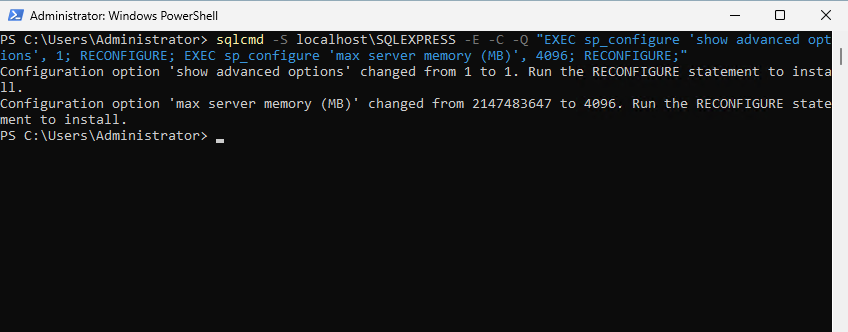
The change normally does not require a Windows reboot.
SQL Server adjusts memory usage over time, so the process may not immediately drop to the exact new value the moment you run RECONFIGURE.
Step 6 - Verify the new max server memory value
Run:
sqlcmd -S localhost\SQLEXPRESS -E -C -Q "EXEC sp_configure 'max server memory (MB)';"
Expected result for the original test:
config_value    run_value
4096            4096
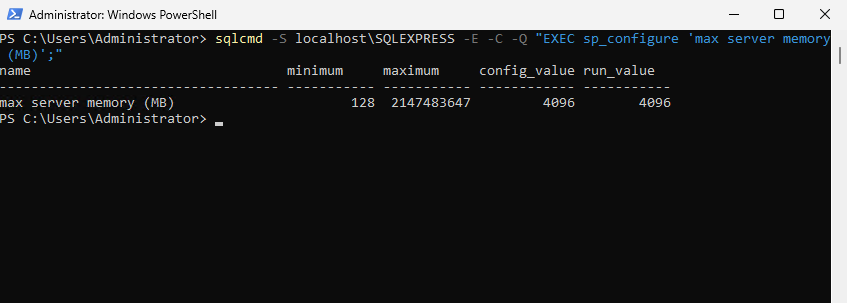
If config_value and run_value match, the setting is active.
The next step is not to stop monitoring. Verify that Windows still has healthy memory headroom and that SQL Server is not now too constrained for its workload.
How to check max server memory in SQL Server
You can check the current setting directly in SSMS or through sqlcmd:
EXEC sys.sp_configure 'max server memory (MB)';
For a cleaner query against the configuration table:
SELECT
    name,
    value AS configured_value,
    value_in_use
FROM sys.configurations
WHERE name IN ('min server memory (MB)', 'max server memory (MB)');
Use value_in_use to confirm the setting currently applied by SQL Server.
How to change max server memory in SQL Server
Use sp_configure:
EXEC sys.sp_configure 'show advanced options', 1;
RECONFIGURE;
GO

EXEC sys.sp_configure 'max server memory (MB)', 12288;
RECONFIGURE;
GO
The example above sets SQL Server to approximately 12 GB.
Choose the actual number from the server's RAM, workload, edition, and non-SQL memory requirements. Do not copy 12288 into production merely because it appears in an example.
What about min server memory?
min server memory (MB) is often misunderstood.
It does not force SQL Server to reserve the configured amount immediately at startup. SQL Server grows memory as the workload needs it. After the instance grows above the configured minimum, the setting influences how far the engine will shrink its memory pool under normal memory management.
For many Windows VPS workloads, leave min server memory at its default unless there is a measured reason to change it.
Do not set min server memory equal to max server memory on a shared Windows VM. That reduces SQL Server's ability to return memory when Windows or another workload needs it.
How to detect SQL Server memory pressure
Do not rely on one metric. Use several signals together.
1. Check Windows available memory
PowerShell:
Get-Counter '\Memory\Available MBytes'
Sustained low available memory during peak workload is more meaningful than one brief dip.
2. Check Memory Grants Pending
SELECT cntr_value AS memory_grants_pending
FROM sys.dm_os_performance_counters
WHERE counter_name = 'Memory Grants Pending'
  AND object_name LIKE '%Memory Manager%';
A brief non-zero value can happen under load. A value that stays above zero while queries wait can indicate memory pressure for query execution.
3. Compare Total Server Memory and Target Server Memory
SELECT
    MAX(CASE WHEN counter_name = 'Total Server Memory (KB)' THEN cntr_value END) / 1024 AS total_server_memory_mb,
    MAX(CASE WHEN counter_name = 'Target Server Memory (KB)' THEN cntr_value END) / 1024 AS target_server_memory_mb
FROM sys.dm_os_performance_counters
WHERE object_name LIKE '%Memory Manager%'
  AND counter_name IN ('Total Server Memory (KB)', 'Target Server Memory (KB)');
Interpret the trend with the workload. A single sample is not enough to prove a problem.
4. Check whether SQL Server reports physical memory pressure
SELECT
    physical_memory_in_use_kb / 1024 AS sql_process_memory_mb,
    process_physical_memory_low,
    process_virtual_memory_low
FROM sys.dm_os_process_memory;
A process_physical_memory_low value of 1 indicates the SQL Server process has detected low physical memory conditions.
5. Check Page Life Expectancy as a trend
SELECT
    instance_name,
    cntr_value AS page_life_expectancy_seconds
FROM sys.dm_os_performance_counters
WHERE counter_name = 'Page life expectancy'
  AND object_name LIKE '%Buffer Node%';
Older SQL Server advice often used 300 seconds as a universal warning threshold. Do not use that as a fixed rule on modern servers.
PLE is affected by buffer pool size, workload pattern, NUMA, scans, index operations, and normal cache churn. A larger server can have a healthy baseline far above 300 seconds, while a smaller system may behave differently.
Watch for a meaningful drop from the server's normal baseline that aligns with slower queries or other memory-pressure signals.
6. Check paging and Windows pressure
Heavy sustained paging can be a sign that Windows does not have enough memory headroom.
Use Task Manager, Resource Monitor, and Windows counters together. If SQL Server, RDP sessions, IIS, and security software are all competing for RAM, reducing SQL Server memory or resizing the VM may be more effective than tuning one query.
7. Inspect SQL Server memory clerks
To see where SQL Server memory is being consumed:
SELECT TOP (20)
    type,
    pages_kb / 1024 AS pages_mb,
    virtual_memory_committed_kb / 1024 AS virtual_memory_committed_mb
FROM sys.dm_os_memory_clerks
ORDER BY pages_kb DESC;
This is useful when the SQL Server process is using a lot of memory but the reason is not obvious from buffer pool metrics alone.
Why Page Life Expectancy should not use a universal 300-second rule
The old PLE < 300 = bad rule was created for much smaller servers and should not be treated as a modern sizing formula.
Use PLE to answer questions such as:
- What is the normal baseline for this server?
- Does PLE collapse during the same workload every day?
- Does the drop correlate with
Memory Grants Pending? - Does Windows available memory also fall?
- Are large scans, reporting queries, or index operations causing normal cache churn?
- Is one NUMA node behaving differently from another?
A PLE drop is a clue, not a verdict.
Buffer cache hit ratio is not enough by itself
A high buffer cache hit ratio does not prove that SQL Server has enough memory, and a lower ratio does not automatically mean the VM needs more RAM.
Large scans, new workloads, reporting queries, or a working set bigger than the buffer pool can change the ratio.
Use it as supporting context, not as the sole reason to resize a server or change max server memory.
SQL Server uses all available memory - is that a problem?
Not necessarily.
If SQL Server grows toward its configured memory target while:
- Windows still has adequate memory;
- paging is not excessive;
- RDP/IIS/backup workloads remain responsive;
Memory Grants Pendingdoes not remain elevated;- query latency is healthy;
then high SQL Server memory usage can be normal.
Investigate when high SQL memory usage is accompanied by pressure outside SQL Server or query execution pressure inside SQL Server.
Dedicated SQL Server vs SQL Server plus IIS
Dedicated SQL Server
A dedicated database VM is easier to tune because the main memory consumers are SQL Server, Windows, security tools, backup software, and administration.
In that design, SQL Server can usually receive a larger share of RAM.
SQL Server + IIS on the same VM
IIS app pools can grow unexpectedly during application load, deployments, background jobs, report generation, or application memory leaks.
If SQL Server and IIS share a VM:
- leave explicit RAM for IIS;
- monitor
w3wp.exeworking sets; - avoid giving SQL Server nearly all system RAM;
- consider separating the application and database when either workload begins scaling independently.
SQL Server plus RDP/RDS users
Interactive desktop sessions are less predictable than a dedicated server role. Browsers, Office apps, ERP clients, accounting software, and user profiles can all create memory spikes.
For a shared SQL + RDP server:
- reserve more memory for Windows and user sessions;
- monitor peak concurrent users, not just average users;
- watch disconnected sessions that still consume RAM;
- avoid tuning SQL Server from an idle snapshot;
- split the database from the desktop role when contention becomes frequent.
What happens if max server memory is too high?
If SQL Server is allowed to consume too much RAM, you may see:
- low Windows available memory;
- paging;
- slow RDP sessions;
- IIS or application instability;
- backup/monitoring processes becoming slow;
- general Windows responsiveness problems.
The fix can be to lower max server memory, reduce other workload demand, or resize/split the VM.
What happens if max server memory is too low?
An overly low memory cap can hurt SQL Server performance.
Possible symptoms include:
- more physical reads;
- higher I/O demand;
- frequent cache churn;
- query memory-grant pressure;
- slower reports or joins;
- reduced throughput.
Do not lower SQL Server memory merely to make Task Manager show more free RAM. Tune for workload performance plus Windows headroom.
Lock Pages in Memory
Lock Pages in Memory (LPIM) allows eligible SQL Server memory allocations to remain locked rather than being paged out by Windows.
LPIM can be valuable for production SQL Server workloads, but it is not a substitute for setting a sensible max server memory value.
If SQL Server is allowed to lock too much memory while the operating system is under-reserved, Windows and other services can still suffer.
Configure LPIM only after reviewing Microsoft guidance for your SQL Server version and service account, and test the setting during a maintenance window.
Common mistakes
Leaving max server memory effectively unlimited on a shared VM
This is one of the easiest ways to make Windows, IIS, or RDP compete with SQL Server for memory.
Setting max server memory equal to total VM RAM
Windows still needs memory. So do security agents, backup software, monitoring, drivers, and administration tools.
Copying one RAM formula to every SQL Server
A 32 GB dedicated database VM and a 32 GB SQL + IIS + RDS server need different memory reservations.
Treating max server memory as a hard process cap
Some SQL Server process memory exists outside the pool controlled by max server memory. Validate actual process memory after configuration.
Using PLE 300 as a universal threshold
PLE should be interpreted against the server's normal baseline and alongside other pressure metrics.
Increasing memory before checking query behavior
Missing indexes, large scans, bad plans, spills, blocking, and reporting queries can create performance problems that more RAM only masks.
Ignoring TempDB and backup workloads
Heavy TempDB activity and backup windows can overlap with normal application demand. Review MSSQL TempDB configuration and MSSQL backup strategy as part of production tuning.
A practical tuning sequence
Use this order when a SQL Server VM feels memory-constrained:
Check Windows available memory
→ Check current max server memory
→ Identify non-SQL workloads
→ Check Memory Grants Pending
→ Check SQL process memory pressure
→ Compare Total vs Target Server Memory
→ Review PLE trend
→ Review query and TempDB behavior
→ Adjust max server memory
→ Re-test at peak load
→ Resize or split roles if pressure remains
That is safer than changing max server memory from a generic formula and assuming the problem is solved.