
In short
For SQL Server Always On high availability on Windows Server, the standard two-node design uses two SQL Server instances on separate nodes of the same Windows Server Failover Cluster (WSFC), with an availability group listener as the application connection point. Keep replica traffic on private networking, use synchronous commit plus automatic failover only when latency and recovery requirements support it, and test the real application through the listener before production.
Edition matters. SQL Server Standard supports Basic Availability Groups, which are limited to two replicas and one availability database per Basic AG, with no readable secondary and no backups on the secondary. SQL Server Enterprise supports the broader Always On feature set for multi-database groups, readable secondaries, backup offload, and larger topologies.
Raff Technologies can provide the Windows VM and private-network infrastructure for a self-managed SQL Server HA design. Always On does not replace SQL Server licensing, database administration, backups, monitoring, or a tested failover runbook.
Application
    |
    v
Availability Group Listener
    |
    +--> SQL01  Primary replica
    |
    +--> SQL02  Secondary replica
           |
           v
Windows Server Failover Cluster
           |
           v
Quorum witness
The operational rule is simple:
Always On reduces downtime.
Backups provide point-in-time recovery.
You need both.
SQL Server Always On: what this guide builds
This guide covers a traditional high-availability availability group on Windows Server. In this model:
- SQL01 and SQL02 are separate Windows Server VMs;
- each SQL Server instance runs on a different WSFC node;
- the replicas use a dedicated database mirroring endpoint for AG data movement;
- applications connect through an availability group listener;
- a quorum witness is planned for the two-node cluster;
- databases use FULL recovery model;
- failover, backup, monitoring, and application reconnect behavior are tested before production.
SQL Server also supports other availability-group patterns, including read-scale configurations without a cluster manager. Those designs do not provide the same WSFC-managed high-availability behavior and are outside the scope of this two-node HA guide.
Basic Availability Group vs Enterprise Availability Group
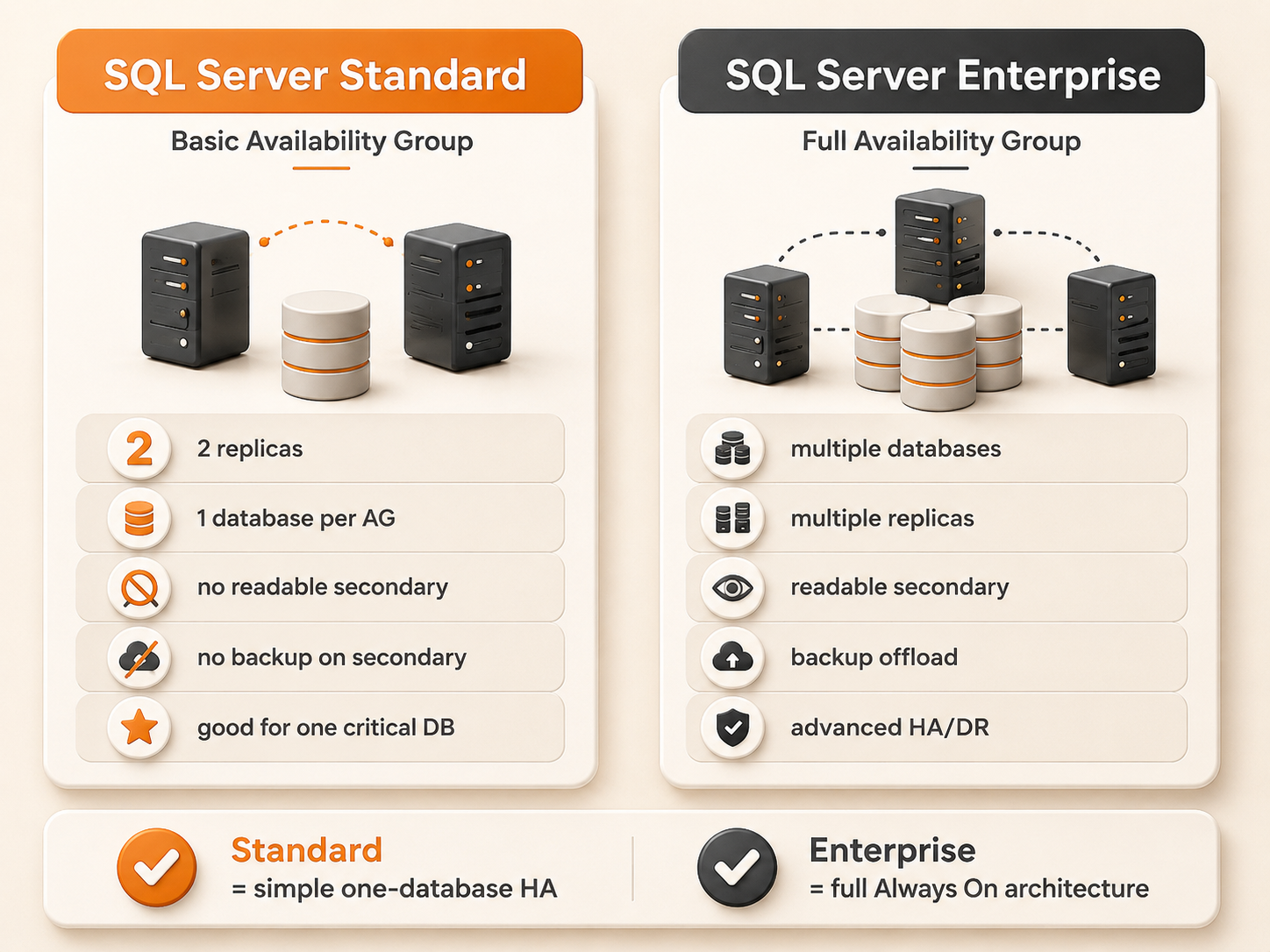
Choose the SQL Server edition before you build the cluster.
| Requirement | SQL Server Standard Basic AG | SQL Server Enterprise AG |
|---|---|---|
| Two-replica HA for one database | Yes | Yes |
| More than one database in the same AG | No | Yes |
| Readable secondary | No | Yes |
| Backups on secondary replica | No | Yes, subject to supported backup rules |
| Multiple secondary replicas | No | Yes |
| Read-only routing | No | Yes |
| Distributed availability groups | No | Yes |
| Best fit | One critical database with simpler HA requirements | Multi-database and advanced HA/DR designs |
A Basic AG is not simply a smaller Enterprise AG. Microsoft documents specific Basic AG restrictions, including two replicas, one availability database, no read access on the secondary, and no backups on the secondary. A Basic AG also cannot be converted in place into an advanced availability group; plan an Enterprise migration separately if requirements grow.
For a detailed edition decision, see SQL Server Standard vs Enterprise.
SQL Server 2025 changes worth knowing
Two SQL Server 2025 changes are particularly relevant to an Always On design.
First, SQL Server 2025 expands backup options for supported secondary replicas. In addition to the existing secondary-backup capabilities, Microsoft documents support for full and differential backups on secondary replicas in SQL Server 2025 and later. This applies to the advanced availability-group scenario, not to Standard Basic AGs, whose secondary-backup restriction remains.
Second, SQL Server 2025 adds an optional faster response for persistent AG health failures. WSFC normally tries to restart the availability-group resource before failing it over. SQL Server 2025 allows the AG resource RestartThreshold to be set to 0, which can cause WSFC to fail over immediately when a persistent health issue is detected. Treat this as an advanced operational setting, not a default tweak. Test it against your application's recovery behavior before production.
Always On vs Failover Cluster Instance vs log shipping
These solve different problems.
| Architecture | Protects at | Shared storage | Automatic failover | Typical fit |
|---|---|---|---|---|
| Availability Group | Database level | Not required | Supported in appropriate synchronous WSFC designs | Database HA, readable secondaries, local HA plus DR |
| Failover Cluster Instance | SQL Server instance level | Usually requires shared-storage architecture | Yes | Instance-level failover and server-level object continuity |
| Log shipping | Database copy / DR | No | No | Lower-complexity DR with manual recovery |
An AG does not automatically synchronize every server-level object. Logins, SQL Agent jobs, linked servers, credentials, certificates, server-level permissions, and other instance objects need their own synchronization or deployment process.
For smaller workloads, good backups plus log shipping can be easier to operate than an AG. Choose Always On when the recovery objective justifies the extra clustering, networking, monitoring, and operational work.
Recommended two-node architecture on Windows VMs
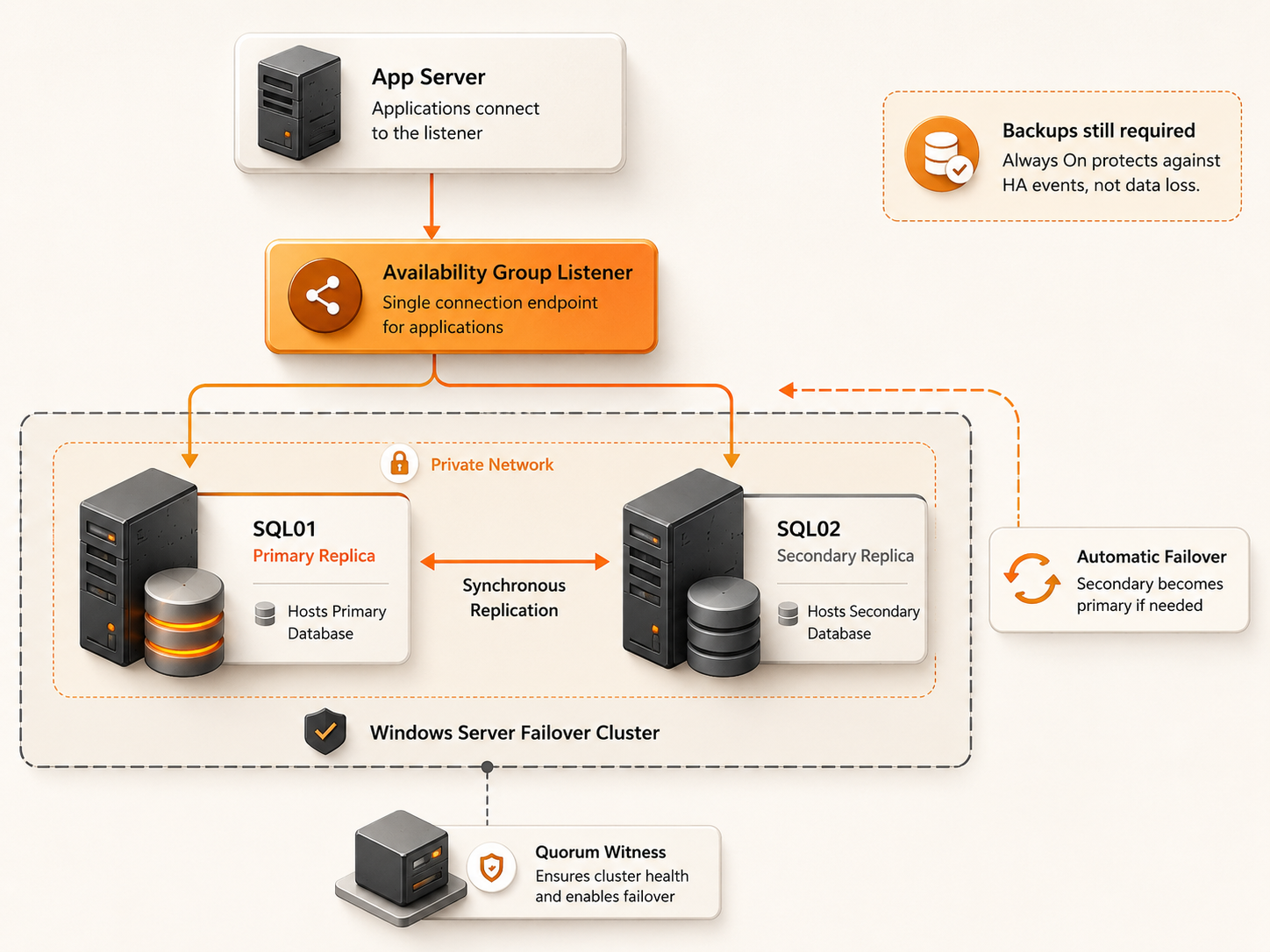
A practical layout is:
Private network: 10.20.0.0/24

SQL01
* Windows Server
* SQL Server
* primary replica initially

SQL02
* Windows Server
* SQL Server
* secondary replica initially

WSFC
* cluster name: SQLCLUSTER
* SQL01 + SQL02 as nodes

Availability Group
* AG_APP01

Listener
* sql-app01-listener

Witness
* file share witness or another supported witness design
Keep the two SQL replicas off the same avoidable failure boundary where possible. Two VMs do not provide meaningful HA if a single host, storage dependency, network path, or administrative mistake can take down both at once.
Prerequisites before you start
Prepare the following before creating the AG:
- two supported Windows Server VMs;
- supported SQL Server versions and editions on both replicas;
- matching SQL Server version and cumulative update level where possible;
- private IP connectivity between nodes;
- working name resolution;
- Windows Server Failover Clustering for this HA design;
- a quorum plan;
- a database mirroring endpoint on each SQL Server instance;
- a listener name and network plan;
- database backups and restore validation;
- monitoring and alerting;
- a maintenance window for failover testing.
Microsoft explicitly lists running the AG host as a domain controller as unsupported. Keep SQL Server replicas on dedicated member servers rather than installing them on your domain controllers.
This guide uses the common domain-joined WSFC pattern. Domain-independent Windows availability-group designs also exist, but they require additional DNS, authentication, and certificate planning and should be treated as a separate architecture rather than mixed into a first deployment.
Step 1 — Define the recovery objective before the cluster
Decide:
- acceptable downtime (RTO);
- acceptable data loss (RPO);
- Standard Basic AG or Enterprise AG;
- synchronous or asynchronous commit;
- automatic or manual failover;
- local HA, remote DR, or both;
- listener and client-driver requirements;
- whether readable secondaries or backup offload are required;
- who is allowed to initiate failover;
- how the application retries and reconnects.
A two-node synchronous AG is a common local-HA pattern. An asynchronous remote replica is usually a DR choice where avoiding write latency matters more than zero-data-loss failover.
Step 2 — Prepare networking, DNS, and identity
For the domain-joined design used here, join SQL01 and SQL02 to the intended Windows domain and verify DNS before installing the cluster.
Check each node:
(Get-CimInstance Win32_ComputerSystem).Domain
Verify name resolution:
Resolve-DnsName SQL01
Resolve-DnsName SQL02
Use private addresses for SQL-node and cluster traffic where possible. Do not use public DNS resolvers as a substitute for the DNS design your Windows domain and listener depend on.
If you need Active Directory guidance first, see Active Directory Replication Topology.
Step 3 — Match SQL Server configuration on both replicas
Keep the replicas operationally consistent:
- SQL Server major version;
- edition appropriate for the AG type;
- cumulative update level;
- collation where the application depends on it;
- data, log, TempDB, and backup paths;
- SQL Server service-account model;
- firewall policy;
- max server memory and TempDB configuration;
- SQL Agent jobs and instance-level dependencies.
Example layout:
D:\SQL\Data
L:\SQL\Logs
T:\SQL\TempDB
B:\SQL\Backups
Matching paths reduce restore and seeding surprises after failover.
Step 4 — Install Windows Server Failover Clustering
Run on both SQL nodes:
Install-WindowsFeature Failover-Clustering -IncludeManagementTools
Verify:
Get-WindowsFeature Failover-Clustering
Then validate the planned nodes:
Test-Cluster -Node SQL01,SQL02
Review the full validation report. Do not dismiss network or system failures simply because the cluster wizard continues.
Step 5 — Create the WSFC
Example:
New-Cluster `
  -Name SQLCLUSTER `
  -Node SQL01,SQL02 `
  -StaticAddress 10.20.0.50
Check cluster state:
Get-Cluster
Get-ClusterNode
Expected node state should show both nodes available before SQL Server HA configuration continues.
The exact cluster IP model depends on your network. Do not copy an example IP into production without confirming that it belongs to the intended private subnet and is unused.
Step 6 — Configure quorum for the two-node cluster
A two-node cluster should have a deliberate witness and quorum design so WSFC can make a safe membership decision when nodes lose communication.
Common witness choices include:
- file share witness;
- cloud witness where supported by the environment;
- disk witness for architectures that provide appropriate shared storage.
Example file-share witness configuration:
Set-ClusterQuorum -FileShareWitness "\\WITNESS01\SQLClusterWitness"
Verify:
Get-ClusterQuorum
Avoid placing the witness on a dependency that is likely to fail with the same event that takes out both SQL nodes.
Step 7 — Configure only the network paths the design needs
An Always On deployment uses several Windows and SQL Server services. Common ports include:
| Purpose | Typical port |
|---|---|
| SQL Server client connection | TCP 1433 or your configured SQL port |
| AG database mirroring endpoint | TCP 5022 by convention, or your configured endpoint port |
| SMB file-share witness | TCP 445 |
| DNS | TCP/UDP 53 as required |
| Kerberos | TCP/UDP 88 as required |
| LDAP | TCP/UDP 389 as required |
| WSFC / RPC | Windows clustering and dynamic RPC requirements |
The endpoint port is configurable; 5022 is common but not mandatory.
Example rule restricted to the private SQL subnet:
New-NetFirewallRule `
  -DisplayName "SQL AG Endpoint 5022" `
  -Direction Inbound `
  -Protocol TCP `
  -LocalPort 5022 `
  -RemoteAddress "10.20.0.0/24" `
  -Action Allow
Do not broadly publish the SQL listener, AG endpoint, cluster RPC surface, or directory-service ports to the internet.
Step 8 — Enable Always On on both SQL Server instances
On each SQL node:
- Open SQL Server Configuration Manager.
- Open SQL Server Services.
- Open the SQL Server service properties.
- Select Always On High Availability.
- Enable Always On Availability Groups.
- Restart the SQL Server service.
Verify:
SELECT SERVERPROPERTY('IsHadrEnabled') AS IsHadrEnabled;
Expected:
1
For the traditional Windows HA design, Microsoft requires each participating SQL Server instance to be on a WSFC node and replicas in a given AG to reside on different nodes of the same WSFC.
Step 9 — Verify or create the database mirroring endpoint
Each SQL Server instance participating in the AG needs a database mirroring endpoint.
Check first:
SELECT name, state_desc, role_desc, type_desc
FROM sys.database_mirroring_endpoints;
If an endpoint does not exist, create one using the authentication model designed for your environment. A common domain-based example is:
CREATE ENDPOINT [Hadr_endpoint]
    STATE = STARTED
    AS TCP (LISTENER_PORT = 5022)
    FOR DATABASE_MIRRORING (
        ROLE = ALL,
        AUTHENTICATION = WINDOWS NEGOTIATE,
        ENCRYPTION = REQUIRED ALGORITHM AES
    );
GO
Grant endpoint access to the required SQL Server service identities as appropriate for the deployment.
Step 10 — Prepare the availability database
The database needs FULL recovery model before normal AG data protection can be established.
ALTER DATABASE AppDB SET RECOVERY FULL;
GO
Take a full backup and then a log backup:
BACKUP DATABASE AppDB
TO DISK = 'B:\SQL\Backups\AppDB_full.bak'
WITH INIT, COMPRESSION, CHECKSUM, STATS = 10;
GO

BACKUP LOG AppDB
TO DISK = 'B:\SQL\Backups\AppDB_log.trn'
WITH INIT, COMPRESSION, CHECKSUM, STATS = 10;
GO
If you seed manually, restore the backups on SQL02 with NORECOVERY before joining the database to the AG.
RESTORE DATABASE AppDB
FROM DISK = 'B:\SQL\Backups\AppDB_full.bak'
WITH NORECOVERY, REPLACE;
GO

RESTORE LOG AppDB
FROM DISK = 'B:\SQL\Backups\AppDB_log.trn'
WITH NORECOVERY;
GO
Automatic seeding is another supported option when the environment and database size make it appropriate. Whichever method you choose, monitor transfer time, log growth, and synchronization rather than assuming seeding completed correctly.
Step 11 — Create the availability group
In SQL Server Management Studio:
Always On High Availability
→ Availability Groups
→ New Availability Group Wizard
For a two-node local HA pair, a common target is:
SQL01
* synchronous commit
* automatic failover

SQL02
* synchronous commit
* automatic failover
Automatic failover is only safe when the secondary is synchronized and the failover mode and WSFC health meet the required conditions.
For a remote DR replica, asynchronous commit plus manual failover is usually more appropriate because synchronous commit can add application write latency over long-distance links.
Step 12 — Create and use an availability group listener
An availability group listener is a virtual network name that lets clients connect without knowing which physical replica is primary.
Example:
Listener DNS name: sql-app01-listener
Listener port: 1433
Listener IP: 10.20.0.60
Applications should connect to the listener rather than to SQL01 directly.
Example connection target:
Server=sql-app01-listener;Database=AppDB;Integrated Security=True;TrustServerCertificate=False;
For multi-subnet deployments, review current client-driver guidance for settings such as MultiSubnetFailover=True. Listener design is simpler in a single subnet, but DNS, virtual IP, client driver, firewall, and certificate behavior still need validation.
Test connectivity from the actual application network:
Test-NetConnection sql-app01-listener -Port 1433
Step 13 — Verify synchronization before failover testing
Check database-level synchronization:
SELECT
    ag.name AS availability_group,
    ar.replica_server_name,
    db.name AS database_name,
    drs.synchronization_state_desc,
    drs.synchronization_health_desc
FROM sys.dm_hadr_database_replica_states AS drs
JOIN sys.availability_replicas AS ar
    ON drs.replica_id = ar.replica_id
JOIN sys.availability_groups AS ag
    ON ar.group_id = ag.group_id
JOIN sys.databases AS db
    ON drs.database_id = db.database_id;
For a healthy synchronous pair before planned failover, expect the intended secondary database to report SYNCHRONIZED and healthy synchronization state.
If the database shows NOT SYNCHRONIZING, investigate endpoints, SQL error logs, WSFC state, DNS, firewall rules, database state, and the send/redo queues before testing failover.
Step 14 — Test the listener and manual failover with the real application
Do not validate only from SSMS.
First prove the application connects through the listener. Then, during a maintenance window, perform a planned manual failover while the target secondary is synchronized.
On the target secondary:
ALTER AVAILABILITY GROUP AG_APP01 FAILOVER;
GO
After failover verify:
- the former secondary is now primary;
- the listener routes new client connections to the new primary;
- the application reconnects without changing its node name;
- the former primary rejoins as a secondary;
- synchronization returns to healthy state;
- SQL Agent jobs and server-level dependencies behave as expected;
- monitoring records the event.
The database can fail over correctly while the application still fails because of retry logic, login synchronization, DNS behavior, or a node-specific dependency. That is why application-level validation matters.
Automatic failover requirements
For the common two-node WSFC design, automatic failover normally requires:
- synchronous-commit replicas;
- automatic failover mode configured on the failover partners;
- a synchronized secondary;
- healthy WSFC membership and quorum;
- the AG resource and SQL Server instances healthy enough for the configured failure condition;
- applications connecting through a failover-aware endpoint such as the listener.
Do not simulate outages by randomly killing infrastructure in production. Use a maintenance window, verified backups, an explicit rollback path, and a defined success criterion.
SQL Server 2025 fast failover setting
SQL Server 2025 allows the availability-group resource RestartThreshold to be changed from the default 1 to 0 so WSFC can skip the local AG-resource restart attempt and move directly to failover for a persistent health issue.
This can reduce failover delay in the right environment, but it can also make the cluster more aggressive. Evaluate it only after baseline failover behavior is measured and application reconnect behavior is understood.
Backup strategy for Always On
An availability group is not a backup system. Keep a separate recovery strategy with:
- full backups;
- differential backups where appropriate;
- transaction log backups;
- backup integrity checks;
- off-server or off-instance backup storage;
- restore testing;
- retention aligned to business requirements;
- backup-job monitoring.
On Enterprise-class AGs, backup preference can be used to influence where supported backup jobs run. SQL Server 2025 broadens secondary-replica backup capabilities by allowing full and differential backups on supported secondary replicas in addition to existing secondary backup options.
For Standard Basic AGs, the secondary replica still cannot be used for backups.
For a dedicated backup workflow, see MSSQL Backup Strategy on Windows VPS.
Monitor more than replica role
Monitor at least:
- replica role;
- synchronization state and health;
- log send queue;
- redo queue;
- endpoint connectivity;
- listener reachability;
- WSFC node and quorum state;
- SQL Server error log;
- Windows failover-clustering events;
- backup success;
- transaction-log growth;
- disk latency and free space;
- SQL Agent jobs;
- application connection failures after failover.
Example replica query:
SELECT
    ag.name AS ag_name,
    ar.replica_server_name,
    ars.role_desc,
    ars.connected_state_desc,
    ars.synchronization_health_desc,
    ars.operational_state_desc
FROM sys.dm_hadr_availability_replica_states AS ars
JOIN sys.availability_replicas AS ar
    ON ars.replica_id = ar.replica_id
JOIN sys.availability_groups AS ag
    ON ar.group_id = ag.group_id;
An AG can look superficially online while replication queues, backups, listener connectivity, or cluster health are already degraded. Alert on persistent unhealthy states instead of relying on manual dashboard checks.
Keep server-level objects synchronized
Availability Groups protect selected databases. They do not automatically make the complete SQL Server instance identical on every replica.
Track:
- SQL logins and SIDs;
- SQL Agent jobs;
- linked servers;
- credentials;
- operators and alerts;
- server-level permissions;
- certificates and keys required by the application;
- endpoints;
- instance configuration;
- application-specific external dependencies.
A successful database failover is not useful if the new primary is missing the login, job, certificate, or linked server the workload requires.
Common SQL Server Always On mistakes
Treating Always On as backup
Logical mistakes can replicate to the secondary. Maintain independent backups and prove that restores work.
Using Standard Basic AG for a multi-database application
A Basic AG protects one availability database. If several databases must fail over as one application unit, use a design that supports that requirement.
Connecting the application to SQL01 instead of the listener
A node-specific connection string defeats much of the application failover benefit. Connect through the listener and test the real client driver.
Running SQL Server replicas on domain controllers
Microsoft does not support availability-group host systems that are domain controllers. Use dedicated member servers for the SQL nodes.
Assuming two nodes automatically mean safe quorum
Design and verify quorum and witness placement. Test loss scenarios rather than assuming the cluster will choose the desired surviving side.
Exposing SQL and cluster traffic publicly
Keep replica, listener, AD, and WSFC communication on private or otherwise controlled network paths. Scope firewall rules to the systems that need them.
Ignoring server-level objects
Synchronize logins, jobs, linked servers, credentials, certificates, and other instance dependencies.
Never testing failover
An untested AG is not a validated recovery plan. Test both SQL failover and application reconnect behavior.
Raff recommendation for a two-node SQL Server HA deployment
For most small-team or MSP deployments that genuinely need SQL Server HA:
- Define RTO and RPO before selecting the topology.
- Use Standard Basic AG only when its one-database, two-replica limits fit the workload.
- Use Enterprise when multi-database failover, readable secondaries, backup offload, or larger replica topologies are requirements.
- Use two separate Windows VMs with comparable SQL configuration.
- Keep SQL, WSFC, listener, and directory traffic on private or controlled network paths.
- Validate WSFC and quorum before creating the AG.
- Make applications connect through the listener.
- Keep server-level objects synchronized separately.
- Test planned failover with the actual application.
- Maintain independent backups and restore tests.