run your softwarebeginner15 min read·Updated Jun 26, 2026

Windows VPS for Business Software: What SMBs Should Know

Learn when a Windows VPS fits business software, accounting tools, SQL Server, IIS apps, RDP access, backups, security, and SMB operations.

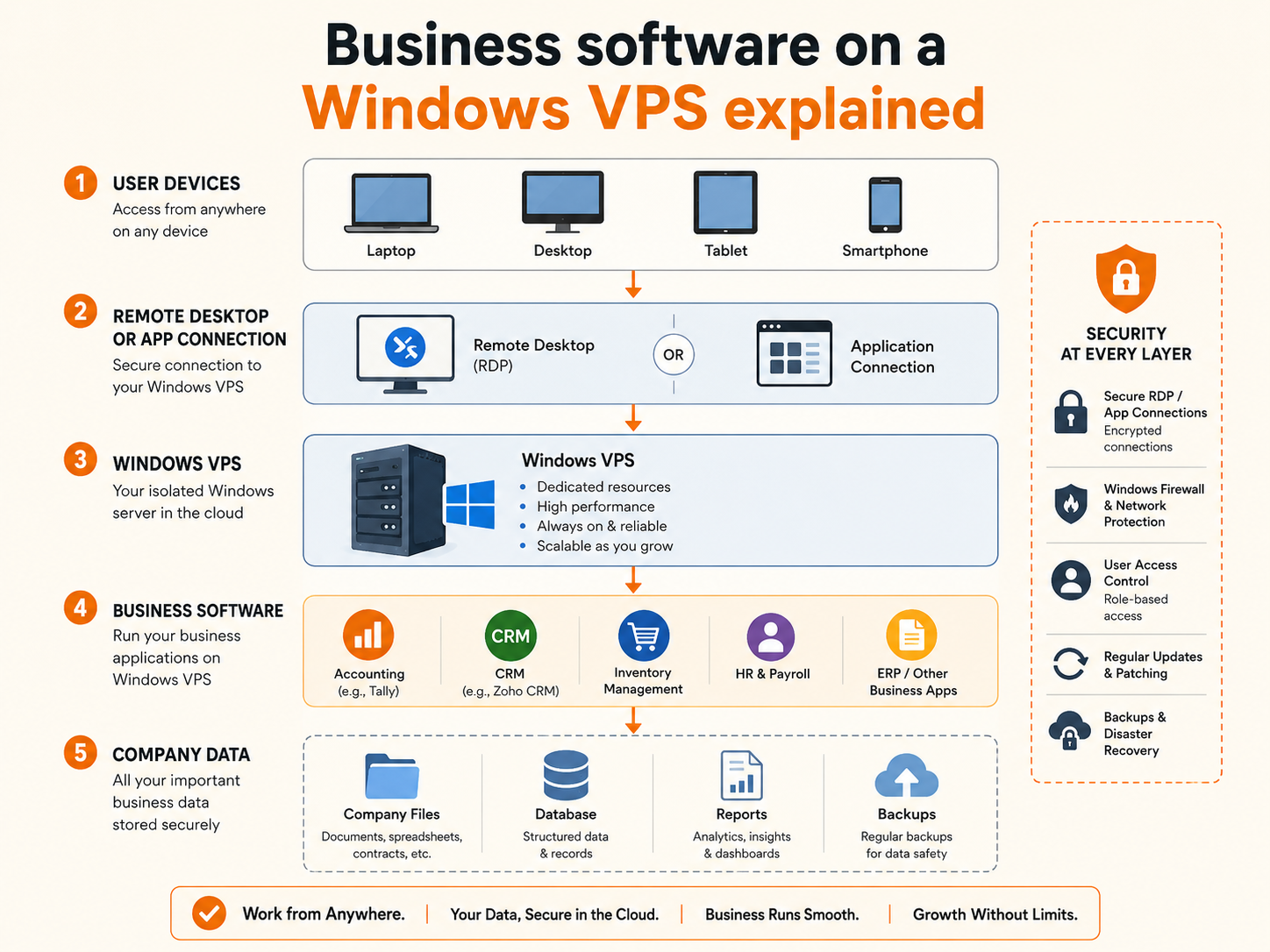
Small business software running on a Windows VPS with Remote Desktop, accounting tools, database, backups, and security layers.
On this page

Don't have a Windows Server yet?

Deploy Windows Server 2019/2022/2025 in ~2 minutes. 6-month evaluation licence included.

Deploy Windows now

A Windows VPS can run many small business software workloads when the application needs Windows Server, Remote Desktop access, shared files, SQL Server, IIS, or an always-on environment. It is a good fit for accounting tools, internal apps, admin software, and lightweight databases when licensing, backups, security, and user access are planned before production.

TL;DR

  • A Windows VPS is useful when business software needs a centralized Windows environment instead of an office PC.
  • Common workloads include QuickBooks, Sage, SQL Server tools, IIS/.NET apps, MetaTrader, legacy Windows apps, and admin utilities.
  • Remote Desktop is the access layer, but multi-user desktop work may require Remote Desktop Services and RDS CALs.
  • The right setup depends on user count, software behavior, database load, storage needs, backups, and security requirements.
  • Do not treat a Windows VPS as only “a remote PC.” Treat it as production infrastructure once employees depend on it.

Business software on a Windows VPS explained

Business software on a Windows VPS means running Windows-based applications, databases, or admin tools on a cloud-hosted Windows Server instead of a local office machine.

Diagram showing users connecting to a Windows VPS through Remote Desktop to access business software, company files, database services, backups, and security controls.

The user connects remotely, usually through Remote Desktop Protocol (RDP), and works inside the server environment. The software, data, and configuration stay on the Windows VPS.

A simple model looks like this:

Text
User device Remote Desktop or app connection Windows VPS Business software Company files, database, reports, backups

This setup is common when a small business needs one Windows environment that stays online and is available from multiple locations.

Examples include:

  • Accounting software
  • QuickBooks Desktop
  • Sage 50, Sage 100, or Sage 300
  • SQL Server tools
  • IIS and .NET applications
  • ERP clients
  • Inventory or invoicing tools
  • Legacy Windows desktop apps
  • Admin tools
  • Trading platforms
  • Reporting software
  • Shared operational files
  • Internal browser-based apps

The main benefit is centralization.

Instead of installing the same software on several local PCs, the business can run the main workload on a Windows VPS and let authorized users connect to it.

The trade-off is responsibility. A Windows VPS still needs user access control, updates, backups, licensing, monitoring, and security hardening.

A Windows VPS fits software that needs Windows Server

A Windows VPS is most useful when the software has a real reason to run on Windows.

That reason may be technical, operational, or licensing-related.

For example, the software may require:

  • Windows Server
  • Remote Desktop access
  • A shared company file
  • A local database engine
  • SQL Server
  • IIS
  • Windows services
  • Scheduled tasks
  • PowerShell automation
  • A persistent desktop session
  • A stable public IP address
  • Always-on operation

This is different from a modern SaaS app.

If the software already runs entirely in the browser and stores everything in the vendor’s cloud, a Windows VPS may not be necessary. The user can simply open the SaaS application from their local machine.

A Windows VPS becomes more useful when the work needs to happen inside a controlled Windows environment.

That is why the strongest use cases are accounting software, Windows-only tools, legacy software, database-backed business apps, remote administration, and server-hosted workflows.

The decision framework for business software on a Windows VPS

Use this framework before moving business software to a Windows VPS.

Diagram showing users connecting to a Windows VPS through Remote Desktop to access business software, company files, database services, backups, and security controls.

QuestionWindows VPS is a good fit when...Be careful when...
Does the software require Windows?The app needs Windows Server, Windows services, RDP, IIS, or SQL ServerThe app is already fully SaaS/browser-based
Do multiple people need access?Users can connect through RDP or RDS with planned licensingEveryone shares one login or no session policy exists
Does the app use shared data?Company files or databases can live close to the appUsers open files across slow networks
Is uptime important?The app should stay online outside office hoursNo backups or recovery plan exists
Does the app need a database?SQL Server or a local database can be sized properlyDatabase load is unknown or heavy
Does the team need control?You need admin rights, file access, services, and firewall controlYou want a fully managed desktop platform
Is the app sensitive?Access, firewall, updates, and backups can be controlledSecurity is treated as an afterthought
Is licensing clear?Software, Windows, RDS, and Microsoft app licensing are plannedLicensing is assumed without checking vendor rules

This decision matters because not every business app should be moved the same way.

A simple admin tool may only need one Windows VPS and one administrator login. A multi-user accounting deployment needs stronger planning around user sessions, RDS CALs, backups, file locking, and support.

Remote Desktop is the access layer, not the whole architecture

Many businesses say they need “RDP” when they actually need hosted business software.

Remote Desktop is only the access method. It lets users interact with the Windows environment.

The real architecture includes:

  • The Windows VPS
  • User accounts
  • Remote Desktop access
  • Business software
  • Company files or database
  • Firewall rules
  • Backup strategy
  • Update policy
  • Licensing
  • Monitoring
  • Support process

For one administrator, basic RDP access may be enough.

For employees using the Windows VPS as a daily workspace, the design changes. Multiple users may need separate sessions, different permissions, profile management, printer behavior, file access, and Remote Desktop Services licensing.

Use this split:

NeedTypical path
One admin manages softwareAdmin RDP
Two admins occasionally connectAdmin RDP
Several employees use apps dailyRDS Session Host planning
Users need separate desktop sessionsRDS Session Host planning
Users only access a web app hosted on IISNo desktop session needed
Users connect to SQL Server from local appsDatabase access planning
Users run accounting software inside the serverRDP/RDS plus app-specific setup

For the access model, read Windows VPS for Remote Desktop and Multi-User RDP: 2 Admin Sessions vs RDS Session Host.

Accounting software is one of the clearest SMB use cases

Accounting software is one of the strongest business software use cases for a Windows VPS.

The reason is simple: many accounting workflows depend on a Windows application, company data, multi-user access, stable performance, and backups.

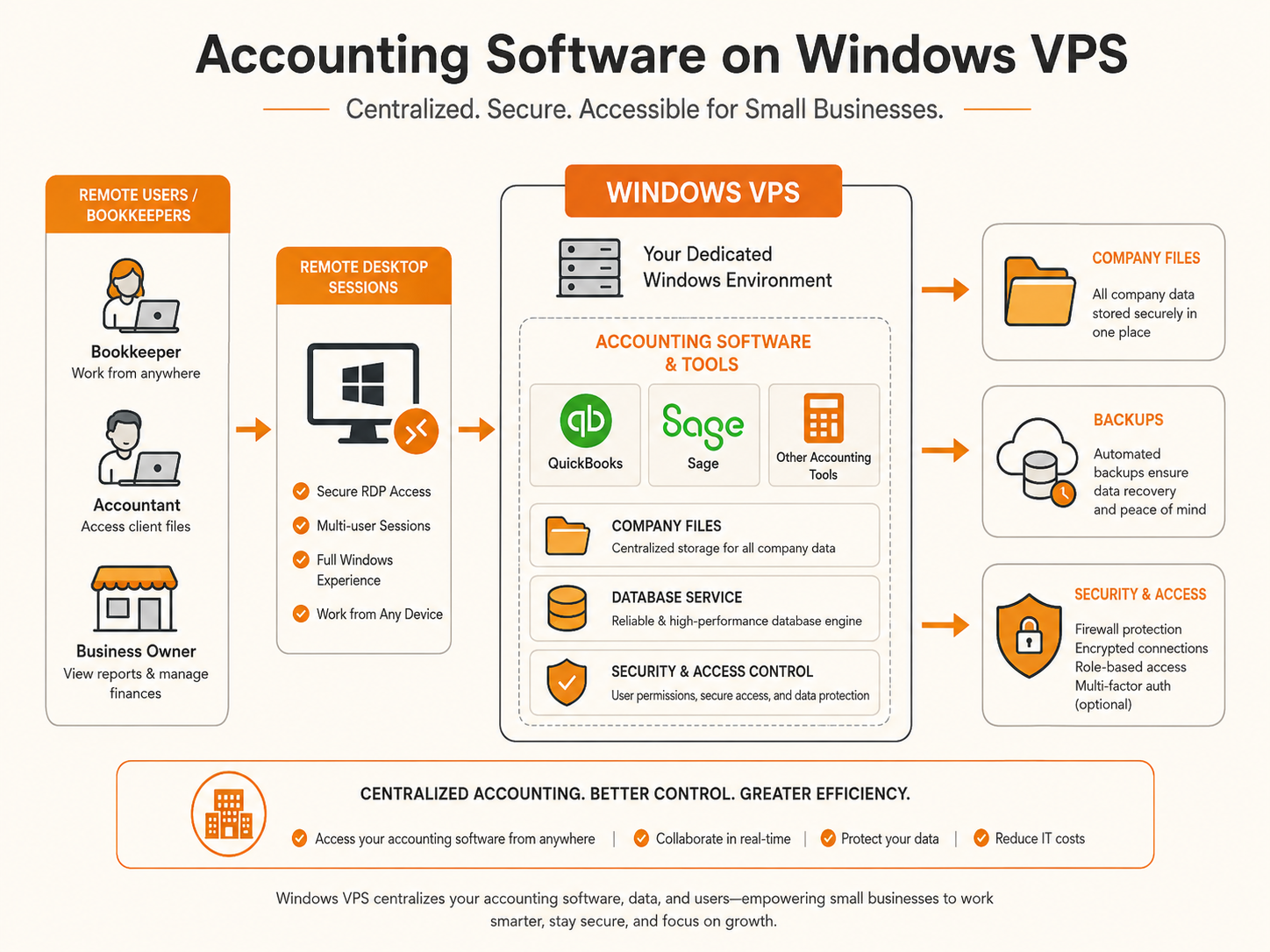
Diagram showing QuickBooks, Sage, company files, users, Remote Desktop sessions, database services, and backups in a Windows VPS accounting software setup.

Common examples include:

  • QuickBooks Desktop
  • Sage 50
  • Sage 100
  • Sage 300
  • Tally
  • Tax software
  • Payroll tools
  • Reporting tools
  • Add-ons and integrations

A Windows VPS can keep the accounting environment centralized. Users connect remotely and work in the same server environment instead of copying files between laptops or depending on one office PC.

This can help teams that have:

  • Distributed bookkeepers
  • Remote accountants
  • Seasonal staff
  • Multiple office locations
  • Contractors
  • A local office server they want to replace
  • Company files that should not move between devices
  • Software that behaves poorly over slow file shares

But accounting software needs careful setup.

The main risks are file locking, database services, permissions, user count, RDS licensing, backups, and vendor support rules. Before moving accounting software, check the vendor’s current system requirements and licensing terms.

For specific guides, read Self-Host QuickBooks Desktop on Windows Server VPS and Host Sage 50, 100, and 300 on Windows VPS.

SQL Server workloads need separate sizing attention

SQL Server can run on Windows Server, but it should not be treated like a lightweight background app.

SQL Server competes with Remote Desktop sessions and business software for CPU, RAM, disk I/O, and storage. If SQL Server and users share the same Windows VPS, the server should be sized around the total workload, not just the number of users.

A small internal database may run comfortably on the same Windows VPS as the application. A reporting-heavy database or production SQL workload may need more RAM, faster storage planning, and possibly separation from the desktop workload.

Use this basic model:

SQL Server scenarioPlanning note
SQL tools onlyLight workload; mostly admin access
Small local databaseCan fit on the same VPS if RAM and backups are planned
Business software databaseSize around user count and transaction load
Reporting workloadWatch RAM, CPU, temp files, and disk I/O
Production databaseConsider separate database VM or stronger backup/recovery design
Heavy SQL Server workloadPlan like a database server, not a desktop server

The common mistake is installing SQL Server on a small Windows VPS and then adding Remote Desktop users, accounting apps, reports, browser sessions, antivirus scans, and backups on top.

That stack can work, but only if it is sized and monitored properly.

IIS and .NET apps fit Windows VPS well

A Windows VPS is also useful for teams running IIS, ASP.NET, .NET Framework, or internal Windows-hosted web apps.

This is a different pattern from Remote Desktop desktop work.

Users may not need to log in with RDP at all. Instead, the Windows VPS runs IIS and serves the application over HTTP or HTTPS.

Typical use cases include:

  • ASP.NET Core apps
  • .NET Framework legacy apps
  • Internal dashboards
  • Customer portals
  • Admin panels
  • Staging environments
  • Agency client projects
  • Windows-only app dependencies
  • SQL Server-backed web apps

For this type of workload, RDP is mainly for administration. Users access the application through the browser.

The architecture is usually:

Text
User browser Domain + DNS IIS on Windows VPS Application pool App files SQL Server or external database

For IIS workloads, the key planning areas are app pool settings, TLS certificates, logs, Windows updates, database connections, and firewall rules.

Legacy Windows apps need a compatibility check

Many small businesses still depend on older Windows desktop software.

That software may run well on a Windows VPS, but it should be checked before production.

Important questions:

  • Does the vendor support Windows Server?
  • Which Windows Server versions are supported?
  • Does the app require a GUI session?
  • Does it work with multiple users?
  • Does it store data in files, SQL Server, or a local database?
  • Does it use USB devices, printers, scanners, or local hardware?
  • Does it require a hardware dongle?
  • Does it need mapped drives?
  • Does it behave correctly over Remote Desktop?
  • Does the license allow hosted or server use?

Some legacy apps work cleanly in a Remote Desktop environment. Others assume they are running on a single local PC.

The safest approach is to test the app on a fresh Windows VPS before moving production data.

Business software sizing depends on users and app behavior

Sizing a Windows VPS for business software starts with the real workload.

Do not size only by user count.

Five users running one lightweight admin app are different from five users running QuickBooks, Excel, browser tabs, PDF tools, email clients, reports, and database-connected software.

Use this starting model:

WorkloadStarting directionWhat to watch
Admin tools only2 vCPU / 4 GB RAMCPU, updates, background services
One user with light business app2 vCPU / 4–8 GB RAMRAM, app responsiveness
2–3 users with accounting software4 vCPU / 8 GB RAMRAM, disk, file/database behavior
5–10 users with accounting or ERP tools4–8 vCPU / 16 GB RAM or moreRAM per session, app load, RDS licensing
SQL Server plus business appLarger VM or separated databaseSQL memory, disk I/O, backup window
IIS and SQL Server appSize by traffic and database loadApp pool memory, logs, SQL pressure
Trading software 24/7Size by platform count and chartsCPU, RAM, uptime, session stability

These are planning ranges, not guarantees.

The best production approach is to start with the expected workload, monitor CPU/RAM/disk during real usage, and resize when the data shows pressure.

Storage and backups matter more than many SMBs expect

Business software often creates valuable data.

That data may include:

  • Company files
  • Accounting records
  • Reports
  • Database files
  • User profiles
  • Export folders
  • PDFs
  • Tax documents
  • Application configuration
  • License files
  • Scheduled task output

This makes backups essential.

A Windows VPS used for business software should have a backup plan before real users start working on it.

At minimum, plan:

  • What data needs backup
  • How often backups run
  • Where backups are stored
  • How long backups are retained
  • Who can restore them
  • How restore testing works
  • Whether application-level backups are needed
  • Whether database backups are separate from VM backups

For example, a VM-level backup may help recover the server, but SQL Server may also need database-aware backups. Accounting software may have its own recommended backup process. Some applications require users to exit before safe file backup.

The key question is:

Text
Can we restore the business software and data if this server fails tomorrow?

If the answer is not clear, the setup is not production-ready.

Security starts with access control

A Windows VPS used for business software should not be managed like a shared office PC.

It should be managed like a server.

Start with access control:

  • Use separate accounts for each user
  • Avoid shared administrator logins
  • Give admin rights only to people who need them
  • Disable accounts when users leave
  • Use strong passwords
  • Review RDP access
  • Keep Windows Firewall enabled
  • Restrict inbound rules to required ports
  • Enable Microsoft Defender
  • Keep Windows updated
  • Review failed login attempts
  • Back up before major changes

Business software often contains financial records, customer data, payroll information, invoices, tax documents, internal reports, and credentials.

That makes basic server hygiene important.

For practical hardening, read Windows Server Hardening Checklist and Configure Windows Firewall on a Windows VPS.

Licensing should be checked before migration

A Windows VPS may involve several different licensing layers.

Those layers can include:

  • Windows Server licensing
  • Remote Desktop Services licensing
  • RDS CALs
  • Microsoft 365 Apps licensing
  • SQL Server licensing
  • QuickBooks licensing
  • Sage licensing
  • ERP or accounting software licensing
  • Third-party add-ons
  • Backup software licensing

Do not assume that a license for a local desktop install automatically allows hosted multi-user use.

Check the software vendor’s current terms and system requirements.

Common licensing questions include:

QuestionWhy it matters
Can this software run on Windows Server?Some apps support client Windows but not Windows Server
Can users access it through Remote Desktop?Some apps have hosted-use rules
Is multi-user access allowed?Multi-user features may require a higher edition
Are RDS CALs required?Staff using desktop sessions may need RDS licensing
Is SQL Server included?Some apps use bundled database components; others require SQL licensing
Are Microsoft 365 Apps used?Shared environments may require specific activation rights
Does the vendor support VPS hosting?Support may depend on deployment model

For Windows and RDS licensing context, read Windows Server Licensing on Raff and RDS CAL Licensing on Windows Server.

A Windows VPS can replace an office software machine

Many small teams start with one office PC that runs “the important software.”

That machine may hold the company file, accounting data, reports, scheduled tasks, or a desktop app everyone depends on.

This works until it does not.

Common problems include:

  • Office internet goes down
  • Power fails
  • One person’s PC becomes the “server”
  • Remote users need access
  • Backups are inconsistent
  • Updates happen at the wrong time
  • The machine is hard to monitor
  • Physical access is required for fixes
  • Scaling means buying new hardware
  • Security depends on informal habits

A Windows VPS can replace this pattern by moving the workload into a cloud-hosted server environment.

This does not remove all responsibility. It changes the responsibility.

Instead of maintaining office hardware, the team maintains access, software, backups, updates, security, and sizing.

For many SMBs, that is a better operating model.

When not to use a Windows VPS for business software

A Windows VPS is useful, but it is not always the best answer.

Avoid or reconsider a Windows VPS when:

  • The software is already fully SaaS
  • The vendor does not support Windows Server
  • The vendor does not allow hosted use
  • The app depends on local USB hardware
  • The app requires specialized graphics hardware
  • The app needs strict compliance controls beyond your team’s ability
  • The team needs fully managed desktops for every employee
  • The workload needs high availability from day one
  • No one can maintain updates, backups, or user access
  • Licensing is unclear

In those cases, a vendor-hosted SaaS platform, managed desktop service, managed database, or dedicated application host may be a better fit.

The right question is not “Can it run on a Windows VPS?”

The better question is:

Text
Can we operate this software safely and reliably on a Windows VPS?

Raff Windows VPS context

Raff Windows VPS is a practical fit for SMBs that need a cloud-hosted Windows Server environment for business software, Remote Desktop access, admin tools, accounting workflows, SQL Server management, IIS apps, and always-on Windows workloads.

Remote Desktop session connected to a Raff Windows VPS prepared for small business software hosting.

Raff Windows VPS gives teams:

  • Windows Server options
  • Remote Desktop access
  • NVMe SSD storage
  • Unmetered bandwidth
  • 3 Gbps port speed
  • One IPv4 address
  • Optional IPv6 dual-stack support
  • Cloud VM control
  • Predictable monthly infrastructure planning

This makes Raff useful when a small business wants to move from an office PC, local server, or scattered desktop installs to a central Windows environment.

That does not mean every app should run on one server.

For multi-user accounting, SQL Server, IIS, and RDS workloads, the design should match the software behavior. Some teams should start with one Windows VPS. Others should separate database, app, and desktop workloads as usage grows.

Use Raff Windows VPS as the server foundation, then design the software stack around the workload.

Common mistakes when hosting business software on a Windows VPS

Treating the server like a shared desktop

A business software server should not use one shared login for everyone.

Use separate users, clear permissions, and an access process.

Moving software without checking vendor support

Some apps support Windows Server clearly. Others only support specific versions, editions, or deployment models.

Check vendor documentation before production migration.

Ignoring RDS licensing

If employees use the server as a daily desktop environment, Remote Desktop Services licensing may apply.

Plan this before inviting users onto the server.

Underestimating RAM

Business software stacks often use more RAM than expected.

The operating system, RDP sessions, browsers, accounting tools, SQL Server, antivirus, and backups all consume memory.

Forgetting the database

Many apps look like simple desktop software but depend on a database service, company file, or shared data layer.

That data layer usually determines performance and backup needs.

Backing up the VM but not the application

A VM backup is useful, but some apps also need application-level or database-level backups.

Do both when the software requires it.

Running everything on one VPS forever

One Windows VPS may be the right starting point. It may not be the right final architecture.

As users, data, and workload grow, separate the desktop, database, and web app layers when needed.

What Raff recommends

Start with the software, not the server size.

List the applications, users, data files, database components, licensing requirements, and backup needs first. Then choose the Windows VPS size and access model.

For simple admin tools or one-user software, keep the environment small and clean.

For accounting software, plan around user count, company data, vendor requirements, RDS access, and backups.

For SQL Server, treat the database as its own workload. Watch RAM, disk I/O, backup windows, and restore testing.

For IIS and .NET apps, keep RDP for administration and let users access the app through the browser.

For production use, do not skip hardening. Separate user accounts, firewall review, updates, audit logs, Defender, and backups should be in place before real business data moves onto the server.

What's next

Sources

Published June 26, 2026 · Last updated June 26, 2026