migration
migrationbeginner17 min read·Updated Jul 7, 2026

Local Office Server to Cloud Windows VPS Migration

Plan a local office server to cloud Windows VPS migration for small businesses, including apps, files, users, RDP/RDS, backups, testing, cutover, and rollback.

Genuine, fully-licensed Windows
Spin up a Windows Server: full admin, RDP-ready
Genuine Windows Server 2019, 2022, or 2025 with full administrator access. We handle the Microsoft licensing, billed monthly with nothing to buy upfront.
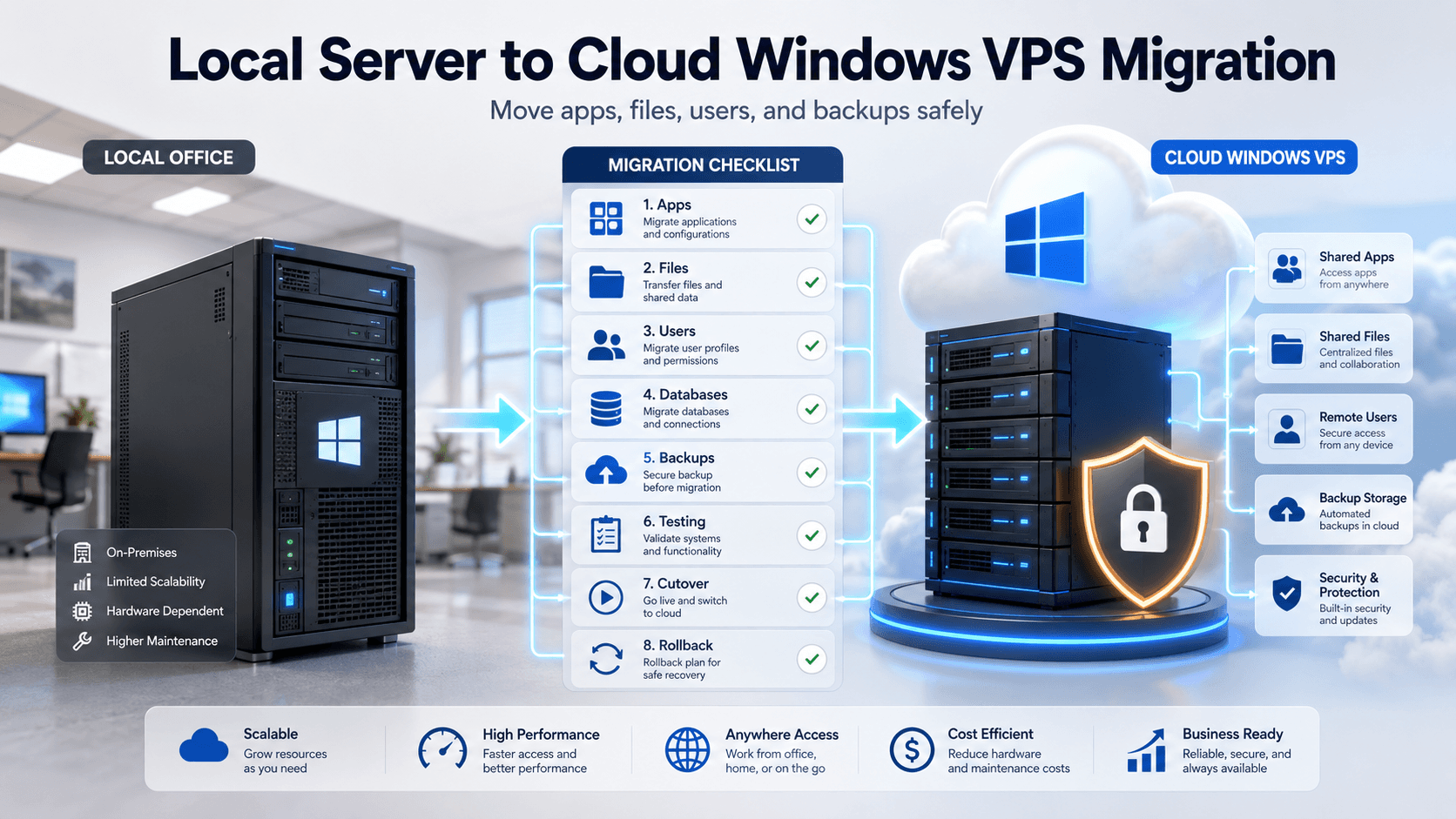
Windows Server migration image showing local office server moving to a cloud Windows VPS with users, apps, files, backups, and cutover planning

A local office server to cloud Windows VPS migration helps small businesses move files, business apps, Remote Desktop access, databases, and backups away from one physical office machine into a cloud-hosted Windows Server environment. The safest approach is a side-by-side migration: inventory the old server, build the new Windows VPS, test users and apps, run final sync, cut over carefully, and keep rollback ready. Raff Technologies provides Windows VMs for teams that want a cloud Windows Server destination for remote access, shared workloads, and office server replacement.

A local server can work well for years. Then the business changes. People work from home, a second location opens, the server hardware ages, backups become unclear, and the office internet or power becomes a single point of failure.

Moving to a cloud Windows VPS can reduce dependence on one office server, but the migration should not be rushed. The server may hold file shares, accounting software, Microsoft Access databases, SQL Server, Remote Desktop users, printers, certificates, scheduled tasks, DNS records, and vendor software. A clean migration plan protects the business from downtime, broken access, and data loss.

Quick verdict: when local server to cloud migration makes sense

Use this table before moving an office server to a cloud Windows VPS.

SituationCloud Windows VPS fitWhy
The office server is aging or out of warrantyStrong fitAvoids buying and maintaining another physical server.
Users need access from home or multiple officesStrong fitA cloud Windows Server is easier to reach from different locations.
Business apps run on Windows ServerStrong fit after testingApps can run in a centralized Windows environment.
File shares need better backup planningGood fitOne central server can have clearer backup and restore policy.
Staff need Remote Desktop accessGood fit with RDS planningRDP/RDS access should be designed before migration.
The server hosts SQL Server or app databasesDependsDatabase migration, backups, and app testing need separate planning.
The business relies on local USB devicesDependsScanners, dongles, label printers, and serial devices must be tested.
Branch internet is unreliableRiskyCloud-hosted access depends on connectivity.
The workload needs high availabilityNot a single VPS decisionPlan redundancy, failover, and architecture first.

The best fit is a small business that wants to replace local server hardware while keeping a familiar Windows Server environment for apps, files, and remote users.

Need help planning a local office server migration? Talk to Raff before moving production users, apps, files, and databases.

What changes when the office server moves to the cloud

A local office server usually lives in one branch: a closet, cabinet, back office, or small server room. Users reach it through the local network, mapped drives, Remote Desktop, VPN, or nearby workstations.

A cloud Windows VPS changes the operating model.

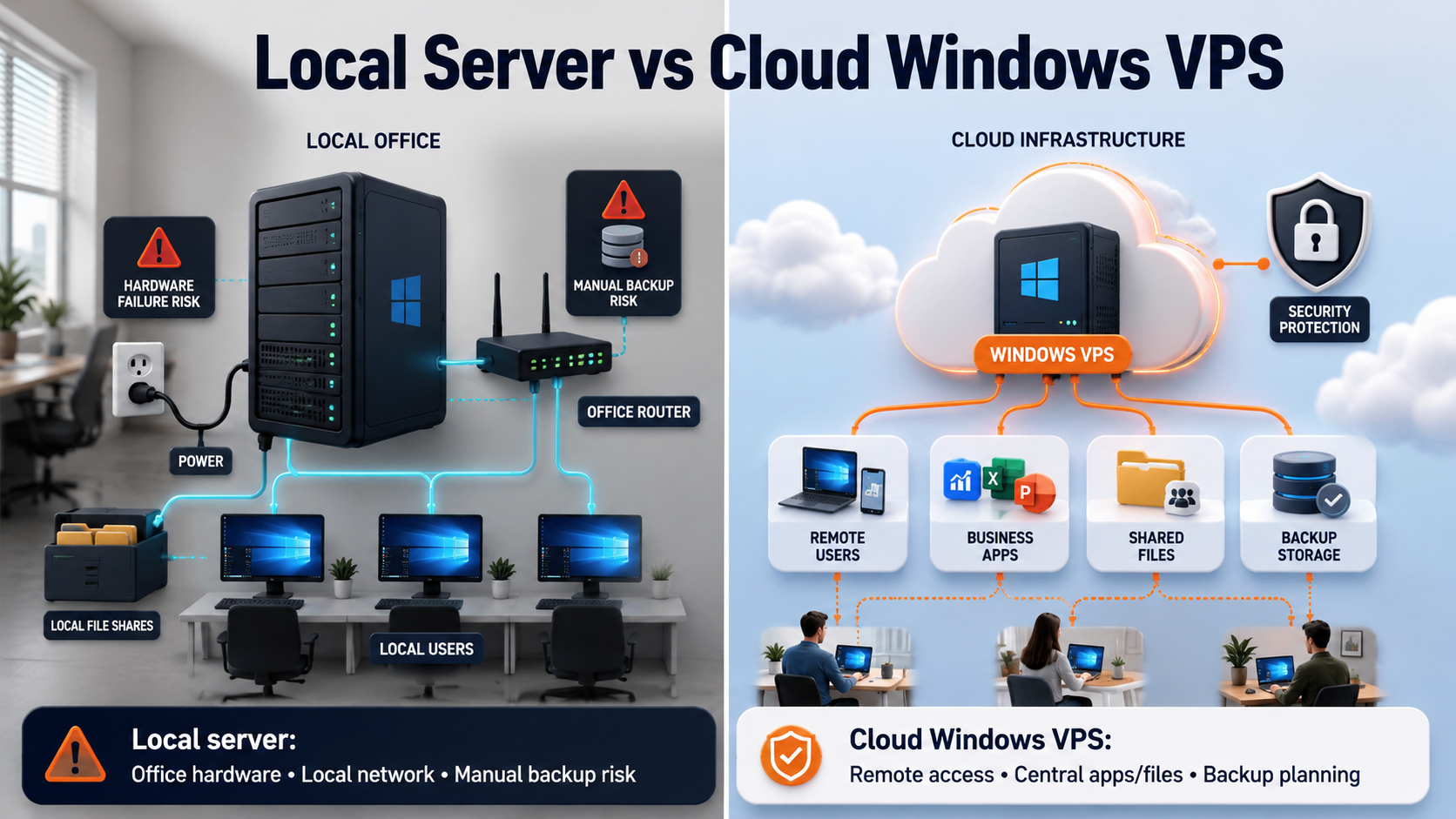
AreaLocal office serverCloud Windows VPS
Server locationInside one officeHosted in the cloud
Hardware responsibilityBusiness owns and replaces hardwareCloud VM replaces the physical server role
Remote accessVPN, office firewall, or ad hoc RDPRDP/RDS/RD Gateway/VPN can be designed from the start
File accessLAN shares or mapped drivesRDP/RDS access, VPN/private access, or controlled SMB pattern
Business appsInstalled on local server or office PCsCentralized on Windows VPS where supported
BackupsOften local, manual, or inconsistentVM backups, snapshots, file/app backups, and off-server copies
Downtime riskOffice power, hardware, and internet can block workUsers can connect from other locations if local office is down
ScalingBuy or replace hardwareResize VM or split workloads

Cloud does not remove responsibility. The business or MSP still needs Windows updates, app support, user access, security, backups, restore testing, and documentation. The difference is that the server is no longer tied to one physical office.

Comparison visual showing local office server model versus cloud Windows VPS model for users, apps, files, and backups

Local server migration is not just file copy

A common mistake is treating migration as “copy files from old server to new server.” That misses the parts that actually break business workflows.

Migration can involve:

Migration areaExamples
Users and accessLocal users, domain users, admin accounts, groups
File sharesSMB shares, NTFS permissions, mapped drives, folder ownership
Business appsAccounting, tax, ERP, inventory, Access, legacy tools
DatabasesSQL Server, app databases, Access back ends, vendor data
Remote accessRDP, RDS, RD Gateway, VPN, firewall rules
Printers and devicesLabel printers, scanners, PDF printers, USB devices
Scheduled tasksReports, exports, sync jobs, maintenance scripts
CertificatesIIS, RD Gateway, internal app certificates
DNS and namesServer names, IPs, records, app connection strings
BackupsSource backup, destination backup, off-server copies, restore test

If the old server has been running for years, assume it has hidden dependencies until proven otherwise.

Choose side-by-side migration for safer cutover

Microsoft describes several Windows Server move/upgrade methods, including in-place upgrade, clean install, migration, cluster rolling upgrade, and edition conversion. Each method has trade-offs for downtime, complexity, and hardware requirements.

For local server to cloud Windows VPS migration, side-by-side migration is usually the safer pattern.

Text
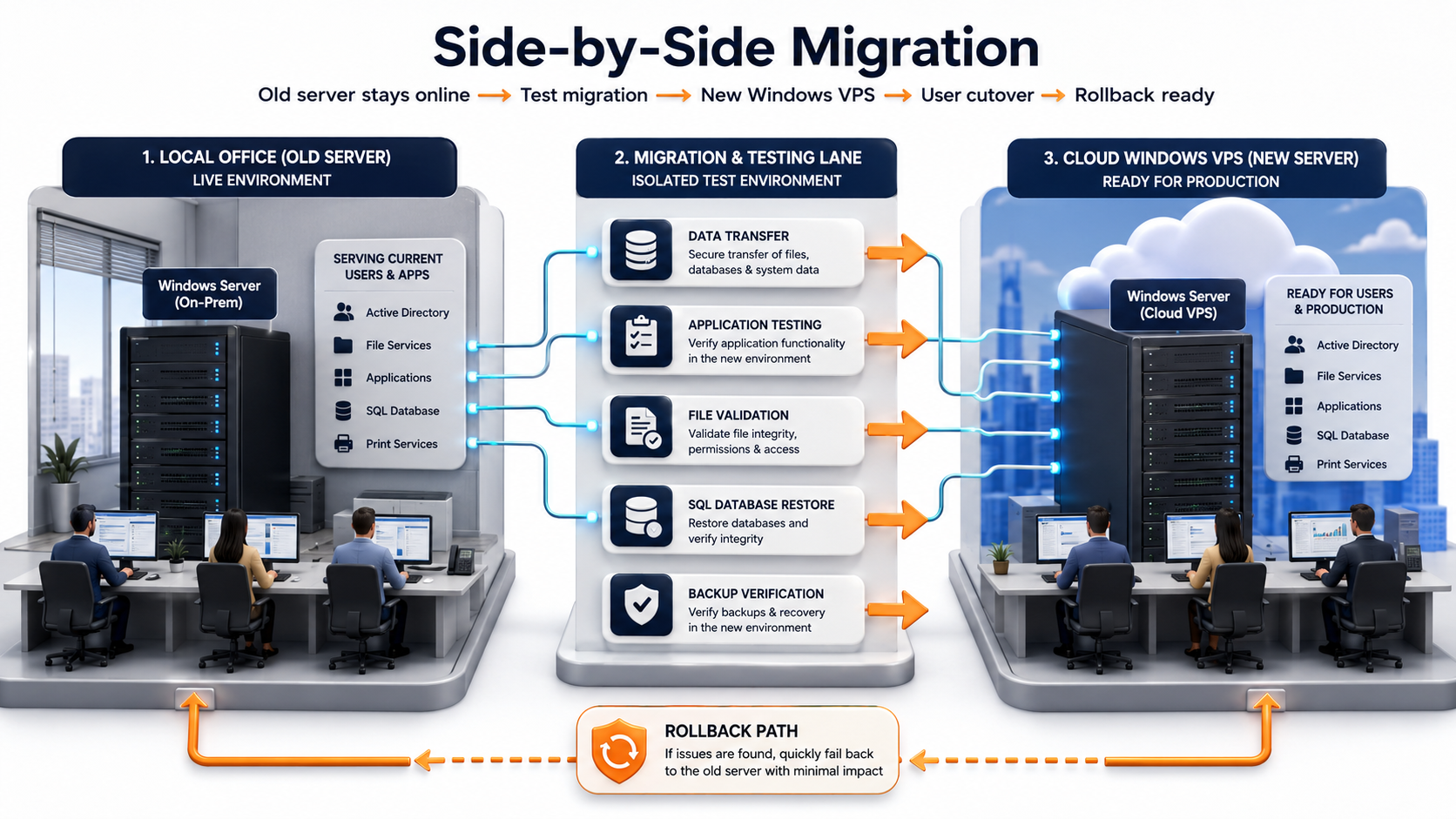
Old local server stays online → New Windows VPS is built → Apps, files, and users are tested → Final data sync happens → Users cut over → Old server stays available for rollback

This approach is safer than changing the old server in place because the business can test the new environment before production users depend on it.

Architecture visual showing side-by-side migration from a local office server to a cloud Windows VPS

Step 1: inventory the old office server

Start with discovery. Do not migrate what you cannot describe.

Document:

AreaWhat to capture
Server basicsName, OS version, IP address, domain/workgroup status
Server rolesFile server, AD DS, DNS, DHCP, RDS, IIS, SQL Server, print server
ApplicationsApp name, version, install path, vendor support, license info
UsersAdmins, staff users, groups, service accounts
File sharesShare names, folder paths, NTFS permissions, mapped drives
DatabasesSQL instances, databases, jobs, logins, maintenance plans
Scheduled tasksReports, exports, backups, scripts, sync jobs
DevicesPrinters, scanners, label printers, USB dongles, serial devices
CertificatesIIS, RD Gateway, VPN, internal application certificates
BackupsTool, schedule, destination, retention, last successful restore
IntegrationsAPIs, email SMTP, accounting exports, warehouse tools

The output should be a migration map, not a vague note that says “move server data.”

Step 2: decide what should move, rebuild, or retire

A migration is a good chance to clean up the old server. Do not move years of clutter into the new environment automatically.

Sort items into four groups:

GroupMeaning
MoveStill active and should migrate to the Windows VPS
RebuildStill active, but should be installed/configured cleanly
ReplaceBetter handled by SaaS, managed service, or a newer architecture
RetireOld, unused, duplicate, or risky; should not move

Examples:

Old server itemPossible decision
Active shared company foldersMove
Accounting software dataMove or rebuild with vendor guidance
Old employee desktopsArchive or retire
Duplicate backup zip filesRetire after confirmed backup
SQL Server databaseMove with backup/restore test
Legacy Access appTest before moving
Print server roleMove only if still needed
Unused installersRetire
Old user accountsDisable or exclude

The goal is not only to migrate. It is to make the new environment cleaner than the old one.

Step 3: size the cloud Windows VPS

Size the destination based on users, apps, storage, and growth. Do not size only by the old server specs.

Use this starting model:

WorkloadStarting sizeWhen to move up
1 admin or light app user2 vCPU / 4 GB RAMIf apps or reporting tools run on the server
3 light remote users4 vCPU / 8 GB RAMIf users run Office apps, browser tools, or PDFs
3 business app users4 vCPU / 16 GB RAMIf accounting, Access, tax, or legacy apps run daily
5 active users4 vCPU / 16 GB RAMIf users stay logged in through RDP/RDS all day
10 active users8 vCPU / 32 GB RAMIf the VPS becomes a shared workplace
SQL/ERP/heavy business app8-16 vCPU / 32-64 GB RAMIf database, reports, and users compete for resources

Plan storage separately. Include production files, app data, database files, user profiles, logs, backups, reports, exports, and at least 12 to 24 months of expected growth.

Compare Raff Windows VM plans when sizing CPU, memory, storage, and monthly cost for a local server to cloud migration.

Step 4: plan user access before migration

Remote access should be designed before users move.

Use this model:

Access needPlanning direction
One or two admins manage the VPSRestricted admin RDP can work
Staff need daily desktop sessionsPlan RDS Session Host and RDS CALs
Users connect from different locationsConsider RD Gateway or another controlled access layer
Users need mapped file shares from endpointsUse VPN/private access or a supported SMB pattern
Users only need a web applicationDo not expose full desktop access unnecessarily
MSP manages the serverStandardize access, monitoring, and documentation

Microsoft states that each user or device connecting to an RD Session Host running Windows Server needs an RDS Client Access License. If staff use the new VPS as a daily desktop environment, licensing must be addressed before production.

Direct RDP can be fine for administrator access. It should not become the default plan for every business user without security review.

Step 5: back up the old server before touching it

Before you change anything, protect the source environment.

Create and verify:

Backup itemWhy
Full server backupRecover if migration work damages the old server
File backupRestore shares and user files
Database backupRecover SQL or app database cleanly
System state backupImportant if AD or server roles are involved
App-specific backupRequired for accounting, ERP, tax, Access, and vendor apps
Configuration exportIIS, firewall rules, certificates, scheduled tasks, app configs
Restore testProves backup is usable

A backup that has never been restored is not proof. Test at least one file restore, one folder restore, and one business-critical app or database restore before cutover.

Step 6: build the cloud Windows VPS cleanly

Build the destination before moving production data.

Prepare:

ItemChecklist
Windows Server versionChoose a supported version for apps and roles
VM sizeMatch expected users, app load, and storage growth
Admin usersUse named admin accounts
FirewallAllow only required access paths
RDP/RDS/RD GatewayConfigure according to access model
UpdatesPatch Windows before production cutover
SecurityApply baseline hardening before users connect
MonitoringTrack CPU, RAM, disk, backups, failed logins
BackupsEnable backup policy before production data is moved
DocumentationRecord server name, IPs, access, roles, and owners

Do not move production data into an unfinished server. The destination should be patched, secured, backed up, and documented before cutover.

Step 7: migrate files and permissions carefully

File migration is one of the most visible parts of an office server move. Users care about folder names, mapped drives, and whether they can find their files Monday morning.

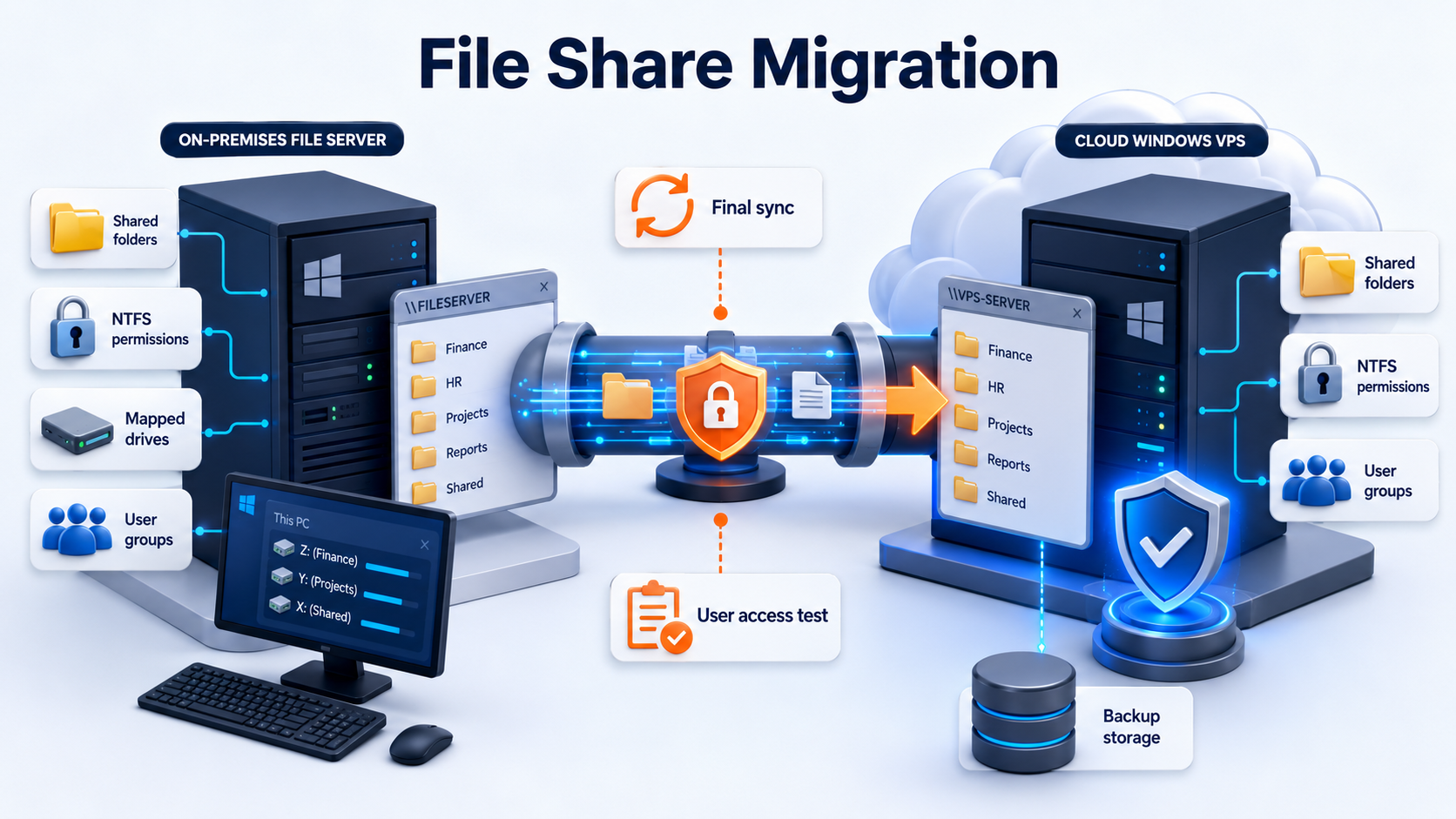
For file shares, check:

File migration itemWhat to verify
Share namesKeep, rename, or simplify deliberately
NTFS permissionsPreserve or redesign permissions
Share permissionsConfirm effective access
Security groupsUse groups instead of per-user permissions
Mapped drivesUpdate GPO, scripts, shortcuts, or user instructions
Long pathsIdentify files that may fail to copy
Open filesSchedule final copy during low activity
Archive foldersAvoid moving unnecessary clutter
BackupConfirm destination file backup policy

Microsoft’s Storage Migration Service can inventory servers, transfer data to newer Windows servers or Azure virtual machines, and optionally transfer server identity so apps and users can access data without changing links or paths. That makes it relevant when the migration scope is primarily file server data.

File migration visual showing shared folders, NTFS permissions, mapped drives, and final sync moving from local server to Windows VPS

Step 8: migrate business applications with vendor support in mind

Business applications are often more complex than files.

Before migration, confirm:

App itemWhat to check
InstallerDo you have the installer and version?
LicenseDoes the license allow VM/cloud/RDS use?
Vendor supportWill the vendor support this deployment?
Data pathWhere does the app store production data?
Service accountsWhich accounts run services or jobs?
Dependencies.NET, ODBC, runtimes, drivers, Office/Access runtime
Printer workflowReports, PDFs, labels, and print drivers
Device workflowScanners, USB, serial, barcode, label devices
FirewallRequired ports and outbound connections
RollbackHow to return to the old app if testing fails

Do not judge success by whether the app launches. Test real workflows: create a record, run a report, print, export, import, email, sync, and close the day.

Step 9: migrate SQL Server and databases separately

SQL Server migration needs its own plan. Copying database files manually is not the same as a validated migration.

For SQL Server, check:

SQL itemWhat to plan
InstancesDefault and named instances
DatabasesSize, recovery model, compatibility level
LoginsSQL logins, Windows logins, orphaned users
JobsSQL Agent jobs, maintenance, alerts
BackupsFull, differential, and log backups where needed
Connection stringsApps may point to old server name or IP
FirewallSQL ports and app connectivity
PermissionsDatabase users, roles, and ownership
Restore testConfirm the application works after restore

Microsoft documents copying SQL Server databases by backup and restore, and its SQL Server backup/restore guidance covers backup strategies and security considerations. For many SMB migrations, backup/restore is a clean way to test the database on the new server before cutover.

If the old office server hosts SQL Server, test the app against the restored database on the Windows VPS before moving users.

Step 10: handle Active Directory and DNS carefully

If the old local server is a domain controller, DNS server, DHCP server, or FSMO role holder, migration needs extra caution.

Check:

AD/DNS itemWhat to verify
Domain controller roleIs the old server a DC?
DNSDo clients and apps rely on this server for DNS?
DHCPDoes it assign IP addresses?
FSMO rolesWhich server holds each role?
GPOsLogon scripts, mapped drives, security policy
Users/groupsActive users, stale accounts, service accounts
ReplicationAD health before migration
Time syncDomain time source
Decommission planHow the old server will be removed safely

Microsoft provides documentation for transferring FSMO roles in Active Directory Domain Services. If AD is involved, treat this article as the planning guide and use a dedicated AD migration plan for the technical steps.

Review Active Directory, DNS, file shares, SQL Server, RDS, and business app dependencies before cutting over your migration.

Step 11: test from real user locations

A local-to-cloud migration changes network paths. Test from where people actually work.

Test:

Test areaExample
Office usersUsers in the main office can connect and work
Remote usersUsers at home or branch locations can connect
Admin accessAdmin RDP or support access works
RDS sessionsUsers can sign in, work, and sign out
File accessUsers can open, edit, save, and find files
App workflowsBusiness apps complete normal tasks
Database accessApps connect to SQL or other data stores
ReportsReports generate and export correctly
Printing/scanningPrinters, PDFs, labels, scanners work
BackupsDestination backup jobs complete
RestoreAt least one restore test succeeds

Do not let only the IT admin test the system. Include the users who actually run the daily workflows.

Step 12: schedule cutover and final sync

Cutover is where planning becomes execution.

A practical cutover sequence:

  1. Announce the downtime window.
  2. Confirm latest source backup.
  3. Freeze writes on the old server.
  4. Stop app services or user access if needed.
  5. Run final file sync.
  6. Restore or attach final database copy.
  7. Update DNS, mapped drives, shortcuts, or connection strings.
  8. Start services on the Windows VPS.
  9. Test admin login.
  10. Test user login.
  11. Test files, apps, reports, printing, and backups.
  12. Confirm users can work.
  13. Keep the old server available but controlled.
  14. Monitor the first workday closely.

The best cutover is boring. Everyone knows the order, the rollback trigger, and who owns each step.

Step 13: keep rollback ready

Rollback is not a sign of failure. It is a safety plan.

Define:

Rollback itemQuestion
TriggerWhat problem forces rollback?
OwnerWho makes the rollback decision?
TimingHow long after cutover is rollback still practical?
Data stateHow will new writes be handled?
Old serverIs it intact and reachable?
DNS/accessHow do users return to old paths?
CommunicationWho tells users what to do?

Do not wipe the old server immediately after the first successful login. Keep it available until the new cloud environment is proven stable.

Step 14: monitor after migration

The first week after migration matters.

Monitor:

SignalWhy
CPUDetect undersizing or app spikes
RAMIdentify RDS or app pressure
Disk free spacePrevent file, profile, and backup failures
Backup successConfirm protection is working
Failed loginsDetect access issues or attacks
Event logsCatch services, drivers, and app errors
SQL jobsConfirm database maintenance and backups
Scheduled tasksEnsure reports and exports still run
User complaintsReveal real workflow bottlenecks
RDP/RDS sessionsUnderstand peak concurrent usage

Migration is complete only when the new environment is stable, backed up, documented, and users can complete real work.

Local server to cloud migration checklist by workload

Different workloads need different checks.

WorkloadMigration focus
File serverShares, NTFS permissions, mapped drives, backup, final sync
RDP/RDS serverUser profiles, RDS CALs, RD Gateway, printers, performance
SQL ServerBackup/restore, logins, jobs, connection strings, app testing
Active DirectoryDC health, DNS, FSMO, GPOs, replication, decommission
Accounting softwareVendor support, data path, printers, backups, user testing
Access/legacy appsFile paths, split design, RDP/RDS testing, backups
Tax softwareSeasonal users, client files, vendor support, backups
ERP/inventoryDatabase, reports, integrations, devices, warehouse workflows
IIS/.NETSites, app pools, certificates, bindings, web.config, databases

A local server migration is rarely one thing. It is usually several small migrations inside one project.

How Raff fits local server to cloud migration

Raff fits this use case when a small business wants to replace a local Windows Server with a cloud Windows VPS for remote users, business apps, shared files, databases, and centralized access.

Raff Windows VMs can serve as the destination for office server replacement, Remote Desktop environments, cloud file servers, SQL Server tools, Access and legacy apps, tax software, ERP/inventory workloads, and MSP-managed client environments. The Raff Windows Server migration page also organizes migration guidance for teams moving Windows workloads to newer or cloud-hosted environments.

Raff is not a replacement for vendor support, licensing review, or application testing. The clean model is: use Raff for the Windows VM infrastructure, then migrate with a clear plan for users, apps, files, databases, access, backups, cutover, and rollback.

Protect your local server migration with backup, snapshot, and restore planning before moving production workloads.

Final pre-cutover checklist

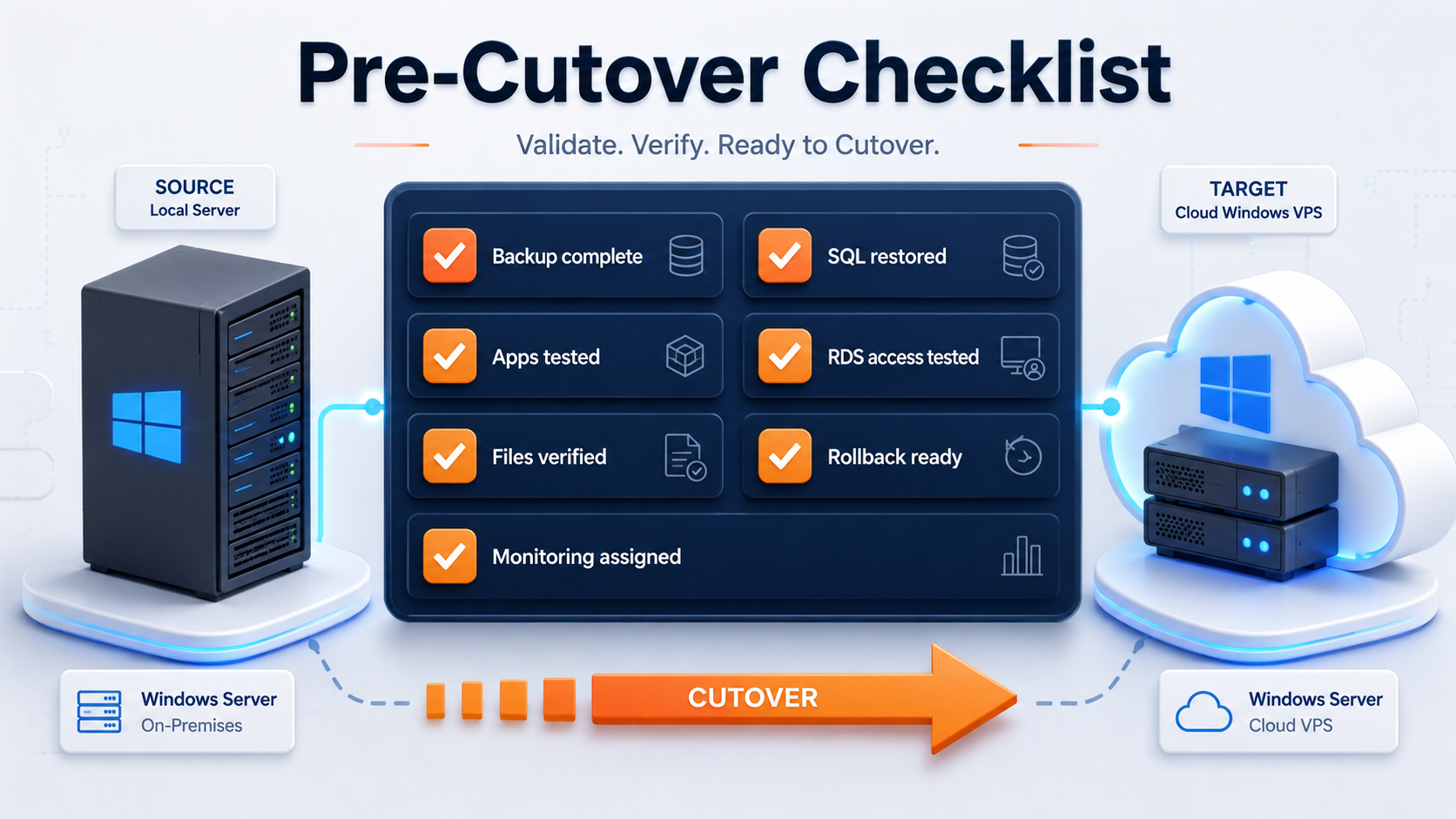
Before production cutover, confirm:

CheckDone
Source backup completed
Source restore test completed
Destination Windows VPS built and patched
Destination backups enabled
Users and admins documented
RDP/RDS/RD Gateway access tested
RDS CAL requirements reviewed
File shares copied and permissions verified
Apps installed and tested
SQL databases restored and app-tested
Printers/scanners/reports tested
DNS/mapped drives/connection strings planned
Cutover window approved
Rollback plan written
Old server preserved after cutover
Post-migration monitoring assigned

Pre-cutover checklist visual for moving a local office server to a cloud Windows VPS

If any line is unclear, pause before moving production users.

Create a Raff Windows VM when your team is ready to move Windows workloads from local office hardware to the cloud.

FAQ

Can I migrate a local office server to a cloud Windows VPS?

Yes. A local office server can be migrated to a cloud Windows VPS when files, apps, users, databases, remote access, backups, licensing, and rollback are planned and tested before production cutover.

Is side-by-side migration better than in-place upgrade?

For local server to cloud migration, side-by-side migration is usually cleaner. The old server stays available while the new Windows VPS is built, tested, and prepared for user cutover.

What should I back up before moving an office server to cloud?

Back up the full server, files, databases, system state where needed, application data, certificates, scheduled tasks, configs, and vendor-specific data. Restore testing is as important as backup completion.

Can a Windows VPS replace a local file server?

Yes. A Windows VPS can replace a local file server when shared folders, SMB access, NTFS permissions, mapped drives, backups, and user access are planned carefully. Direct SMB exposure to the public internet should be avoided.

Do remote users need RDS CALs after migration?

If staff use Remote Desktop Services sessions on Windows Server, RDS CAL planning is usually required. One or two admin RDP sessions are different from daily staff desktop access.

When should I avoid moving a local server to cloud?

Avoid or delay migration when the application vendor does not support cloud/RDS use, local devices are critical and untested, internet is unreliable, backups are unproven, or high availability is required but not designed.

What's next

Sources

Was this article helpful?

Published July 7, 2026 · Updated July 7, 2026

Back to hub
Ready when you are

Your Windows Server, live in ~2 minutes

Genuine, fully-licensed Windows with full admin and RDP. We handle the Microsoft licensing, billed monthly with nothing upfront. On NVMe SSD, backed by a 14-day money-back guarantee.

Related articles