run your softwarebeginner12 min read·Updated Jul 3, 2026

Windows VPS for ERP and Inventory Software

Learn when a Windows VPS makes sense for ERP and inventory software, including remote users, database planning, backups, sizing, security, and RDS access.

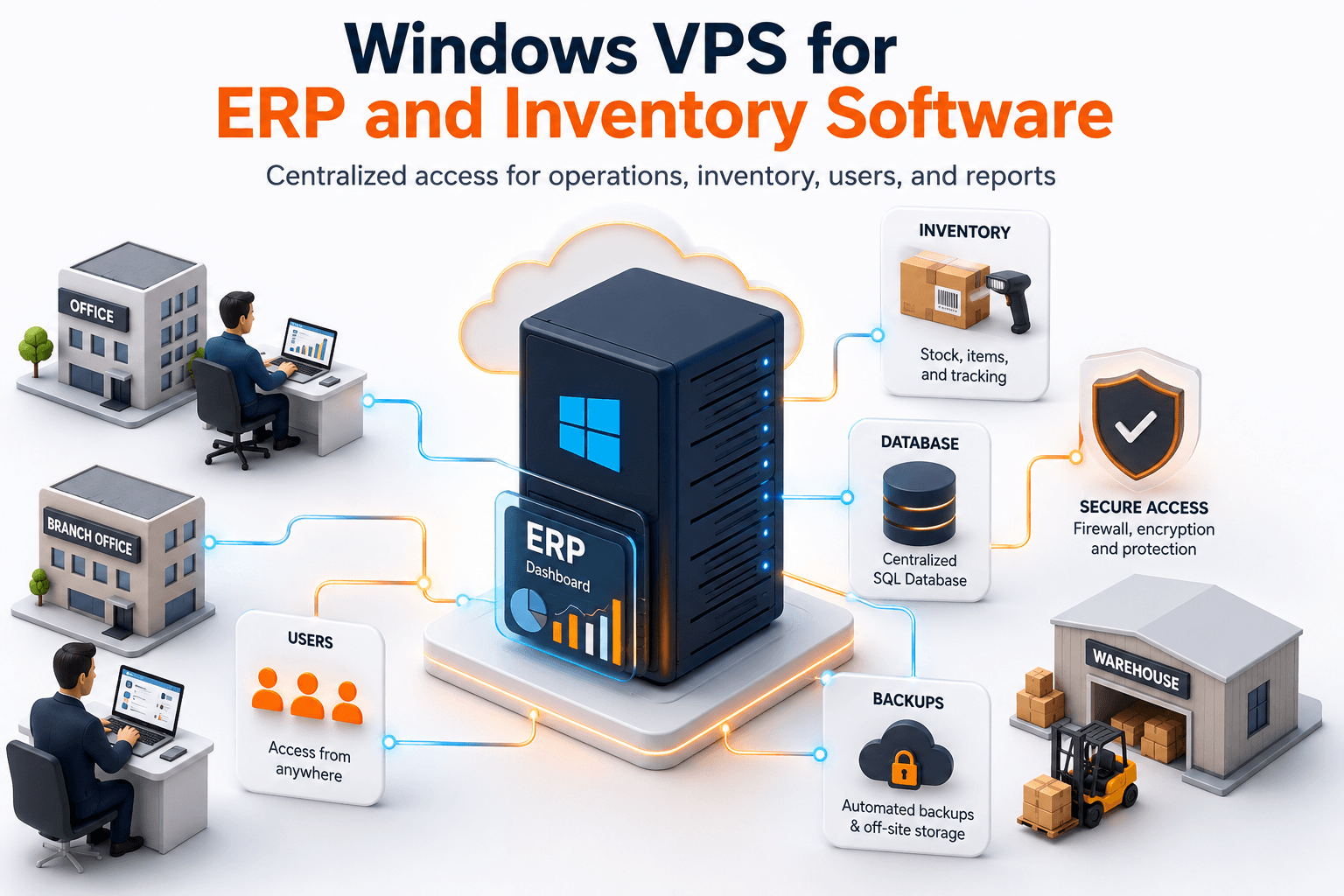
Windows Server guide image: Windows VPS for ERP and inventory software with remote users, shared data, backups, and secure access
On this page

Don't have a Windows Server yet?

Deploy Windows Server 2019/2022/2025 in ~2 minutes. 6-month evaluation licence included.

Deploy Windows now

A Windows VPS can be a practical environment for ERP and inventory software when a small business needs centralized access, remote users, shared data, backups, and a Windows Server environment that is not tied to one office machine. It works best when the ERP vendor supports the deployment model, users connect through a planned RDP/RDS access path, and database, backup, storage, and security needs are understood before production. Raff Technologies provides Windows VMs for teams that need cloud-hosted Windows Server infrastructure for business workloads.

ERP and inventory systems are different from ordinary desktop apps. They often connect sales, stock levels, purchasing, warehouse activity, accounting, reporting, branches, and user permissions. If the system is slow, unavailable, or backed up poorly, the business feels it across operations, not just IT.

A Windows VPS can help centralize the Windows environment for ERP and inventory tools. But it does not remove the need for application support, vendor licensing checks, database planning, RDS licensing, backup validation, and security ownership.

Quick verdict: when a Windows VPS fits ERP and inventory software

Use this table before moving an ERP or inventory workload to a Windows VPS.

Business situationWindows VPS fitWhy
Small team needs remote access to a Windows ERP clientGood fitUsers can connect to one cloud-hosted Windows environment.
Branch offices need the same inventory systemGood fit with access planningCentralized access can reduce office-specific installs and data drift.
ERP vendor supports Windows Server/RDS useStronger fitVendor-supported deployment lowers migration risk.
Inventory app depends on shared folders or local database filesGood fit after testingApp and data can stay close together on the Windows server.
ERP uses SQL Server on the same machineDependsSize carefully or split database and app roles.
Warehouse scanners, label printers, or local devices are requiredDependsTest device workflow before production.
Business needs high availability or strict uptime architectureNot a single VPS decisionPlan redundancy, failover, and database architecture.
ERP vendor provides a SaaS version that fits the businessVPS may not be neededSaaS may be simpler if it covers the workflow.

The strongest use case is a small business or MSP-managed client that needs a centralized Windows Server environment for users, ERP client software, inventory workflows, reports, and backups.

Don't have a Windows Server yet?

Deploy Windows Server 2019/2022/2025 in ~2 minutes. 6-month evaluation licence included.

Deploy Windows now

Use Raff Windows VM when your team needs a cloud-hosted Windows Server for ERP, inventory software, remote users, and business apps. :::

ERP and inventory software create operational dependency

ERP and inventory tools often sit at the center of daily operations. They are not isolated IT systems.

They may touch:

Business areaExample dependency
SalesOrders, invoices, customer records
PurchasingVendor orders, receiving, cost tracking
WarehouseStock counts, picking, packing, transfers
AccountingPosting, exports, reconciliation
ManagementReports, dashboards, forecasts
Branch officesShared inventory visibility
Customer serviceOrder status, returns, availability
ComplianceRecords, audit trails, retention

That is why hosting decisions matter. If the server is unavailable, users may not know what stock exists, what orders shipped, what invoices are ready, or which branch has inventory.

A Windows VPS can centralize the environment, but the server should be treated as production infrastructure from day one.

A Windows VPS changes where the ERP workload lives

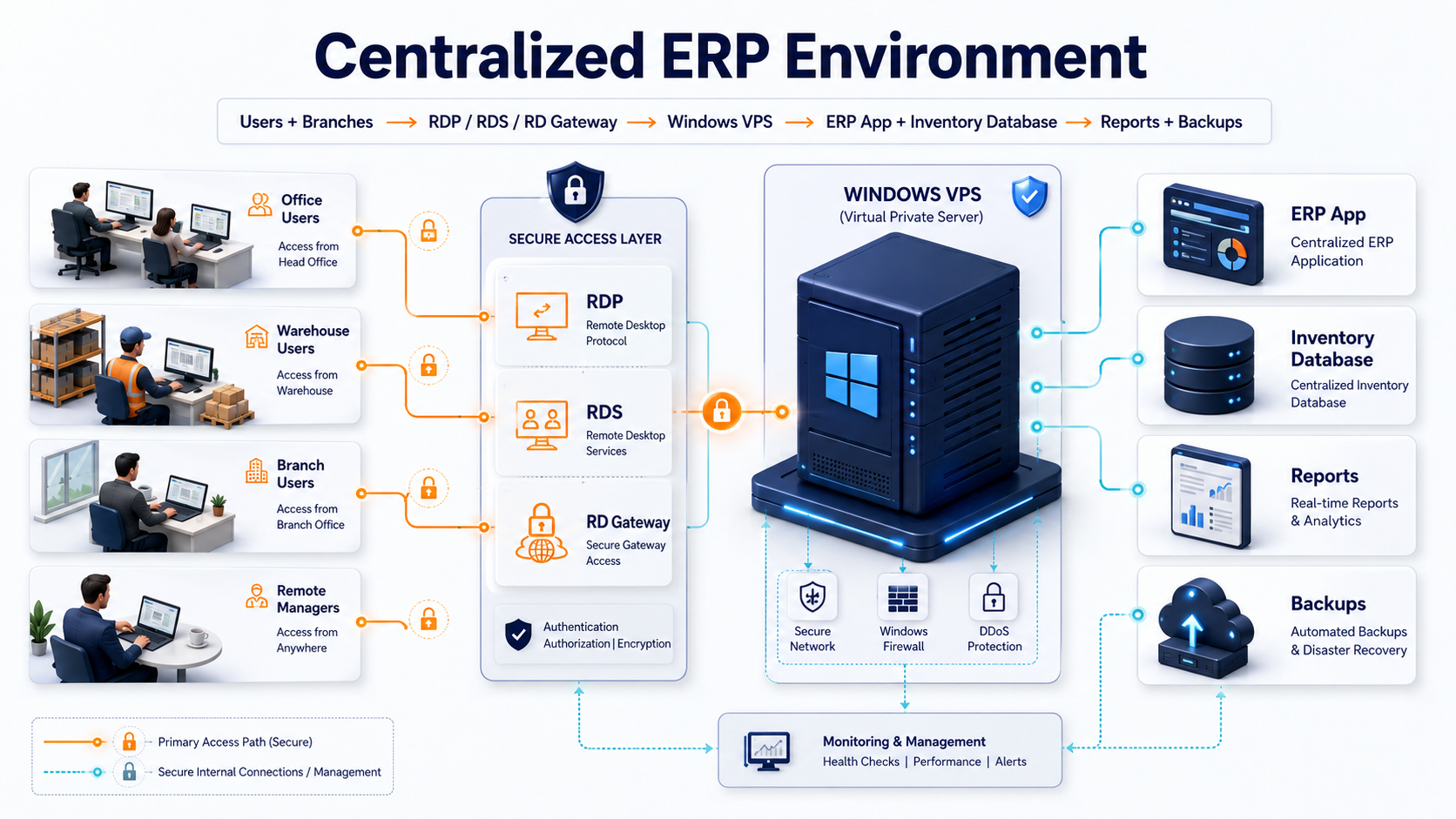
A local ERP or inventory setup often starts on one office server or workstation. A Windows VPS moves the Windows environment into a cloud-hosted server so users connect remotely.

Architecture visual showing ERP and inventory users accessing software on a Windows VPS with database, reports, and backups

The model changes like this:

AreaLocal office serverWindows VPS
Server locationOffice closet or back-office PCCloud-hosted Windows Server VM
User accessLAN, VPN, or local workstationsRDP/RDS, RD Gateway, VPN, or app-specific access
Branch accessOften messy or VPN-dependentDesigned around centralized remote access
BackupsOften local or inconsistentVM backups, snapshots, app-aware backups, off-server copies
ScalingHardware upgrade or replacementResize VM or split roles
SupportDepends on local access and hardwareSupport team can reach a known cloud environment
Downtime riskOffice power/network/hardware can block accessNot tied to one branch machine

Cloud does not remove system administration. Windows updates, ERP patches, user permissions, licensing, backup validation, database maintenance, and support boundaries still need owners.

Vendor support and licensing come first

Before moving ERP or inventory software to a Windows VPS, check the vendor’s support rules. Do not assume that every ERP system supports cloud VMs, RDS sessions, SQL Server colocation, remote users, or server-hosted operation.

Check these items:

Compatibility itemWhat to confirm
Supported Windows versionsWhich Windows Server versions are supported
RDS/Remote Desktop supportWhether users can run the client in RDS sessions
Database supportSQL Server, local database, file database, or vendor engine
Server/client architectureWhether the app expects a separate server and client
Licensing/activationWhether VM/cloud/RDS activation is allowed
Multi-user limitsNumber of supported concurrent users
Device dependenciesBarcode scanners, label printers, scales, serial devices
File pathsUNC paths, mapped drives, local folders, hardcoded paths
Backup methodVendor-supported backup/export process
Support policyWhether vendor support helps in this deployment model

This is especially important for older ERP systems, vertical inventory tools, and custom business software. The application may run on a Windows VPS, but supportability matters before production.

Remote access should match the user workflow

Remote access should be designed around how users actually work.

Use this access model:

User workflowRecommended direction
One admin maintains ERP softwareRestricted admin RDP can work
3-10 users need daily desktop accessRDS Session Host planning
Users connect from multiple branchesConsider RD Gateway or controlled remote access
Users only need a web-based ERP interfaceDo not give desktop access unnecessarily
Warehouse users need local devicesTest device redirection or local workflow
Accounting exports happen on the serverKeep app, files, and reports in the server environment
MSP manages the workloadStandardize access, backup, documentation, and monitoring

Microsoft describes Remote Desktop Services as a Windows Server platform for securely delivering managed desktops and applications to users in offices, homes, branches, and partner locations. That model fits many ERP and inventory scenarios where users need a consistent Windows desktop or application environment.

If staff use RD Session Host for daily desktop or RemoteApp sessions, RDS Client Access License planning is required. Microsoft’s RDS CAL documentation explains that each user or device connecting to an RD Session Host running Windows Server needs an RDS CAL.

Sizing depends on active users, reports, and database load

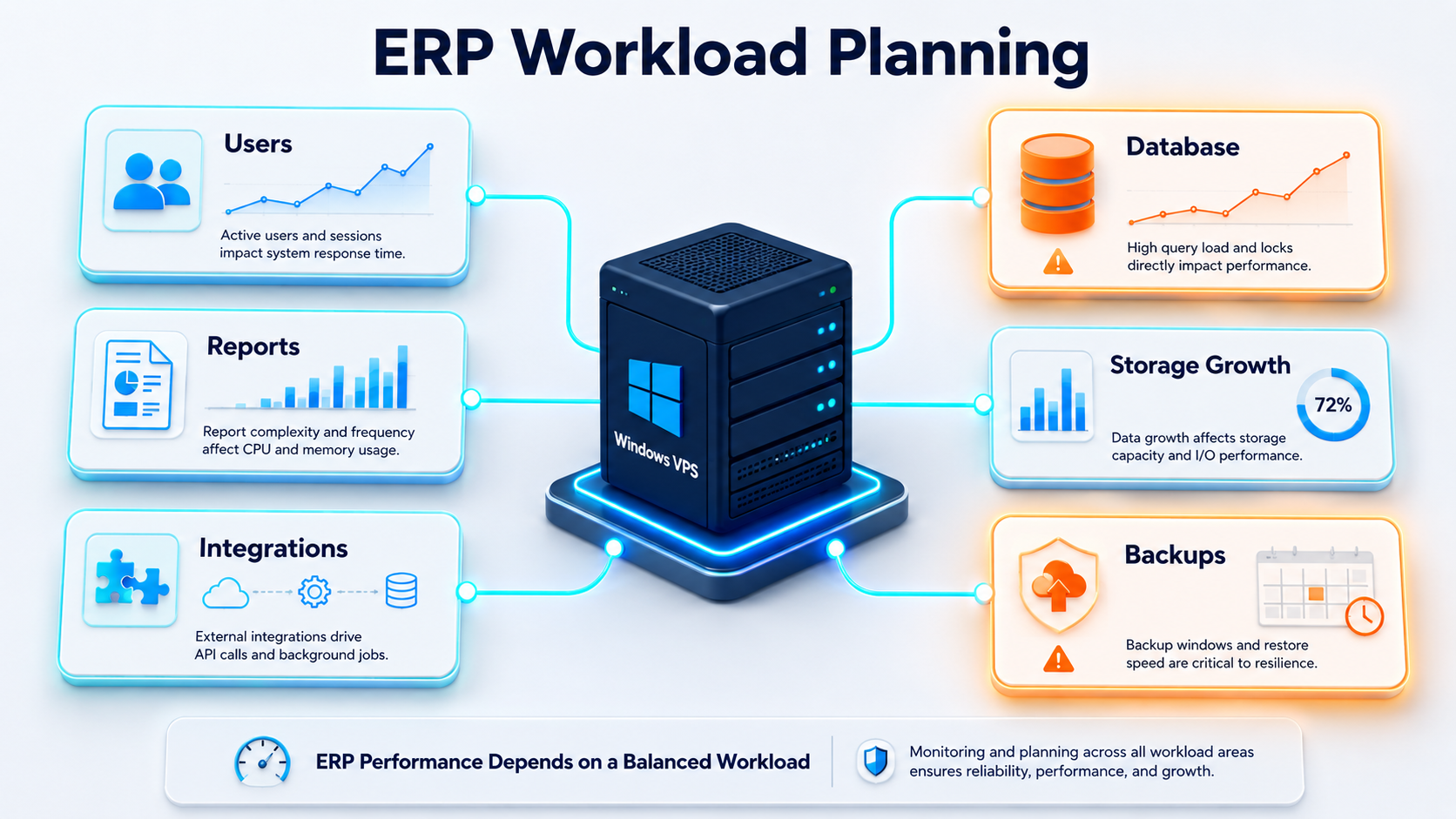
Do not size an ERP or inventory Windows VPS only by the number of employees. Size it by concurrent users, database activity, reports, integrations, storage growth, and peak business periods.

Use this starting guide:

ERP/inventory workloadStarting sizeWhen to move up
1 admin or test user2 vCPU / 4 GB RAMIf reports or services run on the server
3 light users4 vCPU / 8 GB RAMIf users keep multiple apps and reports open
3 business users4 vCPU / 16 GB RAMIf ERP client, PDFs, Excel, and profiles are active
5 active users4 vCPU / 16 GB RAMIf reporting, exports, or warehouse tasks create lag
10 active users8 vCPU / 32 GB RAMIf the server becomes a shared business workspace
ERP plus SQL Server on same VM8-16 vCPU / 32-64 GB RAMIf database and RDS sessions compete
Heavy reporting or integrationsSplit rolesSeparate app, database, or reporting workload

ERP workloads can be bursty. Month-end reporting, inventory counts, batch imports, purchase order runs, label printing, and accounting exports can create temporary CPU, RAM, and disk pressure.

The existing Raff Windows VPS sizing guide should be linked from this page because it explains how to size for 1, 3, 5, and 10 remote users.

:::cta View Pricing Compare Raff Windows VM plans when sizing CPU, memory, storage, and monthly cost for ERP or inventory workloads. :::

Database planning is often the real decision

Many ERP and inventory systems depend on a database. The database can be the real bottleneck. Workload planning visual for ERP and inventory software showing users, SQL database, reports, integrations, and backup load on a Windows VPS

Possible patterns include:

PatternPlanning concern
ERP app and database on the same Windows VPSSimple, but CPU/RAM/storage contention can happen
ERP app on Windows VPS, database on another serverCleaner scaling, but more network and management planning
SQL Server ExpressMay fit small workloads, but limits can matter
Full SQL ServerLicensing, memory, backups, and maintenance matter
File-based databaseRequires careful file locking and backup planning
Vendor-hosted databaseCheck latency, security, and support rules

Microsoft SQL Server recovery models control transaction logging, whether log backups are required, and what restore operations are available. That matters because database backup strategy depends on the recovery model, not only the VM backup schedule.

If the ERP uses SQL Server, use app-aware SQL backups, verify restores, and decide whether the database should live on the same VM as RDS users.

Inventory workflows need device testing

Inventory software often touches physical workflows. A Windows VPS may work well for office users, but warehouse devices should be tested.

Test these before production:

Device/workflowWhat to verify
Barcode scannersInput behavior inside RDP/RDS session
Label printersPrinter redirection, drivers, label formatting
Receipt printersSession mapping and print reliability
Scales or serial devicesUSB/serial support and latency behavior
Handheld devicesBrowser/app/API connection model
File importsFolder paths, permissions, and timing
Excel exportsFile location and user permissions
PDF reportsGeneration, storage, and printing
Branch transfersMulti-location access and data consistency

The server may be ready before the warehouse workflow is ready. Test the full operational process: receive item, update stock, print label, transfer item, report inventory, and restore data.

Storage planning must include transactions, reports, and files

ERP and inventory systems generate more than database records. They produce attachments, PDFs, exports, logs, invoices, pick lists, purchase orders, product images, and backup files.

Plan storage for:

Storage areaExamples
Database filesSQL data, logs, vendor database files
Application filesERP install folders, configs, services
Reports and exportsExcel, CSV, PDF, printed reports
AttachmentsProduct documents, customer files, purchase records
User profilesRDP/RDS user profiles, downloads, desktops
Integration filesImport/export folders, scheduled jobs
Backup stagingLocal database dumps, zipped backups
LogsWindows logs, application logs, SQL logs
Snapshots/backupsInfrastructure restore points

A small ERP database can become a large business data footprint once files, reports, exports, and backups are included. Size for the next 12 to 24 months, not only the current installer and database size.

Backups should include the whole business workflow

A VM backup is useful, but ERP recovery often requires more than restoring the Windows server. You need the database, application files, configuration, scheduled jobs, reports, and permissions to work together.

A practical backup model:

Backup layerPurpose
VM backupRecover the full Windows VPS
Snapshot before changesRoll back before app upgrades, Windows updates, or migrations
App-aware database backupProtect SQL Server or vendor database state
File-level backupRestore reports, exports, attachments, and shared folders
Off-server copyProtect against VM, account, or ransomware incidents
Restore testProve the ERP opens and data is usable

Microsoft’s SQL Server backup guidance separates backup and restore planning from the recovery model. A VM snapshot alone should not be treated as the full database recovery plan for production ERP.

For inventory systems, restore tests should include business actions: log in, open item records, run reports, print labels, export data, and confirm recent transactions.

:::cta Explore Data Protection Protect ERP and inventory data with backup, snapshot, and restore planning before moving production workloads. :::

Security matters because ERP data is operational data

ERP and inventory systems can hold customer records, vendor records, pricing, stock levels, purchasing history, accounting exports, employee activity, and business performance data. Access control matters.

Plan:

Security areaRecommendation
User accountsNamed users, not shared logins
Admin accessSeparate admin work from daily users
RDP exposureAvoid broad direct RDP exposure
RDS/RD GatewayUse a controlled access model for staff users
PermissionsLimit access by role and department
BackupsRestrict who can delete or modify backups
UpdatesPatch Windows and ERP software deliberately
LogsReview failed logins and application errors
Vendor accessControl and audit remote vendor support
OffboardingRemove users promptly when staff leave

Do not let every ERP user become a Windows administrator. The server should separate business users, application admins, and infrastructure admins.

Integrations and scheduled jobs need documentation

ERP and inventory software often connects to other systems. These integrations are easy to forget during migration.

Document:

IntegrationWhat to capture
Accounting exportsFolder path, file format, schedule
E-commerce syncAPI keys, timing, error handling
Shipping toolsLabel printer, export/import path
Warehouse devicesDevice type, connection method, driver
Email notificationsSMTP settings, credentials, sender
Reporting jobsSchedule, output path, owner
Database maintenanceSQL Agent jobs, scripts, vendor tasks
Backup jobsSchedule, destination, verification
User importsSource, format, permissions
Vendor support toolsRemote access method and approval process

A migration is not complete when the app opens. It is complete when normal business processes work: imports, exports, reports, labels, emails, backups, and user permissions.

Windows VPS vs local ERP server

A local ERP server can still be a good fit when every user is in one office and the workload depends heavily on local devices. A Windows VPS becomes more attractive when users work across branches, remote staff need access, hardware refresh is coming, or backups are inconsistent.

Decision areaLocal ERP serverWindows VPS
Remote usersRequires VPN/gateway/remote access designRemote access is part of the design
Branch accessOften more complexCentralized environment for locations
HardwareBusiness owns and replaces itCloud VM replaces local server role
BackupsMust be designed and stored off-siteVM backups, snapshots, and app-aware backups can be planned centrally
ScalingHardware upgrade or replacementResize VM or split roles
SupportMay require local hardware accessSupport team can access known server environment
Device workflowsStrong for local devicesMust test redirection or alternate workflow
Internet dependencyLower for on-site usersHigher for cloud users

The right answer depends on operations. A warehouse with unreliable internet may keep local infrastructure. A multi-location business with remote managers may benefit from centralizing the Windows environment.

When a Windows VPS is not the right fit

Do not move ERP or inventory software to a Windows VPS without checking risk.

Pause when:

SituationBetter next step
ERP vendor does not support hosted/RDS useAsk vendor for supported deployment options
Database workload is too heavy for one VMDesign separate app/database roles
High availability is mandatoryPlan redundancy and failover
Local devices are critical and untestedRun device workflow tests first
Internet is unreliableFix connectivity or design fallback
Compliance requirements are strictReview access, logging, retention, and security
Backup ownership is unclearBuild recovery plan before migration
Users need modern SaaS ERP featuresConsider whether SaaS migration is better
Existing data is messy or corruptClean and validate before migration

The cloud server should not become a place where old problems hide. If the ERP workflow is fragile, document and fix the fragile parts before moving production data.

Migration plan for ERP and inventory software

Use a staged migration.

  1. Inventory the ERP/inventory app, version, users, modules, database, and integrations.
  2. Confirm vendor support for Windows Server, RDS, cloud VM, and database model.
  3. List branch locations, remote users, and peak concurrent sessions.
  4. Identify device dependencies: scanners, label printers, scales, USB, serial devices.
  5. Choose the initial Windows VPS size.
  6. Build a test Windows VPS.
  7. Install ERP software and dependencies.
  8. Copy non-production data first.
  9. Test login, reporting, item lookup, stock updates, exports, printing, and integrations.
  10. Configure backups, snapshots, and database backup jobs.
  11. Run at least one restore test.
  12. Test remote access from each location.
  13. Schedule cutover outside peak operating hours.
  14. Keep rollback access to the old environment temporarily.
  15. Monitor CPU, RAM, disk, user complaints, and backup success after launch.

The migration should prove the workflow, not just the installation.

How Raff fits ERP and inventory workloads

Raff fits this use case when a small business or MSP needs a Windows Server VPS for ERP clients, inventory software, Remote Desktop users, shared files, reporting tools, office server replacement, or multi-location access.

Raff Windows VMs provide the cloud Windows Server foundation. From there, the buyer or MSP should configure the ERP application, database, users, RDS access, firewall rules, backups, monitoring, and vendor-supported maintenance.

Raff is not an ERP vendor and does not replace application support. If the ERP requires specific licensing, database design, hardware devices, or vendor installation steps, those must be handled before production. Raff provides the Windows VM infrastructure; the workload still needs application validation.

:::cta Deploy Windows Now Create a Raff Windows VM when your team is ready to centralize Windows business workloads in the cloud. :::

Business typeRecommendation
3-person officeStart with a test Windows VPS and confirm app support before migration.
5-user operations teamPlan RDS access, database backups, storage growth, and reporting load.
10-user multi-location businessSize for peak users and consider splitting database from desktop roles.
Warehouse-heavy businessTest scanners, label printers, and inventory workflows before cutover.
MSP-managed clientDocument app support, access model, backups, restore owner, and monitoring.
Accounting-connected ERPValidate exports, accounting sync, and permissions.
SQL Server-based ERPUse app-aware SQL backups and restore verification.
Branch-based inventory teamTest latency and access from each location before production.

The safest first step is a non-production pilot. If real users can complete normal ERP tasks on the Windows VPS, the migration becomes easier to trust.

What's next

Sources

Published July 3, 2026 · Last updated July 3, 2026