
A local server is physical hardware your business operates in an office, branch, or other site. A cloud server is compute hosted in a provider data center and accessed over a network. In practice, local server vs cloud server and physical server vs cloud server are the same core decision: do you want to own the hardware lifecycle yourself, or consume server infrastructure as a service?
For most small businesses, a cloud server is the stronger default when remote access, easier hardware replacement, flexible sizing, and recovery away from one office matter. A local server can still be the better choice when the workload depends on physical devices, must keep working during an internet outage, or needs very high-speed access to data that stays inside one location.
Raff Technologies provides Linux and Windows cloud VMs, so this guide approaches the decision from the infrastructure side rather than assuming every workload belongs in the cloud. The right answer is workload-specific.
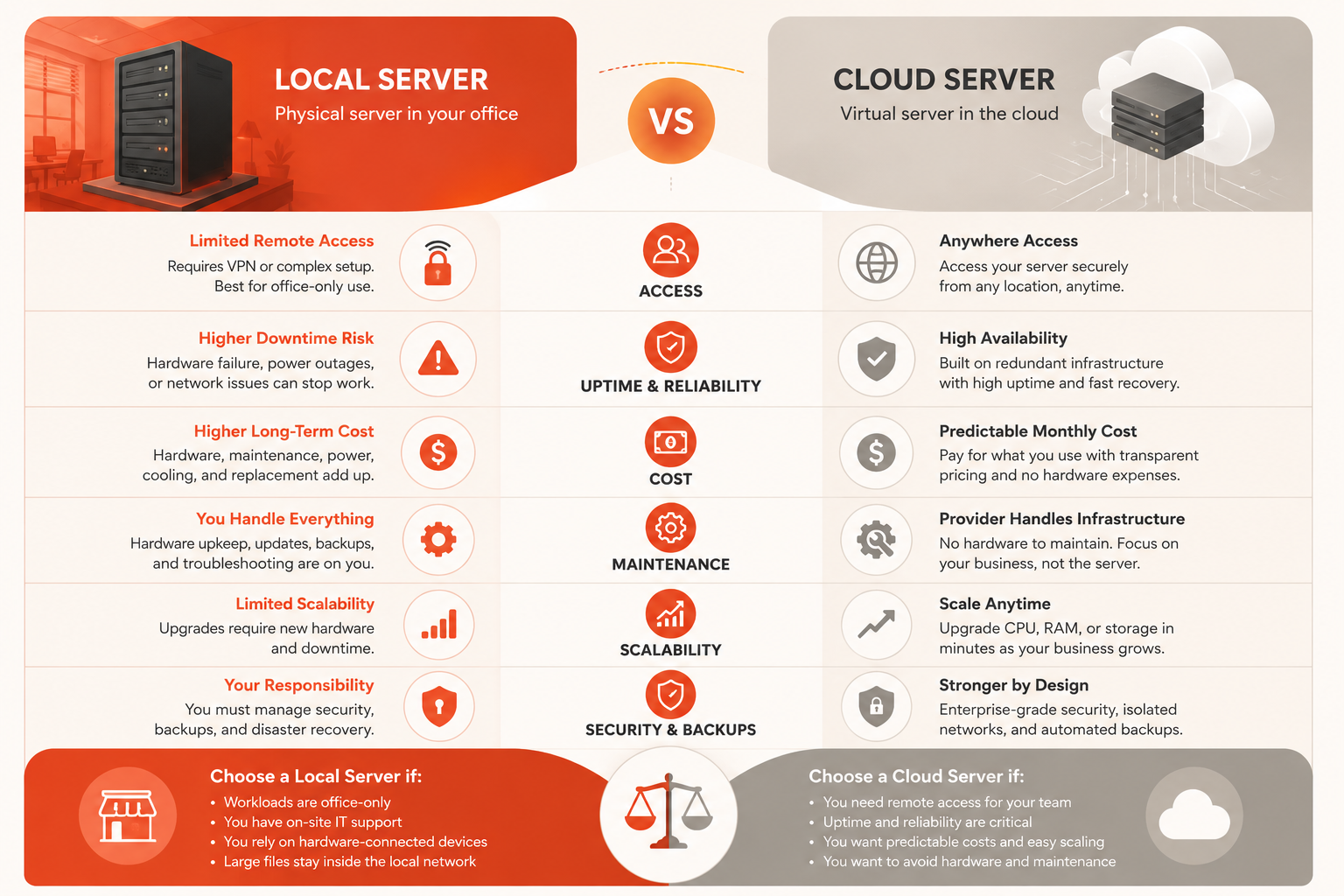
Local server vs cloud server: quick answer
| Decision factor | Local / physical server | Cloud server |
|---|---|---|
| Hardware ownership | Business owns or leases hardware | Provider owns underlying hardware |
| Upfront cost | Usually higher | Usually lower |
| Monthly infrastructure cost | Lower after purchase, but less visible | Recurring and easier to model |
| Remote access | Requires office network/VPN design | Usually easier to expose securely |
| Scaling | Hardware purchase or upgrade | Resize or add instances |
| Power/cooling | Business responsibility | Provider responsibility |
| Hardware failure | Business/MSP replaces components | Provider handles physical host layer |
| Guest OS and applications | Business responsibility | Business responsibility on self-managed VMs |
| Backup design | Business must build it | Provider tools available, but customer still owns recovery design |
| Internet outage at office | Local apps may continue | Users may lose access to cloud workloads |
| Physical-device dependency | Strong fit | May be a poor fit |
Choose a local server when the workload is tightly coupled to the office, physical equipment, or a LAN and must continue during WAN outages.
Choose a cloud server when users, applications, or IT staff need reliable access from multiple locations and the business wants to remove physical server maintenance from its operating model.
Cloud server vs physical server: what actually changes?
The biggest difference is not virtualization. It is responsibility.
With a physical server in the office, the business or its MSP owns the full stack below the operating system:
- hardware procurement;
- disks and component replacement;
- rack or office space;
- power and cooling;
- UPS and power protection;
- local network connectivity;
- hardware monitoring;
- warranty and replacement planning.
With a cloud server, the provider owns the physical data-center layer and virtualization platform. The customer still typically owns:
- guest OS patching and hardening;
- application deployment;
- database administration when self-hosted;
- users and credentials;
- firewall configuration;
- application monitoring;
- backup scope and restore testing.
Moving to the cloud removes physical server operations. It does not automatically make the guest operating system or application fully managed.
When a local server is still the better choice
Local infrastructure remains sensible when the workload depends directly on the office environment.
Common examples include:
- manufacturing or warehouse systems tied to local equipment;
- security, scanner, printer, or control systems with local-network dependencies;
- very large CAD, media, or engineering files used almost entirely on the LAN;
- applications that require hardware dongles or unsupported peripherals;
- locations where internet outages are frequent but the workload must keep running;
- systems where ultra-low-latency access to local devices matters more than remote reachability.
A local server can also remain economical when the hardware is healthy, already depreciated, properly backed up, and supported by someone who understands the environment.
The weak case is keeping an old server because replacing it feels disruptive. Unsupported operating systems, undocumented permissions, aging disks, one-person knowledge, and untested restores turn “cheap local infrastructure” into concentrated business risk.
If hardware replacement is already approaching, see Office Server Replacement Guide: What SMBs Should Move First.
When a cloud server is the better small-business default
Cloud servers are usually more attractive when the workload is software-defined and should not depend on one office.
Typical triggers include:
- staff or contractors work remotely;
- an MSP or consultant manages systems off-site;
- the business runs a website, API, CRM integration, database-backed app, or hosted business application;
- hardware replacement would create downtime or capital expense;
- CPU, RAM, or storage needs may change;
- backup and recovery should not depend on the same building as the server;
- a second office or distributed team needs access;
- the business wants infrastructure costs to be easier to forecast month by month.
Cloud does not eliminate downtime risk, but it changes the failure domain. A failed disk or motherboard is no longer an office repair problem. The remaining risks shift toward account security, configuration, provider availability, internet access, backup quality, and application operations.
For common hosted workloads, see When Small Businesses Need a VPS: 9 Practical Use Cases.
Local server vs cloud server cost
Neither model is automatically cheaper. Compare total cost of ownership, not only the server purchase price or VM monthly fee.
Local server costs
A physical-server model can include:
- server purchase or lease;
- replacement disks, RAM, power supplies, and other components;
- UPS and surge protection;
- electricity and cooling;
- office networking;
- backup storage;
- remote-access hardware or software;
- on-site support;
- hardware warranty;
- replacement cycle every few years;
- downtime during power, hardware, or local-network incidents.
Cloud server costs
A cloud-server model can include:
- VM plan;
- block storage or object storage;
- backups and snapshots;
- outbound transfer where applicable;
- public IP charges where applicable;
- Windows or other software licensing;
- load balancing or other network services;
- monitoring;
- migration work;
- management/support services when purchased separately.
A useful comparison formula is:
Annual local cost =
annualized hardware cost
+ power/cooling
+ backup storage
+ support
+ expected repair/replacement cost
+ expected downtime cost

Annual cloud cost =
VMs
+ storage
+ backup
+ network/transfer
+ licenses
+ management
+ expected downtime cost
Do not compare a fully configured office server with the cheapest cloud VM plan. Compare the resources and recovery model the workload actually requires.
For current Raff VM pricing, use the live pricing page rather than a static figure in this guide. For a broader cost framework, see Cloud Server Cost.
Cloud server vs physical server cost for an SMB
The economics often change at a hardware-refresh point.
Imagine a business that already owns a working server. Keeping it for another year may be cheaper than migrating immediately. But if the same business now needs to buy a new server, UPS, backup storage, Windows licensing, warranty, and support, the cloud comparison becomes different.
The most useful question is:
What will it cost the business to operate this workload reliably for the next three years?
Include:
- hardware or VM spend;
- support time;
- backup and restore capability;
- remote-access requirements;
- expected growth;
- replacement or migration work;
- downtime exposure.
One day of downtime can easily matter more than a modest difference in monthly infrastructure cost. Put a business value on downtime before choosing the cheaper option.
Security: local is not automatically safer than cloud
A local server is not secure merely because it is inside an office. A cloud server is not secure merely because it sits in a professional data center.
Both models require:
- named administrator accounts;
- strong authentication and MFA where available;
- timely patching;
- restrictive firewall rules;
- secure remote administration;
- credential management;
- least-privilege access;
- logging and monitoring;
- independent backups;
- regular restore testing.
Local servers add physical and site-level risks such as theft, fire, water damage, disk failure, power problems, and office-network outages.
Cloud servers shift physical risks to the provider, but introduce or amplify configuration risks such as exposed RDP/SSH, overly broad firewall rules, leaked credentials, public services left open, and weak account controls.
Security depends more on control quality and operational ownership than on whether the server is local or cloud-hosted.
Backup and disaster recovery are different from hosting location
A server location is not a backup strategy.
For either model, answer:
- What data must be recoverable?
- What is the acceptable data-loss window (RPO)?
- What is the acceptable recovery time (RTO)?
- Where are backups stored?
- Can backups survive deletion or failure of the protected server?
- Who can restore them?
- When was the last successful restore test?
A local server with off-site backups can have strong recovery. A cloud VM with only one snapshot in the same account can have weak recovery.
Cloud providers can make backup tooling easier to consume, but the business still owns the recovery requirement unless a separate managed service explicitly takes that responsibility.
For recovery planning, see RPO vs RTO for Cloud Backups.
Remote work changes the server decision
Remote access is one of the clearest reasons small businesses move workloads away from an office server.
A local server can support remote work through VPN, Remote Desktop Gateway, zero-trust access products, or other secure connectivity. But that still depends on:
- office power;
- office internet;
- firewall/router health;
- the physical server;
- remote-access configuration.
A cloud server removes the office as the hosting location, which is useful when staff already work from multiple places.
For Windows business software, a cloud Windows VM can provide an RDP-accessible environment without keeping the physical Windows Server hardware in the office. That does not remove the need for correct Windows licensing, account security, backup, patching, and application support.
See Raff Windows VM if the workload specifically requires Windows Server or RDP.
Scalability: cloud changes procurement time more than architecture
Scaling a physical server usually requires buying or installing hardware. Scaling a cloud server can often mean resizing the VM or adding more instances and storage.
That is useful for a growing business, but it is not unlimited automatic scaling.
Applications can still have limits such as:
- database bottlenecks;
- software license constraints;
- single-server architecture;
- storage design;
- network dependencies;
- operating-system limits.
Cloud infrastructure reduces hardware procurement friction. The application still needs an architecture that can use the additional capacity.
Hybrid can be the right answer
The decision does not have to be 100% local or 100% cloud.
A hybrid approach can keep physically dependent workloads on-site while moving software-defined workloads to the cloud.
Examples:
- keep manufacturing-control software local, host the reporting dashboard in the cloud;
- keep a large local file cache, move the business application/database off-site;
- keep identity or legacy systems temporarily local while new applications launch in cloud VMs;
- move remote desktop workloads first and leave equipment-dependent software for later.
This reduces migration risk and allows the business to separate workloads by dependency rather than by ideology.
Local server vs cloud server decision matrix for small business
| Requirement | Prefer local server | Prefer cloud server |
|---|---|---|
| Must work during office internet outage | ✓ | |
| Requires local hardware/peripherals | ✓ | |
| Very large LAN-only data transfers | ✓ | |
| Users work from multiple locations | ✓ | |
| Avoid physical hardware ownership | ✓ | |
| Resize compute without buying hardware | ✓ | |
| MSP manages remotely | ✓ | |
| Recovery should not depend on office site | ✓ | |
| Existing healthy hardware has useful life | ✓ | |
| New hardware purchase is already required | Often ✓ |
This matrix is directional, not absolute. A cloud workload can still need private connectivity. A local workload can still support remote users. Use the workload's hard constraints first.
How to migrate from a local server to the cloud
Do not begin with “move everything.” Begin with one clearly bounded workload.
Good early candidates often include:
- websites;
- internal dashboards;
- development/test systems;
- remote desktop workloads;
- self-hosted applications;
- database-backed applications with clear dependencies.
More difficult candidates include:
- old file servers with undocumented permissions;
- line-of-business software with hardware dependencies;
- applications tied to local scanners, dongles, or industrial systems;
- workloads with unknown data ownership.
Before migration, document:
| Question | Required answer |
|---|---|
| What is moving? | Named server role or application |
| Who uses it? | Users and systems |
| What data matters? | Files, DBs, config, credentials |
| Dependencies? | DNS, AD, devices, APIs, other servers |
| Downtime allowed? | Defined cutover window |
| Rollback? | Tested route back to original system |
| Recovery target? | RPO and RTO |
| Owner after migration? | Named employee, MSP, or technical lead |
Then use the Cloud Migration Checklist for cutover, validation, and rollback planning.
Where Raff fits the decision
Raff is relevant when the workload has already passed the first question: this application should run on a cloud VM rather than physical office hardware.
Raff provides full-control Linux and Windows VMs with NVMe storage, unmetered bandwidth, private-networking options, snapshots/backups, console access, and infrastructure automation. Current configuration and pricing should always be checked on the live product pages because plans and features can change.
Raff is a stronger fit when:
- the workload can run in a cloud VM;
- U.S.-east is a suitable location;
- the business wants full guest-OS control;
- remote access is important;
- infrastructure should not depend on office hardware;
- the customer or MSP can manage the guest OS and application.
Raff is not the right answer merely because a business owns a local server today. If the workload depends on physical equipment or must keep working when the office loses internet, keeping that workload local may be the safer choice.
Use Raff VM, Windows VM, and current pricing for the current platform scope.
Which should a small business choose?
For most software-defined SMB workloads, cloud servers are the better default because they remove physical hardware operations, make remote access easier, and allow capacity to change without another server purchase.
Choose a local server when:
- physical-device integration is mandatory;
- internet outages must not stop the workload;
- large data stays inside one LAN;
- existing hardware and on-site operations are already strong.
Choose a cloud server when:
- employees or customers connect remotely;
- the office should not be a single hosting dependency;
- hardware replacement is due;
- infrastructure is managed by a remote MSP/IT team;
- the business needs easier scaling and off-site recovery options.
Choose a hybrid model when some workloads are cloud-ready and others remain physically dependent.
The useful decision is not “cloud is modern” or “local is safer.” It is: which model gives this workload the clearest ownership, recovery path, access model, and total cost?