
In short
To set up Group Policy in Active Directory safely:
Open Group Policy Management (gpmc.msc)
→ create a test OU
→ create a new GPO
→ link it to the test OU
→ configure user or computer settings
→ run gpupdate
→ verify with gpresult
→ review scope and filtering
→ back up the GPO
→ expand to production only after testing
Do not start by putting normal day-to-day settings into the Default Domain Policy. Do not link a new policy to the whole domain before testing it. Keep GPOs focused, name them clearly, and verify what actually applied instead of assuming the configuration is correct.
For Windows Server 2025, 2022, 2019, and 2016, Microsoft documents Group Policy as the centralized way to manage user and computer settings in an Active Directory environment.
Group Policy setup: quick checklist
| Task | Recommended approach |
|---|---|
| First GPO | Create and test it in a dedicated OU |
| Open Group Policy Management | Run gpmc.msc or open Group Policy Management |
| Computer settings | Link to an OU containing computer objects |
| User settings | Link to an OU containing user objects |
| Force a refresh | Use gpupdate; use /force when you intentionally want all settings reapplied |
| Verify applied policy | Use gpresult /r or an HTML report |
| Target a subset of users/computers | Use security filtering carefully |
| Target by device condition | Use a WMI filter only when necessary |
| RDS-specific user policy | Use loopback processing when the computer location should affect user policy |
| Drive maps/printers | Consider Group Policy Preferences |
| Production rollout | Use Group Policy Results/Modeling and a test OU first |
| Rollback | Back up GPOs before major changes |
Simple rule:
Use OUs for scope.
Use GPOs for configuration.
Use gpresult to prove the result.
What is Group Policy in Active Directory?
Group Policy is a Windows management feature that lets administrators centrally configure operating-system, application, security, and user settings.
In an Active Directory Domain Services environment, settings are stored in a Group Policy Object (GPO). Microsoft describes a GPO as a collection of policy settings, permissions, and scope information. The GPO has components stored in Active Directory and in SYSVOL on domain controllers.
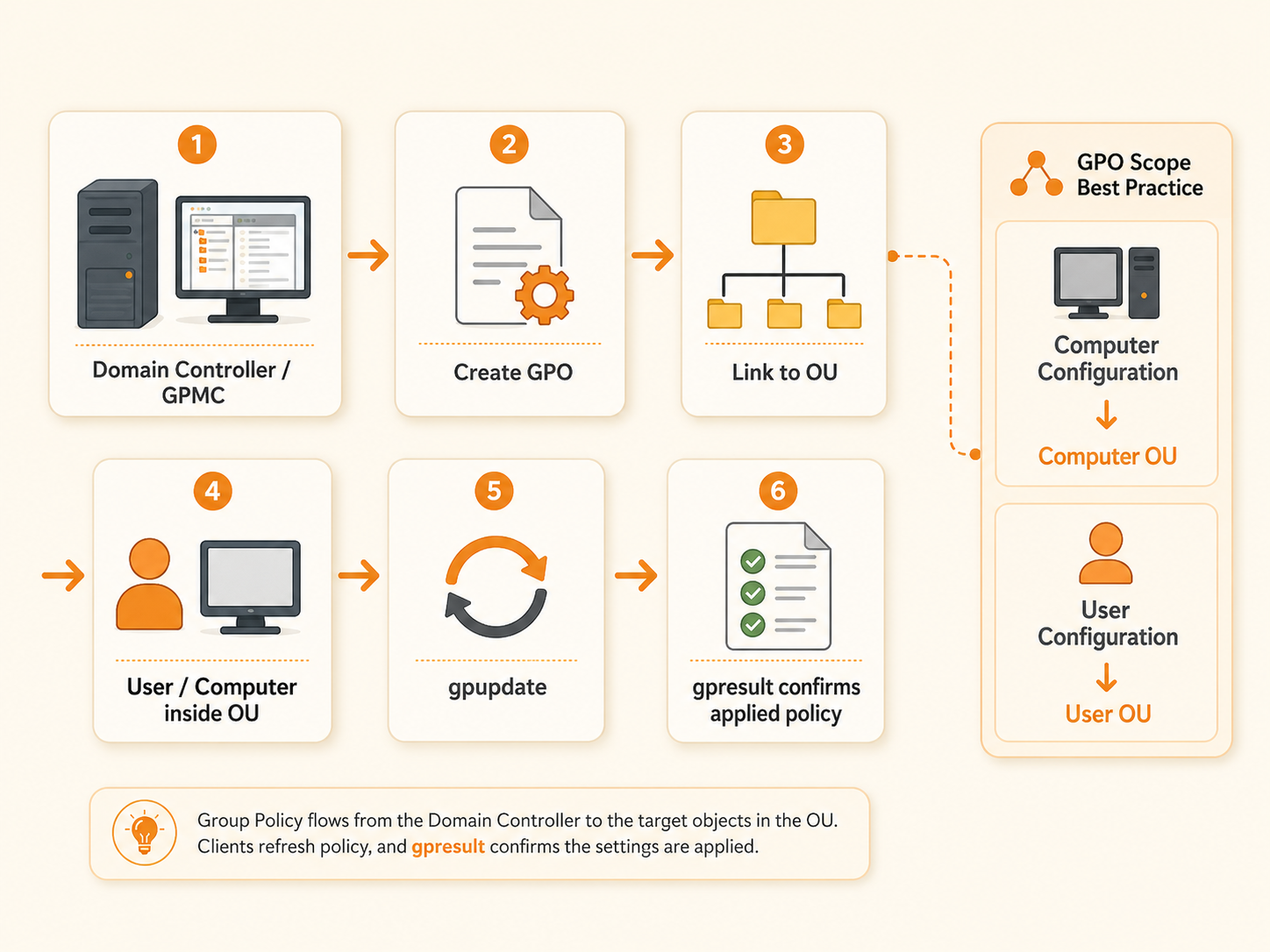
Common Group Policy use cases include:
- Windows Firewall and security settings;
- RDP configuration;
- audit policy;
- Windows Update behavior;
- browser settings;
- screen-lock settings;
- scripts;
- mapped drives;
- printers;
- local group configuration;
- RDS Session Host behavior;
- administrative templates;
- registry-based settings.
Group Policy settings are divided into two main areas:
| Section | Applies to |
|---|---|
| Computer Configuration | Computer objects |
| User Configuration | User objects |
Computer policy is evaluated around computer startup and refresh. User policy is evaluated around sign-in and refresh. Some settings require a restart or sign-out before the full effect appears.
GPO vs OU vs GPO link
These three concepts are the foundation of Group Policy.
| Term | What it is | Example |
|---|---|---|
| GPO | The collection of settings | Server - RDP Security Baseline |
| OU | Active Directory container used to organize objects | OU=Servers |
| GPO link | Connects a GPO to a site, domain, or OU | Link Server - RDP Security Baseline to OU=Servers |
A GPO is created as a domain object. Linking it to an OU does not move the GPO into that OU; the link controls where the GPO is considered during processing.
A single GPO can be linked to more than one supported Active Directory container. Whether it actually applies to a specific user or computer still depends on scope, inheritance, permissions, filtering, and policy-processing rules.
How to open Group Policy Management Console (GPMC)
Group Policy Management Console, or GPMC, is the primary management interface for domain Group Policy.
Open it with:
gpmc.msc
On Windows Server, install the Group Policy Management feature if it is not present:
Install-WindowsFeature GPMC
On an administrator workstation, install the appropriate Remote Server Administration Tools and open Group Policy Management.
Microsoft documents GPMC as the unified console for managing:
- Group Policy Objects;
- GPO links;
- link order;
- Group Policy permissions;
- WMI filters;
- Group Policy Modeling;
- Group Policy Results;
- GPO backup and restore operations.
To edit settings, you need the appropriate permissions on the GPO. To link a GPO to a site, domain, or OU, you also need permission to modify Group Policy links on that container.
Before you create your first GPO
Prepare a safe test environment first.
You should have:
- a working Active Directory domain;
- at least one domain controller;
- healthy DNS;
- healthy SYSVOL/NETLOGON access;
- permission to create/edit/link GPOs;
- one test user and/or computer;
- a dedicated test OU.
If you operate multiple domain controllers, confirm Active Directory replication is healthy before troubleshooting Group Policy behavior:
repadmin /replsummary
If replication or DNS is already broken, Group Policy troubleshooting becomes misleading because the same GPO may not be consistently available where you expect it.
If you still need the domain itself, start with Promote a Windows VPS to an Active Directory Domain Controller.
Step 1 — Create a test OU
Do not test the first version of a new GPO against the whole domain.
Create a small OU structure such as:
contoso.local
  ├── Servers
  ├── Workstations
  ├── Users
  └── Test
      ├── Test-Computers
      └── Test-Users
You can create the OUs in Active Directory Users and Computers (dsa.msc) or with PowerShell:
New-ADOrganizationalUnit -Name "Test" -Path "DC=contoso,DC=local"
New-ADOrganizationalUnit -Name "Test-Computers" -Path "OU=Test,DC=contoso,DC=local"
New-ADOrganizationalUnit -Name "Test-Users" -Path "OU=Test,DC=contoso,DC=local"
Move one non-critical test computer and test user into the correct OU.
A clean OU design reduces Group Policy complexity later. Microsoft specifically recommends using OU structure to support delegation and Group Policy scope rather than creating an unnecessarily complicated policy hierarchy.
Step 2 — Create a new Group Policy Object
You can create the GPO first and link it later, or create and link it in one action.
For a first test:
- Open Group Policy Management.
- Expand the forest and domain.
- Right-click the test OU.
- Select Create a GPO in this domain, and Link it here.
- Give the GPO a clear name.
Example:
Test - Screen Lock Policy
Then right-click the GPO and select Edit.
Use names that explain both the target and the purpose:
Server - RDP Security Baseline
Server - Windows Update
Workstations - Screen Lock
Users - Drive Maps
RDS - Session Host User Experience
Avoid names such as:
New Policy
Test2
Security
Company Policy
Random Fix
Clear naming becomes important once the domain contains dozens of links and several administrators.
Step 3 — Configure a simple test setting
For a first GPO, choose a setting that is easy to verify and low risk.
For example, configure user-side screen saver settings under:
User Configuration
→ Policies
→ Administrative Templates
→ Control Panel
→ Personalization
Example values:
| Setting | Example value |
|---|---|
| Enable screen saver | Enabled |
| Password protect the screen saver | Enabled |
| Screen saver timeout | 900 seconds |
This is a safer learning example than starting with domain password policy, firewall lockdown, software deployment, or broad RDP restrictions.
Step 4 — Make sure you linked the correct policy type to the correct object type
A frequent Group Policy mistake is configuring one side of the GPO and linking it to an OU that contains only the other object type.
Example:
You configure User Configuration settings.
The GPO is linked to an OU containing only computers.
The user policy does not apply through that normal scope.
And the reverse:
You configure Computer Configuration settings.
The GPO is linked to an OU containing only users.
The computer policy does not apply through that scope.
For normal Group Policy processing:
- user-side settings should be scoped to the relevant user objects;
- computer-side settings should be scoped to the relevant computer objects.
RDS loopback processing is one deliberate exception discussed later in this guide.
Step 5 — Update Group Policy with gpupdate
Windows refreshes Group Policy automatically, but during testing you usually want to trigger a refresh.
Run:
gpupdate
To reapply all policy settings instead of only changed settings:
gpupdate /force
Microsoft documents /force as reapplying all policy settings. That means it is useful during testing, but it is not necessary for every normal background refresh.
You can also target only one side:
gpupdate /target:computer
or:
gpupdate /target:user
Some client-side extensions require sign-out or reboot to complete processing. gpupdate supports /logoff and /boot for those scenarios.
Do not assume that seeing Computer Policy update has completed successfully proves every desired setting took effect. Verify the resultant policy next.
Step 6 — Verify applied GPOs with gpresult
gpresult displays Resultant Set of Policy (RSoP) information for the user and computer.
Quick summary:
gpresult /r
Create a readable HTML report:
gpresult /h C:\GPOReport.html
Open:
C:\GPOReport.html
Check:
- Applied Group Policy Objects;
- Denied GPOs;
- user and computer scope;
- security group membership;
- policy precedence information.
For more detail:
gpresult /v
or:
gpresult /z
If a GPO is not applied, gpresult is usually more useful than repeatedly editing the GPO because it tells you what the client actually processed.
Step 7 — Use Group Policy Results and Modeling
GPMC includes two useful tools beyond basic editing.
Group Policy Results
Use Group Policy Results to collect resultant policy information for a real user/computer combination.
This is useful when troubleshooting:
The GPO is linked, but the setting did not apply.
Group Policy Modeling
Use Group Policy Modeling to simulate how policy should process under selected assumptions.
It is useful before:
- moving a computer or user to another OU;
- introducing loopback processing;
- changing inheritance;
- adding security filtering;
- rolling a policy into a production OU.
Modeling is planning. Results are evidence from an actual target. Use both where appropriate.
Group Policy processing order: Local, Site, Domain, OU
Microsoft documents the normal order as:
Local
→ Site
→ Domain
→ parent OU
→ child OU
This is often remembered as LSDOU.
Later-applied conflicting policy can normally take precedence over earlier policy. But “the closest OU always wins” is too simple for production troubleshooting.
The final result can also be affected by:
- multiple GPOs linked to the same container;
- link order;
- Enforced links;
- Block Inheritance;
- security filtering;
- WMI filtering;
- disabled user/computer sections;
- loopback processing.
Link order
If multiple GPOs are linked to the same site, domain, or OU, GPMC uses link order to determine precedence. Microsoft documents link order 1 as the highest-precedence link for that container.
Enforced
An Enforced GPO link prevents lower-level containers from overriding settings from that enforced higher-level link.
Use Enforced sparingly. It is powerful, but overuse makes troubleshooting and delegation harder.
Block Inheritance
Block Inheritance on an OU or domain prevents normal inherited GPO links from higher levels from applying there. It does not defeat a higher-level GPO link marked Enforced.
Do not use Enforced and Block Inheritance as the first fix for a messy OU structure. Simplify scope when possible.
Security filtering: who can actually apply the GPO?
A GPO being linked to an OU does not mean every object in that OU will necessarily apply it.
Security filtering can narrow the target to selected users, computers, or security groups.
In GPMC, review both:
- Scope → Security Filtering;
- Delegation → Advanced permissions.
Two concepts matter:
- the target must be able to read the GPO as required during processing;
- the target must have Apply Group Policy permission for the GPO to apply.
Do not blindly remove default principals and replace them with one group without checking the resulting Read and Apply permissions. A common self-inflicted failure is creating a perfectly linked GPO that the target computer or user can no longer read or apply.
For a computer-side GPO, make sure the filtering includes the intended computer accounts or a group that contains them. For a user-side GPO, make sure the intended users/groups are in scope.
WMI filtering: use it only when OU or security scope is not enough
A WMI filter lets Windows evaluate a query on the destination computer and apply the GPO only when the query evaluates as true.
Typical reasons include targeting a particular operating-system family or hardware condition.
However, WMI filters add processing complexity and can be harder to troubleshoot than OU or security-group targeting.
Prefer this order when possible:
OU scope
→ security filtering
→ WMI filtering only when the target really depends on device state
Microsoft documents that a GPO can be linked to one WMI filter, while a WMI filter can be reused by multiple GPOs.
Group Policy Preferences vs Policies
Group Policy Preferences extend Group Policy with settings such as drive maps, printers, shortcuts, registry values, files, folders, and local-group changes.
| Type | Typical use | Behavior |
|---|---|---|
| Policy settings | Security and managed configuration | Designed for enforced management |
| Preferences | Operational defaults and convenience settings | Can create/update/replace/delete and support item-level targeting |
Examples that fit Preferences well:
- mapped drives;
- printers;
- shortcuts;
- environment variables;
- selected registry preferences;
- files/folders;
- local group membership where appropriate.
Example path for a drive map:
User Configuration
→ Preferences
→ Windows Settings
→ Drive Maps
Preferences also support item-level targeting, which can apply one preference item based on conditions such as group membership, OU, IP range, operating system, terminal session, or WMI query.
Do not use Preferences as a substitute for a security policy when a real policy setting exists for the control you need.
Domain password policy is different from a normal OU user GPO
Domain account policy deserves separate treatment.
Do not expect to create different domain-user password rules simply by linking a normal password-policy GPO to different user OUs.
Traditional domain password and account-lockout policy is managed at the domain level. If different groups of domain users need different password policies, use fine-grained password policies rather than trying to achieve that behavior through ordinary OU-linked password settings.
This distinction prevents one of the most common beginner Group Policy design errors.
Group Policy loopback processing for RDS Session Hosts
Normally, user policy follows the user object's location in Active Directory.
Loopback processing lets user settings be influenced by the computer object's location instead. Microsoft describes this as useful for special-purpose computers where the same controlled user experience should apply regardless of who signs in.
That makes loopback especially relevant to:
- RDS Session Hosts;
- shared admin/jump servers;
- kiosks;
- lab/classroom systems;
- other shared-purpose Windows machines.
Enable it under:
Computer Configuration
→ Policies
→ Administrative Templates
→ System
→ Group Policy
→ Configure user Group Policy loopback processing mode
There are two modes:
| Mode | Behavior |
|---|---|
| Merge | Normal user GPO list is processed, then user settings based on the computer location are added with higher precedence |
| Replace | The normal user GPO list is not used; user settings are gathered based on the computer's Active Directory location |
Do not automatically assume Merge is “safer” or Replace is “better.” Choose the mode that matches the intended RDS/user-management design and test it with Group Policy Results before broad deployment.
For multi-user environments, see Multi-user RDP: 2 Admin Sessions vs RDS Session Host.
Back up GPOs before major changes
GPO backup makes rollback much easier than manually recreating settings.
Create a backup folder:
New-Item -ItemType Directory -Path "C:\GPOBackups" -Force
Back up all GPOs:
Backup-GPO -All -Path "C:\GPOBackups\$(Get-Date -Format yyyy-MM-dd)"
Back up one GPO:
Backup-GPO -Name "Server - RDP Security Baseline" -Path "C:\GPOBackups"
Restore a GPO from backup:
Restore-GPO -Name "Server - RDP Security Baseline" -Path "C:\GPOBackups"
Microsoft documents Restore-GPO for restoring a backed-up GPO in its original domain. If you need to move settings between domains, use the appropriate copy/import/migration workflow instead of assuming Restore-GPO is a cross-domain migration command.
Store production backups somewhere safer than only the local disk of one domain controller.
A practical starter GPO structure
Keep the first design small and purpose-driven.
Example OU structure:
contoso.local
  ├── Servers
  │   ├── Domain Controllers
  │   ├── RDS Servers
  │   └── App Servers
  ├── Workstations
  ├── Users
  │   ├── Accounting
  │   ├── Operations
  │   └── Admins
  └── Test
      ├── Test Users
      └── Test Computers
Example focused GPOs:
Server - Baseline Security
Server - Windows Update
RDS - Session Host User Experience
RDS - Session Limits
Workstations - Screen Lock
Users - Drive Maps
Users - Browser Baseline
Avoid one giant Company Policy GPO containing unrelated settings. Smaller purpose-driven GPOs make ownership, testing, rollback, and troubleshooting easier.
Group Policy troubleshooting checklist
When a GPO does not apply, check in this order:
- Is the user or computer in the expected OU?
- Is the correct GPO linked to that site/domain/OU?
- Is the link enabled?
- Is the GPO enabled?
- Is the setting under the correct User or Computer Configuration section?
- Does the intended principal have the required Read and Apply Group Policy permissions?
- Is security filtering excluding the target?
- Is a WMI filter evaluating false?
- Is Block Inheritance affecting the path?
- Is a higher-level link Enforced?
- Is another GPO winning through processing/link order?
- Does the setting need restart or sign-out?
- What does
gpresult /hshow under Applied and Denied GPOs? - Is SYSVOL/AD replication healthy?
- Is DNS healthy and is the client actually domain joined?
Start with:
gpupdate

gpresult /h C:\GPOReport.html
Then investigate the actual reason shown by the client rather than making several unrelated policy changes at once.
Common Group Policy mistakes
Editing Default Domain Policy for every setting
Keep default policies focused on their intended domain-level role. Create separate GPOs for normal workstation, server, RDS, browser, drive-map, update, and application settings.
Linking a new GPO to the whole domain first
Use a test OU. A bad domain-level link can affect far more systems than intended.
Confusing user and computer scope
A user setting and a computer setting follow different objects during normal processing. Put the target objects in the right OU and link accordingly.
Using gpupdate /force as a substitute for troubleshooting
/force reapplies settings. It does not fix a bad link, bad filtering, broken DNS, wrong OU, WMI mismatch, or replication failure.
Replacing security filtering without checking permissions
A GPO can be linked correctly and still fail because the target cannot read or apply it.
Using WMI filters for everything
If an OU or security group can express the target cleanly, use the simpler scope.
Overusing Enforced and Block Inheritance
Both are useful, but excessive use creates a policy tree that is difficult to reason about.
No GPO backups
Back up before major changes and keep the backup away from a single point of failure.
No RDS loopback design
Shared RDS Session Hosts often need user policy based on the server location. Decide deliberately between normal processing, Merge, and Replace.
Not verifying with gpresult
GPMC shows configuration. gpresult shows the resultant policy the client reports.
How Raff fits Active Directory and Group Policy deployments
Raff Windows VM can provide the Windows Server infrastructure layer for environments that use Active Directory Domain Services, DNS, Group Policy, RDS, and Windows business applications.
A typical architecture can look like:
Windows Server VM(s)
→ Active Directory Domain Services
→ AD-integrated DNS
→ Group Policy Management
→ server / workstation / RDS OUs
→ tested GPO rollout
Raff provides the Windows VM infrastructure. Your team or service provider remains responsible for the Active Directory design, domain-controller redundancy, OU model, GPO strategy, permissions, backups, licensing, and security controls.
This article is not labeled Tested on Raff because we do not currently have a documented end-to-end Raff lab record for this exact Group Policy workflow. The Windows Server guidance above is based on current Microsoft documentation and standard AD DS/GPMC behavior.