In short
To promote Windows Server 2025 to an Active Directory domain controller, start with a fresh dedicated server, set the final hostname, use stable private addressing, and make sure DNS is planned for Active Directory rather than public resolvers. Install the AD DS role, create the new forest with Install-ADDSForest, set and protect the DSRM password, reboot, then verify AD DS, DNS, SYSVOL, NETLOGON, and dcdiag before joining production systems.
For a new production forest, use a DNS namespace based on a domain you control, such as ad.example.com, rather than creating a new .local namespace. For production, plan at least two domain controllers, private connectivity, system-state backups, and tested recovery.
Raff Technologies originally tested the first-DC workflow on Windows Server 2025 on June 9, 2026. This September refresh preserves that lab evidence while updating the production domain-naming, functional-level, DNS, backup, and recovery guidance.
Windows Server 2025 domain controller setup at a glance
| Situation | Recommendation |
|---|---|
| New lab or isolated test domain | One dedicated Windows Server VM is enough to learn the workflow |
| New production forest | Use a registered DNS namespace or subdomain you control |
| All domain controllers will run Windows Server 2025 | Windows Server 2025 functional level is available |
| You need Windows Server 2016, 2019, or 2022 DCs to coexist | Plan around Windows Server 2016 functional level |
| Existing production domain | Add an additional DC only after DNS, time, connectivity, and replication checks |
| Server already runs IIS, SQL Server, RDS, ERP, or business apps | Do not promote it; use a dedicated VM |
| Production AD | Run at least two domain controllers |
| Remote/cloud deployment | Keep AD traffic on private networking or VPN; do not expose AD ports broadly |
| Recovery planning | Use system-state backups and tested AD recovery procedures |
The clean first-domain-controller path is:
Fresh Windows Server 2025
→ rename server
→ confirm stable IP + AD DNS design
→ install AD DS
→ Install-ADDSForest
→ set DSRM password
→ reboot
→ verify AD DS + DNS + SYSVOL + NETLOGON
→ create test OU/user
→ run health checks
This guide covers the first domain controller in a new forest
You will build this:
Dedicated Windows Server 2025 VM
  → Hostname: DC01
  → AD DS role installed
  → New forest created
  → DNS installed during promotion
  → Server rebooted as domain controller
  → AD DS, DNS, Netlogon, SYSVOL, OU, and user verified
This guide does not fully cover production multi-DC replication topology, Active Directory Sites and Services design, RODC design, hybrid identity, or migration from an existing forest. If you already have a domain and need a second DC, use the additional-domain-controller path later in this article and then review Active Directory replication topology for 2-DC setups.
What we tested on Raff
The original lab used a fresh Raff Windows VM running Windows Server 2025 Datacenter Evaluation.
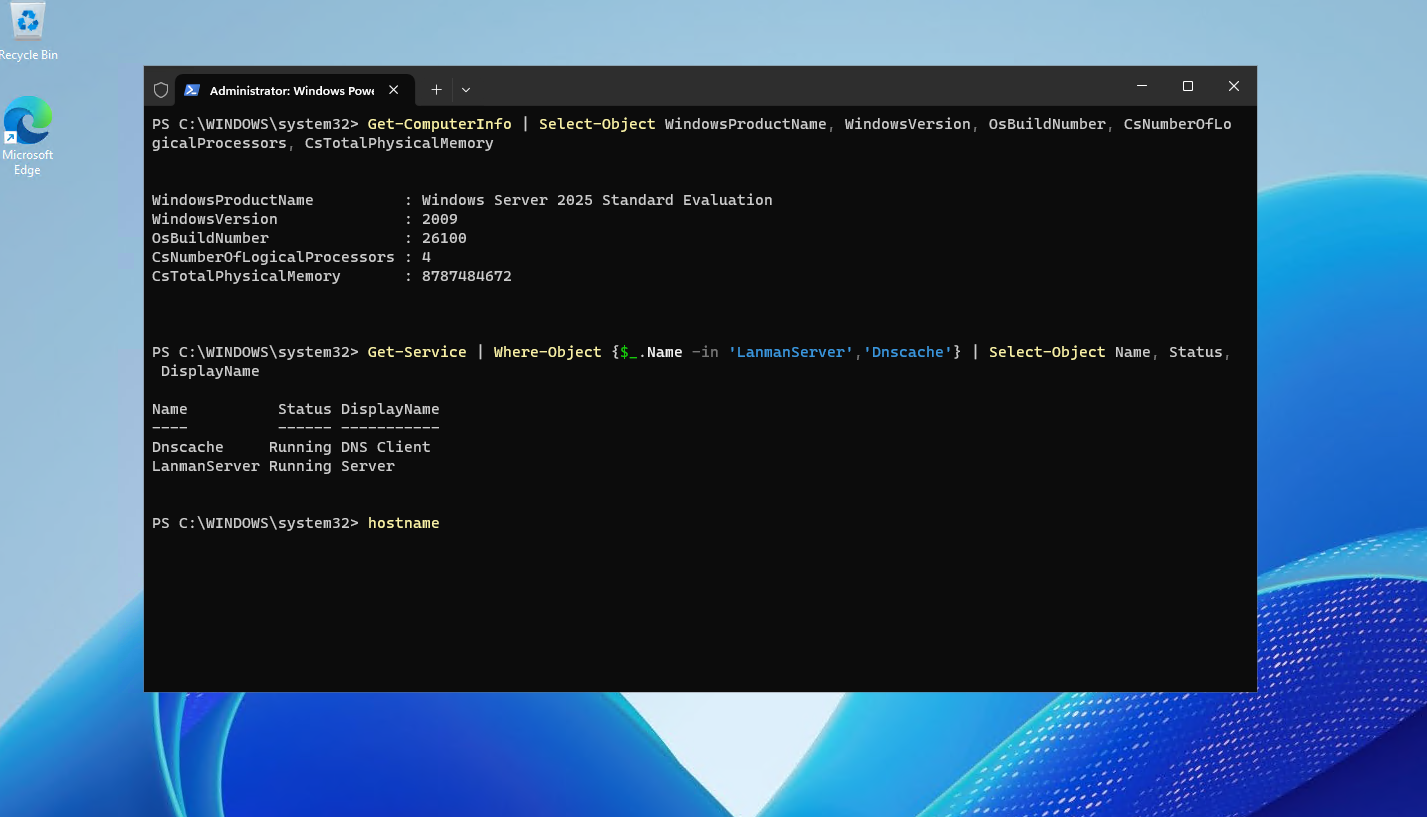
| Item | Value |
|---|---|
| Provider | Raff Technologies |
| OS | Windows Server 2025 Datacenter Evaluation |
| Server role | First domain controller in a new forest |
| Hostname | DC01 |
| Test domain | contoso.local |
| Forest NetBIOS name | CONTOSO |
| AD role | Active Directory Domain Services |
| DNS | Installed during promotion |
| Original test date | 2026-06-09 |
| Tester | Serdar Tekin |
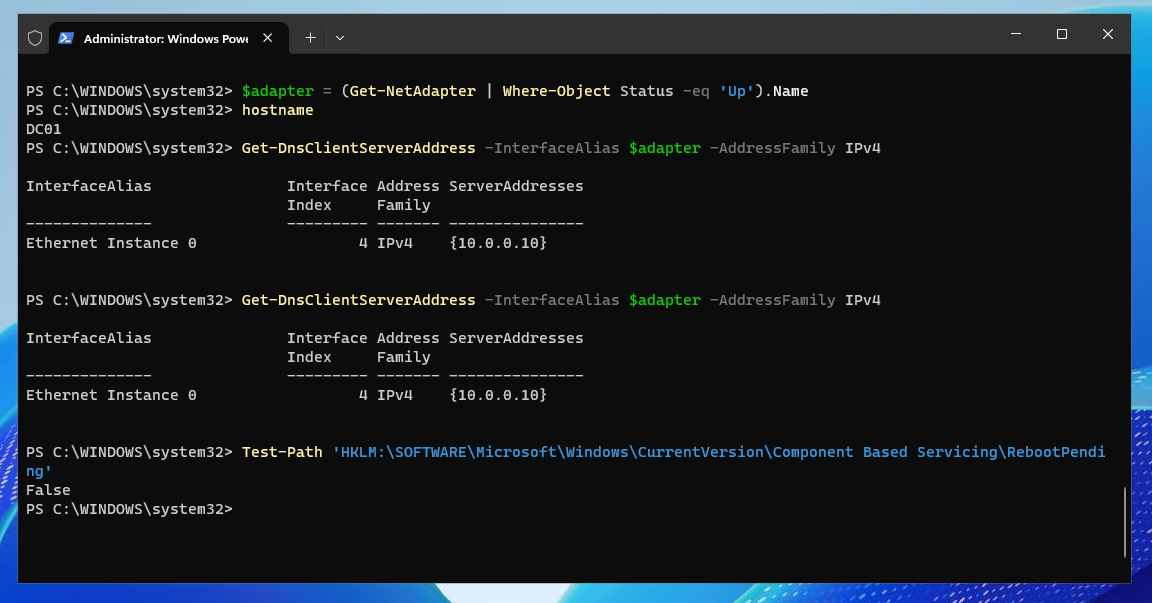
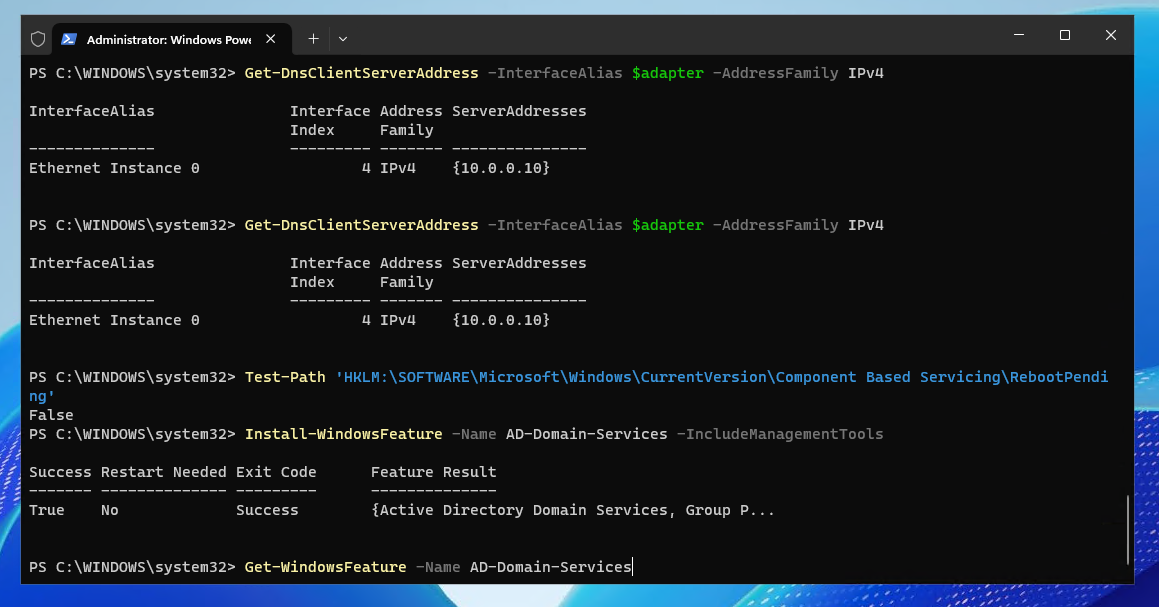
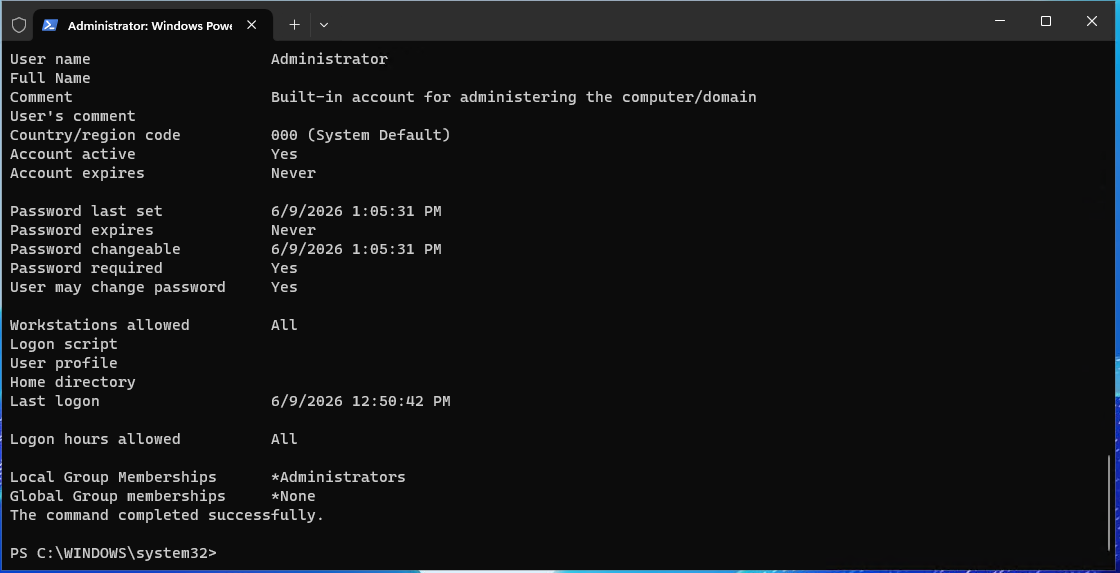
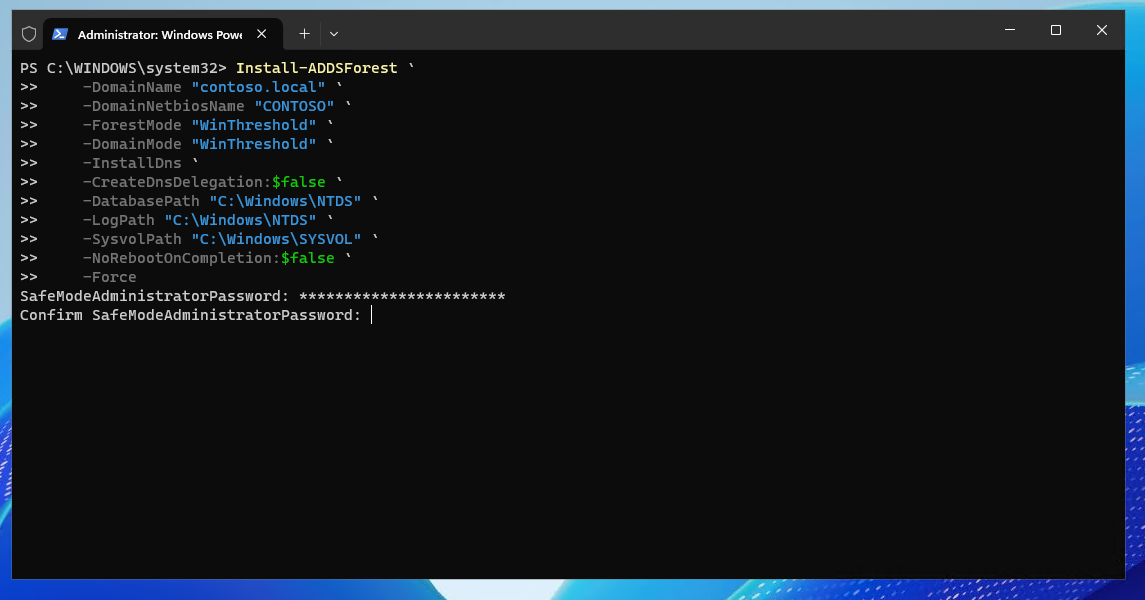
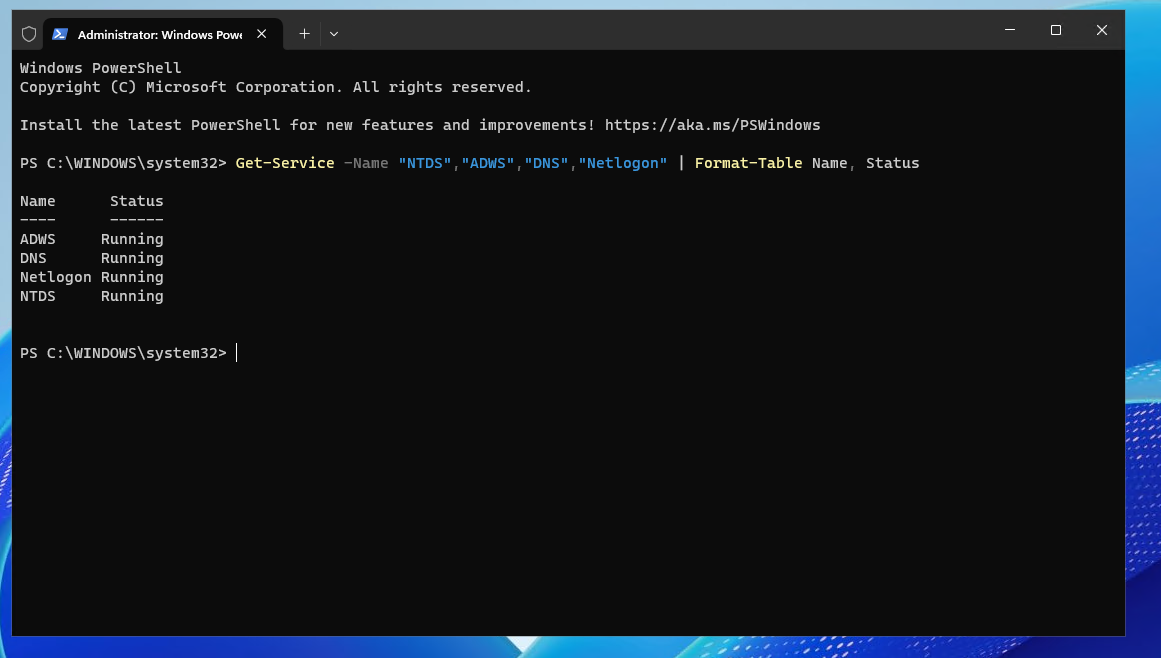
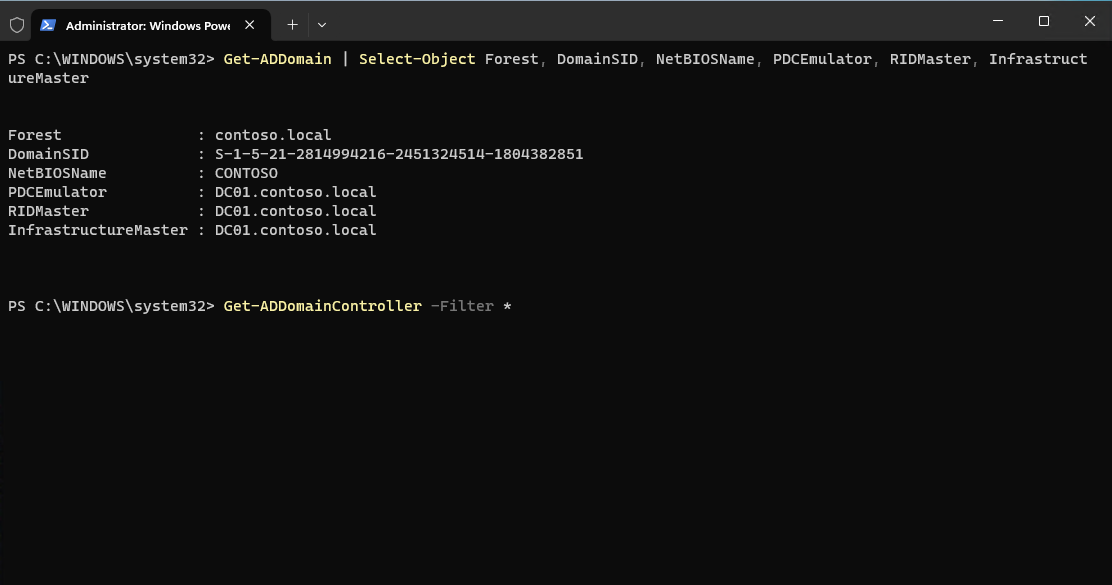
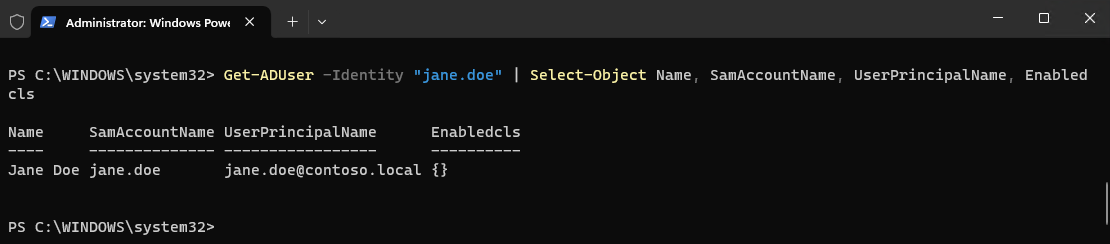
The lab verified the server baseline, hostname and IP/DNS pre-flight, AD DS role installation, local Administrator password requirement, Install-ADDSForest promotion, AD DS services after reboot, domain-controller verification, DNS zones, and the creation of a first OU and user.
The test used contoso.local because it was an isolated lab. Do not copy that namespace into a new production forest. Current Microsoft design guidance recommends using registered DNS names and does not recommend unregistered suffixes such as .local.
Use a dedicated VM for a domain controller
Do not promote a general-purpose Windows server to a domain controller if it already runs production workloads such as:
- IIS or public web applications;
- SQL Server;
- RDS Session Host;
- ERP or accounting software;
- user file sharing;
- business applications;
- third-party tools with broad privileges.
A domain controller is part of the identity and authentication foundation. Separating application workloads from AD DS reduces the security blast radius and makes patching, troubleshooting, backup, and recovery easier.
For sizing, avoid treating one lab specification as a universal production requirement. Directory size, DNS activity, authentication volume, Group Policy, replication, monitoring, backup activity, and failover capacity all matter. See Windows Server sizing by workload for a broader sizing process.
Choose the Active Directory DNS name before promotion
The DNS namespace is difficult to change later, so choose it deliberately before creating the forest.
For a new production forest, prefer a namespace based on a domain your organization controls, for example:
ad.example.com
corp.example.com
ds.example.com
Avoid new single-label domains such as:
company
contoso
Also avoid copying the lab-only .local pattern into a new production design. Microsoft recommends registered DNS names for Active Directory namespaces because registered names are globally unique.
The remainder of the production-oriented examples in this guide use:
ad.example.com
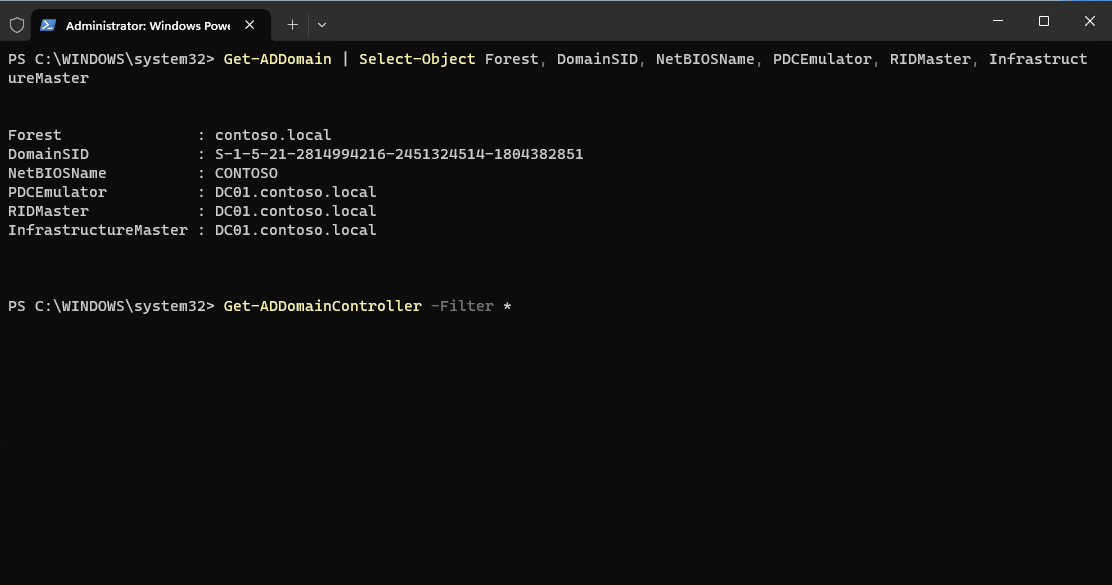
The screenshots continue to show the original contoso.local test environment so the historical lab evidence remains unchanged.
Plan the Windows Server 2025 functional level before promotion
Windows Server 2025 introduces a Windows Server 2025 domain and forest functional level. Functional levels determine which domain-controller operating-system versions can participate and which AD DS features are available.
The compatibility decision is important:
| Desired DC mix | Functional-level planning |
|---|---|
| Only Windows Server 2025 DCs | Windows Server 2025 functional level can be used |
| Windows Server 2025 plus Server 2016/2019/2022 DCs | Use Windows Server 2016 functional level |
| Existing domain receiving a Server 2025 DC | Existing domain must already be at least Windows Server 2016 functional level |
Do not raise a production forest to Windows Server 2025 merely because the first new DC runs Server 2025. Once the environment needs older supported DC versions, the 2025 functional level is not compatible with them.
For a clean new Server 2025-only forest, the simplest promotion command can let the current AD DS deployment workflow select supported defaults. If your design requires explicit functional levels, choose them deliberately after confirming the planned DC operating-system mix.
What you'll need
Before starting, prepare:
- a fresh dedicated Windows Server 2025 or Windows Server 2022 VM;
- local Administrator access;
- a final hostname such as
DC01; - stable private IP addressing where possible;
- an Active Directory DNS namespace chosen before promotion;
- a strong local Administrator password;
- a strong DSRM password stored outside the server;
- private networking or VPN for AD traffic;
- a second-DC plan for production;
- an AD-aware backup and recovery plan.
If you are building this on Raff, deploy the Windows VM first and keep domain services on a private network rather than exposing AD ports publicly.