Windows VPS Sizing for Remote Users: 1, 3, 5, 10 Users
Size a Windows VPS for 1, 3, 5, or 10 remote users with practical CPU, RAM, storage, RDS, backup, and performance guidance.
On this page
- In short
- Quick sizing table for 1, 3, 5, and 10 remote users
- Remote user count and concurrent sessions are different
- Admin RDP and RDS Session Host change the sizing model
- Workload type changes the CPU and RAM requirement
- A 1-user Windows VPS is usually simple
- A 3-user Windows VPS needs RAM headroom first
- A 5-user Windows VPS should be treated as production
- A 10-user Windows VPS needs a real capacity plan
- CPU sizing depends on user behavior, not login count
- RAM is the most common sizing miss
- Storage sizing must include profiles, files, logs, and backups
- Network quality affects RDP even when the VPS is sized well
- Licensing must be planned before user rollout
- Raff sizing recommendations by buyer type
- Monitoring after launch is part of sizing
- Common sizing mistakes
- Recommended starting plans
- What's next
- Sources
Don't have a Windows Server yet?
Deploy Windows Server 2019/2022/2025 in ~2 minutes. 6-month evaluation licence included.
In short
Windows VPS sizing for remote users starts with concurrent users, not total employees. A 1-user admin server can run small. A 3-user business app server needs more RAM headroom. A 5-user RDS setup needs licensing and profile planning. A 10-user accounting, ERP, or office workload needs serious CPU, RAM, backups, and performance monitoring. Raff Technologies helps small teams deploy Windows Server VMs without building the infrastructure from scratch.
A Windows VPS is a cloud-hosted Windows Server that remote users access through Remote Desktop Protocol, business software, files, or server-hosted applications. The right size depends on what users do inside the server: light admin work, accounting software, Microsoft 365 Apps, ERP tools, SQL Server, browser sessions, or full Remote Desktop Services.
Raff Windows VMs are a practical starting point for small teams that want Windows Server 2022 or Windows Server 2025, full administrator access, RDP access, NVMe storage, and a simpler path than managing office hardware. Raff Windows VM traffic runs on unmetered bandwidth with a 3 Gbps standard port speed, so the main sizing question is usually CPU, RAM, storage, and user workload rather than transfer overage.
Quick sizing table for 1, 3, 5, and 10 remote users
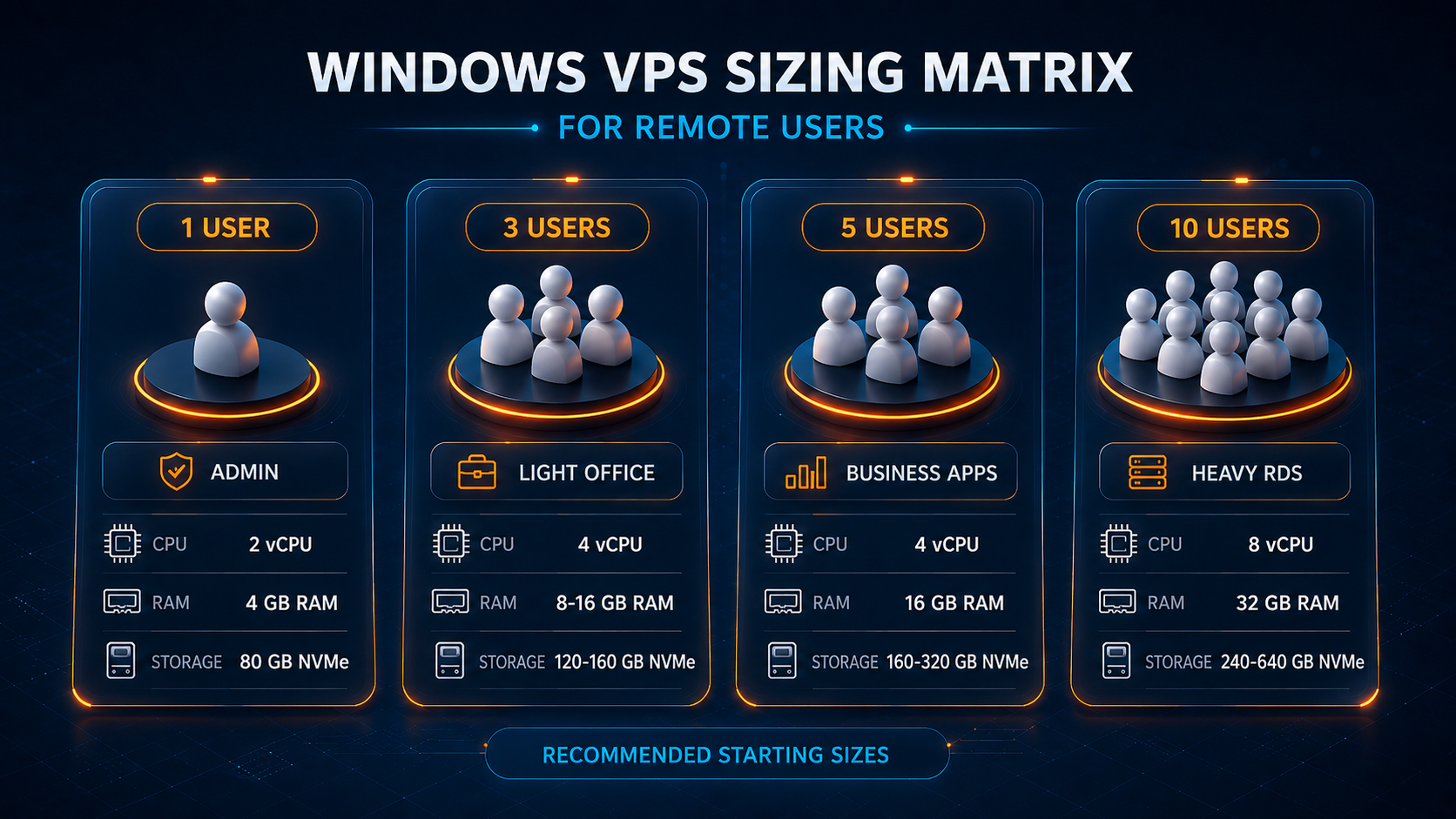
Use this table as a starting point, not a final guarantee. Remote Desktop sizing changes fast when users open accounting software, Outlook, browser tabs, ERP tools, SQL Server clients, or multiple monitors.

| Remote use case | Starting size | Better fit when workload grows | Notes |
|---|---|---|---|
| 1 admin user | 2 vCPU / 4 GB RAM / 80 GB NVMe | 4 vCPU / 8 GB RAM | Good for server admin, light tools, one persistent desktop, or a small internal app. |
| 3 light users | 4 vCPU / 8 GB RAM / 120-160 GB NVMe | 4 vCPU / 16 GB RAM | Works for light office apps, admin software, basic browser use, or small business tools. |
| 5 business users | 4 vCPU / 16 GB RAM / 160-320 GB NVMe | 8 vCPU / 16-32 GB RAM | Better for QuickBooks, Sage, tax tools, shared desktop workflows, or Microsoft 365 Apps. |
| 10 active users | 8 vCPU / 32 GB RAM / 240-640 GB NVMe | 16 vCPU / 32-64 GB RAM | Needed for heavier RDS, accounting, ERP, reporting, and multi-user software workloads. |
Size by the number of users active at the same time. Ten employees with three concurrent users do not need the same Windows VPS as ten users working inside the server all day.
Don't have a Windows Server yet?
Deploy Windows Server 2019/2022/2025 in ~2 minutes. 6-month evaluation licence included.
Compare Raff Windows VM plans when sizing CPU, memory, storage, and monthly cost for remote desktop users. :::
Remote user count and concurrent sessions are different
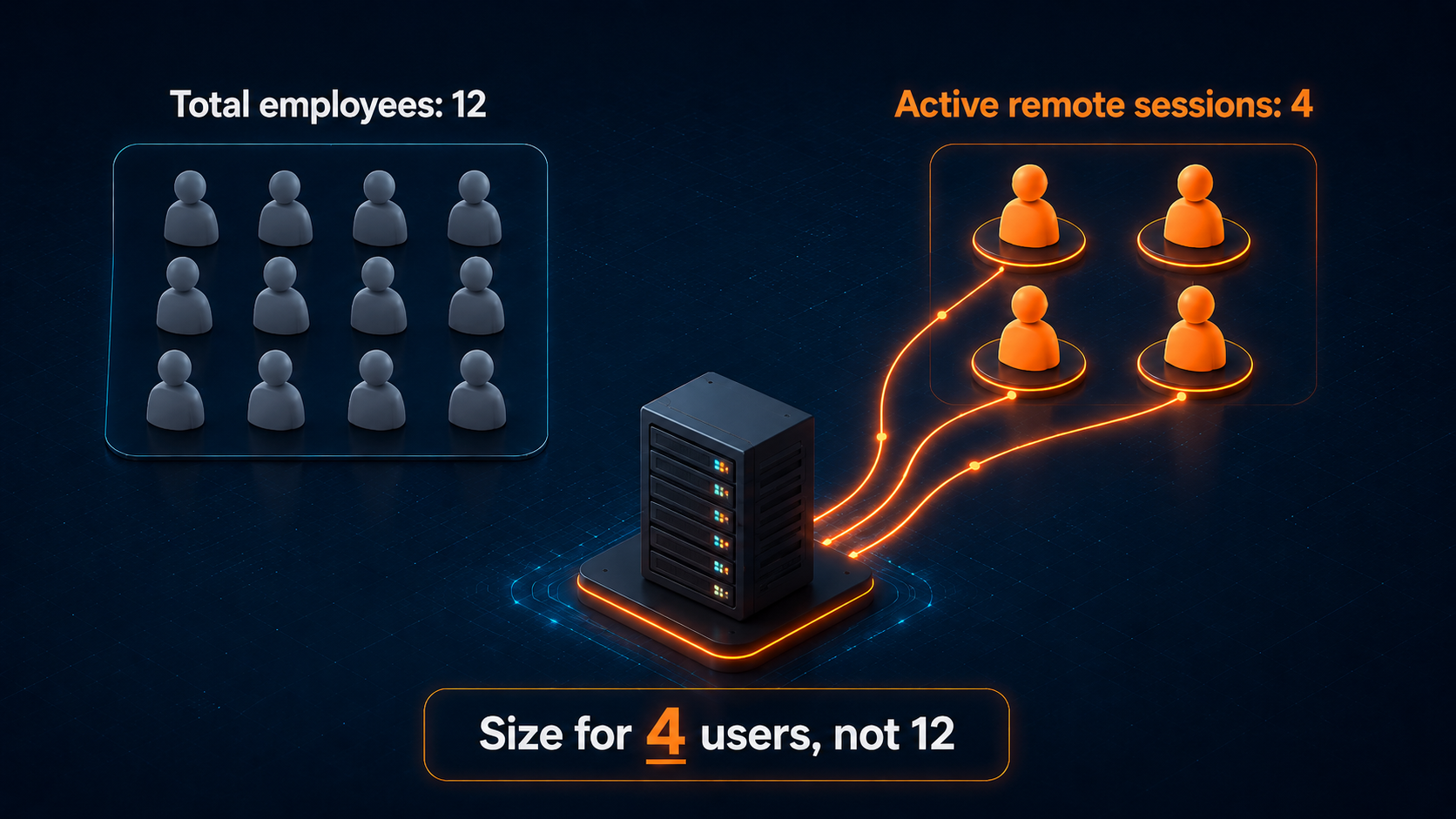
Size a Windows VPS by peak concurrent sessions, not payroll headcount. A 12-person office may only have 3 people logged in at once, while a 6-person accounting firm may have all 6 users active during month-end close.

Use this formula before choosing a plan:
Peak concurrent users = total users x expected same-time usage
Examples:
| Team | Total users | Same-time usage | Peak sessions to size for |
|---|---|---|---|
| Small owner-operated business | 3 | 1-2 active | 2 sessions |
| Accounting office | 8 | 6 active during tax season | 6 sessions |
| MSP client environment | 12 | 4 active at once | 4 sessions |
| Remote operations team | 10 | 10 active during shift | 10 sessions |
This matters because CPU and RAM pressure come from active sessions, not inactive accounts. A disabled user account consumes almost nothing. A signed-in user with Outlook, a browser, QuickBooks, and Excel open can consume several GB of RAM alone.
Microsoft’s own sizing guidance for Remote Desktop Services separates single-session and multi-session hosts and warns that sizing depends on workload type, hardware configuration, and VM overhead. Use vendor guidance as an estimate, then validate against the actual applications your team runs.
Admin RDP and RDS Session Host change the sizing model
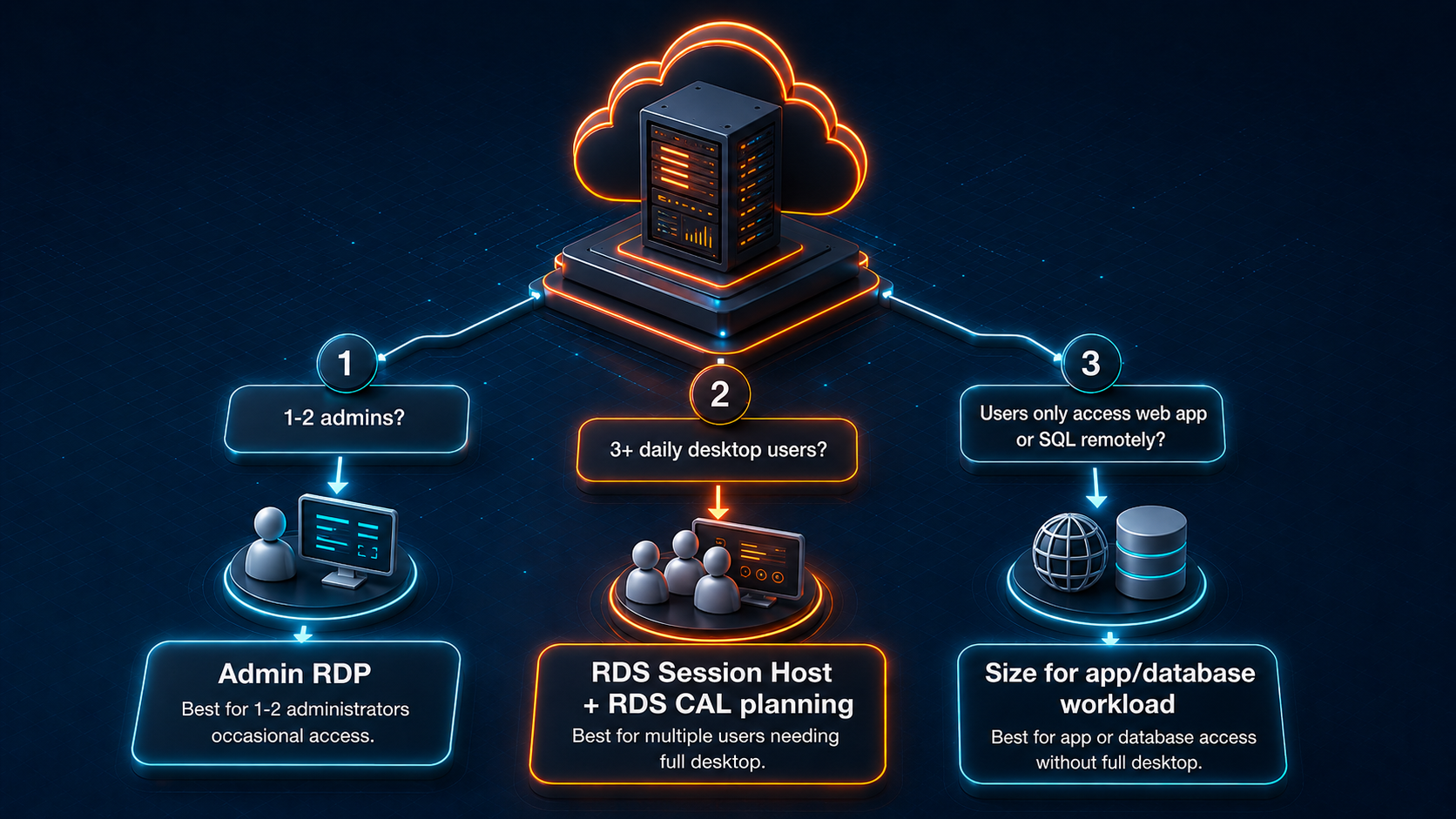
A Windows VPS used by one or two administrators is not the same as a Windows VPS used as a shared desktop for employees. Default Windows Server RDP is for administration. Daily multi-user desktop access belongs in Remote Desktop Services with RDS Session Host and proper RDS Client Access Licenses.

For Raff buyers, this is the first sizing split:
| Scenario | Access model | Sizing impact |
|---|---|---|
| One owner logs in to manage software | Default admin RDP | Small plan can work. |
| Two admins maintain the server | Default admin RDP | Size for admin tools and background workloads. |
| Three or more staff use desktop sessions | RDS Session Host | Size for concurrent users, profiles, apps, and licensing. |
| Users access a web app on IIS | No shared desktop required | Size for IIS/app load, not RDP users. |
| Users connect to SQL Server from local PCs | No shared desktop required | Size for database load, not RDP sessions. |
Raff’s existing Multi-User RDP vs RDS Session Host guide documents the practical split: two administrative RDP sessions are enough for maintenance, while three or more daily desktop users should move to RDS Session Host planning. That article should be the next internal link from this page for readers who are unsure about the access model.
Microsoft’s RDS licensing documentation says each user or device connecting to an RD Session Host running Windows Server needs an RDS CAL. That licensing requirement is separate from the CPU and RAM sizing decision.
:::cta Plan Your Windows VPS Use Raff Windows Server VPS when your team needs remote access for business apps, RDP users, or hosted Windows workloads. :::
Workload type changes the CPU and RAM requirement
Remote users are not equal from a sizing perspective. Five users checking a lightweight internal app can run on a much smaller server than five users running accounting software, Outlook, browser tabs, and reports.
Use these workload bands:
| Workload type | Typical behavior | Sizing approach |
|---|---|---|
| Admin-only | Server Manager, PowerShell, updates, light browser | Size for the server role, not the user session. |
| Light office desktop | Browser, PDF tools, light document editing | Give RAM headroom and reduce visual effects. |
| Accounting software | QuickBooks, Sage, tax tools, shared company files | Prioritize RAM, NVMe storage, backups, and app data locality. |
| Microsoft 365 Apps | Outlook cache, Excel files, Word, Teams in browser | Plan profile storage and RAM per active user. |
| ERP or inventory software | Client/server app, reports, database access | Size CPU/RAM with database and reporting peaks in mind. |
| Trading software | MetaTrader terminals, charts, EAs, 24/7 sessions | Size by terminal count, charts, and automation load. |
| SQL Server on same VPS | Database engine plus RDP users | Add RAM for SQL Server or split database to another server. |
The biggest mistake is buying by vCPU only. Remote Desktop performance feels slow when RAM is saturated, profile disks are bloated, storage is busy, or the application is doing database work in the same VM.
A 1-user Windows VPS is usually simple
A 1-user Windows VPS works well when one person needs an always-on Windows Server environment for administration, a small app, a trading terminal, light business software, or occasional Remote Desktop access.
Start with:
| Component | Starting point |
|---|---|
| vCPU | 2 vCPU |
| RAM | 4 GB minimum |
| Storage | 80 GB NVMe minimum |
| Access model | Default admin RDP |
| Backups | Enable before production data is stored |
| Security | Strong password, limited RDP exposure, Windows updates |
Move up to 4 vCPU / 8 GB RAM when the server runs more than a desktop session: IIS, SQL Server Express, automation jobs, accounting software, or multiple background services.
For one user, the main risk is not concurrency. The risk is treating the server like a disposable desktop. If the VM holds business files, app databases, license data, trading configurations, or customer records, backup planning matters even if only one person connects.
A 3-user Windows VPS needs RAM headroom first
A 3-user Windows VPS should be sized for the heaviest two or three users being active at the same time. For light office or admin workloads, 4 vCPU / 8 GB RAM can work. For business software, start closer to 4 vCPU / 16 GB RAM.
Use this split:
| 3-user workload | Recommended starting point |
|---|---|
| Light RDP, browser, admin tools | 4 vCPU / 8 GB RAM |
| Accounting, tax tools, Access, or Sage-style software | 4 vCPU / 16 GB RAM |
| SQL Server plus desktop sessions | 8 vCPU / 16 GB RAM or split database |
| Microsoft 365 Apps with Outlook cache | 4 vCPU / 16 GB RAM plus profile planning |
Three users are also the point where access model matters. If all three users need their own daily desktop sessions, default admin RDP is the wrong model. Plan RDS Session Host and RDS CALs before the server becomes a shared workplace.
A practical 3-user example:
2 active accounting users 1 owner/admin user QuickBooks or tax app on the server Shared company data on local NVMe storage Nightly backup enabled
This should not be sized like a one-user admin box. It needs enough RAM for the app, the users, Windows services, and backup activity.
A 5-user Windows VPS should be treated as production
A 5-user Windows VPS is no longer a casual Remote Desktop setup. If five users depend on the server for daily work, size for business continuity, not only first-login performance.
Start with:
| Component | Recommended starting point |
|---|---|
| vCPU | 4 vCPU minimum |
| RAM | 16 GB minimum |
| Storage | 160-320 GB NVMe, depending on files and profiles |
| Access model | RDS Session Host if users need desktops |
| Licensing | RDS CAL planning before production |
| Backup | Daily backup plus restore test |
| Security | Firewall review, audit logs, update window |
Move to 8 vCPU / 16-32 GB RAM when users run heavier apps, reports, browser sessions, Microsoft 365 Apps, or accounting workloads during peak periods.
For five users, storage planning becomes visible. User profiles, downloads, Outlook caches, print spool files, application logs, and company data grow quietly. Do not size only for the installer. Size for 12 months of working data.
A 5-user Windows VPS is often a good fit for:
| Use case | Fit |
|---|---|
| Small accounting team | Good fit with RDS and backups planned. |
| Remote admin team | Good fit if workloads are light. |
| Small tax office | Good fit if peak season is sized honestly. |
| Multi-user Microsoft Access app | Good fit when file locking and database behavior are tested. |
| ERP or reporting workload | Possible, but test CPU/RAM under real users. |
A 10-user Windows VPS needs a real capacity plan
A 10-user Windows VPS should be planned like a shared production server. Start around 8 vCPU / 32 GB RAM for ordinary office or business software workloads. Move to 16 vCPU / 32-64 GB RAM when users run heavy accounting, ERP, reporting, SQL Server, or many browser-based tools inside the server.
Use this as the planning baseline:
| 10-user workload | Starting point | When to move up |
|---|---|---|
| Light desktop sessions | 8 vCPU / 32 GB RAM | If CPU stays above 70% during normal work. |
| Accounting or tax software | 8 vCPU / 32 GB RAM | If month-end or tax-season work causes lag. |
| ERP or inventory system | 16 vCPU / 32 GB RAM | If reports or database queries slow users down. |
| SQL Server on same VPS | 16 vCPU / 64 GB RAM | If SQL Server and RDS compete for RAM. |
| Heavy Microsoft 365 Apps | 16 vCPU / 32-64 GB RAM | If Outlook cache and profiles grow quickly. |
At 10 users, you also need operational rules:
| Rule | Why it matters |
|---|---|
| Review Task Manager during peak hours | Average usage hides the real bottleneck. |
| Track disk free space weekly | Profiles and logs grow without warning. |
| Test restore, not only backup | Backup without restore proof is incomplete. |
| Separate database when needed | SQL Server and RDS users can fight for RAM. |
| Schedule Windows updates | Reboots during work hours break trust. |
| Disable unnecessary visual effects | RDP feels smoother with fewer graphical extras. |
Do not promise 10 users on one VPS without knowing the applications. Ten users editing documents is not the same as ten users running reports in an ERP system.
CPU sizing depends on user behavior, not login count
Use CPU to handle active work: app launches, reports, browser rendering, Excel calculations, database queries, printing, updates, antivirus scans, and background services.
A simple CPU rule:
| Workload | Starting CPU assumption |
|---|---|
| Admin-only or light desktop | 1-2 active users per vCPU can feel fine. |
| Normal office apps | Plan more headroom for bursts. |
| Accounting or ERP | Use fewer users per vCPU and monitor reports. |
| SQL Server on same VM | Add CPU for database work or split the workload. |
| Heavy browser or Teams-style use | Expect CPU spikes and memory pressure. |
CPU saturation shows up as delayed clicks, slow window switching, frozen apps, and high wait time during reports. Before adding CPU, check RAM and storage. Many “CPU problems” in RDP environments are actually memory pressure or disk activity.
RAM is the most common sizing miss
RAM decides whether Remote Desktop feels stable under real use. Windows Server, user sessions, profiles, applications, antivirus, updates, backup agents, and SQL Server all need memory.
Use this mental model:
Total RAM needed = Windows Server baseline + RDS/user session overhead + application memory + database/cache memory + backup/security overhead + 20-30% headroom
Do not run production RDS at the edge of memory capacity. Once Windows starts paging heavily, RDP feels slow even if CPU looks acceptable.
For small business workloads, start with these minimums:
| Use case | RAM floor |
|---|---|
| 1 admin user | 4 GB |
| 3 light users | 8 GB |
| 3 business app users | 16 GB |
| 5 business users | 16 GB |
| 10 active users | 32 GB |
| 10 users plus SQL Server | 64 GB or separate database |
If users complain that “RDP is slow,” check memory first. If RAM is near full during normal work, tuning display settings will not fix the root cause.
Storage sizing must include profiles, files, logs, and backups
Storage sizing for remote users is not only the Windows Server disk. User profiles, downloads, documents, application data, browser caches, logs, installers, print jobs, database files, and backups all consume space.
A practical storage model:
| Data type | What to include |
|---|---|
| Operating system | Windows Server, updates, recovery files |
| User profiles | Desktop, Documents, Downloads, AppData |
| Business files | Company files, PDFs, exports, reports |
| Application data | Accounting databases, Access files, ERP files |
| Logs | Windows logs, app logs, SQL logs |
| Temporary files | Update cache, installers, browser cache |
| Backup staging | Local temporary backup files if used |
Start with 80 GB only for small or admin-only workloads. For 5-user and 10-user environments, 160 GB to 640 GB is more realistic depending on data retention.
Raff Windows VMs use NVMe SSD storage. That matters for RDP workloads because session responsiveness depends partly on fast profile reads, application launches, file access, and database activity.
Network quality affects RDP even when the VPS is sized well
A correctly sized Windows VPS can still feel slow if the user’s local connection is unstable. Remote Desktop depends on latency, packet loss, client display settings, monitor count, graphics encoding, and local Wi-Fi quality.
Microsoft’s Remote Desktop performance tuning guidance explains that RDP client settings can influence bandwidth behavior, including Experience tab and .rdp settings.
Check these before upgrading the VPS:
| Symptom | First check |
|---|---|
| Mouse movement feels delayed | Latency and packet loss |
| Text looks blurry | Display settings and scaling |
| Session freezes during reports | Server CPU/RAM and app workload |
| Desktop feels heavy | Visual effects and color depth |
| RDP disconnects | Session timeout policy and network path |
| Only one user has issues | Local network, Wi-Fi, or client device |
Use Raff’s RDP performance tuning guide after this sizing article. Sizing gives the server enough resources. Tuning makes the Remote Desktop experience smoother.
Licensing must be planned before user rollout
If users need daily desktop sessions on the Windows VPS, licensing belongs in the plan before production. Remote Desktop Services is not just a checkbox. It changes the server role, access model, and licensing requirement.
Use this quick rule:
| Access pattern | RDS CAL planning |
|---|---|
| One or two admins manage the server | RDS CALs not needed for admin RDP |
| Users access a web app hosted on IIS | RDS CALs not needed for web access |
| Users connect to SQL Server remotely | RDS CALs not needed for direct database access |
| Staff sign in to desktop sessions | RDS CALs needed |
| Staff use RemoteApp from RDS Session Host | RDS CALs needed |
Microsoft’s RDS CAL documentation states that each user or device connecting to a Remote Desktop Services session host running Windows Server needs an RDS CAL. Treat that as a licensing requirement, not a performance option.
For smaller teams, this is where cost planning should happen. The VPS plan is only one part of the monthly cost. RDS CALs, Microsoft 365 Apps Shared Computer Activation, SQL Server licensing, backup retention, and support needs can all affect the real budget.
Raff sizing recommendations by buyer type
Use these recommendations when choosing a Raff Windows VM for remote users.
| Buyer type | Start here | Watch for |
|---|---|---|
| Solo founder or admin | 2 vCPU / 4 GB RAM | Upgrade when apps, SQL Server, or automation jobs run on the same VM. |
| 3-person office | 4 vCPU / 8-16 GB RAM | Choose 16 GB if users run business software. |
| 5-person accounting team | 4 vCPU / 16 GB RAM | Move up if reports, Outlook, or tax tools create lag. |
| 10-person remote team | 8 vCPU / 32 GB RAM | Move to 16 vCPU or split roles if workloads are heavy. |
| MSP client environment | Start by user workflow | Separate clients, backups, access rules, and documentation. |
| ERP or SQL-heavy workload | 8-16 vCPU / 32-64 GB RAM | Consider separating database and RDS roles. |
Raff fits this use case when the buyer wants a Windows Server VPS with administrator control, Remote Desktop access, predictable VM resources, NVMe storage, unmetered bandwidth, and a simpler deployment path than maintaining local office hardware.
Raff is not the right fit when the buyer needs a fully managed virtual desktop platform, strict enterprise desktop governance, complex multi-region high availability, or a provider-managed RDS farm. In those cases, the architecture should be reviewed before buying a single VPS.
Monitoring after launch is part of sizing
The first plan choice is only the starting point. After the first week, review real usage during peak work hours.
Check:
| Metric | Healthy signal | Upgrade signal |
|---|---|---|
| CPU | Short spikes, low normal usage | Sustained high usage during normal work |
| RAM | 20-30% free during active sessions | Near full memory or paging |
| Disk | Stable free space and low queue | Low free space, slow app opens, heavy writes |
| Network | Stable sessions | Packet loss, frequent reconnects |
| User complaints | Occasional app-specific issue | Multiple users report slow desktop |
| Backup status | Successful and tested | No restore test or failed jobs |
For Remote Desktop environments, user complaints are useful data. Ask what app was open, how many users were active, what time it happened, and whether all users or one user felt the issue.
Common sizing mistakes
Sizing by total employees
Do not size by total staff count. Size by concurrent users and workload type. A 20-person company with 4 active users has a different requirement than a 7-person company with 7 active accounting users.
Treating admin RDP as team desktop access
Default admin RDP is for server administration. If several staff members use the Windows desktop every day, plan RDS Session Host and RDS CALs.
Ignoring application behavior
Five users in a lightweight admin tool can run differently from five users in QuickBooks, Sage, tax software, Access, ERP, or SQL Server reporting.
Buying too little RAM
RAM pressure is one of the fastest ways to make RDP feel slow. Start with enough memory headroom instead of assuming CPU upgrades will fix every lag issue.
Forgetting user profiles
Profiles grow. Outlook caches, downloads, browser data, app temp files, and exported reports can fill a small disk faster than expected.
Skipping backup restore tests
Backups are not complete until restore has been tested. A Windows VPS holding business data should have a restore process, not only a backup checkbox.
Running every role on one VPS forever
One VPS is a good starting point for many small teams. As the workload grows, separate the database, file storage, app server, or RDS Session Host when contention becomes visible.
Recommended starting plans
Use this as a decision shortcut:
| If you need... | Start with... | Then check... |
|---|---|---|
| One admin desktop | 2 vCPU / 4 GB RAM | RAM use after installing apps |
| Three light users | 4 vCPU / 8 GB RAM | Peak memory during work hours |
| Three business software users | 4 vCPU / 16 GB RAM | App launch speed and profile growth |
| Five office or accounting users | 4 vCPU / 16 GB RAM | Reports, backups, and peak CPU |
| Ten active users | 8 vCPU / 32 GB RAM | Whether database/app roles should split |
| Ten heavy users | 16 vCPU / 32-64 GB RAM | SQL Server, ERP, and storage growth |
For pricing, use the live Raff pricing page because plan prices and available configurations can change. Do not copy old prices from an article or screenshot when making a buying decision.
Raff Technologies operates cloud infrastructure for small teams, developers, and business operators. As of July 2026, Raff’s public site lists 15,000+ VMs deployed, and Trustpilot lists Raff Technologies at 4.5/5 across 16 reviews.
:::cta Deploy a Windows VM Run your Windows workload on Raff Windows VM with remote access, NVMe storage, backups, snapshots, and simple monthly pricing. :::
What's next
- Read the Raff guide to Windows VPS for Remote Desktop if you are still deciding whether RDP fits your workflow.
- Read Multi-User RDP: 2 Admin Sessions vs RDS Session Host if three or more users need their own Windows desktop sessions.
- Read the RDS CAL Licensing guide before putting staff on a production RDS Session Host.
- Read the RDP Performance Tuning guide if the server is sized correctly but the desktop still feels slow.
- Review Raff Windows VM plans and pricing before deploying the first production server.
Sources
- Microsoft Learn — Session host virtual machine sizing guidelines for Azure Virtual Desktop and Remote Desktop Services
- Microsoft Learn — Performance tuning Remote Desktop Session Hosts
- Microsoft Learn — License Remote Desktop Services with Client Access Licenses
- Raff — Windows VPS for Remote Desktop
- Raff — Multi-User RDP: 2 Admin Sessions vs RDS Session Host
- Raff — Windows Server Licensing on Raff
- Raff — Windows VPS product page
- Raff — Pricing
- Trustpilot — Raff Technologies reviews
Related articles
Configure TempDB for MSSQL Performance on a Windows VPS
Eliminate TempDB allocation contention with multiple equal-sized data files. Min(8, vCPU) files, fixed autogrowth, optional separate disk.
RDP Performance Tuning for Smooth Remote Desktop
Tune Remote Desktop on a Windows VPS by checking RDP connectivity, AVC 444 policy, visual effects, client settings, and server CPU/RAM usage.
IIS Application Pool Tuning for Production on Windows Server
Tune IIS application pools for production on a Windows VPS: idle timeout, AlwaysRunning, No Managed Code, recycling, identity, and memory limits.