Cloud Windows Server vs Local Office Server: SMB Guide
Compare cloud Windows Server vs local office server setups for SMBs: cost, remote access, backups, security, hardware, and business app hosting.
On this page
- In short
- Quick verdict by business situation
- What a local office server really includes
- What changes when Windows Server moves to the cloud
- Cost comparison: local server vs cloud Windows Server
- Remote access is the strongest reason to move
- Business apps are often easier to centralize in the cloud
- Security changes, but it does not disappear
- Backups and restore testing decide how safe the move is
- Where local office servers still make sense
- Where cloud Windows Server wins
- Decision matrix by workload
- Migration planning should be staged
- How Raff fits this decision
- Recommended path by business type
- What's next
- Sources
Don't have a Windows Server yet?
Deploy Windows Server 2019/2022/2025 in ~2 minutes. 6-month evaluation licence included.
In short
Cloud Windows Server vs local office server decisions come down to control, remote access, maintenance, backups, and business continuity. A local server can still make sense when your office needs on-site hardware, local-only devices, or ultra-low LAN access. A cloud Windows Server is usually better when remote users, hosted business apps, predictable monthly infrastructure, and easier off-site recovery matter more. Raff Technologies provides Windows VMs for teams that want a cloud Windows Server without maintaining office hardware.
A cloud Windows Server is a Windows Server VM hosted in a cloud environment and accessed through Remote Desktop Protocol, business applications, database clients, or web services. A local office server is physical hardware in your office that your team maintains, powers, secures, backs up, and replaces over time.
For many small businesses, the real question is not "cloud or local" in abstract. The real question is: where should the system your team depends on actually live? If your staff works from different locations, runs business software remotely, or wants to stop depending on one office closet, a cloud Windows Server is often the cleaner path.
Quick verdict by business situation
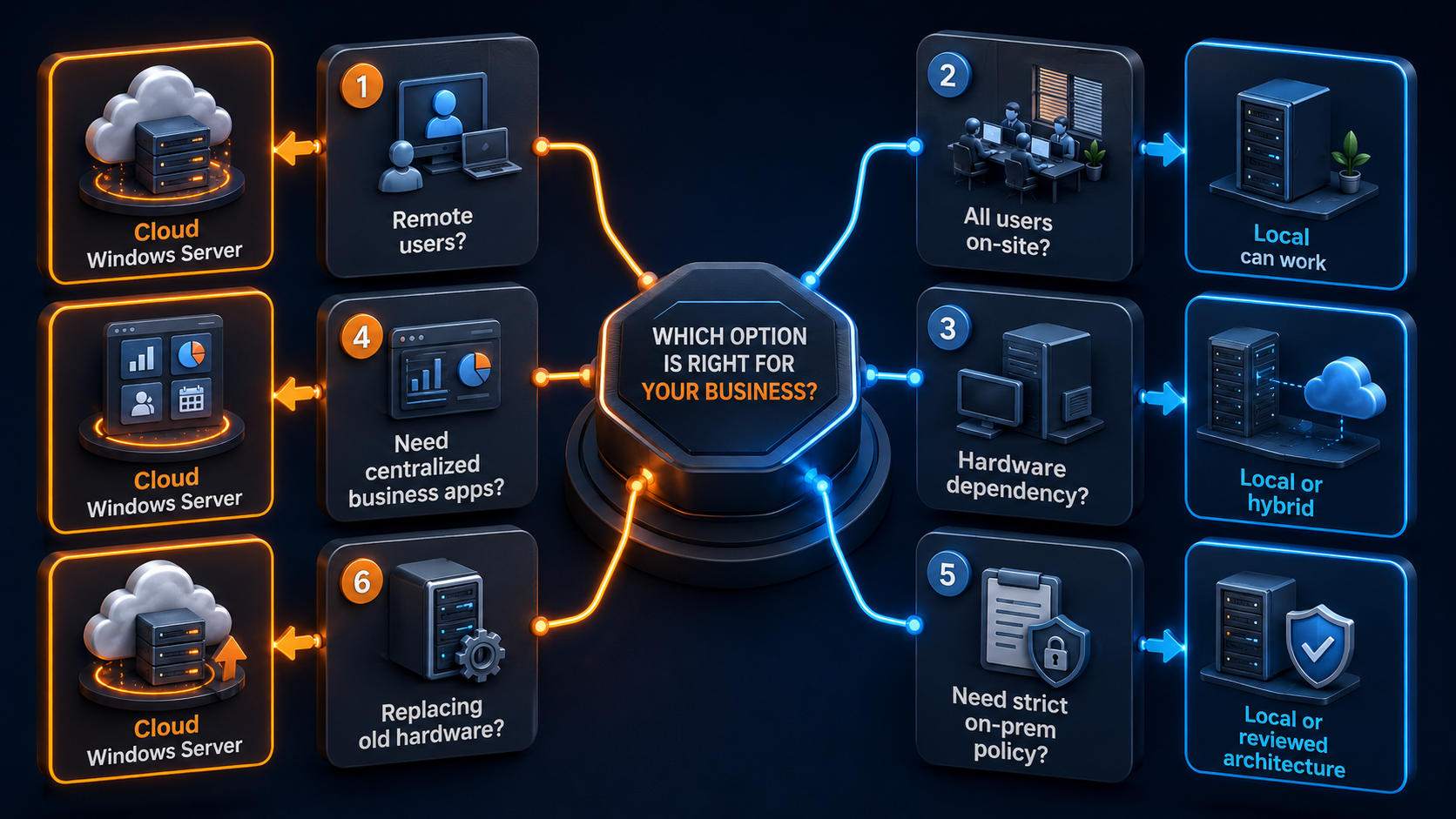
Use this table as the first decision filter.

| Business situation | Better fit | Why |
|---|---|---|
| One office, all users on-site, stable hardware already owned | Local office server | Existing LAN setup may be enough if maintenance and backups are handled. |
| Remote users need access from home or branch offices | Cloud Windows Server | Users can connect without depending on the office network being reachable. |
| Accounting, tax, ERP, Access, or legacy apps need shared Windows access | Cloud Windows Server | A centralized Windows VM can host the app environment for remote desktop users. |
| Specialized hardware must stay in the office | Local office server | Some devices, dongles, scanners, or machinery need local attachment. |
| Business wants to reduce hardware replacement and power risk | Cloud Windows Server | The server is no longer tied to office electricity, cooling, or a single machine. |
| Strict on-premises data policy exists | Local office server or hybrid | Policy may require local storage, private connectivity, or a reviewed architecture. |
| MSP manages multiple clients | Cloud Windows Server | Easier to standardize access, backups, patch windows, and documentation. |
| Business needs full managed desktop platform | Neither single VPS alone | Review RDS, Azure Virtual Desktop, managed desktop, or a larger architecture. |
Raff Windows VMs are a strong fit when the buyer needs a Windows Server VPS for Remote Desktop access, hosted business apps, SQL Server tools, IIS/.NET workloads, accounting software, or office server replacement planning.
Don't have a Windows Server yet?
Deploy Windows Server 2019/2022/2025 in ~2 minutes. 6-month evaluation licence included.
Use Raff Windows Server VPS when your team needs remote access, hosted business apps, and a cloud-based Windows environment without office hardware. :::
What a local office server really includes
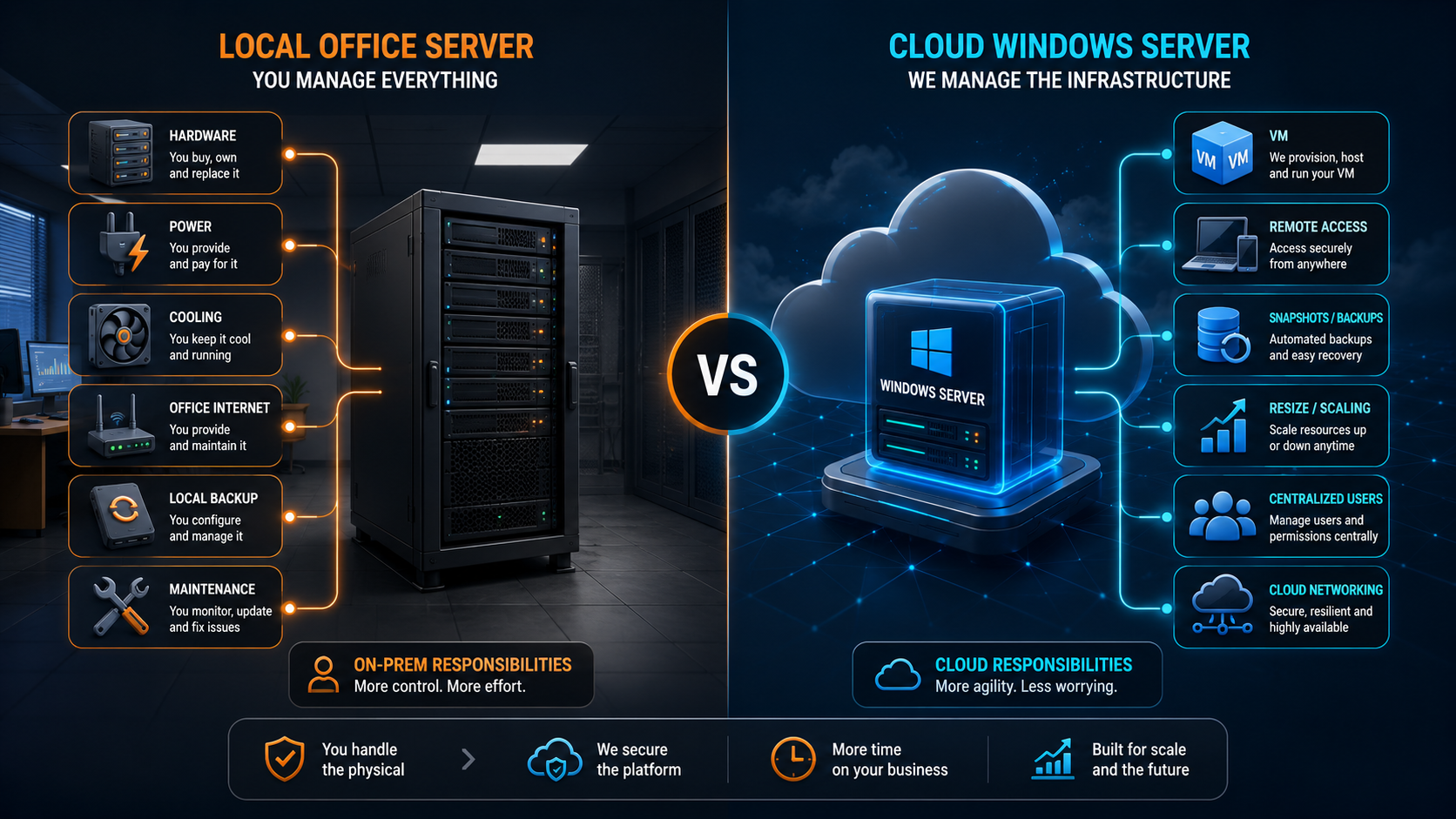
A local office server is not just the box you buy once. It includes hardware, power, cooling, physical security, networking, backups, patching, monitoring, replacement planning, and someone responsible when it stops working.
The visible cost is the server purchase. The hidden work is everything around it.
| Local server responsibility | What the business must handle |
|---|---|
| Hardware purchase | Server, disks, RAM, warranty, replacement parts |
| Physical location | Rack, closet, cooling, dust, power, lock, access |
| Power protection | UPS, surge protection, battery replacement |
| Network access | Router, firewall, VPN, remote access rules |
| Backups | Local copy, off-site copy, retention, restore tests |
| Security | Windows updates, account policy, firewall, audit logs |
| Remote work | VPN, RDP Gateway, or exposed access risk |
| Maintenance | Disk health, failed fans, firmware, reboots |
| Replacement cycle | Budgeting for refresh before the server fails |
A local server can be the right answer when most users sit in the same building, the workload is LAN-heavy, and the business already has someone maintaining the environment. It becomes a problem when the business starts treating it as "set and forget."
The office server is often the most important machine in the business and the least documented. That mismatch is what creates risk.
What changes when Windows Server moves to the cloud
Moving Windows Server to the cloud changes the operating model. The business still manages Windows, users, applications, licensing, and backups. But the physical server, office power, local disk replacement, and office network dependency are no longer the center of the setup.

A cloud Windows Server usually changes these areas:
| Area | Local office server | Cloud Windows Server |
|---|---|---|
| Hardware | Owned and maintained by the business | Provided by the cloud platform |
| Access | LAN-first, remote access added later | Remote access is part of the design |
| Scaling | Buy new hardware or upgrade parts | Resize VM when workload grows |
| Backups | Must design local and off-site copies | Use cloud backup/snapshot tools plus app-aware backups |
| Office outage | Can block access if network/power fails | Users can connect from other locations |
| Replacement | Hardware lifecycle planning required | VM plan can change without replacing a physical server |
| Security | Office firewall and server hardening | Cloud firewall, Windows hardening, RDP/RDS controls |
| Cost model | Upfront hardware plus support | Monthly VM, storage, backup, and licensing costs |
Cloud does not remove system administration. It changes which problems you are responsible for. You still need Windows updates, strong passwords, least-privilege access, firewall rules, backups, restore testing, and application maintenance.
Microsoft describes Remote Desktop Services as a way to provide session-based desktops, virtual desktops, or RemoteApp access, with RD Session Host holding the desktops and apps users connect to. That matters because a cloud Windows Server used by multiple desktop users should be planned as an RDS environment, not just an admin RDP box.
Cost comparison: local server vs cloud Windows Server
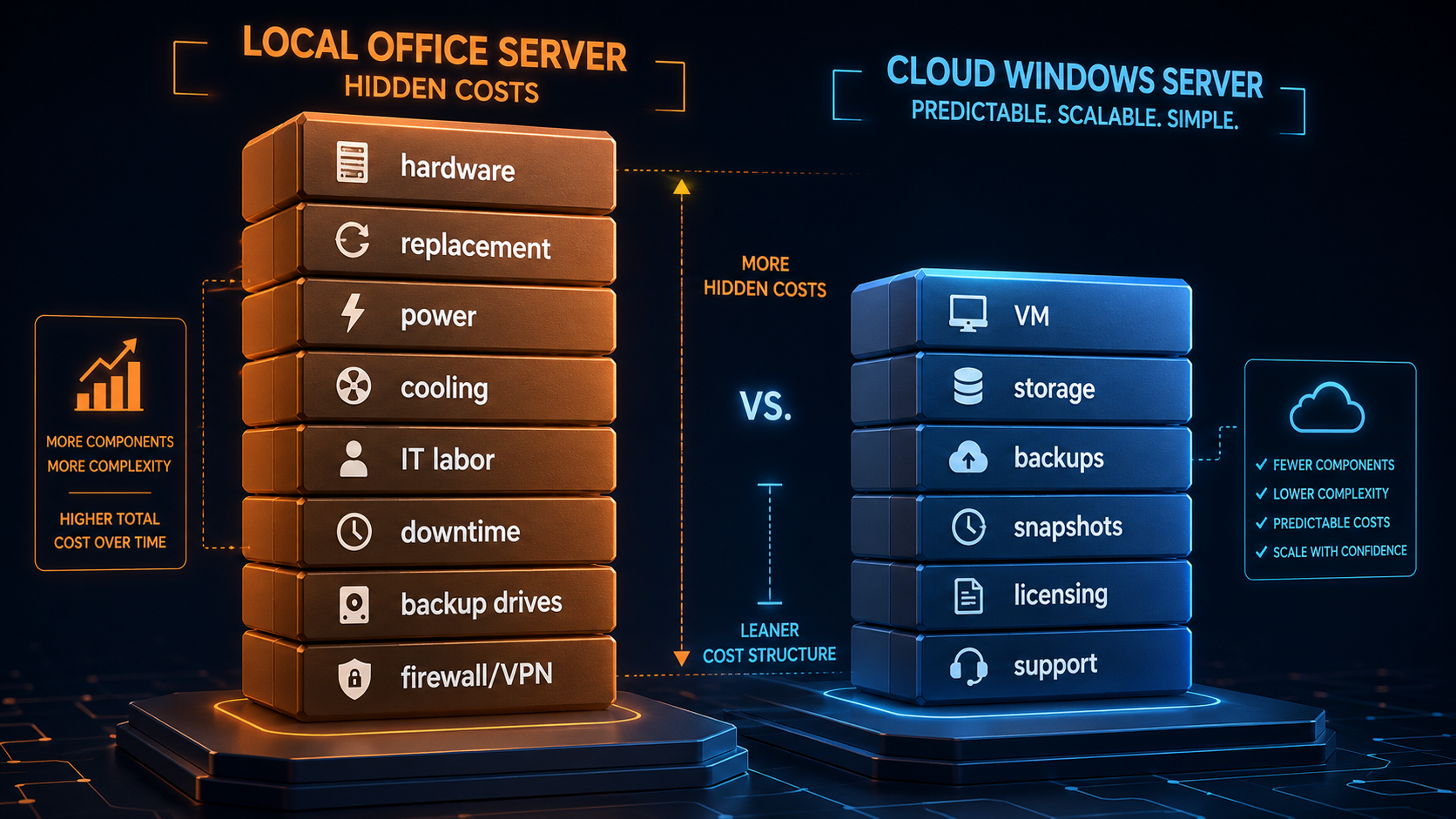
Local servers are often cheaper only when you ignore the full lifecycle. A fair comparison includes hardware, replacement, support, downtime risk, power, backups, remote access, and the staff time required to keep the server healthy.
| Cost area | Local office server | Cloud Windows Server |
|---|---|---|
| Upfront spend | Higher | Lower |
| Monthly infrastructure | Lower visible bill | VM, storage, backup, and optional services |
| Hardware replacement | Every refresh cycle | Not a hardware purchase for the customer |
| Power and cooling | Office pays | Included in cloud platform cost |
| Remote access setup | VPN/RD Gateway/firewall work | Still needs secure access planning, but not office network dependency |
| Backup storage | Local and off-site destination needed | Backup/snapshot options plus off-server backup strategy |
| Downtime cost | Office outage or hardware failure can stop access | Cloud server access is not tied to office power |
| IT labor | Hardware and Windows maintenance | Windows/app maintenance, less hardware work |
| Scaling cost | Buy parts or new server | Resize VM or split roles |
The cloud Windows Server bill is visible. The local server bill is often split across hardware, IT support, electricity, warranty, backup drives, router work, and lost time during failures.

For Raff buyers, the practical starting point is to price the VM size, backups, snapshots, reserved IPs if needed, licensing needs, and any application licenses. Do not compare only the monthly VM cost against a server you already own. Compare the full role the server plays.
:::cta View Windows VM Pricing Compare Raff Windows VM plans when replacing a local office server with a cloud Windows Server. :::
Remote access is the strongest reason to move
Remote access is where cloud Windows Server often wins fastest. If users need to work from home, client sites, branch offices, or while traveling, placing the Windows environment in the cloud can be simpler than opening access into a small office network.
A local office server can support remote access, but the business must design it carefully:
| Remote access path | Local server concern |
|---|---|
| Direct RDP exposure | High risk if exposed broadly to the internet |
| VPN | Adds client setup, user support, and firewall maintenance |
| RD Gateway | Better RDS access model, but still requires setup and certificates |
| Remote access through one office | Office internet and power become critical dependencies |
Microsoft documents RD Gateway as a role that enables secure encrypted connections to RDS resources over the internet without requiring VPN access. For local and cloud setups, RD Gateway is a safer pattern than broad direct RDP exposure when multiple users need remote desktop access.
A cloud Windows Server does not mean "open RDP to everyone." You still need IP restrictions, strong credentials, Windows Firewall rules, audit logging, and a decision on whether users need admin RDP, RDS Session Host, RD Gateway, or application-only access.
Raff already has separate guides for Windows VPS remote desktop use, RDP performance tuning, and RDS CAL licensing. This article is the decision layer above those technical choices.
Business apps are often easier to centralize in the cloud
Many SMB workloads are not modern SaaS applications. They are Windows desktop apps, accounting tools, tax software, legacy databases, Microsoft Access front ends, SQL Server tools, ERP clients, or admin utilities that work best in a consistent Windows environment.
A cloud Windows Server can be a practical fit when:
| App situation | Why cloud Windows Server helps |
|---|---|
| Users work from different locations | Everyone connects to the same server environment. |
| App data should not live on employee laptops | Data stays on the server instead of scattered across devices. |
| Legacy app needs Windows Server | The server provides a stable Windows runtime. |
| RDP users need the same tools | Apps are installed once on the server. |
| Local PCs are inconsistent | User experience depends less on each workstation. |
| The app uses shared files | Keep app and data close together on the same server or network. |
This is not the right model for every app. Some software vendors do not support RDS, cloud hosting, or multi-user operation. Some require special licensing. Some work better as SaaS. Check the vendor’s documentation before moving production data.
For Raff, this is why the Windows Hub separates business software, Sage, QuickBooks, SQL Server, IIS, RDS, and performance content. The product page should not carry all of that detail. The cluster pages should answer each buyer situation clearly.
Security changes, but it does not disappear
A cloud Windows Server is not automatically secure because it is in the cloud. A local office server is not automatically secure because it is behind an office router. Both need hardening.
Security responsibilities usually split like this:
| Security area | Local office server | Cloud Windows Server |
|---|---|---|
| Physical security | Office controls room, rack, door, access | Cloud platform handles physical facility controls |
| Network exposure | Office firewall/router/VPN | Cloud firewall, VM firewall, access rules |
| Windows updates | Business responsibility | Business responsibility |
| User accounts | Business responsibility | Business responsibility |
| RDP/RDS policy | Business responsibility | Business responsibility |
| Audit logs | Business responsibility | Business responsibility |
| Backup access | Business responsibility | Business responsibility |
| Application patching | Business responsibility | Business responsibility |
The mistake is assuming the move to cloud replaces security work. It does not. It changes the perimeter.
For Windows Server workloads, security planning should include:
- restricted RDP access
- no shared administrator accounts
- strong passwords or identity controls
- Windows Firewall rules
- Windows Defender configuration
- audit logging
- patch windows
- backup access controls
- least-privilege application users
- RDS CAL and RDS Session Host planning where needed
Microsoft’s Windows Server security baseline work includes RDS posture controls such as denying Guest logon through Remote Desktop Services. That is a useful reminder: Remote Desktop access should be treated as a controlled administrative or user access path, not a convenience setting.
Backups and restore testing decide how safe the move is
Backups are one of the biggest differences between a casual server and a production server. A local office server needs local backup, off-site backup, and a restore plan. A cloud Windows Server needs backup, snapshot, off-server copy, and a restore plan. The location changes; the responsibility remains.
Use this backup comparison:
| Backup requirement | Local office server | Cloud Windows Server |
|---|---|---|
| Server image or VM-level restore | Requires backup software and storage | Use VM backup/snapshot tools where available |
| File restore | Local backup target or NAS | Backup volume, snapshot, or off-server copy |
| App-aware backup | Required for SQL/accounting apps | Still required for SQL/accounting apps |
| Off-site copy | Must be added separately | Easier to design, but still must be configured |
| Restore test | Often skipped | Still must be tested |
| Ransomware protection | Needs separation and access control | Needs separation and access control |
Snapshots and backups are not the same thing as application-consistent recovery. For SQL Server, accounting databases, and line-of-business apps, you should use the app’s recommended backup method in addition to infrastructure-level recovery.
Raff Windows VM buyers should plan backups before moving the workload, not after the first failure. If a Windows VPS stores business files, databases, company files, or tax records, the restore process matters as much as the VM size.
Where local office servers still make sense
Local servers are not dead. They still make sense in several cases.
Keep or consider a local office server when:
| Situation | Why local can still win |
|---|---|
| All users are in one office | LAN access may be simpler and fast. |
| Workload depends on local devices | Scanners, machines, dongles, or specialty hardware may need on-site access. |
| Internet is unreliable | A cloud server depends on internet connectivity. |
| Large files move only inside the office | LAN file access can be faster and cheaper. |
| Compliance requires local control | Some policies may require local storage or approved architecture. |
| Hardware is already paid for and healthy | Migration may not be urgent. |
| There is in-house IT support | The business can handle maintenance and recovery. |
A local server is strongest when the business has stable on-site users, local hardware needs, and a real maintenance process. It is weakest when the server is sitting in a closet with no tested backup, no replacement plan, and no clear remote access design.
Where cloud Windows Server wins
A cloud Windows Server is usually stronger when flexibility and remote access matter more than local hardware control.
Move toward cloud Windows Server when:
| Situation | Why cloud wins |
|---|---|
| Staff work remotely | Access does not depend on the office server closet. |
| Multiple locations need the same app | One central server is easier than syncing offices. |
| Business apps need a shared Windows environment | Install once, manage centrally. |
| Hardware refresh is coming | Avoid buying another physical server. |
| Office power or internet is unreliable | Users can connect from another location if the office is down. |
| Backups need off-site design | Cloud infrastructure makes off-site recovery easier to plan. |
| MSP manages the environment | Standard VM builds are easier to document and repeat. |
| The workload may grow | Resize or split roles instead of replacing the whole server. |
Raff’s public site currently lists 15,000+ VMs deployed, and Trustpilot lists Raff Technologies at 4.5/5 across 16 reviews. For small teams comparing providers, those trust signals matter because the Windows server often becomes a core business system.
Raff Windows VMs support Windows Server workloads with administrator access, RDP, NVMe storage, snapshots, backups, firewall controls, and simple plan comparison through the pricing page.
Decision matrix by workload
Use this matrix when deciding between local and cloud.
| Workload | Local office server | Cloud Windows Server |
|---|---|---|
| QuickBooks or Sage for remote users | Possible, but remote access must be designed | Strong fit when RDS/licensing/backups are planned |
| Microsoft Access legacy app | Good on LAN | Good if users need remote shared access and app behavior is tested |
| SQL Server tools | Good if users/apps are local | Good if apps/users are remote or the DB should be centralized |
| IIS/.NET internal app | Good for local-only apps | Strong fit for remote or internet-facing app hosting |
| File server | Strong for LAN-heavy file sharing | Good for remote access if permissions and backup are planned |
| RDS Session Host | Possible on-prem | Strong fit when remote users are the main use case |
| Domain controller | Possible | Requires careful AD/DNS/security planning |
| ERP/inventory app | Good for local operations | Good for multi-location access if vendor supports it |
| Trading/MetaTrader | Less common | Strong fit for always-on remote Windows environment |
| Specialized hardware server | Strong | Usually weak unless hardware dependency is removed |
The important point is not that cloud wins every row. It does not. The right answer depends on user location, app behavior, licensing, data size, security requirements, and support model.
Migration planning should be staged
Do not move the office server in one uncontrolled weekend unless the workload is simple. Stage the migration.
A practical sequence:
- Inventory the current server roles.
- List users and peak concurrent sessions.
- Identify applications, databases, shared folders, and scheduled tasks.
- Check software licensing and vendor support for cloud/RDS use.
- Choose the initial Windows VM size.
- Build the cloud Windows Server.
- Configure users, firewall rules, updates, and backups.
- Copy non-production data first.
- Test application behavior with real users.
- Schedule production cutover.
- Keep rollback access until the new setup is proven.
- Run the first restore test after migration.
For Remote Desktop users, read the Windows VPS sizing guide before choosing the first VM size. For daily desktop users, review RDS CAL licensing before production. For business software, check the app-specific Raff Windows guides instead of treating every Windows app the same.
How Raff fits this decision
Raff fits the cloud Windows Server side of this decision when the business wants a Windows Server VPS for remote access, hosted business apps, RDP users, development workloads, SQL Server administration, IIS/.NET hosting, or office server replacement.
A typical Raff Windows VM buyer wants:
- Windows Server 2019, 2022, or 2025 options
- full administrator access
- Remote Desktop access
- NVMe storage
- backups and snapshots
- firewall controls
- clear monthly pricing
- a simpler path than buying and maintaining office hardware
Raff is not a replacement for every part of IT management. You still need to plan Windows updates, passwords, access rules, backups, app licensing, and user support. For multi-user desktop environments, you also need RDS Session Host and RDS CAL planning.
Use Raff when the server role is clear and the business wants a practical cloud Windows Server environment. Pause and design a larger architecture when the business needs high availability across regions, strict domain design, complex compliance, or a fully managed virtual desktop platform.
:::cta Deploy a Windows VM Run your Windows workload on Raff Windows VM with remote access, NVMe storage, backups, snapshots, and simple monthly pricing. :::
Recommended path by business type
| Business type | Recommendation |
|---|---|
| Solo consultant | Use cloud Windows Server if you need an always-on Windows environment or remote admin tools. |
| 3-10 person accounting firm | Cloud Windows Server can work well if RDS, backups, and app licensing are planned. |
| Local-only retail office | Local may be enough unless remote access or centralized apps are needed. |
| Multi-location small business | Cloud Windows Server is often cleaner than syncing or exposing one office server. |
| MSP client | Cloud Windows Server helps standardize support, backups, and remote access. |
| Software agency | Cloud Windows Server is useful for IIS/.NET, SQL Server tools, staging, or client environments. |
| Manufacturing office with local devices | Keep local for hardware-bound workloads unless the dependency can be removed. |
| Tax-season operation | Cloud can help remote users, but size for peak season and test before the deadline. |
The safest buyer decision is to start from the workload, not the platform. List what the server does, who connects, how often they connect, what data must be protected, and what happens if the server is unavailable for one business day.
What's next
- Read Windows VPS sizing for remote users before choosing CPU, RAM, and storage.
- Read Windows VPS for Remote Desktop if RDP access is the main reason for the move.
- Read Windows VPS for Business Software if the server will host accounting, admin, ERP, SQL Server, or legacy apps.
- Read Windows Server Hardening Checklist before putting a Windows VPS into production.
- Review Raff Windows VM and pricing when you are ready to compare the cloud server option.
Sources
- Microsoft Learn — Remote Desktop Services overview in Windows Server
- Microsoft Learn — Remote Desktop Services roles
- Microsoft Learn — Deploy the Remote Desktop Gateway role
- Microsoft Learn — License Remote Desktop session hosts
- Microsoft Learn — Backup and Storage overview for Windows Server
- Microsoft Learn — Windows Server servicing channels
- Raff — Windows VPS for Remote Desktop
- Raff — Windows VPS for Business Software
- Raff — Windows Server Hardening Checklist
- Raff — Windows VM product page
- Raff — Pricing
- Trustpilot — Raff Technologies reviews
Related articles
MSSQL Standard vs Enterprise — When to Pay More
Compare SQL Server Standard and Enterprise for Windows VPS workloads, including SQL Server 2025 limits, licensing, high availability, and when Enterprise is worth paying for.
Azure VM vs Raff Windows VPS — Real Cost Comparison
Honest cost + capability comparison: Azure D2s v3 vs Raff $36 Windows VPS. Egress, licensing, Hybrid Benefit math, when each wins, migration path.
Multi-User RDP: 2 Admin Sessions vs RDS Session Host
Decide when built-in 2-admin-session RDP is enough, when RDS Session Host is required, and how CAL licensing affects your Windows VPS workload.