run your softwarebeginner12 min read·Updated Jul 2, 2026

Windows VPS for Microsoft Access and Legacy Apps

Learn when a Windows VPS makes sense for Microsoft Access databases and legacy Windows apps, including RDP, RDS, backups, sizing, and risks.

On this page

Don't have a Windows Server yet?

Deploy Windows Server 2019/2022/2025 in ~2 minutes. 6-month evaluation licence included.

Deploy Windows now

In short

A Windows VPS can be a practical way to run Microsoft Access databases and legacy Windows apps when users need remote access, centralized files, backups, and a consistent Windows Server environment. It works best when Access is split correctly, users connect through Remote Desktop instead of opening database files over a slow WAN, and RDS licensing is planned for staff desktop sessions. Raff Technologies provides Windows VMs for teams that need this kind of hosted Windows environment.

Microsoft Access and legacy Windows apps are common in small businesses because they solve real operational problems: invoicing, inventory, quoting, reporting, customer records, tax workflows, internal forms, and custom line-of-business tools. The issue is usually not that the app stopped working. The issue is that the business has changed around it.

A local office setup may have worked when everyone sat near the same server. Once people work from home, branch offices, client sites, or different states, the old pattern starts to break. A Windows VPS gives the business a cloud-hosted Windows Server that users can reach through Remote Desktop Protocol, Remote Desktop Services, or app-specific access patterns.

Quick verdict: when a Windows VPS makes sense

Use this table before moving a Microsoft Access database or legacy Windows app to a Windows VPS.

SituationWindows VPS fitWhy
One user needs an always-on Windows appGood fitSimple RDP access can keep the environment online.
3-10 users need the same legacy app remotelyGood fit with RDS planningA shared Windows Server can centralize the app and data.
Access database is already split front-end/back-endBetter fitSplit design is safer for shared Access databases.
Users open one Access file directly over VPN/WANRiskyWAN-style file access can create performance and reliability issues.
App requires local USB hardware or donglesDependsHardware dependency may make cloud hosting difficult.
App vendor supports Windows Server/RDSStronger fitSupportability matters before production migration.
App vendor forbids cloud/RDS hostingPoor fitLicensing or support terms may block the move.
Database is growing beyond Access limitsConsider SQL Server or migrationA VPS can host the app temporarily, but the data layer may need redesign.

The best use case is not "put any old file on a server." The best use case is a planned Windows environment where Access, files, users, backups, and security are treated as production infrastructure.
Don't have a Windows Server yet?

Deploy Windows Server 2019/2022/2025 in ~2 minutes. 6-month evaluation licence included.

Deploy Windows now

Use Raff Windows Server VPS when your team needs remote access to Microsoft Access databases, legacy apps, or shared Windows workloads. :::

Why Access and legacy apps become a cloud server problem

Microsoft Access and legacy apps often start as local office tools. They become infrastructure problems when the business depends on them every day.

Common triggers include:

TriggerWhat changes
Remote workUsers need access outside the office LAN.
Multiple locationsBranches need the same app and data.
Aging office serverHardware replacement becomes urgent.
Slow VPN accessFile-based apps perform poorly over remote links.
No backup ownerThe app holds business data but has no recovery plan.
Inconsistent PCsApp versions, drivers, and local settings differ by workstation.
Staff growthMore users increase locking, performance, and support issues.
Vendor support riskOld app versions may not support modern local desktops.

A Windows VPS does not fix a badly designed Access database by itself. It gives the business a controlled Windows Server environment where the app can run closer to its data, users can connect remotely, and backups can be planned centrally.

That is the main buyer benefit: less dependency on one office machine and more control over how the app is accessed.

Microsoft Access should usually be split for shared use

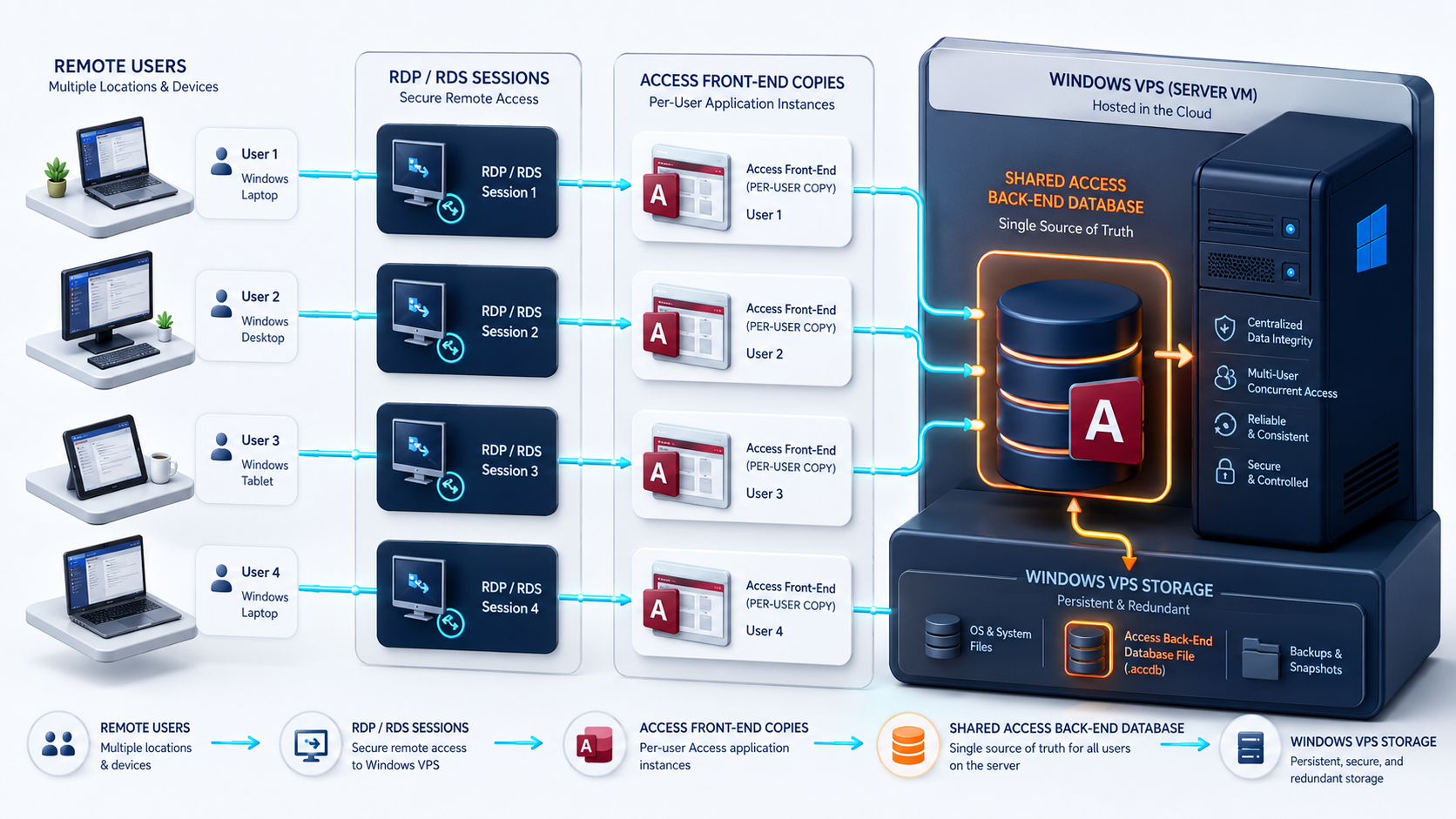
For shared Microsoft Access databases, split design matters. Microsoft Support says to consider splitting any database that several people share over a network because splitting can improve performance and reduce the chance of database file corruption.

Diagram showing Microsoft Access front-end and back-end database split on a Windows VPS

A split Access database has two parts:

ComponentWhat it containsWhere it should live
Back-end databaseTables and shared dataServer/shared location
Front-end databaseQueries, forms, reports, macros, codeSeparate copy for each user

Microsoft's guidance on sharing an Access desktop database explains that each user should interact with the data by using a local copy of the front-end database while the back-end stores the shared tables. Microsoft performance guidance also says that splitting a database improves multi-user performance because only data is sent across the network.

On a Windows VPS, this usually means users connect into the Windows environment and run their own front-end copy there, while the back-end stays on the server side. That is different from asking remote users to open one shared Access file across a VPN.

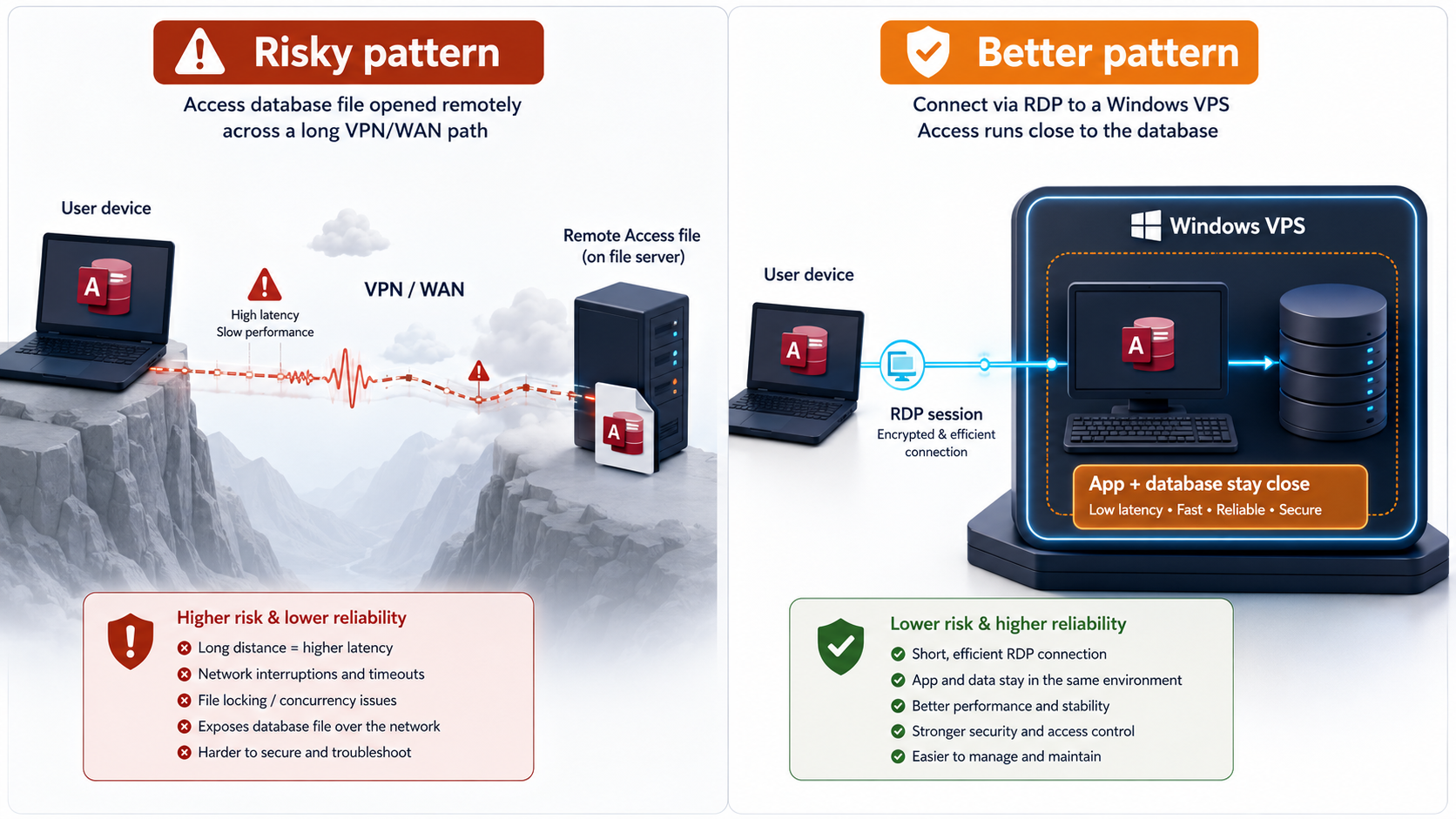
Access can work well on a local area network when designed properly. It often behaves poorly when users open file-based databases across slow or unstable wide-area links.

Comparison visual showing Access database over WAN versus Access running inside RDP on a Windows VPS

Microsoft's Access deployment guidance warns that Azure file shares can introduce issues similar to those that arise when using an Access split database in a WAN. The practical lesson applies beyond Azure: Access is sensitive to network behavior because file-based database access depends on reliable, low-latency file operations.

For remote teams, the safer pattern is usually:

Text
User device -> Remote Desktop session -> Access front-end runs on Windows VPS -> Access back-end stays close to the front-end

The riskier pattern is:

Text
User device -> VPN/WAN -> Open Access database file across remote network -> Slow forms, locking issues, corruption risk

A Windows VPS helps when it keeps the application runtime and the database file close together. Users see the app through Remote Desktop, but the Access file operations happen inside the server environment.

RDP, RDS, and user count decide the access model

Access and legacy app hosting on a Windows VPS is usually an access-design question before it is a software question.

Use this table:

User patternRecommended access model
One owner/admin uses the appDirect RDP with restrictions can work
Two admins maintain the appDirect RDP or controlled admin access
Three or more staff use the app dailyRDS Session Host planning
Users connect from changing locationsConsider RD Gateway
Users only need a web app or SQL appDo not give desktop access unless needed
MSP manages the app for a clientStandardize RDS, backups, access, and documentation

Default Windows Server RDP is for administration. If several staff members need daily desktop sessions, plan Remote Desktop Services and RDS Client Access Licenses before production.

Microsoft's RDS licensing documentation says each user or device connecting to an RD Session Host running Windows Server needs an RDS CAL. That applies to the user access model; it is separate from whether Access itself is licensed correctly.

:::cta Plan Your Windows VPS Plan CPU, RAM, storage, RDS access, and backups before moving Access databases or legacy apps to a Windows VPS. :::

Sizing depends on users, app behavior, and data size

Do not size a Windows VPS for Access or legacy apps by the installer requirements alone. Size it by concurrent users, app workload, database size, profile growth, backups, and reporting activity.

Use this starting guide:

WorkloadStarting sizeWhen to move up
1 admin or single app user2 vCPU / 4 GB RAMIf the app is heavy or runs reports
3 light Access users4 vCPU / 8 GB RAMIf forms/reports feel slow
3 business app users4 vCPU / 16 GB RAMIf app, profiles, and reports use memory
5 Access or legacy app users4 vCPU / 16 GB RAMIf month-end reporting creates lag
10 active users8 vCPU / 32 GB RAMIf users run several apps in RDS
SQL Server plus legacy app8-16 vCPU / 32-64 GB RAMIf database and users compete for RAM

For Access specifically, watch storage and profile growth. Access front-end files, back-end databases, exports, reports, backups, temporary files, and user profiles can grow quietly.

The existing Raff sizing guide for remote users should be linked from this article because Access buyers often ask the same practical question: how much CPU, RAM, and storage do we need for 3, 5, or 10 users?

Storage planning is more than the database file

A small Access database file can hide a larger storage requirement. Business app environments accumulate files over time.

Plan storage for:

Data typeExamples
Access back-end files.accdb, .mdb, linked table back ends
Access front-end copiesPer-user front-end files
Legacy app dataApp folders, local databases, config files
Shared filesPDFs, reports, invoices, exports, attachments
User profilesDesktop, Documents, Downloads, AppData
Temporary filesLock files, report output, installer cache
BackupsApp backups, file backups, VM-level backups
LogsWindows logs, app logs, audit logs

Do not run the production disk near full. Access and legacy apps can behave unpredictably when disks are full, temp files cannot be written, or backup jobs run out of space.

A practical rule: size storage for the next 12 months of data, not today's database file.

Backups must be app-aware enough to restore the business

Microsoft's Access backup guidance says you need a backup copy to restore the entire database after a system failure or restore an object when undo is not enough. For a business Access app, that backup must be part of the server plan, not something done manually once in a while.

A useful backup model:

Backup layerPurpose
VM backupRecover the whole Windows VPS
Snapshot before changesRoll back after updates or app upgrades
File-level backupRestore Access files, reports, exports, app folders
App-specific backupUse the legacy app's supported backup process
Off-server copyProtect against VM, account, or ransomware incidents
Restore testProve the backup actually works

Back up the Access back-end during a low-activity window or with users out of the database where needed. Document how users exit, where the back-end lives, where front-end copies live, and how to restore the environment.

A backup that restores the file but breaks links, permissions, or front-end deployment is not enough. Test the app after restore.

Security starts with access control

Access and legacy apps often hold customer records, invoices, tax data, payroll data, inventory, or operational history. Treat the Windows VPS as a business system.

At minimum, plan:

Security areaRecommendation
RDP exposureRestrict access; avoid broad direct RDP exposure
User accountsUse named users, not shared administrator accounts
PermissionsLimit who can modify app folders and database files
BackupsRestrict who can delete backup copies
Windows updatesSchedule updates and test before business-critical periods
Antivirus/DefenderAvoid exclusions unless required and documented
Audit logsTrack logins and failed access attempts
App credentialsDo not store passwords in shared files
Admin accessSeparate admin work from daily user sessions

For multi-user environments, read the RD Gateway vs Direct RDP article before exposing access to staff. Remote access design should happen before the app becomes daily production work.

Legacy apps need compatibility checks before migration

Legacy Windows apps vary widely. Some run fine on Windows Server. Others depend on old runtimes, hardcoded paths, mapped drives, printer drivers, old Office components, local machine names, COM objects, ODBC drivers, or licensing services.

Before moving the app to a Windows VPS, check:

Compatibility itemWhy it matters
Windows Server versionSome apps support only specific versions
32-bit vs 64-bit componentsOlder Access/ODBC/COM pieces may depend on bitness
Office/Access runtime versionFront-end behavior may depend on the runtime
Mapped drive pathsHardcoded drive letters can break after migration
UNC pathsServer path changes may require relinking
Printer dependenciesReports may depend on installed printers
Licensing methodHardware IDs, dongles, or local activation may not work
User permissionsApps may assume write access to install folders
Database engineSome apps use Jet/ACE, SQL Server, SQLite, or proprietary files
Vendor supportUnsupported hosting can create business risk

Do not migrate the production system first. Build a test Windows VPS, copy a non-production version, run the real workflow, and let users test the forms, reports, exports, printing, and end-of-day process.

When Access should move to SQL Server instead

A Windows VPS can centralize Access, but it does not turn Access into SQL Server. Some Access systems eventually outgrow the file-based model.

Consider SQL Server or another database back end when:

SignalMeaning
Many users edit data at onceLocking and performance risk rises
Database file is growing fastFile-based design may become fragile
Reports are slowQueries may need a stronger database engine
App is business-criticalRecovery, auditing, and consistency matter more
Remote users keep increasingRDS can help, but data layer may still need redesign
Corruption or repair is commonArchitecture should be reviewed
Integrations need APIsAccess may not be the right system of record

Access can still be a useful front end in some environments, especially with linked SQL Server tables. But that is a redesign decision, not a simple VPS migration.

If your workload already needs SQL Server, use the Raff SQL Server guides instead of treating the Access file as the long-term database layer.

Migration plan for Access and legacy apps

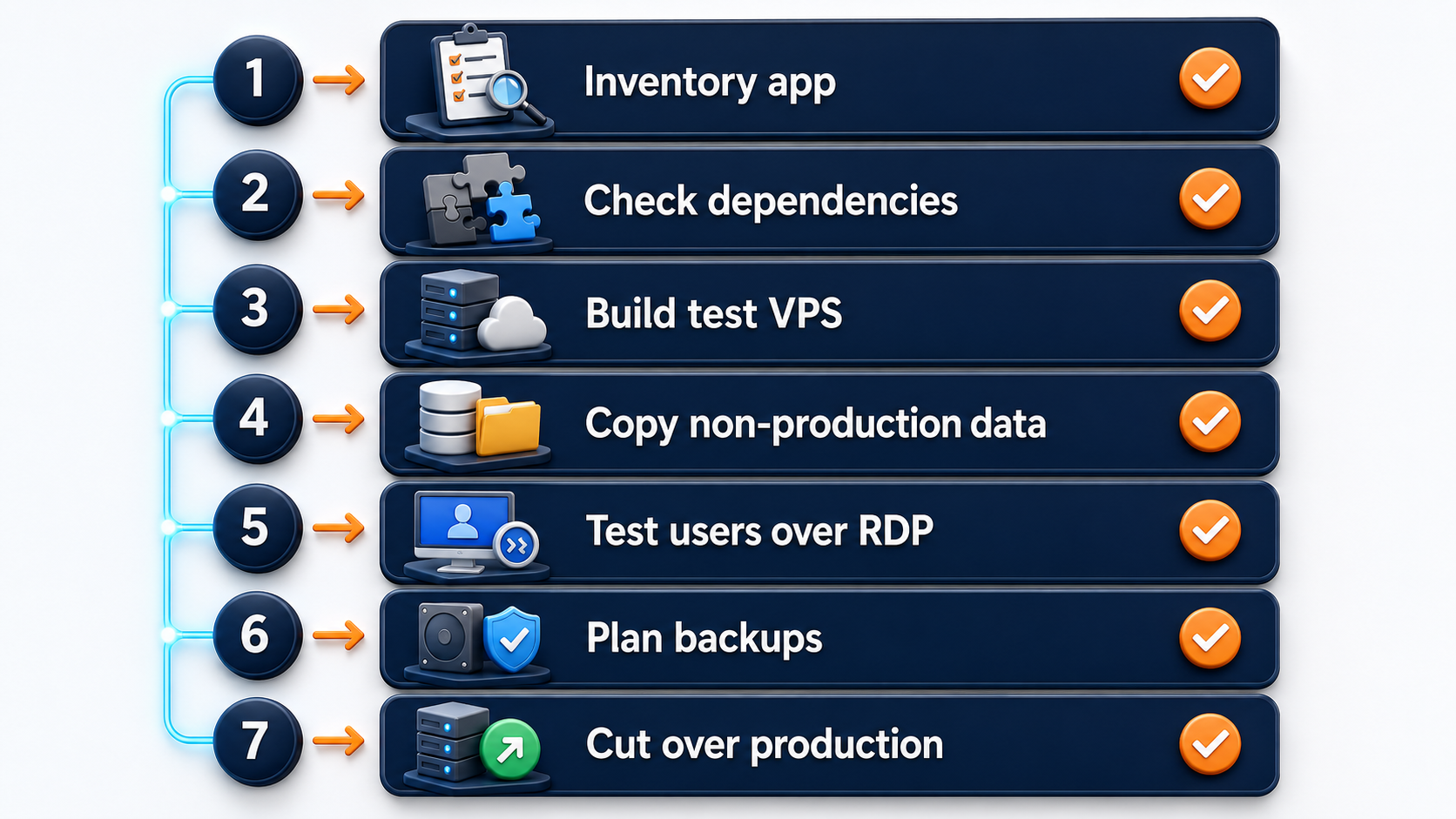
Use a staged migration, not a rushed weekend copy.

Checklist visual for moving Microsoft Access databases and legacy Windows apps to a Windows VPS

A practical sequence:

  1. Inventory the current app, database files, user count, and shared folders.
  2. Confirm who uses the app and when peak usage happens.
  3. Check whether the Access database is split.
  4. Identify front-end copies, back-end location, linked tables, and file paths.
  5. Check Access runtime, Office version, ODBC drivers, printers, and app dependencies.
  6. Choose an initial Windows VPS size.
  7. Build a test Windows VPS.
  8. Copy a non-production version of the app and data.
  9. Relink tables or paths as needed.
  10. Test forms, reports, printing, exports, imports, and backup.
  11. Test with real users over RDP/RDS.
  12. Document rollback and restore steps.
  13. Schedule production cutover.
  14. Keep the old environment available until the new one is verified.

For many SMBs, the first migration goal is not modernization. It is stability: make the app reachable, backed up, and less dependent on one aging office server.

When a Windows VPS is not the right fit

A Windows VPS is not always the right answer for Access or legacy apps.

Pause before using a Windows VPS when:

SituationBetter next step
Vendor does not allow server/RDS hostingAsk vendor for supported deployment paths
App requires local USB dongleCheck licensing hardware support first
App needs very low-latency LAN file accessTest before migration
Database is already unstable or corruptRepair/compact and architecture review first
App has no installer or documentationBuild a test environment before production
Many users need heavy reportingConsider SQL Server or app modernization
Compliance requires specific hosting controlsReview with IT/security advisor
Business wants fully managed desktop supportConsider managed desktop or RDS provider

The worst migration is moving a fragile system into the cloud and assuming the cloud will fix the fragility. A Windows VPS gives you a better hosting environment, but the app still needs a clean operating model.

How Raff fits Access and legacy app hosting

Raff fits this use case when a small business needs a Windows Server VPS for Microsoft Access databases, legacy Windows apps, shared business tools, or remote staff access.

Raff Windows VMs provide a Windows Server environment with full administrator access and RDP. The public Windows VM page lists Windows Server 2019, 2022, and 2025 support, full admin access, 24/7 support, and a 99.9% uptime SLA. For Access and legacy app buyers, that matters because the server becomes part of daily business operations.

Raff is not a replacement for application support. If the Access database needs redesign, if the vendor does not support RDS, or if the app requires special licensing, those issues must be handled before production. Raff provides the Windows VM environment; the workload still needs sizing, backup, security, and compatibility planning.

:::cta Deploy a Windows VM Run your Windows workload on Raff Windows VM with remote access, NVMe storage, backups, snapshots, and simple monthly pricing. :::

Business typeRecommendation
Solo operator with one Access appStart with a small Windows VPS and restricted admin RDP.
3-person officeUse split Access design and plan RDP/RDS access carefully.
5-user accounting or admin teamPlan RDS, backups, storage, and app-specific restore testing.
10-user teamSize for active users and consider whether SQL Server should replace the back end.
MSP clientStandardize front-end deployment, backups, access, and restore documentation.
Multi-location businessUse RDP/RDS to keep app and data close together instead of opening files over WAN.
Legacy app with hardware dependencyTest licensing, drivers, and hardware assumptions before moving.
Business with unstable Access fileFix split design, compact/repair, and backup before cloud migration.

The safest path is to test the app on a Windows VPS before moving production data. Access and legacy apps can be extremely valuable, but they need careful handling because the business often depends on small details nobody has documented.

What's next

Sources

Published July 2, 2026 · Last updated July 2, 2026