getting startedbeginner14 min read·Updated Jun 26, 2026

Windows VPS for Remote Desktop: What SMBs Should Know

Learn when a Windows VPS makes sense for Remote Desktop, how to choose admin RDP vs RDS, and what to plan for sizing, security, licensing, and performance.

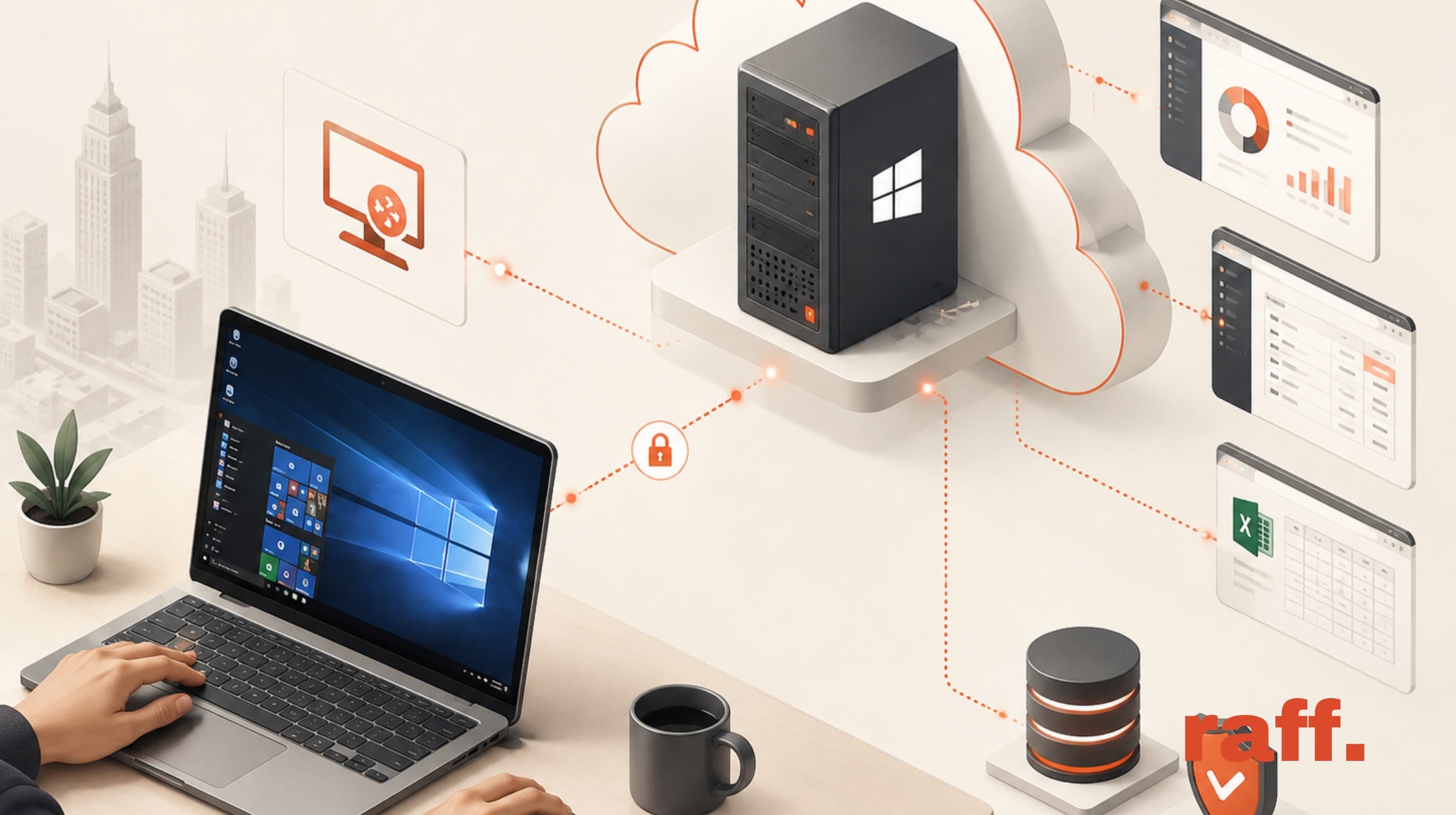
Remote Desktop session connected to a Windows VPS for small business software and remote work.
On this page

Don't have a Windows Server yet?

Deploy Windows Server 2019/2022/2025 in ~2 minutes. 6-month evaluation licence included.

Deploy Windows now

A Windows VPS can be a practical Remote Desktop server when a small team needs secure access to Windows software, files, admin tools, or business applications from anywhere. Use normal admin RDP for server administration only. Use Remote Desktop Services with proper RDS CAL licensing when multiple users need their own desktop sessions for daily work.

TL;DR

  • Use a Windows VPS for Remote Desktop when your team needs a cloud-hosted Windows environment instead of an office PC or local server.
  • The default RDP access model is for administration, not full multi-user desktop hosting.
  • If several employees need to work inside the server at the same time, plan for Remote Desktop Services and RDS CALs.
  • Performance depends on user count, application load, CPU, RAM, storage, network quality, and display settings.
  • Security matters because RDP is a high-value access path. Plan firewall rules, strong credentials, updates, backups, and monitoring before production.

Remote Desktop on a Windows VPS explained

Remote Desktop on a Windows VPS means connecting to a cloud-hosted Windows Server through Remote Desktop Protocol, usually from a local Windows, macOS, Linux, iOS, or Android device.
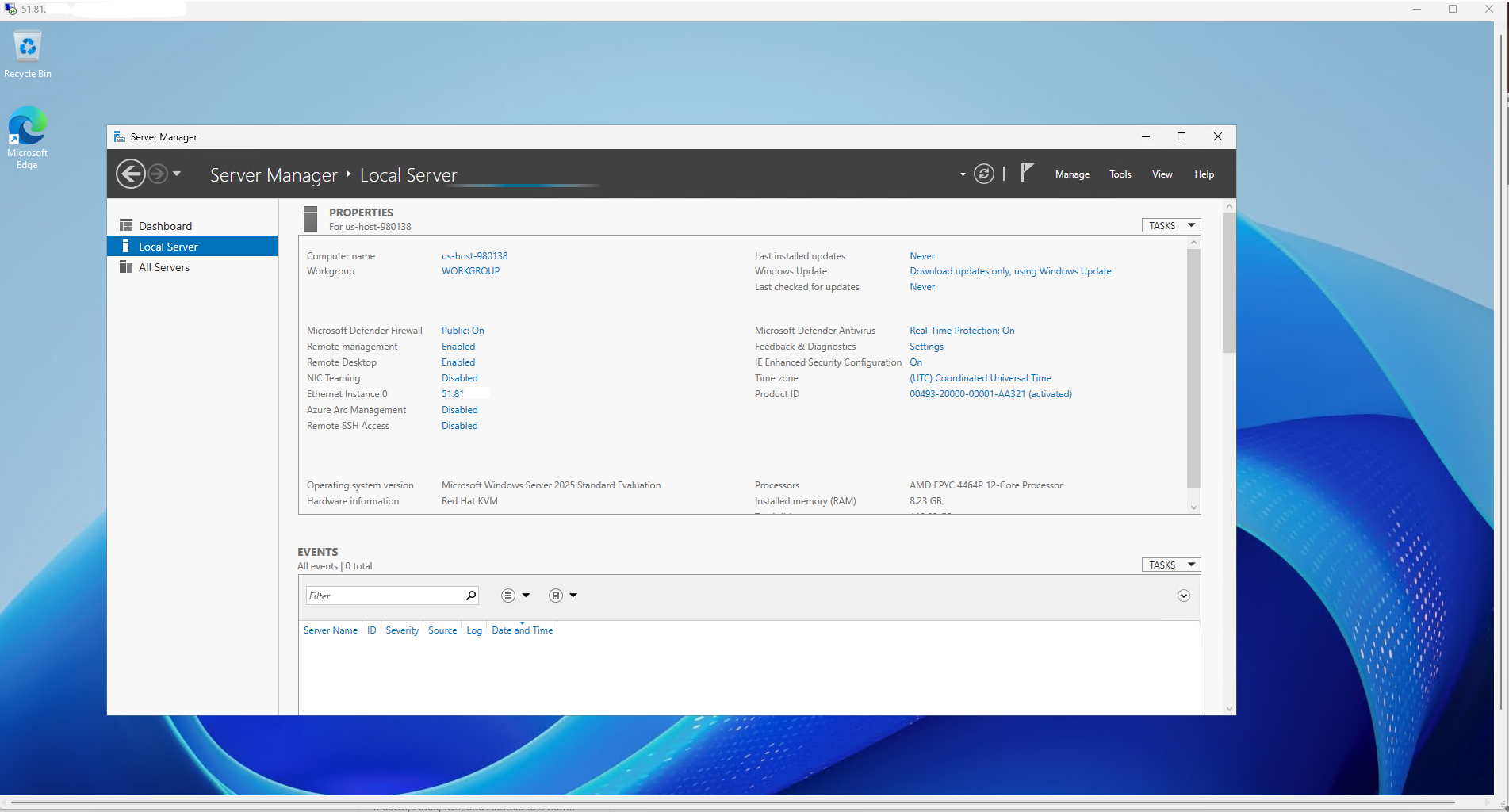
Remote Desktop session connected to a Raff Windows VPS showing a Windows Server desktop for small business remote access.

The Windows VPS runs the desktop environment and applications. The user’s local device becomes the screen, keyboard, mouse, and audio endpoint.

A simple model looks like this:

Text
User device Remote Desktop client Windows VPS public IP or secured access path Windows Server session Business software, files, browser, admin tools, or server roles

This model is useful when the work needs to happen inside a Windows Server environment.

Examples include:

  • Remote access to business software
  • Accounting tools
  • ERP clients
  • Admin dashboards
  • Browser-based internal tools
  • SQL Server tools
  • IIS administration
  • PowerShell administration
  • MetaTrader or other Windows-only software
  • Shared operational desktops
  • Temporary contractor access
  • Small office server replacement

The important distinction is that Remote Desktop can mean two different things:

Use caseWhat it means
Admin RDPOne or two administrators connect to manage the server
RDS Session HostMultiple users connect to use desktops or apps as a normal work environment

A small team should decide which model it needs before choosing the Windows VPS size, licensing path, and security setup.

A Windows VPS is useful when the desktop must stay online

A Windows VPS makes sense when the Windows environment should stay online even when a user’s laptop, office PC, or local network is unavailable.

That is the practical reason many small teams move Remote Desktop workloads to a cloud server.

Instead of keeping a desktop tower in the office, the team runs the Windows environment on a VPS and connects to it remotely. Users can access the same server from home, office, travel, or another device.

This is especially useful when the workload depends on:

  • Windows-only software
  • A shared company file
  • A database running near the application
  • A stable desktop session
  • Long-running automation
  • 24/7 availability
  • Centralized administration
  • One server environment instead of many local PCs

For example, an accounting team may want QuickBooks or Sage available from multiple locations. A developer may want a Windows Server environment for IIS and SQL Server. A trading operator may want a Windows session that keeps software running overnight.

A Windows VPS gives these workloads a central place to run.

The trade-off is operational responsibility. A VPS still needs updates, security controls, backups, user management, and performance monitoring.

Admin RDP and RDS Session Host solve different problems

The biggest mistake in Remote Desktop planning is treating admin RDP and multi-user Remote Desktop as the same thing.

They are not the same.
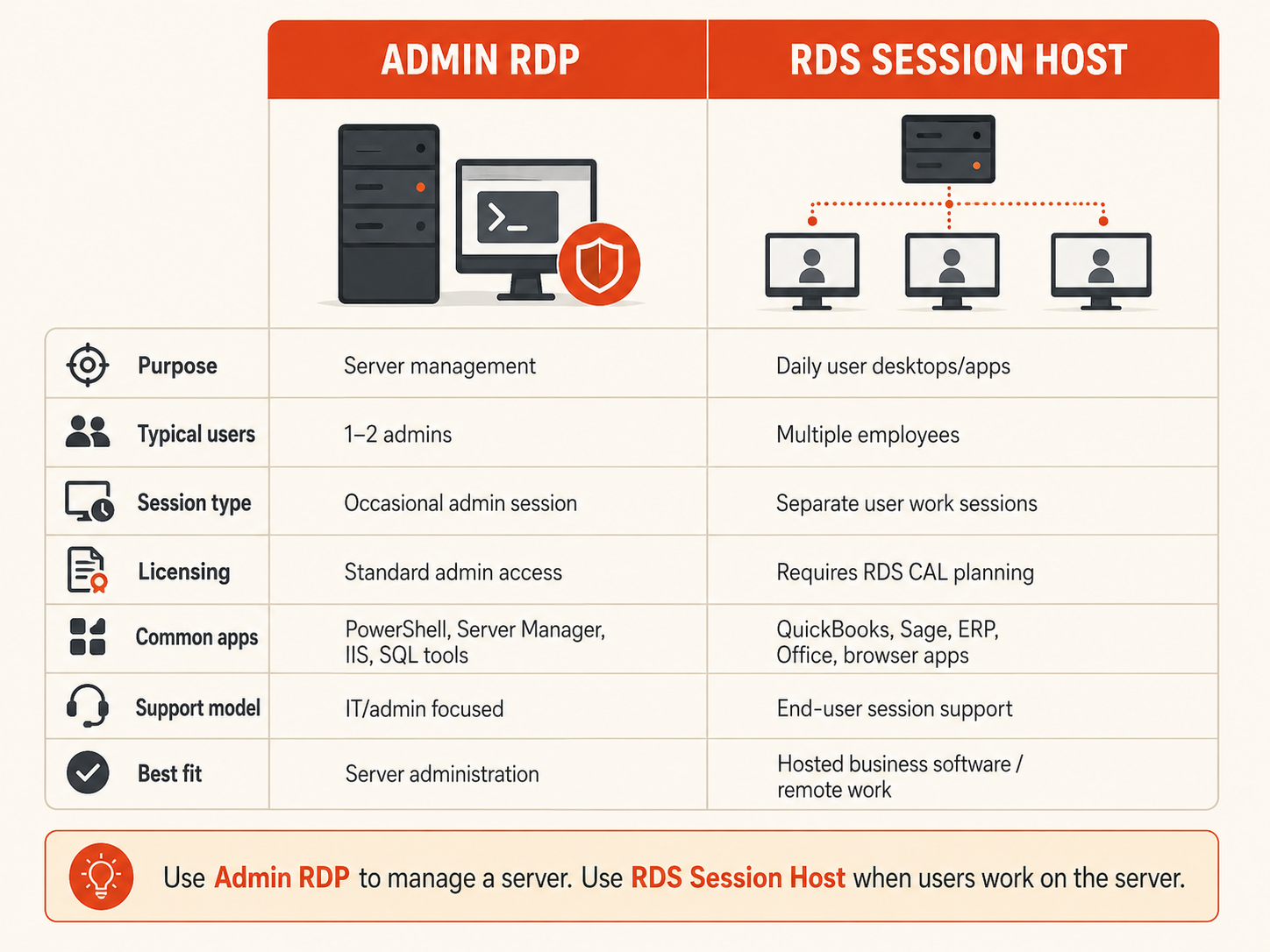
Decision visual comparing admin RDP and RDS Session Host for server management, multi-user desktop access, licensing, session type, common applications, support model, and best-fit business use cases.

Admin RDP is for managing the server. It is suitable for administrators who need to sign in, configure services, install updates, check logs, or troubleshoot.

RDS Session Host is for user desktops or app sessions. It is suitable when multiple people need to use the Windows environment for daily work.

RequirementBetter fit
One admin needs to configure the serverAdmin RDP
Two admins occasionally troubleshootAdmin RDP
Five employees need daily desktop sessionsRDS Session Host
Accounting staff need to run QuickBooks remotelyRDS Session Host
Contractors need separate user sessionsRDS Session Host
A developer needs IIS and SQL Server admin accessAdmin RDP
A team needs hosted Windows appsRDS Session Host

For a deeper licensing and access breakdown, read Multi-User RDP: 2 Admin Sessions vs RDS Session Host.

The simple rule:

Use admin RDP to manage a server. Use Remote Desktop Services when users are working on the server.

The decision framework for Remote Desktop on a Windows VPS

Use this framework before turning a Windows VPS into a Remote Desktop environment.

Decision areaAdmin RDP is usually enough when...RDS Session Host is better when...
User countOne or two admins connect occasionallyMultiple employees need daily access
PurposeServer managementDesktop or application usage
Session typeOccasional maintenance sessionSeparate user work sessions
LicensingStandard admin access is enoughRDS CAL planning is required
ApplicationsAdmin tools, PowerShell, IIS, SQL toolsAccounting, ERP, Office, browser apps, trading software
SecuritySmall admin groupUser access policy, MFA path, stronger auditing
PerformanceLight management workloadCPU/RAM sizing per user and application
SupportIT/admin access onlyEnd-user support and session management
Best fitServer administrationRemote work or hosted business software

This is the main decision.

A Windows VPS can support both models, but the planning is different. Admin access is simple. Multi-user desktop hosting needs more thought around licensing, sizing, session limits, security, and support.
Remote Desktop workloads are not all the same

Remote Desktop performance depends on what users do inside the session.

A single admin opening Server Manager is light. Five users running accounting software during tax season is not the same workload. A trader running multiple charts and expert advisors has different pressure than a bookkeeper entering invoices.

WorkloadTypical pressure points
Basic administrationLow CPU/RAM, occasional login
Office-style desktop workRAM, session count, display responsiveness
Accounting softwareRAM, disk, file/database access, backups
SQL Server administrationRAM, database load, storage performance
IIS and .NET managementCPU, RAM, app pools, logs
MetaTrader or trading toolsCPU, RAM, uptime, latency, session stability
Browser-heavy workRAM, CPU, profile data
Multi-user RDSRAM per user, CPU, licensing, session policy

The more users and applications you add, the less the server behaves like a simple remote admin box.

That is when sizing, session management, and performance tuning become important.

Sizing a Windows VPS for Remote Desktop

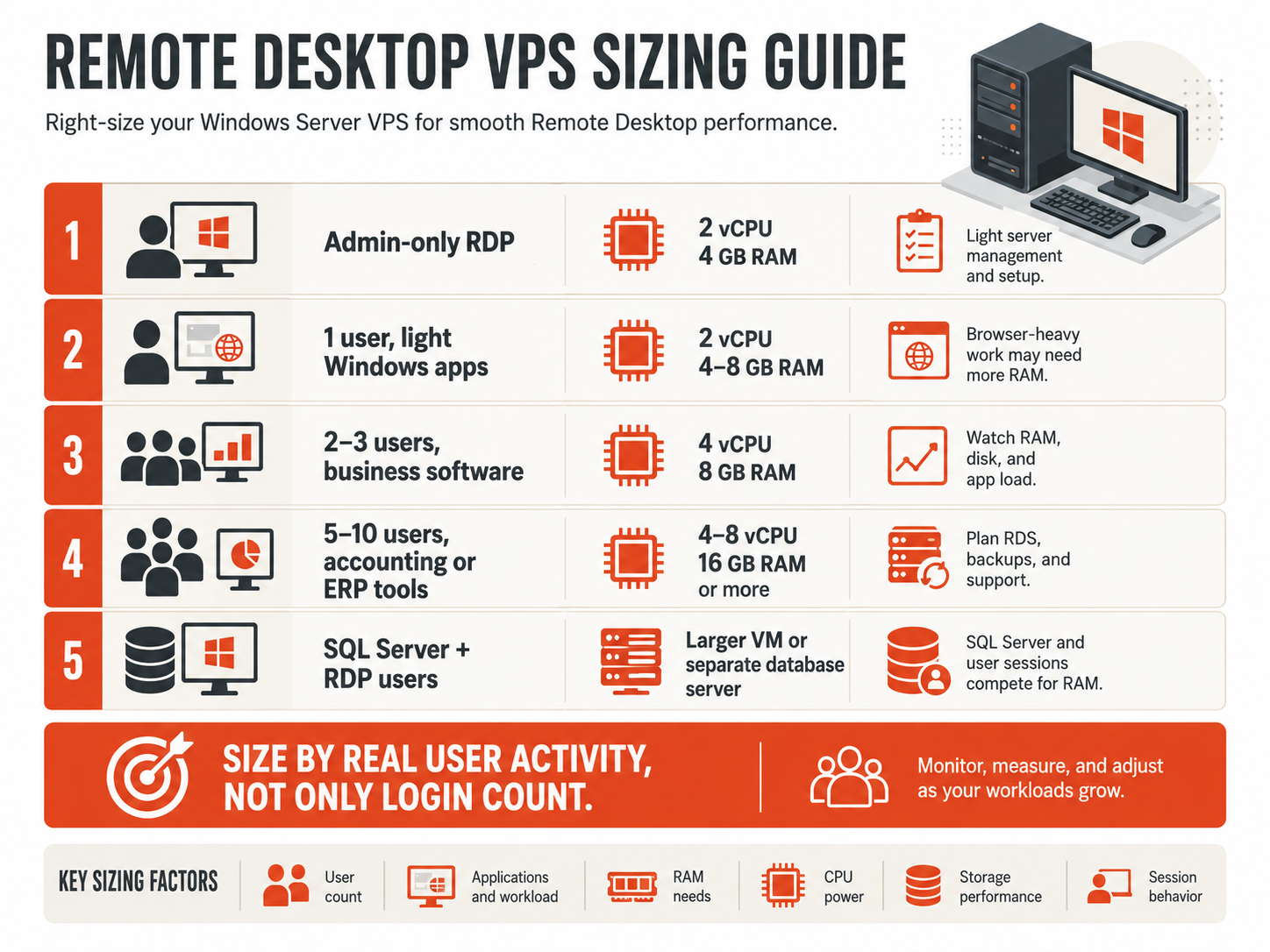
A Windows VPS for Remote Desktop should be sized around people, applications, and session behavior.

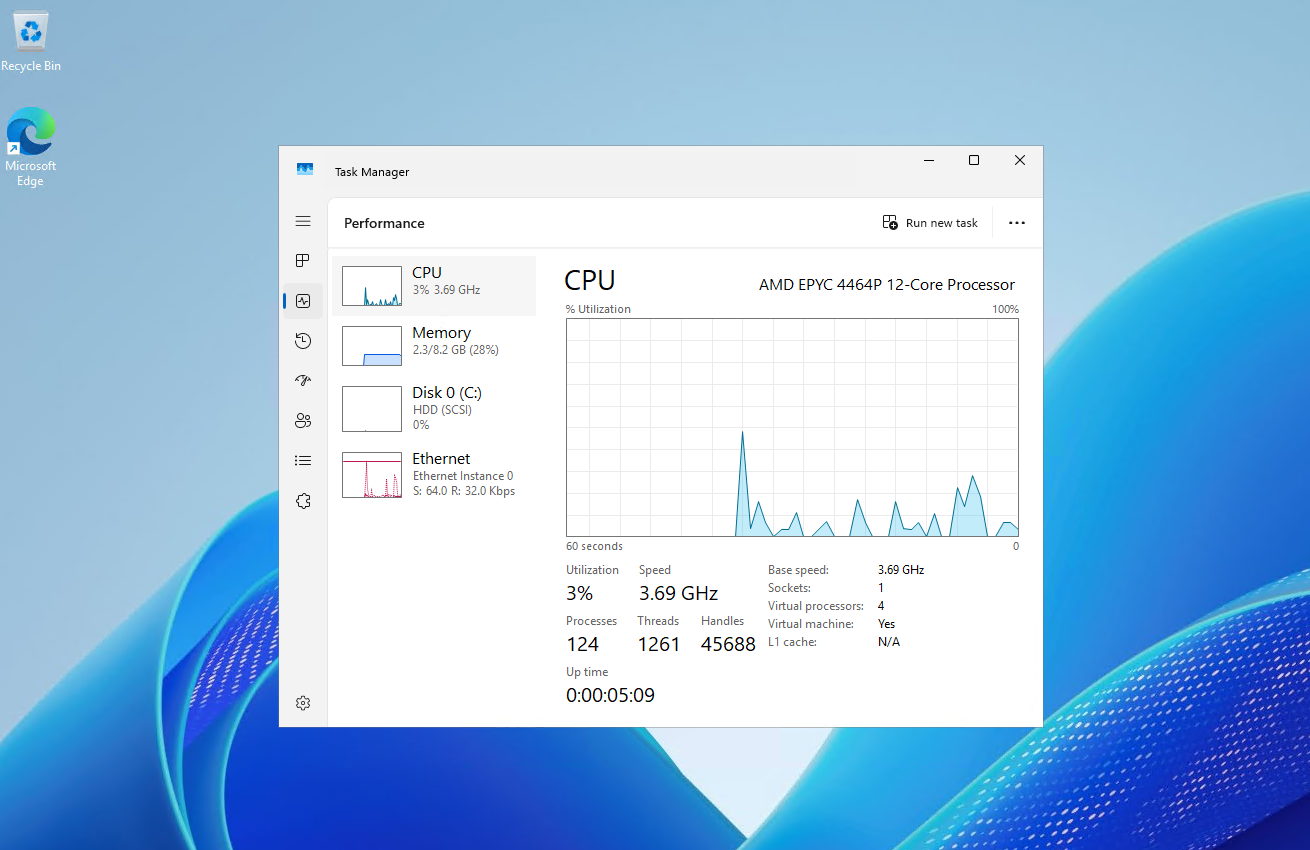
Task Manager Performance tab showing CPU, memory, disk, and network usage during a Remote Desktop session on a Windows VPS.

A small admin-only VPS can be modest. A multi-user RDS server needs more CPU and RAM because every active user session consumes resources.

Use this as a planning model:

ScenarioStarting spec directionNotes
Admin-only RDP2 vCPU / 4 GB RAMGood for light administration and setup work
One user running light Windows apps2 vCPU / 4–8 GB RAMBrowser-heavy work may need more RAM
2–3 users with business software4 vCPU / 8 GB RAMWatch RAM, disk, and app load
5–10 users with accounting or ERP tools4–8 vCPU / 16 GB RAM or morePlan RDS, backups, antivirus exclusions, and support
SQL Server plus RDP usersLarger VM or separated databaseSQL Server and RDP sessions compete for RAM
Trading platform 24/7Size by software count and chartsStability and uptime matter more than minimal cost

Do not size only by login count.

A user running one lightweight admin tool is different from a user running Outlook, browser tabs, accounting software, PDFs, Excel, and database-connected software in the same session. Visual guide showing Windows VPS sizing considerations for admin-only RDP, single-user Remote Desktop, small team business software, accounting or ERP tools, and SQL Server workloads.

The useful sizing question is:

Text
What will each user actually run inside the Remote Desktop session?

For performance tuning after launch, read RDP Performance Tuning for Smooth Remote Desktop.

Licensing is part of the Remote Desktop decision

Remote Desktop licensing matters because admin access and user desktop access are different use cases.

For basic server administration, normal Remote Desktop access is used by administrators to manage the server. For multi-user desktop or app access, plan Remote Desktop Services and RDS CALs.

RDS CAL planning usually depends on:

  • Number of users or devices
  • Whether users share devices
  • Whether users connect from multiple devices
  • Whether the server is joined to Active Directory
  • Whether the environment needs per-user or per-device licensing
  • Whether licensing is BYOL or provider-managed
  • Whether Office or Microsoft 365 Apps are used in the session

For example, a five-person accounting firm where each employee connects from their own laptop usually thinks differently from a shift-based office where many people share the same physical workstations.

The safest approach is to decide licensing before inviting users onto the server.

For the full licensing breakdown, read RDS CAL Licensing on Windows Server and Windows Server Licensing on Raff.

Security should be planned before users connect

Remote Desktop is an access path into the server. Treat it as production infrastructure.

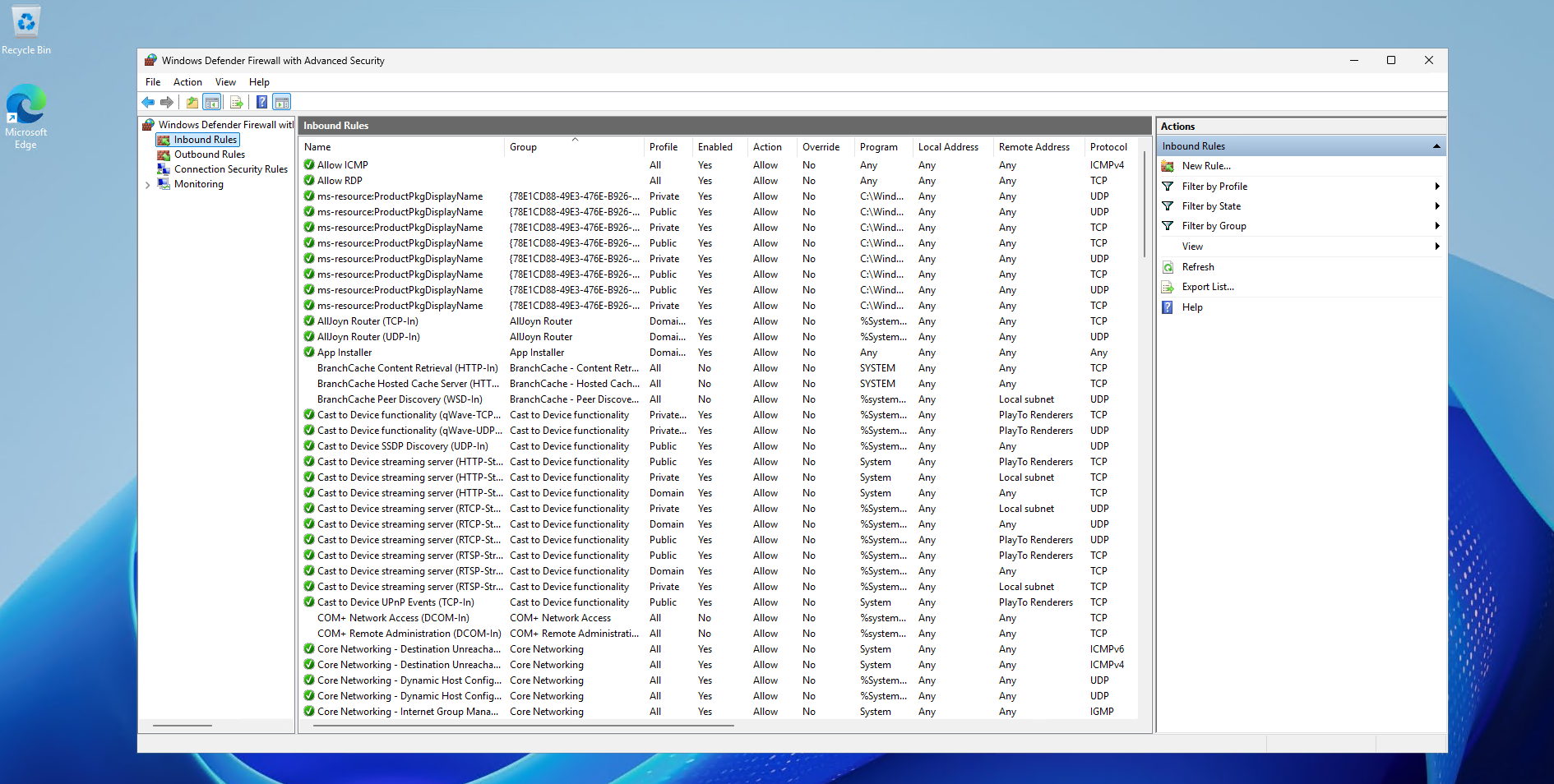
Windows Defender Firewall inbound rules showing Remote Desktop access controls on a Windows VPS.

At minimum, a Windows VPS used for Remote Desktop should have:

  • Strong administrator password policy
  • Separate user accounts
  • Least-privilege access
  • Windows Firewall enabled
  • RDP access reviewed
  • Windows updates planned
  • Microsoft Defender enabled
  • Audit logging reviewed
  • Backups configured
  • Unused services removed
  • User access removed quickly when someone leaves

For small teams, the most common security mistake is convenience. Everyone shares one login, RDP stays open broadly, passwords are reused, and no one reviews access after the first setup.

That approach may work for a test server. It is not a good production pattern.

For practical hardening steps, read Windows Server Hardening Checklist and Configure Windows Firewall on a Windows VPS.

Remote Desktop performance is a combined system

RDP performance is not only about the VPS.

It depends on four layers:

LayerWhat affects the experience
Client deviceScreen resolution, local RDP app, display settings
Network pathLatency, packet loss, ISP route, blocked ports
Windows VPSCPU, RAM, disk, background processes
Session workloadApps, browser tabs, database tools, charts, user count

A slow session can come from any of these layers.

If CPU and RAM are already high inside the VPS, changing display settings will not fix the root problem. If the server is calm but input feels delayed, the network path or client settings may be the issue.

A good troubleshooting order is:

  1. Check server CPU and RAM.
  2. Check network path and RDP connectivity.
  3. Review RDP client display settings.
  4. Reduce unnecessary visual effects.
  5. Tune session policies.
  6. Resize the VPS if the workload has outgrown the plan.

For the full walkthrough, use RDP Performance Tuning for Smooth Remote Desktop.

Windows VPS vs office PC for Remote Desktop

Many small businesses start by exposing an office PC or local server for remote access.

That can work temporarily, but it creates operational limits.

AreaOffice PC or local serverWindows VPS
AvailabilityDepends on office power and internetRuns in cloud infrastructure
AccessOften tied to office networkAccessible from authorized remote clients
MaintenanceUsually informalCentralized server management
HardwareLocal hardware failures matterVM can be resized or replaced more easily
BackupsOften inconsistentCan be planned around server workload
SecurityDepends on local setupCan be hardened as server infrastructure
ScalingHarder to add capacityResize or separate workloads when needed

An office server may be enough when everyone works in one location and downtime is low impact.

A Windows VPS becomes more attractive when users are distributed, the office network is unreliable, the software needs to stay online, or the team wants one hosted Windows environment instead of a local machine under someone’s desk.

Windows VPS vs cloud PC for Remote Desktop

A cloud PC and a Windows VPS can both give users remote Windows access, but they are not the same decision.

A cloud PC is usually a managed personal desktop. It is often best when each user needs their own individual desktop environment and the organization wants the provider to manage much of the desktop platform.

A Windows VPS is usually better when the team needs a server-style Windows environment for shared software, admin tools, databases, IIS, accounting apps, or RDS Session Host planning.

NeedBetter fit
Personal managed desktop per employeeCloud PC
Shared Windows Server environmentWindows VPS
Business software on one serverWindows VPS
Server administrationWindows VPS
Minimal IT operationsCloud PC
Direct server controlWindows VPS
RDS Session Host planningWindows VPS
Individual employee desktopsCloud PC

The question is not which one is “better.” The question is whether the team needs personal desktops or a Windows Server environment.

Raff Windows VPS context

Raff Windows VPS fits the Remote Desktop use case when a small team needs a cloud-hosted Windows Server environment for admin work, business software, or RDS planning.

Common Raff use cases include:

  • Remote Desktop access for admins
  • Hosted accounting software
  • QuickBooks or Sage environments
  • SQL Server administration
  • IIS and .NET application management
  • Internal tools
  • Trading platforms
  • Small business software
  • RDS Session Host planning
  • Office server replacement

Raff Windows VPS gives teams a simple Windows Server path with cloud VM control, NVMe SSD storage, unmetered bandwidth, 3 Gbps port speed, one IPv4 address, optional IPv6 dual-stack support, and Windows Server version options.

This is not the same as saying every Remote Desktop workload should run on one VPS.

If a team needs many users, strict compliance, high availability, or managed desktop governance, the design should be reviewed more carefully. But for many small teams, a Windows VPS is a practical starting point because it keeps the Windows environment centralized, accessible, and easier to manage than scattered local machines.

Common mistakes when using Windows VPS for Remote Desktop

Treating admin RDP as multi-user desktop hosting

Admin RDP is for server management.

If multiple users need daily desktop sessions, plan Remote Desktop Services and RDS CALs instead of trying to stretch the admin model.

Buying by CPU only

Remote Desktop sessions are often RAM-sensitive.

Browsers, accounting software, Office apps, ERP clients, and SQL tools can consume memory quickly. CPU matters, but RAM is often the first limit users feel.

Ignoring software behavior

Two applications with similar-looking interfaces can behave very differently.

QuickBooks, Sage, SQL Server tools, browser apps, trading platforms, and IIS management all create different CPU, RAM, disk, and network pressure.

Leaving RDP security too open

Remote Desktop should not be treated like a casual login page.

Review firewall rules, passwords, account access, audit logs, updates, and backups before the server becomes part of daily work.

Forgetting disconnected sessions

Disconnected sessions can keep applications open and continue consuming RAM.

For RDS environments, session timeout and disconnected-session policies should be planned.

Skipping backups

A Remote Desktop server often becomes a place where users save files, app data, exports, reports, and configuration.

If users depend on the server, backups should be planned before production use.

Waiting too long to resize

A server that worked for one admin may not work for five daily users.

Monitor CPU, RAM, disk, and session experience after real usage begins.

What Raff recommends

Start by deciding whether the server is for administration or user work.

For admin-only access, keep the setup simple: one or two administrators, strong credentials, firewall review, Windows updates, and basic monitoring.

For daily user work, treat the Windows VPS as a Remote Desktop environment. Plan RDS licensing, user accounts, RAM per user, session policy, backups, security, and performance tuning before the team depends on it.

For small business software, keep the application and data close together where possible. Do not make users open a database or company file across a slow VPN if the software expects local or LAN-like access.

For Remote Desktop performance, check the server load before changing display settings. A slow desktop is often a sizing or workload issue, not only an RDP setting.

What's next

Sources

Published June 26, 2026 · Last updated June 26, 2026