In short
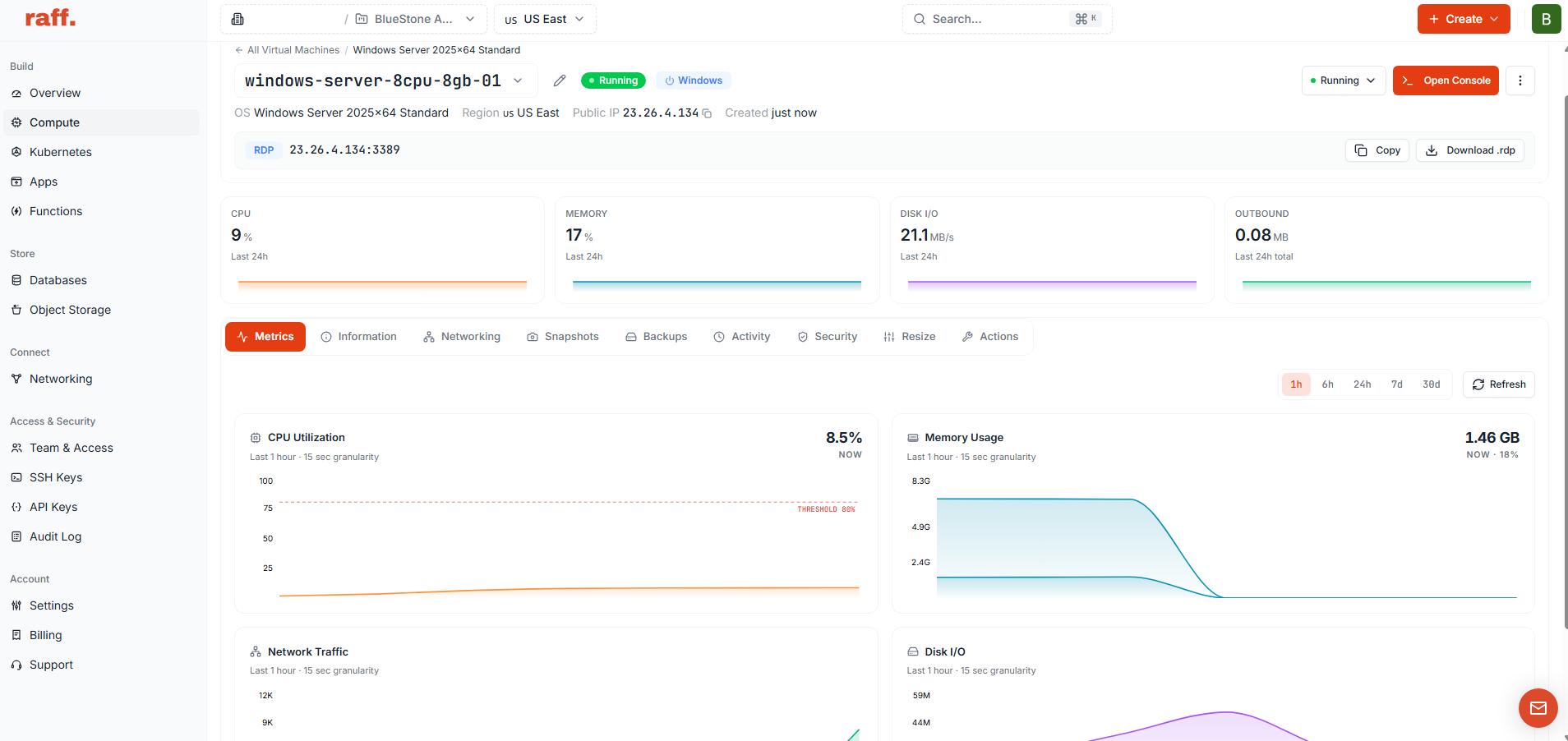
To deploy a Windows Server 2025 VPS on Raff, open the Windows VM creation flow, choose the us-east region, select a VM size that fits the workload, choose Windows Server 2025, set a strong Administrator password, and create the VM. For production, use Raff-provided Windows Server licensing under SPLA or eligible customer BYOL rights. When the VM reaches Running, connect over RDP and verify the operating system before installing the workload.
This guide covers provisioning, not post-deployment configuration
Raff already has separate Windows Hub pages for choosing a Windows Server version, connecting over Remote Desktop Protocol (RDP), licensing, and configuring a new server after first login.
This page owns one specific job:
Choose Windows Server 2025
→ choose VM size
→ confirm production licensing path
→ create Windows VM
→ wait for Running
→ get public IP
→ make first RDP connection
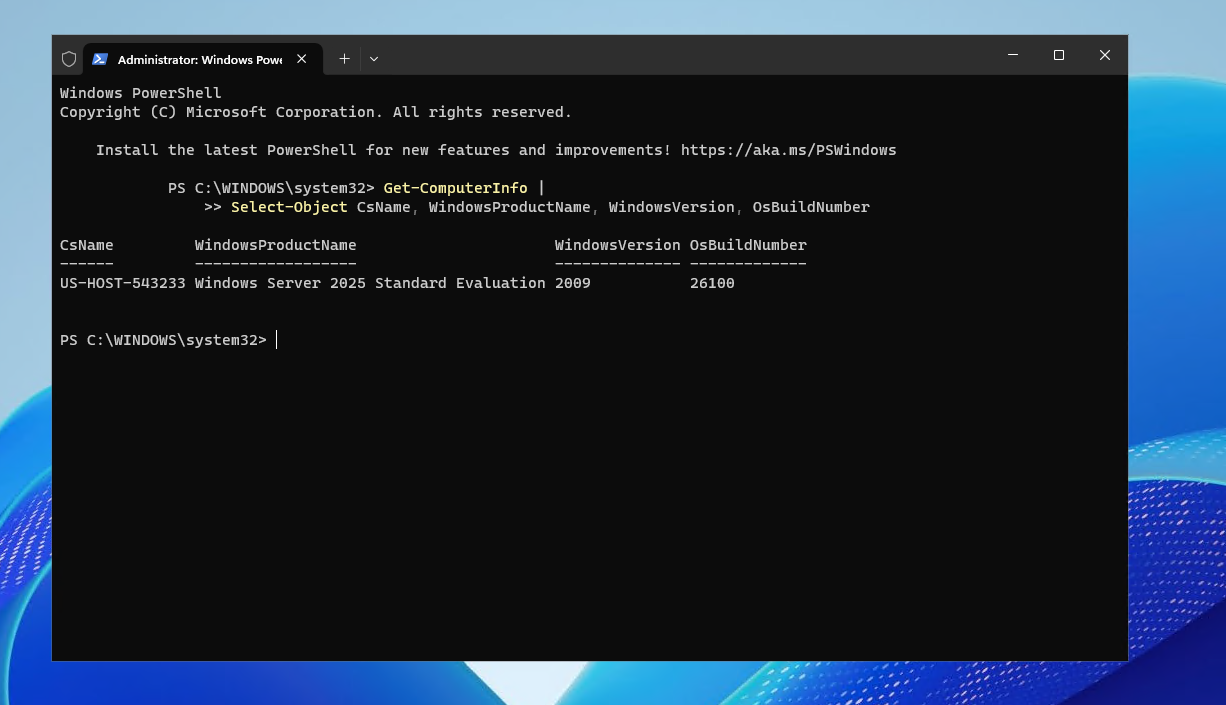
→ verify Windows Server 2025 booted correctly
It does not duplicate:
- Windows Server 2019 vs 2022 vs 2025 for operating-system selection;
- How to Connect to a Windows VPS via RDP for client-by-client RDP instructions and troubleshooting;
- Windows Server Initial Setup Checklist for the first 30 minutes after deployment;
- Windows Server Licensing on Raff for SPLA and BYOL licensing guidance.
If you have already created the VM and can see the Windows desktop, skip directly to the initial setup checklist.
Windows Server 2025 is a strong default for new validated workloads
Windows Server 2025 is a Long-Term Servicing Channel release. Microsoft lists mainstream support through November 13, 2029 and extended support through November 14, 2034.
That support runway makes Server 2025 a practical default for a new environment when the software you plan to run supports it.
Before deploying, check the application vendor if the server will run:
- accounting or tax software;
- ERP software;
- legacy Microsoft Access applications;
- older ODBC drivers;
- specialized printer or scanner drivers;
- older SQL Server versions;
- endpoint security or remote monitoring agents;
- software with strict Windows Server certification requirements.
If the vendor only supports Server 2022, use Server 2022 rather than creating a Server 2025 VM and discovering the compatibility issue after migration.
For the detailed decision, use Windows Server 2019 vs 2022 vs 2025.
Step 1 — Open the Raff Windows VM creation flow
Sign in to the Raff dashboard and open the Windows VM creation page.
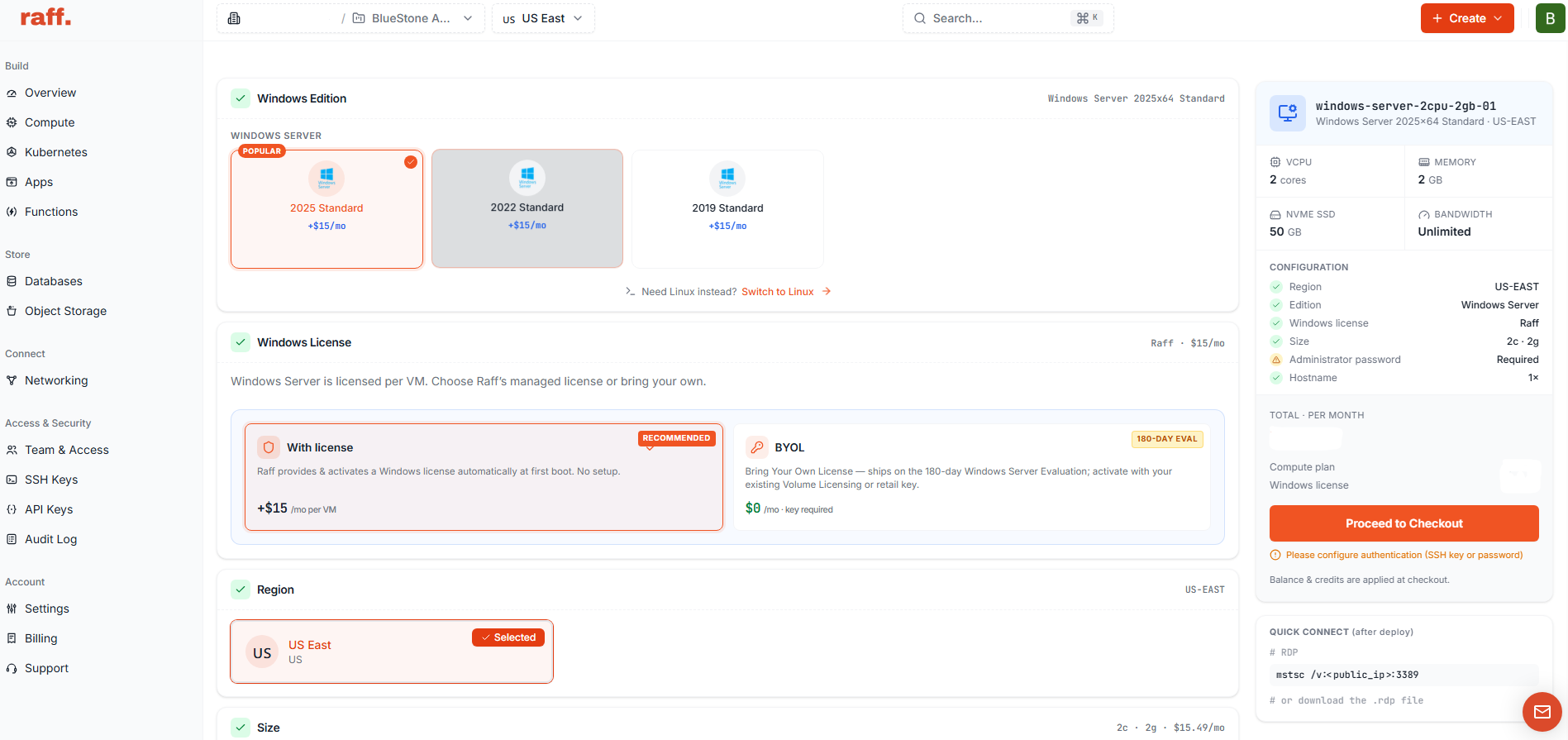
Direct dashboard path:
/home/create-product/vms/windows
You can also start from the Raff Windows VM product page and continue to deployment.
The creation screen is where you define the VM before Raff provisions the operating system.
You will need to make five decisions:
- region;
- VM size;
- Windows Server image;
- production licensing path;
- Administrator password.
Verification: Do not continue until the creation page is specifically configured for a Windows VM rather than a Linux VM.
Step 2 — Choose us-east and size the VM for the workload
Choose the Raff us-east region for the deployment.
Then select a VM size based on what the server will actually run. Windows Server itself is only the baseline. IIS, SQL Server, Remote Desktop Services (RDS), business applications, antivirus, background services, and concurrent users all consume additional CPU and memory.
A useful decision pattern is:
| Workload | Sizing approach |
|---|---|
| Light administration | Start with a smaller Windows VM and scale if needed |
| IIS or a light internal application | Size for application CPU, memory, and expected traffic |
| SQL Server | Prioritize memory, storage behavior, database size, and query load |
| RDP/RDS users | Size for concurrent sessions and applications, not total employee count |
| ERP or accounting software | Follow the software vendor's supported requirements first |
| Mixed app + database workload | Leave headroom or consider separating roles as usage grows |
Do not choose a larger VM simply because it runs Windows Server 2025. Choose it because the workload needs the capacity.
For reference, current Windows totals start at $28.99/month for 1 vCPU / 2 GB / 50 GB when the $15/month Windows Server Standard SPLA licence is included. Review current options on Raff Windows VM and Raff pricing before creating a production server.
Verification: Confirm the selected VM size has enough CPU, memory, and storage for the first workload you plan to install.
Step 3 — Select Windows Server 2025 and confirm the production licensing path
Choose Windows Server 2025 from the Windows image selector.
For a production Raff Windows VM, use one of these supported licensing paths:
- Raff-provided Windows Server licensing under SPLA when Raff supplies the hosted Windows Server licence;
- eligible customer BYOL when the customer has qualifying Microsoft rights and the deployment fits Microsoft's applicable outsourcing or Flexible Virtualization rules.
Raff currently charges $15/month per Windows Server Standard instance when Raff supplies the operating-system licence through its hosted SPLA model.
Do not treat a temporary evaluation installation as the production licensing plan. If you are validating software compatibility or migration behavior, keep that activity separate from the production deployment decision.
For BYOL eligibility, CALs, RDS licensing, and the distinction between Windows Server outsourcing rights and License Mobility, use Windows Server Licensing on Raff.
Verification: Before creating the VM, confirm that the selected image says Windows Server 2025 and that the production licensing path is understood.