
getting started
getting startedbeginner17 min read·Updated Jul 9, 2026

Windows VPS for Remote Employees: Secure Access, Apps, Files, and Backups

Learn when a Windows VPS makes sense for remote employees who need secure access to Windows apps, shared files, Remote Desktop, backups, and a central cloud Windows Server.

A Windows VPS can help businesses give remote employees secure access to Windows applications, shared files, internal tools, and a consistent desktop environment from outside the office. It works best when the company plans user count, Remote Desktop access, RDS licensing, RD Gateway or VPN access, file permissions, backups, security, and app support before production. Raff Technologies provides Windows VMs for small businesses and teams that need a practical cloud Windows Server foundation for remote and hybrid work.

Remote employees do not always need a full cloud desktop. Sometimes they only need browser-based SaaS tools. But many small businesses still rely on Windows apps, mapped drives, accounting software, legacy tools, SQL-backed apps, or shared office folders.

That is where a Windows VPS can make sense. Instead of every remote employee trying to reach an office PC, VPN into a fragile local network, or copy files between devices, users connect to a central Windows environment.

The result is simpler to manage: apps stay in one place, business files stay closer to the server, permissions can be controlled, backups can be planned, and the company is not dependent on one physical office machine.
Use Raff Windows VM when your remote employees need a cloud-hosted Windows environment for apps, files, and shared workloads.

Quick verdict: when remote employees should use a Windows VPS

Use this table before choosing a Windows VPS for remote staff.

Remote work situationWindows VPS fitWhy
Employees need Windows apps from home or branch officesStrong fitUsers can connect to one hosted Windows environment.
Staff need shared files and mapped drivesStrong fit with access planningFiles can stay centralized in the server environment.
Business app only works well on WindowsStrong fit after vendor checkApp can run on Windows Server where supported.
Employees remote into office PCs todayStrong fitA Windows VPS is cleaner than workstation-by-workstation access.
Multiple offices need the same app/dataStrong fitTeams can work from one shared environment.
Only SaaS apps are usedDependsBrowser-based tools may already solve the problem.
Users need heavy graphics or video editingDependsTest performance before production.
Internet connection is unreliableRiskyFix connectivity or plan fallback first.
App vendor does not support RDS/hosted useRiskyConfirm support before rollout.
High availability is requiredNeeds architectureA single VPS is not a full HA design.

A Windows VPS is strongest when remote employees need access to Windows-based business workflows, not just websites.

Why remote teams use Windows VPS

Remote work creates problems that are easy to ignore until they break daily operations.

ProblemWhat it looks likeHow Windows VPS helps
Office PC dependencyUsers remote into individual office desktopsMove work to one hosted Windows environment
File chaosFiles are copied between laptops, email, and USB drivesCentralize shared folders
VPN frustrationUsers struggle with VPN, mapped drives, and local network issuesConnect through a planned Remote Desktop model
App inconsistencyDifferent versions run on different machinesRun apps from one controlled server
Security gapsShared passwords or unmanaged devices access filesUse named users and access controls
Backup uncertaintyRemote files are not consistently protectedBack up the server and business data
Branch complexityOffices maintain separate setupsUse one central environment
MSP support painEvery endpoint has a different configurationStandardize support around the server

The goal is not to force every employee into Remote Desktop. The goal is to centralize the Windows workloads that are difficult to run safely across many remote devices.

Windows VPS vs VPN into the office

A VPN can be useful, but it does not automatically solve remote-work infrastructure.

AreaVPN into officeWindows VPS
Where apps runUsually office PCs or local serverHosted Windows Server
File accessOften over office networkInside or near the hosted environment
Office dependencyHighLower
PerformanceDepends on office internet and file behaviorDepends on VPS, latency, and session design
Support modelEndpoint + VPN + office serverCentral server + remote session
Backup modelDepends on local environmentCan be planned around the VPS
Multi-location accessCan become complexCentralized
Best fitPrivate access to internal resourcesCentral Windows workspace for users/apps/files

VPN is not wrong. It may still be useful for private access. But if users are opening large files or Windows apps over VPN, Remote Desktop into a hosted environment may be cleaner.

Windows VPS vs remote access to office PCs

Many small businesses start by letting employees remote into office desktops.

That can work temporarily, but it becomes hard to manage.

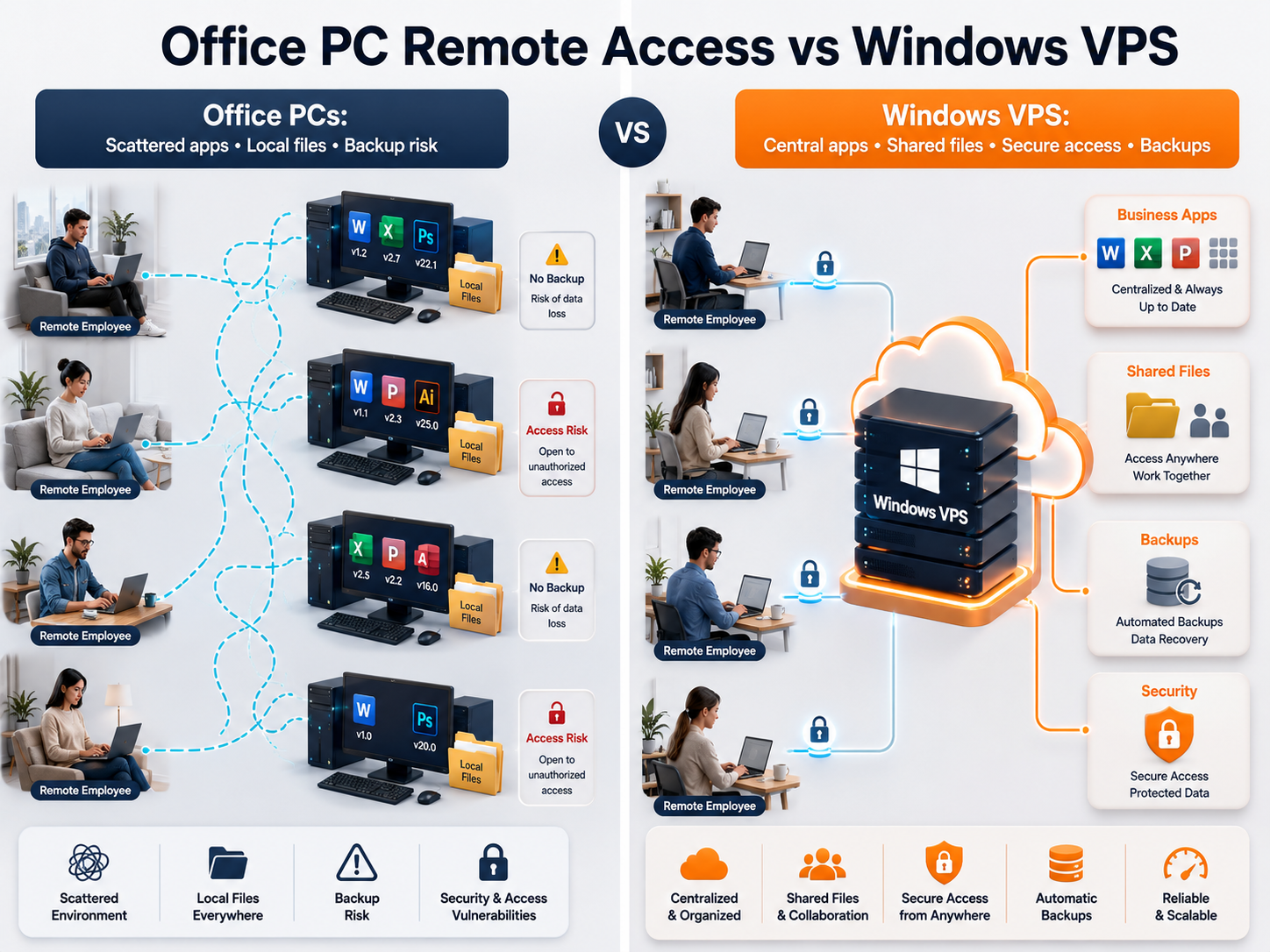
Comparison visual showing remote employees using office PCs versus a centralized Windows VPS for apps, files, and backups

AreaOffice PC remote accessWindows VPS remote access
HardwareDepends on each office PCCentral hosted server
User experienceVaries by workstationMore consistent
BackupsOften local or inconsistentServer-level backup planning
Access controlHarder to standardizeUser/group model can be documented
UpdatesPer workstationServer/app updates can be controlled
MSP supportMany devices to troubleshootOne main environment
Office power/internetRequiredNot tied to one office PC
GrowthMessy as users increaseResize or split roles

A Windows VPS is usually a better long-term model when employees need daily access to the same Windows apps and files.

Common workloads for remote employees on a Windows VPS

Accounting, tax, and business apps

Remote employees may need access to accounting, tax, ERP, inventory, Access, or legacy Windows software.

Good fits include:

WorkloadPlanning point
QuickBooks DesktopCompany file, multi-user mode, RDS access, backups
Sage 50/100/300Users, database behavior, reports, vendor support
Tax softwareSeasonal users, client files, PDFs, backups
ERP/inventorySQL/database load, reports, branch access
Microsoft AccessFile paths, front-end/back-end design, RDS testing
Legacy appsRuntime dependencies and vendor support

Use these related guides:

Shared files and client folders

Remote employees often need shared files more than they need a full desktop.

A Windows VPS can help when:

NeedWhy it helps
Shared department foldersCentral folder structure
Client or project filesConsistent access for remote staff
Mapped drivesApps can use expected paths inside the server
PermissionsWindows groups and NTFS permissions
BackupsFile-level restore and retention planning
Reports and exportsStore outputs in predictable folders

Do not expose SMB file sharing directly to the public internet. Use a controlled access model such as Remote Desktop, RD Gateway, VPN/private access, or another secure pattern.

Use:

Remote Desktop sessions

Remote Desktop is often the access layer for Windows VPS remote users.

There are different models:

Access modelBest fit
Admin RDPOne or two admins managing the server
RDS Session HostStaff users need desktop/app sessions
RD GatewayControlled remote access to RDS resources
VPN/private accessPrivate network path before access
RemoteAppUsers need a specific app instead of full desktop

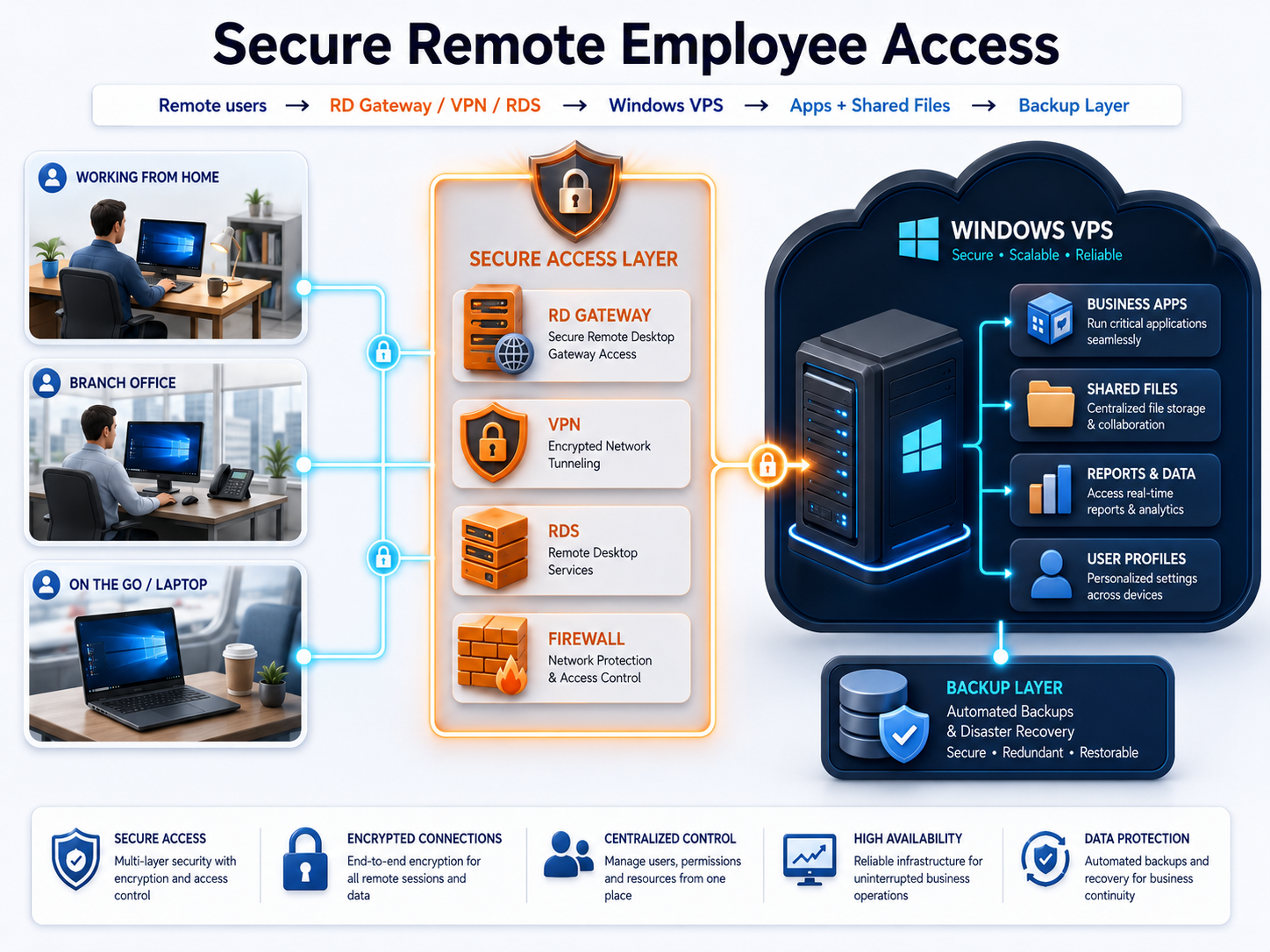
Microsoft describes Remote Desktop Services as a Windows Server platform for securely delivering managed desktops and applications to users at the office, at home, in branch locations, or from partner locations. That matches many remote-employee scenarios.

For staff desktop sessions, Microsoft states that each user or device connecting to an RD Session Host running Windows Server needs a Remote Desktop Services Client Access License.

Use:

Review remote user count, RDS licensing, RD Gateway, apps, files, backups, and security before choosing your Windows VPS plan.

Access model: direct RDP, RDS, RD Gateway, or VPN?

Do not choose the access model casually. It shapes security, user experience, licensing, and support.

ModelBest fitWatch out for
Direct admin RDPAdmin-only server managementAvoid broad public exposure
RDS Session HostMultiple employees need sessionsRDS CALs, profiles, performance
RD GatewayRemote users from many locationsCertificate and gateway setup
VPN + RDP/RDSPrivate access requiredVPN support and endpoint management
RemoteAppSpecific apps onlyApp compatibility and UX
Browser-based appWeb workloadsMay not need Windows VPS for users

Microsoft describes RD Gateway as enabling secure, encrypted connections to RDS resources over the internet without requiring VPN access. For remote employees, that can be a more controlled path than exposing direct RDP broadly.

Security planning for remote employees

Remote work increases the importance of access control.

Architecture diagram showing remote employees securely accessing Windows apps, shared files, and backups on a Windows VPS

Minimum planning:

Security areaRecommendation
User accountsUse named users, not shared accounts
Admin accessSeparate admin accounts from daily user accounts
PasswordsStrong credentials and offboarding process
RDP exposureAvoid broad direct RDP exposure
RD Gateway/VPNUse controlled access where appropriate
FirewallRestrict allowed sources and ports
PermissionsUse groups and least privilege
Local redirectionControl clipboard, drive, and printer redirection where needed
BackupsRestrict who can delete or modify backups
UpdatesPatch Windows and apps deliberately
LogsReview failed sign-ins and unusual access
OffboardingRemove access quickly when employees leave

Microsoft provides Windows Server security baseline guidance and Security Compliance Toolkit resources for recommended configuration baselines. Use those as a starting point, then adapt based on your business workflow.

Use: Windows Server Hardening Checklist.

Sizing a Windows VPS for remote employees

Size by concurrent users and workload, not total headcount.

Use this as a starting point:

Remote employee workloadStarting sizeWhen to move up
1-2 admins or light users2 vCPU / 4 GB RAMIf users run apps or reports
3 light remote users4 vCPU / 8 GB RAMIf users open Office apps, PDFs, or browsers
3-5 active business app users4 vCPU / 16 GB RAMBetter for accounting, tax, ERP, Access, or legacy apps
5-10 active users8 vCPU / 32 GB RAMIf the VPS becomes a daily shared workspace
Remote users plus SQL/app database8-16 vCPU / 32-64 GB RAMConsider splitting app and database roles
File-heavy teamSize storage firstFiles, profiles, downloads, exports, and growth matter

Storage should include:

  • app installs;
  • shared files;
  • user profiles;
  • downloads;
  • reports and exports;
  • databases;
  • logs;
  • backups;
  • temporary migration data;
  • 12 to 24 months of growth.

Use: Windows VPS sizing for remote users.

Compare Raff Windows VM plans when sizing CPU, memory, storage, backups, and monthly cost for remote employees.

Performance factors for remote employees

Remote Desktop performance depends on more than the VPS size.

Check:

FactorWhy it matters
Network latencyAffects mouse/keyboard responsiveness
Packet lossCauses freezes and disconnects
User locationFarther locations may feel slower
CPUApp launches, reports, and background tasks
RAMSessions, browsers, Office apps, and profiles
Disk performanceLogins, file access, app data
PrintersRedirection can slow sessions
Local device qualityOld laptops or bad Wi-Fi affect experience
App behaviorSome desktop apps are not RDS-friendly
User habitsMany tabs and files open increase load

If one remote employee has problems but others do not, check local internet, Wi-Fi, VPN, firewall, DNS, endpoint health, and client settings before resizing the server.

Backups for remote employee workloads

A Windows VPS used by remote employees often holds app data, shared files, user profiles, reports, and configuration. Backups should be planned before users depend on it.

Backup layerPurpose
VM backupRecover the whole Windows VPS
Snapshot before changesRoll back before updates, migrations, or app changes
File-level backupRestore documents and shared folders
User profile backupRecover user settings and workspace data
Application/database backupProtect business app data correctly
Off-server copyReduce risk from VM/account/ransomware issues
Restore testProve recovery works

Do not assume cloud hosting means data is automatically protected. Backup and restore planning is still required.

Use: Windows VPS Backup Strategy for Small Businesses.

Protect remote employee workloads with backup, snapshot, and restore planning before users depend on the Windows VPS.

Pricing factors for remote employees

The monthly VM plan is only one part of the cost.

Cost factorWhy it matters
CPU/RAMActive users and app workload
StorageFiles, profiles, app data, backups, growth
Windows licensingDepends on provider and deployment model
RDS CALsStaff Remote Desktop sessions may require licensing
App licensingAccounting, ERP, tax, legal, Office, and other apps
SQL ServerSome business apps need SQL licensing and backups
Backups/snapshotsRetention and recovery requirements
MigrationUsers, apps, files, permissions, cutover
SupportWindows, RDS, app, printer, endpoint troubleshooting
SecurityAccess controls, hardening, offboarding

A cheap server can be expensive if it slows down staff, lacks backups, or creates access problems for remote employees.

Use: Windows VPS Pricing Explained.

Migration path for remote employees

If users currently remote into office PCs or use a local server, migrate carefully.

Use this path:

  1. Inventory remote users, apps, files, devices, and locations.
  2. Confirm application support for Windows Server/RDS use.
  3. Choose the access model: RDP, RDS, RD Gateway, VPN, or RemoteApp.
  4. Choose the Windows VPS size.
  5. Build and secure the Windows VPS.
  6. Configure users, groups, firewall, and backups.
  7. Install business apps and dependencies.
  8. Copy test data first.
  9. Test with real remote employees from real locations.
  10. Test printers, PDFs, downloads, reports, and file paths.
  11. Run a restore test.
  12. Schedule cutover outside critical hours.
  13. Move final data and users.
  14. Keep rollback ready.
  15. Monitor performance after launch.

Use:

When a Windows VPS is not the right fit for remote employees

A Windows VPS is useful, but not universal.

Pause when:

SituationBetter next step
All tools are browser-based SaaSSaaS access may be enough
Users need offline work all dayLocal workflows may be required
Internet is unreliableFix connectivity first
Heavy graphics or media work is requiredTest or use a different platform
App vendor does not support RDS/hosted useDo not proceed without support path
High availability is mandatoryDesign redundancy and failover
Users need direct local hardware accessTest devices before rollout
Licensing is unclearResolve licensing before production

Choose Windows VPS when the remote work problem is actually a Windows workload problem.

How Raff fits remote employees

Raff fits businesses that need a cloud-hosted Windows Server environment for remote employees, Remote Desktop users, business apps, shared files, office server replacement, multi-location teams, and backup-aware Windows workloads.

Raff can provide the Windows VM foundation. Your business or MSP should still plan:

  • user access;
  • RDS CAL requirements;
  • application support;
  • file permissions;
  • backups;
  • restore testing;
  • secure remote access;
  • user onboarding/offboarding;
  • migration and rollback;
  • support ownership.

That is the right way to use Raff: run the Windows environment on Raff, then design the remote employee workflow correctly.

Create a Raff Windows VM when your team is ready to give remote employees secure access to Windows apps, files, and shared workloads.

SituationRead next
You need the broad SMB guideWindows VPS Hosting for Small Businesses
You need remote desktop planningRemote Desktop Server for Business
You need pricing clarityWindows VPS Pricing Explained
You need sizing helpWindows VPS sizing for remote users
You need secure access planningRemote Desktop Gateway vs Direct RDP
You need RDS licensing planningRDS CAL Licensing on Windows Server
You need shared filesWindows VPS as a Cloud File Server
You need backupsWindows VPS Backup Strategy for Small Businesses
You are replacing office hardwareCloud Windows Server vs Local Office Server
You are migrating from local serverLocal Office Server to Cloud Windows VPS Migration

Final remote employee checklist

Before rolling out a Windows VPS for remote employees, confirm:

CheckDone
Active remote users estimated
Business apps listed
App vendor support checked
RDS CAL requirements reviewed
Access model chosen
CPU/RAM/storage starting point chosen
Shared folders documented
File permissions planned
Backup layers defined
Restore test planned
Firewall rules planned
User onboarding/offboarding documented
Printers and local devices tested
Real users tested from real locations
Support owner assigned
Rollback plan documented

If the checklist is unclear, do not treat the environment as production yet.

What's next

Sources

Was this article helpful?

Published July 9, 2026 · Updated July 9, 2026

Back to hub

Related articles