
Docker VPS hosting is a strong fit when your containerized application can run safely on one virtual server and your team wants more control than a managed app platform without operating Kubernetes. A Linux VPS can host Docker Engine, Docker Compose, a reverse proxy, application containers, workers, caches, and even a small database—provided CPU, RAM, storage, networking, backups, and recovery are designed for the whole stack.
Raff Technologies provides Linux cloud VMs that can be used as self-managed Docker hosts. The important boundary is ownership: the VM provider operates the infrastructure layer, while your team remains responsible for Docker, container images, the guest OS, application configuration, persistent data, security, monitoring, and restore procedures.
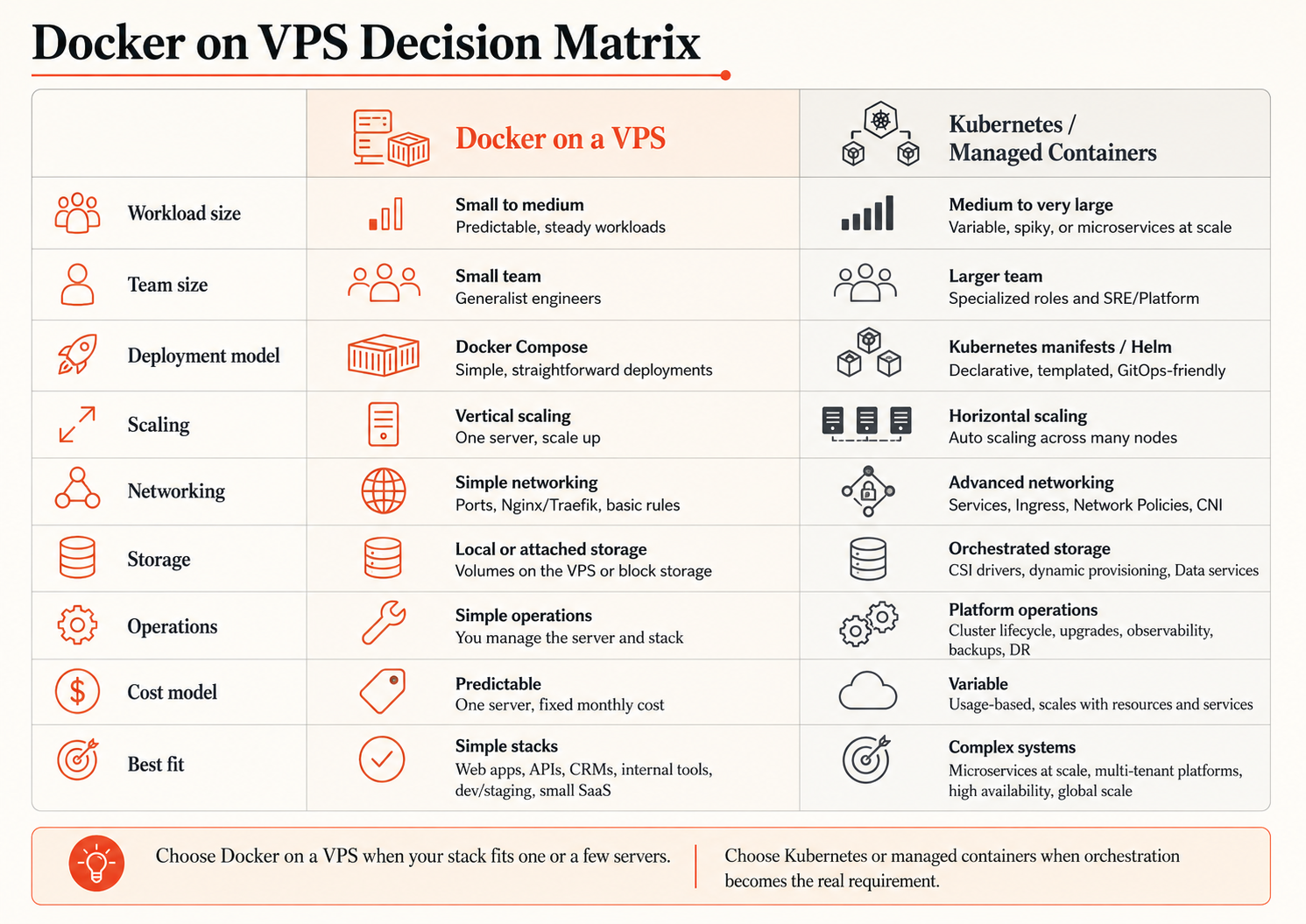
For many small teams, Docker Compose on one VPS is a practical production architecture. It stops being the right model when the workload needs host-level redundancy, automatic multi-node scheduling, independent scaling across many services, or a platform team that can operate an orchestrator.
Docker VPS hosting: quick decision
| Situation | Docker on one VPS | Consider another model |
|---|---|---|
| Small SaaS/API | Strong fit | When one-host downtime becomes unacceptable |
| Docker Compose stack | Strong fit | When services need independent node placement |
| Self-hosted internal tool | Strong fit | When managed hosting removes meaningful operational work |
| Staging / preview environment | Strong fit | Rarely needs Kubernetes by itself |
| App + Redis + workers | Strong fit | When resource contention becomes hard to control |
| Production database in a container | Possible | Separate or managed DB when recovery/scaling needs differ |
| Multi-node HA application | Limited | Kubernetes or another orchestration model |
| Frequent horizontal autoscaling | Limited | Managed Kubernetes / orchestration |
| Many teams sharing a platform | Usually weak fit | Platform-level isolation and governance |
A useful rule is:
Use Docker on a VPS while one server remains an acceptable failure and operating boundary. Move beyond it when the architecture—not fashion—requires multiple nodes or stronger automation.
What is Docker VPS hosting?
Docker VPS hosting means installing Docker Engine on a virtual private server or cloud VM and running applications as containers on that host.
A small production stack might look like:
Internet
  ↓
Firewall
  ↓
Reverse proxy :80/:443
  ↓
Docker network
  ├─ web
  ├─ api
  ├─ worker
  ├─ cache
  └─ database
       ↓
Persistent volumes + backups
The VPS supplies compute, memory, disk, and networking. Docker supplies application packaging and container lifecycle. Docker Compose lets a team describe several related services in one configuration.
Docker's own production guidance explicitly supports running Compose applications on a single server and recommends production-specific configuration such as appropriate port bindings, environment settings, restart policies, and logging. Docker — Use Compose in production
Docker does not remove the need to operate the server. You still need to patch the host, monitor resource pressure, protect Docker access, manage backups, and know how to rebuild the environment.
Docker Compose is often enough before Kubernetes
For a small application, Compose can describe the complete service topology without adding a cluster control plane.
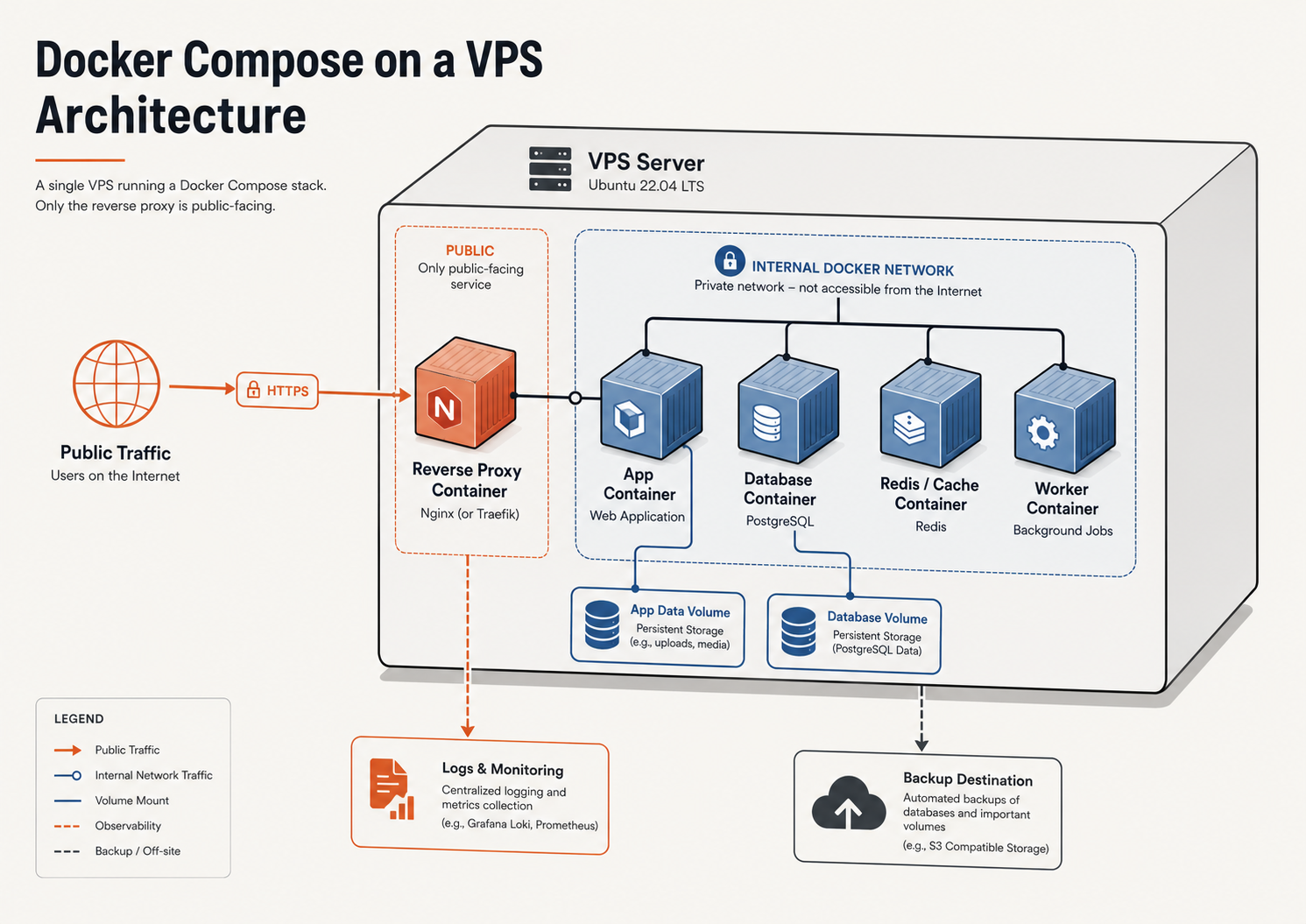
A typical compose.yaml might include:
| Service | Role | Persistent? |
|---|---|---|
| reverse-proxy | TLS and public routing | Configuration/cert state may matter |
| app | User-facing application | Usually replaceable |
| worker | Background processing | Usually replaceable |
| Redis/Valkey | Cache, queue, sessions | Depends on use |
| PostgreSQL/MySQL | Database | Yes |
| monitoring | Metrics/log collection | Depends on retention model |
Docker Compose is usually sufficient when:
- one host can meet availability requirements;
- the application has a manageable number of services;
- vertical scaling is acceptable;
- deployments can be coordinated on one machine;
- persistent data has a clear recovery strategy;
- the team prefers a smaller operational surface.
Kubernetes becomes more useful when scheduling and coordination across multiple nodes become real requirements. If you are evaluating that transition, read Kubernetes vs Docker Compose for Small Teams.
Size the VPS for the whole container stack
Containers share the host's finite resources. Docker does not create additional CPU, RAM, storage, or network capacity.
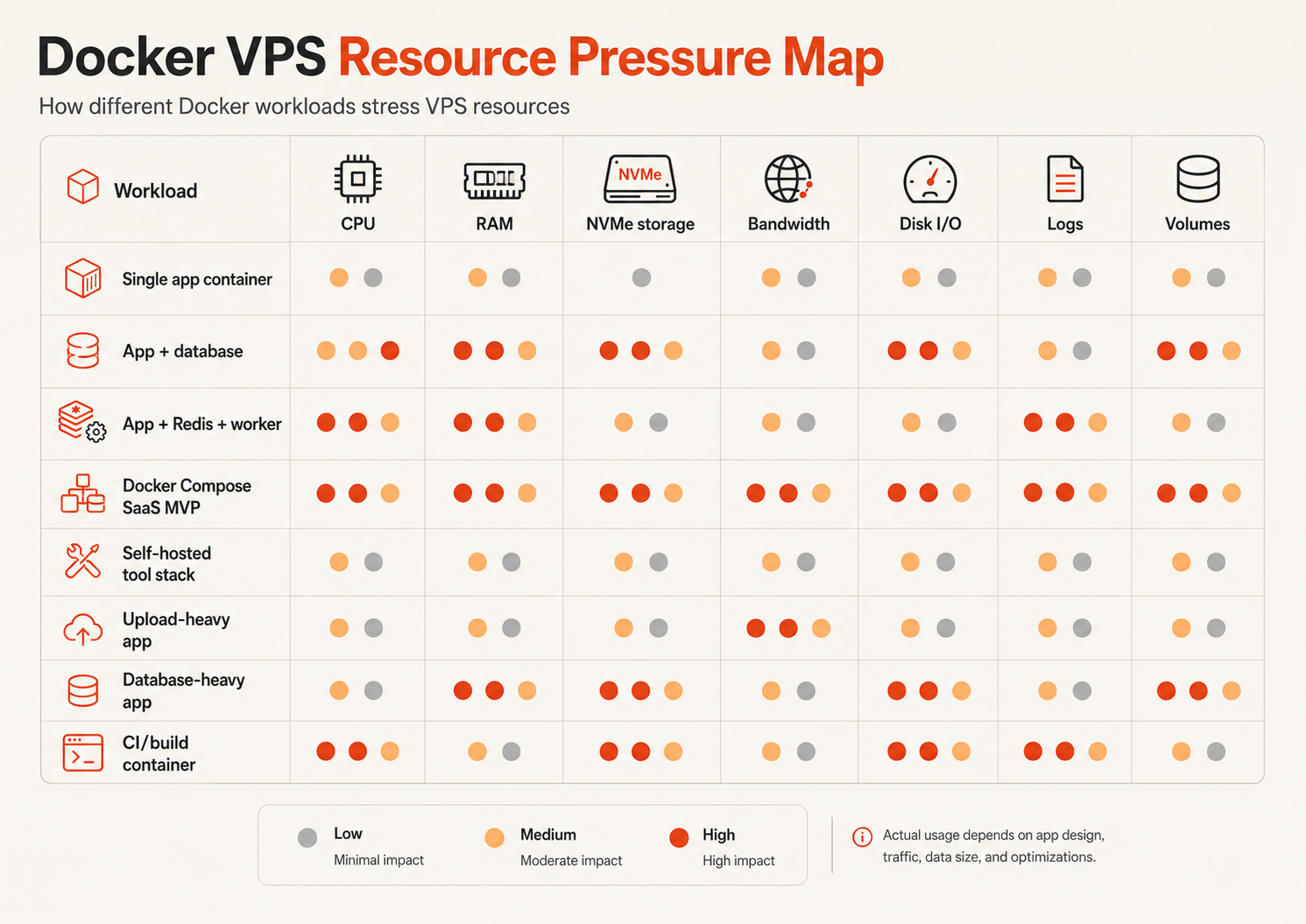
Before choosing a VPS, list every service that will normally run together:
host OS
+ Docker daemon
+ reverse proxy
+ app replicas
+ workers
+ database
+ cache
+ monitoring
+ backups
+ build or deployment activity
CPU
CPU pressure can come from application requests, image builds, compression, database queries, background workers, and scheduled jobs. Watch sustained CPU saturation and queue/latency growth rather than one short spike.
RAM
Memory is often the first constraint on compact Compose stacks. Databases, caches, Node.js/JVM processes, multiple workers, and monitoring agents can make a server that looked large enough during deployment fail under normal concurrency.
Watch for:
- host swapping;
- OOM kills;
- container restart loops;
- database cache pressure;
- workers dying during peak load;
- deployments failing because temporary memory demand is higher.
Storage
Docker uses disk for images, writable layers, named volumes, build cache, container logs, uploads, and databases. Capacity and I/O behavior both matter.
Network
Network planning includes public traffic, image pulls, backups, external APIs, database connections, and traffic between services. If the stack later spans multiple VMs, private networking becomes part of the architecture.
For the broader sizing process, use Choosing the Right VM Size.
Persistent data: containers are replaceable, data is not
A production Docker design should make the difference between replaceable containers and persistent state obvious.
Docker documents volumes as its preferred mechanism for persisting data generated and used by containers. Volumes survive container replacement and can be backed up, restored, and migrated independently. Docker — Volumes
Persistent state may include:
- database files;
- customer uploads;
- CMS media;
- workflow data;
- application-generated documents;
- queue state where durability is required;
- configuration that is not recreated from code;
- retained logs where required.
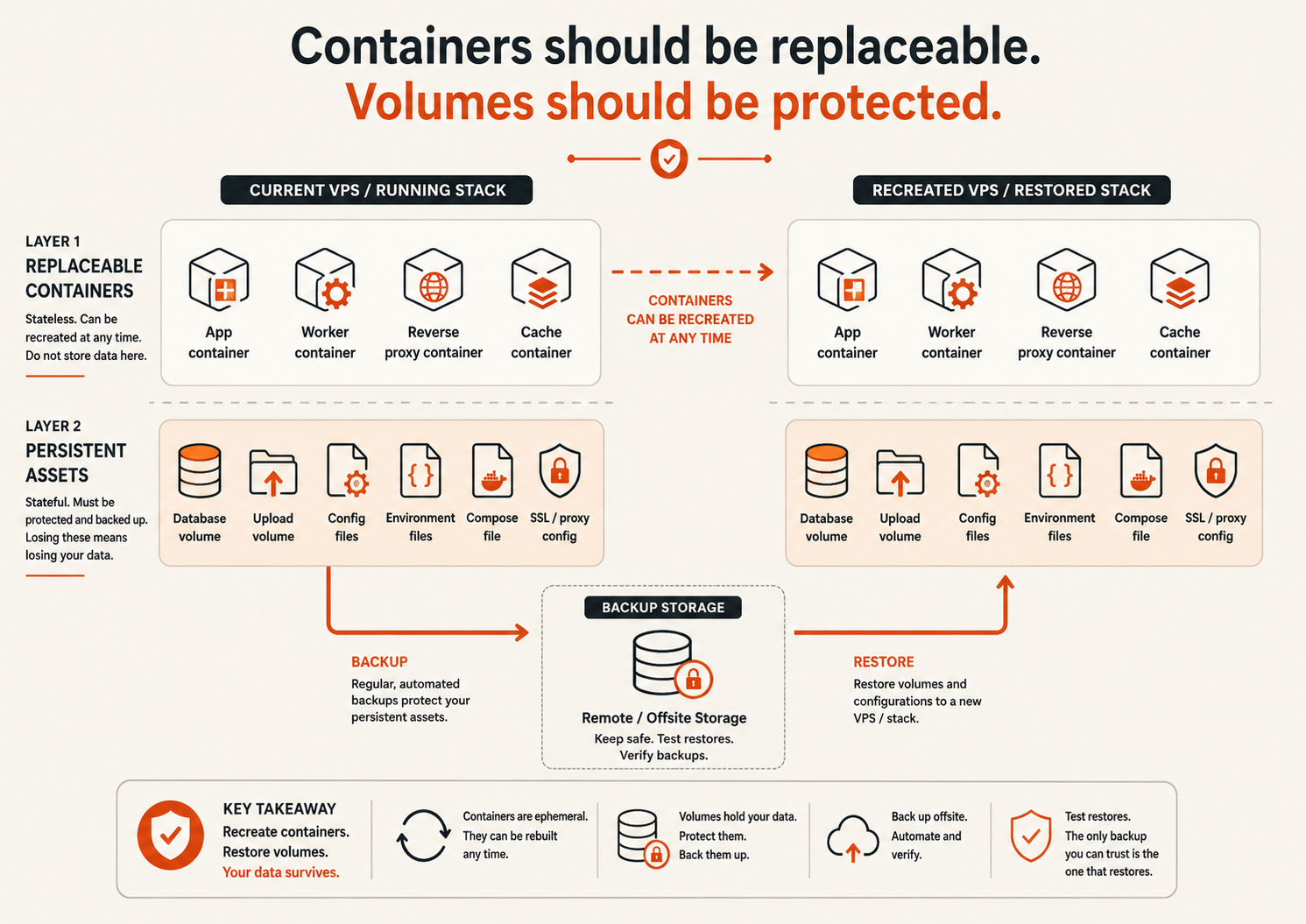
A useful design rule:
Image + Compose definition + config → recreate the service
Persistent data + backup → recover the business state
Do not assume a VM snapshot alone is a database backup. Database workloads may need database-aware dumps, physical backups, WAL/binlog retention, or another recovery method appropriate to the database.
Named volumes vs bind mounts
Both can be valid, but they solve different operational needs.
| Storage method | Useful when | Operational concern |
|---|---|---|
| Named Docker volume | Docker should manage container data storage | Know where data is and how it is backed up |
| Bind mount | Host path must be explicit or shared with host tooling | Host directory layout becomes part of deployment |
| External/block storage | Persistent data needs a separate storage boundary | Mount/recovery behavior must be documented |
| Object storage | App stores uploads, media, exports, archives | Application must support object storage semantics |
| Managed database | DB operations should be separated from app VM | Network, credentials, migration, service cost |
For databases, uploads, or rapidly growing state, separating persistent data from the application VM can make recovery and scaling easier. Raff Volumes can provide additional block storage where that model fits.
Docker networking: publish only what must be public
One of the most important Docker security decisions is which ports become reachable outside the host.
Docker's documentation warns that published ports are exposed outside the host by default when they are bound to all host addresses. Docker — Port publishing and mapping
A common public/private pattern is:
Internet
  ↓
80 / 443
  ↓
reverse proxy
  ↓
internal Docker network
  ├─ app:3000
  ├─ database:5432
  ├─ cache:6379
  └─ worker: no public port
In most web stacks:
- reverse proxy: public 80/443;
- app container: internal unless direct public access is intentional;
- database: internal;
- Redis/Valkey: internal;
- worker: no public listener required;
- monitoring/admin interfaces: restricted;
- Docker daemon socket/API: never casually exposed.
If containers on separate VMs need to communicate, use an intentional private network architecture rather than exposing backend ports publicly. Raff VPC can be used for private communication between supported VM resources.
A reverse proxy simplifies the public edge
A reverse proxy gives multiple containers one controlled public entry point.
Common options include Nginx, Caddy, Traefik, and Apache. The proxy can handle:
- HTTPS termination;
- domain/subdomain routing;
- redirects;
- headers;
- compression;
- WebSockets;
- access controls;
- routing several applications from one host.
The proxy should be treated as production infrastructure. Its configuration, certificates, and deployment method should be recoverable along with the rest of the stack.
Protect the Docker daemon
Access to the Docker daemon is highly privileged. Docker's security documentation notes that users who can control the daemon can perform actions with major impact on the host. Only trusted users should have that access. Docker — Engine security
Production controls should include:
- do not publish the Docker socket/API to the internet;
- limit membership in groups that can control Docker;
- use SSH or properly protected TLS when remote daemon access is required;
- keep Docker Engine and the host OS patched;
- avoid unnecessary privileged containers;
- mount the Docker socket into application containers only when there is a well-understood need;
- avoid storing secrets inside images;
- restrict container capabilities and filesystem access where practical.
Docker also supports rootless mode, which runs the daemon and containers without root privileges under supported conditions. It can reduce some daemon/runtime risk, though its requirements and operational trade-offs should be tested for your workload. Docker — Rootless mode
Container images are part of the security boundary
A Docker VPS is only as trustworthy as the software you deploy to it.
Before production:
- build from known base images;
- pin versions where reproducibility matters;
- rebuild when base images receive security updates;
- remove unused packages from images;
- keep secrets out of Dockerfiles and image layers;
- scan images as part of CI/CD where practical;
- control who can push production images;
- define how the team rolls back to a known-good image.
A container image gives repeatability, not automatic trust. For the difference between container images and infrastructure images, read Container Images vs VM Images.
Logs and Docker artifacts can fill the disk
Disk exhaustion is a common single-host failure mode because several sources grow at once:
- container stdout/stderr logs;
- database files;
- uploads;
- unused images;
- build cache;
- stopped containers;
- named volumes;
- local backup files.
Useful operational checks include:
docker system df
docker ps --all
docker image ls
docker volume ls
Do not schedule aggressive cleanup commands blindly. A volume or image that looks unused to an operator may still be part of a rollback or recovery workflow.
For production, set log retention/rotation and alert before disk usage becomes an emergency.
Back up the business state, not only the VPS
A Docker backup plan should answer two separate questions:
- Can we recreate the host and container definitions?
- Can we restore the persistent business data?
Protect what is difficult or impossible to recreate:
- database state;
- uploads;
- Compose/config files if not in version control;
- secrets through an approved secure backup path;
- reverse-proxy configuration;
- certificates where appropriate;
- application-specific persistent volumes.
Store recovery data separately from the VM when losing the VM would otherwise also lose its backup.
Then test the recovery path:
new VM
→ install/configure Docker
→ restore Compose/config
→ restore persistent data
→ start services
→ validate app health
→ test a critical user workflow
Raff Data Protection can be one layer of infrastructure recovery. It does not remove the need for workload-aware database and application backups.
Health checks and restart policies are not the same thing
A restart policy can bring a process back after it exits. It does not prove the application is usable.
For a production Compose stack, separate:
- process restart behavior;
- container health checks;
- external synthetic monitoring;
- dependency monitoring.
For example, a container can be running while its database connection is broken or its user-facing endpoint returns errors.
Use Server Health Checks Explained for the broader health model.
Should the database run in Docker on the same VPS?
It can, especially for an early application, but the decision should be explicit.
A same-host database keeps architecture simple. It also means application compute, workers, Docker activity, logs, and database I/O share one failure and resource boundary.
Keep the database on the same VPS when:
- the workload is small and understood;
- one-host availability is acceptable;
- backup and restore are tested;
- resource contention is low;
- the team values simplicity.
Separate or use a managed database when:
- database recovery has a different RPO/RTO;
- memory or storage pressure dominates the host;
- independent resizing is useful;
- app deployments should not affect database resources;
- availability requirements exceed one server.
For the decision framework, see VPS for Databases or Raff Managed Databases.
When Docker on one VPS stops being enough
A Docker VPS becomes the wrong operating boundary when the application needs capabilities that depend on several hosts.
Signals include:
- one-host failure is no longer acceptable;
- several app replicas must survive host failure;
- services need independent autoscaling;
- deployments need automated scheduling across nodes;
- the platform has many teams or workloads;
- service discovery and network policy are becoming operational problems;
- the team needs cluster-level rollout and placement controls;
- managing several independent Docker hosts has become fragile.
At that stage, Managed Kubernetes may be a better architecture. Kubernetes adds operational concepts and should solve a real scaling or reliability problem—not simply replace a Compose file because the application uses containers.
Docker VPS cost: compare the whole stack
The cost of Docker hosting includes more than the base VM:
VM
+ persistent storage
+ backups
+ network policy / transfer where applicable
+ monitoring
+ database layer
+ image registry if used
+ operator time
+ expected recovery effort
Docker can lower deployment friction while increasing service density. That makes it easy to keep adding containers until the host is difficult to size or recover.
The right question is not “what is the cheapest VPS that runs Docker?” It is:
What is the lowest-cost host that gives this container stack enough headroom and a credible recovery path?
How Raff fits Docker VPS hosting
Raff Technologies fits the self-managed Docker-on-VM model for teams that want a Linux server rather than a fully managed container runtime.
A practical path can use:
| Need | Raff path |
|---|---|
| Docker host | Linux VM or Raff VM |
| Additional block storage | Volumes |
| Private traffic between VMs | VPC |
| Infrastructure recovery | Data Protection |
| Multi-node orchestration later | Managed Kubernetes |
Raff VM billing is monthly rather than hourly. Current configurations and prices should be checked on Pricing instead of relying on static plan figures inside this guide.
Raff provides the VM and surrounding infrastructure controls. Your team remains responsible for Docker Engine, Compose, images, container configuration, application security, data protection at the workload layer, and day-to-day container operations.