In short
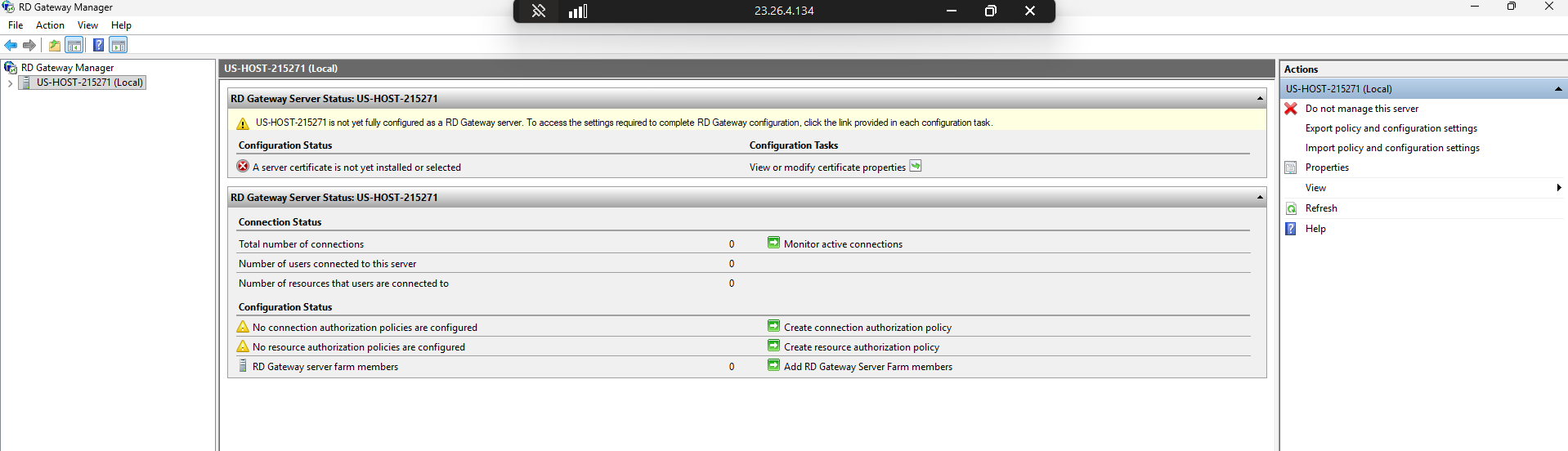
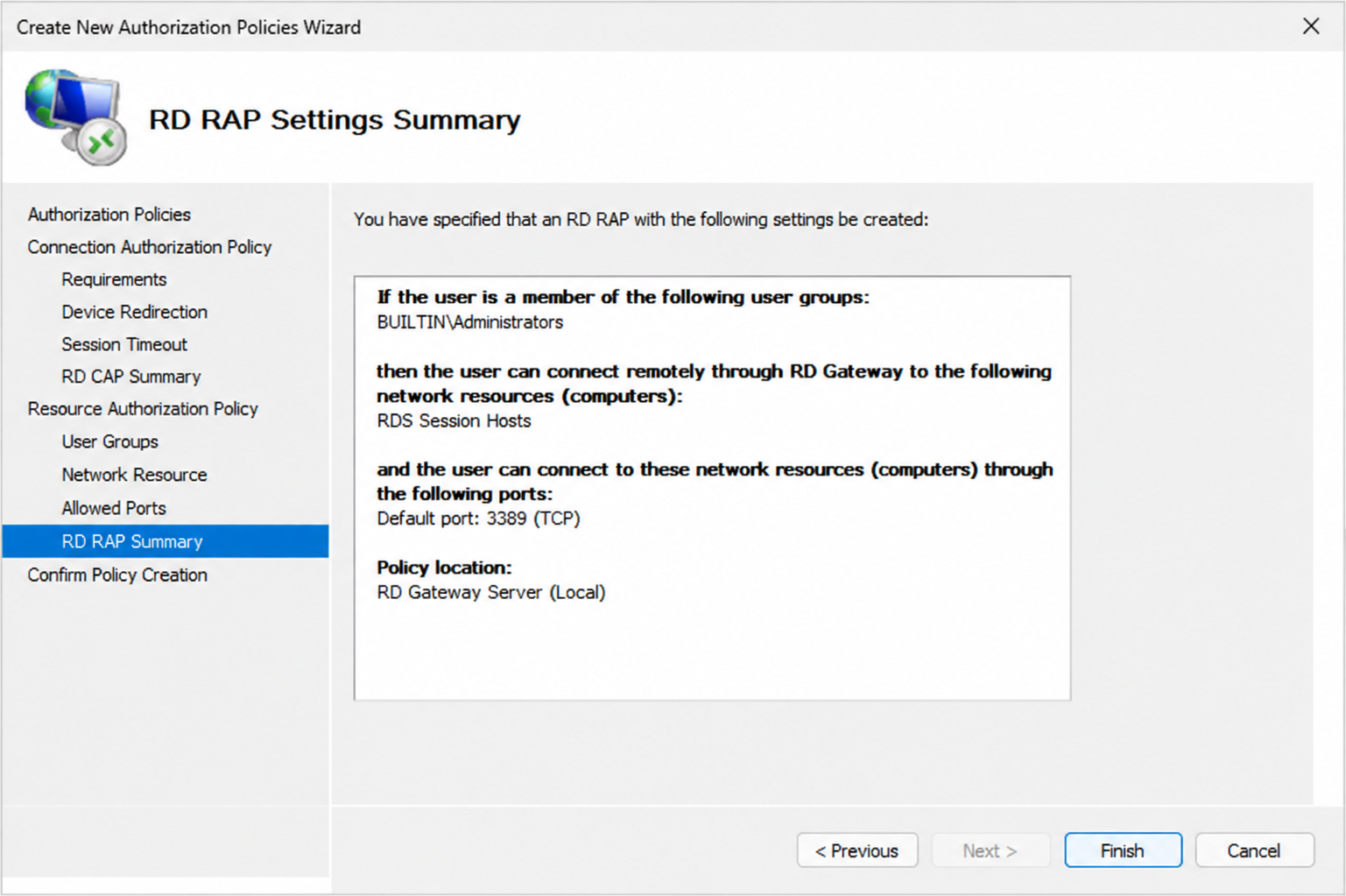
Remote Desktop Gateway (RD Gateway) provides a secure way to access Remote Desktop Services from outside the network without exposing internal Session Hosts directly to the internet. It uses HTTPS-based communication, access policies, and certificate-based security to control remote desktop access.
This guide explains the role of RD Gateway, its architecture, prerequisites, deployment approach, and how it fits into a secure Windows Server remote access strategy.
Why use Remote Desktop Gateway?
Directly exposing Remote Desktop Protocol (RDP) access to the internet creates unnecessary risk. A public Session Host can become a target for password attacks and unauthorized access attempts.
RD Gateway creates a controlled access layer between external users and internal RDS servers.
Without RD Gateway:
Remote User
    ↓
Internet
    ↓
Session Host
With RD Gateway:
Remote User
    ↓
HTTPS (443)
    ↓
RD Gateway
    ↓
Internal RDS Servers
The gateway becomes the secure entry point for remote desktop connections.
RD Gateway architecture
A typical production architecture looks like this:
Remote Desktop Client
        ↓
HTTPS 443
        ↓
RD Gateway
        ↓
Connection Broker
        ↓
Session Host
RD Gateway is commonly combined with MFA to add identity protection before users reach internal Windows workloads.
Related:
- Secure Direct RDP on a Windows VPS
- Add MFA to Remote Desktop Services on Windows Server 2025
Prerequisites before deployment
Before installing RD Gateway, prepare:
- Windows Server 2025 server;
- Remote Desktop Services environment;
- public DNS record;
- valid SSL certificate;
- firewall access for HTTPS;
- user and resource authorization plan.
A production deployment should avoid exposing Session Hosts directly to the public internet.
Install the Remote Desktop Gateway role
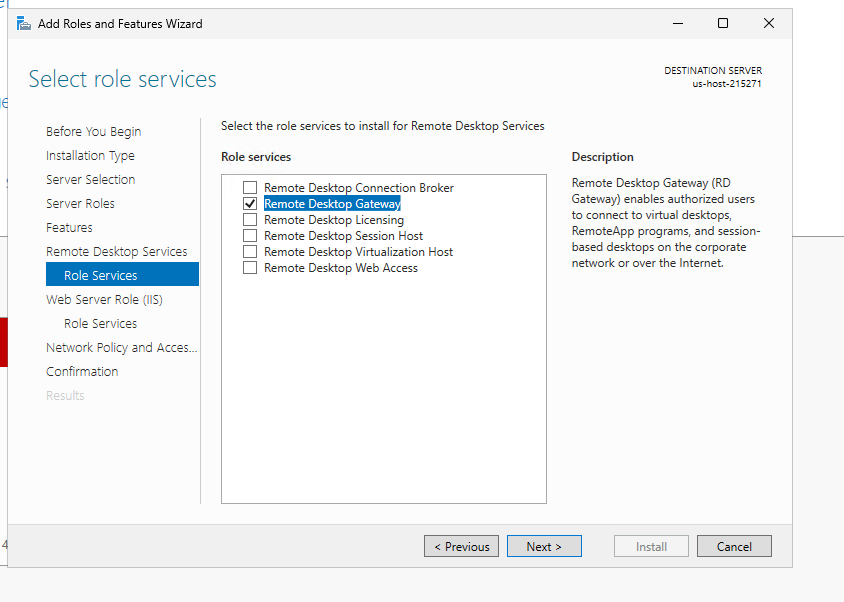
Alt text: Windows Server 2025 Add Roles and Features wizard showing Remote Desktop Gateway selected under Remote Desktop Services role services
RD Gateway is installed through Windows Server roles.
General workflow:
- Open Server Manager.
- Add Remote Desktop Services roles.
- Select Remote Desktop Gateway.
- Complete the role installation.
- Configure the gateway with the required certificate and policies.