In short
Active Directory DNS is how domain members locate domain controllers, Kerberos, LDAP, Global Catalog, and other directory services. A clean Windows Server 2025 design keeps the AD namespace on internal DNS servers, uses AD-integrated zones with secure dynamic updates, verifies the domain-controller locator records, and uses deliberate forwarders for names the AD DNS servers do not host.
For a typical small-business or MSP deployment:
This article is the canonical owner for post-promotion Active Directory DNS configuration, validation, forwarders, conditional forwarders, and operational best practices. Domain-controller promotion remains on Promote a Windows VPS to an Active Directory Domain Controller, while generic Windows DNS troubleshooting should remain a separate troubleshooting intent.
Why Active Directory depends on DNS
Microsoft documents that Active Directory Domain Services uses DNS so clients can locate domain controllers and so directory servers can find each other. Domain-controller locator information is published through DNS records such as LDAP and Kerberos SRV records.
When AD DNS is unhealthy, the symptoms can look like an Active Directory, Group Policy, authentication, or replication problem:
- domain joins fail;
- logons are slow or inconsistent;
- Group Policy applies unpredictably;
- replication fails;
- clients discover the wrong domain controller;
- LDAP or Kerberos lookups fail;
- domain-controller locator records are missing;
- password or directory changes appear inconsistent between locations.
For that reason, DNS should be checked before making invasive changes to AD itself.
What this guide covers
This guide assumes you already have at least one Windows Server 2025 domain controller running the DNS Server role. We will verify and configure:
- DNS service and client settings;
- AD-integrated zones;
- secure dynamic updates;
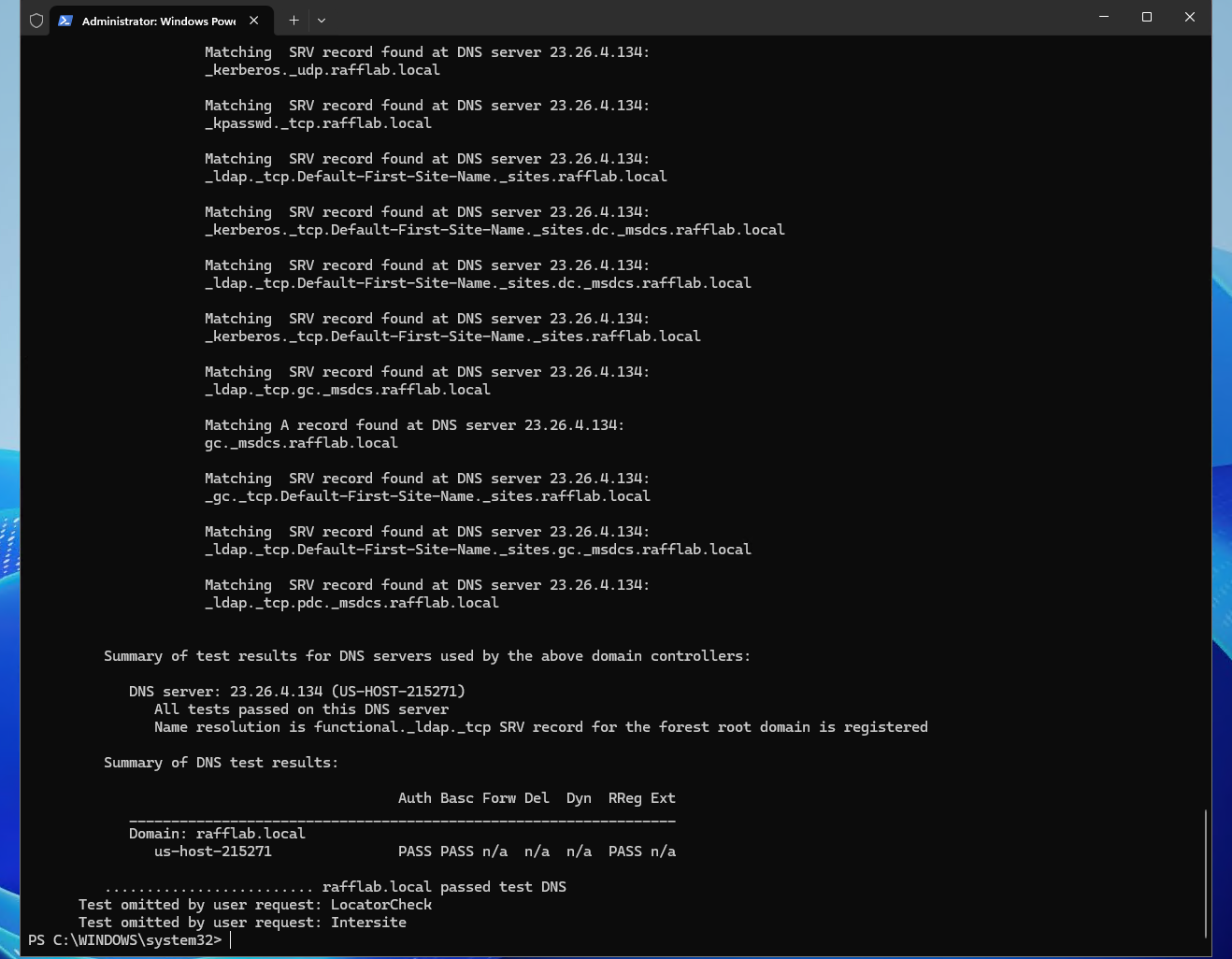
- LDAP and Kerberos SRV records;
- server-level forwarders;
- conditional forwarders;
- optional reverse lookup zones;
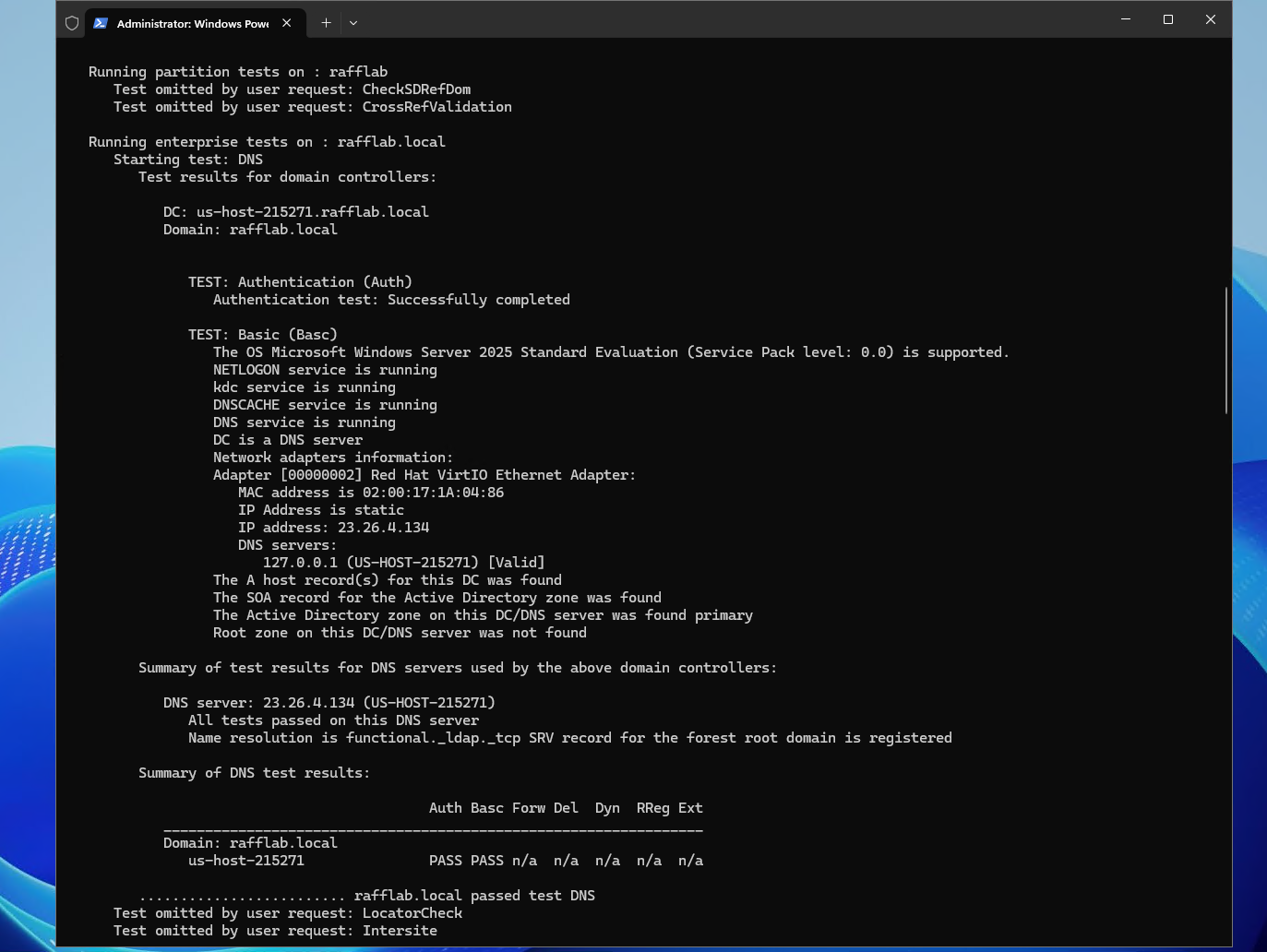
dcdiagDNS health checks;- one-DC vs two-DC DNS design.
Prerequisites
Before changing DNS, confirm:
- the server is already a domain controller or intended AD DNS server;
- the DNS Server service is running;
- the server has stable private addressing;
- you know the Active Directory DNS domain;
- you have administrative access;
- domain traffic uses private networking, VPN, or another trusted path;
- you have recorded existing forwarders before changing them;
- production changes have a rollback path.
Do not configure domain members to bypass AD DNS and query public recursive resolvers as their normal DNS path. Public resolvers do not know the private locator records required by your AD namespace.
For production, plan at least two domain controllers. See Active Directory Replication Topology for 2-DC Setups.
Step 1 — Record the current DNS configuration
Start by documenting the current state.
Run PowerShell as Administrator:
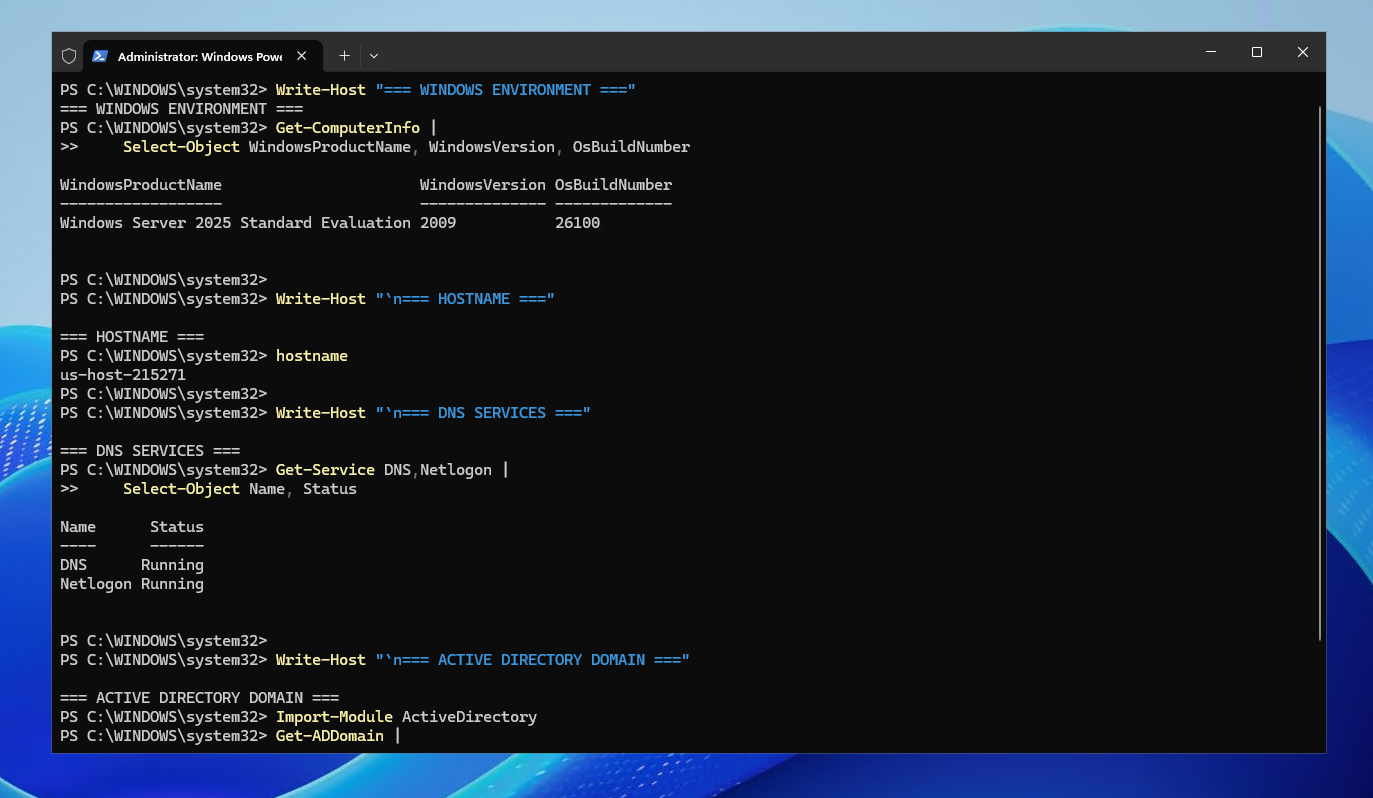
Get-Service DNS,Netlogon | Select-Object Name, Status

Get-DnsServerZone |
    Select-Object ZoneName, ZoneType, IsDsIntegrated, IsReverseLookupZone, DynamicUpdate

Get-DnsServerForwarder

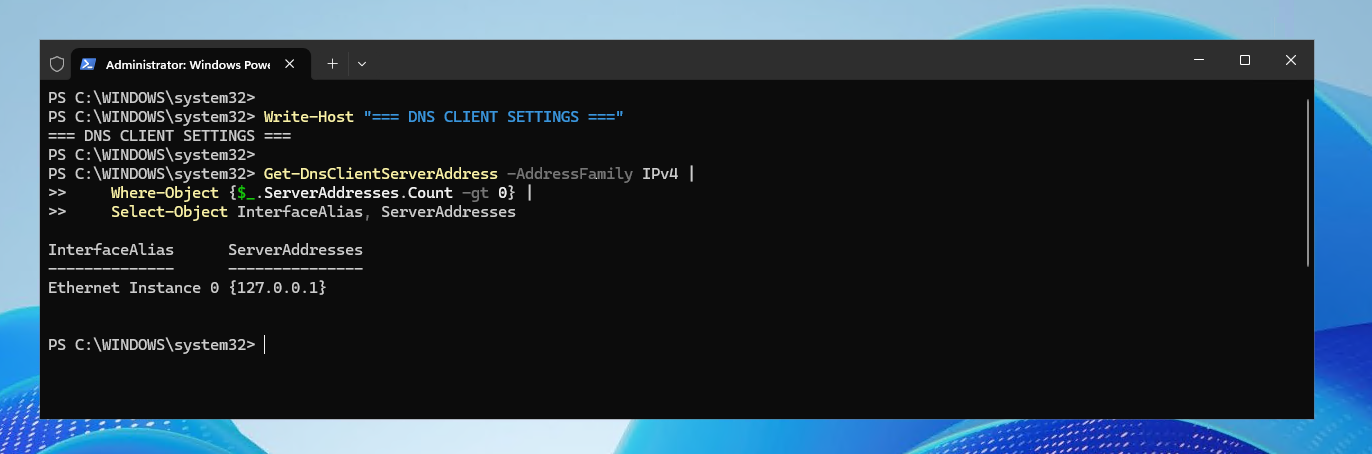
Get-DnsClientServerAddress -AddressFamily IPv4 |
    Where-Object {$_.ServerAddresses.Count -gt 0} |
    Select-Object InterfaceAlias, ServerAddresses
Record the AD domain as well:
Import-Module ActiveDirectory
Get-ADDomain | Select-Object DNSRoot, NetBIOSName, PDCEmulator
A first domain controller commonly has the domain zone and a forest locator zone such as:
example.com
_msdcs.example.com
The exact zones depend on the forest and topology.
Step 2 — Verify the AD-integrated zones
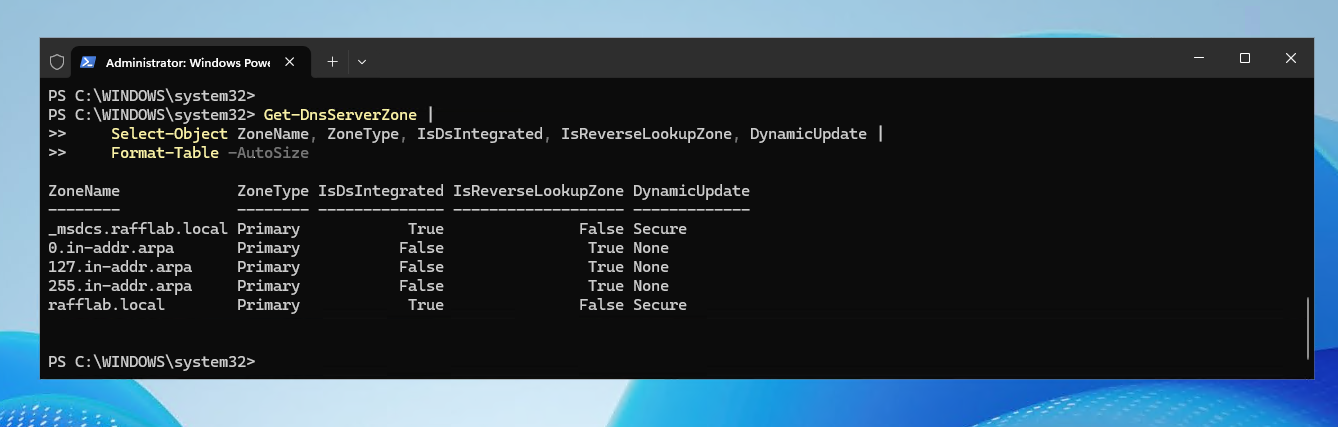
AD-integrated DNS zones store zone data in Active Directory. Microsoft documents that this removes the need for a separate classic DNS zone-transfer replication topology for those zones and enables multi-master updates through AD replication.
Inspect the current zones:
Get-DnsServerZone |
    Format-Table ZoneName, ZoneType, IsDsIntegrated, IsReverseLookupZone, DynamicUpdate -AutoSize
For the AD domain zone, the expected production pattern is normally:
ZoneType          Primary
IsDsIntegrated    True
DynamicUpdate     Secure
Do not convert a production zone between file-backed and AD-integrated storage merely to match a tutorial. Understand the current replication scope, dependencies, and recovery plan first.
Step 3 — Verify secure dynamic updates
Dynamic DNS allows domain computers and domain controllers to register and update records. Active Directory-integrated zones can use secure dynamic updates so updates are governed by authenticated identities and directory permissions.
Check the domain zone:
$Domain = (Get-ADDomain).DNSRoot

Get-DnsServerZone -Name $Domain |
    Select-Object ZoneName, IsDsIntegrated, DynamicUpdate
If the zone is AD-integrated and your intended policy is secure-only updates, Windows Server supports:
Set-DnsServerPrimaryZone -Name $Domain -DynamicUpdate Secure
Do not run that change blindly on an existing production environment. First verify the current zone type and whether any non-domain systems depend on a different registration design.
Avoid using NonsecureAndSecure simply to make an unknown registration problem disappear. That widens who can dynamically register records in the zone.
Step 4 — Verify the domain-controller SRV records
Active Directory uses SRV records to advertise directory services. Microsoft specifically documents LDAP and Kerberos locator records used to find domain controllers.
Set the domain automatically:
$Domain = (Get-ADDomain).DNSRoot
Verify LDAP domain-controller discovery:
Resolve-DnsName -Type SRV "_ldap._tcp.dc._msdcs.$Domain"
Verify Kerberos:
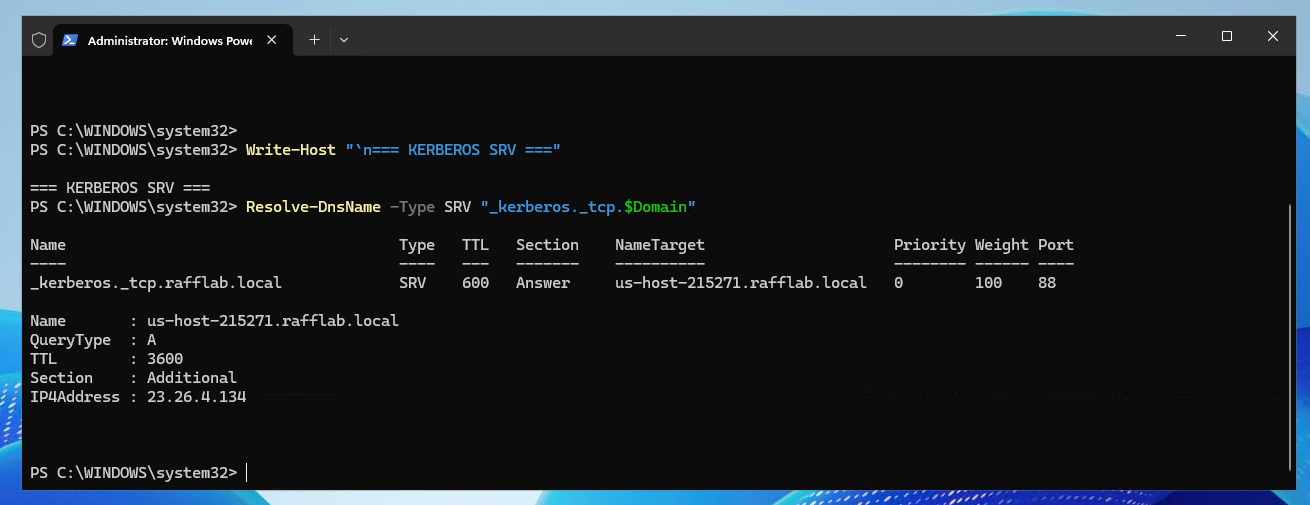
Resolve-DnsName -Type SRV "_kerberos._tcp.$Domain"
You can also use nslookup:
nslookup -type=SRV _ldap._tcp.dc._msdcs.example.com
A healthy result should return one or more domain-controller host names and the expected SRV service ports.
If the records are missing, do not manually create random SRV records as the first fix. Check Netlogon, dynamic update state, zone health, DNS client configuration, and record registration.
Step 5 — Verify domain-controller discovery and forward resolution
Confirm the DC host name resolves:
$Domain = (Get-ADDomain).DNSRoot
$DC = (Get-ADDomainController -Discover).HostName

Resolve-DnsName $DC
Resolve-DnsName $Domain
Then test domain-controller discovery:
nltest /dsgetdc:example.com
Replace example.com with your actual AD DNS domain.
For multi-DC environments, also verify AD site mapping and replication. A valid DNS response is only one part of correct site-aware domain-controller discovery.
Step 6 — Configure server-level forwarders deliberately
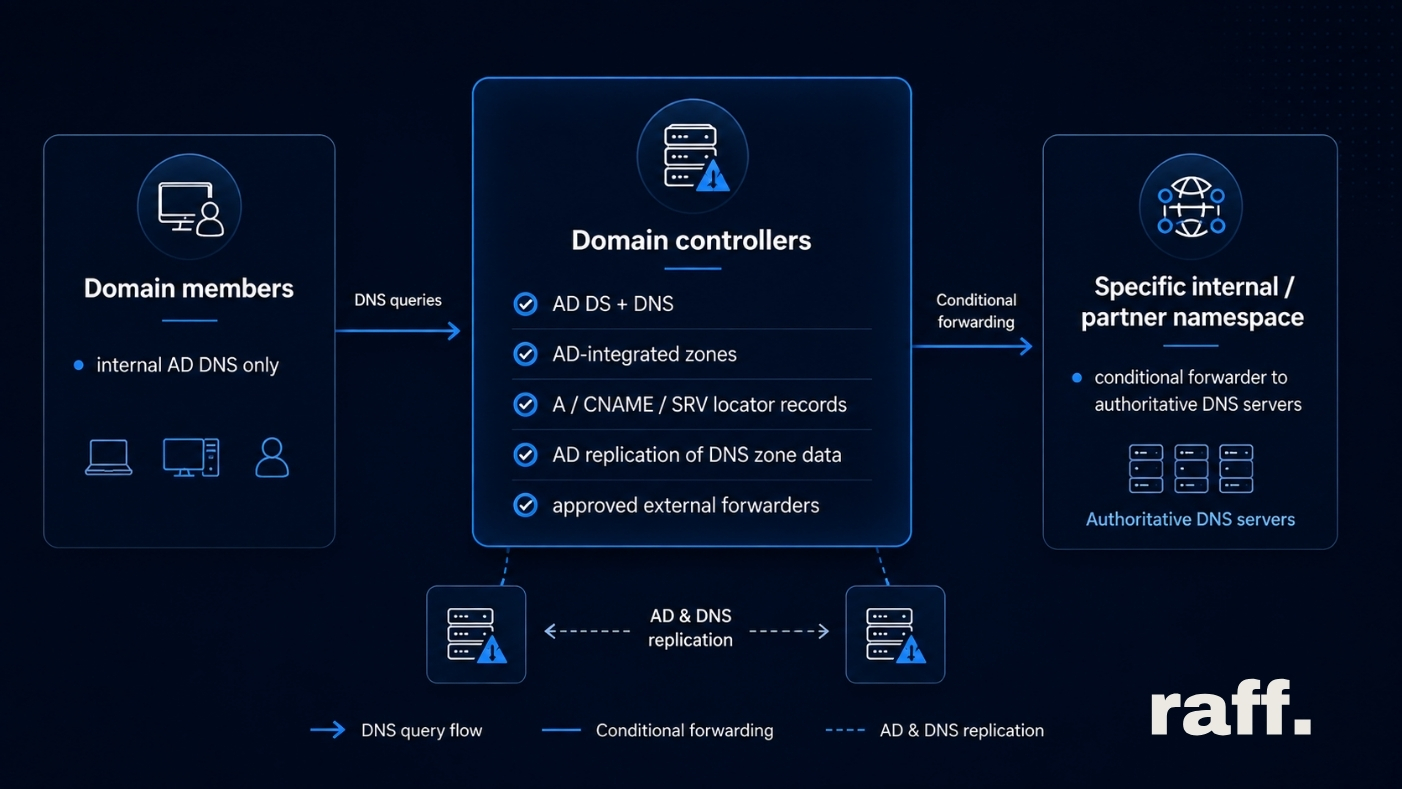
A DNS forwarder receives queries the local DNS server cannot answer. This lets domain clients continue using AD DNS while the DNS server sends public-name queries to approved recursive resolvers.
Read the existing configuration first:
Get-DnsServerForwarder
This is important because Set-DnsServerForwarder replaces the existing server-level forwarder list.
For a new controlled environment, example syntax is:
Set-DnsServerForwarder `
    -IPAddress 1.1.1.1,8.8.8.8 `
    -PassThru
Those IPs are examples of public recursive resolvers, not a Raff requirement. Use DNS resolvers approved for your organization, network, or customer.
If you only want to append one resolver rather than replace the list:
Add-DnsServerForwarder -IPAddress 1.1.1.1 -PassThru
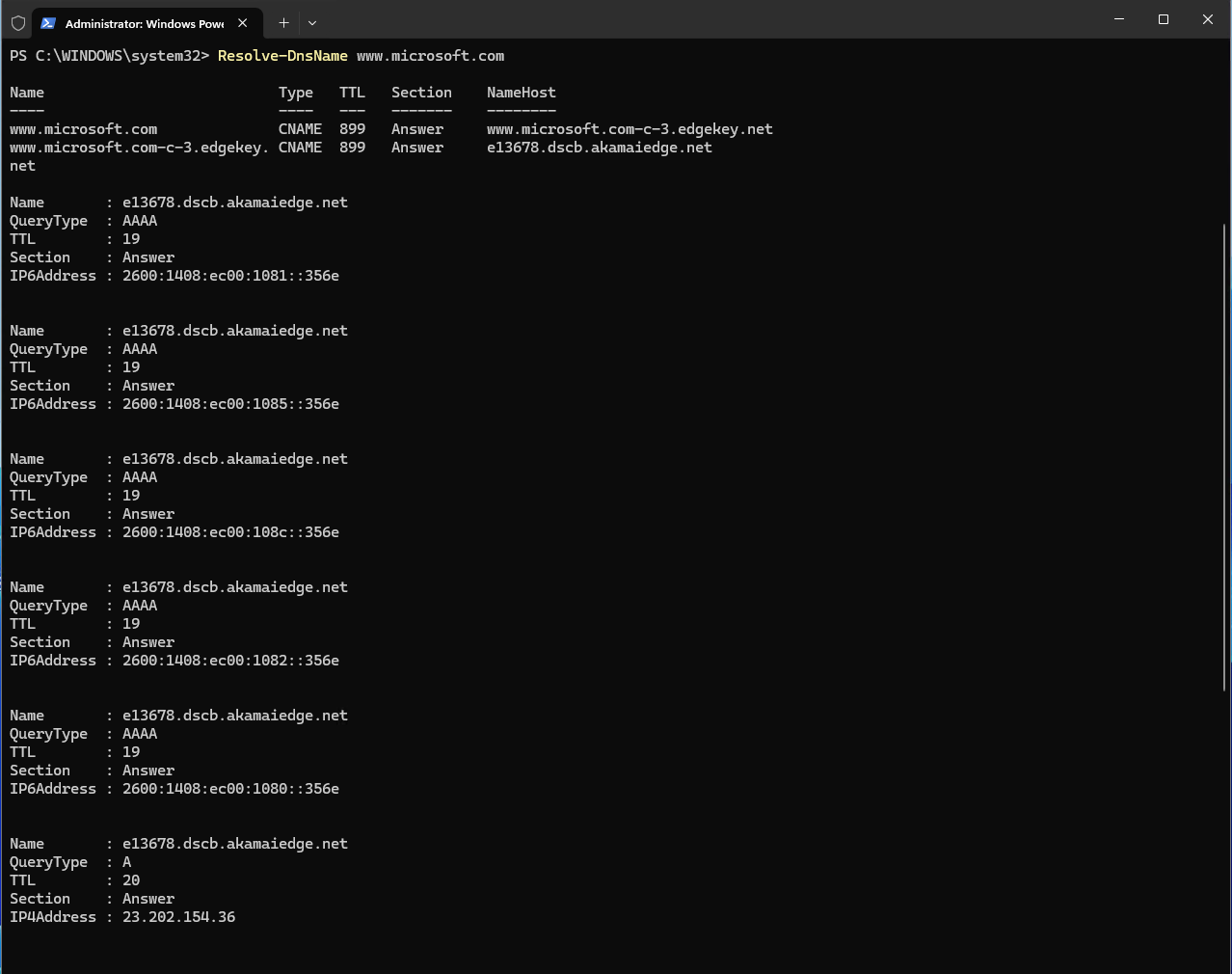
Then verify a real external lookup:
Resolve-DnsName www.microsoft.com
Windows DNS can use normal recursion/root hints after configured forwarders are exhausted unless the server is configured otherwise.
Step 7 — Use conditional forwarders for specific namespaces
A normal forwarder handles unresolved queries broadly. A conditional forwarder sends queries for one particular DNS namespace to specific DNS servers.
Useful examples include:
- two internal AD forests that need cross-forest name resolution;
- an office namespace resolving a cloud namespace;
- a partner/internal domain with dedicated authoritative DNS servers;
- migration periods where two internal namespaces coexist.
Architecture:
corp.example.com DNS
       |
       | query for partner.internal
       v
Conditional forwarder
       |
       v
Authoritative partner DNS servers
Do not use a conditional forwarder just to resolve normal internet names.