In short
If a Windows Server is receiving repeated failed Remote Desktop logons, start with evidence, not random firewall changes. Windows Security event 4625 records failed logon attempts. In our current Raff Windows Server 2025 validation, repeated public RDP probes were logged as Logon Type 3 during NLA pre-authentication, while Microsoft defines Logon Type 10 as RemoteInteractive for completed Remote Desktop interactive logon attempts.
That distinction matters: do not filter only for Type 10 and assume you have found every RDP-related failure. Instead, correlate the failed logon event with the source IP, targeted username, NLA state, RDP exposure, and timing.
A practical response flow is:
Repeated RDP login failures
        |
        v
Confirm Security auditing
        |
        v
Inspect Event 4625
        |
        v
Group failures by source IP / account
        |
        v
Validate source is not legitimate
        |
        v
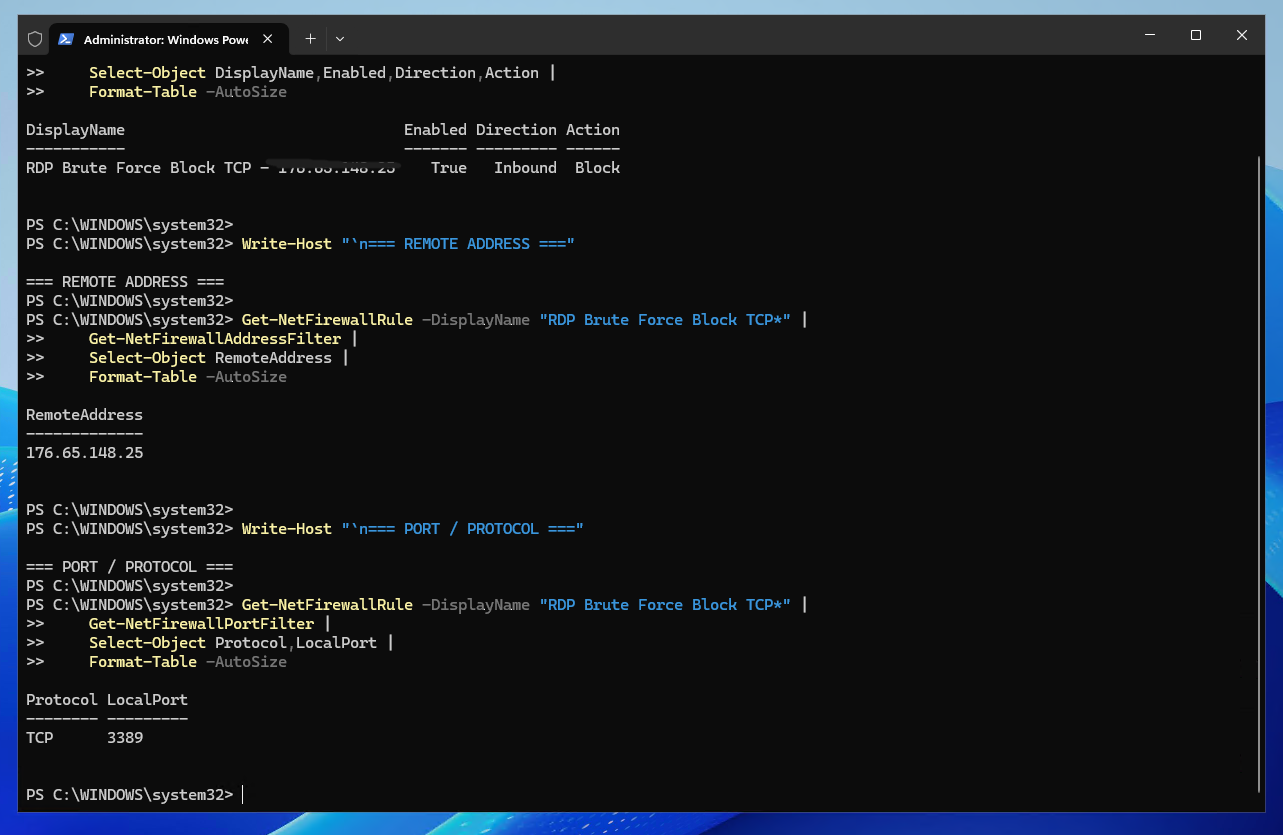
Block confirmed source on the RDP port
        |
        v
Re-check logs and legitimate access
        |
        v
Reduce future exposure with allowlisting,
VPN/RD Gateway, NLA, MFA, and monitoring
For preventive RDP configuration such as Network Level Authentication, IP allowlisting, administrator-account hygiene, and account lockout policy, use Secure Direct RDP on a Windows VPS. For broader firewall design, use Configure Windows Firewall on a Windows VPS.
Safety rule: Do not auto-block every failed login source without review. Shared NAT addresses, mistyped credentials, monitoring systems, administrators on changing networks, and internal infrastructure can create legitimate failures. Confirm the source and preserve a recovery path before changing remote-access rules.
What an RDP brute-force pattern looks like
One failed login is not a brute-force attack.
Look for combinations such as:
| Signal | Why it matters |
|---|---|
| Dozens or hundreds of failed logons from one source | Strong automation indicator |
| One source trying many usernames | Password spraying / username discovery pattern |
| Many sources targeting one administrator account | Distributed credential attack pattern |
| Repeated attempts over long periods | Persistent scanning or automated attack |
| Failures soon after TCP 3389 is exposed broadly | Public RDP discovery likely |
| Successful logon after repeated failures | High-priority incident review |
During Raff's Windows Server 2025 validation, a public RDP endpoint received hundreds of failed attempts from individual source IPs within a short observation window. The probes tried usernames such as Admin, administrator, ADMINISTRATOR, Temp, and other common account names. That is consistent with automated credential probing rather than a single user mistyping a password.
A real incident review should correlate failed logons, successful logons, account changes, network exposure, and administrator activity. Do not conclude that the server was compromised only because event 4625 exists.
Event 4625 is the main failed-logon signal
Microsoft documents Security event 4625 — An account failed to log on for failed authentication attempts on Windows systems.
Useful fields include:
TargetUserName— account that was attempted;LogonType— type of Windows logon;IpAddress— remote source when Windows records one;StatusandSubStatus— failure details;WorkstationName— source workstation where available;- authentication package and process information.
Microsoft defines Logon Type 10 as RemoteInteractive, the logon type associated with Remote Desktop/Terminal Services interactive access.
However, with NLA enabled, some failed RDP authentication attempts can be rejected before a RemoteInteractive session is established. In our Raff Windows Server 2025 test, the repeated public probes appeared as Logon Type 3 and were still clearly associated with the server's exposed RDP endpoint by timing, source IPs, username patterns, and active connections to the RDP port.
The operational lesson is simple: do not hard-code your investigation to Type 10 only. Use the event fields and the actual RDP context around the server.
Step 1 — Record the Windows Server and RDP environment
Before changing anything, record the system and current RDP configuration.
Run PowerShell as Administrator:
cls

Write-Host "=== WINDOWS SERVER ==="
Get-ComputerInfo |
    Select-Object WindowsProductName, WindowsVersion, OsBuildNumber

Write-Host "`n=== HOSTNAME ==="
hostname

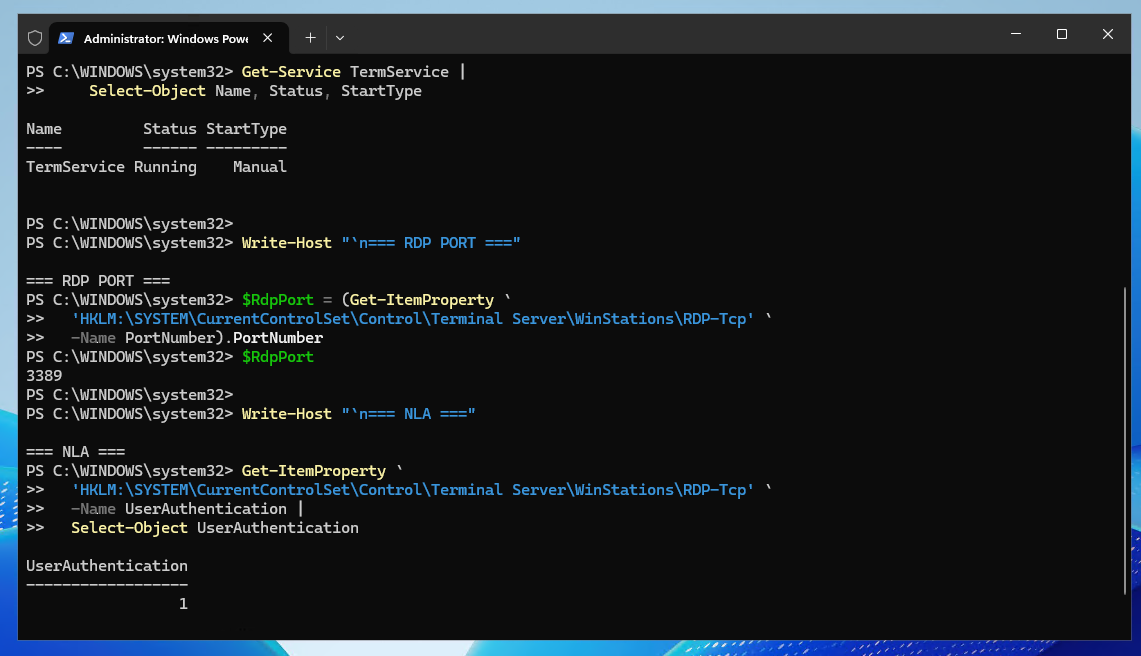
Write-Host "`n=== RDP SERVICE ==="
Get-Service TermService |
    Select-Object Name, Status, StartType

Write-Host "`n=== RDP PORT ==="
$RdpPort = (Get-ItemProperty `
  'HKLM:\SYSTEM\CurrentControlSet\Control\Terminal Server\WinStations\RDP-Tcp' `
  -Name PortNumber).PortNumber
$RdpPort

Write-Host "`n=== NLA ==="
Get-ItemProperty `
  'HKLM:\SYSTEM\CurrentControlSet\Control\Terminal Server\WinStations\RDP-Tcp' `
  -Name UserAuthentication |
  Select-Object UserAuthentication
A UserAuthentication value of 1 means Network Level Authentication is required.
Do not change the RDP port or NLA merely to perform this investigation. This first step is evidence collection.
Step 2 — Confirm failed-logon auditing is available
Check the current Logon audit policy:
auditpol /get /subcategory:"Logon"
You want failure auditing available so failed authentication is recorded.
If this is a standalone lab and failure auditing is not enabled, Microsoft supports configuring advanced audit policy with auditpol. A local example is:
auditpol /set /subcategory:"Logon" /success:enable /failure:enable
In a domain-managed environment, Group Policy can control the effective setting. Do not create conflicting local policy without understanding the management source.
Step 3 — Inspect recent Event 4625 failures
Start with a simple query for the last 24 hours:
Get-WinEvent -FilterHashtable @{
    LogName   = 'Security'
    Id        = 4625
    StartTime = (Get-Date).AddHours(-24)
} -ErrorAction SilentlyContinue |
Select-Object TimeCreated, Id, Message |
Select-Object -First 20
This proves whether the server is recording failed logons, but the message text is too verbose for useful incident analysis.
The next step extracts the structured XML fields.
Step 4 — Extract the fields you need from Event 4625
Run:
$Failures = Get-WinEvent -FilterHashtable @{
    LogName   = 'Security'
    Id        = 4625
    StartTime = (Get-Date).AddHours(-1)
} -ErrorAction SilentlyContinue | ForEach-Object {

    $EventXml = [xml]$_.ToXml()
    $Data = @{}

    foreach ($Item in $EventXml.Event.EventData.Data) {
        $Data[$Item.Name] = $Item.'#text'
    }

    [pscustomobject]@{
        TimeCreated    = $_.TimeCreated
        EventID        = $_.Id
        TargetUserName = $Data['TargetUserName']
        LogonType      = $Data['LogonType']
        IpAddress      = $Data['IpAddress']
        Workstation    = $Data['WorkstationName']
        Status         = $Data['Status']
        SubStatus      = $Data['SubStatus']
    }
}

$Failures |
    Sort-Object TimeCreated -Descending |
    Select-Object -First 30 |
    Format-Table -AutoSize
This gives you the fields that matter for investigation:
TimeCreated
EventID
TargetUserName
LogonType
IpAddress
Workstation
Status
SubStatus
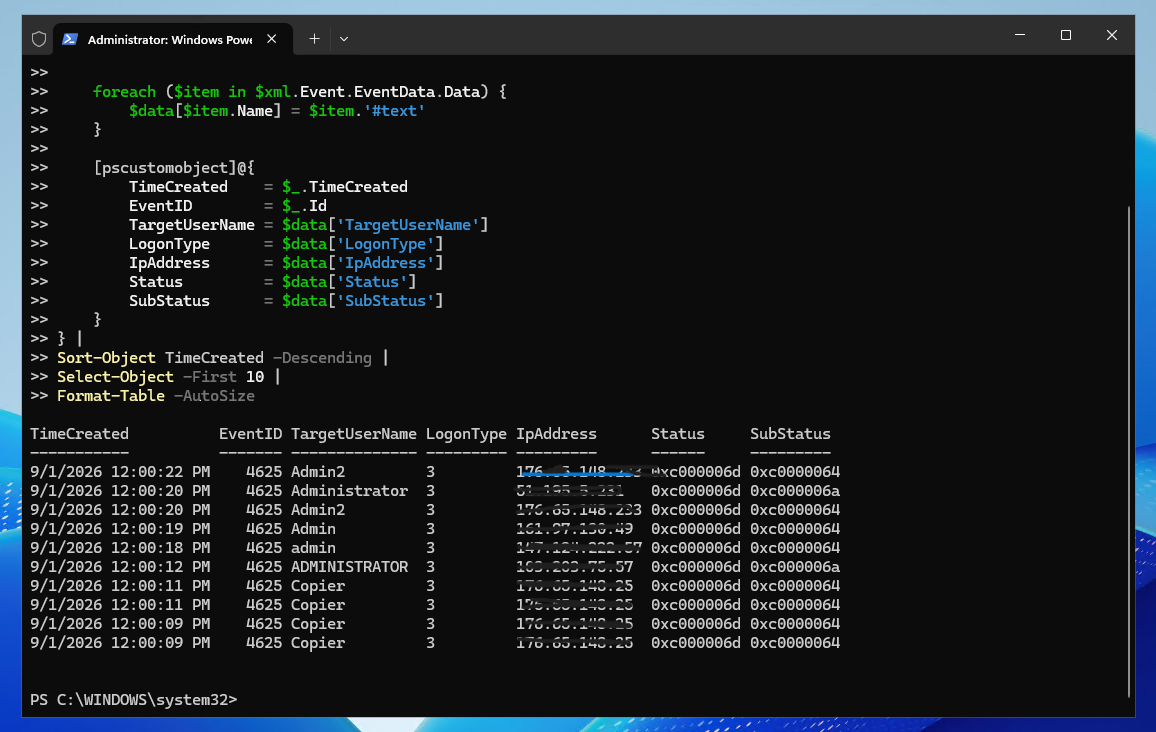
During our current Raff validation, the suspicious RDP probes showed:
- Event ID
4625; - Logon Type
3; - multiple public source IPs;
- repeated attempts against common administrator-style usernames;
- status
0xc000006dfor logon failure; - substatus
0xc0000064on many attempts, indicating that the attempted username did not exist.
If you publish screenshots from a real server, redact public IP addresses, real usernames, or domain details unless they are deliberately safe to expose.
Step 5 — Group failed attempts by source IP
A single event is less useful than the pattern.
Group the parsed failures:
$Failures |
    Where-Object {
        $_.IpAddress -and
        $_.IpAddress -notin @('-', '127.0.0.1', '::1')
    } |
    Group-Object IpAddress |
    Sort-Object Count -Descending |
    ForEach-Object {
        $Group = $_.Group

        [pscustomobject]@{
            IpAddress      = $_.Name
            FailedAttempts = $_.Count
            LogonTypes     = (($Group.LogonType | Sort-Object -Unique) -join ', ')
            Usernames      = (($Group.TargetUserName | Sort-Object -Unique) -join ', ')
            FirstSeen      = ($Group.TimeCreated | Measure-Object -Minimum).Minimum
            LastSeen       = ($Group.TimeCreated | Measure-Object -Maximum).Maximum
        }
    } |
    Format-Table -AutoSize
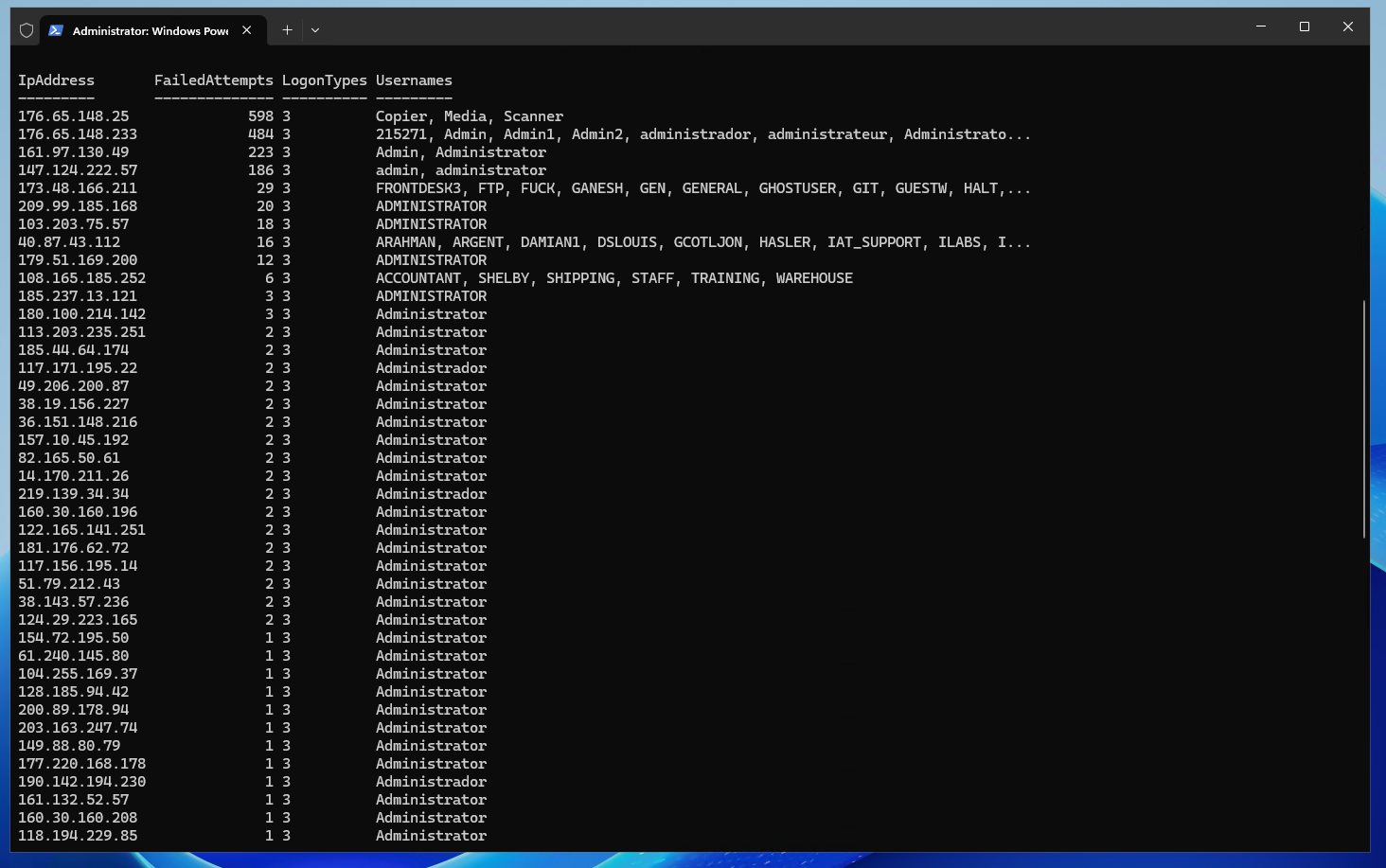
This helps distinguish:
- one user repeatedly mistyping a password;
- one attacking IP testing several accounts;
- sustained activity from one address;
- a distributed pattern involving many addresses.
In the Raff lab, this grouping made the pattern obvious: individual sources had hundreds of failures, while other addresses appeared only once or twice. That is a much stronger signal than reading isolated Event Viewer entries.
For a busy public server, retain or forward this evidence rather than relying only on the rolling local Security log.
Step 6 — Confirm the source before blocking it
Do not convert every IP in the table directly into a firewall block.
Before blocking, ask:
- Is this our office NAT address?
- Is this an administrator who recently changed a password?
- Is this a VPN egress IP?
- Is this an MSP or monitoring system?
- Is the targeted account expected to connect remotely?
- Is the address already on an approved allowlist?
- Is one public IP shared by many legitimate users?
A false-positive block can create an outage, especially when several administrators share one corporate egress IP.
You can also inspect current established connections to the actual RDP port before blocking a source:
$RdpPort = (Get-ItemProperty `
  'HKLM:\SYSTEM\CurrentControlSet\Control\Terminal Server\WinStations\RDP-Tcp' `
  -Name PortNumber).PortNumber

Get-NetTCPConnection `
    -LocalPort $RdpPort `
    -State Established |
Select-Object LocalAddress,LocalPort,RemoteAddress,RemotePort |
Format-Table -AutoSize
An established TCP connection to the RDP port does not prove successful Windows authentication, but it helps distinguish active network connections while you verify which source is your own current administrative session.
Step 7 — Discover the actual RDP port before writing the rule
Do not assume every server still uses TCP 3389.
Run:
$RdpPort = (Get-ItemProperty `
  'HKLM:\SYSTEM\CurrentControlSet\Control\Terminal Server\WinStations\RDP-Tcp' `
  -Name PortNumber).PortNumber

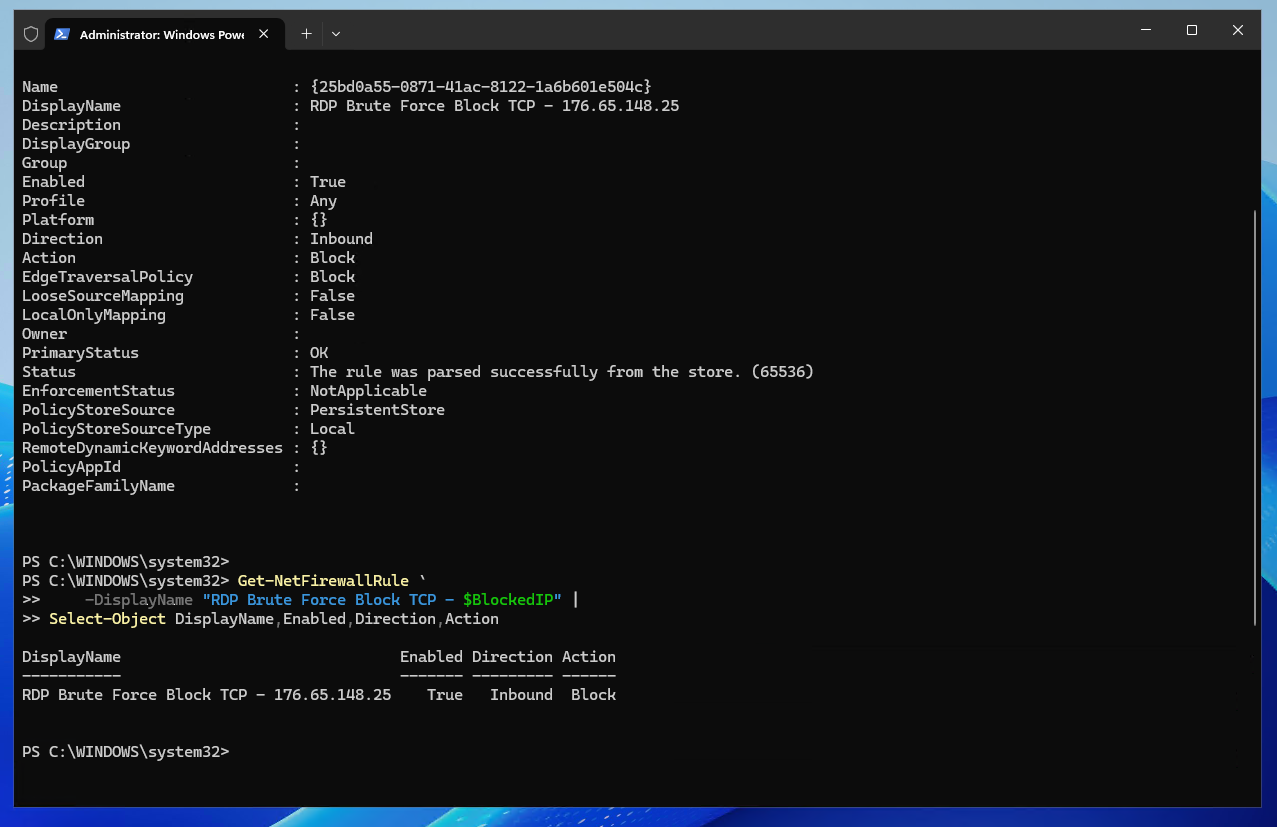
Write-Host "RDP port: $RdpPort"
In our Raff Windows Server 2025 validation, the test VM used the default RDP port 3389.
Changing the RDP port is not a primary anti-brute-force control, but the blocking rule still needs to match the port actually used by the server.