Windows VPS for Multi-Location Small Businesses
Learn when a Windows VPS makes sense for multi-location small businesses, including remote access, shared apps, files, backups, RDS, and security.

On this page
- In short
- Quick verdict: when a Windows VPS fits multiple offices
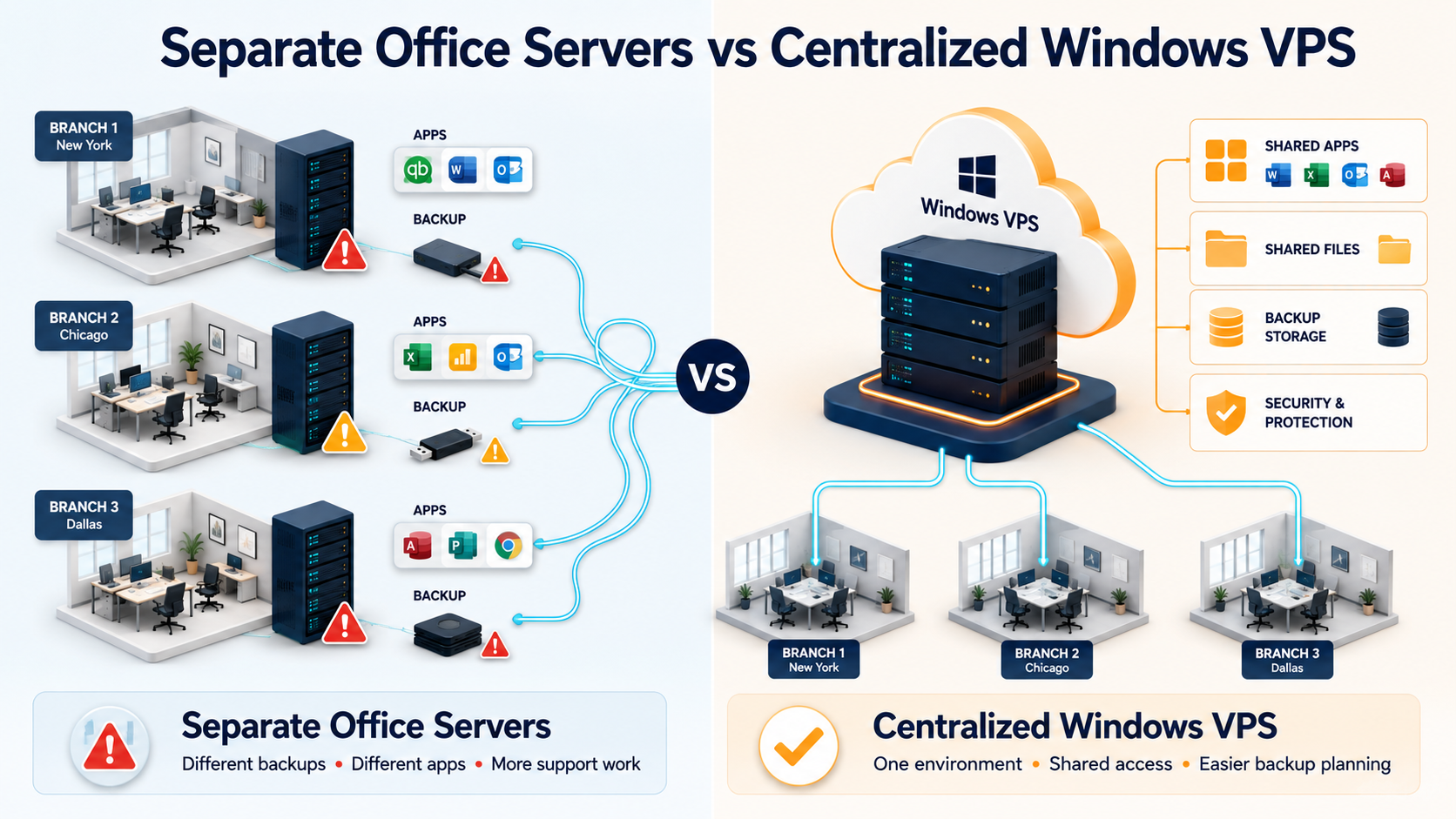
- The problem with separate office servers
- What changes with a cloud Windows Server
- Multi-location access should be designed first
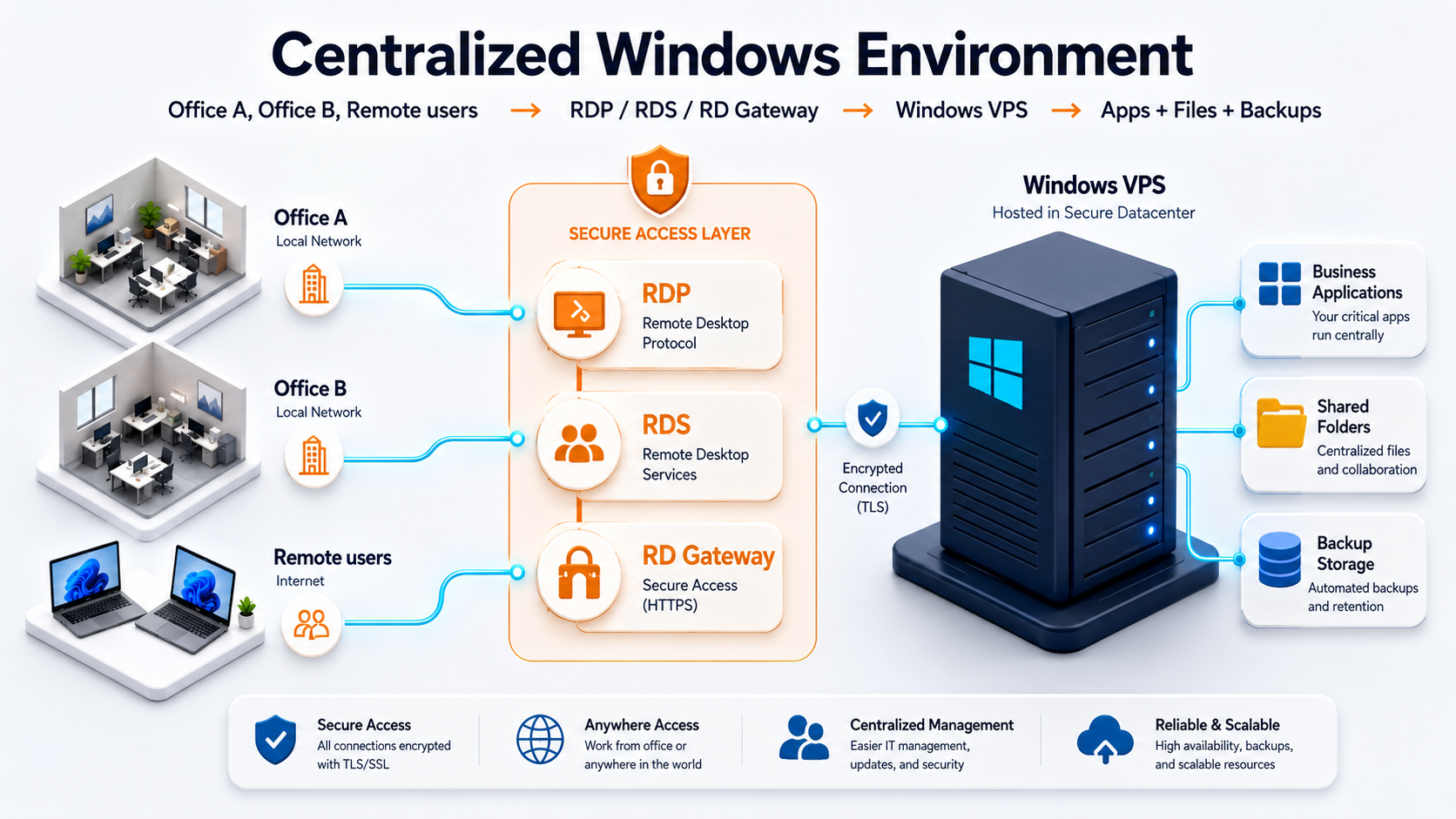
- Direct RDP, RD Gateway, and RDS are not the same
- Sizing depends on concurrent users across all locations
- Shared business apps are the strongest use case
- Shared files need a controlled file server plan
- Backups become simpler when the workload is centralized
- Security must cover every location
- Network quality affects user experience
- Migration should happen in phases
- When not to centralize on one Windows VPS
- How Raff fits multi-location Windows workloads
- Recommended path by business type
- FAQ
- What's next
- Sources
Don't have a Windows Server yet?
Deploy Windows Server 2019/2022/2025 in ~2 minutes. 6-month evaluation licence included.
In short
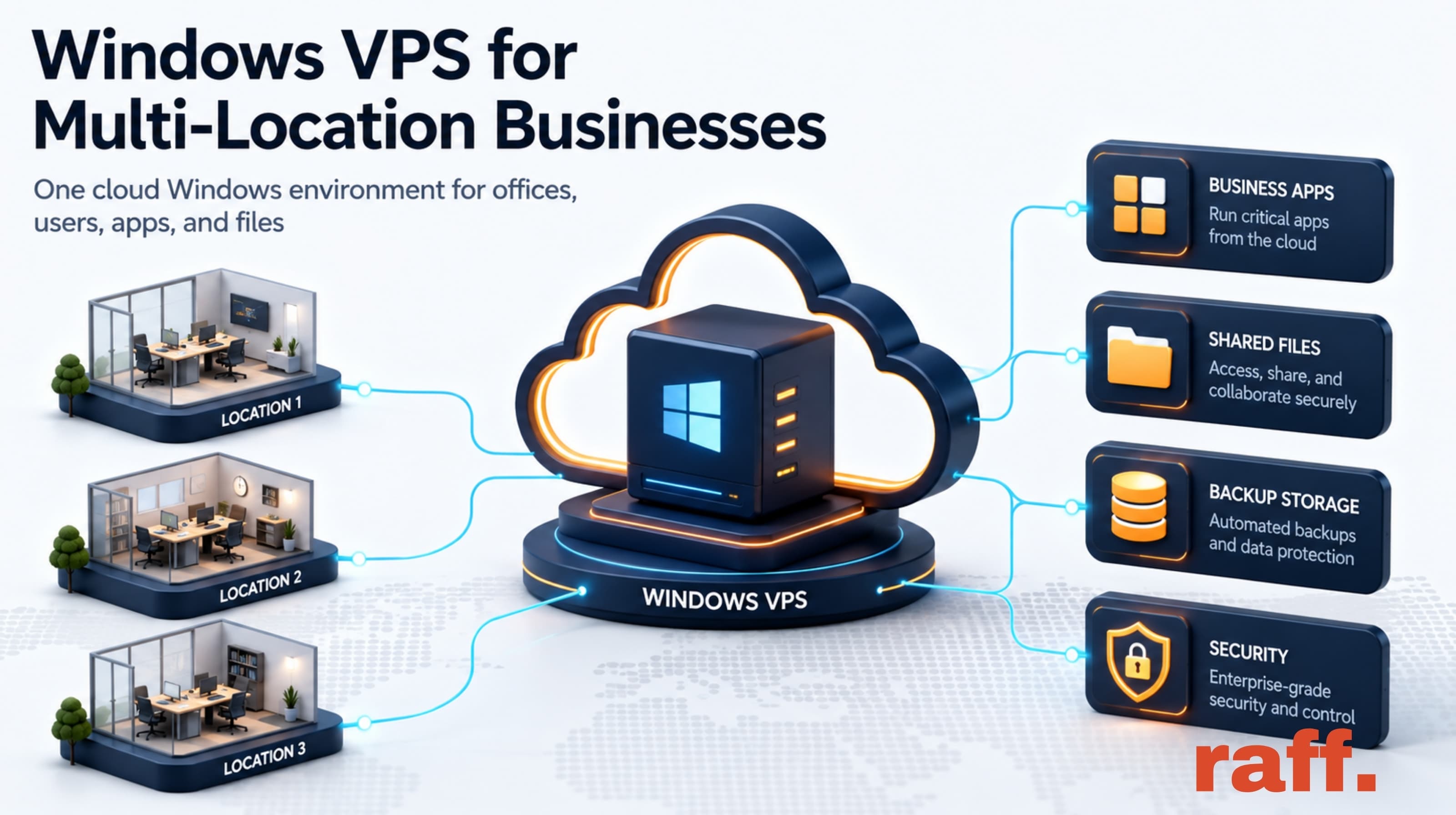
A Windows VPS can help multi-location small businesses centralize Windows apps, shared files, Remote Desktop access, and backups instead of maintaining a separate server in every office. It works best when users need the same Windows environment from different branches, home offices, or client sites. Raff Technologies provides Windows VMs for teams that need a cloud-hosted Windows Server, but user count, latency, RDS licensing, security, backups, and application behavior must be planned before production.
Multi-location businesses often grow into infrastructure complexity without planning for it. One office starts with a local server. A second office joins through VPN. A third location starts copying files manually. Remote users ask for access. Then business software, shared folders, accounting data, legacy apps, and support responsibilities become harder to manage.
A Windows VPS can simplify that model by giving the business one cloud-hosted Windows Server environment instead of several small office servers. But centralization only works when the access model, storage plan, backup strategy, and user workflow are clear.
Quick verdict: when a Windows VPS fits multiple offices
Use this table before centralizing a multi-location Windows workload.
| Business situation | Windows VPS fit | Why |
|---|---|---|
| Multiple offices need the same Windows app | Good fit | A centralized Windows environment reduces app duplication across branches. |
| Branch users need Remote Desktop access | Good fit with RDS planning | Users can connect to one server instead of one office machine. |
| Offices share files, reports, or exports | Good fit with file server planning | Shared folders can be centralized with permissions and backups. |
| Business is replacing an aging office server | Good fit | Avoids buying another physical server for each location. |
| Remote users connect from changing locations | Good fit with secure access planning | RD Gateway, RDS, VPN, or controlled access can be designed. |
| Large files move constantly inside each office | Depends | Local storage may still be better for heavy LAN file workflows. |
| Internet is unreliable at branch locations | Risky | Cloud access depends on connectivity. |
| Strict compliance or data-residency rules apply | Review first | Access, logging, retention, and data location must be reviewed. |
The strongest use case is a team that needs one Windows workspace for shared business apps, files, and user access across several locations.
Don't have a Windows Server yet?
Deploy Windows Server 2019/2022/2025 in ~2 minutes. 6-month evaluation licence included.
Use Raff Windows VM when multiple offices need one cloud-hosted Windows environment for remote access, files, and business apps. :::
The problem with separate office servers
Separate office servers can work for a while. They become harder to manage as the business grows.

Common problems include:
| Problem | What happens |
|---|---|
| Different files in different offices | Users are not sure which version is current. |
| App installs vary by location | Support becomes inconsistent. |
| VPN access gets messy | Each branch adds more firewall and user complexity. |
| Backups are inconsistent | One office may be protected while another is not. |
| Hardware ages at different times | Refresh planning becomes unpredictable. |
| IT support depends on physical access | Troubleshooting slows down when nobody is on-site. |
| Security policies drift | User accounts, permissions, and patches differ by location. |
| Remote users become exceptions | Workarounds become the normal operating model. |
A multi-location business should not depend on a server closet in one branch unless that branch has the power, internet, backup, monitoring, and support process to act like a real data center.
What changes with a cloud Windows Server
A cloud Windows Server moves the shared Windows environment away from one office and into a hosted Windows VM. Users connect from branch offices, home offices, or remote locations.

The operating model changes like this:
| Area | Local/branch server model | Windows VPS model |
|---|---|---|
| Server location | One or more offices | Cloud-hosted Windows VM |
| User access | LAN, VPN, or branch-specific setup | RDP/RDS, RD Gateway, VPN, or controlled access |
| Business apps | Installed per office or on local server | Centralized on one Windows environment |
| Files | Spread across offices or one branch server | Centralized shared folders where appropriate |
| Backups | Often inconsistent by location | One backup policy for the central server |
| Scaling | Buy hardware or upgrade office server | Resize VM or split roles |
| Support | Depends on branch hardware and network | MSP/team can support a known cloud environment |
| Downtime | Office power/network can block access | Users can connect from other locations if a branch is down |
Cloud does not remove administration. You still need Windows updates, access controls, backups, restore tests, app support, licensing, and monitoring. But it reduces dependency on a single physical office server.
Multi-location access should be designed first
Remote access is the first design decision. Do not migrate business apps or files before deciding how users will connect.
Use this model:
| Access need | Recommended direction |
|---|---|
| One or two admins maintain the server | Restricted admin RDP can work |
| Staff need daily Windows desktop sessions | Plan RDS Session Host and RDS CALs |
| Users connect from multiple networks | Consider RD Gateway or controlled access |
| Users only need a web app | Do not give full desktop access unnecessarily |
| Users need mapped file shares | Use VPN/private networking or supported SMB pattern |
| MSP manages the environment | Standardize access policy and documentation |
Microsoft describes Remote Desktop Services as a Windows Server platform for securely delivering managed desktops and applications to users in the office, at home, or from branch and partner locations. That is exactly the multi-location pattern many small businesses face.
For staff desktop sessions, licensing matters. Microsoft states that each user or device connecting to an RD Session Host running Windows Server needs an RDS Client Access License. Plan that before the server becomes a daily workplace.
Direct RDP, RD Gateway, and RDS are not the same
Small businesses often use “RDP” to describe everything remote. That creates confusion.
Use this simple split:
| Model | What it means | Best fit |
|---|---|---|
| Direct admin RDP | Admin connects straight to the server | One or two administrators |
| RDS Session Host | Multiple users get desktop/app sessions | Staff working inside the server |
| RD Gateway | Controlled gateway for RDS access | Remote users across locations |
| VPN/private access | User joins a private network before access | Mapped drives or internal apps |
| Web app access | Users access browser-based software | IIS or SaaS-style apps |
Microsoft’s RD Gateway documentation says RD Gateway enables secure, encrypted connections to RDS resources over the internet without requiring VPN access. For multi-location businesses, that matters because branch users often need access without turning every office router into a fragile remote-access hub.
Sizing depends on concurrent users across all locations
Do not size a Windows VPS by the number of offices. Size it by peak concurrent users and workload type.
A business with three offices may only have four active users at a time. Another business with two offices may have 20 users working inside the server all day.
Use this starting point:
| Multi-location workload | Starting size | When to move up |
|---|---|---|
| 1-2 admin users | 2 vCPU / 4 GB RAM | If apps or reporting tools run on the server |
| 3 light users | 4 vCPU / 8 GB RAM | If users open many browser tabs, PDFs, or documents |
| 3 business app users | 4 vCPU / 16 GB RAM | If accounting, Access, tax, or legacy apps run daily |
| 5 active users | 4 vCPU / 16 GB RAM | If multiple users stay logged in during the workday |
| 10 active users | 8 vCPU / 32 GB RAM | If the server is a shared workplace |
| Heavy ERP or SQL workload | 8-16 vCPU / 32-64 GB RAM | If database, reports, and RDS sessions compete |
The existing Raff sizing guide should be the next internal link from this article. It breaks down Windows VPS sizing for 1, 3, 5, and 10 remote users in more detail.
:::cta View Pricing Compare Raff Windows VM plans when sizing CPU, memory, storage, and monthly cost for multiple office locations. :::
Shared business apps are the strongest use case
A Windows VPS is especially useful when several offices need the same Windows business software.
Good fits include:
| Workload | Why centralization helps |
|---|---|
| Accounting software | Users access one environment instead of separate office installs. |
| Tax software | Seasonal staff can connect from different locations. |
| Microsoft Access apps | App and data can stay close inside the Windows environment. |
| ERP or inventory tools | Branch users can work from one operational system. |
| Legacy Windows apps | Old apps can run in a consistent server environment. |
| SQL Server tools | Admin tools and app clients can be centralized. |
| IIS/.NET apps | Internal web apps can live on a cloud Windows Server. |
| Reporting tools | Teams can use the same reports and exports. |
This does not mean every app should run on one Windows VPS forever. As usage grows, you may split roles: RDS Session Host, database server, file server, and app server. For small teams, though, one properly planned Windows VPS can be a practical starting point.
Shared files need a controlled file server plan
Multi-location businesses often want one place for files. A Windows VPS can work as a cloud file server, but access must be designed carefully.
Use a Windows VPS file server when:
| File pattern | Fit |
|---|---|
| RDP/RDS users work inside the server | Strong fit |
| Business apps need shared paths | Good fit after testing |
| Branches need one controlled folder structure | Good fit |
| Files need backup and permission control | Good fit |
| Users want direct SMB from anywhere | Risky without secure design |
| Users need real-time co-authoring | SaaS collaboration tools may be better |
| Large media files move all day | Test before production |
Microsoft’s SMB documentation describes SMB as the protocol Windows uses for file sharing. Microsoft’s SMB feature guidance also highlights modern SMB features such as signing and encryption. The practical point is simple: SMB is powerful, but it should be used through a controlled access model, not casually exposed.
If the business mainly needs app uploads, static assets, or public object storage, a Windows file server may not be the right model. Use object storage for object-based application storage, not mapped-drive workflows.
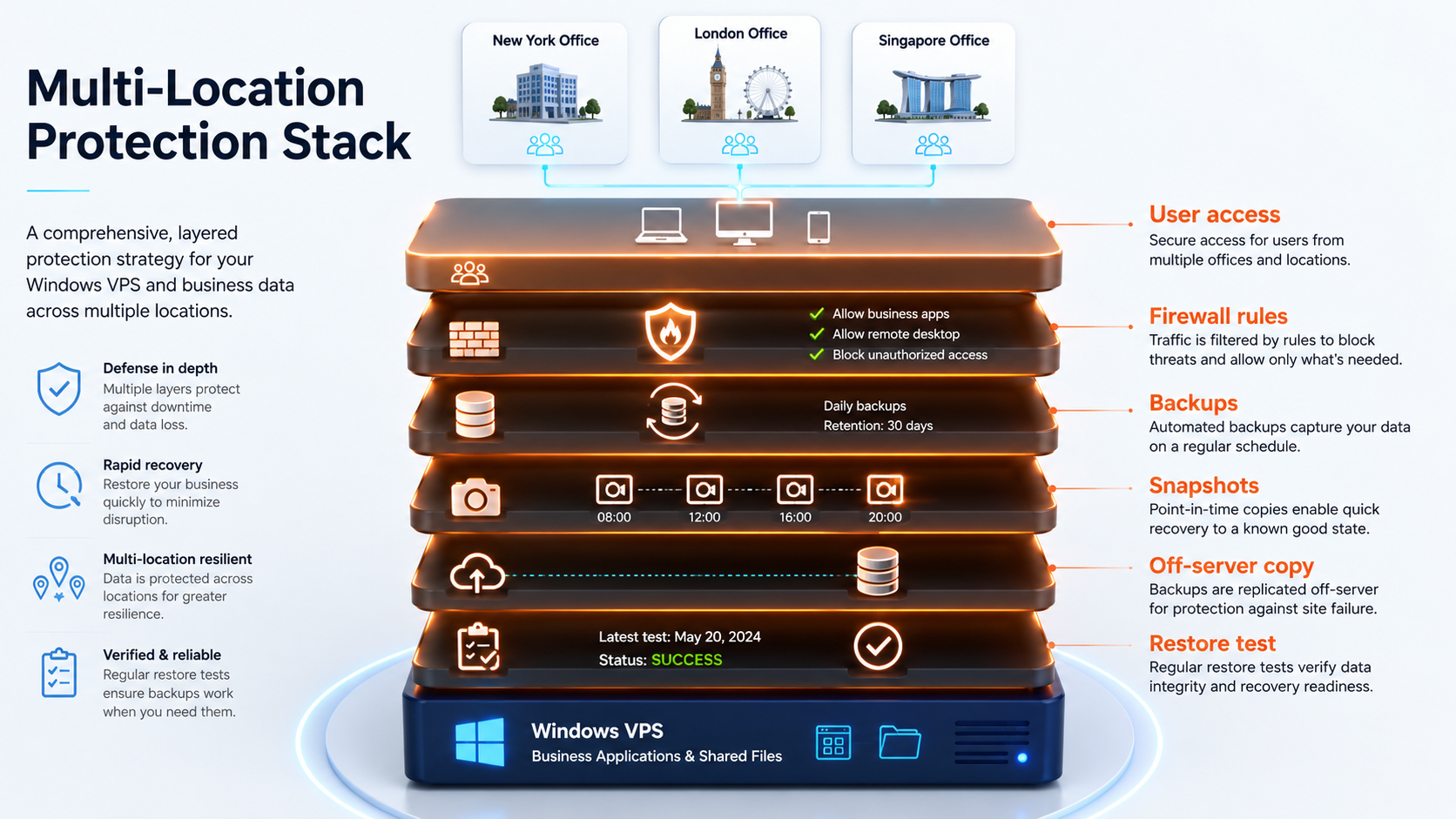
Backups become simpler when the workload is centralized
One reason multi-location businesses move to a cloud Windows Server is backup consistency. It is easier to protect one central workload than several branch PCs and office servers with different habits.

A practical backup model:
| Backup layer | Purpose |
|---|---|
| VM backup | Recover the whole Windows VPS |
| Snapshot before changes | Roll back after updates, migrations, or app upgrades |
| File-level backup | Restore shared folders and individual documents |
| App-aware backup | Protect SQL Server, accounting, ERP, or Access data |
| Off-server copy | Reduce risk from VM, account, or ransomware incidents |
| Restore test | Prove recovery works before an emergency |
Backups should be discussed before migration. If branch users depend on the server daily, the business should know how much data it can lose and how quickly the server should be restored.
Use RPO and RTO language:
| Term | Meaning |
|---|---|
| RPO | How much data loss is acceptable |
| RTO | How long the business can be down |
A five-office company may still accept a 24-hour RPO for some files. A two-location accounting firm may need a much tighter target during deadlines. The right backup frequency depends on the business, not the server type.
:::cta Explore Data Protection Protect your multi-location Windows workload with backup and snapshot planning before moving production data. :::
Security must cover every location
A multi-location setup increases access complexity. Each office, home user, laptop, and admin account becomes part of the security picture.
Plan these controls:
| Security area | Recommendation |
|---|---|
| User accounts | Use named users, not shared logins |
| Admin access | Separate admin accounts from daily users |
| Remote access | Avoid broad direct RDP exposure |
| Firewall rules | Restrict allowed access paths |
| RDS/RD Gateway | Use a controlled access model where needed |
| Backups | Restrict who can delete or modify backups |
| Permissions | Use groups and least privilege |
| Patching | Schedule Windows and app updates |
| Logs | Review failed logins and access events |
| Offboarding | Remove users quickly when staff leave |
Do not assume a branch office is safe just because users sit in a company building. Laptops move, passwords get reused, and office networks change. The Windows VPS should have its own access policy.
Network quality affects user experience
A cloud Windows Server depends on internet quality. If a branch has unreliable connectivity, users will feel it through RDP, file access, or app latency.
Check:
| Network factor | Why it matters |
|---|---|
| Latency | Higher latency makes Remote Desktop feel delayed |
| Packet loss | Causes freezes, disconnects, and poor app experience |
| Upload speed | Matters for scans, file uploads, and PDFs |
| Download speed | Matters for file retrieval and session responsiveness |
| Wi-Fi quality | Local Wi-Fi can make RDP feel slow |
| Branch firewall | Can block or interrupt access |
| ISP reliability | Office outage can affect everyone at that branch |
Before blaming the Windows VPS, test from each office. If only one branch has issues, the problem may be local connectivity, Wi-Fi, DNS, firewall policy, or endpoint configuration.
Raff’s RDP performance tuning guide should be linked from this article because RDP performance depends on the full path: client, network, server resources, display settings, and workload.
Migration should happen in phases
Do not move every location in one rushed cutover unless the workload is simple. Multi-location migrations need sequencing.
A practical migration plan:
- Inventory current servers, apps, files, users, and locations.
- Identify which office currently acts as the “main” location.
- List peak concurrent users across all locations.
- Decide the remote access model.
- Choose the first Windows VPS size.
- Build a test Windows VPS.
- Install business apps and shared folders.
- Copy non-production data first.
- Test from each office location.
- Configure backups and run a restore test.
- Move a small user group first.
- Schedule production cutover outside peak hours.
- Keep rollback access to the old environment temporarily.
- Monitor usage and adjust size or access rules.
The goal is not only to get users connected. The goal is to make each location confident that the new system is more reliable than the old patchwork.
When not to centralize on one Windows VPS
A single Windows VPS is not always the right design.
Pause when:
| Situation | Better next step |
|---|---|
| Many users need heavy desktop sessions | Consider stronger RDS architecture or split roles |
| Database workload is large | Separate database server may be needed |
| High availability is required | Design redundancy, not one VM |
| Branch internet is unreliable | Fix connectivity or keep local fallback |
| Large files are location-specific | Local storage or sync strategy may be better |
| Compliance requirements are strict | Review policy, logging, retention, and access |
| App vendor does not support hosted/RDS use | Get vendor-supported deployment guidance |
| Business wants fully managed desktops | Consider managed desktop/RDS/VDI options |
A Windows VPS is a practical building block. It is not a universal replacement for every branch server, application, or desktop strategy.
How Raff fits multi-location Windows workloads
Raff fits this use case when a small business wants one cloud-hosted Windows Server environment for remote offices, branch users, shared business apps, RDP/RDS access, cloud file server use cases, or office server replacement.
Raff Windows VMs can provide the Windows Server environment. From there, the business or MSP should configure users, applications, backups, security rules, RDS licensing, and monitoring. The Raff Windows Hub supports this planning with guides on sizing, backup strategy, RD Gateway vs direct RDP, cloud file servers, Access and legacy apps, tax software, MSP environments, RDS CALs, and RDP performance.
Raff is not a substitute for planning the application architecture. If the business needs multi-region high availability, advanced compliance, fully managed desktops, or complex Active Directory design, review the architecture before buying a single VM.
:::cta Deploy Windows Now Create a Raff Windows VM when your team is ready to centralize Windows workloads in the cloud. :::
Recommended path by business type
| Business type | Recommendation |
|---|---|
| Two-office small business | Start with one Windows VPS for shared apps or files if internet is reliable. |
| Multi-location accounting office | Plan RDS access, backups, and app support before production. |
| Retail or branch business | Centralize admin apps and reports, but test local device needs. |
| Tax firm with seasonal users | Size for peak season, not off-season. |
| MSP-managed business | Document access, backups, monitoring, and offboarding per client. |
| Legacy app user | Test app behavior over RDP/RDS before migration. |
| File-heavy business | Validate file size, latency, and backup growth first. |
| Compliance-heavy business | Review security, retention, and audit requirements before launch. |
The safest first step is a test Windows VPS with real users from each location. Test login, app launch, file access, printing, backups, and restore before moving production.
FAQ
Can multiple offices use one Windows VPS?
Yes. Multiple offices can use one Windows VPS when access, user count, applications, file behavior, backups, and security are planned. It works best for centralized Windows apps, RDP/RDS users, and shared business workflows.
Is a Windows VPS better than a local office server for multiple locations?
A Windows VPS is often better when users work from multiple offices or remote locations. A local office server can still be better for LAN-heavy files, local hardware dependencies, or unreliable internet.
How do branch users access a Windows VPS?
Branch users can access a Windows VPS through Remote Desktop, Remote Desktop Services, RD Gateway, VPN/private access, or application-specific access. The right model depends on whether users need desktops, files, apps, or admin access.
Do multi-location users need RDS CALs?
If users connect to an RD Session Host running Windows Server for desktop or RemoteApp sessions, RDS CAL planning is usually required. Admin RDP and staff desktop access are different use cases.
Can a Windows VPS host shared files for multiple offices?
Yes. A Windows VPS can host shared folders for multiple offices if SMB access is secured, permissions are documented, backups are tested, and users access files through a controlled model such as RDP/RDS, VPN, or supported SMB patterns.
What size Windows VPS does a multi-location business need?
Size by peak concurrent users and workload type, not by the number of offices. Three active users may start around 4 vCPU / 8-16 GB RAM, while ten active users often need 8 vCPU / 32 GB RAM or more.
What's next
- Read Windows VPS sizing for remote users before choosing CPU, RAM, and storage.
- Read Cloud Windows Server vs Local Office Server if you are replacing branch hardware.
- Read Windows VPS Backup Strategy for Small Businesses before moving production data.
- Read Remote Desktop Gateway vs Direct RDP before exposing remote access.
- Read Windows VPS as a Cloud File Server if shared folders are part of the plan.
- Read Windows VPS for Business Software if you host several SMB apps.
- Read RDS CAL Licensing on Windows Server before rolling out staff desktop sessions.
- Review Raff Windows VM and pricing when planning the production server.
Sources
- Microsoft Learn — Remote Desktop Services overview in Windows Server
- Microsoft Learn — Remote Desktop Services roles
- Microsoft Learn — Deploy Remote Desktop Gateway role for Remote Desktop Services
- Microsoft Learn — License Remote Desktop Services with Client Access Licenses
- Microsoft Learn — What is SMB File Sharing for Windows and Windows Server?
- Microsoft Learn — SMB features in Windows and Windows Server
- Raff — Windows VPS sizing for remote users
- Raff — Cloud Windows Server vs Local Office Server
- Raff — Windows VPS Backup Strategy for Small Businesses
- Raff — Remote Desktop Gateway vs Direct RDP
- Raff — Windows VM product page
- Raff — Pricing
Related articles
Windows VPS for MSP Client Environments
Learn how MSPs can use Windows VPS environments for client apps, Remote Desktop, backups, security, documentation, and repeatable deployments.
Windows VPS as a Cloud File Server: What Small Businesses Should Know
Learn when a Windows VPS can work as a cloud file server for small businesses, including SMB access, Remote Desktop, backups, security, storage, and migration planning.
Windows VPS for ERP and Inventory Software
Learn when a Windows VPS makes sense for ERP and inventory software, including remote users, database planning, backups, sizing, security, and RDS access.