
• Pricing
  • Performance
PricingPerformance
Sign InSign Up
  • Pricing
  • Performance
PricingPerformance
Sign InSign Up
Sign InGet Started

Empowering businesses with enterprise-grade cloud solutions at competitive prices. Built for reliability and simplicity. Designed for growth.

ISO 2700199.9% Uptime

Stay Updated

All systems operational

Products

  • Virtual Machines
  • Windows Servers
  • Kubernetes
  • Databases
  • Object Storage
  • Functions
  • Raff Apps

Databases

  • PostgreSQL
  • MySQL
  • Valkey
  • ClickHouse
  • Kafka

Platform

  • VPC
  • Load Balancers
  • Volumes
  • Backups
  • Security
  • IAM
  • Pricing

Developers

  • Documentation
  • API Reference
  • CLI & SDKs
  • Terraform Provider
  • Release Notes

Learn

  • Learn Hub
  • Tutorials
  • Guides
  • Comparisons
  • Windows Server Hub
  • Blog

Company

  • About
  • Contact
  • FAQ
  • Performance
  • Sign In
  • Sign Up

© 2026 Raff Technologies. All rights reserved.Privacy PolicyTerms of ServiceService Level AgreementAcceptable Use Policy
run your software
run your softwarebeginner25 min read·Updated Jul 23, 2026

Windows VPS for Construction Companies: Business Apps

Windows VPS for construction companies: centralize estimating, accounting, project files, and remote access while planning backups and workload limits.

Batuhan Esirger
Batuhan Esirger
Co-Founder & Business Lead
Genuine, fully-licensed Windows
Spin up a Windows Server: full admin, RDP-ready
Genuine Windows Server 2019, 2022, or 2025 with full administrator access. We handle the Microsoft licensing, billed monthly with nothing to buy upfront.
Deploy Windows NowTalk to Windows EngineerView Pricing

A Windows VPS can help construction companies centralize estimating and bidding software, accounting and payroll tools, ERP or inventory systems, project documents, shared folders, reports, and remote access in one cloud-hosted Windows Server environment.

It works best when the company still depends on Windows-based business software but needs office staff, project managers, estimators, administrators, and remote teams to reach the same applications and files from different locations.

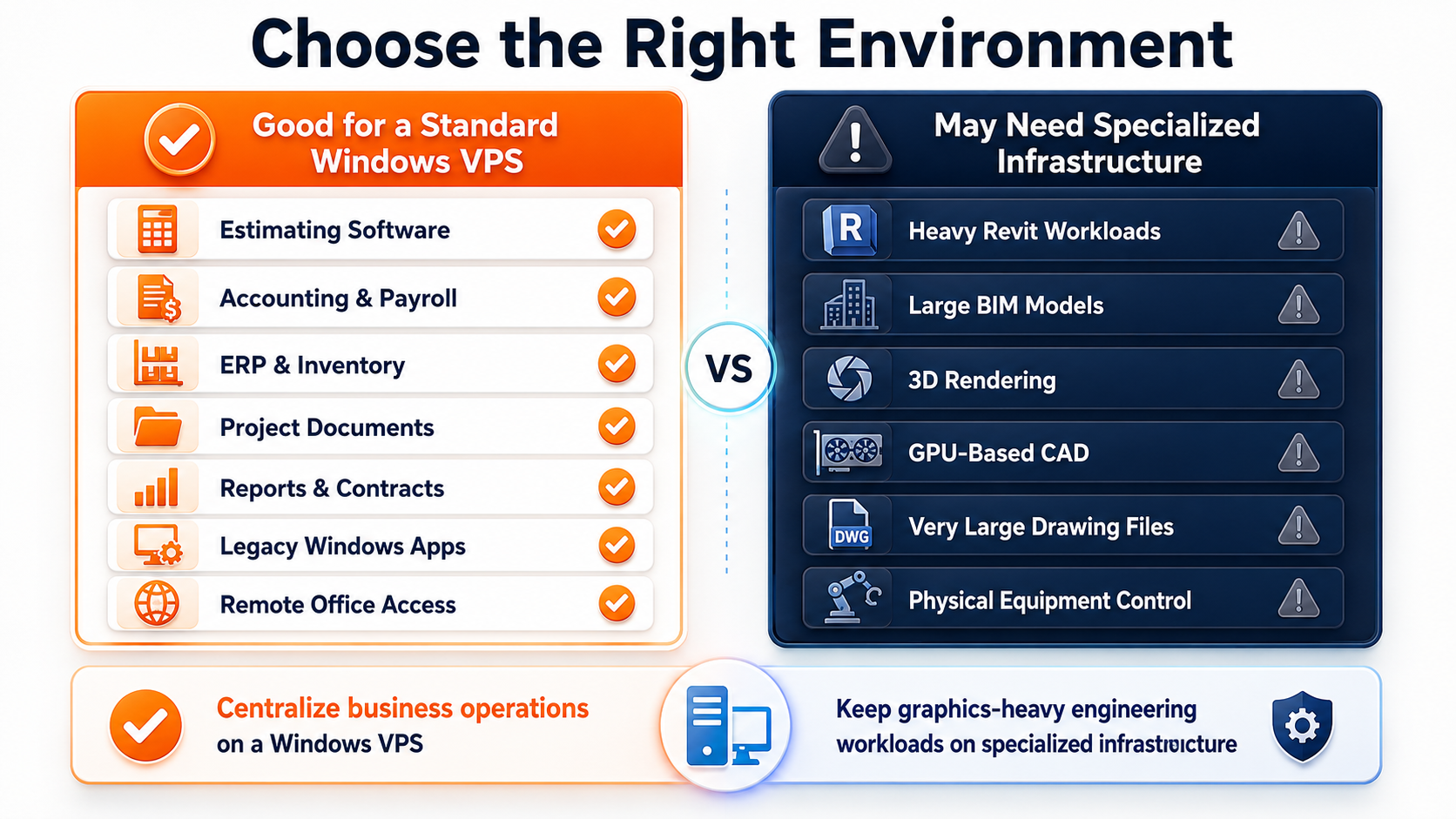
The strongest use cases are business operations rather than graphics-heavy design work. Estimating, job costing, accounting, document management, light ERP, reporting, and shared Windows applications are often good candidates. Heavy CAD, BIM, Revit, 3D modeling, rendering, or other GPU-intensive workloads may require specialized infrastructure and should be tested separately.

Raff Technologies provides the Windows VM foundation. The construction company or its MSP should still plan software compatibility, user access, RDS licensing, project-file storage, backups, security, migration, and recovery before production.
Run construction apps, files, and remote users on Raff Windows VM.

Explore Windows VM

Quick verdict: when construction companies should use a Windows VPS

Use this table before moving construction workloads to a Windows VPS.

Construction company situationWindows VPS fitWhy
Estimators need access from home or another officeStrong fitUsers can connect to the same hosted Windows environment.
Accounting, payroll, or job-costing software requires WindowsStrong fit after vendor checkSupported applications can run centrally.
Project documents are spread across office PCsStrong fitShared folders and permissions can be centralized.
Multiple offices or job sites need the same filesStrong fit with access planningUsers can reach one environment instead of maintaining separate copies.
An aging office server hosts business softwareStrong fitA Windows VPS can reduce dependency on local hardware.
ERP or inventory software supports Windows ServerGood fitThe app, database, and users can stay in one environment.
Staff need Remote Desktop access to shared applicationsStrong fit with RDS planningThe server can deliver a consistent workspace.
Large CAD or BIM models are the primary workloadTest carefullyPerformance, GPU, storage, and latency requirements may exceed a standard VPS.
Plotters, scanners, USB devices, or dongles are criticalNeeds testingDevice redirection and hardware dependencies may not work as expected.
The company only uses browser-based SaaS toolsDependsA Windows VPS may add complexity without solving a real problem.

The best fit is a small or midsize construction company that has outgrown a single office PC or local server but still relies on Windows applications, shared files, and centralized business workflows.

Why construction companies outgrow local office infrastructure

Construction companies often begin with a practical setup: one office, several workstations, a shared drive, and a few locally installed applications.

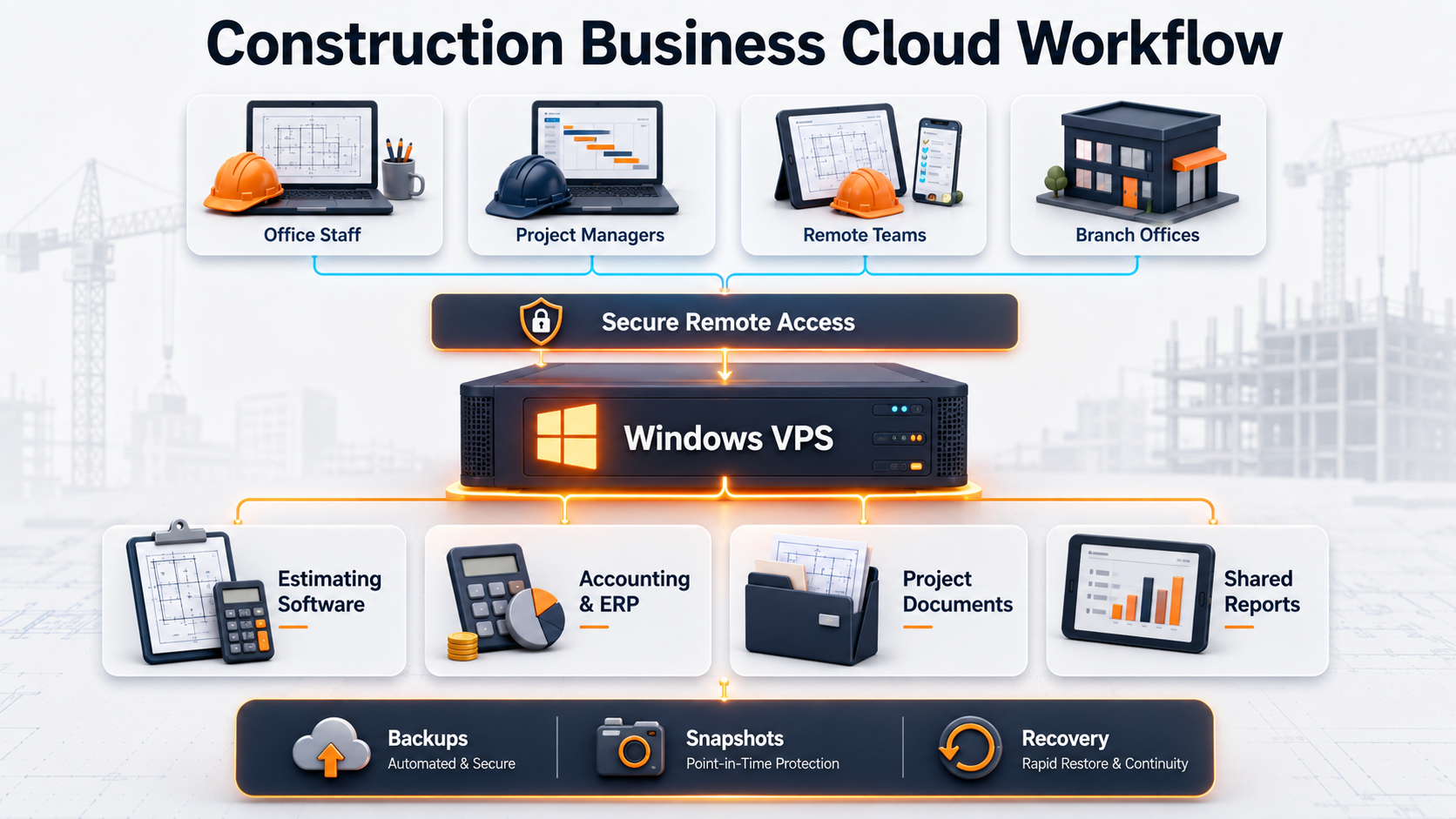
Architecture diagram showing office staff, project managers, remote users, and branch offices accessing estimating software, ERP applications, project files, and backups through a centralized Windows VPS

That setup becomes harder to manage as the company adds employees, job sites, branches, subcontractor coordination, project documents, and remote work.

Common problemWhat it looks like in practiceHow a Windows VPS helps
Estimating software is tied to one office PCEstimators remote into a workstation or exchange files manuallyThe application can run in a centralized environment where supported.
Project files are scatteredContracts, drawings, change orders, reports, and spreadsheets live in different foldersShared folders can be organized in one Windows environment.
Remote access is inconsistentVPN issues, office-PC sleep problems, and changing public IPs interrupt workUsers connect to a cloud-hosted Windows Server.
The local server is agingHardware failure, limited storage, and warranty concerns create riskThe workload moves away from one physical machine.
Multiple offices keep separate copiesStaff work from different versions of the same spreadsheet or documentOne central environment reduces duplication.
Backups are unclearFiles are copied occasionally but restores are never testedBackup, snapshot, retention, and restore ownership can be planned.
Every PC has a different setupSoftware versions, mapped drives, and permissions vary by employeeA central server is easier to standardize and support.
Growth requires hardware purchasesMore users mean new server hardware, storage, UPS, and installation workA cloud VM can be resized or extended with additional storage.

The main benefit is not simply “putting a server in the cloud.”

It is creating one controlled environment for the Windows tools and project information the business already depends on.

Common construction workloads on a Windows VPS

Estimating, bidding, and job-costing software

Estimating and bidding are often the first workflows construction companies want to centralize.

A Windows VPS can be useful when the application:

  • supports Windows Server;
  • supports Remote Desktop Services or hosted use;
  • stores data in a shared database or company file;
  • needs several estimators to work from different locations;
  • depends on mapped drives, Windows services, or scheduled tasks;
  • must remain available outside normal office hours.

Before migration, confirm the software vendor supports the intended deployment model. Some applications are licensed per user, device, server, company file, or concurrent session. Others may require a specific SQL Server edition, Windows version, or local component.

Do not assume that software working on a Windows 10 or Windows 11 desktop means it is supported on Windows Server.

Accounting, payroll, and financial workflows

Construction companies often combine general accounting with job costing, payroll, subcontractor records, purchasing, and project-level reporting.

A Windows VPS can centralize:

WorkloadExample need
AccountingShared company file or accounting application
PayrollControlled access for finance and admin staff
Job costingCosts organized by project, phase, or cost code
Accounts payableVendor invoices, purchase orders, and approvals
Accounts receivableProgress billing, invoices, and payment tracking
ReportingProject profitability, labor, material, and cash-flow reports
Document exportsPDFs, spreadsheets, and archived reports

The server should be sized for active users, report generation, database activity, and document storage rather than employee count alone.

ERP, inventory, and operations software

A contractor may use ERP or operations software for:

  • materials and inventory;
  • purchasing;
  • equipment records;
  • warehouse or yard operations;
  • project costing;
  • work orders;
  • scheduling;
  • vendor management;
  • reporting;
  • SQL Server-backed applications.

A Windows VPS is a practical fit when the software vendor supports Windows Server and the workload does not require specialized hardware or extremely low-latency local integration.

Read Windows VPS for ERP and Inventory Software when the operations system is the main workload.

Project documents and shared folders

Construction businesses produce a large amount of structured and unstructured data.

A Windows VPS can centralize:

File categoryExamples
ContractsOwner, subcontractor, supplier, and vendor agreements
EstimatesBid worksheets, cost models, takeoff exports, and pricing files
Project administrationRFIs, submittals, change orders, meeting notes, and schedules
Financial recordsInvoices, purchase orders, payroll exports, and job-cost reports
Safety and compliance filesTraining records, checklists, permits, and inspection documents
Site documentationDaily logs, progress photos, reports, and issue lists
TemplatesStandard forms, spreadsheets, letters, and project folder structures
ArchivesCompleted projects and historical records

A cloud file server does not fix poor document organization. Clean up naming, folder structure, duplicate files, permissions, and archives before migration.

Read Windows VPS as a Cloud File Server if shared project files are the main use case.

Remote office and job-site access

Construction work rarely happens from one desk.

Potential users include:

User typeCommon access need
Owners and directorsReports, approvals, and financial visibility
EstimatorsEstimating software, bid files, and supplier pricing
Project managersProject folders, reports, schedules, and change orders
Accounting staffAccounting, payroll, job costing, and invoices
Operations staffERP, purchasing, inventory, and equipment records
Site supervisorsDocuments, reports, and administrative workflows
Remote employeesThe same applications and files available from home
MSP or IT providerAdministration, monitoring, backups, and support

A Windows VPS can give these users one consistent environment, but access should be designed around actual roles. Not every employee needs full desktop access, local drive redirection, administrator rights, or access to every project folder.

A practical construction-company Windows VPS architecture

A simple environment may look like this:

Text
Office staff ───────┐ Remote estimators ──┤ Project managers ───┼── Secure Remote Access ── Windows VPS Branch office ──────┤ ├─ Business applications MSP / IT ───────────┘ ├─ Database ├─ Shared project files ├─ User profiles └─ Backups and snapshots

The design can stay on one server for a small team when the workload is modest and the risks are understood. As the environment grows, separate the database, file storage, Remote Desktop roles, or application tiers when performance, security, or recovery requirements justify it.

Do not add complexity only because larger companies use it. Start with the simplest architecture that meets the business requirement and can be backed up and restored reliably.

Remote Desktop planning for construction teams

Remote Desktop is often the access layer for hosted Windows business software.

Microsoft describes Remote Desktop Services as a Windows Server platform for delivering managed desktops and applications to users in offices, homes, branches, and partner locations.

For a small construction company, the important distinction is between administrative Remote Desktop access and staff using the server as their daily workspace.

When employees use an RD Session Host for desktops or applications, Microsoft states that each connecting user or device needs a Remote Desktop Services Client Access License.

Plan:

  • expected active users;
  • per-user or per-device RDS licensing;
  • named accounts rather than shared logins;
  • RD Gateway, VPN, or another controlled access model;
  • firewall restrictions;
  • session timeouts;
  • clipboard, drive, printer, and device redirection;
  • user-profile storage;
  • application compatibility in multi-user sessions;
  • support ownership.

Use these related guides:

  • Remote Desktop Server for Business
  • Windows VPS for Remote Employees
  • Remote Desktop Gateway vs Direct RDP
  • RDS CAL Licensing on Windows Server

Plan users, software, storage, backups, and migration before launch.

Talk to Windows Engineer

Multiple offices, warehouses, and job sites

A construction company may have a head office, branch office, warehouse, yard, temporary project office, and employees working from home.

Maintaining a separate file copy or application install at every location creates support problems.

A centralized Windows VPS can help by giving authorized users access to the same:

  • business applications;
  • company database;
  • project folders;
  • templates;
  • reports;
  • mapped drives;
  • archived records;
  • administrative tools.

The user experience still depends on internet quality and latency. A job site with unstable connectivity may need a fallback plan for critical documents or workflows.

Read Windows VPS for Multi-Location Small Businesses for the broader branch-office model.

Printers, scanners, plotters, USB devices, and licensing dongles

Peripheral dependencies are one of the most common migration surprises.

Construction workflows may involve:

  • office printers;
  • large-format plotters;
  • scanners;
  • label printers;
  • local USB storage;
  • signature devices;
  • serial devices;
  • hardware licensing dongles;
  • specialized measurement or takeoff hardware.

Test each critical device before production.

DependencyPlanning question
PrinterDoes it work through Remote Desktop redirection or a network print server?
PlotterAre the driver, page size, spool size, and application workflow supported?
ScannerDoes the application need direct TWAIN/WIA access or can files be uploaded separately?
USB deviceDoes the device support redirection or network access?
License dongleDoes the vendor permit hosted use or offer a network-license option?
Local folderCan the workflow use a server folder instead?
Email integrationDoes the application support the installed Outlook or mail configuration?

A Windows VPS migration should not be approved because the application opens successfully. The actual end-to-end workflow must work.

CAD, BIM, Revit, and graphics-heavy workloads

A standard Windows VPS is not automatically a replacement for a high-end engineering workstation.

Treat the following as specialized workloads:

  • large AutoCAD files;
  • Revit and BIM models;
  • 3D coordination;
  • rendering;
  • point-cloud processing;
  • GPU acceleration;
  • very large image or plan sets;
  • latency-sensitive interactive graphics.

These workloads may require dedicated GPU resources, specialized remote-display technology, high storage throughput, or a different workstation model.

A construction company can still use a Windows VPS for the surrounding business workflows—estimating, accounting, ERP, reports, shared folders, and administration—while keeping GPU-heavy design work on specialized infrastructure.

That hybrid model is often more practical than forcing every workload onto one server.

Security planning for construction company data

Construction servers may contain contracts, financial records, payroll data, project pricing, subcontractor information, drawings, credentials, and internal documents.

Minimum planning should include:

Security areaRecommendation
User accountsUse named users and remove shared credentials
Administrative accessSeparate administrator accounts from daily accounts
Remote accessAvoid unrestricted public RDP exposure
Firewall rulesRestrict ports and source addresses where practical
PermissionsUse role-based access and least privilege
Project foldersLimit access by project, department, or responsibility
OffboardingRemove accounts and review access immediately
UpdatesPatch Windows and supported applications deliberately
Endpoint securityUse appropriate anti-malware and monitoring controls
LogsReview failed sign-ins and unusual access patterns
BackupsRestrict deletion and protect recovery credentials
DocumentationRecord server owners, users, apps, shares, and recovery steps

Security is not complete when the server is deployed. It depends on daily administration, access review, patching, user behavior, backup protection, and incident response.

Backup and recovery planning

Project documents and business applications should not depend on one server state.

A practical protection model includes:

Protection layerPurpose
Application-aware backupProtect databases and application data correctly
File-level backupRestore deleted or changed documents
VM backupRecover the broader server environment
Snapshot before changesCreate a rollback point before updates or migrations
Off-server copyReduce risk from account, VM, or ransomware incidents
Retention policyKeep recovery points for the required period
Restore testProve that files, apps, and databases can be recovered
Recovery documentationDefine owners, credentials, steps, and priorities

A snapshot is useful before a risky change, but it is not the entire backup strategy. Backups need retention, separation, monitoring, and restore testing.

Use Windows VPS Backup Strategy for Small Businesses before moving production construction data.

Protect project files, app data, and recovery points.

Explore Data Protection

Sizing a Windows VPS for a construction company

Do not size only by total employee count. Size by active concurrent users, software requirements, database activity, reports, file volume, and growth.

Use this as an initial planning range, not a guarantee:

Construction workloadStarting sizeWhen to increase resources
Solo estimator or admin workload2 vCPU / 4 GB RAMIf the app, PDFs, browser, or reports compete for memory
2-3 light users4 vCPU / 8 GB RAMIf several apps and documents stay open simultaneously
3-5 active users4 vCPU / 16 GB RAMBetter for shared business apps and RDS sessions
5-10 active users8 vCPU / 32 GB RAMUseful when the server becomes a daily shared workspace
ERP or SQL-backed app8-16 vCPU / 32-64 GB RAMDepends on database size, reports, transactions, and vendor guidance
Document-heavy environmentSize storage separatelyProject archives, scans, photos, plans, and exports grow quickly
Heavy CAD/BIM/renderingSpecialized assessmentStandard VPS sizing may not be appropriate

Plan storage for:

  • application installation;
  • databases;
  • project folders;
  • estimates and bid archives;
  • contracts and change orders;
  • drawings and PDFs;
  • photos and reports;
  • user profiles;
  • exports and temporary files;
  • logs;
  • backups;
  • migration staging;
  • 12 to 24 months of growth.

Raff Volumes can add block storage independently from the VM lifecycle, but storage architecture, backup scope, and application paths should be planned before attaching production data.

Read Windows VPS Sizing for Remote Users for more detailed user-based planning.

Pricing factors construction companies should include

The monthly VM price is only one part of the decision.

Cost factorWhy it matters
CPU and RAMActive users, reports, apps, and database activity
StorageProject files, archives, photos, drawings, and growth
BackupsFrequency, retention, storage, monitoring, and restore tests
Windows licensingDepends on the provider and deployment model
RDS licensingStaff desktop or RemoteApp sessions may require CALs
Application licensingVendor rules may change in hosted or multi-user environments
SQL Server licensingApplies when the software uses SQL Server
Migration workInventory, testing, data transfer, cutover, and rollback
SupportWindows, RDS, app, printing, and device troubleshooting
SecurityHardening, monitoring, access review, and incident response
Recovery targetFaster recovery may require stronger architecture and process

A low-cost server is not a good deal if estimators cannot access the application, project files are slow, backups are untested, or the vendor will not support the deployment.

Use Windows VPS Pricing Explained before budgeting the full environment.

Compare plans for users, apps, storage, and backups.

View Pricing

Migration path for a construction company

A safe migration should be side by side rather than a rushed lift-and-shift.

1. Inventory the current environment

Document:

  • applications and versions;
  • databases;
  • users and groups;
  • file shares and permissions;
  • mapped drives;
  • printers, scanners, and plotters;
  • USB devices and licensing dongles;
  • scheduled tasks and Windows services;
  • integrations;
  • storage usage;
  • backup jobs;
  • recovery requirements;
  • support contacts and vendor terms.

2. Confirm software and license support

Ask each vendor:

  • Is Windows Server supported?
  • Is Remote Desktop Services supported?
  • Is cloud-hosted deployment permitted?
  • Are multiple concurrent users supported?
  • Which database version is required?
  • Are printers, scanners, plotters, or dongles supported?
  • Does the vendor support the application after migration?

3. Build a test environment

Create the Windows VPS, install the application, restore a copy of the data, and test representative workflows.

Do not test with only an administrator account. Test with the real roles that will use the system.

4. Configure access and protection

Before production:

  • create named users;
  • configure groups and permissions;
  • restrict remote access;
  • configure the firewall;
  • plan RDS licensing;
  • configure backups;
  • create a snapshot before major changes;
  • document recovery steps.

5. Test full workflows

Test:

  • login;
  • application launch;
  • estimate creation;
  • report generation;
  • database access;
  • file open/save;
  • mapped drives;
  • printing and plotting;
  • scanning or uploads;
  • email or export functions;
  • multi-user behavior;
  • remote performance;
  • backup and restore.

6. Schedule cutover

Choose a low-risk window. Avoid a major bid deadline, payroll run, billing cycle, audit, or critical project milestone.

Run the final backup and data sync, validate the new environment, release users gradually, and keep the old system available until final approval.

7. Monitor after migration

Track:

  • CPU and RAM usage;
  • disk capacity;
  • database performance;
  • login delays;
  • application errors;
  • printing issues;
  • backup success;
  • support tickets;
  • user feedback.

Use:

  • Windows Server Migration Checklist for Small Businesses
  • Local Server to Cloud Windows VPS Migration
  • File Server Migration to Windows VPS

When a Windows VPS is not the right fit

A Windows VPS is useful, but it should not be forced into every construction workflow.

Decision infographic comparing construction workloads suited to a Windows VPS with CAD, BIM, Revit, rendering, and GPU workloads that may require specialized infrastructure

Pause when:

SituationBetter next step
Heavy CAD, BIM, Revit, or rendering is the main workloadEvaluate GPU-enabled or specialized workstation infrastructure
Software vendor does not support Windows Server or RDSUse a supported platform or replace the application
Critical workflow depends on unsupported USB hardwareKeep the workload local or use a hybrid design
Job-site internet is unreliableImprove connectivity and plan offline access
The company already uses browser-based SaaS successfullyAvoid adding a server without a clear need
Large files require constant local transferTest latency and storage workflow before migration
High availability is mandatoryDesign redundancy and failover rather than relying on one VM
Security ownership is unclearAssign operational responsibility before launch
Backups cannot be testedDo not move production data yet
Licensing remains unresolvedResolve vendor and Microsoft requirements first

The correct answer may be a Windows VPS, local server, SaaS platform, specialized GPU environment, or hybrid architecture.

How Raff fits construction companies

Raff fits construction companies that need a cloud-hosted Windows Server foundation for estimating, accounting, job costing, ERP, project documents, shared folders, reports, remote employees, and office-server replacement.

Raff provides Windows VMs with administrator and RDP access, flexible compute sizing, NVMe storage, optional attached Volumes, snapshots, scheduled backups, networking controls, and human support.

The company or MSP should still plan:

  • application compatibility;
  • vendor licensing;
  • RDS CAL requirements;
  • user roles and offboarding;
  • project-folder permissions;
  • printer and plotter testing;
  • backup retention;
  • restore testing;
  • security hardening;
  • migration and rollback;
  • specialized CAD or GPU requirements.

That is the right way to use Raff: as the Windows infrastructure foundation, not as a substitute for application ownership, licensing review, or business-process planning.

Launch a Raff Windows VM for your construction workload.

Deploy Windows Now

Recommended path by construction-company situation

SituationRead next
You need the broad SMB decision guideWindows VPS Hosting for Small Businesses
Remote staff need a shared Windows workspaceRemote Desktop Server for Business
Employees work from home or project sitesWindows VPS for Remote Employees
Several offices need the same environmentWindows VPS for Multi-Location Small Businesses
ERP or inventory is the main workloadWindows VPS for ERP and Inventory Software
Project files are the main problemWindows VPS as a Cloud File Server
You need backup planningWindows VPS Backup Strategy for Small Businesses
You are replacing local hardware7 Signs You Have Outgrown Your Office Server
You are planning migrationWindows Server Migration Checklist for Small Businesses
You need pricing clarityWindows VPS Pricing Explained
You need sizing guidanceWindows VPS Sizing for Remote Users

Final construction-company checklist

Before moving construction workloads to a Windows VPS, confirm:

CheckDone
Applications and versions inventoried☐
Vendor support for Windows Server checked☐
Hosted and RDS licensing reviewed☐
Active users and roles estimated☐
CPU, RAM, and storage starting point chosen☐
Database requirements documented☐
Project folders and mapped drives documented☐
File permissions reviewed☐
Printers, scanners, and plotters tested☐
USB devices and dongles reviewed☐
CAD/BIM/GPU workloads separated where needed☐
Remote-access model chosen☐
Firewall and security controls planned☐
Backup layers defined☐
Restore test completed☐
Migration window selected☐
Rollback path documented☐
Support owner assigned☐

If the checklist is incomplete, treat the environment as a test system rather than production.

What's next

  • Explore Raff Windows VM when you are ready to compare Windows VM options.
  • Review Raff pricing before choosing CPU, RAM, storage, and monthly cost.
  • Read Windows VPS Hosting for Small Businesses for the broader decision guide.
  • Read Windows VPS for ERP and Inventory Software when operations software is the main workload.
  • Read Windows VPS for Multi-Location Small Businesses when branches or project offices need centralized access.
  • Read Windows VPS Backup Strategy for Small Businesses before moving production project data.
  • Read Local Server to Cloud Windows VPS Migration before replacing an office server.
  • Read Windows VPS Sizing for Remote Users before selecting the production plan.

Sources

  • Raff — Windows VM product page
  • Raff Docs — Virtual Machines
  • Raff Docs — Plans and sizing
  • Raff Docs — Attach a Volume to a VM
  • Microsoft Learn — Remote Desktop Services overview in Windows Server
  • Microsoft Learn — License Remote Desktop Services with Client Access Licenses
  • Microsoft Learn — Remote Desktop Services: choose how you pay
  • Microsoft Learn — Windows Server Backup command reference
Was this article helpful?

Published July 23, 2026 · Updated July 23, 2026

Back to hub
Get started
Deploy a Windows Server

Genuine, fully-licensed Windows. Full admin, RDP-ready in ~55 seconds.

Deploy Windows Now
Full admin · RDP-ready · 14-day money-back
On this page
Quick verdict: when construction companies should use a Windows VPSWhy construction companies outgrow local office infrastructureCommon construction workloads on a Windows VPSA practical construction-company Windows VPS architectureRemote Desktop planning for construction teamsMultiple offices, warehouses, and job sitesPrinters, scanners, plotters, USB devices, and licensing donglesCAD, BIM, Revit, and graphics-heavy workloadsSecurity planning for construction company dataBackup and recovery planningSizing a Windows VPS for a construction companyPricing factors construction companies should includeMigration path for a construction companyWhen a Windows VPS is not the right fitHow Raff fits construction companiesRecommended path by construction-company situationFinal construction-company checklistWhat's nextSources
Ready when you are

Your Windows Server, live in ~55 seconds

Genuine, fully-licensed Windows with full admin and RDP. We handle the Microsoft licensing, billed monthly with nothing upfront. On NVMe SSD, backed by a 14-day money-back guarantee.

Deploy Windows Now
Talk to Windows EngineerView Pricing

Related articles

run your softwareWindows VPS for Manufacturing Businesses: ERP and FilesLearn when a Windows VPS fits manufacturing businesses that need ERP, inventory, shared files, remote access, backups, and a hybrid plant-cloud design.25 min read7/23/2026run your softwareWindows VPS for Logistics & Distribution: Inventory, Warehouse Access, and AppsLearn when a Windows VPS fits logistics and distribution companies that need inventory systems, warehouse access, remote teams, shared files, and backup planning.28 min read7/23/2026run your softwareHow to Keep Legacy Windows Business Applications Running in the CloudA practical decision guide for businesses that still depend on older Windows software. Learn how to assess compatibility, licensing, databases, remote access, migration risk, and whether a cloud Windows server is the right next step.22 min read7/18/2026