Windows VPS for Tax Software: What Small Firms Should Know
Learn when a Windows VPS makes sense for tax software, including remote access, seasonal users, backups, security, sizing, and RDS planning.
On this page
- In short
- Quick verdict: when a Windows VPS fits tax software
- Tax software creates a seasonal infrastructure problem
- A Windows VPS changes where the tax workload lives
- Vendor compatibility comes before migration
- Remote access should be designed, not improvised
- Sizing depends on active preparers and workload
- Storage planning must include client documents
- Backups are mandatory before tax season starts
- Security matters because tax data is sensitive
- Local devices and printing need testing
- Updates should be scheduled around deadlines
- Windows VPS vs local tax office server
- When a Windows VPS is not the right fit
- Migration plan before tax season
- How Raff fits tax software hosting
- Recommended path by firm type
- What's next
- Sources
Don't have a Windows Server yet?
Deploy Windows Server 2019/2022/2025 in ~2 minutes. 6-month evaluation licence included.
In short
A Windows VPS for tax software makes sense when a small firm needs remote access, centralized client files, seasonal users, backup planning, and a stable Windows Server environment during tax season. It is not just a place to install software. You still need vendor compatibility, RDS licensing, secure access, storage planning, and restore testing. Raff Technologies provides Windows VMs for firms that want a cloud Windows Server environment instead of relying on one office PC or aging local server.
Tax software workloads are different from ordinary office apps. They are seasonal, deadline-driven, data-sensitive, and often tied to client documents, PDFs, scanners, e-file workflows, local folders, and multi-user access. If the server is slow or unavailable in February, March, or April, the business feels it immediately.
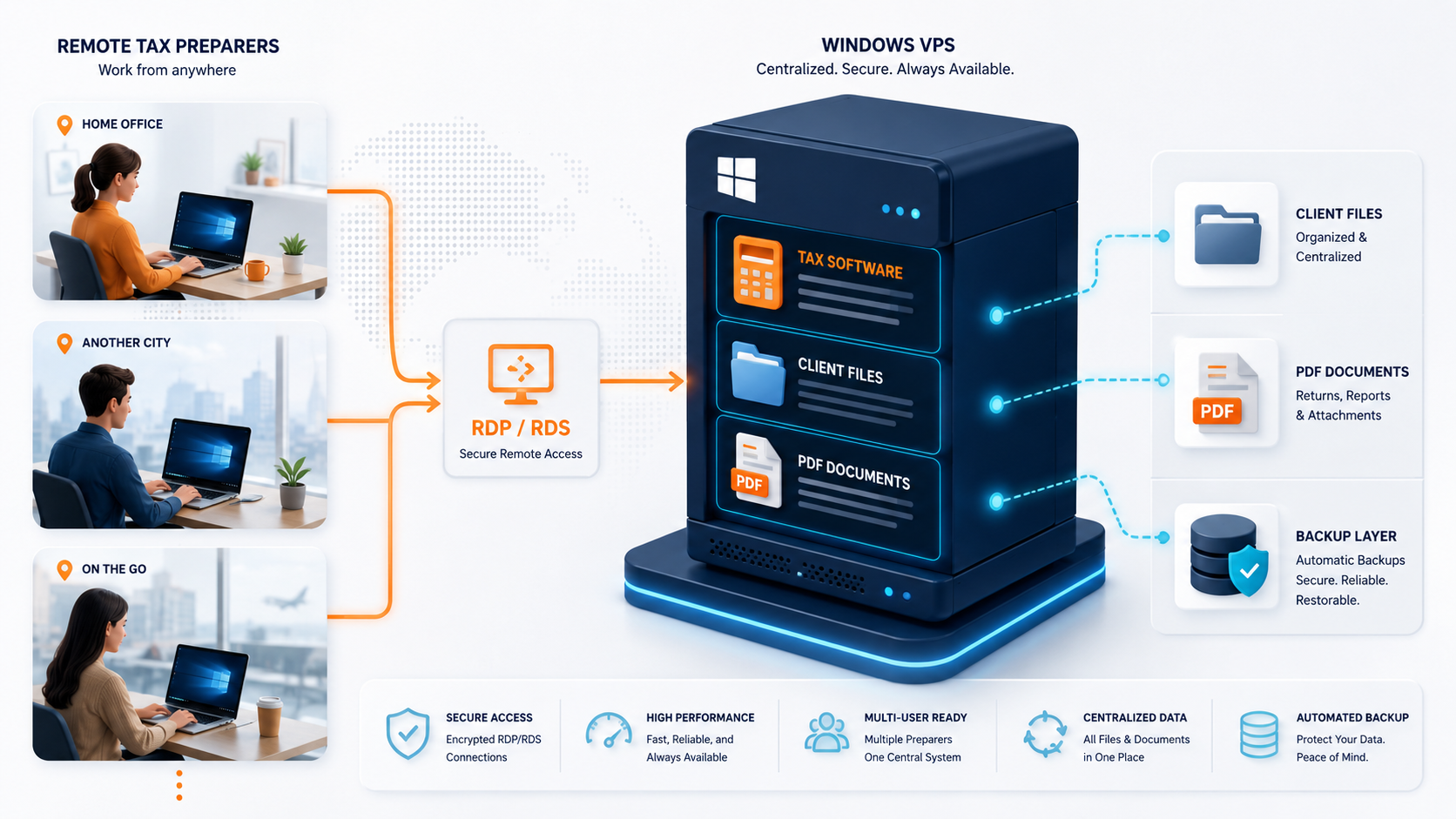
A Windows VPS can help by centralizing the Windows environment and letting users connect through Remote Desktop Protocol or Remote Desktop Services. But the goal is not to force every tax application into the cloud. The goal is to decide whether your firm’s tax workflow is a good fit for a hosted Windows Server, then size and protect it properly.
Quick verdict: when a Windows VPS fits tax software
Use this table before moving tax software to a Windows VPS.
| Tax firm situation | Windows VPS fit | Why |
|---|---|---|
| One preparer needs an always-on Windows environment | Good fit | Simple RDP access can keep software available outside one office PC. |
| 3-5 preparers need shared remote access | Good fit with RDS planning | Users can work in one centralized Windows environment. |
| Seasonal staff work from home or multiple offices | Good fit | The server is not tied to one office network. |
| Client files and PDFs need centralized storage | Good fit with backup planning | Data can stay in one controlled server environment. |
| Tax app vendor supports network/server use | Stronger fit | Vendor-supported deployment reduces migration risk. |
| Tax app requires local hardware, scanners, or USB dongles | Depends | Test hardware and licensing before production. |
| Firm needs a fully managed virtual desktop platform | Not a single VPS decision | Consider a broader desktop or RDS architecture. |
| Internet connection is unreliable for daily users | Risky | Remote desktop depends on stable connectivity. |
A Windows VPS is strongest when tax staff need remote access to a shared Windows workspace. It is weakest when the software depends on local-only devices, unsupported hosting patterns, or undocumented legacy behavior.
Don't have a Windows Server yet?
Deploy Windows Server 2019/2022/2025 in ~2 minutes. 6-month evaluation licence included.
Use Raff Windows Server VPS when your tax team needs remote access to hosted Windows software, client files, and seasonal workloads. :::
Tax software creates a seasonal infrastructure problem
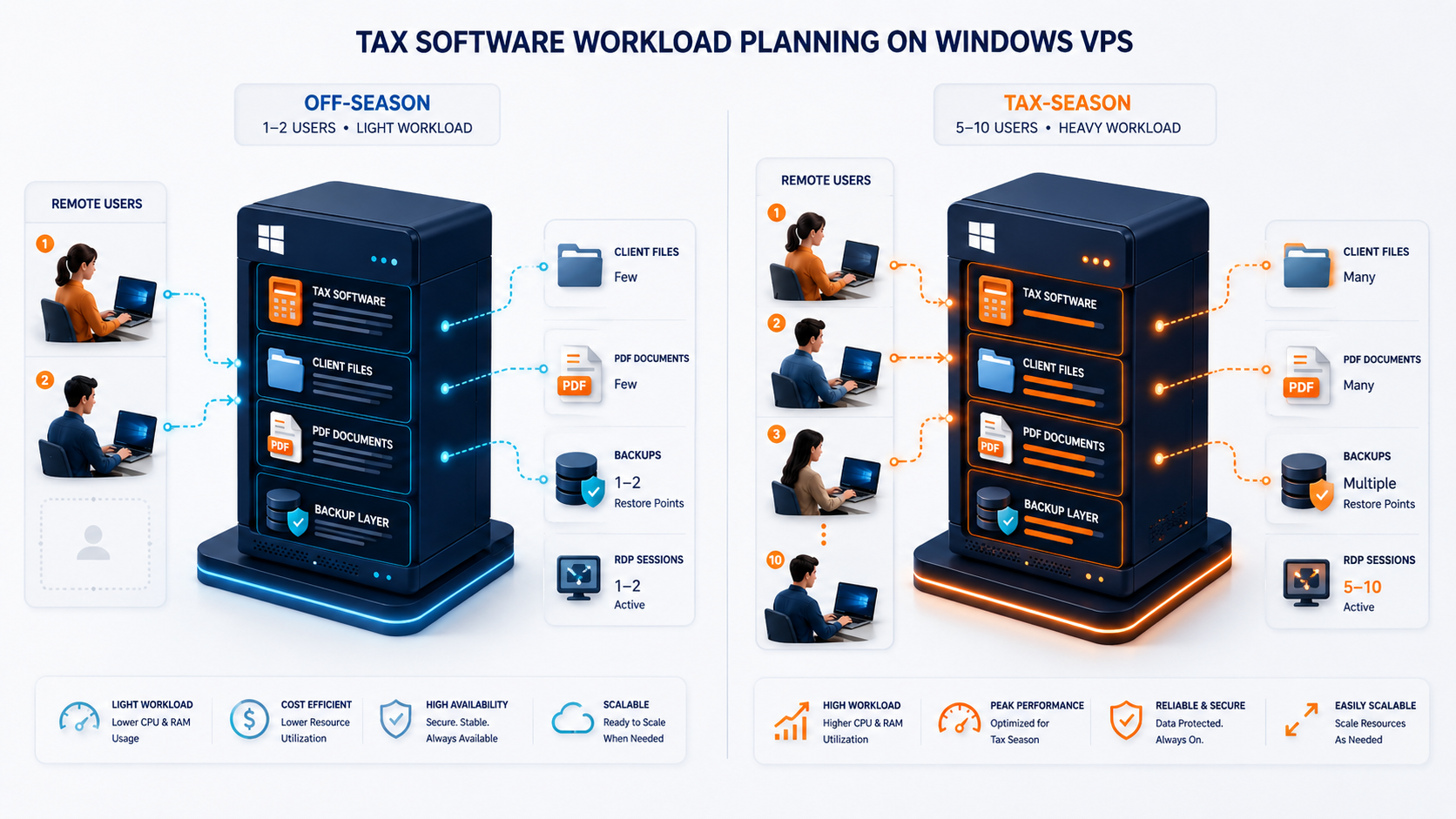
Tax workloads are intense because they are not evenly distributed across the year. A firm may have light usage in the off-season and then suddenly need more users, more file activity, more PDF handling, more scanning, and more backups during tax season.

Common tax-season pressure points:
| Pressure point | Why it matters |
|---|---|
| Seasonal staff | More users connect during peak months. |
| Longer workdays | The server is active for more hours. |
| More client documents | Storage and backup volume increase. |
| More PDF and print workflows | Local device and printer setup matters. |
| E-file deadlines | Downtime has a clear business cost. |
| Remote preparers | Access must work outside the office. |
| Client data sensitivity | Security and audit discipline matter. |
| Last-minute updates | Snapshots and backup timing matter before changes. |
This is why tax software should not be treated like a casual desktop app. If the software supports client deliverables, e-filing, review, or document storage, the Windows VPS becomes part of the firm’s production workflow.
A Windows VPS changes where the tax workload lives
A local tax setup usually depends on one office PC, one file server, or one local network. A Windows VPS moves the Windows environment into a cloud-hosted server so authorized users can connect remotely.

The operating model changes like this:
| Area | Local office setup | Windows VPS setup |
|---|---|---|
| User access | Office PC, LAN, VPN, or local server | Remote Desktop or RDS access to a cloud Windows Server |
| Hardware | Firm owns and maintains local hardware | Cloud VM replaces the local server role |
| Seasonal scaling | Harder if hardware is fixed | VM can be resized when workload grows |
| Backups | Often manual or local-only | Can combine VM backups, snapshots, and app-specific backups |
| Remote work | Depends on office network/VPN | Designed for remote access from the start |
| Security | Office firewall and PC/server controls | Windows hardening, firewall, RDP/RDS controls, backup access |
| Downtime risk | Office power or hardware can block work | Server is not tied to one office closet |
Cloud does not remove responsibility. Your firm still owns Windows updates, app updates, user access, backup validation, data handling, and software licensing. The difference is that the core tax environment no longer depends on one physical office machine.
Vendor compatibility comes before migration
Before moving any tax software to a Windows VPS, check vendor documentation and support rules. Tax products vary by version, licensing model, network behavior, data location, browser requirements, and supported operating systems.
Check these items first:
| Compatibility item | What to confirm |
|---|---|
| Supported Windows versions | Which Windows desktop/server versions the vendor supports |
| Network/server setup | Whether the software supports a dedicated server or shared data path |
| RDS/Remote Desktop use | Whether staff desktop sessions are supported |
| Licensing/activation | Whether cloud, VM, or server activation is allowed |
| Data folder location | Where client files, backups, PDFs, and configs live |
| Scanner/printer workflow | Whether remote users can still scan, print, and save documents |
| Updates | How updates are applied across users |
| Backup method | Whether the vendor has a recommended backup/export process |
| Support policy | Whether vendor support will help in a hosted Windows environment |
Drake’s current system requirements page says Drake Tax can be networked with a dedicated server or peer-to-peer network, and notes that a high-speed internet connection is required. Intuit’s Lacerte system requirements page says meeting system requirements helps keep performance reliable, safeguard data, and reduce support interruptions. Those vendor pages are the right type of source to check before designing a production Windows VPS environment.
Do not assume all tax software behaves the same. Drake, Lacerte, ProSeries, UltraTax, ATX, TaxAct Professional, and smaller tax tools can have different support rules and deployment assumptions.
Remote access should be designed, not improvised
Remote access is the main reason many firms consider a Windows VPS for tax software. But “users need remote access” is not enough detail. You need to know how they will connect and what they will do inside the server.
Use this model:
| User pattern | Access model |
|---|---|
| One owner/admin uses the server | Direct RDP with restrictions can work |
| Two admins maintain software and files | Direct RDP or stronger controlled access |
| Three or more preparers work daily in desktop sessions | RDS Session Host planning |
| Users connect from home and changing networks | RD Gateway or controlled remote access pattern |
| Users only need a web portal | Do not give full desktop access |
| MSP manages the firm environment | Standardize RDS, firewall, backup, and documentation |
Default Windows Server RDP is for administration. If tax preparers need daily desktop sessions on the Windows VPS, plan Remote Desktop Services and RDS Client Access Licenses. Microsoft states that each user or device connecting to an RD Session Host running Windows Server needs an RDS CAL.
Remote access should also be paired with security controls: named users, strong passwords, restricted access paths, audit logs, patching, backups, and restore notes stored outside the server.
Sizing depends on active preparers and workload
Do not size a Windows VPS for tax software by total firm headcount. Size it by peak concurrent users and what they do during tax season.
Use this starting guide:
| Tax workload | Starting size | When to move up |
|---|---|---|
| 1 preparer/admin | 2 vCPU / 4 GB RAM | If the app, PDFs, or browser tools feel heavy |
| 3 light users | 4 vCPU / 8 GB RAM | If users run several apps or large PDFs |
| 3 business users | 4 vCPU / 16 GB RAM | If tax software, profiles, and document workflows use memory |
| 5 active preparers | 4 vCPU / 16 GB RAM | If reporting, PDFs, or RDS sessions create lag |
| 10 active users | 8 vCPU / 32 GB RAM | If several staff work inside the server all day |
| Heavy workflow with SQL/app server pieces | 8-16 vCPU / 32-64 GB RAM | If data, reports, or app roles compete for resources |
Tax workloads often need more memory headroom than teams expect because users may keep the tax app, PDF tools, browser tabs, email, document folders, and remote desktop sessions open for long periods.
The existing Raff Windows VPS sizing guide should be linked from this page because tax buyers need the same sizing logic: active users first, workload second, then storage and backup growth.
:::cta Plan Your Windows VPS Plan users, RDP access, backups, storage, and security before moving tax software to a Windows VPS. :::
Storage planning must include client documents
Tax software storage is not only the application folder. Client documents, PDFs, scanned forms, exports, working papers, prior-year data, e-file records, reports, backups, and user profiles all add up.
Plan storage for:
| Storage area | Examples |
|---|---|
| Tax application files | Program files, updates, configs |
| Client data | Returns, workpapers, prior-year files |
| PDFs and scans | W-2s, 1099s, IDs, signed forms, statements |
| User profiles | Desktop, Documents, Downloads, AppData |
| Shared folders | Intake documents, review folders, exports |
| Backup staging | Vendor backups, zip files, local backup folders |
| Logs | Windows logs, app logs, update logs |
| Snapshots/backups | Infrastructure-level recovery points |
A tax server with 5 or 10 users can grow quickly during peak season. Do not size storage only for the app installer and last year’s database. Size it for the current season, prior-year access, PDF growth, backups, and restore space.
Backups are mandatory before tax season starts
Tax software backups should be planned before the busy period. If you wait until the first problem, you are already late.
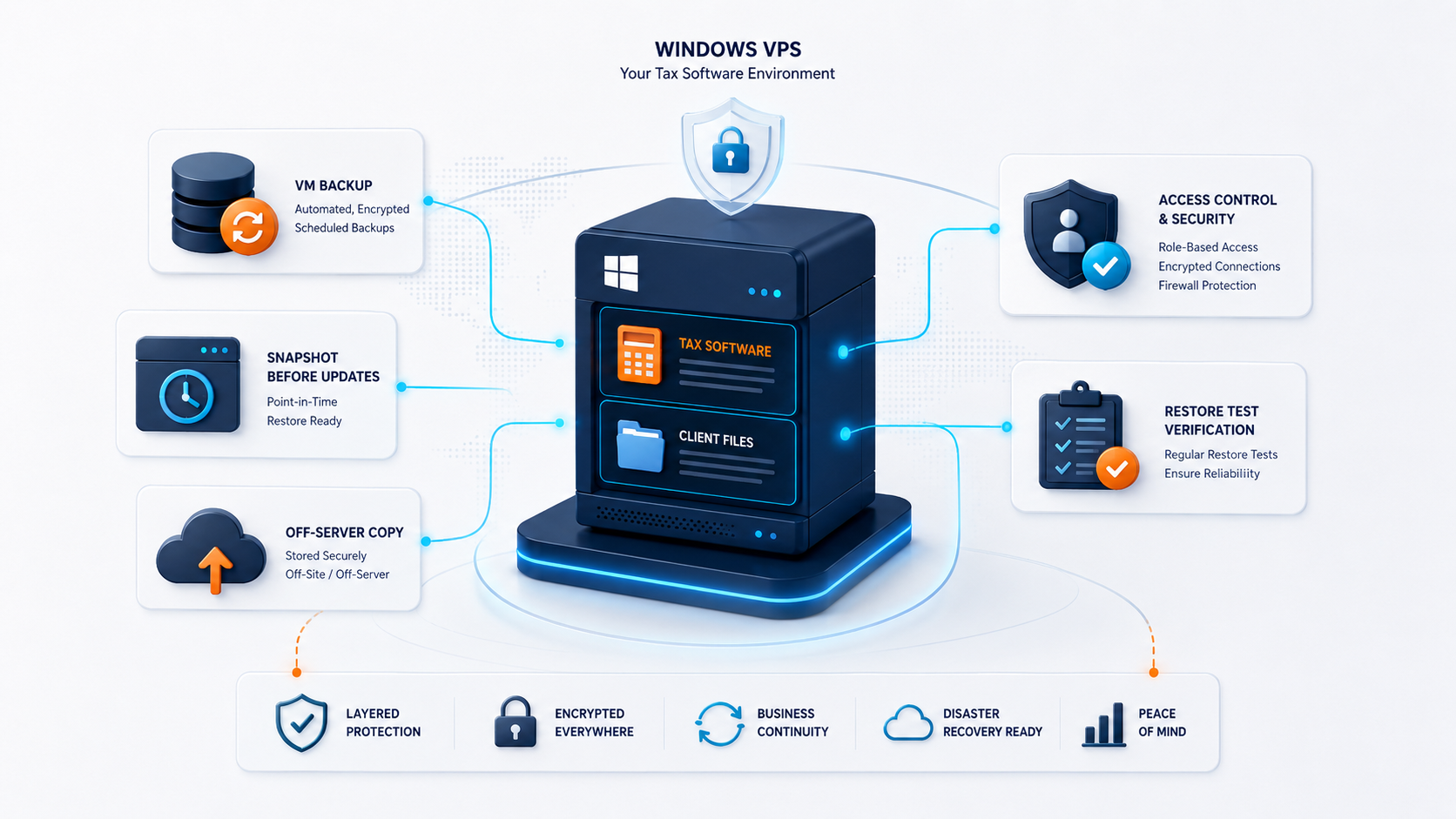
A practical backup model for tax software on a Windows VPS:
| Backup layer | Purpose |
|---|---|
| VM backup | Recover the whole Windows VPS |
| Snapshot before updates | Roll back after Windows or tax software changes |
| File-level backup | Restore client files, PDFs, exports, and shared folders |
| Vendor-supported app backup | Protect the tax software’s own data format |
| Off-server copy | Reduce risk from ransomware, account compromise, or disk failure |
| Restore test | Prove the backup works before tax season |
IRS Publication 4557 tells tax professionals to create a data security plan and points preparers toward security practices for safeguarding taxpayer data. The IRS also states that protecting client data is the law and that FTC regulations require professional tax preparers to create and enact security plans to protect client data.
For a Windows VPS, that means backup planning is also security planning. Client data should not depend on one disk, one user account, one local folder, or one untested backup job.
Security matters because tax data is sensitive
Tax software environments hold client names, addresses, Social Security numbers, income records, bank details, business returns, signatures, IDs, and other sensitive documents. A Windows VPS used for tax software should be treated as a production business system.

Security planning should include:
| Area | Minimum expectation |
|---|---|
| User accounts | Named users, no shared administrator account for daily work |
| Admin access | Separate admin accounts from preparer sessions |
| RDP exposure | Avoid broad direct RDP exposure |
| Remote access | Consider RD Gateway for multi-user access |
| Passwords | Strong password policy and credential discipline |
| Updates | Patch Windows and tax software before peak deadlines |
| Backups | Protect backup access and test restore |
| Audit logs | Review failed logins and access events |
| File permissions | Limit client folder access to approved users |
| Endpoint handling | Control downloads and local copies where practical |
The Windows VPS should make access more controlled, not less controlled. If every user gets administrator access and client data is copied to personal devices freely, the move to cloud did not solve the core risk.
Local devices and printing need testing
Tax workflows often involve scanners, printers, PDF tools, signature documents, client portals, and file uploads. Remote Desktop can support many workflows, but local device behavior should be tested before production.
Test:
| Workflow | What to verify |
|---|---|
| Printing | Local and office printers work from the remote session |
| PDF creation | Tax returns and forms export correctly |
| Scanning | Scanner workflow works or has a cloud/document workaround |
| File upload/download | Client documents move through the approved path |
| Email/export | Attachments and export folders are controlled |
| Signatures | E-sign or manual signature workflow is clear |
| Browser portals | IRS/state/vendor portals work in the server environment |
| Multi-monitor use | Preparers can work efficiently in RDP sessions |
Do not wait until a deadline day to discover that a scanner, printer, or PDF driver behaves differently in a Remote Desktop session.
Updates should be scheduled around deadlines
Tax software and Windows updates can create downtime if they are applied without planning. During tax season, update windows should be deliberate.
Use this pattern:
| Update type | Recommended approach |
|---|---|
| Windows updates | Schedule outside working hours and snapshot first |
| Tax software updates | Follow vendor guidance and test after update |
| PDF/printer tools | Update during low-activity windows |
| Browser updates | Test portals and e-file workflows after update |
| Security updates | Prioritize, but communicate restart windows |
| Major app upgrades | Test on a non-production copy first |
Snapshots are useful before risky changes, but they do not replace backups. Take a snapshot before Windows updates or tax app updates, then confirm the application opens, users can log in, PDFs work, and recent data is still accessible.
Windows VPS vs local tax office server
A local office server can work well for a tax firm if everyone is on-site and the office has a real backup and maintenance process. A Windows VPS becomes more attractive when remote work, seasonal staff, aging hardware, and centralized access matter more.
| Decision area | Local office server | Windows VPS |
|---|---|---|
| Remote users | Requires VPN, gateway, or office exposure | Designed for remote access |
| Hardware | Firm owns and replaces it | Cloud VM replaces office server hardware |
| Seasonal scaling | Limited by local server capacity | Resize VM when needed |
| Backups | Must be designed and stored off-site | Can combine VM backups, snapshots, and off-server copies |
| Office outage | Can block access | Users can connect from other locations |
| Security | Office firewall and server controls | Cloud firewall, Windows hardening, access policy |
| Support | Local IT or MSP handles hardware and software | IT/MSP handles Windows/app layer, less hardware work |
The right answer depends on the firm. A fully on-site firm with reliable hardware may stay local. A remote or hybrid firm with seasonal staff usually benefits from a more deliberate cloud Windows Server setup.
When a Windows VPS is not the right fit
Do not move tax software to a Windows VPS just because it sounds modern. Pause when the workload has unresolved compatibility or operational issues.
A Windows VPS may not be the right fit when:
| Situation | Better next step |
|---|---|
| Vendor does not support hosted/RDS use | Ask vendor for supported deployment options |
| App requires local USB dongle | Check whether licensing can work in a VM |
| Scanner workflow is local-only | Test document workflow before migration |
| Internet connection is unreliable | Fix connectivity before relying on RDP |
| Firm needs fully managed desktops | Consider a managed desktop/RDS provider |
| No one owns security | Assign responsibility before production |
| No restore test exists | Build backup plan first |
| Compliance requirements are unclear | Review with qualified advisor |
A Windows VPS gives you the environment. It does not automatically solve vendor support, licensing, workflow, security, or compliance questions.
Migration plan before tax season
Do not migrate tax software during peak pressure unless the current setup is failing and there is no alternative. Plan ahead.
A practical sequence:
- Inventory the tax software, versions, data folders, users, and dependencies.
- Confirm vendor support for server, network, RDS, or hosted use.
- Identify peak concurrent users during tax season.
- Choose an initial Windows VPS size.
- Build a test Windows VPS.
- Install the tax software and required tools.
- Copy non-production data first.
- Test login, return preparation, PDF export, printing, scanning, and e-file workflows.
- Configure backups, snapshots, and off-server copies.
- Test restore before production.
- Plan user access through RDP/RDS/RD Gateway.
- Schedule production cutover outside critical deadlines.
- Keep rollback access to the old environment until verified.
- Document support and restore steps.
The goal is not just to move the software. The goal is to make the tax workflow more reliable than it was before.
How Raff fits tax software hosting
Raff fits this use case when a tax firm wants a Windows Server VPS for remote access, hosted Windows software, seasonal users, centralized files, and a cleaner alternative to one office server.
Raff Windows VMs provide Windows Server options, administrator access, RDP, NVMe storage, backups, snapshots, firewall controls, and clear plan comparison through the pricing page. For tax software buyers, the important part is not only the server. It is the combination of access, sizing, backup planning, and security.
Raff is not a tax software vendor and does not replace vendor licensing or support. Firms should confirm whether their specific tax software supports the planned server, network, or RDS model before production. Raff provides the Windows VM environment; the workload still needs compatibility checks, user planning, backup validation, and access control.
:::cta Deploy a Windows VM Run your Windows workload on Raff Windows VM with remote access, NVMe storage, backups, snapshots, and simple monthly pricing. :::
Recommended path by firm type
| Firm type | Recommendation |
|---|---|
| Solo tax preparer | Start with a small Windows VPS if you need an always-on remote Windows environment. |
| 3-person tax office | Plan RDP/RDS access, backups, and storage before moving client data. |
| 5-user seasonal team | Use RDS planning, test printing/scanning, and size for peak season. |
| 10-user firm | Start with stronger CPU/RAM and document backup/restore ownership. |
| MSP-managed tax client | Standardize access, update windows, backups, and restore documentation. |
| Multi-location firm | Use a centralized Windows VPS model instead of exposing one office server. |
| Vendor-hosted tax platform user | A Windows VPS may not be needed unless other Windows apps/files require it. |
| Hardware-dependent workflow | Test scanners, printers, dongles, and local integrations before migration. |
The safest first step is a test Windows VPS with non-production data. Let real preparers test the workflow before the first production deadline.
What's next
- Read Windows VPS sizing for remote users before choosing CPU, RAM, storage, and user capacity.
- Read Windows VPS Backup Strategy for Small Businesses before moving client tax data.
- Read Remote Desktop Gateway vs Direct RDP before giving staff remote access.
- Read Windows VPS for Microsoft Access and Legacy Apps if your firm also uses custom Access databases or older Windows tools.
- Read Cloud Windows Server vs Local Office Server if you are replacing office hardware.
- Read Windows VPS for Business Software if you host several SMB apps on one server.
- Review Raff Windows VM and pricing when planning the production server.
Sources
- IRS — Publication 4557: Safeguarding Taxpayer Data
- IRS — Protect Your Clients; Protect Yourself
- Microsoft Learn — License Remote Desktop Services with Client Access Licenses
- Microsoft Learn — Remote Desktop Services overview in Windows Server
- Drake Software — Drake Tax System Requirements
- Drake Software — Network Setup
- Intuit Accountants — Lacerte system requirements
- Raff — Windows VPS sizing for remote users
- Raff — Windows VPS Backup Strategy for Small Businesses
- Raff — Remote Desktop Gateway vs Direct RDP
- Raff — Windows VM product page
- Raff — Pricing
Related articles
Windows VPS for Microsoft Access and Legacy Apps
Learn when a Windows VPS makes sense for Microsoft Access databases and legacy Windows apps, including RDP, RDS, backups, sizing, and risks.
Windows VPS for Business Software: What SMBs Should Know
Learn when a Windows VPS fits business software, accounting tools, SQL Server, IIS apps, RDP access, backups, security, and SMB operations.
Host Sage 50, 100, and 300 on a Windows VPS
Set up Sage 50, Sage 100, or Sage 300 on a Windows VPS for remote accounting teams. Covers sizing, RDS access, backups, and common pitfalls.